
How to Connect Amazon Seller Central to Acumatica
Link Amazon to your ERP so orders, inventory, fulfillment, and refunds sync automatically — across both FBM and FBA.
Why Amazon is hard on your back office
Selling on Amazon is great for reach, but it’s tough on your back office. Orders pour in, and someone has to move every one of them into Acumatica. Some you ship yourself, and some Amazon ships for you out of its own warehouses, and those two paths work completely differently. Do all of that by hand and it’s slow, easy to get wrong, and almost impossible to keep your stock numbers straight.
The Amazon Connector of Biz-Tech Services, Inc. takes that work off your plate. It links Amazon Seller Central to Acumatica so orders, inventory, fulfillment, and refunds flow between them automatically, for both fulfillment models. Let’s walk through how you connect them.
How the connection works
One thing worth knowing up front: the connector talks to Amazon through a secure intermediate server that Biz-Tech Services, Inc. runs. Acumatica connects to that server, and the server handles the conversation with Amazon integration. You don’t have to manage any of that plumbing yourself. You just set up the connection once.
Step one: authorize Biz-Tech in Seller Central
Setup begins in Amazon Seller Central, where you give Biz-Tech permission to connect. In your Seller Central settings you authorize a new developer, enter Biz-Tech’s developer name and ID number, and accept the agreement. Amazon then generates your credentials: a Seller ID, a Marketplace ID, and an authorization token.
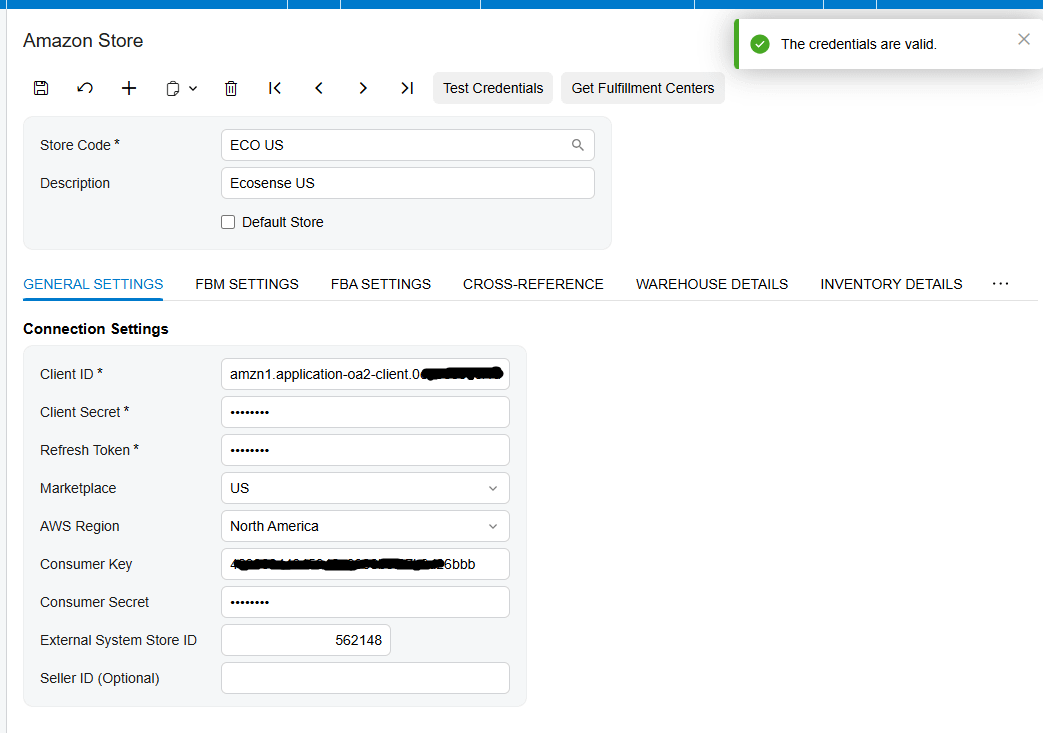
You take those credentials into the Amazon Store screen in Acumatica, along with your marketplace and region, and test the connection. Once it succeeds, your store is linked, and you can set your defaults, like the order type and the warehouse new orders should use.

Two ways to sell: FBM and FBA
Amazon selling comes in two flavors, and the connector handles both. FBM, or Fulfillment by Merchant, means you store and ship the orders yourself. FBA, or Fulfillment by Amazon, means Amazon holds your inventory in its centers and ships on your behalf. Each one has its own setup, so let’s take them in turn. For FBM process confirmations, you ca nuse the Export FBM PO Acknowledgement process.

Bringing in your own shipped orders
For merchant-fulfilled orders, the connector pulls your Amazon orders in and creates them as sales orders or invoices in Acumatica. It can create the customer on the fly if they don’t exist yet, bring in the tax and payment details, and assign a default warehouse. The key to clean orders is SKU mapping. Through the Inventory Details tab, each Amazon SKU is matched to an Acumatica inventory item, and you can pull products in by their SKU or their ASIN, so every order line lands on the right product.

Confirming and fulfilling
From there, fulfillment follows a clear path. You send Amazon a purchase order acknowledgement to confirm you’ve received the order, then you create the shipment, add the tracking number, and confirm it. When you prepare the invoice, the connector reports that fulfillment back to Amazon automatically, so the order is marked shipped on Amazon’s side without you ever logging in.
Letting Amazon do the shipping
Fulfillment by Amazon integration works differently, because the goods move into Amazon’s centers. Here the connector imports your FBA orders as invoices, and it imports the shipments you send to Amazon as transfer orders, mapping each Amazon fulfillment center to the Acumatica warehouse the stock ships from. As deliveries are confirmed, they come in as receipts at the destination warehouse, so your inventory reflects where everything actually is. It even checks received quantities against shipped quantities and flags any mismatch, so discrepancies get caught instead of quietly throwing your counts off.
Keeping inventory honest
In both models, your stock levels stay aligned. From the inventory screen, the connector sends your Acumatica quantities up to Amazon, using the combined total across the warehouses you choose, and whichever measure you prefer, like on hand or available. That’s what keeps you from overselling something you no longer have.


Handling refunds
Refunds are handled end to end. You import refunded orders from Amazon, and the connector does the right thing based on how far the order has progressed, whether that’s creating a customer refund payment, removing a shipment that wasn’t confirmed yet, or issuing a credit memo if the order was already invoiced. Each refund uses an adjustment reason, so your records stay clean and easy to audit.
One clear picture
And to keep an eye on all of it, there’s a single view that shows your merchant-fulfilled and Amazon-fulfilled orders side by side, plus a warehouse quantities screen for tracking what’s where. So even across two fulfillment models, you always have one clear picture of your Amazon business.
The bottom line
Once it’s connected, Amazon Seller Central and Acumatica work as one. Orders flow in, fulfillment flows back, inventory stays honest across both models, and refunds take care of themselves. Your team stops re-keying Amazon orders and gets back to selling.
If you’d like help connecting your own Seller Central account, the team at Biz-Tech Services does exactly this. Visit biz-techservices.com to book a walkthrough and see your Amazon orders flow straight into Acumatica.
How to Connect Amazon Seller Central to Acumatica
Link Amazon to your ERP so orders, inventory, fulfillment, and refunds sync automatically — across both FBM and FBA.
Why Amazon is hard on your back office
Selling on Amazon is great for reach, but it’s tough on your back office. Orders pour in, and someone has to move every one of them into Acumatica. Some you ship yourself, and some Amazon ships for you out of its own warehouses, and those two paths work completely differently. Do all of that by hand and it’s slow, easy to get wrong, and almost impossible to keep your stock numbers straight.
The Amazon Connector of Biz-Tech Services, Inc. takes that work off your plate. It links Amazon Seller Central to Acumatica so orders, inventory, fulfillment, and refunds flow between them automatically, for both fulfillment models. Let’s walk through how you connect them.
How the connection works
One thing worth knowing up front: the connector talks to Amazon through a secure intermediate server that Biz-Tech Services, Inc. runs. Acumatica connects to that server, and the server handles the conversation with Amazon integration. You don’t have to manage any of that plumbing yourself. You just set up the connection once.

Step one: authorize Biz-Tech in Seller Central
Setup begins in Amazon Seller Central, where you give Biz-Tech permission to connect. In your Seller Central settings you authorize a new developer, enter Biz-Tech’s developer name and ID number, and accept the agreement. Amazon then generates your credentials: a Seller ID, a Marketplace ID, and an authorization token.
You take those credentials into the Amazon Store screen in Acumatica, along with your marketplace and region, and test the connection. Once it succeeds, your store is linked, and you can set your defaults, like the order type and the warehouse new orders should use.

Two ways to sell: FBM and FBA
Amazon selling comes in two flavors, and the connector handles both. FBM, or Fulfillment by Merchant, means you store and ship the orders yourself. FBA, or Fulfillment by Amazon, means Amazon holds your inventory in its centers and ships on your behalf. Each one has its own setup, so let’s take them in turn. For FBM process confirmations, you ca nuse the Export FBM PO Acknowledgement process.

Bringing in your own shipped orders
For merchant-fulfilled orders, the connector pulls your Amazon orders in and creates them as sales orders or invoices in Acumatica. It can create the customer on the fly if they don’t exist yet, bring in the tax and payment details, and assign a default warehouse. The key to clean orders is SKU mapping. Through the Inventory Details tab, each Amazon SKU is matched to an Acumatica inventory item, and you can pull products in by their SKU or their ASIN, so every order line lands on the right product.

Confirming and fulfilling
From there, fulfillment follows a clear path. You send Amazon a purchase order acknowledgement to confirm you’ve received the order, then you create the shipment, add the tracking number, and confirm it. When you prepare the invoice, the connector reports that fulfillment back to Amazon automatically, so the order is marked shipped on Amazon’s side without you ever logging in.
Letting Amazon do the shipping
Fulfillment by Amazon integration works differently, because the goods move into Amazon’s centers. Here the connector imports your FBA orders as invoices, and it imports the shipments you send to Amazon as transfer orders, mapping each Amazon fulfillment center to the Acumatica warehouse the stock ships from. As deliveries are confirmed, they come in as receipts at the destination warehouse, so your inventory reflects where everything actually is. It even checks received quantities against shipped quantities and flags any mismatch, so discrepancies get caught instead of quietly throwing your counts off.
Keeping inventory honest
In both models, your stock levels stay aligned. From the inventory screen, the connector sends your Acumatica quantities up to Amazon, using the combined total across the warehouses you choose, and whichever measure you prefer, like on hand or available. That’s what keeps you from overselling something you no longer have.


Handling refunds
Refunds are handled end to end. You import refunded orders from Amazon, and the connector does the right thing based on how far the order has progressed, whether that’s creating a customer refund payment, removing a shipment that wasn’t confirmed yet, or issuing a credit memo if the order was already invoiced. Each refund uses an adjustment reason, so your records stay clean and easy to audit.
One clear picture
And to keep an eye on all of it, there’s a single view that shows your merchant-fulfilled and Amazon-fulfilled orders side by side, plus a warehouse quantities screen for tracking what’s where. So even across two fulfillment models, you always have one clear picture of your Amazon business.
The bottom line
Once it’s connected, Amazon Seller Central and Acumatica work as one. Orders flow in, fulfillment flows back, inventory stays honest across both models, and refunds take care of themselves. Your team stops re-keying Amazon orders and gets back to selling.
If you’d like help connecting your own Seller Central account, the team at Biz-Tech Services does exactly this. Visit biz-techservices.com to book a walkthrough and see your Amazon orders flow straight into Acumatica.