
How to Set Up ServiceTitan in Acumatica
Managing a field service business is a constant balancing act. You have your team out in the field using ServiceTitan to deliver great customer service, and your back-office team working in your Enterprise Resource Planning system, or ERP, which is Acumatica. The real-world problem many businesses face is the data gap between these two worlds. When your systems don’t talk to each other, you’re stuck with manual data entry, missed invoices, and inventory numbers that never quite match up.
At Biz-Tech Services, we know your time is better spent growing your business than double-checking spreadsheets. That’s why we built a seamless integration. In this guide, we’ll walk you through the initial setup and connection, to get your ServiceTitan data flowing into Acumatica correctly.
The foundation: the ServiceTitan Store
The most important thing to understand is that the entire integrator rests on one foundation: the ServiceTitan Store setup. Before you can import a single invoice or sync a vendor, you have to configure the Store in Acumatica. If this isn’t set up correctly, the system simply can’t work.
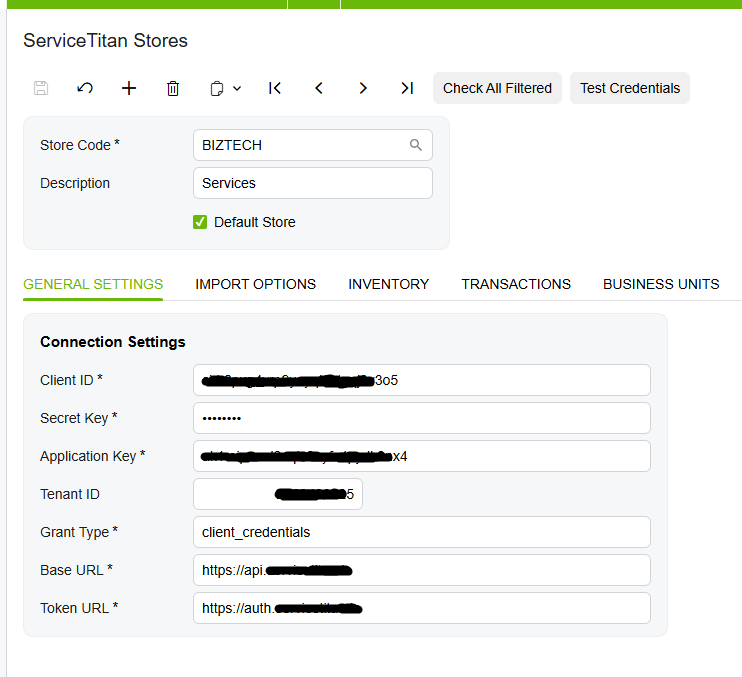
The Store setup is the brain of the integration. It controls everything, from how customers are created to how your warehouses and branches are mapped. To get started, you use the Connection Settings tab to enter your API credentials, and then the Test Credentials feature to confirm Acumatica is successfully talking to ServiceTitan. Once the connection is live, you assign a store code and a description so you can easily identify it.
Mapping your financials and business units
Once the connection is established, you make sure the money lands in the right place. That starts with mapping your General Ledger accounts, often shortened to GL. You tell the system exactly which GL accounts in Acumatica should correspond to your activities in ServiceTitan.
Next comes your organizational structure. Your business likely uses different business units in ServiceTitan to track different types of work, and you map those business unit IDs directly to your Acumatica branches. This makes sure every transaction is attributed to the correct part of your company. You also map your terms, which tells Acumatica how to handle payment timing and due dates based on your ServiceTitan settings.
Managing customers and vendors
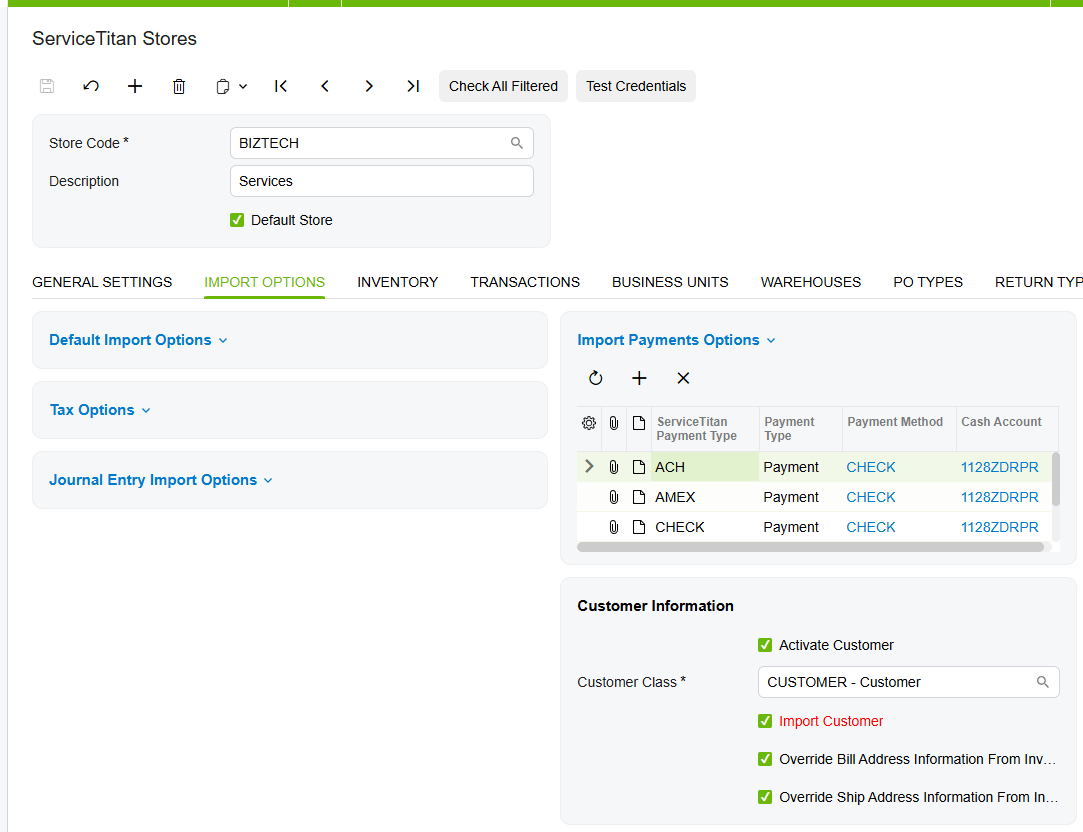
A big benefit of this integration is that you don’t have to create the same customer twice. In the Store settings, you turn on the Import Customer option, and the system automatically creates a new customer in Acumatica if one doesn’t already exist. You can even set it to override the billing and shipping addresses, so the most current information from the ServiceTitan invoice is what stays in your ERP.
The same logic applies to the people you buy from. By turning on the Import Vendor option, the system can generate your ServiceTitan vendors inside Acumatica. You can let it create them automatically, or manually map your existing ServiceTitan vendors to your current Acumatica vendor list.
Inventory, warehouses, and trucks
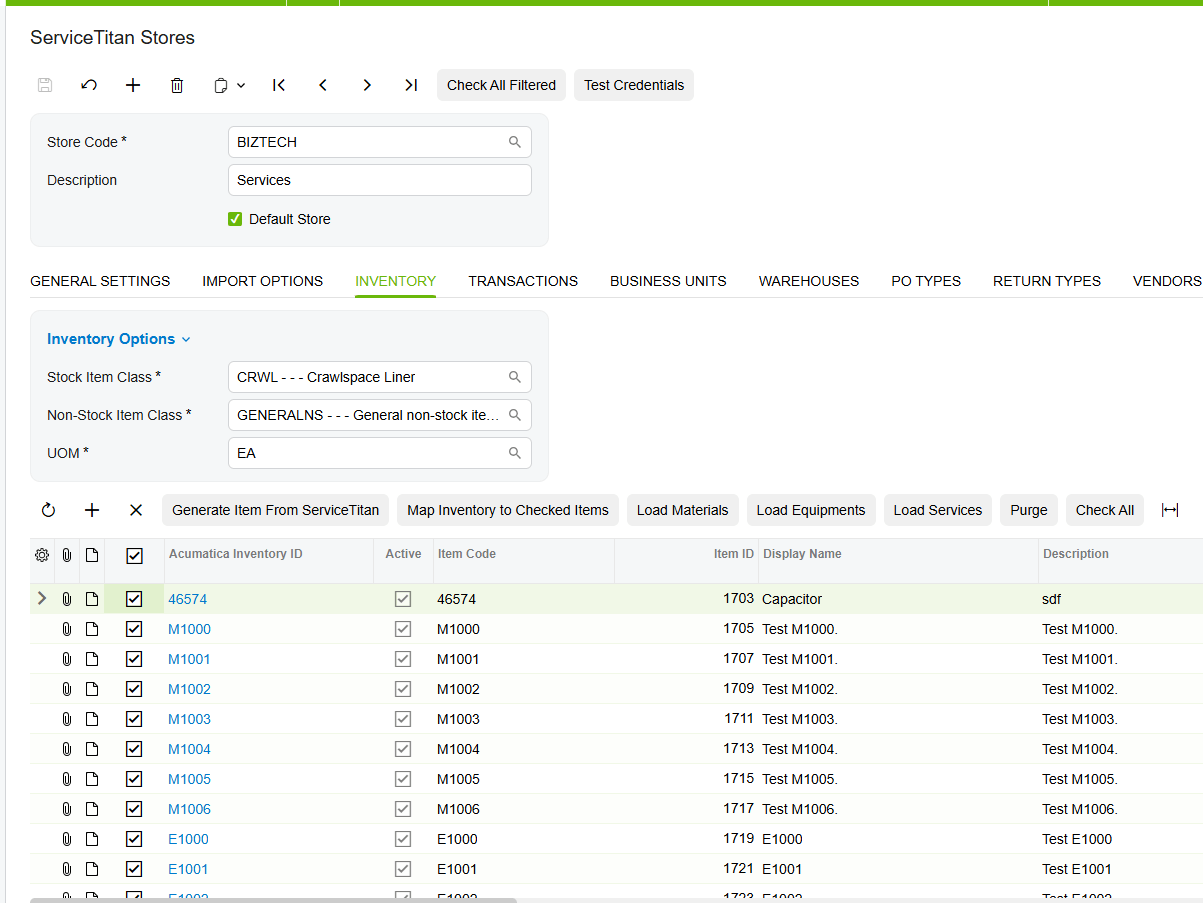
For field service companies, inventory is often the hardest thing to track, and the integrator simplifies it by mapping your pricebook items. When you turn on the Import Item option, the system can generate stock and non-stock items in Acumatica automatically. As a rule, your materials and equipment from ServiceTitan become stock items, while your services are created as non-stock items.
But where is that inventory located? You handle that through warehouse mapping. You take your ServiceTitan warehouse and truck IDs and map them to specific Acumatica warehouses. That way, when a technician pulls a part off a truck, the integrator knows exactly which warehouse inventory to adjust in your financial records.
The workflow: invoices, payments, and purchase orders
With the foundation built, you can look at the actual flow of work. When you turn on the invoice and payment options, you gain a lot of control. You can import invoices with specific statuses, or filter them by date. And if you activate payment, the system imports the payment information along with the invoice. In many cases, when an invoice and its payment are both ready in ServiceTitan, they come in together, and the payment is automatically applied to the right invoice in Acumatica.
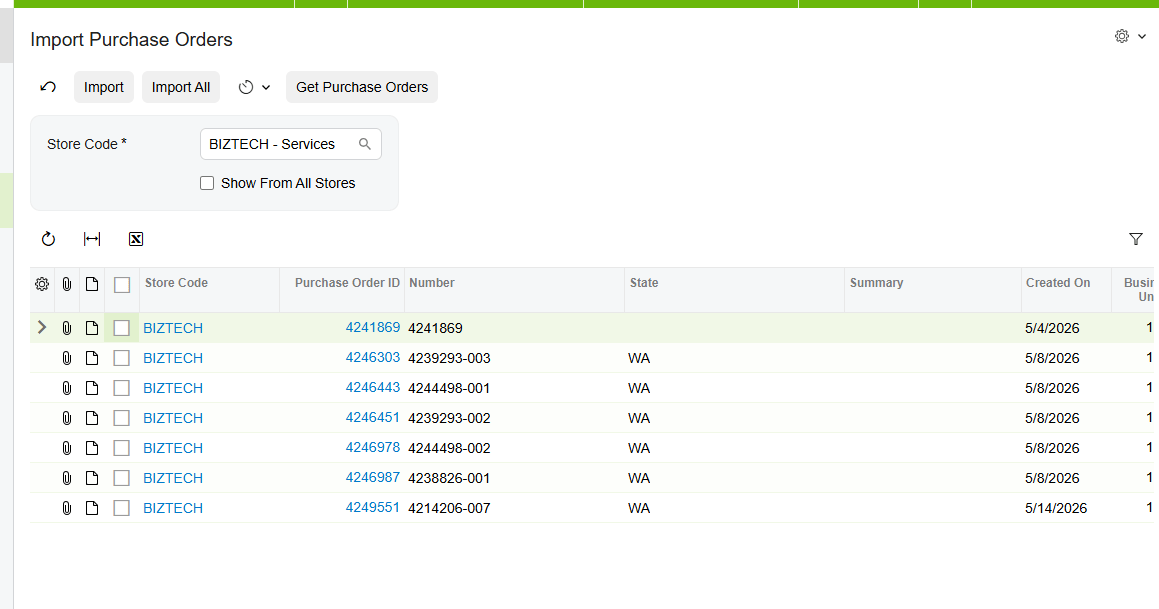
There’s one important rule to remember about purchase orders, or POs. In this ServiceTitan connector, you can’t import a receipt or a bill unless the related purchase order has already been imported into Acumatica. The system is built to keep a clean paper trail. When you import the PO first, it can then attach any later receipts or bills to that specific order, so your PO history is always accurate.
Finally, for businesses that prefer a different accounting method, there’s a journal entry option. If you choose not to activate the full invoice import, you can instead bring your ServiceTitan data in as journal entries, posted directly into the General Ledger.
The bottom line
The most important thing to remember is that the ServiceTitan Store setup is the foundation of the entire ServiceTitan integrator. Get the mapping right here, and your data flows seamlessly from the field into your books.
Setting this up correctly the first time saves hundreds of hours of manual correction later. If you’re ready to stop chasing data and start growing your business, we’re here to help. Visit biz-techservices.com to schedule a demo and see this ServiceTitan connector in action.