
How to Map Kit Components to Finished Kit Items in Acumatica
Mapping kit components to finished kit items in Acumatica starts with a kit specification, its current revision, and the component rows assigned to that revision. The Biz-Tech Services Kit Processing product for Acumatica lets a user expose those component rows during sales order processing, while the kit item remains the item being sold or assembled.
For a mapping project, the important distinction is between what the Kit Processing documentation names and what it does not name. It documents Inventory ID, Kit Inventory ID, stock and non-stock components, option categories, option codes, substitute items, kit revisions, and a placeholder item. It does not document a separate SKU-alias table, cross-reference maintenance process, item-class mapping rule, or automated unmatched-record queue. Those requirements should be defined outside this product documentation before an import or integration is approved.
What Kit Component Mapping Means in Acumatica
A finished kit is identified by the Kit Inventory ID on the Kit Specifications screen. The kit must already be marked as a kit on Stock Items IN202500 or Non-Stock Items IN202000. The Kit Assembly feature must be enabled on Enable Disable Features CS100000 for the Kit Specifications form to be available. Within a kit specification, the selected revision supplies the component definition used by the product.
This is a component-to-kit relationship, not a general product-master translation service. A stock component and a non-stock component can be added to a kit specification. A nested kit can also be used as a component or option, with the main kit treated as the Parent Kit and the included kit treated as the Child Kit. That documented structure is the reliable basis for deciding which component belongs to which finished kit.
Kit Component Mapping in Acumatica at a Glance
Use this sequence to establish and validate the documented mapping before a kit is used on a sales order, purchase order, or kit assembly.
1 Confirm that the intended finished item is a stock or non-stock item marked as a kit.
2 Open Kit Specifications and select the Kit Inventory ID and the correct revision.
3 Make the intended revision current and active before expecting the kit to explode on a sales order.
4 Add stock and non-stock component items to the kit specification, or define option components where the kit has options.
5 If a component can be replaced, enable component substitution and assign the allowed substitute item or items.
6 If the kit uses a placeholder after explosion, confirm that the placeholder is a non-stock item and that its unit of measure matches the kit item.
7 Test the kit in Component Details before explosion, then use Load Components or enter a quantity to verify the resulting lines.
8 Treat any external SKU alias, cross-reference, item-class rule, or unmatched-record handling as a separate control because the documentation does not describe it.
Start With the Finished Kit Item and Revision in Acumatica
The Kit Inventory ID anchors the mapping. The documentation says that this ID is the inventory ID assigned to the kit on Stock Items IN202500 or Non-Stock Items IN202000. The Non-Stock indicator is read only on the Kit Specifications form, and Revision ID uniquely identifies the kit specification revision.
A revision must be current for the kit item to explode on the sales order. Changing the Current Revision setting can uncheck the prior current revision after the user saves the change. This makes revision selection a validation step, not merely a description field. A component relationship can be correctly entered on an older revision yet still not be the relationship used by an order.
The source documents Active separately from Current Revision. Keep both states in the review process: use the relevant active specification and confirm that the revision intended for order processing is current. The documentation does not define an item-class rule that selects a kit or revision, so do not assume an item class will perform that mapping.
Map Stock and Non Stock Components to the Kit in Acumatica
The kit specification holds the documented component mapping. Stock and non-stock items can be associated with a kit, and option codes can also contain stock items, non-stock items, and kit items. In the Kit Pricing Summary, the component display loads stock components first and then non-stock components, which is useful when checking the composition of a selected kit.
When a kit is added to a sales order, Component Details provides the operational view of its mapped components. Before explosion, a user can add or delete components, exchange a component for a substitute item, and change options. The source also states that when component addition is not enabled, users cannot add new components but can delete existing ones before explosion. After explosion, Component Details is limited to changing Quantity and Warehouse; further component additions or deletions are handled from the Document Details tab with the available controls.
This behavior helps distinguish the finished-kit mapping from the order-level result. The kit definition supplies the initial components; the sales order can show or adjust permitted component details before and after explosion. The documentation does not describe a line-level field that maps an external SKU to an Acumatica component. If an outside record must identify a component, that field mapping needs its own design and test evidence.
Use Acumatica Options and Substitutions as Controlled Mapping Variations
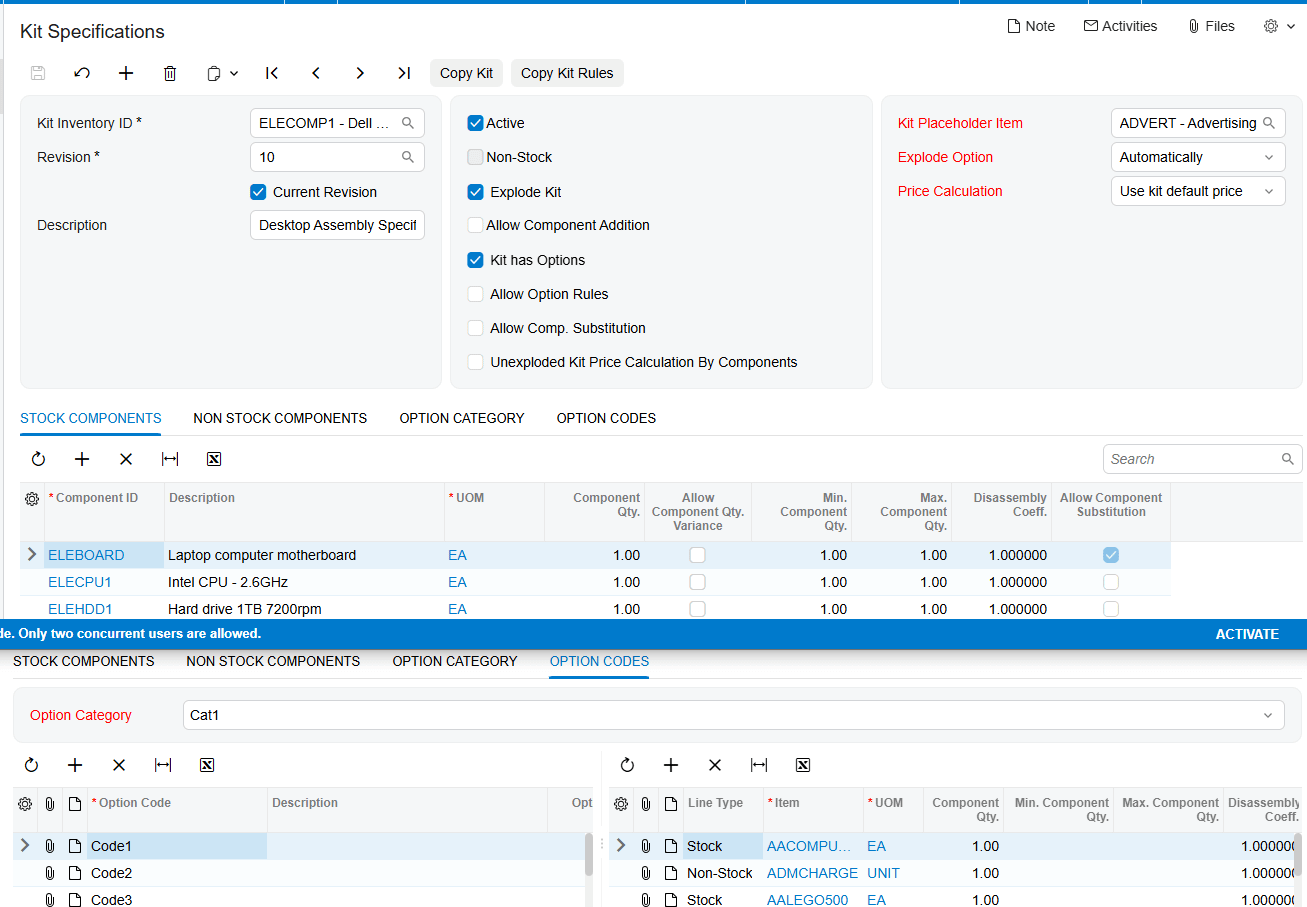
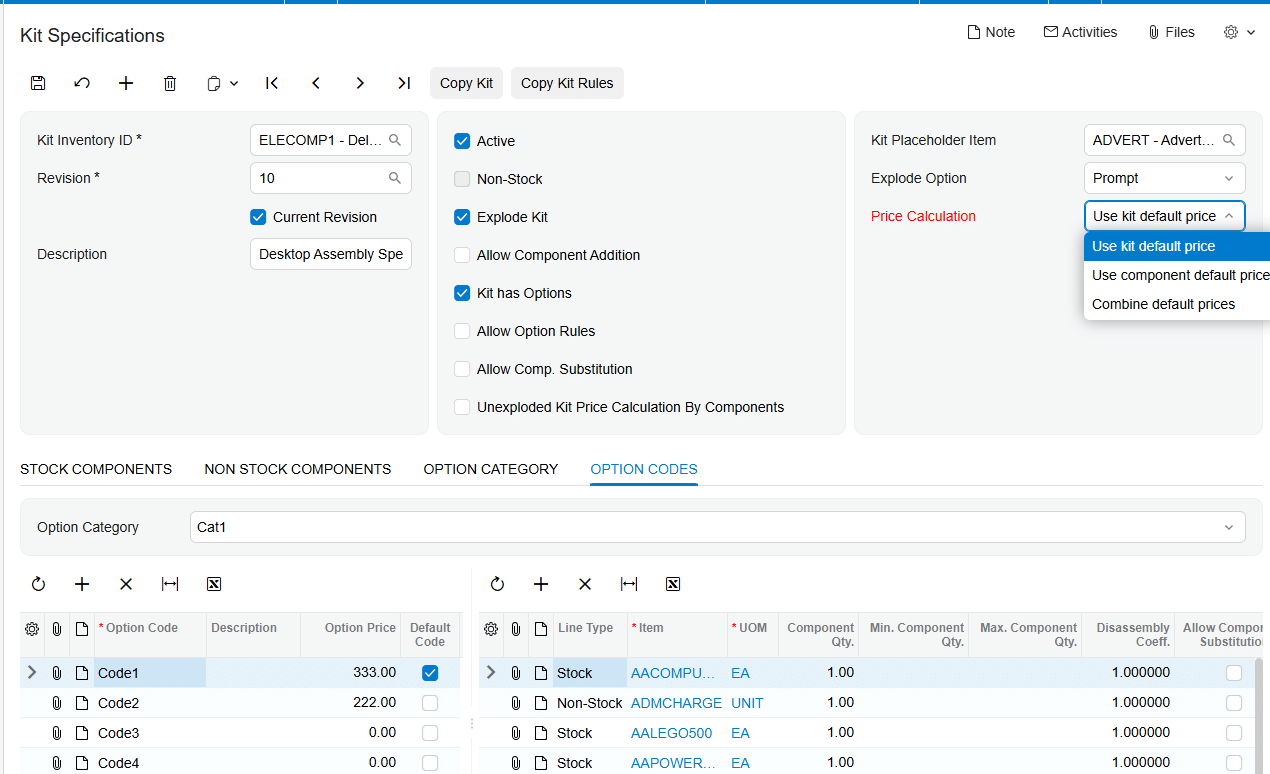
Options are the documented way to vary a kit configuration. With Kit has options enabled, Option Category and Option Codes tabs appear. An option code is assigned to an option category, given an option price, and associated with stock, non-stock, or kit items. A Required option code must be selected in the Options popup before the kit order can proceed.
Default Code provides a documented fallback for cases in which a user cannot select options, including API, import scenarios, processing screens, Opportunities, and Sales Quotes. It is a default option selection, not a documented alias or SKU cross-reference mechanism. Option Rules can exclude a target option code when a specified source category and source code are selected. Review these rules as part of mapping validation because they can make a component option unavailable to the user.
Component substitution is another controlled variation. Enable Allow Component Substitution, mark the component on the Stock Components tab, and assign replacement items on the Substitution tab. The Biz-Tech Services Kit Processing product for Acumatica therefore documents substitutions as explicit item choices linked to a component. It does not state that substitutions are selected through item classes, aliases, or an automatic cross-reference lookup.
Handle Acumatica Placeholder and Explosion Settings Before Testing Lines
When Explode Kit is selected, the product enables Kit Placeholder Item, Explode Option, and Price Calculation. The placeholder is a non-stock item that replaces the kit item on the sales order after explosion while the component items are added to the order. Its purpose is to prevent double counting of item costs while functioning like the kit item in the order.
The placeholder unit of measure must match the kit item unit of measure. A mismatch produces a warning error message. Explosion may be Prompt, Automatically, or Do Not Explode. A customer or vendor setting named Block Kit Items Explosion, as well as the Biz-Tech Kit Processing Settings section on Order Types, can prevent explosion regardless of the selected explode option.
For a non-stock kit with a stock option item, the documentation requires Automatically as the explode option so the stock option is allocated during shipment. For a nested non-stock kit used as a component or option, both the Parent Kit and Child Kit must use Automatically. These are configuration validation rules that affect whether the mapped items reach the expected order lines.
Validate Acumatica Mapping Through Sales Orders Assemblies and Imports
A practical test begins by entering the kit item on a sales order and reviewing Component Details. Use Load Components to explode the kit, or assign a quantity to the new kit item. After explosion, the placeholder and components appear on the order with their prices, quantities, and costs. The documented Total Cost of Components uses the component unit cost when the sales order is created multiplied by quantity, remains unchanged, and is displayed on the placeholder row and carried to the invoice.
For kit assembly, select the kit Inventory ID, revision, warehouse, and quantity on the Kit Assembly screen. The generated document includes required stock components with quantities and costs based on the selected revision. A kit assembly can also be generated from a sales order without exploding the kit; sales-order-generated assemblies use the current Kit Specifications revision. Mark for assembly is disabled for non-stock kit items.
The documentation also supports Import by Scenario for kit items and says to perform proper data mapping between an external data source and corresponding Acumatica fields. Its listed scenarios enable Is a Kit for stock or non-stock items, configure the kit header, add stock components, add non-stock components, add option categories and option codes with associated components, and add substitute items. This supports structured import of the documented kit relationships. It does not specify how to resolve duplicate SKU aliases, cross references, item classes, or unmatched external records.
Where to Check Your Acumatica Mapping Work
1 Enable Disable Features CS100000 to confirm that Kit Assembly is enabled when Kit Specifications or Kit Assembly work is required.
2 Stock Items or Non-Stock Items to confirm the finished item is marked as a kit.
3 Kit Specifications to verify Kit Inventory ID, Revision ID, Current Revision, Active, and Explode Kit settings.
4 Stock Components and non-stock component entries to confirm the intended kit composition.
5 Option Category and Option Codes tabs to check required selections, default codes, prices, and option components.
6 Option Rules to verify that a chosen source option is not excluding an expected target option.
7 Substitution tab to confirm each allowed replacement item for an eligible component.
8 Sales Orders Component Details to inspect components, options, substitutions, and the result of Load Components.
9 The placeholder row after explosion to check the unit of measure, cost total, and component lines.
10 Kit Assembly to verify inventory ID, selected revision, warehouse, quantity, and any linked sales order.
11 Import by Scenario to confirm the selected kit import scenario and the source-to-field mapping used by the import.
Kit Component Mapping in Acumatica Frequently Asked Questions
Can an Acumatica kit map both stock and non-stock components?
Yes. The documentation describes stock and non-stock components in the kit specification and in the kit import scenarios. It also states that option codes can include stock items, non-stock items, and kit items.
What makes a kit revision available for sales order explosion?
The current revision must be enabled for the kit to explode on a sales order. The source also describes the Active setting for the kit specification, so a review should confirm the intended active specification and current revision.
Can Acumatica use a SKU alias or cross-reference to find a kit component?
The Kit Processing documentation does not describe a SKU alias or cross-reference feature for component lookup. It documents kit inventory IDs, components, options, substitutions, and import scenarios, but not an alias-resolution rule.
How are unmapped external item records handled?
The source instructs users to perform proper mapping between the external source and Acumatica fields before import. It does not define an unmatched-record queue, error disposition, or fallback behavior. Establish those controls separately and test them before production import.
Do item classes decide which component is mapped to a kit?
No item-class mapping behavior is described in the supplied Kit Processing documentation. Do not rely on item classes to choose a kit component unless another approved source documents that design.
Why does the kit not explode after the component mapping is complete?
Check the current revision, Explode Kit setting, selected explode option, and the customer or order-type controls that can block kit explosion. Also check the specific non-stock kit rules when stock option items or nested kits are involved.
Why does the kit show a placeholder line after explosion?
The placeholder is a non-stock item that replaces the kit item while the mapped component items are added to the order. The documentation says this prevents double counting of item costs.
Can a substitute item be selected for any component?
Only components configured for substitution are documented as eligible. Enable Allow Component Substitution, mark the component, and add the substitute item or items on the Substitution tab.
Work With the Biz-Tech Services Kit Processing Product for Acumatica
The Biz-Tech Services Kit Processing product for Acumatica gives teams a documented path from a finished kit Inventory ID and revision to component rows, options, substitutions, order explosion, assemblies, and import scenarios. Keep the kit specification and its current revision as the source of truth for component composition. For SKU aliases, item classes, cross references, or unmatched-record policies, create a separate documented mapping design because these behaviors are not defined by the supplied product documentation.
If your team needs help planning a reliable Kit Processing setup in Acumatica, visit https://biz-techservices.com to learn more about Biz-Tech Services or schedule a personalized demonstration.
Check the video for more details: https://www.youtube.com/watch?v=sP89DBTxCJU
How to Sync ServiceTitan Inventory Movements with Acumatica
ServiceTitan inventory movements can be imported into Acumatica when the ServiceTitan Store is configured for inventory transactions and the related item and warehouse mappings are in place. The supplied ServiceTitan documentation identifies receipts, transfers, adjustments, and returns as supported transaction categories, but it does not define the source quantity calculation or a stock allocation process.
For an inventory workflow, the ServiceTitan Store is the control point for item handling, warehouse and branch mapping, transaction processing, purchase orders, receipts, and bills. The Biz-Tech Services ServiceTitan Acumatica Connector should therefore be configured around the mappings and import choices documented on that store record before transaction imports begin.
What ServiceTitan Inventory Sync Covers in Acumatica
The documentation describes an Inventory area on the ServiceTitan Store that can import items, generate items, load ServiceTitan materials, equipment, and services, and map warehouses. It also describes an Inventory Transactions tab with setup options for receipts, transfers, adjustments, and returns. This describes the available integration controls, rather than a complete inventory accounting design.
When Import Item is selected, Generate Item from ServiceTitan becomes available. The source says this option can generate stock and non-stock items from the selected Stock Item Class, Non-Stock Item Class, and Unit of Measure values. It also says manual mapping of ServiceTitan items to Acumatica items is possible. The Biz-Tech Services Acumatica ServiceTitan Connector can support either documented approach, subject to the store configuration.
ServiceTitan Inventory Sync at a Glance
Use this sequence as a concise checklist for the documented inventory workflow.
1 Configure the ServiceTitan Store because its settings control inventory and transaction handling
2 Select Import Item if items should be imported, then review the item generation option and its stock class, non-stock class, and UOM settings
3 Load Materials, Equipment, and Services to display ServiceTitan items on the Inventory tab in Acumatica
4 Confirm whether each ServiceTitan item is manually mapped to an Acumatica item or created through the documented generation option
5 Load ServiceTitan Warehouse and Truck IDs, then map them to Acumatica warehouses
6 Configure receipts, transfers, adjustments, and returns on the Inventory Transactions tab, including release-after-import choices
7 Import and review the resulting documents in Acumatica using the records and status behavior documented for the transaction type
Quantity Basis and Stock Visibility
The source confirms that materials and equipment create stock items, while services create non-stock items. It also identifies Unit of Measure as an input to item generation. These are the documented foundations for how imported items are classified and measured in Acumatica.
However, the documentation does not state how ServiceTitan calculates movement quantities, whether quantities are signed for each transaction type, how available quantity is displayed, or how quantity changes are reconciled to a physical count. The Biz-Tech Services ServiceTitan Acumatica Integration should be evaluated against those requirements during implementation rather than assuming an undocumented quantity basis.
Map ServiceTitan Warehouses and Trucks to Acumatica Warehouses
The Warehouses section maps Acumatica warehouses with ServiceTitan Warehouse and Truck IDs. Selecting Load Warehouses retrieves and displays ServiceTitan Warehouse and Truck ID values, which can then be manually mapped with Acumatica Warehouse values. This mapping is the documented location for connecting a ServiceTitan warehouse or truck identifier with an Acumatica warehouse.
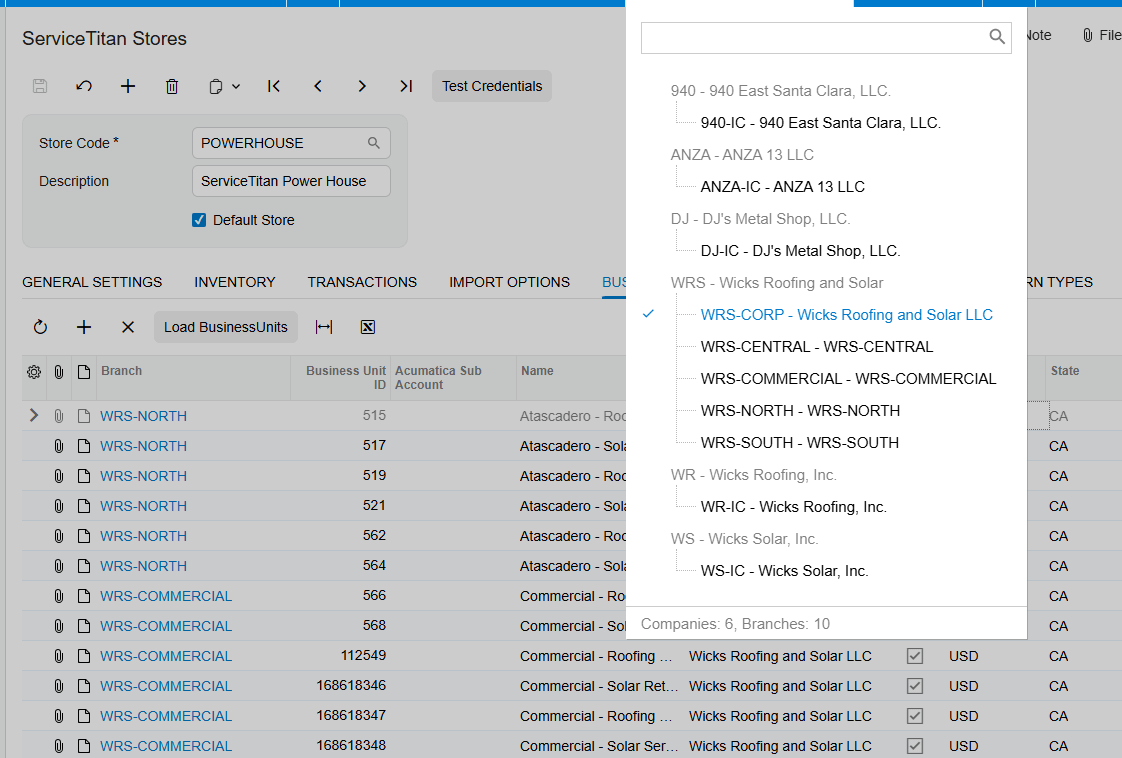
Business units are handled separately: ServiceTitan Business Unit IDs are mapped to Acumatica branches after Load Business Units retrieves their values. Keep the warehouse map and branch map distinct, because the source presents them as separate mappings. The Biz-Tech Services Acumatica ServiceTitan Integration relies on these documented mapping records for warehouse and branch correspondence.
Configure Inventory Transaction Imports
The Inventory Transactions tab lists receipts, transfers, adjustments, and returns. The source says there are setup options for each transaction type. It also lists checkboxes for releasing a receipt, transfer, adjustment, or return after import.
When the applicable release checkbox is selected, the source says the document can be imported into Acumatica and released. The source does not describe the default status for every inventory transaction type when release is not selected, nor does it provide a transaction-by-transaction field map. The Biz-Tech Services Acumatica ServiceTitan Integrator should be configured only with the release behavior actually documented for the chosen transaction.
Item Creation and Manual Item Mapping
Load Materials, Equipment, Services retrieves and displays the corresponding ServiceTitan items on the Inventory tab in Acumatica. The source explicitly distinguishes their resulting item types: Materials and Equipment create stock items, and Service creates non-stock items.
An organization can instead manually map ServiceTitan items with Acumatica items. The source does not prescribe which method is best or explain duplicate-item handling, substitutions, lot or serial tracking, replenishment, or allocation rules. Choose the documented generation or manual-mapping option based on the item master design in Acumatica, and test it before live imports.
Purchase Receipts and Related Inventory Review
For purchase activity, ServiceTitan Purchase Orders are imported as Acumatica Purchase Orders. If a ServiceTitan Purchase Receipt or Bill already exists when the purchase order is imported, it is imported as part of the same process. A receipt or bill that does not yet exist is not imported at that time and can later be imported separately using the appropriate processing screen.
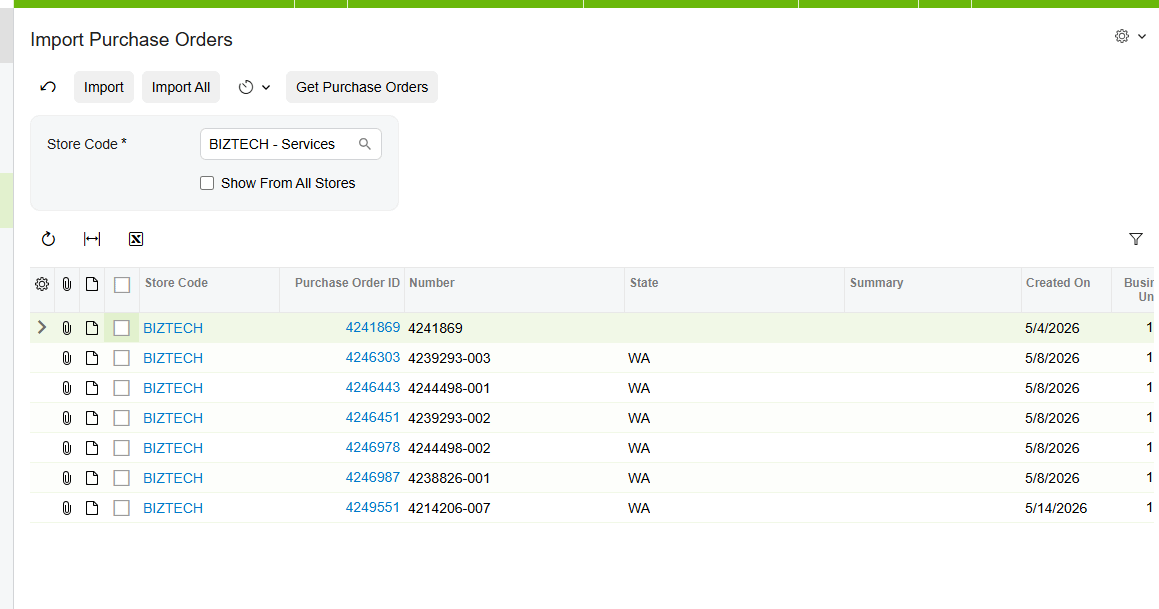
A PO receipt cannot be imported until its related purchase order has already been imported. When the purchase order exists, the receipt import locates it and attaches the receipt document in the PO History tab of the Purchase Orders screen. If Release is selected in store setup, the receipt imports with a Released status; otherwise, the source says it imports with a Balanced status. The Biz-Tech Services Acumatica ServiceTitan Integrator supports this documented order-of-operations dependency.
Allocation and Reconciliation Limits in the Documentation
The supplied source does not describe inventory allocation, reservation, availability calculations, pick or fulfillment logic, warehouse replenishment, cycle counts, or a formal inventory reconciliation report. It also does not identify stock inquiry screens, screen IDs, or fields for comparing ServiceTitan movement quantities to Acumatica quantities.
A practical review should therefore focus on what the source does document: the store configuration, item class and UOM inputs, item mappings, warehouse and truck mappings, transaction selection, release settings, and the PO History attachment behavior for imported receipts. Use implementation testing to establish any allocation or reconciliation procedure that the business needs.
Where to Check Your Work
1 ServiceTitan Stores screen for the store record and its Inventory area
2 Connection Settings tab for testing credentials used to connect to the ServiceTitan store through the API
3 Inventory tab for loaded Materials, Equipment, and Services
4 Import Item and Generate Item from ServiceTitan options for the selected item-import approach
5 Stock Item Class, Non-Stock Item Class, and Unit of Measure values used for generated items
6 Warehouses mapping area for ServiceTitan Warehouse and Truck IDs mapped to Acumatica warehouses
7 Business Units mapping area for ServiceTitan Business Unit IDs mapped to Acumatica branches
8 Inventory Transactions tab for receipts, transfers, adjustments, returns, and release-after-import choices
9 Import ServiceTitan Purchase Orders screen for the required related purchase order
10 Import ServiceTitan Receipts screen and the PO History tab of the Purchase Orders screen for an imported receipt
ServiceTitan Inventory Sync Frequently Asked Questions
Which ServiceTitan items become stock items in Acumatica?
The source states that Materials and Equipment create stock items, while Service creates non-stock items.
Can ServiceTitan items be manually mapped to Acumatica items?
Yes. The source says ServiceTitan items can be manually mapped with Acumatica items instead of being created through the generation option.
How are ServiceTitan warehouses mapped in Acumatica?
Load Warehouses retrieves ServiceTitan Warehouse and Truck ID values. Those values can be manually mapped with Acumatica Warehouse values.
Can receipts, transfers, adjustments, and returns be released after import?
The source lists a release-after-import checkbox for each of those transaction types. When selected, it allows the document to be imported and released in Acumatica.
Why cannot a ServiceTitan PO receipt be imported?
The related ServiceTitan purchase order must already be imported. The source gives the error text POOrder document for Receipt 433272225 has not been created yet for an attempted receipt import without that purchase order.
Does the connector define how inventory quantities are calculated?
No. The source identifies item classes and UOM as item-generation settings, but it does not define the movement quantity calculation or stock-availability calculation.
Does the source describe inventory allocation or reconciliation?
No. Allocation and a formal reconciliation process are not described in the supplied documentation.
Work With the Biz-Tech Services ServiceTitan Connector
The documented ServiceTitan inventory workflow centers on store setup, item generation or manual item mapping, warehouse and truck mapping, transaction configuration, and the purchase-order dependency for receipts. It does not document every inventory-control detail, especially allocation, quantity calculation, and reconciliation. For help configuring the Biz-Tech Services ServiceTitan Acumatica Connector around your Acumatica item and warehouse design, visit https://biz-techservices.com to discuss the integration with Biz-Tech Services.
How Salesforce Orders Affect Inventory Allocation in Acumatica
Salesforce orders affect inventory allocation in Acumatica only through the sales order they create during import. The Salesforce integration documentation identifies the default warehouse, order type, item matching, and order status inquiry, but it does not document Acumatica allocation rules, available quantity calculations, lot or serial handling, or warehouse transfer behavior.
That distinction matters when a sales team expects a Salesforce order to reserve stock. The import can place the order in an Acumatica document type and default warehouse, while the inventory consequences depend on the Acumatica sales order configuration outside the supplied Salesforce documentation. This article explains the documented handoff and the checks a team should make before treating imported demand as allocated inventory.
What the Salesforce Order Import Documents
The Biz-Tech Services Salesforce Acumatica Connector provides Salesforce Store settings for order import. In Order Settings, the documented Default Import Options include Order Type and Warehouse ID. The Order Type indicates the document type where the order is imported and placed in Acumatica. Warehouse ID defines the default warehouse for the order.
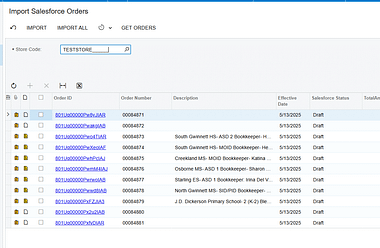
The documentation also says that Get Orders retrieves Salesforce orders related to the setup date in Order Settings. Import brings selected displayed orders into Acumatica, while Import All imports all displayed orders. The Salesforce Orders Inquiry then shows the initial Salesforce order details together with the Acumatica SO number and SO status.
Salesforce Inventory Handling at a Glance
Use the following sequence to understand what the integration documents and where Acumatica inventory processing begins.
1 Configure the Salesforce Store with an Order Type and default Warehouse ID
2 Set whether customers and items can be created during order import
3 Retrieve Salesforce orders with Get Orders based on the last imported order date
4 Import a selected order or all displayed orders into the configured Acumatica document type
5 Match an order item by Salesforce Product SKU to an Acumatica Inventory CD, or create the item if Import Item is enabled
6 Review the resulting SO number and SO status in Salesforce Orders Inquiry
7 Apply your Acumatica sales order and inventory policies to determine whether the imported demand is allocated, available, shipped, or otherwise processed
The Biz-Tech Services Acumatica Salesforce Connector supports the integration setup and import path above. The supplied manual does not say that Salesforce itself calculates, commits, or reserves Acumatica quantities.
Quantity Basis Starts With the Imported Sales Order
The source documentation explains how an item is found during an order import: the integration searches the Acumatica Inventory CD using the Salesforce Product SKU. If a matching inventory item is found, it retrieves that item. If no item is found and Import Item is not enabled, the documented error is “The item {0} does not exist in the system”.
This identifies the item matching basis, but not a quantity availability basis. The manual does not state which quantity fields are evaluated before import, whether Salesforce on-hand figures are sent to Acumatica, or whether a Salesforce quantity is checked against available inventory. A team should therefore avoid representing an imported order as inventory-confirmed until its Acumatica order and inventory settings have been reviewed.
If Import Item is selected, new items can be created in Acumatica based on configured settings. If it is not selected, the program prohibits import and creation of items unless the corresponding items already exist in Acumatica. Add Items in Inventory Sync enables synchronization with Salesforce items, but the source does not define inventory quantity synchronization or stock availability synchronization.
How the Default Warehouse Shapes the Imported Order
The Biz-Tech Services Salesforce Acumatica Integration documents Warehouse ID as the field used to define the default warehouse for an order. That is the clearest warehouse control described in the manual. It means the store setup supplies a warehouse value for imported orders, rather than the manual describing a warehouse selected from each Salesforce order.
The source does not describe multiple-warehouse selection, warehouse mapping tables, location-level assignment, branch-to-warehouse logic, or reallocation after import. It also provides no screen ID for the Salesforce Store, Import Salesforce Orders, or Salesforce Orders Inquiry screens. If a business has more than one fulfillment warehouse, it should validate the imported sales order in Acumatica and confirm that the configured default Warehouse ID is appropriate for the actual fulfillment process.
Allocation Is an Acumatica Policy Decision Not a Salesforce Import Setting
The Biz-Tech Services Acumatica Salesforce Integration does not document a setting called allocation, an allocation status, or a rule that reserves stock when an order is imported. It documents the order type and default warehouse that shape where the order is placed. Whether the resulting Acumatica sales order allocates inventory depends on Acumatica configuration and operational steps that are outside this Salesforce integration guide.
For that reason, use the imported SO number and SO status as the integration evidence, not as proof of allocated stock. The manual says these values are visible in Salesforce Orders Inquiry. It does not define which SO statuses indicate allocation, shipment, backorder, fulfillment, or release. Teams should establish their own Acumatica status and allocation checks with the inventory administrator.
Stock Visibility and Item Synchronization Limits
The Biz-Tech Services Salesforce Acumatica Integrator supports item-related operations through the Item Settings and Item Details areas. Load Acumatica Items retrieves Acumatica items and displays them in a table. Sync to Salesforce creates or updates Acumatica items in Salesforce. Sync All from Salesforce retrieves and creates Salesforce items in Acumatica.
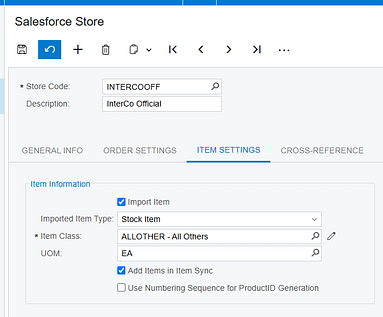
Item Details includes the synced item Salesforce ID, product code, product name, price, and weight. Those fields support product record visibility. The documentation does not list on-hand quantity, available quantity, allocated quantity, safety stock, warehouse quantity, or a stock synchronization schedule. It therefore cannot support a claim that Salesforce inventory visibility is real-time, warehouse-specific, or based on allocated inventory.
Price books have separate behavior. The Price Book Details tab can load Salesforce price books based on Last Imported Price Book Date, and Export Salesforce Price Books sends only items that have been updated or changed. Price book activity should not be confused with stock synchronization because the source describes list prices and products, not inventory balances.
Reconciliation Checks After an Import
The Biz-Tech Services Acumatica Salesforce Integrator gives operations staff a documented path for reconciling the integration result. Start in Import Salesforce Orders, where Get Orders, Import, and Import All control the import process. Then select the Order ID hyperlink to open Salesforce Orders Inquiry and compare the Salesforce order details with the Acumatica SO number and SO status shown there.
1 Confirm the Salesforce Store Order Type and default Warehouse ID before retrieving orders
2 Confirm that the imported order received the intended Acumatica SO number and SO status
3 Review whether the Salesforce Product SKU matched an Acumatica Inventory CD or required item creation
4 Review customer behavior: Import Customer creates a new customer with email, contact information, and the selected customer class, while an unselected setting uses the default customer
5 Review shipping and billing addresses because the manual documents override checkboxes, but its opposite-case wording is contradictory
6 Use your Acumatica inventory process to verify availability and allocation because the Salesforce manual does not provide those checks
Order Updates Do Not Establish Inventory Reconciliation
Sync Orders To Salesforce can process updated imported order data from Acumatica back to Salesforce. At the line level, the guide says it can update line description, discount code, discounted amount, and added or deleted lines. At the document level, it can update addresses, country, order date, description, total, freight, discount, and tax amounts.
The Biz-Tech Services Salesforce Acumatica Integrator can therefore support order-detail updates back to Salesforce. However, the guide does not say that inventory allocations, warehouse changes, quantity availability, shipments, or fulfillment statuses are sent back. It also says only modified orders with On Hold or Open status are displayed on this screen. Use that documented filter when investigating a missing order, but do not infer a broader inventory synchronization rule.
How Salesforce Orders Affect Inventory Allocation in Acumatica Frequently Asked Questions
Does importing a Salesforce order allocate inventory in Acumatica?
The supplied Salesforce integration documentation does not state that import allocates inventory. It documents the order type, default Warehouse ID, item matching, and the resulting SO number and SO status. Confirm allocation through your Acumatica sales order and inventory configuration.
Which warehouse is used for an imported Salesforce order?
The Salesforce Store Order Settings documentation says Warehouse ID defines the default warehouse for the order. The manual does not describe warehouse mapping by Salesforce order, multiple warehouses, or location-level handling.
How does the integration identify the item on a Salesforce order?
It searches the Acumatica Inventory CD using the Salesforce Product SKU. If it cannot find the item and item import is not enabled, the source documents the error The item {0} does not exist in the system.
Can Salesforce show Acumatica available quantity or allocated quantity?
The source does not document an available quantity, on-hand quantity, allocated quantity, or inventory balance synchronization feature. It documents item IDs, product code, product name, price, and weight.
Where can I verify that an order was imported?
Use the Order ID hyperlink on Import Salesforce Orders to open Salesforce Orders Inquiry. The guide says that inquiry shows initial Salesforce order details along with the Acumatica SO number and SO status.
Why did an item fail to import from Salesforce?
When Import Item is not selected, the item must already exist in Acumatica. The documented matching uses Salesforce Product SKU against the Inventory CD, and the guide gives the missing-item error text.
Can a changed Acumatica order be sent back to Salesforce?
Yes, the guide documents Sync Orders To Salesforce for selected imported order changes. It limits the displayed modified orders to On Hold or Open status and does not document inventory allocation or shipment updates.
Work With the Biz-Tech Services Salesforce Acumatica Connector
A reliable process separates what the Salesforce import is documented to do from what Acumatica inventory policy must decide. Configure the default warehouse and order type carefully, validate the imported SO number and SO status, and use Acumatica controls to confirm availability and allocation before promising fulfillment.
For help aligning Salesforce order imports with your Acumatica warehouse and inventory process, work with the Biz-Tech Services Salesforce Acumatica Connector team. Visit https://biz-techservices.com to learn more about Biz-Tech Services integrations.
How PayPal Payments Affect Inventory and Order Status in Acumatica
PayPal payments affect order status in Acumatica by creating an Accounts Receivable payment that remains on Hold until PayPal confirms the invoice has been fully paid. The payment request can start from a sales order, an invoice, or a standalone payment, but the documented integration does not change inventory quantities, warehouse balances, allocations, or replenishment settings.
For teams using the Biz-Tech Services PayPal Acumatica Connector, the practical control point is the payment lifecycle: Sent, Partially Paid, Paid, Cancelled, Refunded, or Partially Refunded. This article focuses on that lifecycle and its relationship to sales-order and invoice payment records; for the request-creation workflow, see How to Create PayPal Invoices from Acumatica Orders.
How PayPal Payments Affect Order Status in Acumatica
The integration is a customization for sending payment invoices to customers, checking their payment status, and applying the resulting action to the AR Payment record. A request sent from Sales Orders creates an AR Payment linked to the order. A request sent from an AR invoice creates a payment pre-applied to that invoice. In either case, the initial payment is placed on Hold with a Sent status while the customer receives the invoice by email.
The integration checks the provider only when a user triggers a check. A fully paid invoice releases the payment. A cancelled invoice deletes the AR Payment. A partial payment records the amount received but keeps the original payment on Hold until the entire invoice is paid.
PayPal Payment Status at a Glance
Use this sequence to understand what the documented status check changes.
1 Sent: the invoice was sent, the AR Payment remains on Hold, and no release action occurs.
2 Partially Paid: the provider reports PARTIALLY_PAID; the PayPal Paid Amount is updated, but the AR Payment stays on Hold at its original amount.
3 Paid: the provider reports PAID or MARKED_AS_PAID; the system confirms the payment amount, releases the payment, and stores the transaction ID.
4 Cancelled: the provider reports CANCELLED; the AR Payment record is deleted.
5 Refunded: a full refund voids the payment and stores the refund ID.
6 Partially Refunded: the integration updates the status and refund ID, but a user must create a Credit Memo for the refunded amount because the payment record is not automatically partially voided.
Before You Send a PayPal Payment Request
The Biz-Tech Services Acumatica PayPal Integrator requires Accounts Receivable and Sales Orders, a Business account, and API credentials. For testing, the manual specifies a Sandbox account with its own credentials. The server must be able to reach the appropriate endpoint over HTTPS on port 443.
Set up the payment method in Payment Methods (CA205000). Enter the Client ID and Client Secret, supply the Sandbox and Live base URLs as appropriate, select Is PayPal Payment, test the connection, and add the cash or bank account on the Allowed Cash Accounts tab. When a Sandbox URL is populated, the integration uses it and ignores the Live URL.
Each payer also needs a Customer Payment Method in Customer Payment Methods (AR303010) screen with a PayPal email address. That email is carried into new payments, although it can be overridden for a one-off payment.
From Sales Order or Invoice to a PayPal Payment
The Biz-Tech Services PayPal Acumatica Integration provides three documented entry points. In Sales Orders (SO301000), use Create Payment on the Payments tab, supply the cash account and payment reference, then use New Request PayPal Payment. The integration reads the order total, currency, and customer details, creates the linked AR Payment, sends the PayPal invoice, and stores the PayPal invoice identifiers and URL on the payment.
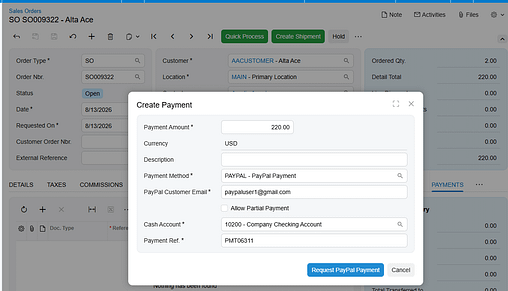
If billing has already been posted, open the invoice through Invoices (SO303000) and use Request PayPal Payment. The payment is pre-applied to the invoice, and the PayPal invoice amount matches the outstanding AR invoice balance. For a deposit or another standalone request, create a payment in Payments and Applications (AR302000), select the PayPal method, enter the amount, optionally apply it to an order or invoice, and use Send PayPal Request.
After a request is sent, the Payment Method ID is locked to prevent an accidental change. The result is a payment-status workflow, not an inventory transaction. The manual does not describe a PayPal request as changing stock availability or shipping quantities.
How Status Checks Change the AR Payment
The Biz-Tech Services Acumatica PayPal Integration checks status on demand rather than in the background. For one payment, open Payments and Applications (AR302000), confirm that it is Sent or Partially Paid and on Hold, then select Remove Hold. The integration calls PayPal and applies the action associated with the returned status.
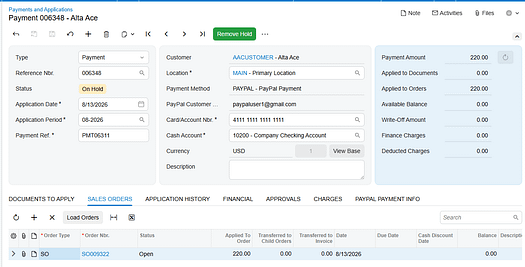
If the invoice is still SENT, the system reports that it cannot release the payment because it has not been paid, and no record changes are made. If it is PAID, the payment is released. If it is CANCELLED, the payment record is deleted. For several outstanding requests, use the Check PayPal Payment Status processing screen under the Sales Order Processes module, select rows, and use Process or Process All. The processing log shows results for the checked records.
Partial Payments and Refunds
The Biz-Tech Services PayPal Acumatica Integration recognizes multiple payments against the same invoice. When the provider reports PARTIALLY_PAID, the PayPal Paid Amount field receives the cumulative amount collected. The payment amount does not change, and the payment remains on Hold until the provider reports a full payment. This lets the accounts-receivable record retain the agreed amount while the customer returns to the same invoice for the remainder.
For a full refund, use Void Check or Refund on the released AR Payment. The integration calls the provider, voids the payment through the standard workflow, stores the refund ID, and sets the PayPal Invoice Status to Refunded. If a partial refund is issued directly in the portal, the next status check identifies PARTIALLY_REFUNDED, but the user must create the Credit Memo manually.
Inventory and Warehouse Scope
The article-plan topic includes inventory, warehouse, quantity, allocation, and reconciliation handling. The Biz-Tech Services PayPal Acumatica Integration user guide does not document any inventory quantity basis, warehouse mapping, inventory allocation rule, stock-visibility update, or inventory reconciliation process. Its documented scope is PayPal invoice creation and AR Payment status handling.
Accordingly, do not treat a payment status change as evidence of an inventory adjustment. The source supports monitoring payment and order-linked records, not changing inventory records. If a business needs inventory allocation or warehouse actions to follow payment collection, those rules must be confirmed in its own configuration rather than inferred from this integration guide.
Where to Check PayPal Payment Results in Acumatica
The Biz-Tech Services PayPal Acumatica Integrator exposes the following documented places and fields for payment-status review.
1 Sales Orders (SO301000): review the order Payments tab and open the linked payment record.
2 Invoices (SO303000): review the pre-applied payment created when an invoice request was sent.
3 Payments and Applications (AR302000): review payment status, Hold status, and the Remove Hold action.
4 Check PayPal Payment Status: filter by PayPal Invoice Status and use Process or Process All for outstanding rows.
5 PayPal Customer Email: confirm the address to which the PayPal invoice notification was sent.
6 PayPal Invoice Status: distinguish Sent, Partially Paid, Paid, Cancelled, Refunded, and Partially Refunded.
7 PayPal Invoice ID and PayPal Invoice Number: identify the invoice created in PayPal.
8 PayPal Invoice URL: use the documented Open in PayPal link to access the PayPal invoice.
9 Transaction ID and Refund Number: identify the confirmed payment or refund transaction.
10 PayPal Paid Amount: monitor the cumulative amount received while an invoice is Partially Paid.
PayPal Payments and Order Status in Acumatica Frequently Asked Questions
Does a PayPal payment automatically release in Acumatica?
No. The integration does not poll PayPal automatically. Use Remove Hold for an individual payment or process records in the Check PayPal Payment Status screen. The payment releases when the check confirms that PayPal reports the invoice as fully paid.
What happens when a customer makes only a partial PayPal payment?
The payment stays on Hold at its original amount. The PayPal Paid Amount field is updated, and the customer can return to the same PayPal invoice to pay the balance. Acumatica releases the payment only after the invoice is fully paid.
Can a PayPal payment status change inventory quantities or warehouse allocation?
The supplied PayPal Integration guide does not document inventory quantity changes, warehouse mapping, allocation, or reconciliation. It documents AR Payment and PayPal-invoice status actions only.
Why is a payment still Sent after the customer says they paid?
Trigger a status check manually or through the processing screen, because Acumatica does not poll PayPal in the background. Also verify that the PayPal invoice is marked PAID in the PayPal account.
Why does Remove Hold say that the payment is not paid in PayPal?
The PayPal invoice is still unpaid. The guide describes this as expected behavior; wait for payment and check again later, or use the processing screen for a bulk check.
What happens when I cancel a PayPal invoice?
A payment in Sent status and on Hold can be cancelled from AR302000. The integration calls PayPal, sends the cancellation notification, and deletes the AR Payment. The guide states that cancellation is irreversible.
How should a partial PayPal refund be handled?
The Biz-Tech Services PayPal Acumatica Integrator records the Partially Refunded status and the refund ID after a check, but it does not partially void the payment. Create a Credit Memo manually for the refunded amount.
Work With the Biz-Tech Services PayPal Integration
Payment requests give users a controlled way to send invoices, monitor collection, release a fully paid AR Payment, and handle cancellation or refund outcomes. They do not, based on the supplied documentation, define inventory or warehouse behavior. To discuss the Biz-Tech Services Acumatica PayPal Integrator and the payment workflow for your environment, visit https://biz-techservices.com to learn more or schedule a personalized demonstration.
Check the video for more details: https://www.youtube.com/watch?v=wkjPKdLzv2M
How to Create Consignment Sales Orders in Acumatica
This guide shows you how to create a consignment sales order in Acumatica ERP, move stock into a customer-held consignment warehouse, and turn the units your customer sells into invoices without re-keying anything. Consignment selling breaks the usual rule that shipping equals revenue: the goods leave your building but stay yours until the consignee sells them. The Consignment Processing product from Biz-Tech Services, Inc. adds that distinction to Acumatica, so one order document can carry stock out, hold it at the customer site, and then bill or reclaim it piece by piece.
What follows is a hands-on walkthrough of the order itself: the setup you need before you can pick the order type, the sequence of entries and actions, the documents each action generates in Acumatica, the mapping rules that decide where consigned stock lands, and the errors and disabled buttons that stop users mid-task. Configuration is background here, mentioned only where it changes what happens during order entry.
Before You Start: What Must Be Configured
A consignment order in Acumatica will not behave correctly unless four pieces of setup are in place. The Consignment Processing customization project is published from the Customization Projects (SM204505) form, so if the Consignment Settings below are missing entirely, the package has not been published to your tenant yet.
1. Three consignment order types, defined in the Consignment Settings section of the Sales Orders Preferences (SO101000) form: the Consignment Order Type you select on the order, the Consignment Invoice Order Type used for invoices generated from consigned stock, and the Consignment Return Order Type used when unsold goods come back.
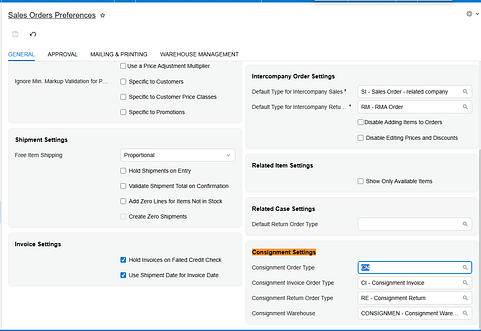
2. The right templates behind those types. The Consignment Order Type and the Consignment Return Order Type must both be created from the Transfer Order template, because both move stock between warehouses rather than recognizing a sale. The Consignment Invoice Order Type must come from the Invoice Order template, because that is the document that bills the customer.
3. A consignment warehouse, defined on the Warehouses (IN204000) form with the Use for Consignment check box selected. That check box designates the warehouse as a consignment location, and until it is selected the warehouse cannot be chosen in the Consignment Settings section at all.
4. A consignment warehouse on the customer record. The Consignment Warehouse associated with the selected customer is used for the sales order and overrides the default set in Sales Order Preferences. This is how a business with many consignees keeps each customer pointed at its own location.
The Consignment Warehouse field in Sales Order Preferences is a fallback, not a rule. It supplies the warehouse selected automatically when you choose a consignment order type on the Sales Orders form, and the customer-level value takes precedence. That hierarchy explains most of the "why did Acumatica pick that warehouse" questions users raise early on.
Creating a Consignment Sales Order, Step by Step
The whole process happens on the Sales Orders (SO301000) form your team already knows. What changes is the order type you pick, where each warehouse is allowed to go, and one extra action after the shipment. Work the steps in order; skipping the last one leaves consigned stock in an incomplete state.
Step 1: Select the Consignment Order Type
Open the Sales Orders form and set the Order Type to your consignment order type. The Biz-Tech Services documentation shows this type as CN, but what matters is the type your administrator entered in the Consignment Order Type field on Sales Orders Preferences. Selecting it switches the document into consignment behavior and triggers automatic selection of the consignment warehouse. Because the type is built from the Transfer Order template, Acumatica treats the document as a stock movement, which is why shipping it will not post revenue.
Step 2: Choose the Customer
Select the customer from the list. The consignment order is associated with that customer for the rest of its life, and the association is not cosmetic: the customer record is where Acumatica reads the consignment warehouse for the order. Changing the customer changes where the goods are destined to sit, so confirm it before adding lines.
Step 3: Add the Items to Be Consigned
Add the items to be shipped as part of the consignment order, with the quantities you intend to place at the customer site. Enter the full quantity you are willing to leave on consignment, not just what you expect the customer to sell, because that quantity is the pool the later sell and return actions draw from. There is no need to split the order by expected outcome; Acumatica tracks sold and unsold quantities against the same document.
Step 4: Apply the Destination Warehouse Versus Line Warehouse Rule
This is where new users get stuck. The consignment warehouse can only be selected as the destination warehouse; a standard, non-consignment warehouse can only be selected in the lines. Reverse them and Acumatica stops you with an error message. The lines say where stock is coming from and the destination says where it is going, so the customer-held location belongs in the destination and your own stocking warehouse belongs on each line.
Step 5: Confirm the Shipment
Proceed with the standard shipment confirmation process. Nothing here is special to consignment: warehouse staff pick, pack, and confirm exactly as they do for any Acumatica sales order. Confirming the shipment drives the consignment order status forward, so the order is not ready for the sell and return actions until at least part of it has been confirmed.
Step 6: Run Update IN
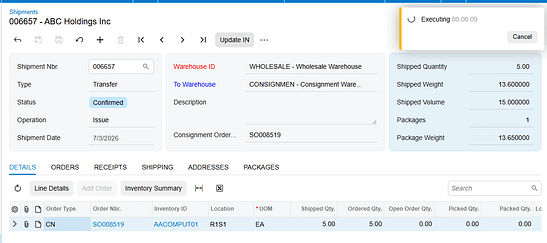
After the shipment is confirmed, open the Actions menu on the consignment order and click Update IN. This action reflects the consigned items in inventory. Until you run it, the goods have physically left but the Acumatica inventory records have not caught up, and the consignment-specific actions stay unavailable. Treat Update IN as a required step, not an optional refresh.
Once Update IN completes, the order carries a status of Consignment when all ordered quantities have shipped, or Partial Consignment when only part have gone out. Either status means Acumatica now recognizes the stock as sitting at the customer location and the order is ready to work.
Document Triggers: What Each Action Creates
Three actions on a consignment order generate documents elsewhere in Acumatica. Knowing which action produces which document tells you where to look when something did not appear.
Update IN Creates a Transfer-Type Purchase Receipt
When you run Update IN on a confirmed consignment order, the corresponding items and quantities are issued from the main warehouse and received into the selected consignment warehouse. Acumatica automatically generates and releases a Transfer-type purchase receipt to record the movement. Because the receipt is created and released for you, no separate step is needed; a missing receipt usually means Update IN was never run.
Consignment Sell Items Creates a Consignment Invoice Order
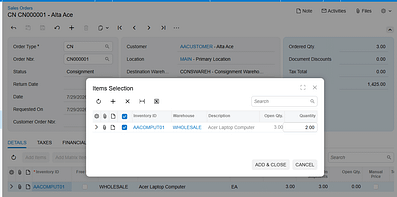
The Consignment Sell Items action opens the Item Selection pop-up, where you select the items and quantities the customer has sold. After clicking Add and Close, Acumatica generates a consignment invoice order with the specified warehouse, items, and quantities, using the Consignment Invoice Order Type from Sales Orders Preferences. Once that invoice is prepared and released, the Cons. Sold Qty. field on the original consignment order is updated. Note the timing: sold quantity moves on release, not when you click Add and Close.
Consignment Return Items Creates a Consignment Return Order
The Consignment Return Items action opens the same Item Selection pop-up, where you specify the items and quantities coming back from the customer. Clicking Add and Close generates a consignment return order. The return then follows a process similar to the original consignment order, including its own Update IN, which creates a purchase receipt. Returning consigned stock is not a one-click reversal in Acumatica; it is a second short document you work to completion.
Mapping Rules That Decide Where Consigned Stock Lands
Two rules govern the destination of consigned inventory in Acumatica, and understanding them prevents most rework on consignment sales orders.
The first rule is positional. A warehouse flagged with Use for Consignment can only be selected as the destination warehouse; a standard warehouse can only be selected in the lines. Acumatica enforces this rather than silently correcting it, so an order that will not save is usually an order with the warehouses transposed. The plain-language version: the consignment warehouse is never a source. Stock always originates from a normal warehouse you control and terminates in the consignment warehouse that represents the customer site.
The second rule is precedence. The Consignment Warehouse field on Sales Orders Preferences is selected automatically when a consignment order type is chosen, but the consignment warehouse associated with the selected customer overrides it. Because the customer value wins, changing the customer on a draft order can change the destination under you. With a single consignee the Preferences default may be all you need; add a second and the customer-level warehouse becomes the field that matters.
Validation and Common Exceptions
Most of what interrupts a user on a consignment order in Acumatica is not an outright failure but a control that refuses to do anything. Here is what the product enforces and what each block means.
The Warehouse Placement Error
If you select a consignment warehouse anywhere other than the destination, or a standard warehouse anywhere other than the lines, Acumatica displays an error message with the corresponding notification and the entry does not stand. The fix is always the same: consignment warehouse in the destination, standard warehouse in the lines.
The Sell and Return Buttons Are Greyed Out
The Consignment Sell Items and Consignment Return Items buttons are enabled under the Actions menu only after Update IN has run and the consignment order has a status of Consignment or Partial Consignment. An order still at Open, or one shipped but not updated, shows both buttons unavailable. When a user reports that they cannot sell consigned items, check the status first and Update IN second.
The Buttons Disable Again on a Closed Order
When all ordered items have been shipped and all shipped items sold or returned, the consignment order status changes to Closed. Item quantities and statuses are updated and the Consignment Sell and Consignment Return buttons are disabled again. This is expected Acumatica behavior, not a permission problem: nothing is left at the customer site to sell or reclaim. If the customer needs more stock, the answer is a new consignment order.
Item-Level Detail Disappears for Closed Orders
Consignment information is available through two Acumatica generic inquiries: Consignment Orders for order-level data and Consignment Item Details for item-level data. The Consignment Item Details inquiry no longer displays item-level information for consignment orders once they reach Closed status, while order-level information for those same orders remains available in Consignment Orders. Users who audit line detail will hit this, so it is worth stating plainly rather than letting it look like missing data.
Consignment Statuses Do Not Match Sales Order Statuses
The statuses of consignment orders and of regular sales orders are entirely distinct and unrelated. Open means the order exists but none of the ordered quantities have shipped. Consignment means all ordered quantities have shipped for consignment. Partial Consignment means some have shipped and others remain pending. Closed means all actions on the order are complete. Do not fold these into standard Acumatica sales order reporting; they function independently.
Where to Check Your Work
Before you hand a consignment order off as finished, walk this list in Acumatica. Each item names a specific field, check box, or document, so a colleague can repeat the check without your context.
1. Order Type on the Sales Orders (SO301000) form matches the Consignment Order Type set in Sales Orders Preferences.
2. Consignment Order Type and Consignment Return Order Type on Sales Orders Preferences (SO101000) were both created from the Transfer Order template, and Consignment Invoice Order Type from the Invoice Order template.
3. The Use for Consignment check box is selected on the Warehouses (IN204000) form for the warehouse you are consigning into.
4. The destination warehouse on the order is the consignment warehouse, and every line warehouse is a standard, non-consignment warehouse.
5. The consignment warehouse on the order matches the Consignment Warehouse on the customer record, not just the Sales Order Preferences default.
6. The shipment has been confirmed for the quantities you expect to be at the customer site.
7. Update IN has been run from the Actions menu after shipment confirmation.
8․ A Transfer-type purchase receipt exists showing the issue from the main warehouse and the receipt into the consignment warehouse.
9․ The consignment order status reads Consignment or Partial Consignment and matches how much of the order actually shipped.
10․ Cons. Sold Qty. on the consignment order has updated after the consignment invoice was released.
11․ For a return, Update IN has been run on the consignment return order and its purchase receipt exists.
12․ The order appears in the Consignment Orders generic inquiry, and its lines appear in Consignment Item Details while the order is still open.
Creating Consignment Sales Orders: Frequently Asked Questions
Why can I not select my consignment warehouse on the order lines?
Because the product does not allow it. A warehouse flagged with Use for Consignment can be selected only as the destination warehouse, while a standard warehouse can be selected only in the lines. Either one placed the other way around produces an error message in Acumatica. Move the consignment warehouse to the destination and put your own stocking warehouse on the lines.
Why are the Consignment Sell Items and Consignment Return Items buttons disabled?
Those actions become available only after Update IN has run and the consignment order carries a status of Consignment or Partial Consignment. If the order is still Open, or the shipment was confirmed but Update IN was never clicked, both buttons stay unavailable. They also disable permanently once the order reaches Closed status.
Why did no purchase receipt appear after I shipped a consignment order in Acumatica?
Confirming the shipment does not create the receipt on its own. The Transfer-type purchase receipt is generated and released automatically by the Update IN action on the Actions menu of the consignment order. If the receipt is missing, open the order and check whether Update IN has been run.
Why has Cons. Sold Qty. not increased after I used Consignment Sell Items?
Selecting items in the Item Selection pop-up and clicking Add and Close only generates the consignment invoice order. Cons. Sold Qty. on the consignment order updates once that invoice has been prepared and released. If the number has not moved, the invoice is most likely still unreleased.
Which warehouse wins, the one on the customer or the one in Sales Order Preferences?
The customer wins. The Consignment Warehouse on Sales Orders Preferences is the default selected automatically when you pick a consignment order type, but the consignment warehouse associated with the selected customer overrides it for that order. This is what lets one Acumatica tenant consign to many customer locations from a single configuration.
How do I return unsold consigned stock?
Use the Consignment Return Items action on the consignment order, select the items and quantities in the Item Selection pop-up, and click Add and Close. That generates a consignment return order, which you process much like the original consignment order. Running Update IN on the return creates its purchase receipt.
Why can I no longer see line detail for an old consignment order?
The Consignment Item Details generic inquiry stops displaying item-level information for consignment orders once they reach Closed status. This is by design rather than a data problem. Order-level information for those orders is still available through the Consignment Orders generic inquiry.
Do consignment order statuses mean the same thing as regular sales order statuses?
No. The statuses of consignment orders and regular sales orders are entirely distinct and unrelated, and they function independently within their own processes. Open, Consignment, Partial Consignment, and Closed describe only the consignment lifecycle, so do not interpret them against standard Acumatica sales order reporting.
Work With the Biz-Tech Services Consignment Processing Product
Creating a consignment sales order in Acumatica comes down to a short, repeatable sequence: pick the consignment order type, pick the customer, add the items, keep the consignment warehouse in the destination and the standard warehouse on the lines, confirm the shipment, and run Update IN. From there the order is a working record of what sits at the customer site. The Consignment Processing product from Biz-Tech Services, Inc. adds all of this to Acumatica ERP so your business can manage quantities and valuation of inventory across multiple consignee locations, see sold versus unsold quantities at a glance, and invoice or reclaim stock straight from the consignment order.
To see how Consignment Processing fits your inventory and order processes, or to talk through configuring consignment order types and warehouses for your Acumatica environment, visit https://biz-techservices.com to learn more and to contact the Biz-Tech Services team.
Watch the video tutorial https://www.youtube.com/watch?v=afFwt8-gZCM
How to Sync CommerceHub Inventory Quantities from Acumatica
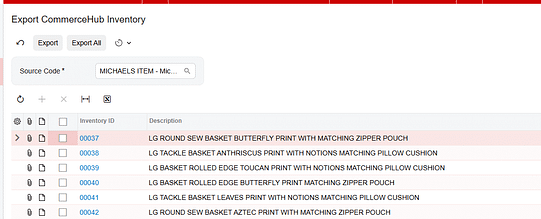
To sync CommerceHub inventory quantities from Acumatica, configure the connector for the correct store, add the warehouses that should contribute inventory, choose the quantity basis, and save the applicable Inventory IDs in the Inventory Template. Those items then appear on the Export CommerceHub Inventory screen, where they can be processed through the connector's SFTP file workflow.
The connector documentation identifies three quantity choices: On Hand Quantity, Available Quantity, and Available for Shipment Quantity. That selection matters because it determines which Acumatica quantity the connector exports. A reliable CommerceHub inventory sync therefore begins with configuration, not with the export button.
How the CommerceHub Acumatica inventory integration works
The CommerceHub connector exchanges data through SFTP and text files rather than direct API requests. The documented flow sends information from Acumatica into the file-transfer layer and onward to CommerceHub. Information returning to Acumatica follows the reverse path.
Store codes separate connector configurations for different import and export processes. A store can have its own parameters, including Transaction Type, Description, Default Customer, and Document Type. The inventory process also depends on the warehouses, quantity basis, and Inventory IDs selected in the Mappings area. For inventory synchronization, use the store configuration associated with the intended CommerceHub operation.
This design creates several checkpoints. Acumatica determines which records and quantities are eligible. The Export CommerceHub Inventory screen presents the selected items. A text file carries the data through SFTP. CommerceHub must then receive and use that file. When a quantity looks wrong, check each checkpoint in sequence instead of assuming the issue is inside Acumatica.
CommerceHub inventory sync workflow
1. Confirm the connector and store configuration. After the connector is published, the CommerceHub workspace and its screens become available in Acumatica. Open the Mappings screen and select the store code that belongs to the inventory export process. Store codes can carry distinct settings, so verify that you are working in the intended configuration before changing warehouses or items.
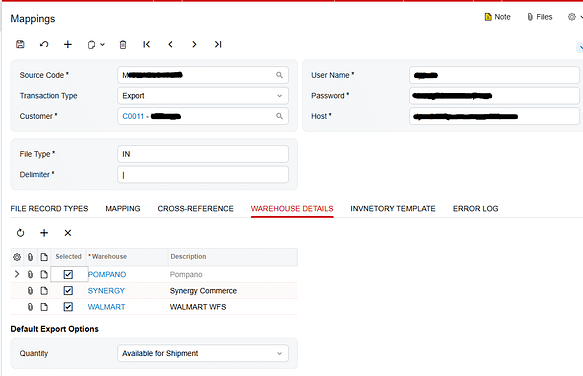
2. Add the warehouses to Warehouse Details. Warehouse Details controls which Acumatica warehouses are included in the inventory export. Add every warehouse that should contribute a quantity and leave out warehouses that should not be represented in the CommerceHub feed. If an expected location is missing here, its inventory will not be part of the configured export scope.
3. Choose the quantity basis. Use the Quantity field in Warehouse Details to select On Hand Quantity, Available Quantity, or Available for Shipment Quantity. Choose the measure that matches the inventory value the CommerceHub operation is expected to receive. The connector documentation lists these options but does not define a universal best choice, so the correct setting depends on the business rule for that store and process.
4. Select Inventory IDs in Inventory Template. Open the Inventory Template tab, select the Inventory IDs that should be synchronized, and save the changes. Saving is essential: the documented behavior is that selected and saved Inventory IDs appear on the Export CommerceHub Inventory screen.
5. Review the export population. Open Export CommerceHub Inventory for the applicable store code. Confirm that the expected items are present before processing. If an item is absent, return first to Inventory Template and confirm that its Inventory ID was selected and saved. Then check that the correct store configuration is in use.
6. Process the inventory export. Use the export screen to process the selected inventory records. The connector writes the inventory information into the file-based SFTP flow for delivery to CommerceHub. Because this is not a direct API transaction, a successful selection in Acumatica is only one part of the end-to-end sync.
7. Validate the result. Compare the quantity expected from Acumatica with the inventory output and the quantity received in CommerceHub. Validate the same Inventory ID, store code, warehouses, and quantity basis at each point. This isolates configuration errors from file-transfer or downstream processing problems.
Fields and settings that control the export
Store Code
The store code identifies the connector configuration used for a process. Since each store can have unique parameters, selecting the wrong store code can lead you to review or process a different configuration than intended.
Warehouse Details
This area defines the warehouses to export. Treat the warehouse list as the boundary of the inventory calculation used by the connector. When troubleshooting a missing or unexpected quantity, confirm the warehouse list before investigating the transfer file.
Quantity
The Quantity field offers three documented values:
1. On Hand Quantity, which selects the on-hand measure.
2. Available Quantity, which selects the available measure.
3. Available for Shipment Quantity, which selects the amount available for shipment.
Do not treat these labels as interchangeable. Record the selected option for the store configuration and compare the export against that same Acumatica measure.
Inventory Template
Inventory Template identifies which Inventory IDs participate in synchronization. An Inventory ID must be selected and saved before the associated item appears on Export CommerceHub Inventory. This makes the template the first place to check when an item is missing from the processing screen.
Monitoring and validating the inventory sync
Monitor the process at the points the connector documentation exposes. Begin with Mappings, where the store, Warehouse Details, Quantity selection, Inventory Template, and Error Log are available. Then inspect Export CommerceHub Inventory, the SFTP transfer, and the received value in CommerceHub.
For each validation sample, capture the following values:
1. The store code used for the export.
2. The Acumatica Inventory ID selected in Inventory Template.
3. The warehouses included in Warehouse Details.
4. The selected quantity option and the corresponding Acumatica quantity.
5. The item's presence on Export CommerceHub Inventory.
6. The outbound file result and the quantity received in CommerceHub.
The Mappings screen includes an Error Log tab for messages encountered during connector import and export activity, and Purge Logs can remove all messages from that tab. Review available messages before purging them. The source specifically describes order-related errors in this area and does not define dedicated inventory error fields, so do not rely on the Error Log alone for inventory validation. Check the outbound file and CommerceHub result as well.
Common pitfalls
The item was not saved in Inventory Template
Selecting an Inventory ID without saving it will not establish the documented link to Export CommerceHub Inventory. Reopen the template and confirm that the item remains selected.
The wrong store code is selected
Store codes can have different connector parameters. Confirm the store before reviewing the item population or running the export.
A warehouse is missing or should not be included
Warehouse Details determines which warehouses belong in the export. An incomplete list can omit inventory, while an unintended warehouse can change the quantity being sent.
The quantity basis does not match the expected value
A comparison against On Hand will fail if the connector is configured to export Available or Available for Shipment. Always reconcile against the configured Quantity option.
The Acumatica step succeeded but the file flow did not
The connector uses text files and SFTP. An item can appear correctly in Acumatica while CommerceHub remains unchanged if the file is not transferred or processed. Validate the handoff after running the export.
Logs were purged before the issue was reviewed
Purge Logs removes all messages in the Error Log tab. Review and retain the information needed for troubleshooting before using it.
Frequently asked questions
Which Acumatica quantities can the connector export
The documented options are On Hand Quantity, Available Quantity, and Available for Shipment Quantity. The Quantity field in Warehouse Details controls the selection.
Why is an item missing from Export CommerceHub Inventory
Confirm that the Inventory ID is selected and saved in Inventory Template. Also verify that you opened the export screen for the intended store code.
Does the CommerceHub connector send inventory through an API
No. The connector documentation describes an SFTP process that exchanges text files. The inventory export therefore requires validation of both the Acumatica processing step and the file-transfer path.
Where are warehouses configured for the inventory export
Add them in Warehouse Details on the Mappings screen. This list identifies the warehouses that need to be exported.
Where can connector errors be reviewed
The Mappings screen includes an Error Log and a Purge Logs action. Because the documentation describes the log mainly in relation to order processing, also review the inventory export result, outbound file, and CommerceHub value when troubleshooting inventory.
How should a CommerceHub inventory quantity be validated
Use a specific item and compare the same Inventory ID, store code, warehouse scope, and configured quantity basis across Acumatica, the export output, and CommerceHub. This sequence shows whether the mismatch begins in setup, export processing, file transfer, or receipt.
Get help with CommerceHub and Acumatica integration
If you need help configuring, validating, or troubleshooting a CommerceHub inventory sync in Acumatica, contact Biz-Tech Services to discuss the connector workflow and your inventory requirements.
How to Sync EZCom Inventory Availability from Acumatica
How to Sync EZCom Inventory Availability from Acumatica
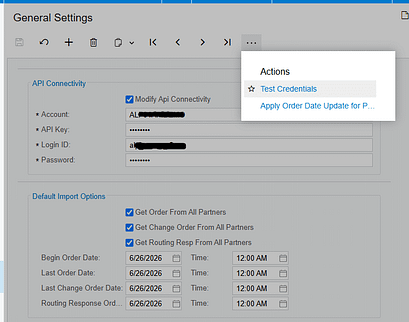
The Biz-Tech Services Acumatica EZCom Connector lets Acumatica users send inventory availability to EZCom for items configured for a trading partner. The process depends on two partner-level setups: the item must be loaded and selected on the Inventory Items tab, and its warehouse and quantity mapping must be defined on the Inventory Availability tab. Once those prerequisites are in place, users can review the eligible items on the Send Inventory Availability screen and send selected records or the full list.
Accurate setup matters because the connector does not treat inventory as a single company-wide value. It uses the mapping for the selected trading partner to determine which Acumatica warehouse and quantity option correspond to the EZCom warehouse code and item identifier. This guide explains the workflow, the fields that control it, and the checks that help confirm that quantities were sent as intended.
How the EZCom inventory availability workflow works
The connector links Acumatica ERP with the EZCom EDI platform through an intermediate server controlled by Biz-Tech Services. Connection information is entered in the connector's General Settings. When inventory availability is sent, the connector uses the relevant trading partner configuration and passes the mapped item quantity to EZCom.
The user-facing workflow begins in Trading Partners and finishes on Send Inventory Availability. First, retrieve or select the partner and confirm its item mappings. Next, define how inventory availability should be calculated and where it should be reported. Finally, open Send Inventory Availability, select the records to process, and use Send or Send All.
- Retrieve the trading partner - On the Trading Partners screen, use Get Trading Partners from Actions when the partner list has not yet been loaded. Configuration is maintained for the corresponding Partner Code.
- Map eligible inventory items - On the Inventory Items tab, map the EZCom item to the correct Acumatica Inventory ID. The connector documentation notes that the corresponding EZCom order item must be mapped for order import, and the Send Inventory Availability screen displays items already loaded and checked on this tab.
- Configure inventory availability - On the Inventory Availability tab, map the Acumatica warehouse, the quantity option, and the corresponding EZCom warehouse code or item UPC reference described in the product documentation. This mapping controls which quantity is synchronized to EZCom.

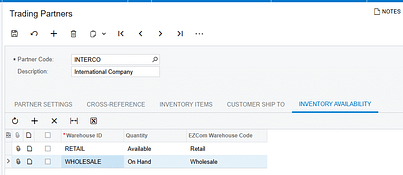
- Review items ready to send - Open Send Inventory Availability for the appropriate partner. The grid should show the items that were loaded and selected on the partner's Inventory Items tab.
- Send inventory quantities - Select one or more items and click Send, or click Send All to process every displayed item. The connector sends each quantity according to the partner's Inventory Availability mapping.
Required fields and settings
Partner Code identifies the EZCom trading partner whose rules apply. Because inventory and cross-reference settings are maintained by partner, verify the code before reviewing items or sending quantities. The Description field can provide additional partner details, but Partner Code is the lookup that selects the partner configuration.
Inventory ID is the Acumatica item associated with the partner's EZCom item. The Inventory Items tab provides the item-level cross-reference. The available lookup method depends on the enabled Cross-Reference Options. For example, the connector can search by UPC Code and associate the matching value with an Acumatica Inventory ID. Only cross-reference entities selected in the partner settings appear in the dropdown.
Acumatica Warehouse identifies the inventory location used for the availability calculation. Quantity Option determines which quantity value the connector sends. EZCom Warehouse Code establishes the destination warehouse reference on the EZCom side. The source documentation groups these values together on the Inventory Availability tab because all three are needed to determine what quantity should be synchronized and where it belongs.
API connectivity is configured in General Settings. When Modify API Connectivity is selected, the screen displays Account, API Key, Login, and Password. The account and API key are provided for each EZCom website, while the login and password are the EZCom admin-panel credentials. Use Test Credentials under Actions to verify the connection to the Acumatica-Biz-Tech server before troubleshooting item-level synchronization.
Monitoring and validating the sync
Start validation before sending. Confirm that the expected partner is selected, the item appears on the Inventory Items tab, and the item is checked. Then review the Inventory Availability mapping for the same partner. A visible item without the required warehouse and quantity mapping is not sufficient to establish the quantity that should be sent.
On the Send Inventory Availability screen, compare the displayed item list with the items you intended to publish. Send a limited selection first when validating a new setup. After clicking Send, verify the quantity in EZCom against the quantity option and Acumatica warehouse configured in the mapping. This comparison tests the full path rather than confirming only that the item appeared in the Acumatica grid.
If no items appear, return to the partner's Inventory Items tab and verify that the records were loaded and checked. If items appear but the values are unexpected, review the Inventory Availability mapping, especially the Acumatica warehouse and quantity option. If processing cannot reach EZCom, test the General Settings credentials and confirm that the Account, API Key, Login, and Password belong to the intended EZCom website.
Common pitfalls
- Configuring an item for one partner and sending from another partner. The connector applies settings for the selected Partner Code.
- Loading an item without checking it on the Inventory Items tab. The Send Inventory Availability screen is documented to show items that are already loaded and checked.
- Mapping the Inventory ID but omitting the Inventory Availability setup. The warehouse, quantity option, and EZCom warehouse reference determine the quantity synchronization.
- Assuming every cross-reference field will be available. Only entities enabled under Cross-Reference Options appear in the item mapping dropdown.
- Testing with Send All before validating a small set. Send All processes every displayed item, so a narrow first test makes mapping errors easier to isolate.
- Troubleshooting quantities before testing connectivity. Invalid or mismatched credentials can prevent the connector from reaching the intermediate server regardless of item configuration.
Frequently asked questions
Which items appear on Send Inventory Availability
The screen displays items already loaded and checked on the Inventory Items tab of Trading Partners for the corresponding partner.
What setup controls the quantity sent to EZCom
The Inventory Availability mapping controls the sync. It associates the Acumatica warehouse and quantity option with the corresponding EZCom warehouse reference for the partner.
Should I use Send or Send All
Use Send for selected items. Use Send All when every displayed item should be synchronized. For a new or revised mapping, validating selected items first reduces the scope of troubleshooting.
Why is an expected item missing from the send screen
Verify that the item has been loaded and checked on the partner's Inventory Items tab. Also confirm that you are working with the correct Partner Code.
How do I verify EZCom connectivity
Open General Settings and use Test Credentials under Actions. When API connectivity can be modified, review the Account, API Key, Login, and Password fields.
Can item matching use a UPC code
Yes. The source documentation gives UPC Code as an example of an Inventory Items cross-reference method. The option must be enabled under Cross-Reference Options before it appears in the dropdown.
Get help with EZCom and Acumatica integration
Biz-Tech Services supports Acumatica integrations, including the EZCom Connector. For help reviewing partner mappings, validating inventory availability, or resolving connector issues, visit https://biztechservices.com/.
How to Sync DSCO Inventory Quantities from Acumatica
Accurate inventory publishing helps prevent DSCO from offering stock that Acumatica cannot fulfill. The Biz-Tech Sevices DSCO Connector provides a controlled workflow: define the store connection, map the items, choose the warehouses and quantity basis, then send selected quantities from the Export DSCO Inventory Quantities screen. The same screen also supports an intentional override when DSCO needs a quantity different from the current Acumatica value.
The key is to configure the calculation before pressing SYNC. The exported value can represent On Hand, Available, or Available for Shipment inventory, and it can be totaled across selected warehouses. A correct result therefore depends on three things working together: the item mapping, the warehouse selection, and the chosen quantity type.
What the DSCO inventory sync does
The Export DSCO Inventory Quantities screen sends inventory values from Acumatica to DSCO. It does not define which items or warehouses participate; those choices are made first on the DSCO Store screen. Once setup is saved, the export screen presents the eligible items and shows the Acumatica inventory quantity in a read-only Quantity field.
From that screen, an operator can use either of two supported methods. The standard method sends the displayed Acumatica quantity. The override method sends a manually entered DSCO Quantity instead. Because both methods use the same SYNC action, the operator should confirm which value is intended before selecting a row for processing.
Prerequisites and store connection settings
Before configuring inventory, confirm that the DSCO Connector customization package is installed and published in Acumatica. The connector guide identifies the Customization Projects form, SM204505, as the place to import, validate, and publish the deployment package.
On the DSCO Store screen, complete the General Settings used for the API connection:
- Partner Code identifies the corresponding DSCO store.
- Description provides a recognizable label for the store configuration.
- Access Token supplies the credential used to authorize API access.
- Base URL supplies the root web address used by the connector.
Use Test Credentials after entering the connection information. A successful test confirms that the connector can reach DSCO with the saved General Settings. It does not, by itself, prove that inventory mappings or quantity rules are correct, so complete the item and availability setup before the first production sync.
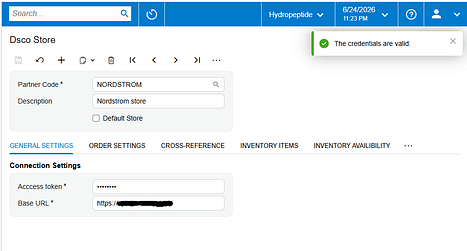
Configure item mapping
Open the Inventory Items tab on the DSCO Store screen and select the items that should participate in synchronization. Save the store after making the selection; the connector guide specifically requires the items to be chosen and saved before they are processed on Export DSCO Inventory Quantities.
The Inventory Items cross-reference settings control how the connector finds a DSCO item and associates it with an Acumatica Inventory ID. The guide uses SKU as an example: when SKU is selected as the lookup value, the connector searches for the corresponding SKU and maps it to the Acumatica item. Review this mapping carefully. An omitted or incorrect item relationship can prevent the expected item from being processed and can also create errors in related DSCO order workflows.
Choose warehouses and the quantity basis
Use Inventory Availability to specify the warehouses that should be synchronized with DSCO. When warehouses are selected, the connector exports the sum of the item quantities across those selected warehouses. This is a critical control: adding or removing a warehouse changes the quantity offered through DSCO even when no item record has changed.
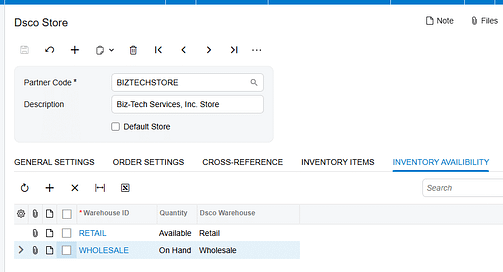
Next, choose the quantity type that the connector will publish:
- On Hand represents the recorded book quantity in inventory.
- Available represents the Acumatica available quantity under the applicable availability calculation.
- Available for Shipment represents the quantity available to support shipping and can be lower than on-hand inventory because demand and allocations affect it.
Choose the measure that matches the company’s fulfillment policy. On Hand may expose units that are already committed. Available or Available for Shipment may better reflect sellable supply, but the right choice depends on how the Acumatica tenant calculates availability and reserves inventory. The DSCO connector guide confirms the three choices; Acumatica’s availability rules determine the underlying values.
Run the inventory quantity sync
After the store, item, warehouse, and quantity settings are saved, open Export DSCO Inventory Quantities. Use one of the following workflows.
Send the current Acumatica quantity
- Locate the inventory item and review the read-only Quantity field. This field shows the item quantity calculated in Acumatica for the configured warehouses and quantity type.
- Select the checkbox for the item or items to process.
- Click SYNC. The connector updates the DSCO inventory quantity with the Acumatica Quantity value.
Send an intentional DSCO quantity override
- Enter the required value in the DSCO Quantity field for the item.
- Select the checkbox for that row.
- Click SYNC. The connector updates DSCO using the DSCO Quantity value rather than the read-only Acumatica Quantity value.
Treat an override as a deliberate operational exception. Document why it was used and remember that a later standard sync can replace it with the quantity calculated from Acumatica. The source guide confirms the override workflow but does not describe a permanent override rule.
Monitor and validate the result
Validate the first sync with a small, representative set of items before processing a larger group. Include an item stocked in one selected warehouse and, if applicable, an item stocked across multiple selected warehouses. Confirm the following:
- The expected item appears on Export DSCO Inventory Quantities after the Inventory Items selection is saved.
- The read-only Quantity value agrees with Acumatica for the selected quantity type.
- For multiple warehouses, the displayed quantity equals the sum across only the warehouses selected in Inventory Availability.
- After SYNC, the quantity shown in DSCO matches the intended Acumatica Quantity or the intentional DSCO Quantity override.
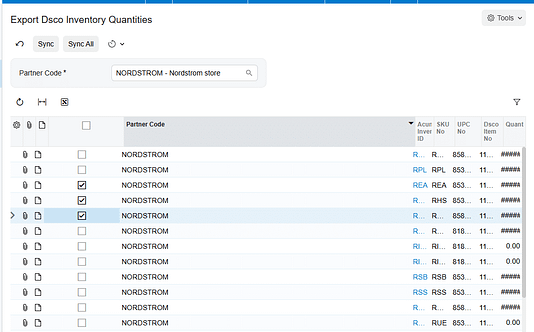
If processing reports an error, read the row-level message first. The connector guide’s processing screens use line-level errors and direct users to Tools > Trace for additional detail. Use the trace when the visible message is insufficient, then retest the specific row after correcting the connection, mapping, or setup issue.
Common pitfalls
Items do not appear for export. Confirm that the required items were selected on the DSCO Store screen and that the store was saved. Then verify the DSCO-to-Acumatica item cross-reference, including the selected lookup method such as SKU.
The exported quantity is too high or too low. Review Inventory Availability. The connector sums quantities across selected warehouses, so an unintended warehouse can inflate the result and a missing warehouse can suppress it. Also confirm whether On Hand, Available, or Available for Shipment is selected.
The connection test fails. Recheck Partner Code, Access Token, and Base URL, then run Test Credentials again. Inventory troubleshooting should wait until the API connection succeeds.
A manual value is overwritten later. The DSCO Quantity field provides an alternate value for a specific sync. A later run using the Acumatica Quantity can replace that value. Keep overrides controlled and visible to the team.
A successful sync is assumed without external validation. Verify the receiving quantity in DSCO, especially after configuration changes. The Acumatica screen shows the value being prepared; the DSCO result confirms what the channel received.
Frequently asked questions
Which Acumatica quantity can be sent to DSCO
The connector supports On Hand, Available, and Available for Shipment. Select the basis in the DSCO Store inventory availability settings before running the export.
How are quantities handled when more than one warehouse is selected
The exported item quantity is the sum of the quantities from the selected warehouses.
Can I send a quantity different from the Acumatica value
Yes. Enter the desired value in DSCO Quantity, select the row, and click SYNC. The connector then updates DSCO from the DSCO Quantity field.
Is the Quantity field editable
No. The guide defines Quantity as a read-only field that displays the inventory quantity from Acumatica.
Why should I test only a few items first
A small test makes it easier to identify whether a mismatch comes from item mapping, warehouse scope, the quantity basis, or an override. Once those controls are verified, expand the run to the remaining selected items.
Keep DSCO inventory aligned with Acumatica
A reliable inventory sync starts with precise configuration and ends with validation in DSCO. Select and save the right items, map them to Acumatica inventory IDs, include only the warehouses that should feed the channel, and choose the quantity measure that reflects fulfillment policy. Then use the standard Quantity workflow for routine updates and reserve DSCO Quantity overrides for controlled exceptions.
Need help configuring, validating, or troubleshooting the DSCO Connector for Acumatica? Visit Biz-Tech Services to discuss your integration requirements.
Check this video for details https://www.youtube.com/watch?v=Hk296jscNtA
How to Update Acumatica Shipments with ShipStation Tracking Data
How to Update Acumatica Shipments with ShipStation Tracking Data
Updating Acumatica with ShipStation tracking data is a controlled two-system workflow: send an eligible Acumatica order to ShipStation, complete the shipment there, and then import the shipment back into Acumatica. When the integration is configured correctly, Acumatica adds the shipment number and tracking number to the corresponding order and updates the order status to Prepare Invoice. This guide explains the required settings, the operational steps, the fields to verify, and the common configuration problems that interrupt the handoff.
How the ShipStation Tracking Update Works
The relevant integration direction is Acumatica to ShipStation. Within that direction, the Process Flow must be set to Shipment in ShipStation. Acumatica remains the source of the order, while ShipStation is where the shipment is created. After shipping activity is complete, Acumatica retrieves the corresponding ShipStation shipment and associates it with the order that was exported.
The ShipStation Order ID provides the key operational link. When an order is exported, ShipStation creates the order and Acumatica displays that identifier in the ShipStation Order ID field on the Sales Orders screen. The later import uses the established relationship to bring the shipment number and tracking number back to the correct Acumatica order.
Configure the ShipStation Store in Acumatica
Begin on the ShipStation Store screen. Select the correct Store Code and add a useful Description so administrators can distinguish the connection. Under Connection Settings, enter the Consumer Key, Consumer Secret, and ShipStation Base URL. These values authenticate API communication between Acumatica and ShipStation. Use Test Credentials before attempting an export or import. If the test fails, use Edit Credentials to correct the values before troubleshooting order data.
Set the Direction and Process Flow
Set Integration Option to Acumatica to ShipStation. This selection makes Process Flow available. Choose Shipment in ShipStation for a workflow in which orders leave Acumatica, shipments are created in ShipStation, and shipment details return to Acumatica. Do not choose Shipment in Acumatica for this scenario; that alternative creates the ShipStation order and shipment from Acumatica during shipment confirmation and uses a different sequence.
Load Supporting ShipStation Values
For an Acumatica-to-ShipStation setup, the store screen includes General Info, Carriers and Services, Packages, and ShipStation Warehouses. Open each applicable tab and retrieve its values from ShipStation. For example, Get Carriers loads carrier codes and Get Packages loads available packages. Select the records that should be used for order processing. The ShipStation Warehouses tab follows the same retrieve-and-select pattern. Accurate carrier, service, package, and warehouse choices reduce mapping errors when Acumatica creates orders in ShipStation.
Workflow for Updating Acumatica with Tracking Data
1 Confirm the store configuration
Verify the Store Code, credentials, Integration Option, and Process Flow. The required combination is Acumatica to ShipStation plus Shipment in ShipStation.
2 Export the Acumatica order
Open Create Orders in ShipStation to view eligible Acumatica orders. Select the required order and process it using the configured Store Code and ShipStation Store ID. You can also open the Sales Orders screen and choose Create ShipStation Order from the ShipStation group in the Actions menu.
3 Validate the outbound result
Return to the Sales Orders screen and confirm that the ShipStation Order ID field is populated. This shows that the order was created in ShipStation and that Acumatica retained the external identifier needed for the return flow.
4 Create the shipment in ShipStation
Process the exported order in ShipStation and create its shipment. The shipment must exist in ShipStation before Acumatica can retrieve its shipment and tracking details.
5 Import the shipment into Acumatica
Open Import Shipment from ShipStation. This processing screen displays Acumatica orders that have already been exported to ShipStation. Process the order after its ShipStation shipment exists. As an alternative, use Get ShipStation Shipments from the ShipStation group in the Sales Orders Actions menu.
6 Verify the Acumatica update
Confirm that the shipment number and tracking number were added to the corresponding Acumatica order. The documented workflow also updates the order status to Prepare Invoice.
Key Fields and Settings to Check
1. Store Code identifies the ShipStation store used by the integration.
2. ShipStation Store ID determines the connected store used when Acumatica exports the order.
3. Consumer Key, Consumer Secret, and Base URL control API authentication and connectivity.
4. Integration Option must be Acumatica to ShipStation for this workflow.
5. Process Flow must be Shipment in ShipStation to retrieve shipments created in ShipStation.
6. ShipStation Order ID should appear on the Acumatica sales order after export.
7. Shipment number and tracking number should return to the corresponding Acumatica order after import.
8. Order status should advance to Prepare Invoice after the shipment is imported.
Monitoring and Validation
Monitor the integration at each handoff instead of waiting until invoicing. First, test the API credentials on the store record. Next, verify that the outbound process places a ShipStation Order ID on the sales order. After the shipment is created in ShipStation, confirm that the order appears on the Import Shipment from ShipStation screen. Finally, inspect the Acumatica order for the imported shipment number, tracking number, and Prepare Invoice status.
The ShipStation Orders and ShipStation Shipments screens are Generic Inquiries that expose the initial integration information for orders and shipment orders. Use them as operational views when confirming whether data has reached Acumatica. They complement, but do not replace, checking the actual sales order fields and status after processing. Review these views regularly during testing and routine operations.
Common Pitfalls
1. Wrong integration direction: If the store is configured as ShipStation to Acumatica, the outbound Create Orders in ShipStation and return-shipment workflow described here is not the applicable process.
2. Wrong process flow: Shipment in Acumatica follows a different model in which a sales order and shipment are created in Acumatica, ShipStation information is entered on the shipment, and confirmation creates both records in ShipStation.
3. Credentials were entered but not tested: A failed connection blocks both outbound order creation and inbound shipment retrieval. Test credentials before analyzing individual transactions.
4. The order was never exported: Import Shipment from ShipStation lists Acumatica orders that were previously exported. If the ShipStation Order ID is missing, correct the outbound step first.
5. The shipment does not yet exist in ShipStation: Acumatica cannot import tracking data until ShipStation has created the shipment for the exported order.
6. Carrier package or warehouse values were not loaded: Incomplete selections on the Acumatica-to-ShipStation store tabs can disrupt the order and shipment setup that precedes tracking retrieval.
Frequently Asked Questions
Which integration settings are required to import ShipStation tracking data into Acumatica
Set Integration Option to Acumatica to ShipStation and Process Flow to Shipment in ShipStation.
Where can I start the outbound order export
Use the Create Orders in ShipStation processing screen, or run Create ShipStation Order from the ShipStation group in the Sales Orders Actions menu.
Where can I import the ShipStation shipment
Use Import Shipment from ShipStation, or run Get ShipStation Shipments from the ShipStation group in the Sales Orders Actions menu.
What information is updated in Acumatica
The documented workflow adds the shipment number and tracking number to the corresponding order and changes the order status to Prepare Invoice.
How can I tell whether the order was exported successfully
Check the ShipStation Order ID field on the Sales Orders screen. A populated value indicates that the ShipStation order was generated and linked.
Can Acumatica create the shipment instead
Yes, but that requires Process Flow set to Shipment in Acumatica. In that workflow, users create the sales order and shipment in Acumatica, complete the ShipStation Information area on the shipment, and confirm the shipment to create the order and shipment in ShipStation.
Get Help with Acumatica and ShipStation Integration
A reliable tracking-data workflow depends on correct store credentials, direction, process flow, and transaction matching. If you need help configuring the integration or validating the order-to-shipment handoff, contact Biz-Tech Services to discuss your Acumatica and ShipStation requirements.
How to Update Acumatica Shipments with ShipStation Tracking Data
How to Update Acumatica Shipments with ShipStation Tracking Data
Updating Acumatica with ShipStation tracking data is a controlled two-system workflow: send an eligible Acumatica order to ShipStation, complete the shipment there, and then import the shipment back into Acumatica. When the integration is configured correctly, Acumatica adds the shipment number and tracking number to the corresponding order and updates the order status to Prepare Invoice. This guide explains the required settings, the operational steps, the fields to verify, and the common configuration problems that interrupt the handoff.
How the ShipStation Tracking Update Works
The relevant integration direction is Acumatica to ShipStation. Within that direction, the Process Flow must be set to Shipment in ShipStation. Acumatica remains the source of the order, while ShipStation is where the shipment is created. After shipping activity is complete, Acumatica retrieves the corresponding ShipStation shipment and associates it with the order that was exported.
The ShipStation Order ID provides the key operational link. When an order is exported, ShipStation creates the order and Acumatica displays that identifier in the ShipStation Order ID field on the Sales Orders screen. The later import uses the established relationship to bring the shipment number and tracking number back to the correct Acumatica order.
Configure the ShipStation Store in Acumatica
Begin on the ShipStation Store screen. Select the correct Store Code and add a useful Description so administrators can distinguish the connection. Under Connection Settings, enter the Consumer Key, Consumer Secret, and ShipStation Base URL. These values authenticate API communication between Acumatica and ShipStation. Use Test Credentials before attempting an export or import. If the test fails, use Edit Credentials to correct the values before troubleshooting order data.
Set the Direction and Process Flow
Set Integration Option to Acumatica to ShipStation. This selection makes Process Flow available. Choose Shipment in ShipStation for a workflow in which orders leave Acumatica, shipments are created in ShipStation, and shipment details return to Acumatica. Do not choose Shipment in Acumatica for this scenario; that alternative creates the ShipStation order and shipment from Acumatica during shipment confirmation and uses a different sequence.
Load Supporting ShipStation Values
For an Acumatica-to-ShipStation setup, the store screen includes General Info, Carriers and Services, Packages, and ShipStation Warehouses. Open each applicable tab and retrieve its values from ShipStation. For example, Get Carriers loads carrier codes and Get Packages loads available packages. Select the records that should be used for order processing. The ShipStation Warehouses tab follows the same retrieve-and-select pattern. Accurate carrier, service, package, and warehouse choices reduce mapping errors when Acumatica creates orders in ShipStation.
Workflow for Updating Acumatica with Tracking Data
1 Confirm the store configuration
Verify the Store Code, credentials, Integration Option, and Process Flow. The required combination is Acumatica to ShipStation plus Shipment in ShipStation.
2 Export the Acumatica order
Open Create Orders in ShipStation to view eligible Acumatica orders. Select the required order and process it using the configured Store Code and ShipStation Store ID. You can also open the Sales Orders screen and choose Create ShipStation Order from the ShipStation group in the Actions menu.
3 Validate the outbound result
Return to the Sales Orders screen and confirm that the ShipStation Order ID field is populated. This shows that the order was created in ShipStation and that Acumatica retained the external identifier needed for the return flow.
4 Create the shipment in ShipStation
Process the exported order in ShipStation and create its shipment. The shipment must exist in ShipStation before Acumatica can retrieve its shipment and tracking details.
5 Import the shipment into Acumatica
Open Import Shipment from ShipStation. This processing screen displays Acumatica orders that have already been exported to ShipStation. Process the order after its ShipStation shipment exists. As an alternative, use Get ShipStation Shipments from the ShipStation group in the Sales Orders Actions menu.
6 Verify the Acumatica update
Confirm that the shipment number and tracking number were added to the corresponding Acumatica order. The documented workflow also updates the order status to Prepare Invoice.
Key Fields and Settings to Check
- Store Code identifies the ShipStation store used by the integration.
- ShipStation Store ID determines the connected store used when Acumatica exports the order.
- Consumer Key, Consumer Secret, and Base URL control API authentication and connectivity.
- Integration Option must be Acumatica to ShipStation for this workflow.
- Process Flow must be Shipment in ShipStation to retrieve shipments created in ShipStation.
- ShipStation Order ID should appear on the Acumatica sales order after export.
- Shipment number and tracking number should return to the corresponding Acumatica order after import.
- Order status should advance to Prepare Invoice after the shipment is imported.
Monitoring and Validation
Monitor the integration at each handoff instead of waiting until invoicing. First, test the API credentials on the store record. Next, verify that the outbound process places a ShipStation Order ID on the sales order. After the shipment is created in ShipStation, confirm that the order appears on the Import Shipment from ShipStation screen. Finally, inspect the Acumatica order for the imported shipment number, tracking number, and Prepare Invoice status.
The ShipStation Orders and ShipStation Shipments screens are Generic Inquiries that expose the initial integration information for orders and shipment orders. Use them as operational views when confirming whether data has reached Acumatica. They complement, but do not replace, checking the actual sales order fields and status after processing. Review these views regularly during testing and routine operations.
Common Pitfalls
- Wrong integration direction: If the store is configured as ShipStation to Acumatica, the outbound Create Orders in ShipStation and return-shipment workflow described here is not the applicable process.
- Wrong process flow: Shipment in Acumatica follows a different model in which a sales order and shipment are created in Acumatica, ShipStation information is entered on the shipment, and confirmation creates both records in ShipStation.
- Credentials were entered but not tested: A failed connection blocks both outbound order creation and inbound shipment retrieval. Test credentials before analyzing individual transactions.
- The order was never exported: Import Shipment from ShipStation lists Acumatica orders that were previously exported. If the ShipStation Order ID is missing, correct the outbound step first.
- The shipment does not yet exist in ShipStation: Acumatica cannot import tracking data until ShipStation has created the shipment for the exported order.
- Carrier package or warehouse values were not loaded: Incomplete selections on the Acumatica-to-ShipStation store tabs can disrupt the order and shipment setup that precedes tracking retrieval.
Frequently Asked Questions
Which integration settings are required to import ShipStation tracking data into Acumatica
Set Integration Option to Acumatica to ShipStation and Process Flow to Shipment in ShipStation.
Where can I start the outbound order export
Use the Create Orders in ShipStation processing screen, or run Create ShipStation Order from the ShipStation group in the Sales Orders Actions menu.
Where can I import the ShipStation shipment
Use Import Shipment from ShipStation, or run Get ShipStation Shipments from the ShipStation group in the Sales Orders Actions menu.
What information is updated in Acumatica
The documented workflow adds the shipment number and tracking number to the corresponding order and changes the order status to Prepare Invoice.
How can I tell whether the order was exported successfully
Check the ShipStation Order ID field on the Sales Orders screen. A populated value indicates that the ShipStation order was generated and linked.
Can Acumatica create the shipment instead
Yes, but that requires Process Flow set to Shipment in Acumatica. In that workflow, users create the sales order and shipment in Acumatica, complete the ShipStation Information area on the shipment, and confirm the shipment to create the order and shipment in ShipStation.
Get Help with Acumatica and ShipStation Integration
A reliable tracking-data workflow depends on correct store credentials, direction, process flow, and transaction matching. If you need help configuring the integration or validating the order-to-shipment handoff, contact Biz-Tech Services to discuss your Acumatica and ShipStation requirements.