
How DocVision Converts PDF Purchase Orders into Acumatica Sales Orders
DocVision turns a customer’s PDF purchase order into an Acumatica sales order without anyone retyping a line. That sounds simple, but the data flow behind it has a clear shape worth understanding: a PDF is imported and becomes a reusable template, the template maps every PDF field to an Acumatica field, cross-references resolve the customer and the items, a review screen shows in color whether the document is ready, and only then is the sales order generated. Knowing which stage a document has reached, and which field controls the next step, is what makes PDF automation dependable rather than unpredictable.
The Biz-Tech Services DocVision product is a PDF scan and import enhancement built natively for Acumatica ERP. Users upload PDF files such as purchase orders or shipping requests and generate the corresponding sales orders inside Acumatica, eliminating manual data entry. This article follows a PDF through the entire flow, from the initial setup and template creation to the generated sales order, and identifies the fields users should monitor at each point.
What DocVision Does in Acumatica
DocVision is an Acumatica ERP enhancement that automates the creation of sales orders from PDF documents. It reads an uploaded PDF, identifies the customer and ship-to information using pre-configured templates, maps the document’s values to Acumatica fields, and generates a sales order from the result. Because parsing rules are defined per customer, the same system can handle many different document formats and structures, which matters when every customer sends purchase orders in their own layout.
Several characteristics shape how the product behaves in practice. It is built natively for Acumatica, so it runs without external dependencies and works within Acumatica’s secure environment, respecting user permissions and audit trails. It reduces data entry mistakes by extracting information directly from the source document, and it standardizes incoming sales data regardless of the style of the originating document. For high-volume sales operations, that combination of speed and consistency is the point of the product.
The DocVision Data Flow at a Glance
Before looking at individual screens, here is the path a PDF travels to become a sales order:
- Azure setup establishes and tests the credentials that allow customer purchase order PDF files to be brought in and processed.
- On the PDF Import Settings screen, a PDF is imported and a template is created, defining the mapping between PDF values and Acumatica values.
- The system automatically populates PDF FieldName, PDF Value, and the Target Object and Source Field mappings, which can then be adjusted manually.
- Inventory and customer cross-references resolve the PDF’s item and customer values to real Acumatica inventory IDs, customers, and locations.
- On the Import Documents screen, each document is reviewed, with green, red, and yellow indicating readiness, errors, and mapping warnings.
- Generate Sales Order creates the order, sets the Generated checkbox, and records the order number and order type against the document.
- The Import PDF Documents inquiry and the batch generation screen provide oversight across many documents at once.
Each field discussed below sits at one of those handoffs.
Stage One: Azure Setup and Testing Credentials
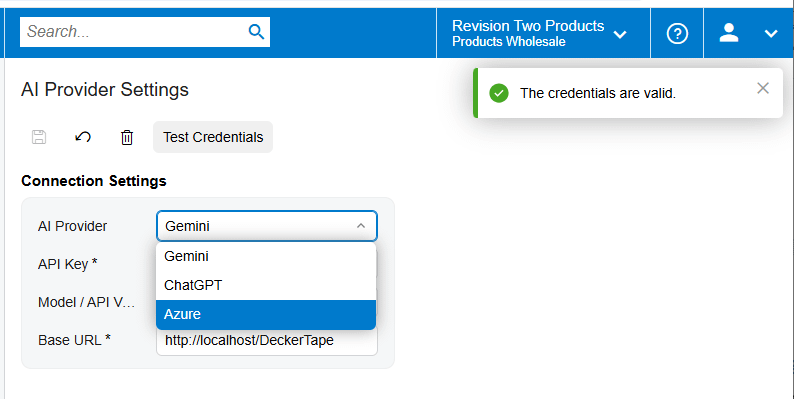
Setting up Azure in Acumatica allows the ERP system to run on Microsoft’s cloud platform using services such as Azure SQL Database, Virtual Machines, and Storage. Beyond the general benefits of scalability, security, performance, backups, disaster recovery, and Single Sign-On through Azure Active Directory, this configuration is what supports importing customer purchase order PDF files so they can be processed and converted into sales orders within Acumatica.
One control on this screen deserves to be used before anything else is attempted. The Test Credentials button confirms that the setup credentials are configured correctly. Running it early is the cheapest way to separate a credential problem from a mapping problem later, and it should be the first checkpoint whenever documents stop arriving.
Stage Two: Building a PDF Template in PDF Import Settings
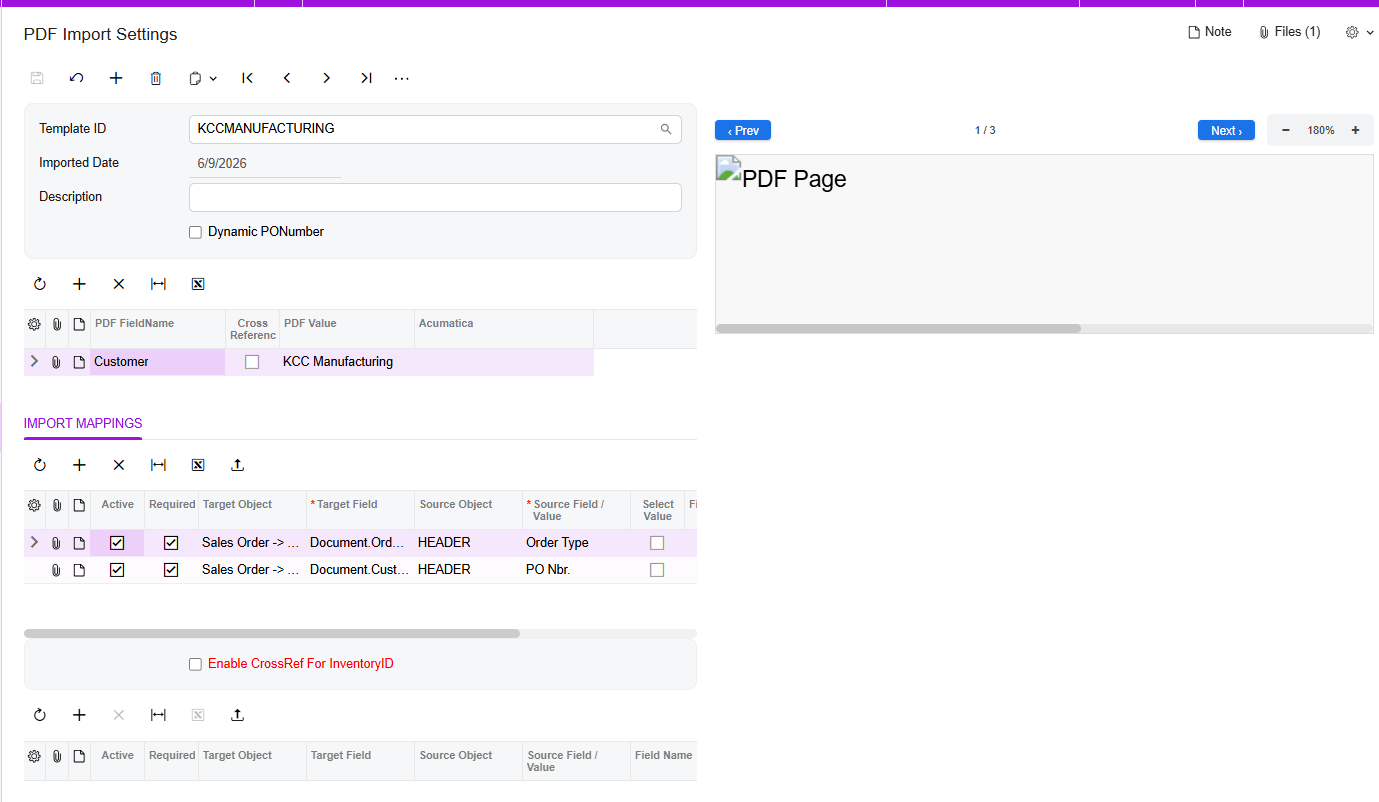
PDF Import Settings is where the intelligence of the product lives. Pressing the plus button opens a new workspace that allows a PDF file to be imported and a template created from it. Once the PDF is imported, the screen defines the mapping between PDF values and Acumatica values, and that mapping is what every future document of the same format will reuse.
Reading the automatic mappings
After a PDF is imported, the right side of the screen displays the file itself, with the ability to move to the next or previous page and to zoom in and out, so the source document can be read while mapping. The system automatically sets the PDF FieldName and PDF Value entries, and on the Import Mappings tab it also automatically sets the mappings between Target Object and Source Field values. From there it is possible to manually map all PDF fields to the corresponding Acumatica values, correcting or extending what was detected automatically.
Header versus detail mapping: the Target Object rule
One rule governs whether a mapped value lands on the order header or on an order line, and getting it wrong is a common early mistake. To map header fields of a sales order, select Sales Order and then Advanced in the Target Object. To map details on the Sales Order screen, select Sales Order, then Details, then Advanced. The presence or absence of Details in that path is the entire difference between a value appearing once on the order and appearing on each line.
The Active checkbox decides what actually gets written
During sales order generation, only the fields for which the Active checkbox is selected will be uploaded. This is the single most important field to check when a mapped value fails to appear on a generated order. The mapping can be entirely correct and still produce nothing if Active was never selected, which makes this checkbox the first place to look rather than the last.
Handling PDFs that have no purchase order number
Not every incoming document carries a purchase order number, and DocVision handles that case explicitly. Under the Description section there is a Dynamic PO Number field. If there is no purchase order number in the PDF file, this checkbox is automatically selected during the file import process and a warning is displayed reading that the document for the mapping does not have any number and asking you to select an alternative purchase order number.
After that warning appears, a Release PO Number field becomes available, which allows the values of the header to be mapped to existing values of the field. In other words, the system does not simply reject a document without a number; it asks you to nominate which header value should serve as the number instead.
Inventory and customer cross-references
Two cross-reference layers translate the PDF’s vocabulary into Acumatica’s. Enabling CrossRef for the Inventory ID field makes the Inventory Cross-Reference tab appear, where PDF items can be mapped manually to Acumatica inventory IDs, or where all items can be imported at once via Excel. The Excel route matters for onboarding a customer with a long catalog, since mapping item by item does not scale.
When Cross Reference is selected, the Customer Cross-Reference tab appears, allowing PDF customer values and locations to be mapped to Acumatica customers and locations. This is the mechanism behind the product’s customer recognition: the template knows that a particular string in a particular position identifies a specific Acumatica customer and ship-to location.
Stage Three: Reviewing Documents on the Import Documents Screen
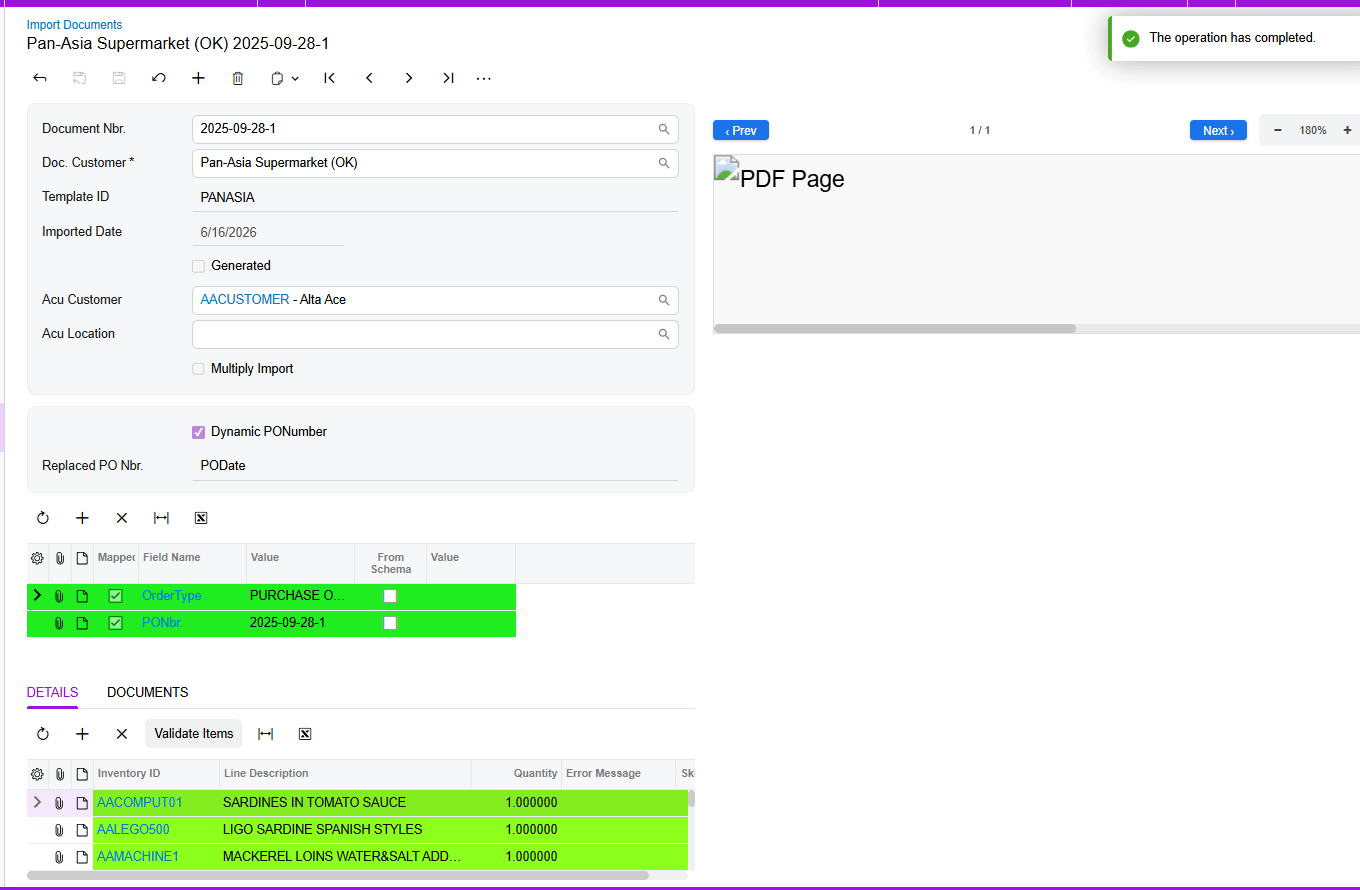
The Import Documents screen is the review and correction stage. It allows changes to be made to existing or previously imported documents, and it also enables documents to be imported directly from this screen. Selecting a document number displays the PDF already imported through PDF Import Settings along with all mappings for that document, and it retains the Template ID information, so you can always see which template produced a given result.
The green, red, and yellow color code
Three colors communicate document readiness at a glance, and teaching users to read them saves a great deal of investigation:
- Green indicates that everything is mapped correctly and the file is ready for generating a sales order.
- Red indicates that an item line hit an issue during the import process; the line turns red and an error message is displayed in the Error Message field.
- Yellow indicates a mapping problem, for example items that are not mapped correctly.
The distinction between red and yellow is worth stressing. Red points to a specific failure with a message attached, so the Error Message field tells you what happened. Yellow is a warning that the document is not yet ready, most often because item mapping is incomplete.
Resolving yellow warnings with Validate Items
Yellow warnings are addressed with the Validate Items button. It maps all PDF items to their Acumatica values and displays them on the Details tab, provided those items are already mapped in the Inventory Cross Reference on the PDF Import Settings screen. That proviso is the key to using it well: Validate Items applies existing cross-references, it does not invent them. If an item has never been cross-referenced, validation cannot resolve it and the cross-reference must be created first. The button can be used frequently when PDFs are imported from the same screen.
Stage Four: Generating the Sales Order
On the Documents tab, the Template ID, document number, Order Type, and Customer are displayed, which together confirm that the right template and the right customer were matched before anything is created. Once setup is complete, opening the three dots menu and selecting Generate Sales Order creates a sales order from all the mapped data.
Three results confirm success, and users should check all of them. The order number and order type are displayed against the document, the Generated checkbox is automatically selected, and the document number becomes visible on the Sales Order screen itself. That last item is the important one for traceability, because it means anyone looking at the resulting sales order can see which imported document produced it.
Batch Processing and the Import PDF Documents Inquiry
Two features exist for working across many documents rather than one at a time. A generic inquiry has been created where all document numbers, Template IDs, customer information, and document generation dates can be found, with hyperlinks on those fields that lead directly to the Import Document screen. This is the natural starting point for a daily review, since it answers what came in, under which template, for which customer, and when.
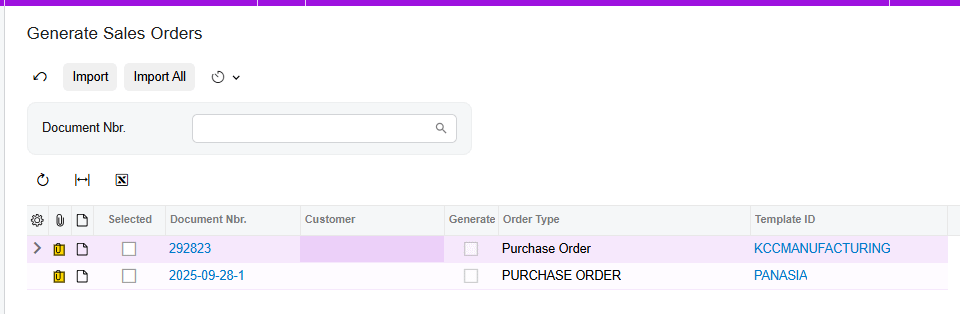
For processing volume, the Generating Sales Orders screen has been modified to allow orders to be imported in batches and sales orders generated from them. The Document Number field can be used to filter by document number and generate the corresponding sales order, which makes it practical to work through a queue of documents rather than opening each one individually.
Where to Monitor DocVision Results in Acumatica
When configuring templates, training users, or investigating a PDF that did not produce the expected order, these are the fields and screens that show what actually happened:
- The Active checkbox on each mapping, since only fields with it selected are uploaded during sales order generation.
- The Target Object path, where Sales Order then Advanced maps a header field and Sales Order then Details then Advanced maps a line field.
- The Dynamic PO Number checkbox and the Release PO Number field, which together handle documents that arrive without a purchase order number.
- The Inventory Cross-Reference tab, which resolves PDF items to Acumatica inventory IDs and can be loaded in bulk from Excel.
- The Customer Cross-Reference tab, which maps PDF customer values and locations to Acumatica customers and locations.
- The color of each line on the Import Documents screen, where green means ready, red means a line-level error, and yellow means a mapping warning.
- The Error Message field on any red line, which carries the specific reason the line failed.
- The Template ID retained against each document, which identifies which template produced the mapping.
- The Generated checkbox, order number, and order type on the Documents tab, which confirm the sales order was created.
- The document number displayed on the Sales Order screen, which links the finished order back to its source PDF.
- The Import PDF Documents generic inquiry, for document numbers, Template IDs, customer information, and generation dates across all documents.
DocVision for Acumatica: Frequently Asked Questions
What is DocVision for Acumatica?
DocVision is a Biz-Tech Services enhancement for Acumatica ERP that automates the creation of sales orders from PDF documents. Users upload PDFs such as purchase orders or shipping requests, and DocVision extracts the data using pre-configured per-customer templates and generates the corresponding sales order in Acumatica, removing the manual data entry step.
How does DocVision know which customer a PDF belongs to?
Through the Customer Cross-Reference tab, which appears when Cross Reference is selected. It maps PDF customer values and locations to Acumatica customers and locations, so the system can identify customer and ship-to information from each PDF using the pre-configured template. Because parsing rules are defined per customer, different customers can send completely different document layouts.
What do the green, red, and yellow colors mean on the Import Documents screen?
Green means everything is mapped correctly and the file is ready for sales order generation. Red means an item line encountered an issue during import, with the reason shown in the Error Message field. Yellow means a mapping problem, typically items that are not mapped correctly, which the Validate Items button can often resolve.
What happens if a PDF has no purchase order number?
The Dynamic PO Number checkbox under the Description section is automatically selected during import and a warning appears stating that the document for the mapping does not have any number and asking you to select an alternative. The Release PO Number field then becomes available, letting you map header values to existing values of the field so the document still receives a usable number.
Why is a mapped field missing from the generated sales order?
Check the Active checkbox on that mapping first. During sales order generation only fields with Active selected are uploaded, so a correct mapping with Active cleared produces nothing. If Active is set, verify the Target Object path, since header fields require Sales Order then Advanced while line fields require Sales Order then Details then Advanced.
How do you map PDF line items to Acumatica inventory IDs?
Enable CrossRef for the Inventory ID field, which makes the Inventory Cross-Reference tab appear. From there, PDF items can be mapped manually to Acumatica inventory IDs, or all items can be imported at once through Excel. Once those cross-references exist, the Validate Items button on the Import Documents screen will apply them and populate the Details tab.
Can DocVision generate sales orders in batches?
Yes. The Generating Sales Orders screen supports importing orders in batches and generating sales orders from them, and the Document Number field can be used to filter by document number and generate the corresponding order. The Import PDF Documents generic inquiry gives an overview of all documents, with hyperlinks back to the Import Document screen.
Work With the Biz-Tech Services DocVision Product
DocVision is straightforward once the flow is clear. Azure setup and tested credentials open the door, PDF Import Settings turns a sample document into a reusable per-customer template, the Active checkbox and the Target Object path decide what is written and where, inventory and customer cross-references translate the document into Acumatica’s own identifiers, the Import Documents screen shows readiness in color, and Generate Sales Order completes the journey with the document number visible on the finished order. Teams that know which field governs each handoff can turn a stack of customer PDFs into accurate sales orders quickly and consistently.
If your business receives customer purchase orders as PDFs and wants them turned into Acumatica sales orders without manual re-keying, we are glad to help you scope, configure, and roll out DocVision. Visit https://biz-techservices.com to learn more about our Acumatica expertise or to schedule a personalized demonstration of the Biz-Tech Services DocVision product.

