
How Gift Card Processing Works in Acumatica from Sale to Redemption
Gift Card Processing in Acumatica turns a gift card into two things at once: an item you sell and a payment method you later accept. That dual nature is what makes the data flow worth understanding. A gift card item is sold on a sales order, a serial number is generated and stored, a gift card record appears on the Payment Methods screen carrying its own balance, and every later redemption draws that balance down until nothing remains. Knowing where each record is created, which field holds the balance, and where to check the result is what keeps gift card liability accurate.
The Biz-Tech Services Gift Card Processing product, built for Acumatica, allows companies to sell serialized gift cards and then process those sold gift cards as payment. Gift cards grow sales, reinforce brand awareness, and are consistently preferred by customers over paper gift certificates. This article follows a gift card through the entire Acumatica data flow, from the preferences that define how it is numbered to the redemption that finally spends it, and points out the fields worth monitoring at every step.
What Gift Card Processing in Acumatica Does
Gift Card Processing is an Acumatica ERP customization that manages the full lifecycle of serialized gift cards. It lets you sell gift cards as either non-stock or stock inventory items, assigns each card a unique serial number, stores the card’s value against the customer and order that created it, and then allows that stored value to be redeemed as a payment method on sales orders, invoices, and payments. Acumatica maintains a running Used Amount and Remaining Amount for every card, so the outstanding gift card balance is always visible and auditable. Cards can also be created directly from an external system through the API.
The Gift Card Data Flow at a Glance
Before looking at individual screens, it helps to see the path a gift card record travels through Acumatica:
- A gift card payment method is configured on the Payment Methods (CA204000) screen and linked to a dedicated cash account.
- Gift Card Preferences (BZ102000) defines how card numbers are generated and how external gift cards map to Acumatica items.
- A gift card item is sold on the Sales Orders (SO301000) screen, either as a non-stock item or as a serialized stock item.
- A serial number is generated and stored, and a gift card record appears on the Gift Cards tab of the Payment Methods screen with its customer, order, and amount.
- The card is redeemed as a payment method on a sales order, on Payments and Applications (AR302000), or on an invoice, with the serial number identifying which balance to draw from.
- Used Amount and Remaining Amount update on both the Payment Methods screen and the Gift Card History (BZ407099) screen after the payment is released.
Every field discussed below sits somewhere on that path. Identifying the stage tells you which screen holds the answer.
Setting the Foundation: The Gift Card Payment Method
The flow starts with a payment method, because a gift card is ultimately money. Payment methods are defined and viewed on the Payment Methods (CA204000) screen, and setting up gift cards begins by creating a new payment method there. Because payment methods are linked to cash accounts, it is strongly recommended to create a new general ledger account dedicated to the gift card item. Keeping gift card liability in its own account is what allows finance to see outstanding gift card value as a distinct number rather than buried in a general cash account.
Once that general ledger account exists, add the gift card cash account under the Allowed Cash Accounts tab of the payment method. One further field saves users time throughout the rest of the flow: the Default Gift Card field on the Payment Methods screen lets you nominate the gift card that will appear automatically in the Gift Card field of the Create Payment popup. With a default set, redemption becomes a matter of entering a serial number rather than selecting a card first.
Gift Card Preferences (BZ102000): Numbering and External Mapping
The Gift Card Preferences screen configures two things that shape every card created afterward: how gift card numbers are generated inside Acumatica, and how external gift cards map to Acumatica gift card items during order import.
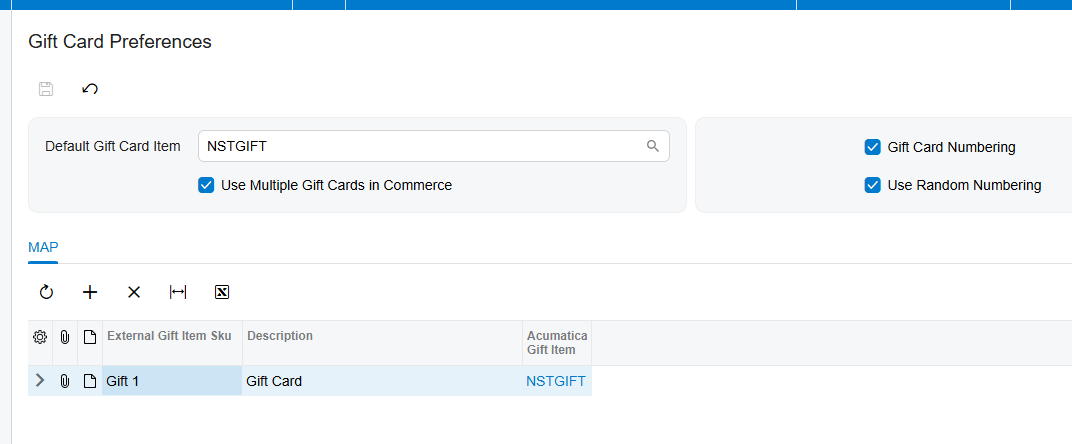
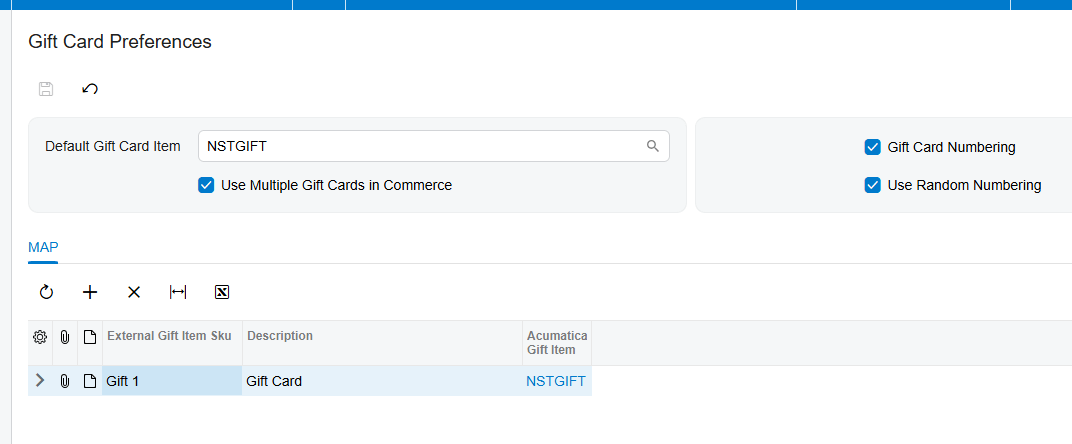
Default Gift Card Item identifies the non-stock item treated as the default gift card during the order import process. Use Multiple Gift Cards in Commerce extends this by letting you map an external gift card SKU to its corresponding Acumatica gift card item, which is what makes orders containing several different gift cards import correctly. The fallback behavior is worth remembering: if Use Multiple Gift Cards in Commerce is not selected, the system defaults to the non-stock item named in Default Gift Card Item for every imported external order.
Sequential numbering versus random numbering
Selecting the Gift Card Numbering checkbox makes the Numbering Segments tab available, where you define the numbering structure for non-stock gift cards. Acumatica then generates card numbers according to that configuration. One detail is essential rather than optional: the Auto-Incremental Value must be configured in the Numbering Segments tab for gift card numbers to generate automatically.
Use Random Numbering takes the opposite approach and hides the Numbering Segments tab entirely. In this mode, Acumatica generates random numbers when a gift card item is entered on a sales order and a quantity is specified. The system produces as many random numbers as the entered quantity and displays them in the Gift Card Numbers popup. The security rationale matters: random numbering prevents anyone from guessing valid gift cards by following a predictable sequence. For cards distributed at scale, this is usually the safer choice.
Two Kinds of Gift Card Item: Non-Stock and Stock
Acumatica supports gift cards as either non-stock items or stock items, and the choice determines the shape of the early data flow. A non-stock gift card is the lighter path, suited to digital cards and to cards imported from external commerce systems. A stock gift card is a serialized physical inventory item that must be received before it can be sold, suited to physical cards held in a warehouse. Both converge on the same gift card record and the same redemption process, so the difference is confined to how the card comes into existence.
Selling a Non-Stock Gift Card Item in Acumatica
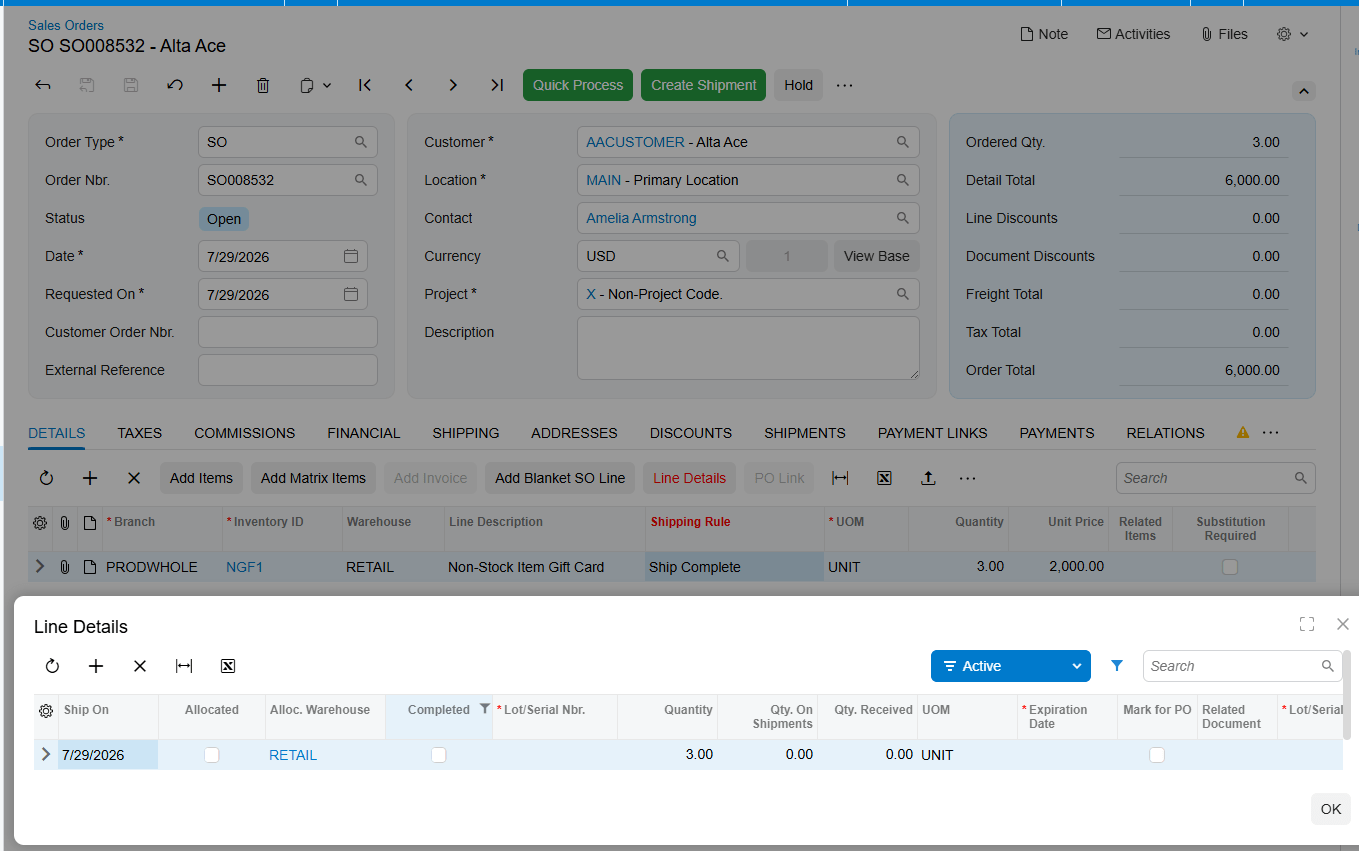
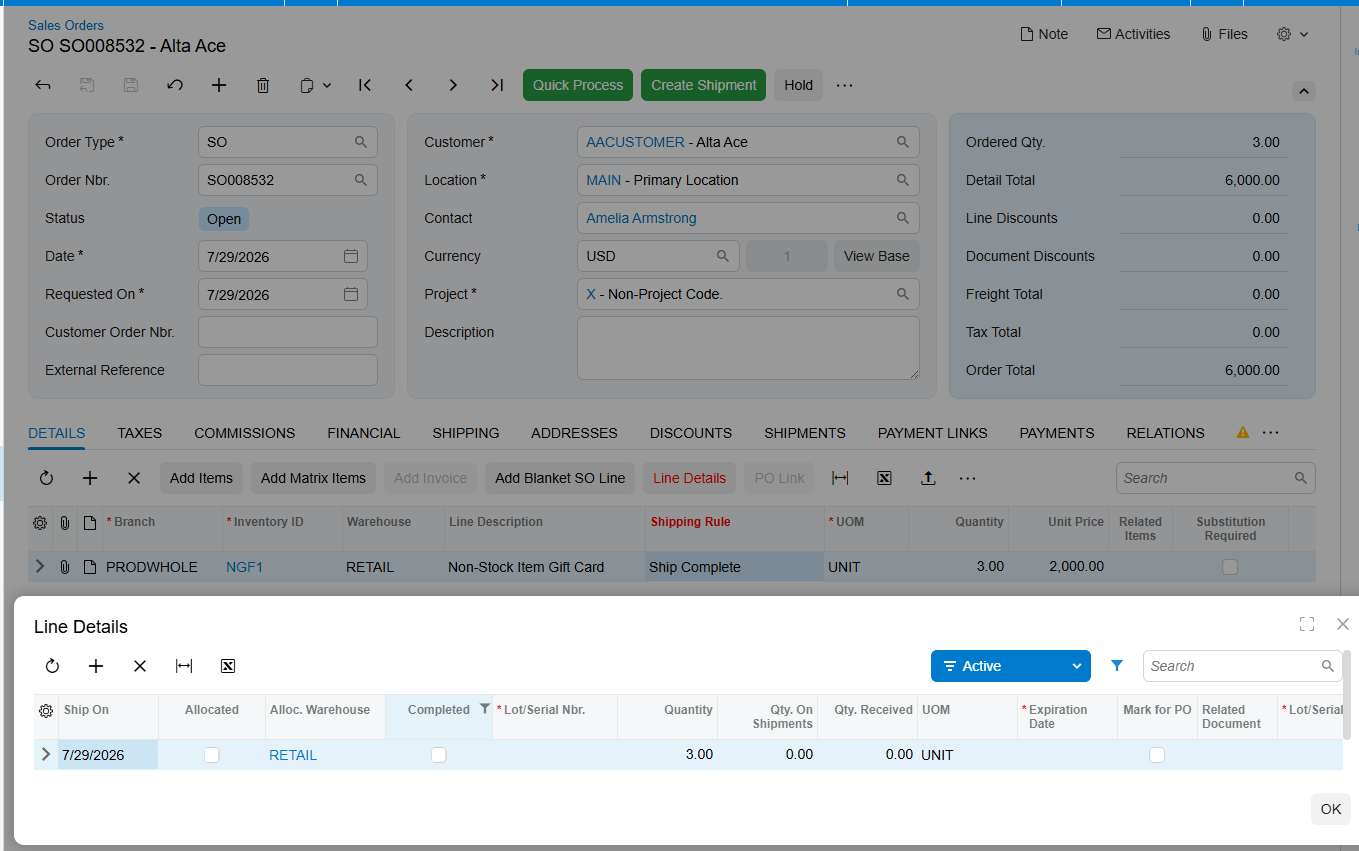
Non-stock gift card items are sold to customers on the standard Acumatica Sales Orders screen. The card can be sold directly within Acumatica or imported from an external system, after which the order proceeds to fulfillment as normal. The gift card number is generated and displayed in the Gift Card Numbers field on the Details tab of the sales order, and also in the Gift Card Numbers popup during order creation.
For orders created inside Acumatica, the gift card number can either be entered manually or generated according to the numbering setup in Gift Card Preferences. Three behaviors are worth knowing before users encounter them. The Gift Card Numbers popup displays the number belonging to the currently selected item line, so selecting a different line changes what you see. When the gift card quantity is greater than one, all of the generated numbers appear in that popup rather than on the line itself. And the shipping rule for a non-stock gift card automatically becomes Ship Complete on the sales order line.
Creating and Selling a Stock Gift Card Item
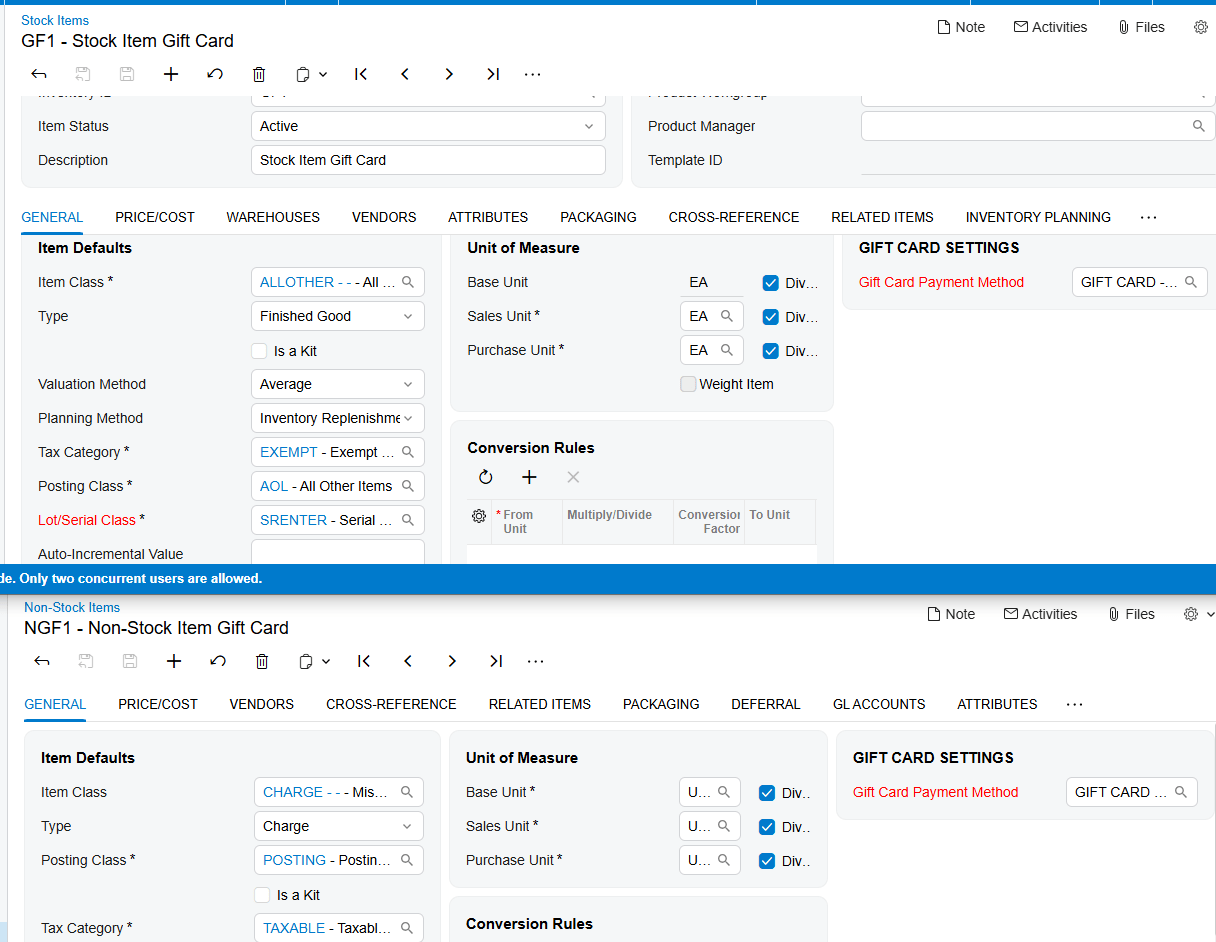
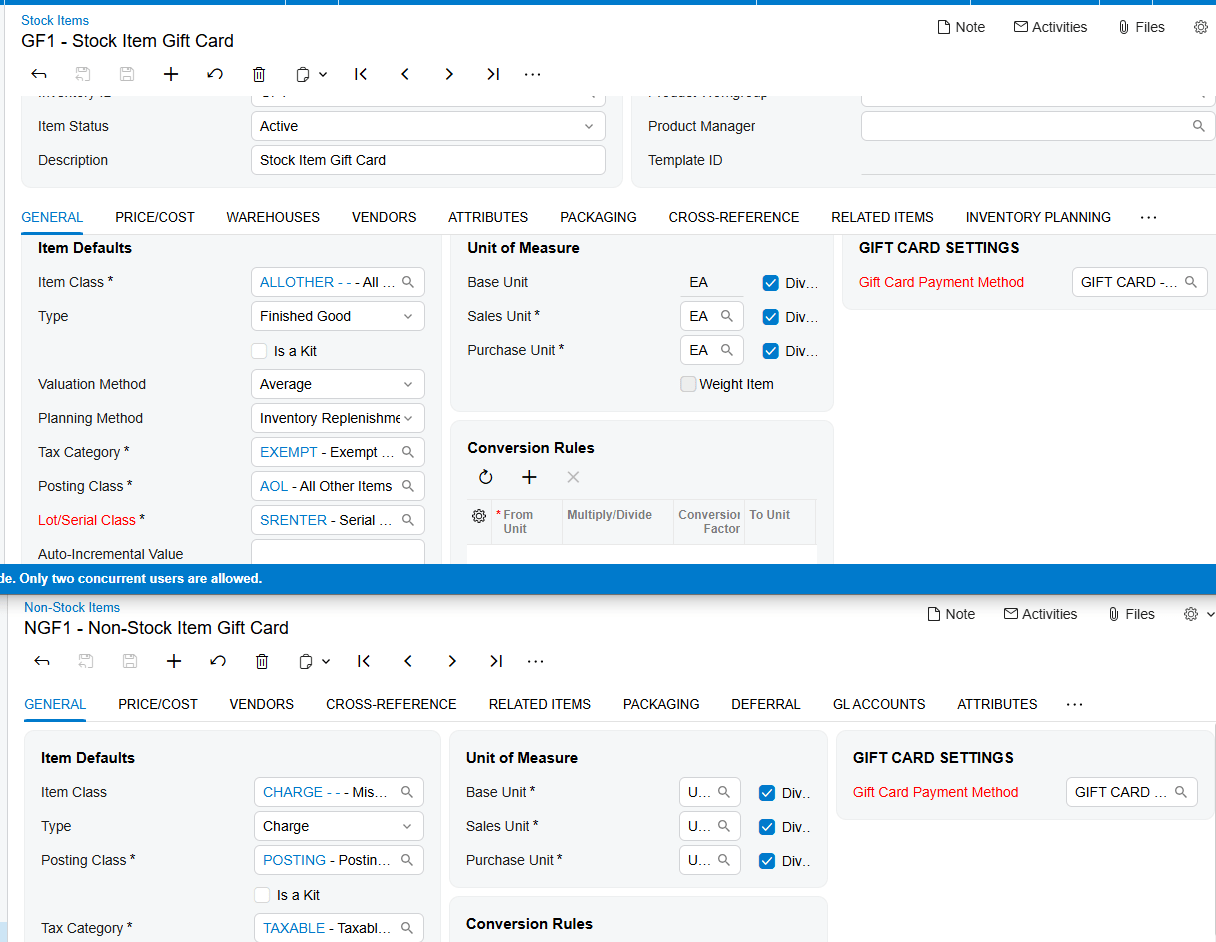
A stock gift card item is created from the Stock Items (IN202500) screen. Two configuration points make it function as a gift card. First, you must select the payment method to associate with the item for gift card payments. Second, because that field is enabled only for serialized items, a serial class specifically for the gift card item must be created on the Lot/Serial Classes screen. Serialization is what gives each physical card its own identity and its own balance.
Expiration dates are handled through the Track Expiration Date checkbox, which should be selected if gift cards are to expire. The timing matters: the gift card expiration date is established during the gift card receipt process, not at item creation.
The gift card receipt process
Stock gift cards must be received into inventory before they can be sold. Add the gift card item to the Receipts screen, enter the quantity, and generate the serial numbers together with their respective expiration dates from the Line Details popup window. Expiration dates appear here only when Track Expiration Date is selected on the serial class. At the end of this process, you hold a set of uniquely numbered, dated cards in inventory ready to sell.
Fulfilling a stock gift card order
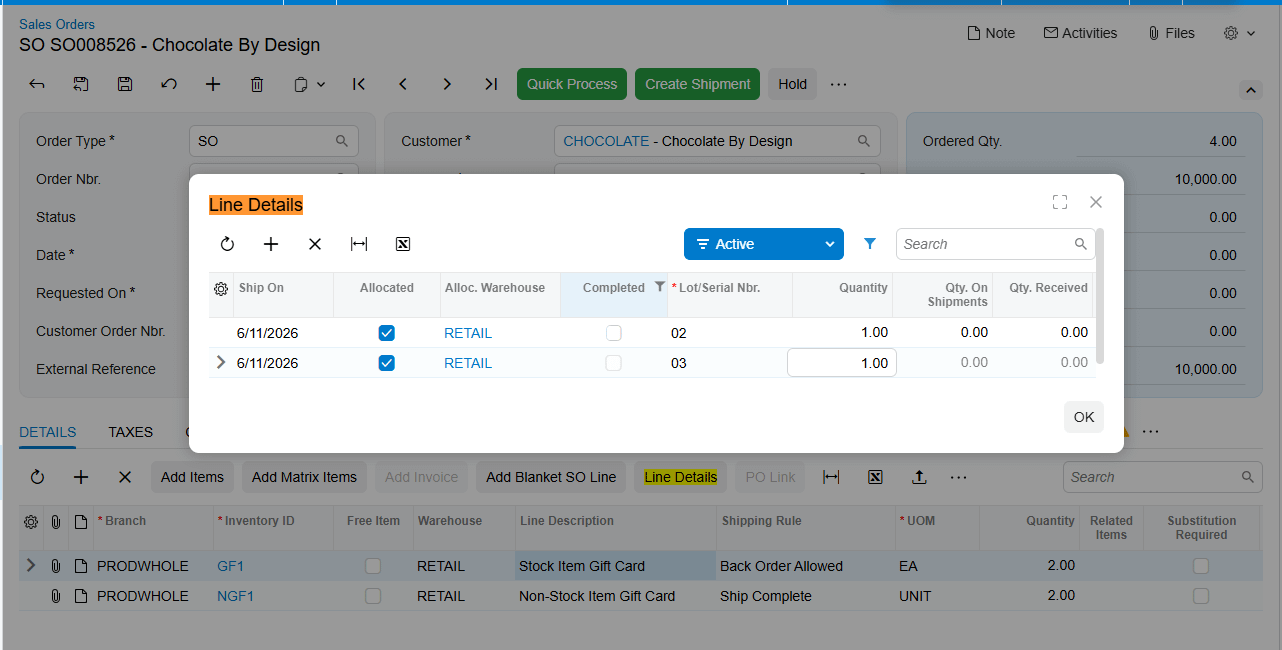
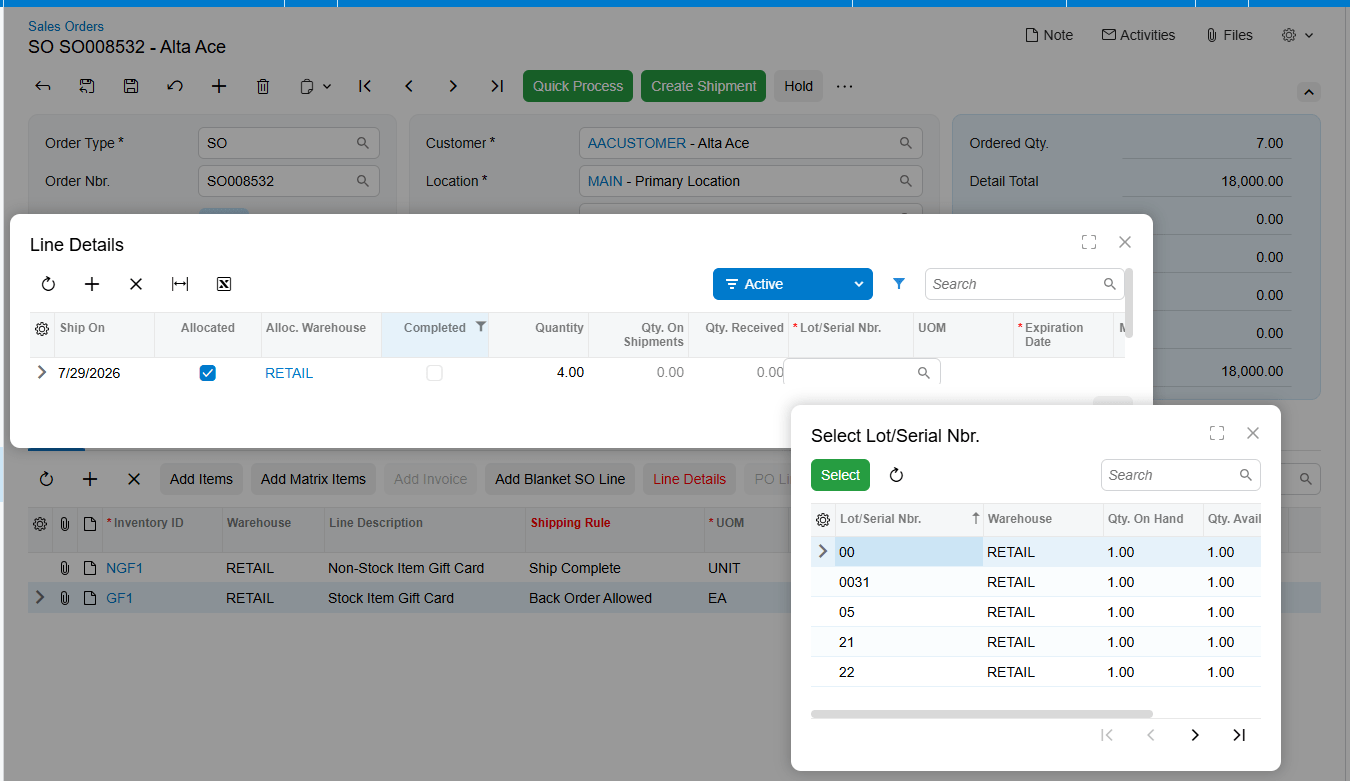
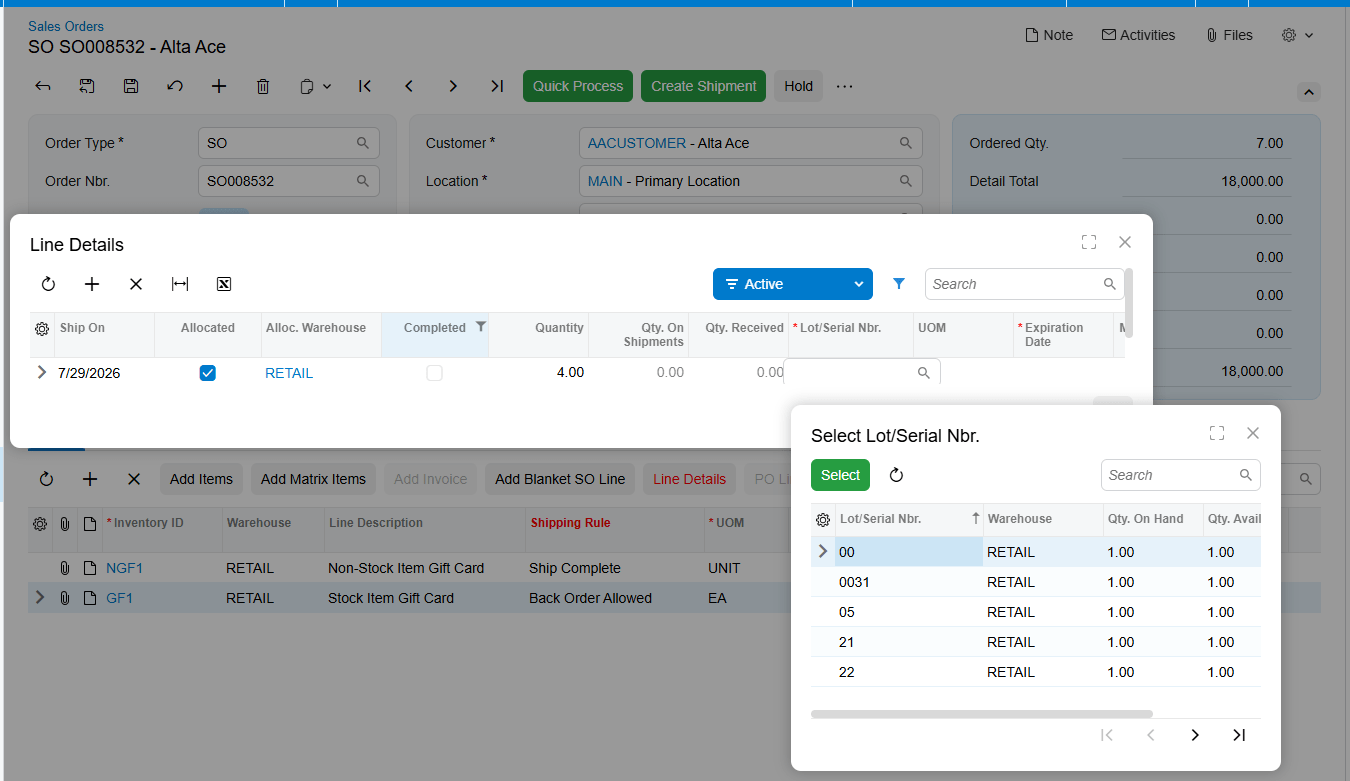
Stock gift card items are sold on the same Sales Orders (SO301000) screen, but with one important difference: allocation is required for all stock gift card items. The specific card being sold must be chosen by selecting its serial number from the Lot/Serial Nbr field on the Line Details tab, which displays all available gift card serial numbers along with their expiration dates. This is the step that ties a physical card in your warehouse to a specific customer order.
Where the Gift Card Record Lives After the Sale
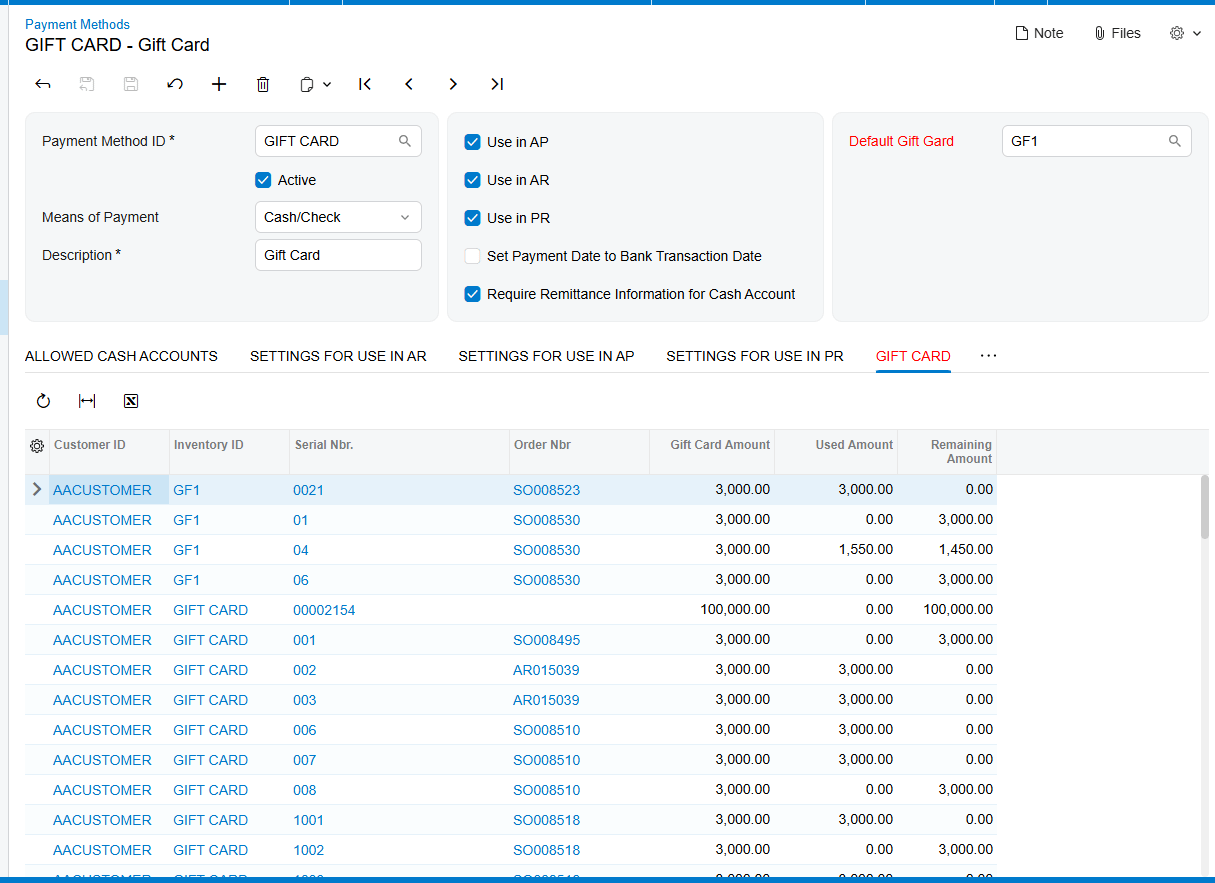
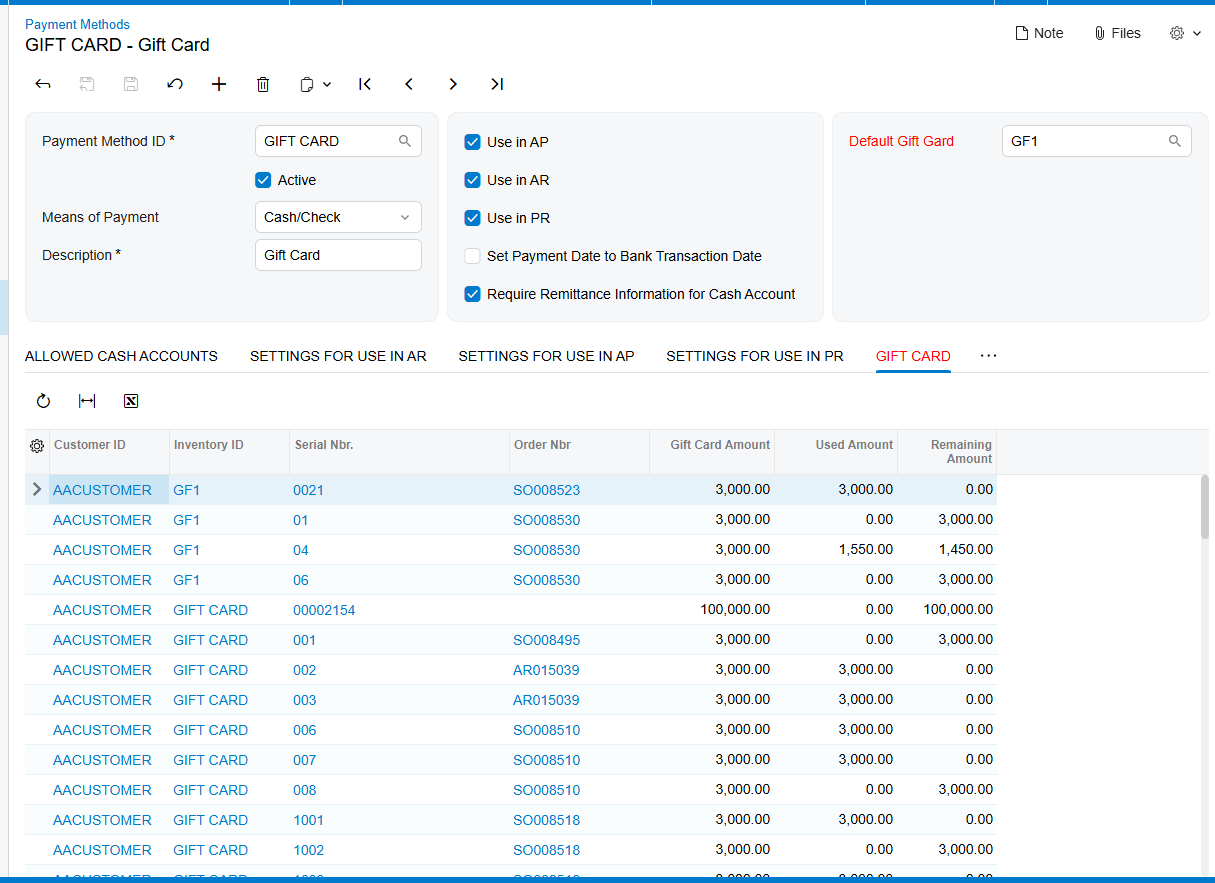
Once a gift card item is sold, whether stock or non-stock, the customer information, order information, and gift card amount are stored on the Gift Cards tab of the Payment Methods screen. This tab is the master record of every gift card in the system, and it displays Customer ID, Inventory ID, Gift Card Serial Number, Order Number, Gift Card Amount, Used Amount, and Remaining Amount.
Those last two fields are the ones to watch. As a gift card is used, Acumatica updates the Used Amount and Remaining Amount on this tab, so the outstanding balance of any card is always one screen away. Clicking a serial number opens the Gift Card History screen, which shows all transactions related to that card. Together these two views answer the two questions users actually ask: what is left on this card, and what has been done with it.
Redeeming a Gift Card as a Payment Method in Acumatica
Redemption is where a sold gift card becomes tender, and Acumatica supports three routes. All three follow the same underlying pattern: choose the gift card payment method, identify the specific card by serial number, and release the payment.
Redeeming on a sales order
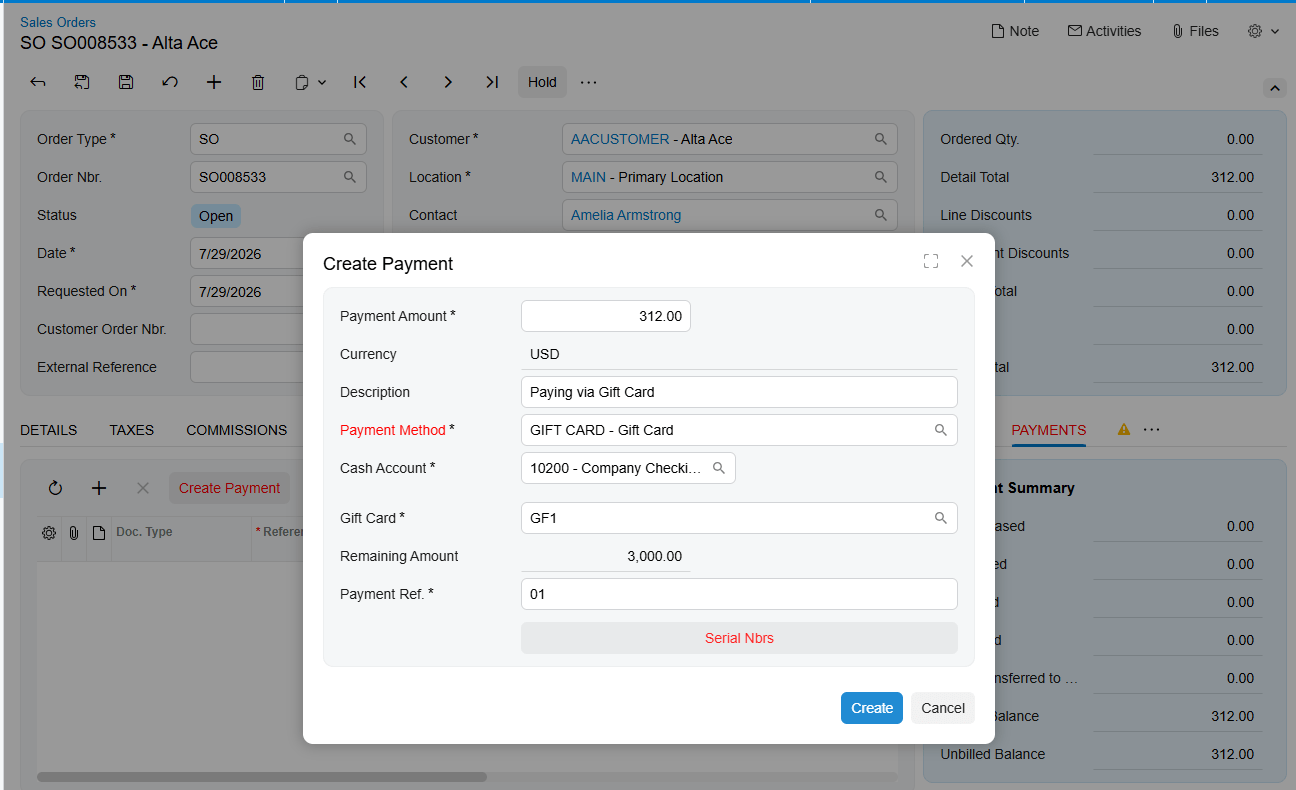
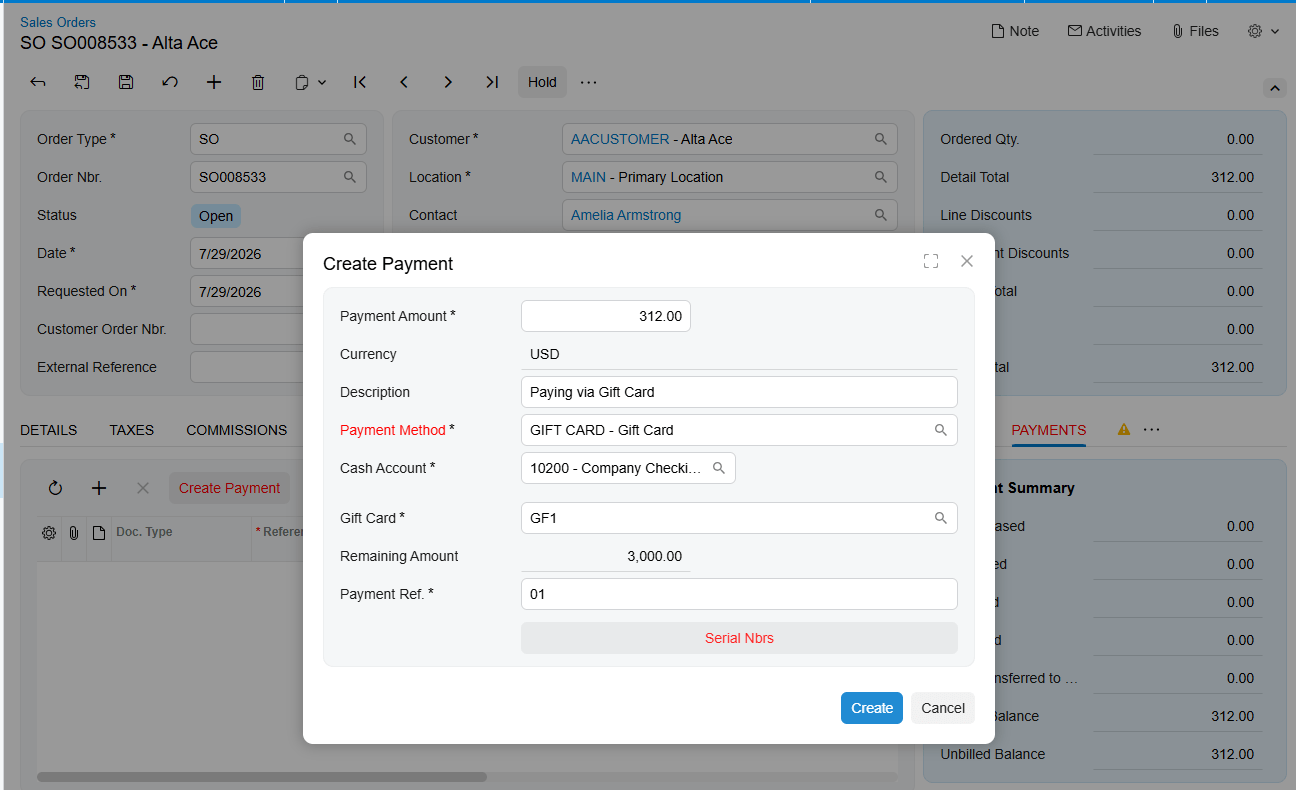
On the Sales Orders (SO301000) screen, select Gift Card Payment as the payment method. This reveals the Gift Card field in the Create Payment popup. If a default gift card has been configured on the payment method, it appears automatically; if not, select it manually. Then enter the serial number of the card being redeemed, which can also be typed manually. Proceed with order fulfillment afterward, and note that the payment for the order must be released for the redemption to take effect.
Redeeming on Payments and Applications
Gift cards can also be processed on the Payments and Applications (AR302000) screen. Navigate to the screen and select the appropriate payment method and cash account, after which the Gift Card field appears. The default card populates automatically if one is configured, otherwise select it manually and enter the serial number. Once all required fields are complete, release the payment.
Redeeming against an invoice
The third route runs through the Invoices (SO303000) screen. Create an invoice by adding either the corresponding sales order or the relevant items. Create a payment from the Applications tab within the invoice, choose the gift card payment method, which displays the Gift Card field in the Create Payment popup, select the card if no default is set, and enter its serial number. Release the invoice and complete the payment process.
After both the invoice and the payment have been released, Acumatica updates the Used Amount and Remaining Amount fields in two places at once: the Gift Card tab of the Payment Methods screen and the Gift Card History screen. Those two screens agreeing is the confirmation that a redemption posted correctly.
The Gift Card Return Process
Returns follow standard Acumatica return-for-credit mechanics. Create a return order of the RC type on the Sales Orders (SO301000) form and add the line or lines from the sales invoice prepared for the original order. Receive the returned items back into inventory on the Shipments (SO302000) form by creating a shipment with the Receipt operation and confirming it. Then create a credit memo to decrease the customer’s debt by the amount of the returned items, review its details on the Invoices (SO303000) form, and release it.
For gift card items specifically, the return can also be handled by adding the corresponding gift card items to an RC type return order on the Sales Orders form and selecting the serial number from the Sold Serial Numbers tab of the Line Details. That tab exists precisely so that a returned card can be matched to the exact serial that was sold. Once the return transaction is processed, Acumatica updates the amount information on the Gift Card History screen, which is where you verify that the returned card’s balance was corrected.
Gift Card History and Gift Card Summary Screens
The Gift Card History (BZ407099) screen displays all information related to a given gift card and serves as the transaction ledger for that card. It is also a creation point: the Create Gift Card button opens a popup where the required data can be entered and confirmed with OK to create a card directly, without going through a sales order.
Two flags on this screen classify each card and are useful when filtering or troubleshooting. External Gift Card indicates that the card was imported from an external system, and Is Stock Gift Card indicates whether the card is a stock or non-stock item. The separate Gift Card Summary screen displays all related information for a gift card in consolidated form, and it also serves as the outbound channel for sending gift card summary details from Acumatica to an external system.
Creating Gift Cards from an External System via API
Gift card information can be imported into Acumatica from an external system through the API using the Biztech endpoint. The Create Gift Card action within the Gift Card History endpoint is what accepts inbound card data. Once the API request is processed, the gift card details, including customer information, serial number, and amount, appear on the Payment Methods screen under the Gift Card tab, and the same information becomes available on both the Gift
Card Summary and Gift Card History screens.
This matters for the data flow because it means a gift card does not have to originate from an Acumatica sales order. A card sold in an external commerce platform, a point of sale system, or a marketing campaign can enter Acumatica through the API and then behave exactly like any internally sold card, including being redeemed as a payment method and tracked through the same balance fields.
Where to Monitor Gift Card Processing Results in Acumatica
When training users or investigating a gift card that does not behave as expected, these are the fields and screens that show what the system actually did:
- Gift Card Serial Number on the Gift Cards tab of the Payment Methods screen, which uniquely identifies every card and links to its history.
- Gift Card Amount, Used Amount, and Remaining Amount, which together give the original value, the consumed value, and the current balance.
- Customer ID, Inventory ID, and Order Number on the same tab, which tie a card back to who bought it and on which order.
- The Gift Card History (BZ407099) screen, reached by clicking a serial number, which lists all transactions for that card and reflects return adjustments.
- The Gift Card Numbers popup on the sales order, remembering that it shows numbers for the selected line and lists every number when the quantity exceeds one.
- Lot/Serial Nbr on the Line Details tab for stock gift cards, which shows available serial numbers with their expiration dates during allocation.
- The Sold Serial Numbers tab of Line Details, used to match a returned card to the serial number originally sold.
- External Gift Card and Is Stock Gift Card flags on the Gift Card History screen, which classify how a card entered the system and what type it is.
- The dedicated gift card cash account and general ledger account, which is where outstanding gift card liability should be reviewed by finance.
Gift Card Processing in Acumatica: Frequently Asked Questions
What is Gift Card Processing in Acumatica?
Gift Card Processing is an Acumatica ERP customization from Biz-Tech Services that lets companies sell serialized gift cards and then accept those cards as a payment method. Each card carries a unique serial number and its own balance, tracked through Gift Card Amount, Used Amount, and Remaining Amount fields on the Payment Methods screen, with a full transaction history available on the Gift Card History screen.
What is the difference between a stock and a non-stock gift card item?
A non-stock gift card is created and sold without inventory receipt, which suits digital cards and cards imported from external commerce systems. A stock gift card is a serialized inventory item created on the Stock Items (IN202500) screen that must be received through the gift card receipt process before it can be sold, and it requires allocation of a specific serial number at the time of sale. Both card types produce the same gift card record and are redeemed identically.
How are gift card numbers generated in Acumatica?
Gift Card Preferences (BZ102000) controls this. With the Gift Card Numbering checkbox selected, numbers follow the structure defined on the Numbering Segments tab, and the Auto-Incremental Value must be configured for automatic generation. With Use Random Numbering selected instead, the Numbering Segments tab is hidden and Acumatica generates random numbers based on the quantity entered on the sales order, which prevents anyone from predicting valid card numbers. Numbers can also be entered manually for orders created inside Acumatica.
How do you redeem a gift card in Acumatica?
There are three routes. On the Sales Orders (SO301000) screen, select Gift Card Payment as the payment method, then supply the card and its serial number in the Create Payment popup. On Payments and Applications (AR302000), select the payment method and cash account, then the card and serial number. On the Invoices (SO303000) screen, create a payment from the Applications tab and do the same. In every case the payment must be released for the balance to update.
Where do you check a gift card balance in Acumatica?
Open the Gift Cards tab of the Payment Methods screen and locate the card by serial number. The Remaining Amount field shows the current balance, with Gift Card Amount showing the original value and Used Amount showing what has been consumed. Clicking the serial number opens the Gift Card History screen for the full transaction detail behind those figures.
Can gift cards be returned in Acumatica?
Yes. Create a return order of the RC type on the Sales Orders (SO301000) form, add the relevant lines, receive the items on the Shipments (SO302000) form using the Receipt operation, then create and release a credit memo through the Invoices (SO303000) form. For gift card items you can select the specific card from the Sold Serial Numbers tab of the Line Details. Once the return is processed, the amount information updates on the Gift Card History screen.
Can gift cards be created from an external system?
Yes. Gift card information can be imported into Acumatica through the API using the Biztech endpoint, via the Create Gift Card action in the Gift Card History endpoint. After the request is processed, the customer information, serial number, and amount appear on the Gift Card tab of the Payment Methods screen and on both the Gift Card Summary and Gift Card History screens. Cards can also be created manually with the Create Gift Card button on the Gift Card History screen.
Work With the Biz-Tech Services Gift Card Processing Product
Gift Card Processing in Acumatica becomes straightforward once the flow is clear. The payment method and its dedicated cash account establish where gift card value lives, preferences decide how cards are numbered and mapped, the sales order creates the card and its serial number, the Payment Methods screen holds the balance, redemption draws that balance down through any of three screens, and the Gift Card History screen records everything that happened along the way. Teams that know which field governs each handoff can answer any gift card question in seconds.
If your business wants to sell gift cards, accept them as payment, and keep outstanding gift card liability visible and accurate, we are glad to help you scope, configure, and roll out Gift Card Processing in Acumatica. Visit https://biz-techservices.com to learn more about our Acumatica expertise or to schedule a personalized demonstration of the Biz-Tech Services Gift Card Processing product.
How Gift Card Processing Works in Acumatica from Sale to Redemption
Gift Card Processing in Acumatica turns a gift card into two things at once: an item you sell and a payment method you later accept. That dual nature is what makes the data flow worth understanding. A gift card item is sold on a sales order, a serial number is generated and stored, a gift card record appears on the Payment Methods screen carrying its own balance, and every later redemption draws that balance down until nothing remains. Knowing where each record is created, which field holds the balance, and where to check the result is what keeps gift card liability accurate.
The Biz-Tech Services Gift Card Processing product, built for Acumatica, allows companies to sell serialized gift cards and then process those sold gift cards as payment. Gift cards grow sales, reinforce brand awareness, and are consistently preferred by customers over paper gift certificates. This article follows a gift card through the entire Acumatica data flow, from the preferences that define how it is numbered to the redemption that finally spends it, and points out the fields worth monitoring at every step.
What Gift Card Processing in Acumatica Does
Gift Card Processing is an Acumatica ERP customization that manages the full lifecycle of serialized gift cards. It lets you sell gift cards as either non-stock or stock inventory items, assigns each card a unique serial number, stores the card’s value against the customer and order that created it, and then allows that stored value to be redeemed as a payment method on sales orders, invoices, and payments. Acumatica maintains a running Used Amount and Remaining Amount for every card, so the outstanding gift card balance is always visible and auditable. Cards can also be created directly from an external system through the API.
The Gift Card Data Flow at a Glance
Before looking at individual screens, it helps to see the path a gift card record travels through Acumatica:
- A gift card payment method is configured on the Payment Methods (CA204000) screen and linked to a dedicated cash account.
- Gift Card Preferences (BZ102000) defines how card numbers are generated and how external gift cards map to Acumatica items.
- A gift card item is sold on the Sales Orders (SO301000) screen, either as a non-stock item or as a serialized stock item.
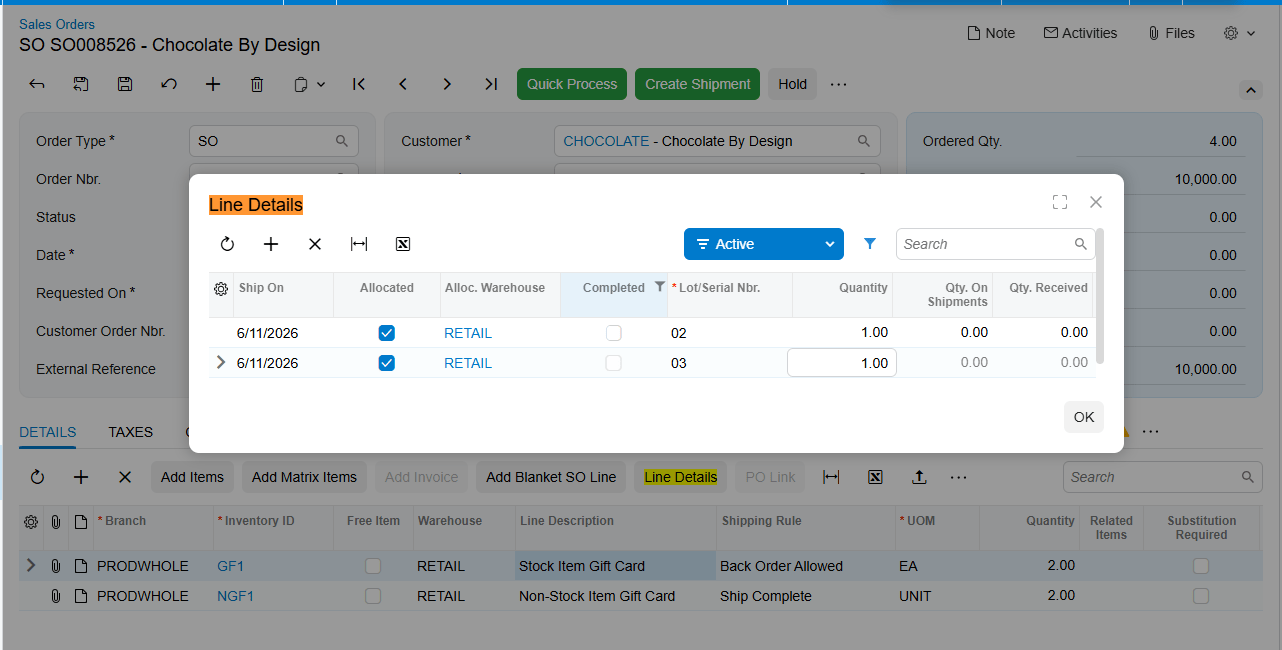
- A serial number is generated and stored, and a gift card record appears on the Gift Cards tab of the Payment Methods screen with its customer, order, and amount.
- The card is redeemed as a payment method on a sales order, on Payments and Applications (AR302000), or on an invoice, with the serial number identifying which balance to draw from.
- Used Amount and Remaining Amount update on both the Payment Methods screen and the Gift Card History (BZ407099) screen after the payment is released.
Every field discussed below sits somewhere on that path. Identifying the stage tells you which screen holds the answer.
Setting the Foundation: The Gift Card Payment Method
The flow starts with a payment method, because a gift card is ultimately money. Payment methods are defined and viewed on the Payment Methods (CA204000) screen, and setting up gift cards begins by creating a new payment method there. Because payment methods are linked to cash accounts, it is strongly recommended to create a new general ledger account dedicated to the gift card item. Keeping gift card liability in its own account is what allows finance to see outstanding gift card value as a distinct number rather than buried in a general cash account.
Once that general ledger account exists, add the gift card cash account under the Allowed Cash Accounts tab of the payment method. One further field saves users time throughout the rest of the flow: the Default Gift Card field on the Payment Methods screen lets you nominate the gift card that will appear automatically in the Gift Card field of the Create Payment popup. With a default set, redemption becomes a matter of entering a serial number rather than selecting a card first.
Gift Card Preferences (BZ102000): Numbering and External Mapping
The Gift Card Preferences screen configures two things that shape every card created afterward: how gift card numbers are generated inside Acumatica, and how external gift cards map to Acumatica gift card items during order import.
Default Gift Card Item identifies the non-stock item treated as the default gift card during the order import process. Use Multiple Gift Cards in Commerce extends this by letting you map an external gift card SKU to its corresponding Acumatica gift card item, which is what makes orders containing several different gift cards import correctly. The fallback behavior is worth remembering: if Use Multiple Gift Cards in Commerce is not selected, the system defaults to the non-stock item named in Default Gift Card Item for every imported external order.
Sequential numbering versus random numbering
Selecting the Gift Card Numbering checkbox makes the Numbering Segments tab available, where you define the numbering structure for non-stock gift cards. Acumatica then generates card numbers according to that configuration. One detail is essential rather than optional: the Auto-Incremental Value must be configured in the Numbering Segments tab for gift card numbers to generate automatically.
Use Random Numbering takes the opposite approach and hides the Numbering Segments tab entirely. In this mode, Acumatica generates random numbers when a gift card item is entered on a sales order and a quantity is specified. The system produces as many random numbers as the entered quantity and displays them in the Gift Card Numbers popup. The security rationale matters: random numbering prevents anyone from guessing valid gift cards by following a predictable sequence. For cards distributed at scale, this is usually the safer choice.
Two Kinds of Gift Card Item: Non-Stock and Stock
Acumatica supports gift cards as either non-stock items or stock items, and the choice determines the shape of the early data flow. A non-stock gift card is the lighter path, suited to digital cards and to cards imported from external commerce systems. A stock gift card is a serialized physical inventory item that must be received before it can be sold, suited to physical cards held in a warehouse. Both converge on the same gift card record and the same redemption process, so the difference is confined to how the card comes into existence.
Selling a Non-Stock Gift Card Item in Acumatica
Non-stock gift card items are sold to customers on the standard Acumatica Sales Orders screen. The card can be sold directly within Acumatica or imported from an external system, after which the order proceeds to fulfillment as normal. The gift card number is generated and displayed in the Gift Card Numbers field on the Details tab of the sales order, and also in the Gift Card Numbers popup during order creation.
For orders created inside Acumatica, the gift card number can either be entered manually or generated according to the numbering setup in Gift Card Preferences. Three behaviors are worth knowing before users encounter them. The Gift Card Numbers popup displays the number belonging to the currently selected item line, so selecting a different line changes what you see. When the gift card quantity is greater than one, all of the generated numbers appear in that popup rather than on the line itself. And the shipping rule for a non-stock gift card automatically becomes Ship Complete on the sales order line.
Creating and Selling a Stock Gift Card Item
A stock gift card item is created from the Stock Items (IN202500) screen. Two configuration points make it function as a gift card. First, you must select the payment method to associate with the item for gift card payments. Second, because that field is enabled only for serialized items, a serial class specifically for the gift card item must be created on the Lot/Serial Classes screen. Serialization is what gives each physical card its own identity and its own balance.
Expiration dates are handled through the Track Expiration Date checkbox, which should be selected if gift cards are to expire. The timing matters: the gift card expiration date is established during the gift card receipt process, not at item creation.
The gift card receipt process
Stock gift cards must be received into inventory before they can be sold. Add the gift card item to the Receipts screen, enter the quantity, and generate the serial numbers together with their respective expiration dates from the Line Details popup window. Expiration dates appear here only when Track Expiration Date is selected on the serial class. At the end of this process, you hold a set of uniquely numbered, dated cards in inventory ready to sell.
Fulfilling a stock gift card order
Stock gift card items are sold on the same Sales Orders (SO301000) screen, but with one important difference: allocation is required for all stock gift card items. The specific card being sold must be chosen by selecting its serial number from the Lot/Serial Nbr field on the Line Details tab, which displays all available gift card serial numbers along with their expiration dates. This is the step that ties a physical card in your warehouse to a specific customer order.
Where the Gift Card Record Lives After the Sale
Once a gift card item is sold, whether stock or non-stock, the customer information, order information, and gift card amount are stored on the Gift Cards tab of the Payment Methods screen. This tab is the master record of every gift card in the system, and it displays Customer ID, Inventory ID, Gift Card Serial Number, Order Number, Gift Card Amount, Used Amount, and Remaining Amount.
Those last two fields are the ones to watch. As a gift card is used, Acumatica updates the Used Amount and Remaining Amount on this tab, so the outstanding balance of any card is always one screen away. Clicking a serial number opens the Gift Card History screen, which shows all transactions related to that card. Together these two views answer the two questions users actually ask: what is left on this card, and what has been done with it.
Redeeming a Gift Card as a Payment Method in Acumatica
Redemption is where a sold gift card becomes tender, and Acumatica supports three routes. All three follow the same underlying pattern: choose the gift card payment method, identify the specific card by serial number, and release the payment.
Redeeming on a sales order
On the Sales Orders (SO301000) screen, select Gift Card Payment as the payment method. This reveals the Gift Card field in the Create Payment popup. If a default gift card has been configured on the payment method, it appears automatically; if not, select it manually. Then enter the serial number of the card being redeemed, which can also be typed manually. Proceed with order fulfillment afterward, and note that the payment for the order must be released for the redemption to take effect.
Redeeming on Payments and Applications
Gift cards can also be processed on the Payments and Applications (AR302000) screen. Navigate to the screen and select the appropriate payment method and cash account, after which the Gift Card field appears. The default card populates automatically if one is configured, otherwise select it manually and enter the serial number. Once all required fields are complete, release the payment.
Redeeming against an invoice
The third route runs through the Invoices (SO303000) screen. Create an invoice by adding either the corresponding sales order or the relevant items. Create a payment from the Applications tab within the invoice, choose the gift card payment method, which displays the Gift Card field in the Create Payment popup, select the card if no default is set, and enter its serial number. Release the invoice and complete the payment process.
After both the invoice and the payment have been released, Acumatica updates the Used Amount and Remaining Amount fields in two places at once: the Gift Card tab of the Payment Methods screen and the Gift Card History screen. Those two screens agreeing is the confirmation that a redemption posted correctly.
The Gift Card Return Process
Returns follow standard Acumatica return-for-credit mechanics. Create a return order of the RC type on the Sales Orders (SO301000) form and add the line or lines from the sales invoice prepared for the original order. Receive the returned items back into inventory on the Shipments (SO302000) form by creating a shipment with the Receipt operation and confirming it. Then create a credit memo to decrease the customer’s debt by the amount of the returned items, review its details on the Invoices (SO303000) form, and release it.
For gift card items specifically, the return can also be handled by adding the corresponding gift card items to an RC type return order on the Sales Orders form and selecting the serial number from the Sold Serial Numbers tab of the Line Details. That tab exists precisely so that a returned card can be matched to the exact serial that was sold. Once the return transaction is processed, Acumatica updates the amount information on the Gift Card History screen, which is where you verify that the returned card’s balance was corrected.
Gift Card History and Gift Card Summary Screens
The Gift Card History (BZ407099) screen displays all information related to a given gift card and serves as the transaction ledger for that card. It is also a creation point: the Create Gift Card button opens a popup where the required data can be entered and confirmed with OK to create a card directly, without going through a sales order.
Two flags on this screen classify each card and are useful when filtering or troubleshooting. External Gift Card indicates that the card was imported from an external system, and Is Stock Gift Card indicates whether the card is a stock or non-stock item. The separate Gift Card Summary screen displays all related information for a gift card in consolidated form, and it also serves as the outbound channel for sending gift card summary details from Acumatica to an external system.
Creating Gift Cards from an External System via API
Gift card information can be imported into Acumatica from an external system through the API using the Biztech endpoint. The Create Gift Card action within the Gift Card History endpoint is what accepts inbound card data. Once the API request is processed, the gift card details, including customer information, serial number, and amount, appear on the Payment Methods screen under the Gift Card tab, and the same information becomes available on both the Gift
Card Summary and Gift Card History screens.
This matters for the data flow because it means a gift card does not have to originate from an Acumatica sales order. A card sold in an external commerce platform, a point of sale system, or a marketing campaign can enter Acumatica through the API and then behave exactly like any internally sold card, including being redeemed as a payment method and tracked through the same balance fields.
Where to Monitor Gift Card Processing Results in Acumatica
When training users or investigating a gift card that does not behave as expected, these are the fields and screens that show what the system actually did:
- Gift Card Serial Number on the Gift Cards tab of the Payment Methods screen, which uniquely identifies every card and links to its history.
- Gift Card Amount, Used Amount, and Remaining Amount, which together give the original value, the consumed value, and the current balance.
- Customer ID, Inventory ID, and Order Number on the same tab, which tie a card back to who bought it and on which order.
- The Gift Card History (BZ407099) screen, reached by clicking a serial number, which lists all transactions for that card and reflects return adjustments.
- The Gift Card Numbers popup on the sales order, remembering that it shows numbers for the selected line and lists every number when the quantity exceeds one.
- Lot/Serial Nbr on the Line Details tab for stock gift cards, which shows available serial numbers with their expiration dates during allocation.
- The Sold Serial Numbers tab of Line Details, used to match a returned card to the serial number originally sold.
- External Gift Card and Is Stock Gift Card flags on the Gift Card History screen, which classify how a card entered the system and what type it is.
- The dedicated gift card cash account and general ledger account, which is where outstanding gift card liability should be reviewed by finance.
Gift Card Processing in Acumatica: Frequently Asked Questions
What is Gift Card Processing in Acumatica?
Gift Card Processing is an Acumatica ERP customization from Biz-Tech Services that lets companies sell serialized gift cards and then accept those cards as a payment method. Each card carries a unique serial number and its own balance, tracked through Gift Card Amount, Used Amount, and Remaining Amount fields on the Payment Methods screen, with a full transaction history available on the Gift Card History screen.
What is the difference between a stock and a non-stock gift card item?
A non-stock gift card is created and sold without inventory receipt, which suits digital cards and cards imported from external commerce systems. A stock gift card is a serialized inventory item created on the Stock Items (IN202500) screen that must be received through the gift card receipt process before it can be sold, and it requires allocation of a specific serial number at the time of sale. Both card types produce the same gift card record and are redeemed identically.
How are gift card numbers generated in Acumatica?
Gift Card Preferences (BZ102000) controls this. With the Gift Card Numbering checkbox selected, numbers follow the structure defined on the Numbering Segments tab, and the Auto-Incremental Value must be configured for automatic generation. With Use Random Numbering selected instead, the Numbering Segments tab is hidden and Acumatica generates random numbers based on the quantity entered on the sales order, which prevents anyone from predicting valid card numbers. Numbers can also be entered manually for orders created inside Acumatica.
How do you redeem a gift card in Acumatica?
There are three routes. On the Sales Orders (SO301000) screen, select Gift Card Payment as the payment method, then supply the card and its serial number in the Create Payment popup. On Payments and Applications (AR302000), select the payment method and cash account, then the card and serial number. On the Invoices (SO303000) screen, create a payment from the Applications tab and do the same. In every case the payment must be released for the balance to update.
Where do you check a gift card balance in Acumatica?
Open the Gift Cards tab of the Payment Methods screen and locate the card by serial number. The Remaining Amount field shows the current balance, with Gift Card Amount showing the original value and Used Amount showing what has been consumed. Clicking the serial number opens the Gift Card History screen for the full transaction detail behind those figures.
Can gift cards be returned in Acumatica?
Yes. Create a return order of the RC type on the Sales Orders (SO301000) form, add the relevant lines, receive the items on the Shipments (SO302000) form using the Receipt operation, then create and release a credit memo through the Invoices (SO303000) form. For gift card items you can select the specific card from the Sold Serial Numbers tab of the Line Details. Once the return is processed, the amount information updates on the Gift Card History screen.
Can gift cards be created from an external system?
Yes. Gift card information can be imported into Acumatica through the API using the Biztech endpoint, via the Create Gift Card action in the Gift Card History endpoint. After the request is processed, the customer information, serial number, and amount appear on the Gift Card tab of the Payment Methods screen and on both the Gift Card Summary and Gift Card History screens. Cards can also be created manually with the Create Gift Card button on the Gift Card History screen.
Work With the Biz-Tech Services Gift Card Processing Product
Gift Card Processing in Acumatica becomes straightforward once the flow is clear. The payment method and its dedicated cash account establish where gift card value lives, preferences decide how cards are numbered and mapped, the sales order creates the card and its serial number, the Payment Methods screen holds the balance, redemption draws that balance down through any of three screens, and the Gift Card History screen records everything that happened along the way. Teams that know which field governs each handoff can answer any gift card question in seconds.
If your business wants to sell gift cards, accept them as payment, and keep outstanding gift card liability visible and accurate, we are glad to help you scope, configure, and roll out Gift Card Processing in Acumatica. Visit https://biz-techservices.com to learn more about our Acumatica expertise or to schedule a personalized demonstration of the Biz-Tech Services Gift Card Processing product.

