
How to Sync ShipHero Inventory with Acumatica
How to Sync ShipHero Inventory with Acumatica
A reliable ShipHero Acumatica inventory sync starts with one clear decision: which system initiates the operational workflow. The connector supports ShipHero to Acumatica and Acumatica to ShipHero integration options. That choice controls the available setup tabs, the direction of order processing, and how shipments return to Acumatica. Inventory accuracy then depends on consistent item, warehouse, location, vendor, and quantity settings across both systems.
This guide covers inventory items and the orders, shipments, receipts, transfers, and returns that change inventory.
Choose the ShipHero Acumatica Sync Direction
The Integration Option on the ShipHero Store determines the overall flow. With ShipHero to Acumatica selected, the connector retrieves and imports shipped orders and retains generated labels and tracking numbers. The store exposes setup areas for General Info, Import Info, Ship Via Cross Reference, Warehouse Cross Reference, Inventory Details, Sync Info, and Locations.
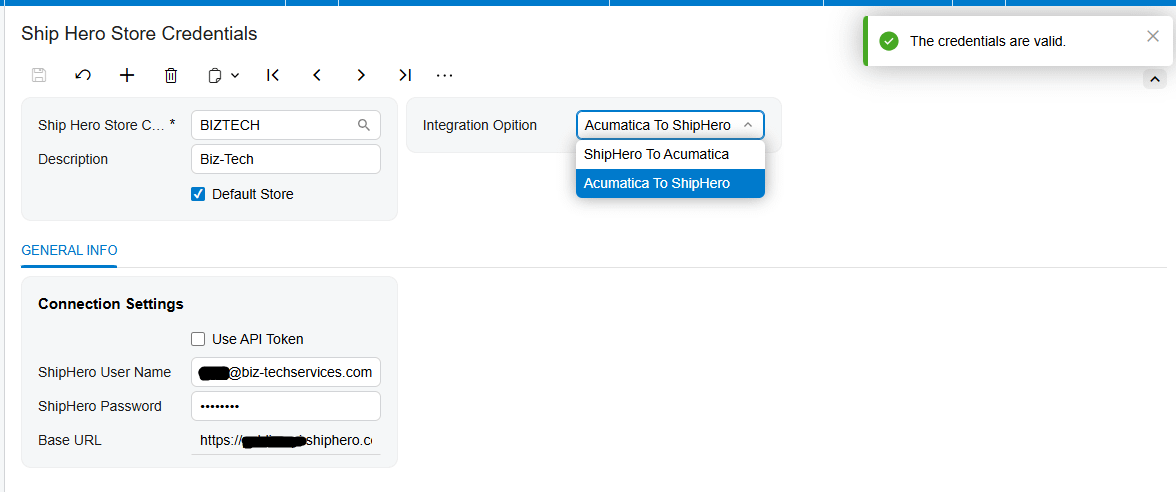
With Acumatica to ShipHero selected, users export Acumatica orders for fulfillment and bring the resulting shipments back. This direction adds box mapping, vendor sync, order-type, and return reason-code settings.
For multiple stores, Default Store determines the store code shown during Acumatica sync processes. Confirm it before loading records.
Configure the ShipHero Store Connection
Install the connector package through Acumatica's Customization Projects screen, form SM204505, then validate and publish the project. After publication, configure a ShipHero Store record.
Enter the ShipHero username, password, and base URL under Connection Settings. Use Test Credentials to confirm that Acumatica can connect to ShipHero through the API. Use Edit Credentials when those values must change. Select the ShipHero Store Code and enter a description that clearly identifies the corresponding ShipHero store.
A successful credential test proves connectivity, not mapping accuracy. Validate mappings before processing live inventory transactions.
Map Warehouses Locations and Shipping Values
Warehouse Cross Reference maps ShipHero warehouses to Acumatica warehouses. The connector uses this mapping during item synchronization and order import. Imported orders receive the mapped warehouse on the Acumatica sales order, and synchronized items are associated with the warehouse defined by the same setup.
Enable Use Cross Ref for Warehouse when warehouse values differ between the systems. Enable Use Cross Ref for Ship Via when carrier or service values require mapping; the corresponding cross-reference tabs then become available. These mappings also matter for return processing, where the documentation requires both reason-code and ship-via mappings before returns are exported.
For warehouse locations, first enable Multiple Warehouse Locations through Acumatica's Enable Disable Features screen. The store setup then exposes Sellable Location, Non Sellable Location, Release Transfer During Import Process, and Begin Bin Transfers Date. If Use Location Mapping is enabled, map locations in the Locations grid. Otherwise, configure the two default sellable and non-sellable locations.
For purchase-order receipts created in ShipHero, this setup determines the default sellable and non-sellable quantities in Acumatica. For an exported Acumatica sales order returned as a shipment, the connector sets the sellable location on the lines.
Set Inventory Item Defaults and Quantity Rules
The Inventory Details tab is the working area for loading and synchronizing item records:
1. Load Acumatica Items displays Acumatica inventory items, and Sync Acumatica Items exports selected items to ShipHero.
2. Load ShipHero Items displays ShipHero items, and Sync ShipHero Items imports selected items into Acumatica.
3. Select All selects or clears all displayed items, while Purge removes the displayed rows from the Inventory Details grid.
The connector includes previously synchronized vendor information with a ShipHero stock item. Set Default Vendor Class ID before using Sync ShipHero Vendors.
The Import Item option controls how unknown products are handled during item synchronization and order import. When enabled, the connector can create a missing Acumatica item. The Imported Item Type, Item Class, UOM, and Warehouse ID fields supply the defaults for that new record. Review these values carefully because they determine how newly created inventory items enter Acumatica.
When Import Item is disabled, the connector does not create the missing product. Instead, it uses the configured Replace Missing Products item and the Warehouse ID value. This can keep an order moving, but it also means the transaction will not identify the original product as a new Acumatica inventory item. Monitor use of the replacement item so unresolved product mappings do not accumulate.
For exports to ShipHero, Export Price Type selects either the default item price or MSRP. Export Price Quantity selects the inventory basis sent to ShipHero: On Hand, Available, or Available for Shipment. Choose the quantity that matches the business promise made in the storefront and fulfillment process. The documentation lists the choices but does not define their Acumatica calculation rules, so confirm the selected measure against the site's own inventory configuration.
Run a Practical Inventory Sync Workflow
1. Create the ShipHero Store record, choose the integration direction, and test the credentials.
2. Set warehouse and ship-via cross references. If bin-level inventory is required, enable multiple warehouse locations and configure location mapping or the default sellable and non-sellable locations.
3. Configure Import Item behavior and the defaults for item type, item class, UOM, and warehouse. Select the price and quantity values to export.
4. Load a limited set of items from the intended source system. Review the displayed records, select only the pilot items, and run the matching Sync action.
5. Validate the resulting item and warehouse records in the destination. If locations are in scope, load and synchronize locations only for warehouses already configured in Warehouse Cross Reference.
6. Test one operational cycle. Depending on the integration direction, import a ShipHero order or export an open Acumatica order whose order type is active for export. Then import its ShipHero shipment into Acumatica.
7. Test inventory-increasing and movement transactions separately by exporting an open purchase order, importing its receipt, and importing a bin transfer when multiple warehouse locations are enabled.
Process Transactions That Change Inventory
The Import ShipHero Orders screen retrieves orders for the selected store. Get Orders places them on the ShipHero Order screen, and Import creates the Acumatica document defined by the store setup, either a sales order or an invoice. Import Freight and Import Tax control whether those amounts are included.
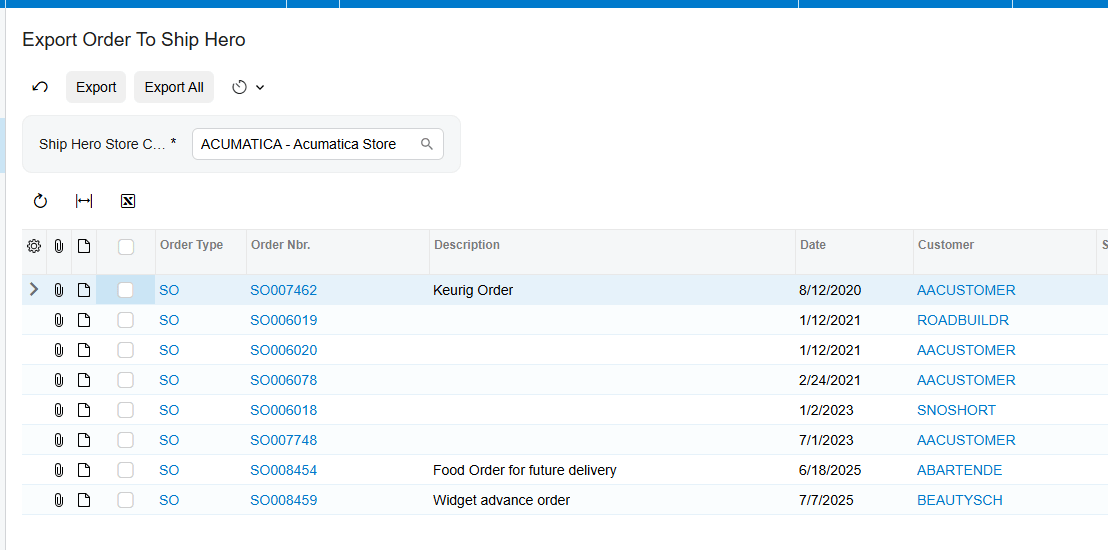
For the opposite direction, Export ShipHero Order displays eligible Acumatica orders only when they are open and their order type is configured and active in Order Types to Export. Export creates the order in ShipHero. Import Shipments from ShipHero then retrieves shipment records; Import creates the shipment in Acumatica and confirms it.
Purchase orders follow a similar cycle. Only open purchase orders appear for export to ShipHero. Import Receipts from ShipHero retrieves receipts for exported purchase orders and creates Acumatica purchase receipts. If Release PO Receipt During Import Process is enabled, imported receipts are released automatically; otherwise, they remain unreleased. The documentation also notes that the last receipt in a partial-receipt sequence is released.
Bin transfers are imported according to the Begin Bin Transfers Date and appear on the Transfers screen with the source and destination locations inside the same warehouse. They can be released automatically when Release Transfer During Import Process is enabled. This process works only when Multiple Warehouse Locations is selected.
Use Webhooks for Real Time Processing
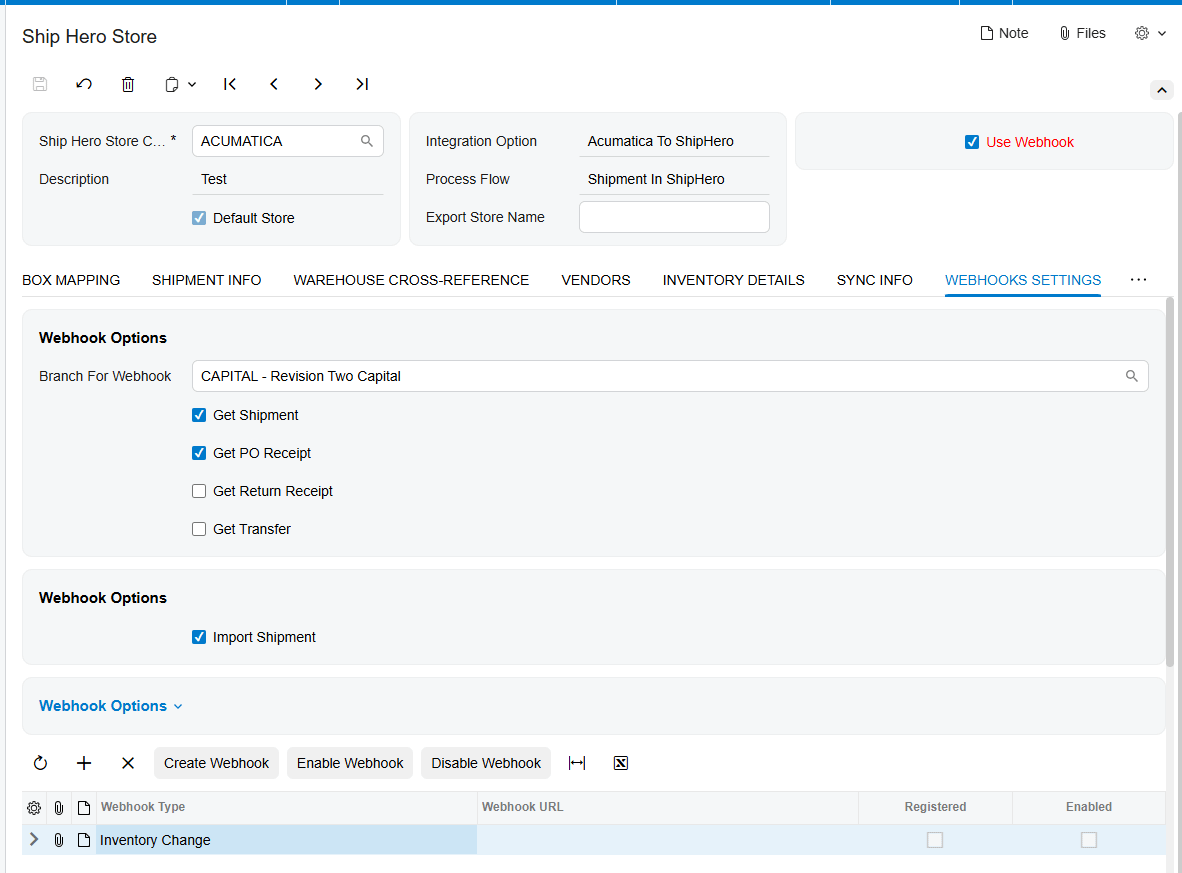
The Biz-Tech Services ShipHero Acumatica connector can receive ShipHero events through webhooks. Enable Use Webhook to expose Webhook Settings. The Webhook Name on the Webhooks screen must exactly match the Webhook Type in the ShipHero Store; otherwise, the webhook will not work. Generate the URL, place it in Webhook Settings, and select Create Webhook to register it with ShipHero for POST requests. The same URL can be registered only once.
Select Branch for Webhooks before enabling processing. The connector processes incoming shipments, purchase receipts, transfers, and returns under this branch. A missing branch prevents the webhooks from working. The grid shows Webhook Type, Webhook URL, Registered, and Enabled. Use Enable Webhook to start receiving events and Disable Webhook to stop events while retaining the configuration.
Webhook events can import shipments, create purchase receipts, update received quantities, capture return receipts, and import transfers. Check Registered and Enabled, then verify the resulting Acumatica document.
Monitor and Validate the Integration
Use Last Import Date and Last Imported Order Date to confirm the processing window. Review the ShipHero Order inquiry for identifiers, statuses, line details, and linked shipments. Review the ShipHero Shipment inquiry for package and label information and the Processed indicator.
The ShipHero Item inquiry shows warehouse availability, vendors, and bin transfers. Update Item retrieves ShipHero changes, Sync ShipHero Item imports the item, and Update Warehouse in ShipHero sends updated quantity. For purchase orders, Update Order retrieves ShipHero changes.
For each pilot, compare the inventory ID, warehouse, location, quantity basis, status, and related shipment or receipt. Confirm automatic releases, or review unreleased documents when release is disabled.
Common ShipHero Acumatica Sync Pitfalls
1. Wrong integration direction. Confirm it before configuring mappings.
2. Missing warehouse mapping. Item sync and order import both rely on Warehouse Cross Reference.
3. Unexpected replacement products. With Import Item disabled, unknown products use Replace Missing Products instead of creating a new inventory item.
4. Incorrect quantity exposure. Validate On Hand, Available, or Available for Shipment against the intended sales promise.
5. Bin transfers that never appear. Multiple Warehouse Locations must be enabled, and the begin date and location setup must be correct.
6. Webhooks that do not process. Match the event names, select a branch, and verify Registered and Enabled.
7. Orders missing from export. Acumatica orders must be open, and their order type must be configured as active for the selected store.
ShipHero Acumatica Inventory Sync FAQ
Can the connector create missing inventory items in Acumatica
Yes. Enable Import Item and configure Imported Item Type, Item Class, UOM, and Warehouse ID. If Import Item is disabled, the connector uses the configured replacement product instead of creating the missing item.
Which inventory quantity can Acumatica send to ShipHero
The choices are On Hand, Available, and Available for Shipment. Select the intended measure and validate it with a controlled item test.
Can ShipHero inventory locations sync with Acumatica
Yes. Enable Multiple Warehouse Locations, configure warehouse cross references, and either use the Locations grid for mapping or set default sellable and non-sellable locations. The Locations grid loads records only for warehouses already included in Warehouse Cross Reference.
Can purchase receipts and transfers release automatically
Yes. Release PO Receipt During Import Process and Release Transfer During Import Process control automatic release. Leave them disabled when the business requires review before release.
Does the connector support real time synchronization
The documented webhook setup supports real-time event handling for shipments, purchase receipts, returns, transfers, and inventory-change event types. Correct event names, a unique registered URL, an assigned branch, and an enabled status are required for processing.
Plan Your ShipHero Acumatica Integration
A successful rollout depends on disciplined mapping and small, traceable tests before broad synchronization. BizTech Services can help configure the connector around your item, warehouse, location, order, receipt, transfer, and return workflows. Contact BizTech Services to discuss your ShipHero and Acumatica integration.
How to Sync ShipHero Inventory with Acumatica
A reliable ShipHero Acumatica inventory sync starts with one clear decision: which system initiates the operational workflow. The connector supports ShipHero to Acumatica and Acumatica to ShipHero integration options. That choice controls the available setup tabs, the direction of order processing, and how shipments return to Acumatica. Inventory accuracy then depends on consistent item, warehouse, location, vendor, and quantity settings across both systems.
This guide covers inventory items and the orders, shipments, receipts, transfers, and returns that change inventory.
Choose the ShipHero Acumatica Sync Direction
The Integration Option on the ShipHero Store determines the overall flow. With ShipHero to Acumatica selected, the connector retrieves and imports shipped orders and retains generated labels and tracking numbers. The store exposes setup areas for General Info, Import Info, Ship Via Cross Reference, Warehouse Cross Reference, Inventory Details, Sync Info, and Locations.
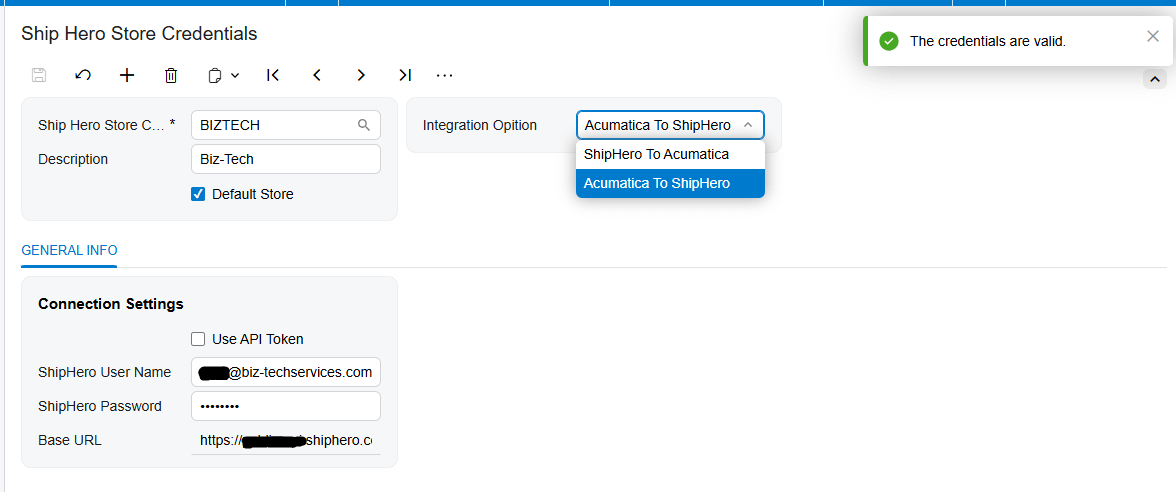
With Acumatica to ShipHero selected, users export Acumatica orders for fulfillment and bring the resulting shipments back. This direction adds box mapping, vendor sync, order-type, and return reason-code settings.
For multiple stores, Default Store determines the store code shown during Acumatica sync processes. Confirm it before loading records.
Configure the ShipHero Store Connection
Install the connector package through Acumatica's Customization Projects screen, form SM204505, then validate and publish the project. After publication, configure a ShipHero Store record.
Enter the ShipHero username, password, and base URL under Connection Settings. Use Test Credentials to confirm that Acumatica can connect to ShipHero through the API. Use Edit Credentials when those values must change. Select the ShipHero Store Code and enter a description that clearly identifies the corresponding ShipHero store.
A successful credential test proves connectivity, not mapping accuracy. Validate mappings before processing live inventory transactions.
Map Warehouses Locations and Shipping Values
Warehouse Cross Reference maps ShipHero warehouses to Acumatica warehouses. The connector uses this mapping during item synchronization and order import. Imported orders receive the mapped warehouse on the Acumatica sales order, and synchronized items are associated with the warehouse defined by the same setup.
Enable Use Cross Ref for Warehouse when warehouse values differ between the systems. Enable Use Cross Ref for Ship Via when carrier or service values require mapping; the corresponding cross-reference tabs then become available. These mappings also matter for return processing, where the documentation requires both reason-code and ship-via mappings before returns are exported.
For warehouse locations, first enable Multiple Warehouse Locations through Acumatica's Enable Disable Features screen. The store setup then exposes Sellable Location, Non Sellable Location, Release Transfer During Import Process, and Begin Bin Transfers Date. If Use Location Mapping is enabled, map locations in the Locations grid. Otherwise, configure the two default sellable and non-sellable locations.
For purchase-order receipts created in ShipHero, this setup determines the default sellable and non-sellable quantities in Acumatica. For an exported Acumatica sales order returned as a shipment, the connector sets the sellable location on the lines.
Set Inventory Item Defaults and Quantity Rules
The Inventory Details tab is the working area for loading and synchronizing item records:
1. Load Acumatica Items displays Acumatica inventory items, and Sync Acumatica Items exports selected items to ShipHero.
2. Load ShipHero Items displays ShipHero items, and Sync ShipHero Items imports selected items into Acumatica.
3. Select All selects or clears all displayed items, while Purge removes the displayed rows from the Inventory Details grid.
The connector includes previously synchronized vendor information with a ShipHero stock item. Set Default Vendor Class ID before using Sync ShipHero Vendors.
The Import Item option controls how unknown products are handled during item synchronization and order import. When enabled, the connector can create a missing Acumatica item. The Imported Item Type, Item Class, UOM, and Warehouse ID fields supply the defaults for that new record. Review these values carefully because they determine how newly created inventory items enter Acumatica.
When Import Item is disabled, the connector does not create the missing product. Instead, it uses the configured Replace Missing Products item and the Warehouse ID value. This can keep an order moving, but it also means the transaction will not identify the original product as a new Acumatica inventory item. Monitor use of the replacement item so unresolved product mappings do not accumulate.
For exports to ShipHero, Export Price Type selects either the default item price or MSRP. Export Price Quantity selects the inventory basis sent to ShipHero: On Hand, Available, or Available for Shipment. Choose the quantity that matches the business promise made in the storefront and fulfillment process. The documentation lists the choices but does not define their Acumatica calculation rules, so confirm the selected measure against the site's own inventory configuration.
Run a Practical Inventory Sync Workflow
1. Create the ShipHero Store record, choose the integration direction, and test the credentials.
2. Set warehouse and ship-via cross references. If bin-level inventory is required, enable multiple warehouse locations and configure location mapping or the default sellable and non-sellable locations.
3. Configure Import Item behavior and the defaults for item type, item class, UOM, and warehouse. Select the price and quantity values to export.
4. Load a limited set of items from the intended source system. Review the displayed records, select only the pilot items, and run the matching Sync action.
5. Validate the resulting item and warehouse records in the destination. If locations are in scope, load and synchronize locations only for warehouses already configured in Warehouse Cross Reference.
6. Test one operational cycle. Depending on the integration direction, import a ShipHero order or export an open Acumatica order whose order type is active for export. Then import its ShipHero shipment into Acumatica.
7. Test inventory-increasing and movement transactions separately by exporting an open purchase order, importing its receipt, and importing a bin transfer when multiple warehouse locations are enabled.
Process Transactions That Change Inventory
The Import ShipHero Orders screen retrieves orders for the selected store. Get Orders places them on the ShipHero Order screen, and Import creates the Acumatica document defined by the store setup, either a sales order or an invoice. Import Freight and Import Tax control whether those amounts are included.
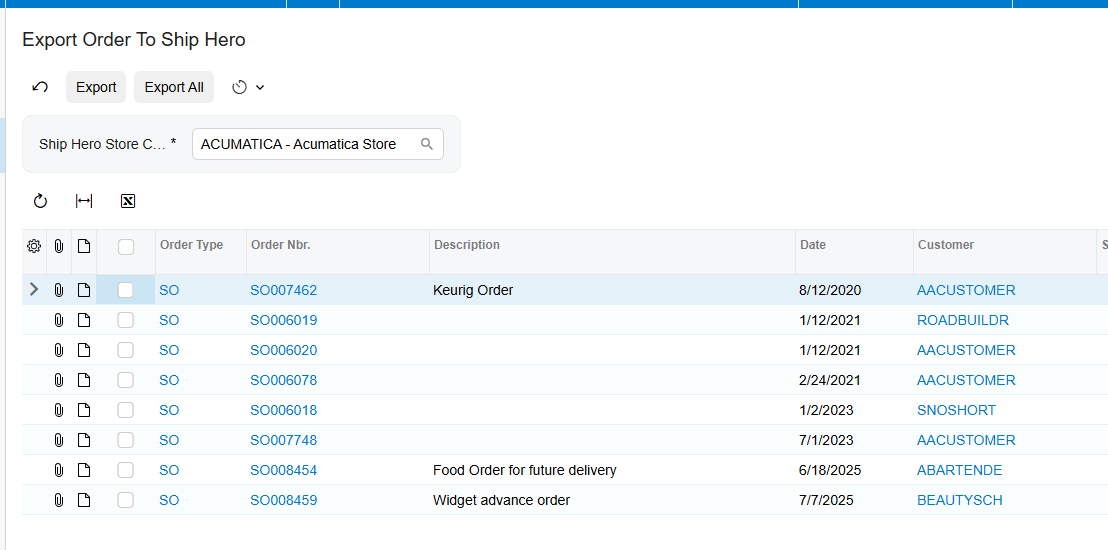
For the opposite direction, Export ShipHero Order displays eligible Acumatica orders only when they are open and their order type is configured and active in Order Types to Export. Export creates the order in ShipHero. Import Shipments from ShipHero then retrieves shipment records; Import creates the shipment in Acumatica and confirms it.
Purchase orders follow a similar cycle. Only open purchase orders appear for export to ShipHero. Import Receipts from ShipHero retrieves receipts for exported purchase orders and creates Acumatica purchase receipts. If Release PO Receipt During Import Process is enabled, imported receipts are released automatically; otherwise, they remain unreleased. The documentation also notes that the last receipt in a partial-receipt sequence is released.
Bin transfers are imported according to the Begin Bin Transfers Date and appear on the Transfers screen with the source and destination locations inside the same warehouse. They can be released automatically when Release Transfer During Import Process is enabled. This process works only when Multiple Warehouse Locations is selected.
Use Webhooks for Real Time Processing
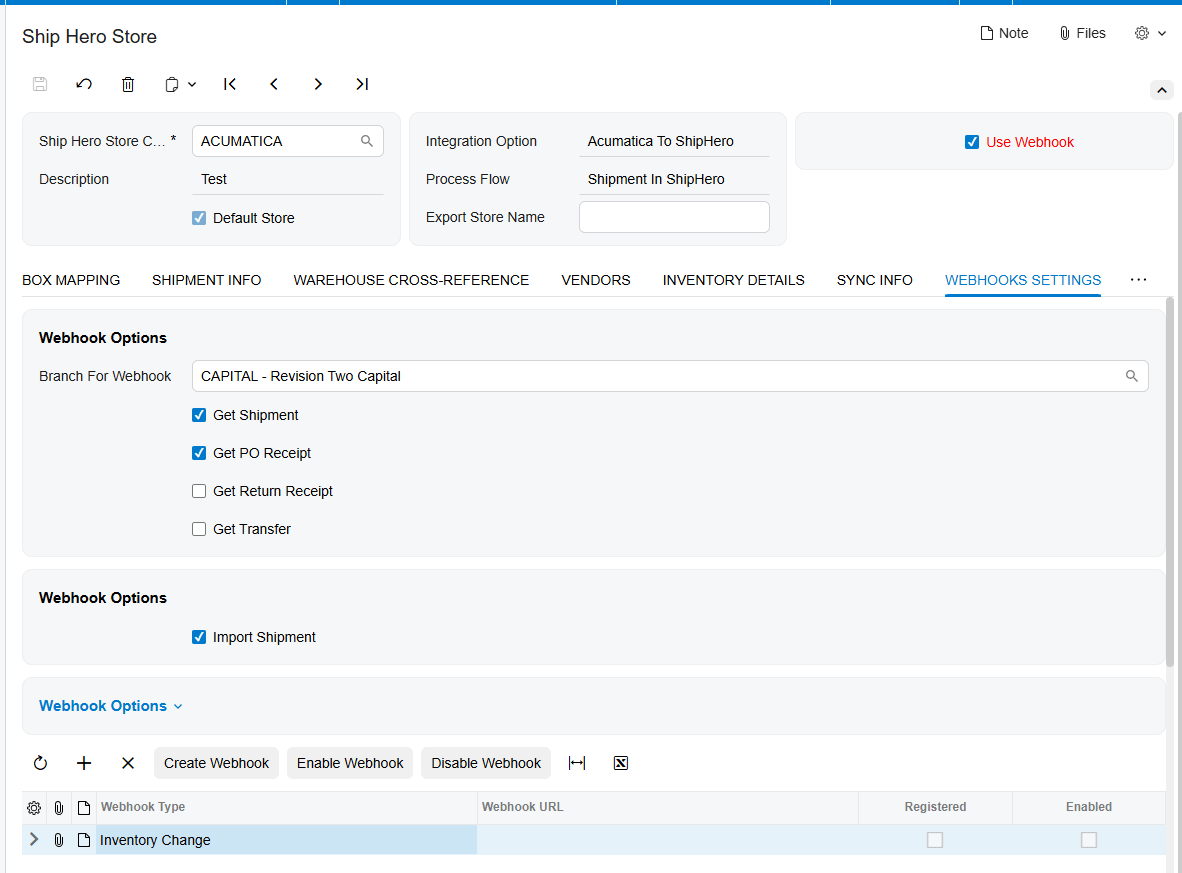
The Biz-Tech Services ShipHero Acumatica connector can receive ShipHero events through webhooks. Enable Use Webhook to expose Webhook Settings. The Webhook Name on the Webhooks screen must exactly match the Webhook Type in the ShipHero Store; otherwise, the webhook will not work. Generate the URL, place it in Webhook Settings, and select Create Webhook to register it with ShipHero for POST requests. The same URL can be registered only once.
Select Branch for Webhooks before enabling processing. The connector processes incoming shipments, purchase receipts, transfers, and returns under this branch. A missing branch prevents the webhooks from working. The grid shows Webhook Type, Webhook URL, Registered, and Enabled. Use Enable Webhook to start receiving events and Disable Webhook to stop events while retaining the configuration.
Webhook events can import shipments, create purchase receipts, update received quantities, capture return receipts, and import transfers. Check Registered and Enabled, then verify the resulting Acumatica document.
Monitor and Validate the Integration
Use Last Import Date and Last Imported Order Date to confirm the processing window. Review the ShipHero Order inquiry for identifiers, statuses, line details, and linked shipments. Review the ShipHero Shipment inquiry for package and label information and the Processed indicator.
The ShipHero Item inquiry shows warehouse availability, vendors, and bin transfers. Update Item retrieves ShipHero changes, Sync ShipHero Item imports the item, and Update Warehouse in ShipHero sends updated quantity. For purchase orders, Update Order retrieves ShipHero changes.
For each pilot, compare the inventory ID, warehouse, location, quantity basis, status, and related shipment or receipt. Confirm automatic releases, or review unreleased documents when release is disabled.
Common ShipHero Acumatica Sync Pitfalls
1. Wrong integration direction. Confirm it before configuring mappings.
2. Missing warehouse mapping. Item sync and order import both rely on Warehouse Cross Reference.
3. Unexpected replacement products. With Import Item disabled, unknown products use Replace Missing Products instead of creating a new inventory item.
4. Incorrect quantity exposure. Validate On Hand, Available, or Available for Shipment against the intended sales promise.
5. Bin transfers that never appear. Multiple Warehouse Locations must be enabled, and the begin date and location setup must be correct.
6. Webhooks that do not process. Match the event names, select a branch, and verify Registered and Enabled.
7. Orders missing from export. Acumatica orders must be open, and their order type must be configured as active for the selected store.
ShipHero Acumatica Inventory Sync FAQ
Can the connector create missing inventory items in Acumatica
Yes. Enable Import Item and configure Imported Item Type, Item Class, UOM, and Warehouse ID. If Import Item is disabled, the connector uses the configured replacement product instead of creating the missing item.
Which inventory quantity can Acumatica send to ShipHero
The choices are On Hand, Available, and Available for Shipment. Select the intended measure and validate it with a controlled item test.
Can ShipHero inventory locations sync with Acumatica
Yes. Enable Multiple Warehouse Locations, configure warehouse cross references, and either use the Locations grid for mapping or set default sellable and non-sellable locations. The Locations grid loads records only for warehouses already included in Warehouse Cross Reference.
Can purchase receipts and transfers release automatically
Yes. Release PO Receipt During Import Process and Release Transfer During Import Process control automatic release. Leave them disabled when the business requires review before release.
Does the connector support real time synchronization
The documented webhook setup supports real-time event handling for shipments, purchase receipts, returns, transfers, and inventory-change event types. Correct event names, a unique registered URL, an assigned branch, and an enabled status are required for processing.
Plan Your ShipHero Acumatica Integration
A successful rollout depends on disciplined mapping and small, traceable tests before broad synchronization. BizTech Services can help configure the connector around your item, warehouse, location, order, receipt, transfer, and return workflows. Contact BizTech Services to discuss your ShipHero and Acumatica integration.
How to Sync Magento Inventory with Acumatica
How to Sync Magento Inventory with Acumatica
Biz-Tech Serives Acumatica Magento Connector gives Acumatica users a controlled way to send inventory quantities to Magento while keeping item identity, warehouse scope, and sellable quantity rules explicit. A reliable setup starts by choosing which Acumatica warehouses contribute stock, selecting the quantity basis that Magento should receive, and confirming that each synchronized item has both a Magento Product SKU and an Acumatica Inventory ID.
This guide explains the inventory workflow documented for the connector: how items become eligible for quantity export, how warehouse quantities are combined, how stock visibility is managed, where quantity checks protect invoice processing, and how to reconcile the two systems without assuming behavior that the product documentation does not define.
Inventory sync at a glance
1. Connect the Magento store and open its settings in Acumatica.
2. Choose the Acumatica warehouses whose quantities should be synchronized.
3. Select On Hand, Available, or Available for Shipment as the quantity basis.
4. In Inventory Details, select and save the items to include, then confirm Magento Product SKU and Acumatica Inventory ID values.
5. Use Export Magento Inventory Quantities to review the Magento Quantity value and run Sync for selected items or Sync All for the displayed list.
6. Monitor item identity, warehouse scope, quantity basis, publication status, and invoice quantity-check results; investigate differences before the next run.
How Magento Connector determines inventory quantity
Choose the quantity basis
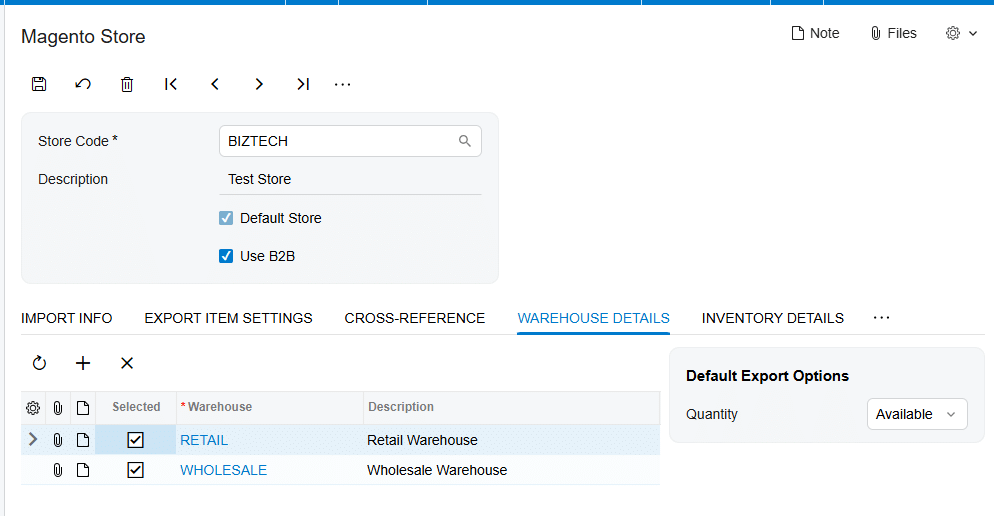
The Warehouse Details area of the Magento Store configuration provides three documented quantity choices: On Hand, Available, and Available for Shipment. The selected value determines which Acumatica quantity is synchronized to Magento. This setting matters because the three measures answer different inventory questions. On Hand reflects physical stock, while Available and Available for Shipment reflect Acumatica availability measures. The connector documentation does not redefine those measures, so their exact values remain governed by the Acumatica inventory configuration and transactions in the implementation.
Choose one basis that matches the business promise made on the storefront. If Magento should show a more operationally constrained quantity than physical stock, evaluate the documented availability choices in Acumatica and confirm the result with representative items before broad synchronization.
Define the warehouse scope
Warehouse Details is also where users identify the warehouses whose quantities need to be synchronized with Magento. When one or more warehouses are selected, the exported item quantity is the sum across those selected warehouses. That rule makes warehouse selection a central part of storefront availability: adding or removing a warehouse changes the quantity pool that can be presented to Magento.
The Magento Store settings also include a Warehouse ID used as the default warehouse on orders imported from Magento. The documentation presents this order warehouse setting separately from the Warehouse Details list used for quantity export. Review both settings together so the stock offered online and the warehouse assigned to imported orders make operational sense, while recognizing that the manual does not state that they must be identical.
Establish item identity before quantity sync
Select and save items in Inventory Details
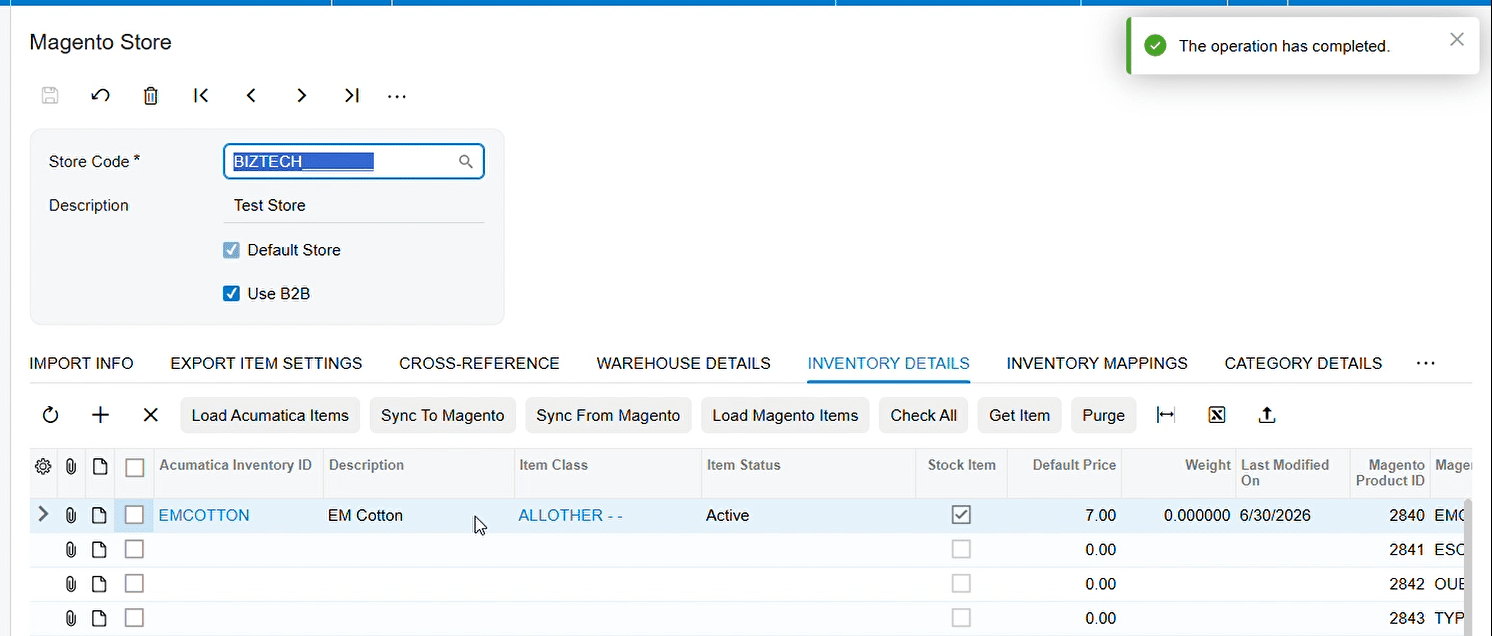
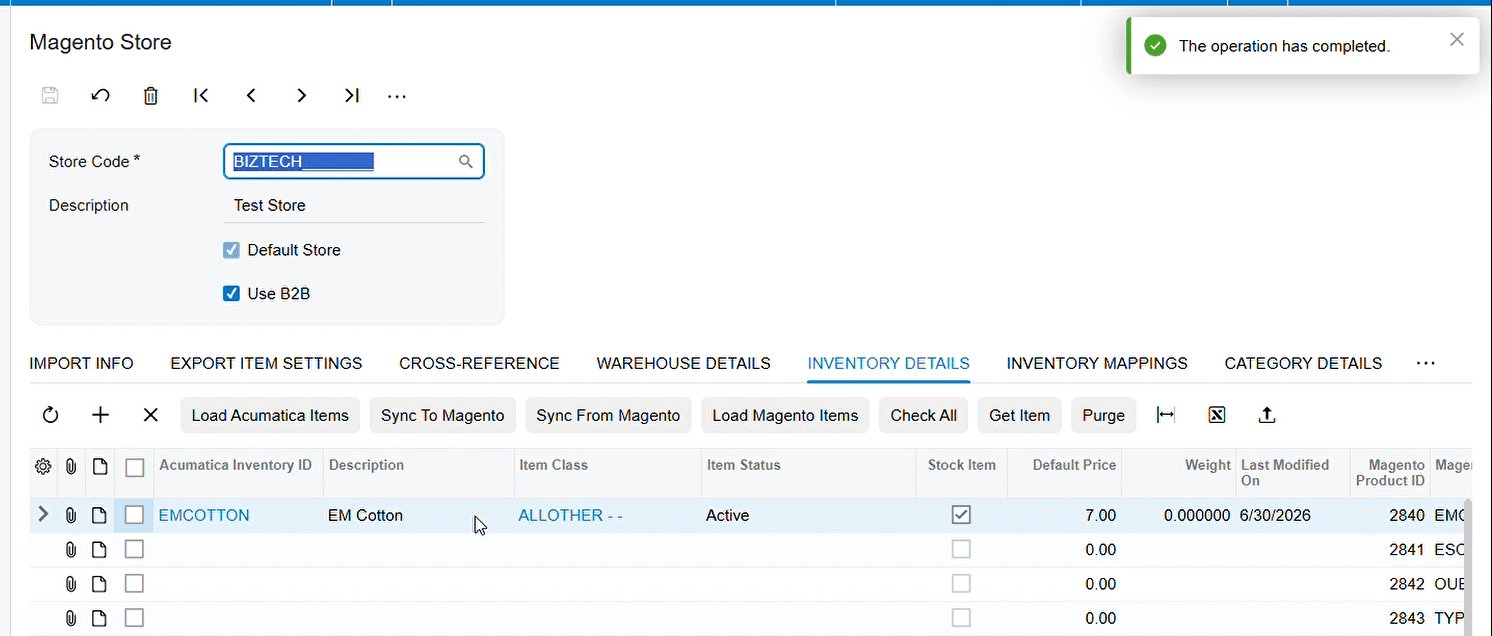
The Export Magento Inventory Quantities screen does not automatically list every Acumatica item. First, use the Inventory Details tab on the Magento Store screen to choose the required items, select their checkboxes, and save. The Magento Product SKU and Acumatica Inventory ID fields must also be set. Only after these steps do the items appear for inventory quantity export.
This prerequisite creates a useful reconciliation key. The Magento Product SKU connects the storefront product to the Acumatica inventory record, while the Acumatica Inventory ID identifies the ERP item. Validate both values when an expected item is missing or when a quantity appears to update the wrong product.
Understand item creation and matching
Inventory Details can load Acumatica stock and non-stock items, load Magento items, synchronize items in either direction, and publish or unpublish selected products. When an Acumatica item is synchronized to Magento and a new Magento item is created, Magento generates a unique product ID. The connector displays that ID in the Magento Store and on the stock item’s Magento Inventory tab. The Export Magento Items process likewise records the Magento Product ID and marks the Magento Item checkbox after synchronization.
During Magento order import, item matching uses the Magento product SKU to search for an Acumatica Inventory CD. If the item is not found, the result depends on configuration: Import Item can allow creation according to the configured item type, item class, warehouse, and unit of measure; when item import is disabled, the connector can use a configured replacement item, or it reports that the item does not exist. These order-import controls support clean item identity, but they are distinct from the prerequisites for exporting inventory quantities.
Run the inventory quantity synchronization
Review the Magento Quantity value
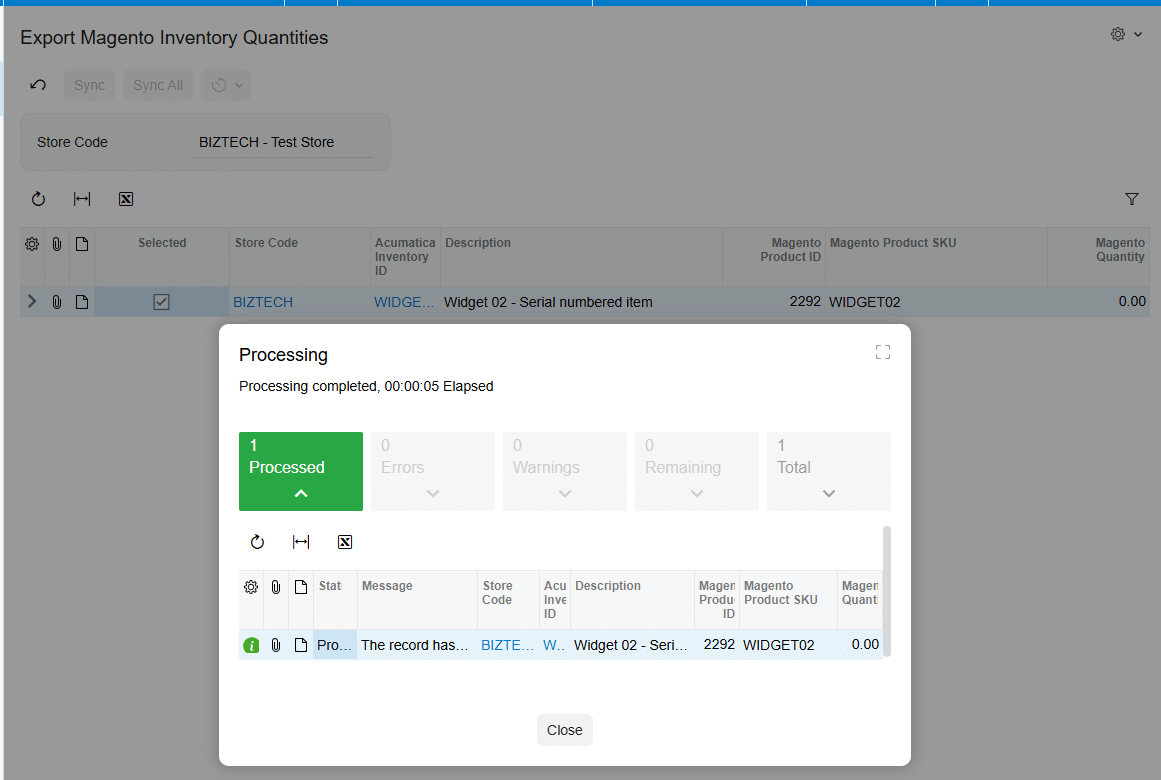
On Export Magento Inventory Quantities, choose the relevant store and review the displayed items. For a particular item, enter or confirm the value in Magento Quantity, select the row, and click Sync. The Magento store quantity is updated from the Magento Quantity value. Use Sync All when every item displayed on the screen is ready to be processed.
The manual documents both the warehouse-derived quantity settings and the editable Magento Quantity field on the export screen, but it does not explain when or how that field is populated from the selected quantity basis. Treat the screen value as the final value to verify before synchronization, especially after changing the warehouse list or quantity basis.
Control stock visibility with publication status
Quantity and product visibility are related but separate controls. Inventory Details tab provides Publish Items in Magento, which sets selected products to Enabled, and Unpublish Items in Magento, which removes the Enabled status and makes the selected products unavailable for purchase. A correct quantity does not by itself prove that a product is purchasable; include publication status in every stock-visibility check. The same item synchronization, publishing, and unpublishing processes can also be performed from the Stock Items and Non-Stock Items screens.
Handle allocation without assuming undocumented logic
The product documentation does not describe a separate Magento Connector allocation, reservation, safety-stock, or oversell engine. Its documented controls are the selected Acumatica quantity basis, the sum across selected warehouses, the Magento Quantity value sent during export, and optional Magento quantity validation during invoice processing. Accordingly, allocation policy should be expressed through the Acumatica quantity measure and warehouse scope chosen for the storefront, then validated in the export screen.
Two Magento Store options can check Magento quantity during Acumatica processing: Check Magento Qty While Prepare Invoice validates that the required Magento stock is available before the invoice is created, and Check Magento Qty While Release Invoice validates Magento product quantities during invoice release. These checks help identify insufficient storefront stock at defined transaction points. The manual does not say that they reserve stock or automatically reconcile differences, so use them as validation controls rather than treating them as an allocation mechanism.
Monitor and reconcile Magento and Acumatica inventory
Use a repeatable reconciliation routine
1. Confirm scope: verify the Magento store, selected warehouses, and quantity basis before comparing values.
2. Confirm identity: check Magento Product SKU, Acumatica Inventory ID, and—where the item has been synchronized—the Magento Product ID.
3. Confirm eligibility: make sure the item is selected and saved in Inventory Details and appears on Export Magento Inventory Quantities.
4. Confirm the outbound value: compare the Magento Quantity field with the expected sum for the selected warehouses and chosen Acumatica quantity basis.
5. Confirm execution: run Sync for approved rows or Sync All only when all displayed rows are ready, then verify the resulting quantity in Magento.
6. Confirm visibility: check whether the item is published and Enabled when it should be available for purchase, or unpublished when it should not be sold.
7. Review transaction checks: investigate failures from the prepare-invoice or release-invoice quantity validations if those options are enabled.
Troubleshoot common discrepancies
If an item is absent from the export screen, return to Inventory Details and verify selection, save status, Magento Product SKU, and Acumatica Inventory ID. If the item appears but the expected quantity differs, recheck the warehouse list and whether On Hand, Available, or Available for Shipment is selected. If quantity is correct but the product cannot be purchased, verify publication status. If invoice preparation or release stops on a Magento quantity validation, compare the required order quantity with current Magento stock and then examine whether a more recent Acumatica quantity needs to be synchronized.
For controlled operations, test configuration changes with a small item set before using Sync All. Record the store, warehouse selection, quantity basis, item identifiers, value reviewed, and time of the sync in an operational log. This logging practice is a recommended control rather than a connector feature described in the manual.
Frequently asked questions
Which Acumatica quantity can Magento Connector send to Magento?
The documented choices are On Hand, Available, and Available for Shipment. The selected value on Warehouse Details determines the Acumatica quantity basis used for synchronization.
How does the connector handle multiple warehouses?
When one or more warehouses are selected in Warehouse Details, the exported item quantity is the sum across those selected warehouses.
Why is an item missing from Export Magento Inventory Quantities?
The item must be selected and saved on the Magento Store Inventory Details tab, and both Magento Product SKU and Acumatica Inventory ID must be set before it appears on the export screen.
Can users synchronize one item instead of the full list?
Yes. Select the item and use Sync. Sync All processes all items displayed on the screen.
Does publishing an item also synchronize its quantity?
The documentation treats publishing and quantity export as separate processes. Publishing sets the selected Magento item to Enabled; quantity synchronization is performed from Export Magento Inventory Quantities.
Does Magento Connector allocate or reserve inventory?
The documentation does not define a connector-level allocation or reservation feature. It documents quantity-basis selection, summed warehouse scope, quantity export, publication controls, and optional Magento quantity checks during invoice preparation and release.
How can Acumatica validate Magento stock during invoicing?
Enable Check Magento Qty While Prepare Invoice to validate stock before invoice creation, or Check Magento Qty While Release Invoice to validate quantities during invoice release.
Build a dependable Magento inventory workflow
A dependable Magento inventory sync is built on explicit choices: which Acumatica warehouses contribute stock, which quantity basis represents sellable inventory, which item identifiers bind the systems, and whether the Magento product is published. Review those controls before each broad synchronization, use the invoice-stage quantity checks where they fit the process, and reconcile exceptions by moving from scope to identity to outbound value to storefront visibility.
For implementation help with Magento Connector and Acumatica, contact Biz-Tech Services.
How to Sync Amazon Inventory with Acumatica for FBA and FBM
How to Sync Amazon Inventory with Acumatica for FBA and FBM
Synchronizing Amazon inventory with Acumatica requires two related workflows. For Fulfillment by Merchant, or FBM, Acumatica sends the quantity that Amazon can sell. For Fulfillment by Amazon, or FBA, the connector imports Amazon shipment, delivery, warehouse, and order activity so Acumatica can reflect inventory moving into and through Amazon fulfillment centers. The quality of the result depends on accurate store settings, item mappings, warehouse rules, and disciplined validation after each process.
The Biz Tech Amazon Connector routes the connection through a Biz Tech managed intermediate server. It retrieves Amazon data for Acumatica and sends supported inventory and fulfillment events back to Amazon. This guide explains the documented steps for keeping FBA and FBM inventory aligned.
How Amazon inventory sync works in Acumatica
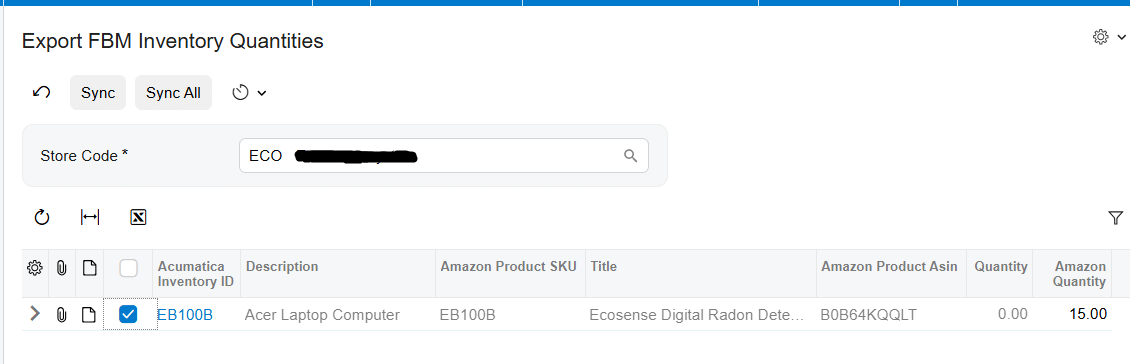
FBM inventory sync is quantity driven. You select the Acumatica warehouses that contribute inventory, choose which quantity basis to publish, map each Amazon SKU to an Acumatica inventory item, and run Export FBM Inventory Quantities screen. The quantity sent to Amazon can come from the Acumatica Quantity column or from an entered Amazon Quantity override.
FBA inventory sync is transaction and warehouse driven. Amazon stores and ships the product, while Acumatica imports FBA shipments, deliveries, and orders. A shipment import creates an Acumatica transfer order using the configured transfer order type. After the transfer is confirmed and updated, delivery processing creates a purchase receipt based on Amazon received quantities. Acumatica can then show inventory in the destination warehouse associated with the FBA flow.
Configure the Amazon Store connection
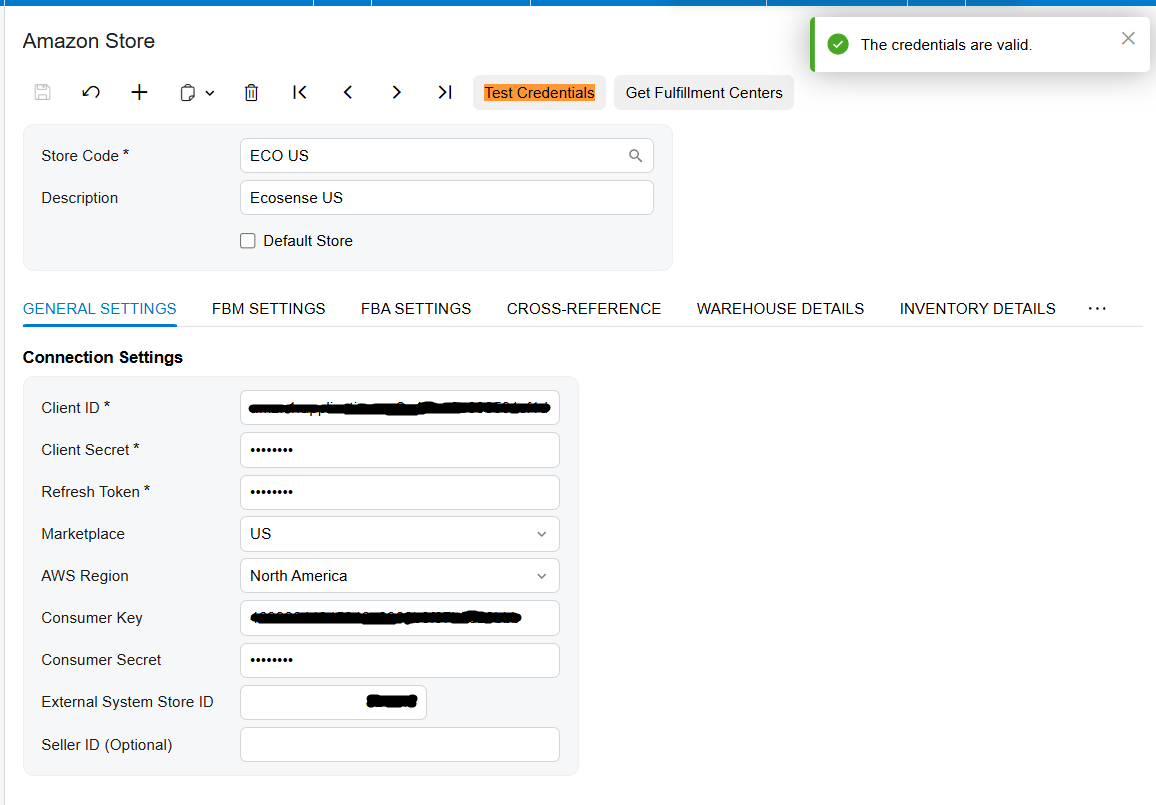
Begin on the Amazon Store screen. Store Code identifies the Amazon store, while Description labels it in Acumatica. Marking a store as the Default Store causes it to appear automatically on processing and store screens. Connection Settings are used to test the connection between Acumatica and the Amazon server.
The source documentation identifies these connection values:
1․ Client ID and Client Secret for application authentication
2․ Refresh Token for obtaining new access tokens
3․ Marketplace and AWS Region for the Amazon store location
4․ Consumer Key and Consumer Secret
5․ External System Store ID
6․ Seller ID and MWS Auth Token generated through the developer authorization process
Treat these credentials as controlled configuration. Test the connection before configuring inventory processes, because a warehouse or SKU mapping cannot compensate for a failed connection.
Set up FBM inventory quantity synchronization
Choose the warehouses and quantity basis
In Warehouse Details, add every Acumatica warehouse that should contribute to the Amazon quantity. When more than one warehouse is selected, the exported item quantity is the sum across those warehouses. Select the quantity basis that matches your availability policy: On Hand, Available, or Available for Shipment. The selected value determines which Acumatica quantity is synchronized to Amazon.
The manual defines these settings but does not prescribe one for every business. Select the measure that matches how your organization reserves stock and decides what it can promise to Amazon buyers.
Map Amazon SKUs to Acumatica items
Create SKU mappings in the Amazon Store screen’s Inventory Details tab. You can retrieve a product by ASIN or Seller SKU. Load FBA Products displays products for the store, and Sync From Amazon can create a selected FBA item in Acumatica using the product SKU.
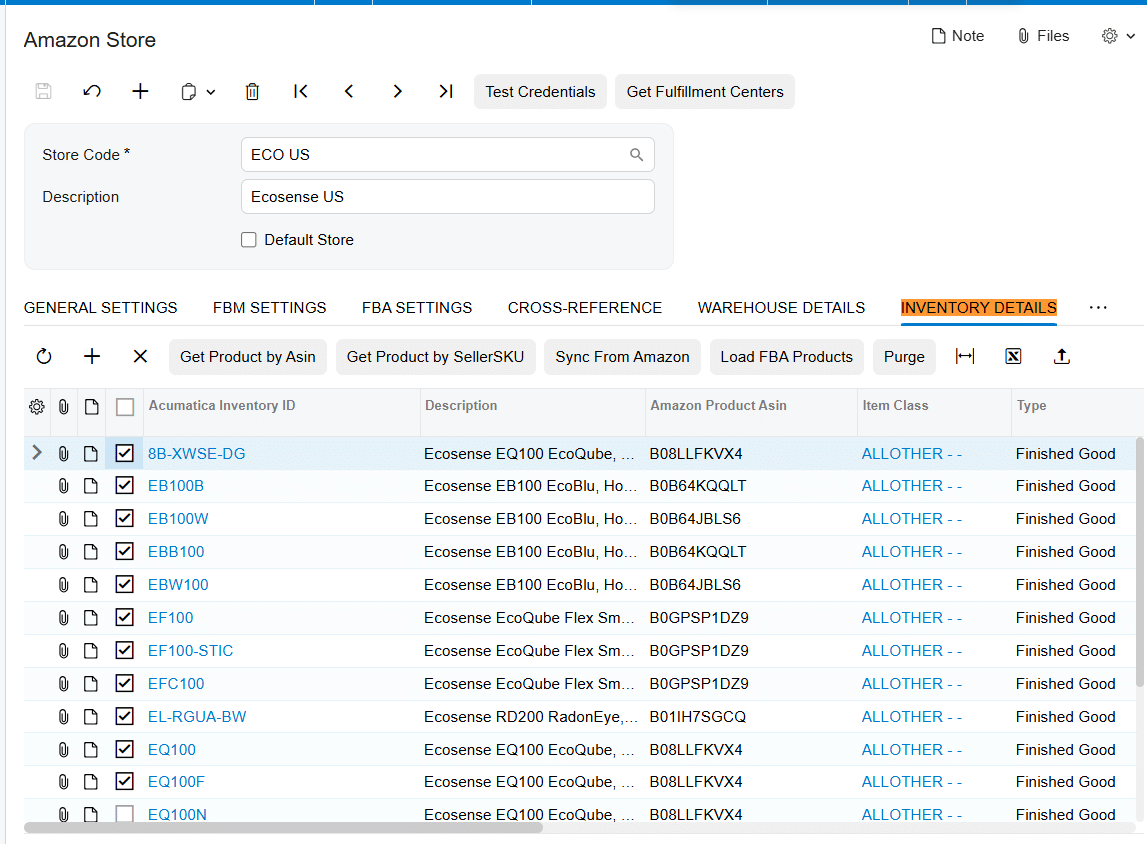
The Import Item setting controls what happens when an imported order contains a product that does not exist in Acumatica. When enabled, the connector creates an Acumatica Inventory ID based on the Amazon SKU. When disabled, the missing item causes an integration error. Insert Item in Inventory Details Tab adds items to the mapping area during order import. The documentation also states that an existing mapping can be updated with a different SKU without creating a new Acumatica item.
Confirm the Warehouse ID and unit of measure used for imported orders. A SKU match alone is not enough if the order points to the wrong warehouse or the unit of measure does not match the item setup.
Export FBM quantities to Amazon
1․ Open Export Amazon Inventory Quantities and review the selected store and mapped items.
2․ Compare the Acumatica Quantity value with the amount you intend to make available on Amazon.
3․ For the normal Acumatica driven value, leave the row override checkbox unselected and run Sync. Amazon Inventory Quantity is updated from the Quantity column.
4․ To send a different value, enter it in Amazon Quantity, select the checkbox for that row, and run Sync.
5․ Verify the resulting Amazon quantity and investigate any item that did not update.
An override is a deliberate exception to the calculated Acumatica quantity. Document why it was used and remove or revise it when the underlying condition ends, so a temporary decision does not become a persistent inventory discrepancy.
Configure FBA warehouse and order settings
The FBA settings in the Amazon Store control how orders and inventory movements enter Acumatica. FBA orders are imported as invoices. Begin Order Date filters retrieval, and Last Imported Order Date records the most recent imported order date. Status mappings connect Amazon order statuses to Acumatica statuses; the corresponding Order Status checkbox must be selected for an order to be retrieved and imported.
Key FBA warehouse and shipment settings include:
1․ Destination Warehouse, which identifies where Amazon goods are intended to be received in Acumatica
2․ Enable Ship From Mapping, which maps each Amazon Fulfillment Center to an Acumatica Ship From Warehouse ID
3․ Ship From Warehouse ID, used as the source warehouse when fulfillment center mapping is disabled
4․ Destination Order Type, which must be a transfer order type for FBA shipment imports
5․ Select Shipments and Select Deliveries, which enable the corresponding import processes
6․ Release PO Receipt During FBA Shipment Import, which imports the purchase receipt as released when selected
7․ Last Imported Shipment Date and Last Imported Deliveries Date for tracking the latest imported activity
The same transfer order type can be configured in only one store. The connector also provides a Destination Order Type indicator for transfer order types; when selected, the Order Type field is disabled to identify the Amazon FBA order type.
Run the FBA inventory workflow
1․ Retrieve FBA shipments from Amazon Seller Central on the Import FBA Shipments screen.
2․ Import the shipment. Acumatica creates a sales order with the transfer order type configured for the FBA store. The grid shows the destination warehouse, while the order line shows the source warehouse.
3․ Confirm the transfer shipment and use Update In. This moves the items from the source warehouse to the destination warehouse in Acumatica.
4․ After the shipment is closed in Seller Central, retrieve it through Import FBA Deliveries.
5․ Process the delivery so Acumatica creates a purchase receipt based on the received quantity. Release the receipt when required by your configuration and process, then verify the destination warehouse quantity.
6․ Import FBA orders according to the configured dates and statuses. The imported FBA orders appear on the Sales Order Invoice screen.
The FBA Destination Warehouse Quantities screen supports warehouse level validation by showing quantities for the selected destination warehouse and the current warehouse. The FBM and FBA Orders screen distinguishes the two channels through the Fulfillment Channel field.
Monitor and validate the synchronization
Use a repeatable validation routine after each quantity export or FBA import. Check the store, SKU, Acumatica inventory item, warehouse, quantity basis, and fulfillment channel before investigating the integration itself. For FBM, compare the Acumatica Quantity, any Amazon Quantity override, and the quantity visible in Amazon. For FBA, compare shipped quantity, received quantity, source warehouse movement, destination warehouse quantity, and purchase receipt status.
The connector records Last Imported Order Date, Last Imported Shipment Date, and Last Imported Deliveries Date. These dates indicate whether a process has run but do not replace transaction review. Import errors appear on the affected line; more detail may be available from the red cross and Tools and Trace. FBM settings can also enable email notifications for order IDs with errors.
Common pitfalls to avoid
1․ Publishing the wrong availability measure. On Hand, Available, and Available for Shipment can produce different sellable quantities.
2․ Leaving out a warehouse or including one that should not contribute. The connector sums quantities across selected warehouses.
3․ Using an incorrect or missing SKU mapping. Verify Inventory Details before assuming an inventory calculation is wrong.
4․ Relying on Import Item without reviewing item setup. Automatic creation uses the Amazon SKU as the Acumatica Inventory ID, but warehouse and unit of measure still require attention.
5․ Reusing an FBA transfer order type across stores. The documentation states that the same order type cannot be configured in more than one store.
6․ Importing an FBA delivery when received quantity exceeds shipped quantity. The connector raises an error; adjust quantities on the FBA Shipments screen before importing.
7․ Confusing FBA with FBM. Use the Fulfillment Channel field to identify the flow before correcting inventory or order records.
Frequently asked questions
Which Acumatica quantity is sent to Amazon for FBM
The value depends on the Warehouse Details setting. You can synchronize On Hand, Available, or Available for Shipment. If multiple warehouses are selected, their quantities are summed. A selected override row sends the entered Amazon Quantity instead.
How are Amazon SKUs connected to Acumatica inventory items
Mappings are maintained in the Amazon Store Inventory Details tab. Products can be retrieved by ASIN or Seller SKU. Import Item can create a missing Acumatica inventory item during order import, and Sync From Amazon can create a selected loaded FBA product using its SKU.
What documents are created for FBA inventory movements
An imported FBA shipment creates a sales order with the configured transfer order type. FBA delivery processing creates a purchase receipt based on the received quantity. FBA customer orders are imported as invoices.
What happens when Amazon receives less or more than it shipped
A delivery can be imported when received quantity equals shipped quantity or is lower. If received quantity is greater than shipped quantity, the connector displays an error and the quantities must be adjusted on the FBA Shipments screen before import.
How often does inventory synchronization run
The supplied documentation explains the processing screens and actions but does not define an automatic schedule, polling interval, or recommended frequency. Confirm the operating cadence configured for your implementation.
Does the documentation define conflict resolution or retry rules
No. It describes visible processing errors, trace access, and selected process controls, but it does not specify retry limits, duplicate handling, API throttling, or a formal source of truth when quantities conflict. These rules should be confirmed during implementation.
Plan your Amazon Acumatica inventory integration
A reliable Amazon Acumatica inventory sync starts with correct store credentials, explicit warehouse rules, clean SKU mappings, and separate operating procedures for FBA and FBM. Biz Tech Services can help configure and validate the connector for your fulfillment model. Contact Biz Tech Services to discuss your Amazon and Acumatica integration.
How to Sync Shopify Inventory with Acumatica
How to Sync Shopify Inventory with Acumatica
Accurate inventory depends on more than sending a quantity from one system to another. The Biz-Tech Services Acumatica Shopify connector links Acumatica inventory records, warehouses, and quantity settings to Shopify products and locations. A reliable setup begins with product identity and location mapping, then uses Acumatica as the source for the quantity exported to Shopify.
The documented workflow supports manual processing and scheduled quantity synchronization. It can combine quantities from selected Acumatica warehouses and publish the result according to one of three quantity measures: On Hand, Available, or Available for Shipment. The important work happens before automation starts: confirm credentials, decide which warehouses and items belong to the store, and choose the quantity definition that matches what customers should be able to buy.
How Shopify Inventory Sync with Acumatica Works
The Biz-Tech Services Shopify Acumatica connector maintains the relationship between the Shopify store and Acumatica through the Shopify Stores configuration. From there, the Warehouse Details area retrieves Shopify locations and maps them to Acumatica warehouses. When inventory quantities are exported, the connector updates the corresponding Shopify location.
For stores supplied by more than one warehouse, the connector can export the sum of quantities across the selected warehouses. The selected quantity basis controls which Acumatica figure is sent. This distinction matters because On Hand, Available, and Available for Shipment can represent different operational positions. Select the measure that reflects the inventory promise your business intends to make online.
Product identity is equally important. On export, the connector uses the Acumatica Inventory CD as the Shopify SKU. The manual states that item mapping is not supported during the Acumatica-to-Shopify item export process. Mapping is available when importing Shopify items into Acumatica. Therefore, teams should verify Inventory IDs and Shopify SKUs before relying on quantity updates.
Settings and Fields to Review Before Syncing
Store connection
Open the Shopify Store configuration and identify the correct Store Code. If one store should appear automatically on processing and store screens, select Default Store. Use Test Credentials to verify the API connection with the values on the Connection Settings tab. Edit Credentials is available when connection details need to change.
The Biz-Tech Services Shopify Acumatica integration package must also be installed and published in Acumatica through the customization project process. The source manual identifies the Customization Projects form as SM204505 and lists PCSR, PERP, and SAAS as supported license designations. Confirm the applicable licensing and deployment details for your environment before configuration.
Warehouse and Shopify location mapping
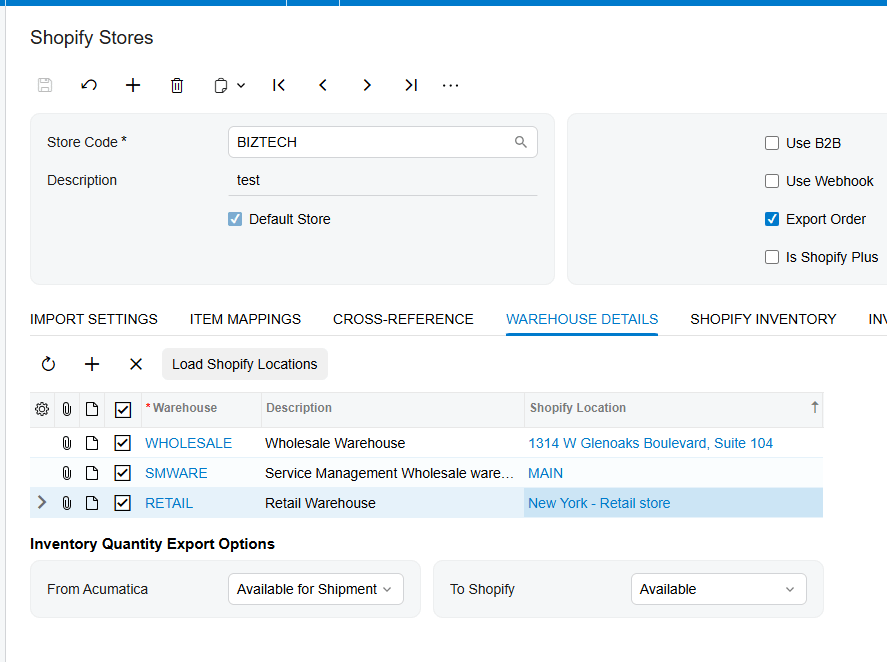
In Warehouse Details, use Load Shopify Locations to retrieve locations from Shopify. Map each relevant Shopify location to the Acumatica warehouse that supplies it. If several warehouses are selected, the exported item quantity is the sum across those warehouses. Review this scope carefully so a warehouse intended for another channel, market, or purpose is not included by mistake.
Quantity basis and tracking
Choose On Hand, Available, or Available for Shipment from the quantity selection. The manual does not define the formulas behind these values, so confirm their meaning in your Acumatica configuration and business rules. The exported value should match the quantity the storefront is allowed to offer, not simply the easiest number to retrieve.
Review Track Quantity as well. The documentation says that if Track Quantity is cleared in both Shopify and Acumatica, synchronization produces an error. If it is cleared in Shopify but selected in Acumatica, the sync updates the quantity and automatically selects tracking in Shopify. The same manual later notes that quantity can be updated even when Track Quantity is not selected for an item. Because those statements may depend on context or connector version, test the behavior in a nonproduction item before rollout.
Item selection and product fields
The Shopify Inventory tab can load Acumatica stock and non-stock items with Load Acumatica Items, or retrieve Shopify products with Load Shopify Items. It supports Sync to Shopify, Sync from Shopify, publish, unpublish, Get Item by ID, and Purge. The list can also be imported or exported as an Excel document.
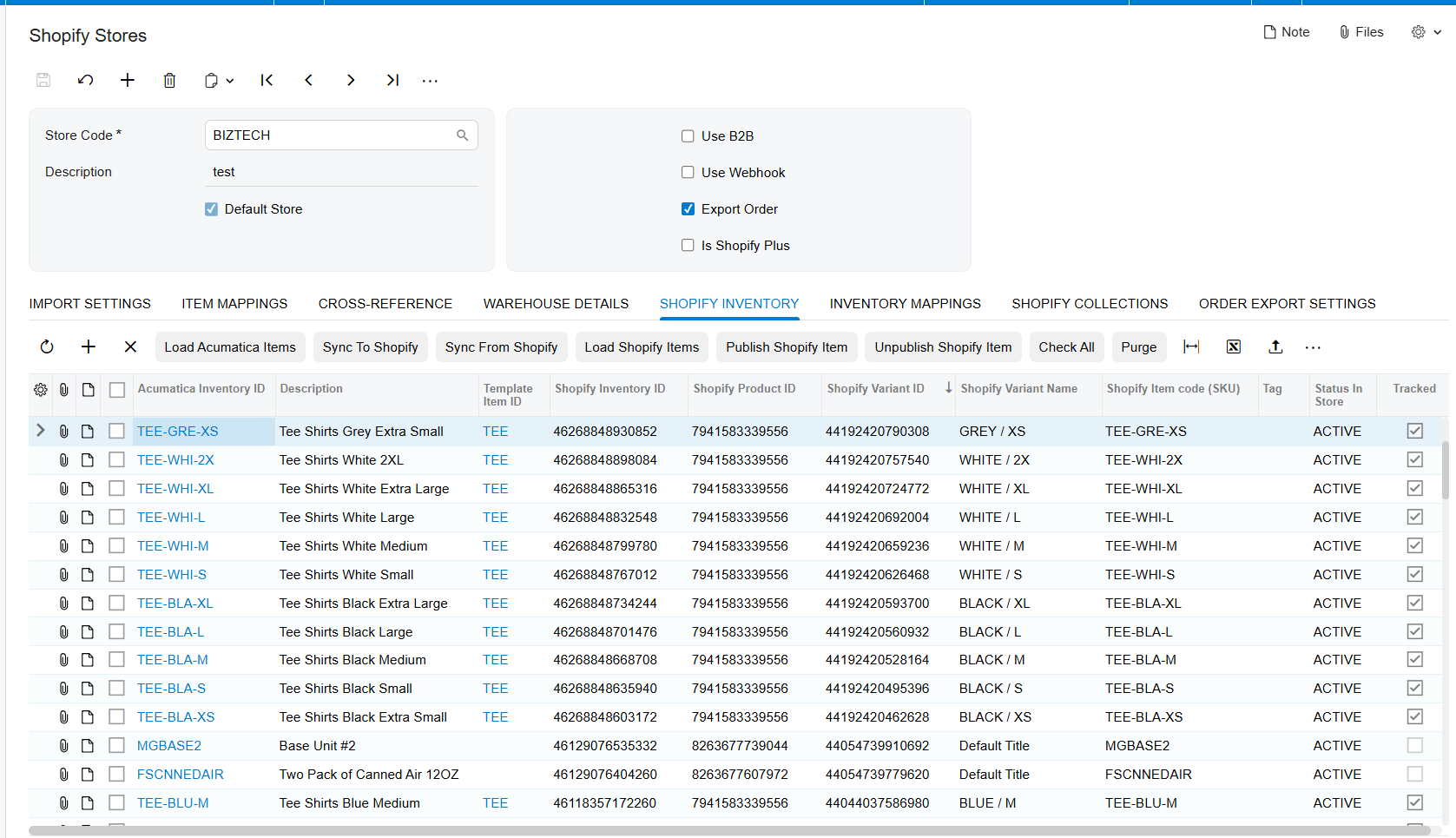
Export Item Mappings controls which product-related values are updated. Clear fields that should not be exported, and select every field required for the processing operation. The manual specifically warns that unselected fields such as price, description, or weight are not updated. Inventory Mapping separately connects Acumatica attributes, item currency settings, and user-defined fields to Shopify fields, including product- or variant-level metafields. Use Get Metafields to retrieve existing Shopify metafields, and select the import or export checkbox for each active mapping.
Practical Shopify and Acumatica Inventory Workflow
1. Validate the connector deployment and license. Confirm the customization package is installed, validated, and published for the intended Acumatica tenant.
2. Test the Shopify connection. Select the Store Code, review connection settings, and run Test Credentials before loading products or locations.
3. Load and map Shopify locations. In Warehouse Details, retrieve Shopify locations and map only the Acumatica warehouses that should contribute inventory to each location.
4. Choose the exported quantity. Select On Hand, Available, or Available for Shipment according to the storefront promise and the organization’s inventory rules.
5. Verify item identity. Compare Acumatica Inventory CDs with Shopify SKUs. Resolve duplicates, blanks, or unintended identifiers before export because Acumatica item export uses Inventory CD as SKU.
6. Load the product records. Use Shopify Inventory to load Acumatica items or Shopify items. If products must first be created or updated in Shopify, use Sync to Shopify or the Export Shopify Inventory Items screen. Select Sync for specific records or Sync All for all displayed records.
7. Enable the required export fields. Check Export Item Mappings and any Inventory Mapping rows needed for product or variant data. A processing screen cannot update a field that has not been selected for creation or update.
8. Select inventory items for quantity export. In Shopify Inventory on the Shopify Store screen, select the required items and save the selection.
9. Run a controlled quantity sync. Open Export Shopify Inventory Quantities and process a small set first. Confirm that Shopify receives the expected quantity at the expected location.
10. Schedule recurring synchronization. After the controlled test passes, use the scheduling option on Export Shopify Inventory Quantities to reduce manual processing. Choose the interval according to sales velocity and operational needs; the source does not prescribe a frequency.
How to Monitor and Validate Inventory Synchronization
Start validation with a small, representative sample: one simple stock item, one item held in multiple selected warehouses, and, if applicable, one variant or matrix item. Record the Acumatica quantity under the selected basis, run the export, and compare the resulting Shopify location quantity. For a multiwarehouse item, independently add the contributing quantities and confirm that Shopify receives the same total.
Use the processing screen as the operational checkpoint. Confirm that the intended Store Code and records are selected before running Sync, Sync All, Process, or a schedule. If a product does not appear as expected, return to Shopify Inventory and verify that it was loaded and selected. If product details fail to update, inspect Export Item Mappings and the import or export checkbox on Inventory Mapping.
After deployment, periodically test credentials, review location-to-warehouse mappings, and compare a sample of Acumatica and Shopify quantities. Revalidate after adding a warehouse, Shopify location, product, variant, or metafield. The source manual does not document a dedicated inventory exception report, retry policy, alert, or synchronization history, so confirm the available monitoring and logging features in the installed connector version.
Common Pitfalls in Shopify Acumatica Inventory Sync
1. Mismatched SKU and Inventory ID. Acumatica-to-Shopify item export uses Inventory CD as the SKU, and export-time item mapping is not supported. A mismatch can prevent the intended product relationship.
2. Incorrect warehouse scope. Selecting extra warehouses inflates the summed quantity; omitting a supplying warehouse understates it.
3. Wrong quantity definition. On Hand may not equal the amount that should be offered for sale. Validate Available or Available for Shipment against business rules before choosing.
4. Inactive field mappings. Required values do not update when their Export Item Mappings or Inventory Mapping checkboxes are not selected.
5. Assuming products already exist. Export Shopify Inventory Items may create products automatically when the connector cannot find them in the Shopify store. Test this behavior to avoid unintended catalog records.
6. Using Sync All too early. A broad export can amplify configuration errors. Begin with selected records and expand only after validating location, SKU, and quantity results.
7. Treating documentation ambiguities as guarantees. The manual contains two statements about Track Quantity that may apply in different contexts. Confirm the installed version’s behavior before production scheduling.
Frequently Asked Questions
Can Acumatica update inventory at multiple Shopify locations
Yes. Warehouse Details retrieves Shopify locations and maps them to Acumatica warehouses. The quantity export updates the corresponding location. When multiple warehouses are selected, the connector exports their summed quantity.
Which Acumatica quantity is sent to Shopify
The connector can use On Hand, Available, or Available for Shipment. The source does not define those calculations, so review your Acumatica rules and select the value that represents sellable inventory for the store.
Can Shopify products be mapped to different Acumatica item codes
Mapping is supported during import from Shopify to Acumatica. During export from Acumatica, the connector uses the item’s Inventory CD as the Shopify SKU and does not support mapping in that export process.
Can inventory synchronization run automatically
Yes. Export Shopify Inventory Quantities supports scheduling as well as manual processing. The documentation does not specify a recommended interval, so set and test a cadence that fits order volume and operational requirements.
What should be checked when a quantity does not update
Check credentials, Store Code, item selection, SKU alignment, location-to-warehouse mapping, quantity basis, Track Quantity behavior, and the required mapping checkboxes. Then rerun a single-item export and compare the Acumatica source quantity with the Shopify location quantity.
Plan a Reliable Shopify Acumatica Integration
A dependable Shopify inventory sync starts with controlled scope and verifiable identifiers. Establish the store connection, map locations to the right warehouses, choose the correct quantity basis, and validate a small item set before scheduling broader updates.
If you need help configuring, testing, or extending a Shopify and Acumatica integration, contact Biz-Tech Services to discuss your inventory workflow and connector requirements.
How to Sync WooCommerce Inventory with Acumatica
How to Sync WooCommerce Inventory with Acumatica
Synchronizing WooCommerce inventory with Acumatica gives an online store a stock figure derived from the warehouses and quantity definition selected in the ERP. In the Biz-Tech WooCommerce Connector, inventory quantity flows from Acumatica to WooCommerce through the Export WooCommerce Inventory Quantities processing screen. A reliable setup depends on more than running that process: products must be linked, inventory details must be loaded and selected, warehouses must be included, and the correct quantity basis must be chosen.
This guide explains the documented workflow for WooCommerce inventory sync with Acumatica, the fields that control the result, and the checks that help prevent missing products or misleading availability.
How WooCommerce Inventory Sync with Acumatica Works
Acumatica is the source of the quantity exported by this connector workflow. For every eligible item, the connector totals the selected quantity across all warehouses included on the WooCommerce Store's Warehouse Details tab. That combined value appears on the Export WooCommerce Inventory Quantities processing screen and can then be sent to WooCommerce.
The quantity type is configurable. The documented choices are On Hand, Available, and Available for Shipment. This choice matters because each measure represents a different view of stock. The connector documentation identifies the options but does not prescribe one universal choice; the business should select the measure that matches its promise to online customers.
Prerequisites for Acumatica WooCommerce Inventory Integration
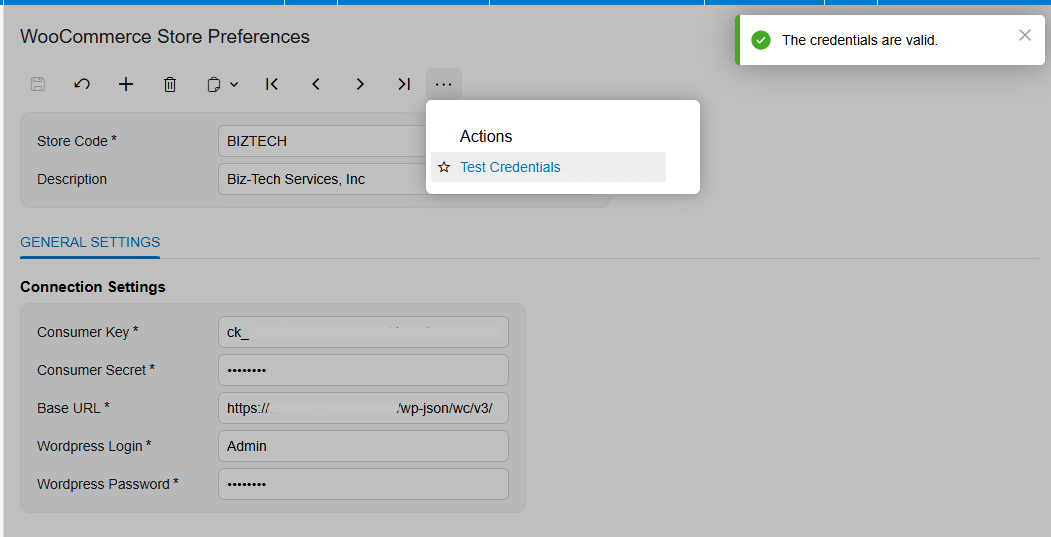
Before syncing quantities, confirm the connector package has been published and the WooCommerce workspace is available in Acumatica. Configure the connection in WooCommerce Store Preferences with the Store Code, Base URL, Consumer Key, Consumer Secret, WordPress Login, and WordPress Password. Use Test Credentials and continue only after Acumatica reports that the credentials are valid.
The WooCommerce REST API keys are generated in WooCommerce under Settings, Advanced, REST API. The source documentation says to add a key, select the WordPress user and access level, and generate the Consumer Key and Consumer Secret. Because the connector updates WooCommerce, the credentials must provide the access required by the intended integration operations.
Three item-level conditions must also be satisfied before a product appears on the quantity processing screen:
1. The product must already be represented as a WooCommerce item in Acumatica.
2. The item must be loaded, checked, and saved in the Inventory Details or Item Details area of the WooCommerce Store setup.
3. At least one relevant warehouse and a quantity type must be selected on the Warehouse Details tab.
Practical Workflow to Sync WooCommerce Inventory with Acumatica
1. Open WooCommerce Store Preferences, enter the WooCommerce connection values, and run Test Credentials. Saving the credentials establishes the store connection used by the remaining connector screens.
2. Open the WooCommerce Store screen for the correct Store Code. If one store should be preselected on processing screens, select Default Store in the header.
3. Review Item Settings. Decide whether the connector may create missing Acumatica items during imports by using Import Item. When matching imported products, the connector searches Acumatica Inventory CD using the WooCommerce Product SKU. If Import Item is off and no match exists, the process returns an item-not-found error.
4. Establish the product link. On Item Details, load Acumatica items or WooCommerce items as appropriate, select the required records, and synchronize them. When an Acumatica item is created in WooCommerce, WooCommerce generates a product ID that is stored in Acumatica. For exports, the connector uses the Acumatica Inventory CD as the WooCommerce SKU.
5. On the Warehouse Details tab, add every Acumatica warehouse whose stock should contribute to the web quantity. Exclude warehouses that should not support ecommerce availability.
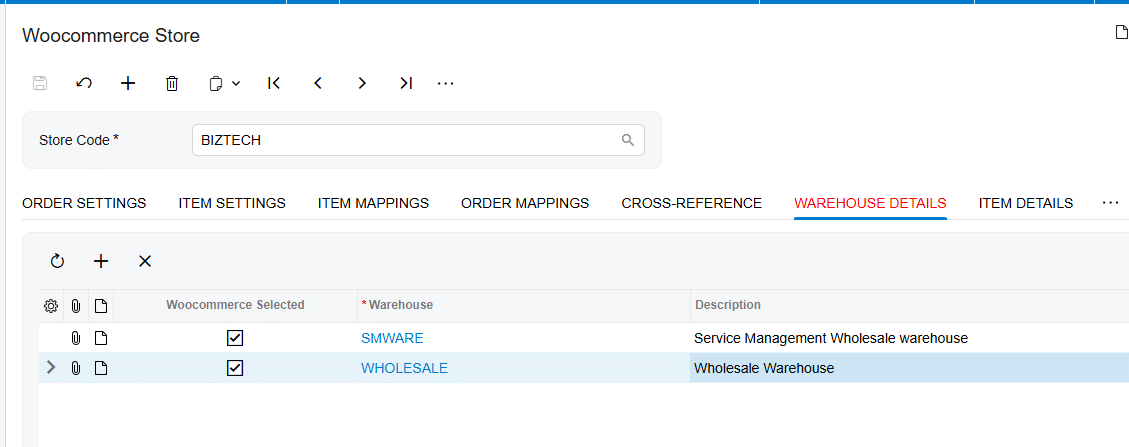
6. For each included warehouse, select the quantity basis: On Hand, Available, or Available for Shipment. Use one definition that reflects the operational meaning of stock you want WooCommerce shoppers to see.
7. Return to Item Details or Inventory Details, load the relevant inventory, check the items to include, and save. A product that is not loaded, selected, and saved will not meet the documented eligibility requirements for the quantity screen.
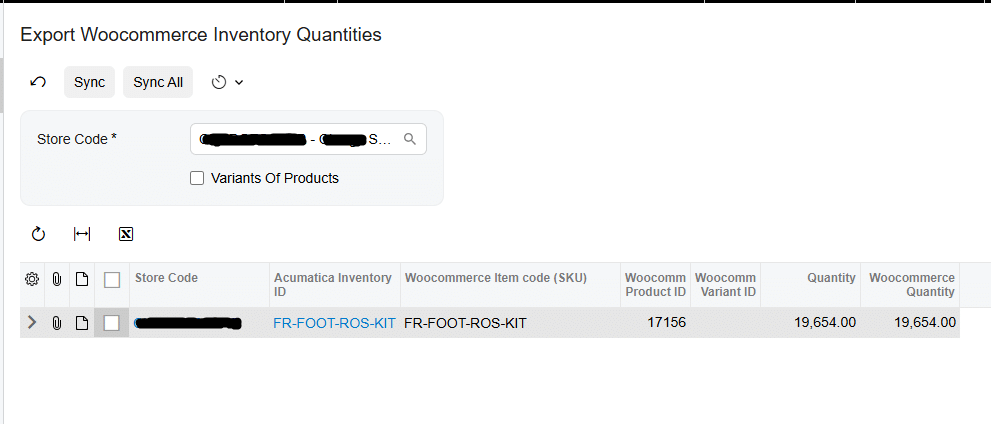
8. Open Export WooCommerce Inventory Quantities. Select the Store Code if it is not already supplied by Default Store, then review the eligible products and calculated values.
9. Compare Quantity with the expected aggregate from the selected warehouses. Quantity is read-only and shows the connector's calculated total. WooCommerce Quantity is editable and is the value to be synchronized, allowing an operator to adjust the outgoing amount when the business process requires it.
10. Process the selected items. After a controlled manual run validates the setup, configure the screen's scheduler if recurring automatic synchronization is needed.
Key Fields and Settings That Control Inventory Sync
Store Code and Default Store
Store Code identifies the WooCommerce store connected to the process. In a multi-store environment, selecting the wrong store can direct product or quantity updates to the wrong endpoint. Default Store can automatically populate Store Code on processing screens, reducing repetitive selection while making it important to verify the default.
Warehouse Details
Warehouse Details defines the inventory locations included in the calculation. The connector adds the chosen quantity across all selected warehouses and presents one combined quantity for each item. The source does not describe warehouse-specific quantities in WooCommerce, allocation rules, or safety-stock deductions, so those behaviors should not be assumed.
Quantity Type
The quantity basis can be On Hand, Available, or Available for Shipment. Validate the selected basis against a sample item in Acumatica before enabling automation. A technically successful export can still publish an unsuitable figure if the chosen measure does not match the ecommerce fulfillment policy.
Quantity and WooCommerce Quantity
On the processing screen, Quantity is the read-only aggregate calculated from Acumatica. WooCommerce Quantity is editable and represents the amount selected for synchronization. Treat edits as controlled exceptions and document why an override was used, because repeated manual changes can obscure whether the warehouse setup is producing the intended result.
SKU and WooCommerce Product ID
Product identity is foundational. During WooCommerce-to-Acumatica item lookup, the connector searches Inventory CD by WooCommerce SKU. During Acumatica-to-WooCommerce export, Inventory CD becomes the WooCommerce SKU. A newly created WooCommerce product receives a unique WooCommerce ID, which is displayed in the WooCommerce Store and on the Stock Item's WooCommerce Inventory tab.
Monitoring and Validation
Start with a small, representative set that includes a single-warehouse item, a multi-warehouse item, and a product with low or zero stock. For each item, confirm the SKU and WooCommerce product ID, verify that the item is selected and saved, and recalculate the expected total using only the warehouses and quantity basis configured in Warehouse Details.
On Export WooCommerce Inventory Quantities, compare the read-only Quantity with that expected total and review any edited WooCommerce Quantity before processing. After the run, inspect the matching product in WooCommerce to confirm that its inventory reflects the intended value. The connector's export processing is batch-oriented; the documentation states that Export Item Processes sends one API request for 100 items, which is useful context when assessing batch behavior.
For scheduled synchronization, validate at least one manual cycle first, then review subsequent runs for omitted products, unexpected totals, and stale values. The documentation confirms that quantity synchronization can run manually or through a scheduler, but it does not specify a recommended frequency, retry policy, or dedicated quantity-error screen. Set the interval and operational review procedure according to order volume and stock volatility.
Common Pitfalls
1. Missing items on the processing screen. Confirm that each product is already a WooCommerce item in Acumatica and is loaded, checked, and saved in the store's inventory details.
2. Incorrect aggregate stock. Recheck which warehouses are selected and whether the quantity basis is On Hand, Available, or Available for Shipment.
3. SKU mismatches. WooCommerce SKU and Acumatica Inventory CD are central to item identification. Missing or inconsistent values can prevent matching; if SKU generation is enabled but its numbering sequence is absent, the connector reports an error.
4. Unintended manual overrides. Because WooCommerce Quantity is editable, an operator can send a value different from the calculated Quantity. Review overrides before processing.
5. Assuming item mapping applies to Acumatica item export. The documentation says Inventory Mapping does not support mapping during Acumatica item export; it is available for mapping WooCommerce items to Acumatica during import.
6. Automating too early. First verify credentials, item links, warehouse inclusion, quantity definition, and the resulting web stock with a limited manual run.
Frequently Asked Questions
Which system supplies the inventory quantity?
In the documented quantity export workflow, Acumatica supplies the value. The connector calculates quantity from the selected Acumatica warehouses and exports it to WooCommerce.
Can inventory from multiple Acumatica warehouses be combined?
Yes. The connector totals the chosen quantity across all warehouses selected on Warehouse Details and displays that combined amount on the processing screen.
Which Acumatica quantity can be synchronized?
The documented options are On Hand, Available, and Available for Shipment. The correct choice depends on how the business defines sellable ecommerce inventory.
Why is a product missing from Export WooCommerce Inventory Quantities?
Check the three documented requirements: it must exist as a WooCommerce item in Acumatica, be loaded and saved in Inventory Details, and have the required warehouse and quantity selection configured.
Can the inventory sync run automatically?
Yes. The quantity synchronization can be run manually or through a scheduler. The source does not specify a universal schedule interval, so test manually and choose timing that fits the operation.
Can I change the quantity before sending it to WooCommerce?
Yes. Quantity is read-only, while WooCommerce Quantity is editable. Any override should be reviewed because it can differ from the Acumatica aggregate.
Build a Reliable Acumatica WooCommerce Inventory Workflow
A dependable WooCommerce inventory sync starts with product identity and a deliberate inventory policy. Validate credentials, connect each product, select only the warehouses that support online fulfillment, choose the right quantity basis, and compare calculated values before processing. Once the manual workflow is proven, scheduling can keep WooCommerce stock aligned with Acumatica while routine checks catch exceptions.
Need help configuring or validating the connector? Contact Biz-Tech Services to discuss your WooCommerce and Acumatica integration.
How PDF Order Automation Affects Inventory Allocation in Acumatica
How PDF Order Automation Affects Inventory Allocation in Acumatica
PDF order automation can improve inventory allocation in Acumatica by improving the sales-order data that allocation depends on. When customer purchase orders are converted into sales orders quickly and consistently, planners see demand sooner, item identities are less likely to be mistyped, and warehouse teams can act on cleaner order lines. The important distinction is that PDF automation creates and validates the transaction; Acumatica still controls whether and how stock is reserved, shipped, back ordered, or supplied from another warehouse.
DocVision PDF Scan and Import is designed to upload customer PDF documents, recognize customer and ship-to information, map PDF values to Acumatica fields, and generate sales orders. Its documented workflow includes customer-specific templates, inventory and customer cross-references, validation statuses, batch generation, and a Generic Inquiry for monitoring. Used correctly, those controls can make allocation decisions earlier and more reliable. Used without strong mappings and validation, automation can simply create incorrect demand faster.
Why PDF Order Automation Matters for Inventory Allocation
Inventory allocation starts with a trustworthy order line. Acumatica needs the correct customer, inventory ID, quantity, unit of measure, warehouse context, shipping rule, and requested timing before users can make sound fulfillment decisions. A PDF order may express those values in a customer-specific format or use the customer's own item number. DocVision standardizes that input by applying a template and translating source values into Acumatica values.
The effect is indirect, not magical. Official Acumatica guidance treats allocation as reservation of stock-item quantities on a sales order, often through line details and allocation splits. Availability can lead to partial allocation, additional splits, another allocation warehouse, a transfer, or a back-order outcome. Non-stock items cannot be allocated. Depending on the Acumatica version and configuration, stock allocation functionality also depends on enabled inventory features. None of these rules is replaced merely because the order originated from a PDF.
The PDF to Sales Order and Allocation Workflow
1 Configure the connection and PDF import settings
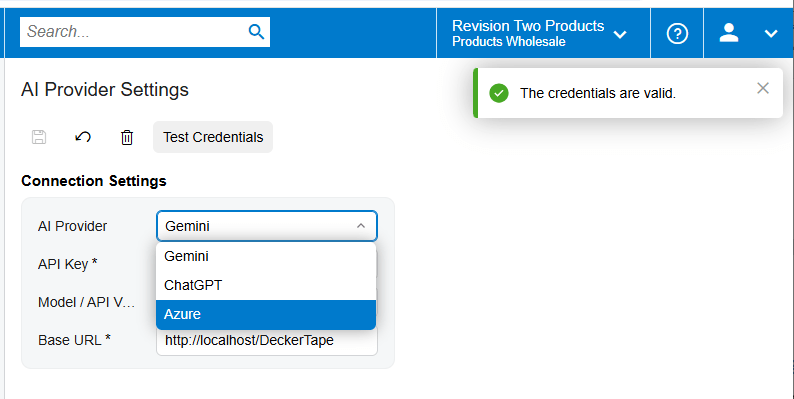
Begin with the environment and credentials required by the solution, then use Test Credentials to confirm the setup. In PDF Import Settings, create a template by importing a representative customer PDF. The source documentation describes a page viewer with previous-page, next-page, and zoom controls, which lets the configurator compare the original document with the extracted values while building the mapping.
2 Map header and detail data
The system populates PDF FieldName and PDF Value and proposes mappings between Target Object and Source Field. Review every proposed mapping. For sales-order header fields, the documented target is Sales Order, Advanced. For line data, use Sales Order, Details, Advanced. Only mappings with the Active checkbox selected are uploaded during sales-order generation, so an apparently complete template can still omit operationally important data if a row is inactive.
Pay particular attention to Order Type, Customer, Customer Location or Ship-To, document or purchase-order number, Inventory ID, quantity, unit of measure, and any warehouse or date field included in the implementation. The source specifically documents Template ID, document number, Order Type, and Customer on imported documents. It does not provide a complete standard list of allocation fields, so warehouse, location, shipping rule, dates, and allocation behavior should be confirmed against the organization's Acumatica configuration and the actual target fields exposed by the customization.
3 Resolve customer and inventory identities
Enable CrossRef for Inventory ID when customer documents use item codes that do not match Acumatica inventory IDs. This exposes the Inventory Cross-Reference tab, where users can map PDF item values manually or import mappings through Excel. A separate Customer Cross-Reference tab can map PDF customer and location values to Acumatica customers and locations.
4 Handle purchase order numbers deliberately
The Dynamic PO Number setting addresses PDFs with no identifiable purchase-order number. The documented workflow selects this option automatically and displays a warning that the mapping document has no number and requires an alternative PO number. The Release PO Number field then allows a header value to be mapped to an existing field value. This matters operationally because a stable source-document identifier helps prevent duplicate processing and supports reconciliation between the PDF, imported document, and generated sales order.
5 Validate before generating the sales order
On Import Documents, select a document number to review the PDF, its mappings, and the retained Template ID. The interface uses green for a correctly mapped file that is ready to generate a sales order, red for an item-line error accompanied by an Error Message, and yellow for a warning such as an unmapped item. The Validate Items action attempts to map PDF items to Acumatica values and displays them in Details when the mappings already exist in Inventory Cross Reference.
Treat green as an automation checkpoint, not proof that stock is available or allocated. Before generation, confirm that quantities, units, item identities, customer, location, and order type match the PDF. If allocation is time-sensitive, also review the warehouse and requested dates after generation, because the supplied DocVision guide does not state that its color status checks real-time inventory availability.
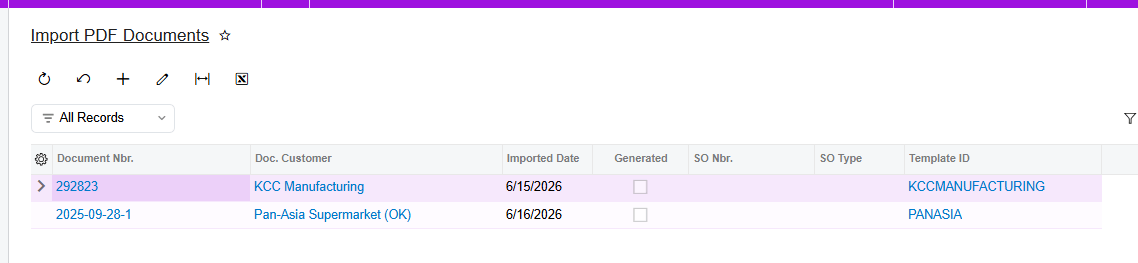
6 Generate and review the sales order
Use Generate Sales Order from the document action menu, or use the modified generation screen for batch processing. The generation screen can filter by Document Number and create the corresponding order. After success, the imported record should show the order number and order type, and the Generated checkbox should be selected. The source document number should also be visible on the Sales Orders screen, giving operations a traceable path back to the PDF.
At this point Acumatica's order-management rules become decisive. Verify the order status and whether the selected order type places new orders on hold. Review availability and line details, then allocate stock manually or follow the configured fulfillment process. Where full quantity is unavailable, Acumatica documentation describes partial allocation and line splits; users may select another allocation warehouse, arrange a transfer, adjust quantity, or allow the configured shipping rule to determine whether a partial shipment, back order, or cancellation of the remainder is appropriate.
Key Fields and Settings That Influence the Result
1. Template ID: ties an imported document to the customer-specific parsing and mapping design.
2. PDF FieldName and PDF Value: show what the solution extracted from the source PDF.
3. Target Object and Source Field: control where each extracted value is written in Acumatica.
4. Active: determines whether a mapping is included when the sales order is generated.
5. CrossRef and Inventory Cross-Reference: translate customer item values into valid Acumatica Inventory IDs.
6. Customer Cross-Reference: translates customer and location values into Acumatica records.
7. Dynamic PO Number and Release PO Number: provide a controlled alternative when the PDF lacks a usable order number.
8. Order Type: invokes the applicable Acumatica sales-order workflow and defaults; confirm hold, shipping, and fulfillment behavior in Order Types.
9. Inventory ID, quantity, UOM, and warehouse: form the core demand signal to validate before allocation.
10. Shipping rule and requested dates: can affect whether an order waits for full availability, ships partially, back orders, or cancels a remainder; verify the values inherited by the generated order.
Monitoring and Validation After Go Live
Use the Import PDF Documents Generic Inquiry as the operational register. The documented GI includes document numbers, Template IDs, customer information, and document generation dates, with hyperlinks back to Import Documents. This supports exception review, throughput monitoring, and traceability. A daily control can compare imported documents, records marked Generated, and the sales orders actually created.
Add allocation-focused validation outside the capture status. Sample generated orders and compare the PDF to Customer, Location, Order Type, Inventory ID, UOM, Order Qty., Warehouse, and requested dates. Then inspect availability, allocated quantity or line splits, order hold status, and shipment eligibility in Acumatica. Track red and yellow imports, unmapped item codes, duplicate source numbers, orders generated without expected lines, and orders that remain unallocated because inventory is unavailable or a required workflow step was not completed.
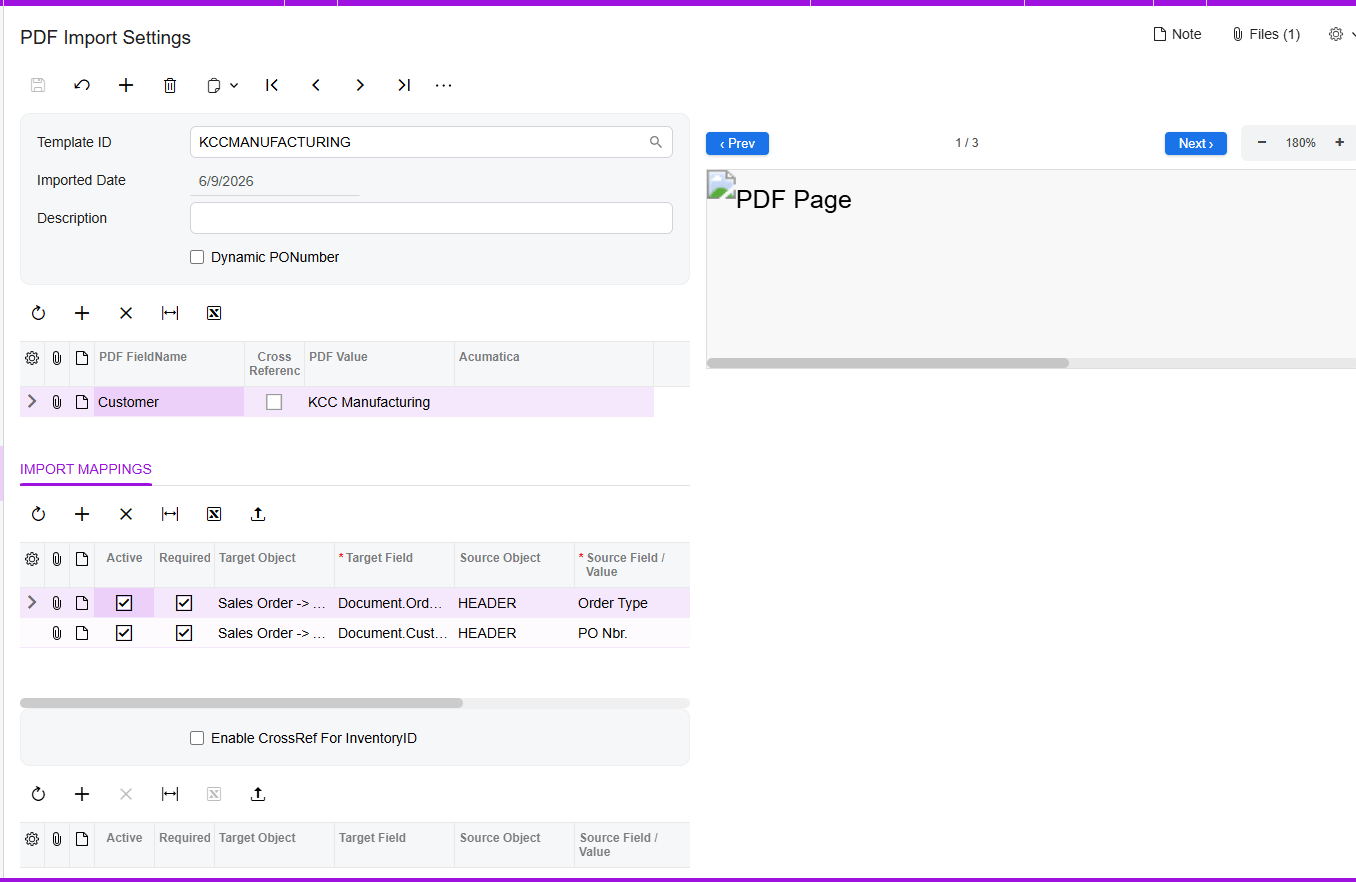
Common Pitfalls
1. Assuming generation equals allocation. A created sales order records demand; stock reservation still follows Acumatica features, settings, availability, and user actions.
2. Activating incomplete mappings. Only active mapping rows are uploaded, so missing quantity, UOM, warehouse, customer location, or dates can distort fulfillment decisions.
3. Using weak item cross-references. A valid but incorrect Inventory ID is more dangerous than a visible unmapped-item warning.
4. Treating green status as inventory confirmation. The documented colors describe mapping readiness and errors, not a guarantee of available or reserved stock.
5. Batch-generating unresolved documents. Batch processing increases throughput, but it also multiplies the impact of a bad template or cross-reference.
6. Skipping reconciliation. Use the Generated checkbox, generated order number, source document number, and GI links to prove that each PDF produced the intended order once.
Frequently Asked Questions
Does PDF order automation automatically allocate inventory in Acumatica
Not based on the supplied DocVision documentation. It automates PDF import, mapping, validation, and sales-order generation. Inventory reservation remains an Acumatica order-management function governed by available stock, enabled features, order configuration, and the allocation or shipment workflow.
What mapping has the greatest effect on allocation accuracy
Inventory ID is critical because allocation evaluates a specific stock item, but quantity, UOM, warehouse, customer location, order type, and dates can be equally material. Validate the complete order line and the defaults applied to the generated order.
What should users do with yellow or red imported lines
For yellow item-mapping warnings, confirm that the customer item exists in Inventory Cross Reference and use Validate Items. For red lines, read the Error Message and correct the source mapping or reference data before generation. Do not use batch generation to bypass unresolved exceptions.
Can Acumatica allocate part of an order
Yes. Official Acumatica guidance describes partial allocation and line splits when the full requested quantity is unavailable. Remaining demand may be assigned to another warehouse, supplied through a transfer, adjusted, or handled according to the applicable shipping rule and workflow.
How can the business audit automated orders
Use the Import PDF Documents GI, its hyperlinks to Import Documents, the Generated checkbox, the generated order number and type, and the source document number carried to the sales order. Reconcile those records with sales-order status, allocation details, and shipment results.
Build a Controlled PDF Order Automation Process
The strongest implementation combines fast PDF capture with disciplined master data, cross-reference ownership, exception handling, and Acumatica allocation controls. If you want to assess your customer document formats, map the right sales-order fields, and design an end-to-end validation process, contact BizTech Services to plan a practical Acumatica PDF order automation rollout.
How to Keep CRV Quantities Consistent with Beverage Order Lines in Acumatica
How to Keep CRV Quantities Consistent with Beverage Order Lines in Acumatica
Keeping California Redemption Value or CRV quantities consistent in Acumatica depends on preserving the relationship between each beverage line and its automatically generated CRV line. Biz-Tech Services CRV processing copies the parent item quantity and warehouse to the associated non-stock CRV item, then carries the relationship through sales orders, shipments, and invoices.
The control is intentionally direct. Configure the beverage item with the correct CRV Item and CRV Amount, enable Include in CRV for the customer location, and monitor the Parent Item and Child Item fields on every downstream document.
What CRV Quantity Management in Acumatica Does
A CRV item is a non-stock item used in Acumatica inventory and sales processing to represent the environmental fee associated with eligible beverage products. When a qualifying parent item is added for an enabled customer location, Acumatica creates the CRV item as a child line with the same quantity and warehouse.
CRV Quantity Flow at a Glance
1. Create the fee as a non-stock CRV item.
2. Link the correct CRV Item to the beverage stock item on the Price Cost tab.
3. Set the CRV Amount on the beverage Stock Item General tab based on the applicable unit of measure.
4. Enable Include in CRV on the customer default location.
5. Add the beverage parent item to the sales order and verify that Acumatica creates the CRV child line.
6. Confirm that parent and child have the same quantity and warehouse.
7. Monitor Parent Item and Child Item on the sales order, shipment, and invoice to preserve the relationship.
Configure the CRV Item as a Non-Stock Item
The associated CRV item must be configured as a non-stock item. It represents the fee rather than a separate physical beverage unit. This distinction lets the beverage remain the inventory item while the CRV line follows its quantity for sales and billing.
On the beverage Stock Item, open the Price Cost tab and select the appropriate value in CRV Item. This creates the item-level relationship used when Acumatica generates the child line.
Use CRV Amount and Unit of Measure Together
The CRV Amount field on the General tab of the beverage Stock Item determines the amount for the associated CRV item based on the selected unit of measure or UOM. The UOM therefore affects the fee amount while the beverage order quantity determines how many units of that fee line are created.
For consistent results, verify the beverage UOM before reviewing the CRV amount. If an order uses a different UOM from what the stock-item configuration anticipates, the quantity may still match while the expected fee amount differs. The source documentation does not describe conversion behavior, so businesses using multiple UOMs should validate each supported order scenario before production use.
Enable CRV at the Customer Location
Include in CRV on the Customer Default Location is the customer-level switch. When selected, adding the linked parent beverage item creates the CRV child line. When cleared, the CRV line is not displayed on the sales order.
This setting explains many apparent quantity problems. Before changing item setup, confirm that the sales order uses the intended customer location and that Include in CRV is selected there.
How Acumatica Keeps Parent and Child Quantities Aligned
When the parent item is added, Acumatica automatically adds the associated CRV item as a new line. The child line receives the same quantity as the beverage line. This one-to-one quantity inheritance is the foundation of CRV consistency.
Users should review the two lines together whenever the beverage quantity changes. The source confirms automatic quantity creation but does not document manual-edit or recalculation behavior after later changes. A safe operating procedure is to verify the child quantity immediately after adding or changing the parent line and again before shipment and invoicing.
Keep the CRV Warehouse Consistent
The CRV child line also receives the same warehouse as the parent beverage item. Although the CRV item is non-stock, matching the warehouse preserves the operational relationship on the transaction and makes it easier to review the two lines as a pair.
There is no separate CRV warehouse mapping documented. Warehouse consistency comes from inheritance from the parent line. If the beverage warehouse is changed, users should confirm that the associated child line still shows the same warehouse before the order proceeds.
Monitor CRV Lines Through Shipment and Invoice
Parent Item and Child Item fields are available on Sales Orders, Shipments, and Invoices. These fields identify the beverage line and its associated CRV fee line after the order moves downstream.
On the shipment, compare the parent and child references with the sales order and confirm that the beverage quantity being fulfilled remains associated with the correct CRV line. On the invoice, confirm the same relationship, quantity, warehouse context, and CRV amount. This document-by-document comparison is the primary reconciliation method described by the source.
Reconcile CRV Quantity and Amount Before Release
CRV reconciliation should answer four questions. Is the correct non-stock CRV item linked to the beverage? Is Include in CRV enabled for the order location? Does the child line quantity match its parent? Does CRV Amount reflect the parent item UOM?
Then trace Parent Item and Child Item through the sales order, shipment, and invoice. Any broken link, missing line, warehouse mismatch, or quantity difference should be resolved before the invoice is released.
Where to Monitor CRV Quantities in Acumatica
1. Beverage Stock Item Price Cost tab: the linked CRV Item.
2. Beverage Stock Item General tab: CRV Amount and the UOM that determines the associated amount.
3. CRV non-stock item: correct item identity and non-stock classification.
4. Customer Default Location: Include in CRV and the location selected on the order.
5. Sales Order: parent beverage quantity, child CRV quantity, matching warehouse, Parent Item, and Child Item.
6. Shipment: parent and child references and the quantities carried into fulfillment.
7. Invoice: parent and child references, quantity relationship, and final CRV amount before release.
CRV Quantity Management in Acumatica Frequently Asked Questions
Why is the CRV line missing from the sales order
Verify that the beverage Stock Item has a CRV Item selected, the linked CRV item is non-stock, and Include in CRV is selected for the customer location used on the order.
What quantity should appear on the CRV line
The CRV child line should receive the same quantity as the parent beverage item.
What warehouse should the CRV line use
The associated child item receives the same warehouse as the parent beverage item.
How is the CRV amount determined
The CRV Amount field on the beverage Stock Item General tab determines the associated CRV item amount based on the selected UOM.
How do I match a CRV line to its beverage item
Use Parent Item and Child Item on Sales Orders, Shipments, and Invoices. These fields preserve the documented relationship through the transaction flow.
How should CRV lines be reconciled
Compare the linked item, quantity, warehouse, UOM-based amount, and parent-child fields on the sales order, shipment, and invoice before release.
Improve CRV Quantity Control with Biz Tech Services
Accurate CRV processing depends on a reliable relationship between beverage items and fee lines. Biz-Tech Services CRV processing automates line creation and carries the identifying fields through Acumatica so users can validate quantity and warehouse consistency.
To learn more about managing CRV lines and beverage quantities in Acumatica, visit https://biz-techservices.com
How to Track Gift Card Inventory and Balances in Acumatica
How to Track Gift Card Inventory and Balances in Acumatica
Tracking gift card inventory and balances in Acumatica requires two connected controls: inventory or numbering for each gift card issued, and a financial balance that changes as the card is sold, redeemed, or returned. Biz-Tech Services Gift Card Processing supports both stock and non-stock gift cards while keeping the serial number, original amount, used amount, and remaining amount visible inside Acumatica.
Stock gift cards are serialized inventory and must be received, assigned, and allocated. Non-stock gift cards are generated by numbering rules or entered manually. Once either type is sold, the Gift Card tab on Payment Methods becomes the central balance record.
What Gift Card Inventory and Balance Tracking in Acumatica Does
Gift Card Processing lets companies sell serialized gift cards and accept sold gift cards as payment. Acumatica stores Customer ID, Inventory ID, Gift Card Serial Number, Order Number, Gift Card Amount, Used Amount, and Remaining Amount. These fields connect the issued card to its owner, sale, and redemption history.
Gift Card Inventory and Balance Flow at a Glance
1. Create the Gift Card payment method and connect it to an allowed cash account.
2. Configure default items, external item mappings, and sequential or random numbering on Gift Card Preferences.
3. For stock gift cards, receive serialized inventory and record expiration dates when applicable.
4. For non-stock gift cards, generate or enter one gift card number for every ordered quantity.
5. Allocate a stock card serial number or assign a non-stock card number on the sales order.
6. Fulfill the sale so the card record appears on the Gift Card tab of Payment Methods.
7. Redeem the card through a sales order, Payments and Applications, or an invoice, then release the payment.
8. Monitor Used Amount, Remaining Amount, Gift Card History, and Gift Card Summary after every transaction.
Choose Stock or Non Stock Gift Card Inventory
A non-stock gift card does not require a physical inventory receipt. It can be sold in Acumatica or imported from an external system, and its number can be entered manually or generated from Gift Card Preferences. The sales order line uses the Ship Complete shipping rule. When quantity is greater than one, the Gift Card Numbers window should show the individual numbers associated with the selected line.
A stock gift card is created on Stock Items IN202500 and uses a Lot Serial Class. The payment method field is enabled for serialized items, so the gift card must be associated with the applicable Gift Card payment method. Stock cards are physical serialized inventory and therefore require receipt and allocation before sale.
Configure Gift Card Numbering and External Item Mapping
Gift Card Preferences controls how non-stock card numbers are created. Gift Card Numbering exposes Numbering Segments, where administrators define the structure and Auto-Incremental Value. The auto-increment value is required for automatic generation.
Use Random Numbering hides Numbering Segments and generates random numbers when the gift card item and quantity are entered on the sales order. The generated numbers appear in the Gift Card Numbers window. This option prevents users from relying on a predefined sequence.
Default Gift Card Item identifies the non-stock item used for external gift cards during order import. If Use Multiple Gift Cards in Commerce is enabled, external Gift Card SKUs can be mapped to corresponding Acumatica items. If it is disabled, imported orders use the Default Gift Card Item.
Receive and Allocate Stock Gift Cards
The stock gift card receipt process establishes inventory availability. Add the Gift Card Item to the Receipts screen, enter the quantity, and generate serial numbers in Line Details. If Track Expiration Date is enabled on the serial class, enter the expiration date during receipt.
Allocation is required for stock gift card items. On Sales Orders, select the serial number in the Lot Serial Nbr. field of Line Details. The selection list shows available gift card serial numbers and their expiration dates. This allocation connects one physical card to one order quantity and prevents the same available serial from being assigned as if it were unallocated inventory.
Match Gift Card Quantity to Serial Numbers
Quantity is the core reconciliation rule for both inventory models. A stock order quantity must be supported by allocated serial numbers. A non-stock quantity must be supported by the corresponding number of generated or manually entered gift card numbers. When quantity exceeds one, users should open Gift Card Numbers and verify every number before fulfillment.
For imported orders, also confirm that the mapped or default Gift Card Item is correct. An item mismatch can make the transaction appear under the wrong inventory ID even when the serial number and amount are valid.
Track Gift Card Amount Used Amount and Remaining Amount
Once a gift card is sold, Acumatica stores its Customer Info, Order Info, and Gift Card Amount on the Gift Card tab of Payment Methods. Gift Card Amount is the original value. Used Amount accumulates released redemptions. Remaining Amount is the balance still available.
The balance update depends on transaction completion. When a gift card is used against an invoice, both the invoice and payment must be released before Used Amount and Remaining Amount update on Payment Methods and Gift Card History. An unreleased payment is therefore the first place to look when a redemption does not appear in the balance.
Redeem Gift Cards Without Losing Balance Control
A gift card can be selected as the payment method on Sales Orders, Payments and Applications, or Invoices. The Gift Card field appears after the Gift Card Payment method and cash account are selected. A Default Gift Card can populate automatically; otherwise users select the gift card item and enter the applicable serial number.
The payment must be released. After release, verify that Used Amount increased by the applied amount and Remaining Amount decreased by the same value. Then open Gift Card History through the serial number to confirm the transaction is associated with the expected order, invoice, and customer.
Reconcile Gift Card Returns
A gift card return uses an RC return order on Sales Orders. Users can add lines from the original sales invoice or add the applicable Gift Card Item and select its serial number from Sold Serial Numbers in Line Details. The receipt operation returns stock inventory through Shipments, and a released credit memo reduces the customer balance.
After the return is processed, Acumatica updates the amount information on Gift Card History. Reconciliation should confirm the returned serial number, inventory receipt where applicable, released credit memo, and resulting gift card amount history.
Where to Monitor Gift Card Inventory and Balances in Acumatica
1. Gift Card Preferences: Default Gift Card Item, external SKU mapping, Gift Card Numbering, Use Random Numbering, Numbering Segments, and Auto-Incremental Value.
2. Stock Items and Lot Serial Classes: payment method, serial class, Track Expiration Date, and received serial numbers.
3. Sales Orders: item quantity, Gift Card Numbers, Lot Serial Nbr., allocated serials, expiration dates, and Ship Complete behavior.
4. Payment Methods Gift Card tab: Customer ID, Inventory ID, Gift Card Serial Number, Order Number, Gift Card Amount, Used Amount, and Remaining Amount.
5. Gift Card History: stock or non-stock indicator, external gift card indicator, and the transactions associated with the serial number.
6. Payments and Applications and Invoices: payment method, cash account, gift card item, serial number, applied amount, and release status.
7. Gift Card Summary: current summary information and any exchange with an external system.
8. Returns: RC order, Sold Serial Numbers selection, receipt confirmation, credit memo, and updated history.
Gift Card Inventory and Balance Tracking Frequently Asked Questions
Why is a stock gift card serial number unavailable on the sales order
Confirm that the card was received, its serial number was generated, and it remains available. Also verify that the item uses the correct Lot Serial Class and that the selected serial has not already been allocated.
How many gift card numbers should an order contain
The assigned gift card numbers should match the gift card quantity. When quantity is greater than one, review the Gift Card Numbers window for the selected line.
Why did the remaining gift card balance not change
Confirm that the payment was released. For invoice-based redemption, both the invoice and payment must be released before Used Amount and Remaining Amount update.
Where can I check a gift card balance in Acumatica
Use the Gift Card tab on Payment Methods to review Gift Card Amount, Used Amount, and Remaining Amount. Open the linked serial number for transaction-level detail in Gift Card History.
Improve Gift Card Control with Biz Tech Services
Reliable gift card control joins quantity, serial identity, allocation, payment release, and balance history. Biz-Tech Services Gift Card Processing keeps these records connected in Acumatica for both physical stock cards and generated non-stock cards.
To learn more about tracking gift card inventory and balances in Acumatica, visit https://biz-techservices.com
Check here for video-details: https://www.youtube.com/watch?v=FyVcs9bR5NY
How to Track Consignment Inventory at Customer Locations in Acumatica
How to Track Consignment Inventory at Customer Locations in Acumatica
Tracking consignment inventory at customer locations in Acumatica requires a clear link between the customer, the consignment warehouse, the shipped quantity, the sold quantity, the returned quantity, and the remaining open balance. Biz-Tech Services Consignment Processing keeps those values connected so users can see where company-owned stock is located and reconcile what the customer still holds.
The operational model is simple: inventory leaves a standard warehouse, enters a designated consignment warehouse, and remains there until the customer sells it or returns it. Acumatica records each transition through consignment orders, transfer-type purchase receipts, invoice orders, return orders, and physical inventory documents.
What Consignment Inventory Tracking in Acumatica Does
Consignment Processing manages the location, quantity, and valuation of inventory held at consignee locations. It distinguishes sold stock from unsold stock, supports invoices for consumed items, and returns unsold items directly from the original consignment order. The customer location and warehouse assignments determine where inventory is tracked.
Consignment Inventory Flow at a Glance
1. Designate an Acumatica warehouse for consignment use and assign the applicable warehouse to the customer.
2. Create a consignment sales order using the configured consignment order type and a standard source warehouse on each line.
3. Confirm the shipment and run Update IN to move quantities into the destination consignment warehouse.
4. Use Consignment Sell Items to invoice quantities sold or consumed by the customer.
5. Use Consignment Return Items to move unsold quantities back through a consignment return order.
6. Use a consignment physical inventory count to compare Book Qty with Physical Qty and generate an invoice for the difference.
7. Monitor order status and open quantities until every shipped unit has been sold or returned and the order closes.
Configure the Consignment Warehouse and Customer Location
The warehouse is the location anchor for consignment inventory. On Warehouses form IN204000, the Use for Consignment checkbox marks a warehouse as eligible for the Consignment Warehouse field in Sales Order Preferences SO101000. The configured default warehouse is selected when a consignment order is created.
A customer-specific consignment warehouse overrides the default from Sales Order Preferences. This precedence matters when one business serves multiple customer locations. Each customer should point to the warehouse that represents the physical consignee location being tracked.
The warehouse roles are intentionally separated. A consignment warehouse can be used only as the destination warehouse, while a standard non-consignment warehouse can be used only on the order lines. Acumatica displays an error when those roles are reversed.
Move Inventory from the Main Warehouse to the Customer Location
The consignment order begins on Sales Orders with the configured Consignment Order Type. The source documentation uses CN as its example. Users select the customer, add the items and quantities, then complete shipment confirmation.
After shipment confirmation, Update IN performs the inventory transition. The system issues the items from the main warehouse and receives them into the selected consignment warehouse. It also automatically generates and releases a transfer-type purchase receipt. This receipt is the inventory evidence that the quantity moved from internal stock to the customer location.
Why Update IN is a critical control point
A confirmed shipment alone does not complete the documented consignment inventory update. Users should verify that Update IN was executed and that the transfer-type purchase receipt exists and was released. If those records are missing, the physical stock may have moved while the Acumatica balance has not reached the consignment warehouse.
Understand Open Consignment and Partial Consignment Quantities
The consignment order status communicates how much of the ordered quantity has reached the customer location. Open means none has shipped. Consignment means all ordered quantities have shipped and are now consignment inventory. Partial Consignment means only part has shipped and some quantity remains pending. Closed means all shipped items have ultimately been sold or returned.
When the order is in Consignment or Partial Consignment status, the Consignment Sell Items and Consignment Return Items actions become available. These status gates help prevent users from selling or returning quantities before Acumatica recognizes them as consigned inventory.
Track Sold Quantities and Consignment Invoices
Consignment Sell Items opens an Item Selection window where users choose the items and quantities sold by the customer. Add and Close generates a Consignment Invoice Order with the selected warehouse, items, and quantities. After the invoice is prepared and released, the Cons. Sold Qty. on the original consignment order is updated.
Cons. Sold Qty. is the main sold-inventory field. Reconcile it against released consignment invoices rather than treating a created invoice order as final. The quantity update occurs after invoice preparation and release, so unreleased documents can explain a difference between what users selected and what the original order reports.
Track Unsold Quantities and Consignment Returns
Consignment Return Items uses the same selection concept for stock the customer did not sell. After users select items and quantities, Acumatica creates a Consignment Return Order. The return follows a process similar to the original consignment order, including Update IN and creation of a purchase receipt.
Return reconciliation should confirm the selected return quantity, the generated return order, the Update IN action, and the purchase receipt. The order cannot close until every shipped unit has been accounted for as sold or returned.
Reconcile Customer Location Stock with Physical Inventory
Physical inventory provides the strongest reconciliation control for consignment stock held outside the company warehouse. On Physical Inventory Types IN208900, create a type with Consignment Inventory Count selected. The Customer and Location fields then become available and should identify the consignee being counted.
On Prepare Physical Count, select the consignment physical inventory type. Acumatica displays the relevant inventory IDs and Book Qty. For consignment counts, Book Qty is the sum of Open Qty from the Item Selection windows of related consignment orders for the selected customer and warehouse.
Generate PI opens Physical Inventory Review. Users enter the actual count in Physical Qty., finish counting, and complete the physical inventory. Acumatica then creates a Consignment Invoice Order based on the recorded physical quantities using the standard Consignment Sell Item process. After releasing the invoice, verify that Open Qty on the original consignment order reflects the new balance.
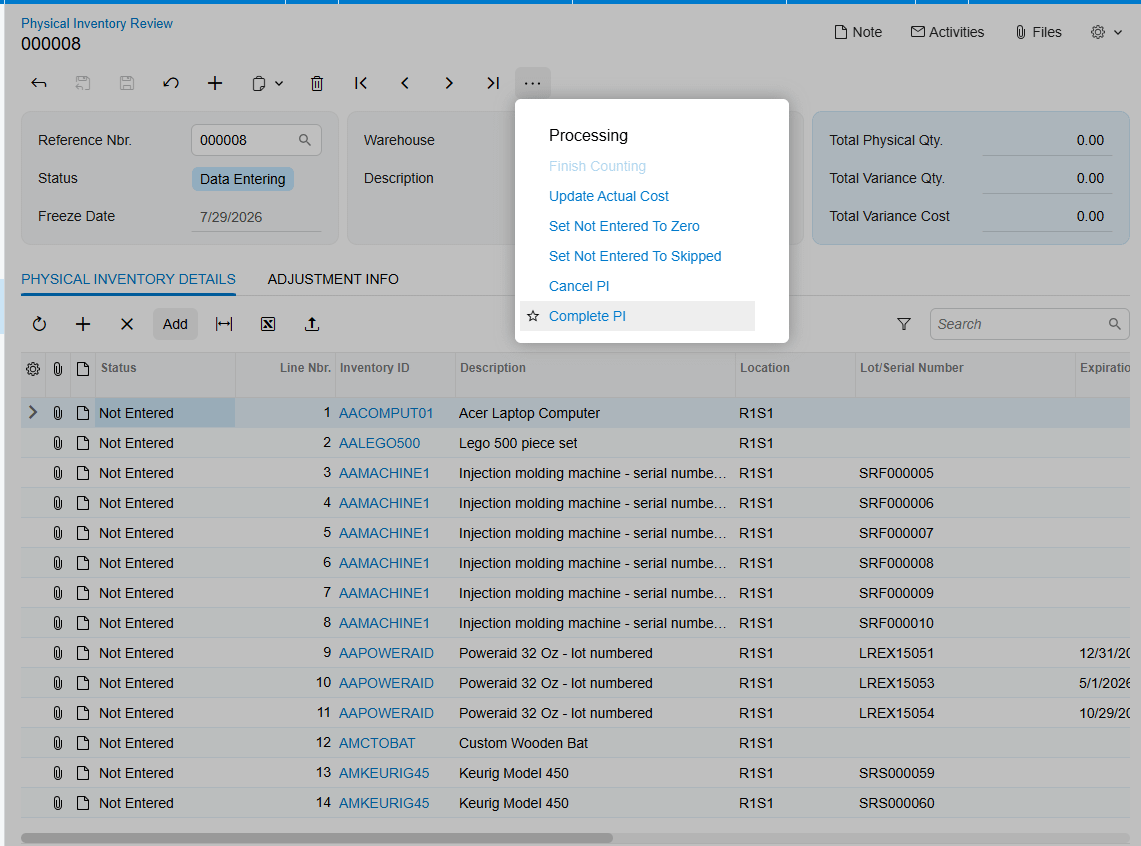
Where to Monitor Consignment Inventory in Acumatica
1. Sales Order Preferences: Consignment Order Type, Consignment Invoice Order Type, Consignment Return Order Type, and default Consignment Warehouse.
2. Warehouses IN204000: Use for Consignment and the distinction between destination and source warehouses.
3. Customer setup: the customer-specific consignment warehouse that overrides the system default.
4. Consignment order: ordered quantities, shipped quantities, Cons. Sold Qty., Open Qty., and Open, Consignment, Partial Consignment, or Closed status.
5. Transfer-type purchase receipt: source, destination, quantity, and released status after Update IN.
6. Consignment Invoice and Return Orders: selected warehouse, item quantities, document status, and release result.
7. Consignment Orders generic inquiry: order-level history, including closed orders.
8. Consignment Item Details generic inquiry: active item-level consignment balances; closed orders are no longer displayed here.
9. Physical Inventory Review: Book Qty., Physical Qty., generated invoice, and resulting Open Qty.
Consignment Inventory Tracking in Acumatica Frequently Asked Questions
Why is the wrong consignment warehouse appearing on an order
A warehouse assigned to the customer overrides the default Consignment Warehouse in Sales Order Preferences. Review the customer assignment first, then verify that the warehouse has Use for Consignment selected.
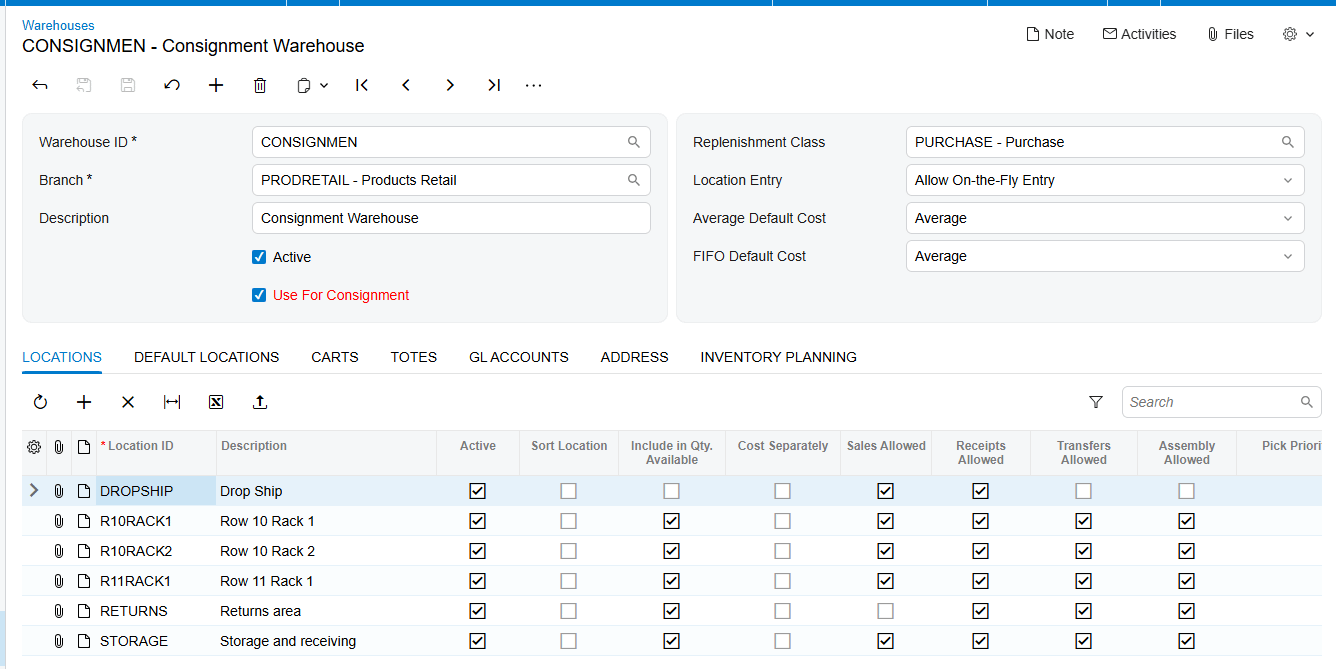
Why are Consignment Sell Items and Consignment Return Items disabled
Those actions become available after Update IN when the order reaches Consignment or Partial Consignment status. Confirm the shipment, run Update IN, and verify the resulting transfer-type purchase receipt.
How is Book Qty calculated for a consignment physical count
Book Qty is the sum of Open Qty from the Item Selection windows of related consignment orders for the selected customer and warehouse.
When does a consignment order close
The order closes after all ordered items have shipped and every shipped item has been sold or returned. The sell and return actions are then disabled.
Improve Consignment Inventory Visibility with Biz-Tech Services
Accurate consignment inventory depends on consistent customer warehouse assignments, timely Update IN processing, released sell and return documents, and regular comparison of Book Qty with Physical Qty. Biz-Tech Services Consignment Processing brings those controls into Acumatica.
To learn more about tracking inventory at customer locations with Acumatica Consignment Processing, visit https://biz-techservices.com
How to Manage Kit Component Inventory in Acumatica
How to Manage Kit Component Inventory in Acumatica
Managing kit component inventory in Acumatica starts with the kit specification, then continues through component quantities, warehouse selection, availability checks, allocation, purchasing, assembly, shipment, and receipt reconciliation. The Biz-Tech Services Kit Processing product for Acumatica exposes those component-level controls from the order workflow so users can see and adjust the inventory records that actually fulfill a kit.
This guide concentrates on inventory, warehouse, and quantity handling. It complements the configuration overview in Kit Processing Configuration Checklist for Acumatica, the lifecycle described in How Kit Processing Works in Acumatica from Order Entry to Fulfillment, and the order-entry procedure in How to Create Sales Orders with Kit Items in Acumatica.
What Kit Component Inventory Means in Acumatica
A kit is defined by a specification and revision. The specification can contain stock components, non-stock components, option components, substitute items, and even child kits. When a kit explodes, Acumatica replaces the kit line with a non-stock placeholder and adds its components to the document. Inventory control therefore depends on the component lines, while the placeholder preserves the kit-level commercial line without representing physical inventory.
The Kit Assembly feature must be enabled on Enable/Disable Features (CS100000) to use kit specifications and assembly documents. A kit specification can be created only for an item marked as a kit on Stock Items (IN202500) or Non-Stock Items (IN202000). The active specification, its Revision ID, and Current Revision setting determine which component definition is available for processing.
Kit Component Inventory at a Glance
Use this sequence to keep component demand and inventory evidence aligned:
1. Confirm that the kit specification is active and that the intended revision is current.
2. Review the stock, non-stock, option, nested-kit, and substitute components that can appear for the kit.
3. Set the kit quantity or use Load Components to explode the kit into the placeholder and component lines.
4. Open Component Details to review or change each component Quantity and Warehouse.
5. Compare Qty. Available, Qty. Avail for Shipping, and Qty. on Hand before committing shipment quantities.
6. Choose the shipping rule that matches whether partial component availability is acceptable.
7. Create a purchase order for a component when required quantity must be replenished, or generate a kit assembly for an eligible stock kit.
8. Reconcile the component lines against shipments, purchase receipts, inventory receipts, assembly links, and invoices.
Establish the Quantity Basis Before You Allocate Components
The kit quantity drives component demand when the kit explodes. The documentation also identifies a Sales Orders Preferences setting called Not Calculate Component Quantities. When enabled, quantity calculation in Sales Orders is based on the quantity specified for the kit itself. Because the manual does not provide a numeric formula or worked example for this setting, test it with a representative kit revision before relying on it in production.
After explosion, the Component Details window remains the operational place to adjust Quantity and Warehouse. If Allow Edit Exploded Kit Component is selected in the Biz-Tech Kit Processing Settings section of Sales Orders Preferences, users can manually edit component quantities and delete component lines on Sales Orders. The same setting in Purchase Orders Preferences allows quantity control and deletion on Purchase Orders.
Quantity also affects purchasing. To create a purchase order from Component Details, select Mark for PO for the component and click Create PO. The required quantity must have a value. The purchase order uses the component Default Vendor ID, and components with the same vendor are grouped into one purchase order.
Use Component Availability to See Stock Before Shipping
Sales Orders Preferences controls which inventory facts appear in Component Details. Show Qty. Available exposes available quantity, Show Qty. Avail for Shipping exposes quantity available for shipment, and Show Qty. on Hand exposes physical quantity on hand. These values answer different questions, so users should not treat them as interchangeable.
The Component Availability settings can also show information about the next receipt. Show Information About Next Receive can be supplemented with Show Next Receive Type and Show Next Receive Ref. Number. The calculation may include receipt documents, transfer documents, open purchase orders, purchase order receipts, and purchase order transfers through the Inc. In Receipt, Inc. In Transfer, Inc. PO, Inc. PO Receipt, and Inc. PO Transfer options.
These indicators provide the documented stock-visibility layer for Kit Processing. The source does not define the underlying Acumatica availability calculation, its time horizon, or site-level inclusion rules, so use the displayed values as operational evidence and validate unexplained differences through the referenced receipt, transfer, or purchase document.
Map Warehouses at the Component Level
A kit can represent several physical items, and those items may need warehouse decisions of their own. After kit explosion, users can change the Warehouse for components in Component Details. This makes the component row the correct level for confirming where fulfillment inventory will come from.
Warehouse selection also appears in kit assembly. On the Kit Assembly screen, select the Inventory ID, specification revision, warehouse, and desired quantity. The assembly document includes required stock components with quantities and costs calculated from the selected revision, and users can add or remove components before releasing the assembly.
The documentation does not describe an automatic warehouse-mapping hierarchy, split-warehouse rules, or transfer creation when a component is unavailable at the selected warehouse. Treat warehouse mapping as a controlled user decision and verify each component line before shipment or assembly release.
Control Allocation and Partial Shipment Behavior
Components Qty. Is Required for Kit Item Ship determines how component availability constrains shipment. Its Ship Available Qty. option allows the kit or placeholder line to permit back orders and creates a shipment for the minimum component quantity without requiring every component needed for the full kit quantity.
Ship Ordered Qty. requires all components to be allocated and available based on the kit quantity; nothing ships until that condition is met. The third documented option sets the line to allow back orders without requiring component quantity to be available for shipping. The manual does not give a name for that third option.
If a component has zero quantity, the kit is not set to allow back orders, and the component-quantity requirement is selected, Acumatica displays an error. The source does not reproduce the exact message. For a non-stock kit that contains a stock option item, set Explode Option to Automatically so the stock option can be allocated during shipment.
Replenish or Assemble When Components Are Short
A component shortage can lead to purchasing or assembly, depending on the kit and the intended workflow. From Sales Orders, Mark for PO and Create PO produce a component purchase order. If the purchase order or its lines are deleted, the PO number is removed from Component Details. That link is useful when reconciling replenishment to the original kit demand.
When purchasing a kit item on a Purchase Order, the kit can be exploded by Load Components or by assigning a quantity. After its components are received, releasing the purchase receipt automatically generates an inventory receipt. Reconcile the received component quantities and the resulting inventory receipt before treating the stock as replenished.
For an eligible stock kit, assembly can be created directly on the Kit Assembly screen or generated from Sales Orders before explosion when Allow Kit Assembly Generation is enabled. On Sales Orders, select Mark for Kit Assembly and run Generate Kit Assembly. The resulting link appears in the Kit Assembly field, and the assembly Orders tab shows the linked sales order. Mark for assembly is disabled for non-stock kits.
Reconcile Components, Costs, and Fulfillment Documents
After explosion, compare the placeholder and component lines with the specification revision. Confirm that component quantities and warehouses match the intended fulfillment plan, and use the availability fields to explain what can ship now and what depends on the next receipt.
The placeholder displays Total Cost of Components, calculated from each component Unit Cost at the time the Sales Order is created multiplied by Quantity. The documentation says that unit cost remains unchanged and that the total carries to the invoice. This creates a stable comparison point for order-to-invoice review, even when the operational component quantities are edited.
For partial shipments with Use Kit Default Price, the first shipment invoice receives the total kit price and the remaining items are invoiced at zero. When Invoice After Full Shipment is enabled, partial shipment is allowed but the placeholder is invoiced only after all components ship. Review the chosen preference before treating a zero amount or delayed placeholder invoice as a discrepancy.
Where to Monitor Kit Component Inventory in Acumatica
1. Kit Specifications: Kit Inventory ID, Revision ID, Current Revision, Active, stock components, non-stock components, option codes, and substitutions.
2. Stock Items (IN202500) and Non-Stock Items (IN202000): confirm that the inventory record is marked as a kit.
3. Sales Orders Preferences: Not Calculate Component Quantities and the Component Availability display settings.
4. Sales Orders Preferences: Components Qty. Is Required for Kit Item Ship and its shipping option.
5. Component Details: component Quantity, Warehouse, Qty. Available, Qty. Avail for Shipping, and Qty. on Hand.
6. Component Details: next receive type, reference number, date, and quantity when those fields are enabled.
7. Component Details: Mark for PO and the resulting PO number for replenishment traceability.
8. Sales Orders Details: Kit Assembly link after Generate Kit Assembly runs.
9. Kit Assembly: Inventory ID, revision, warehouse, desired quantity, stock component quantities, costs, and linked order.
10. Purchase Receipt and automatically generated inventory receipt: confirm received component quantities reached inventory.
11. Shipment and invoice: compare shipped component quantities, placeholder timing, and Total Cost of Components.
Kit Component Inventory in Acumatica: Frequently Asked Questions
Which quantity should I check before shipping a kit?
Review Qty. Avail for Shipping for shipment readiness, while retaining Qty. Available and Qty. on Hand for context. The selected shipping option then decides whether partial quantities are acceptable or all ordered component quantities must be allocated.
Can I change a component warehouse after the kit explodes?
Yes. The documentation states that after explosion users can change Quantity and Warehouse in Component Details. Confirm the availability values again after changing the warehouse.
Why will Acumatica not ship the kit when one component is short?
Ship Ordered Qty. requires all components to be allocated and available for the kit quantity. If the business permits partial fulfillment, review Ship Available Qty. and the back-order settings.
Why does a zero-quantity component cause an error?
The source says an error appears when Components Qty. Is Required for Kit Item Ship is selected, a component has zero quantity, and the kit is not set to allow back orders. It does not provide the exact error text.
How can I see when a missing component is expected?
Enable the next-receive information in Sales Orders Preferences, including type and reference number as needed. Configure which receipt, transfer, purchase order, purchase receipt, and purchase transfer documents contribute to that view.
Can I edit component quantities after explosion?
Yes, when Allow Edit Exploded Kit Component is enabled for the applicable Sales Order or Purchase Order workflow. The setting also permits deletion of exploded component lines.
How do I replenish a component directly from the kit order?
Before explosion, select Mark for PO for the component in Component Details and click Create PO. A required quantity and the component Default Vendor ID are needed for the documented process.
How do I reconcile an assembled kit to its sales order?
Open the link in the Kit Assembly field on the Sales Order Details tab. On the Kit Assembly screen, the Orders tab displays the linked sales order number.
Work With the Biz-Tech Services Kit Processing Product
Reliable kit fulfillment depends on seeing component inventory at the point where quantities, warehouses, allocation rules, receipts, and shipment documents meet. Biz-Tech Services can help configure and test the Kit Processing controls that make those decisions visible in Acumatica.
If your team needs help aligning kit specifications, component availability, warehouse choices, replenishment, and fulfillment controls, visit https://biz-techservices.com to learn more about Biz-Tech Services and Kit Processing for Acumatica. Watch the https://www.youtube.com/watch?v=sP89DBTxCJU video for more details and subcribe to Youtube channel.