
DSCO Acumatica Connector Configuration Checklist
Managing a high-volume drop-ship operation often feels like trying to orchestrate a symphony where half the musicians are in different time zones. When your retail partners send orders through a platform like DSCO, but your internal team is manually re-entering that data into your accounting system, the music quickly falls out of tune. You face delayed shipments, inventory discrepancies, and the constant risk of missing a cancellation request. We at Biz-Tech Services know that for your business to scale, your Enterprise Resource Planning, or ERP, software must communicate flawlessly with your supply chain partners.
The Biz-Tech Services DSCO Acumatica DSCO Connector is designed to automate this complex exchange of data. DSCO serves as a centralized hub for retail and supplier relationships, and this connector acts as the digital bridge ensuring that orders, shipments, and inventory levels stay perfectly synchronized. To ensure a smooth transition to this automated workflow, we have compiled a practical pre-launch checklist to guide your configuration process.
Establishing the Technical Connection
The first essential step for your business is the installation of the specialized Biz-Tech Services DSCO Acumatica integration package. We begin by using the customization projects form in Acumatica, identified as Form ID SM204505, to upload and publish the project. This process adds the necessary logic to your Enterprise Resource Planning environment to support the unique requirements of the DSCO platform. Once the package is published, the platform saves the project into your database, creating a foundation for all future data exchanges.
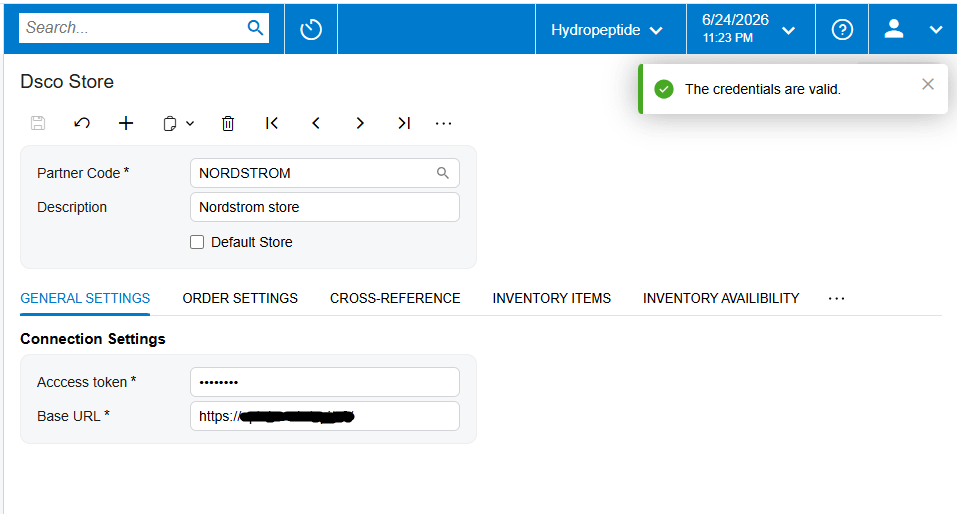
Next, your business must establish secure communication between the two systems. This requires a specific Access Token, which is a digital credential used to authorize your application and grant permissions within the DSCO system. You will also need to confirm the Base URL, which serves as the fundamental web address for the connection. We always recommend using the built-in test credentials feature to validate this connection immediately. This simple check confirms that your digital doorway is open and that the systems can communicate effectively before any transactions occur.
Mapping Your Operational Workflow
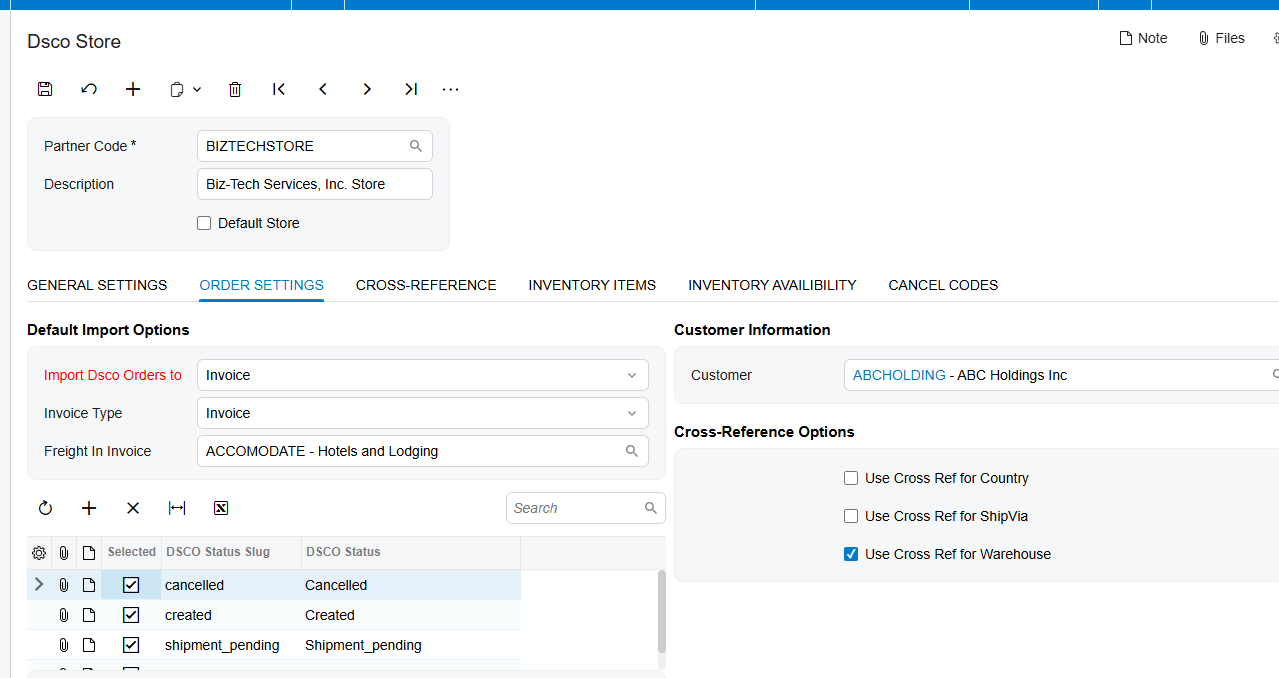
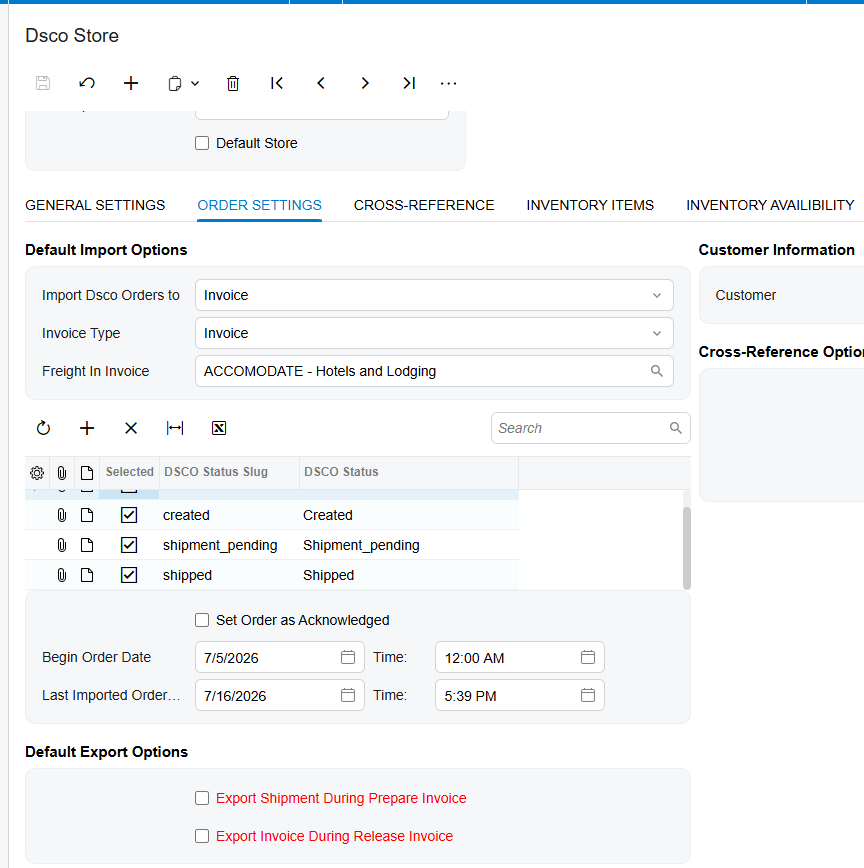
Once the connection is live, you must define the rules of engagement for your orders. A critical configuration point is deciding whether to import DSCO orders as a standard Sales Order or directly as a Sales Order Invoice. This choice depends on how your business handles fulfillment and revenue recognition. You will also need to select the default Order Type that the Biz-Tech Services DSCO Acumatica integrator should use when creating these documents.
Your business must also decide how to handle order acknowledgments. If you choose to set orders as automatically acknowledged upon import, the system simplifies the process by assuming the order is accepted. However, if your business needs a manual review phase, you can leave this setting unchecked and send acknowledgments through a dedicated page in Acumatica later. Defining these status settings ensures that both the retailer and the supplier are always looking at the same information.
Data Preparation and Cross-Referencing
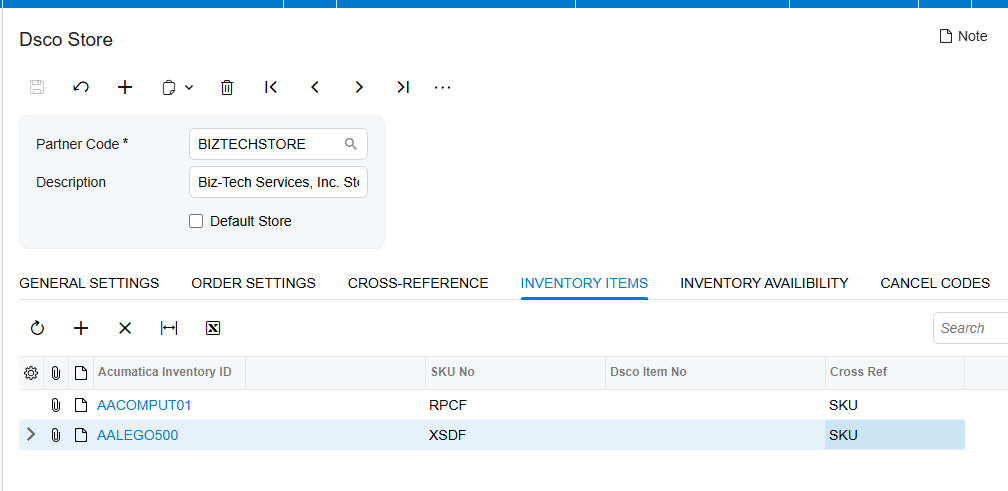
A successful launch depends heavily on the accuracy of your data mapping. First, you must address your inventory identification. The Biz-Tech Services DSCO Acumatica connector allows you to choose how to search for items, such as by Stock Keeping Unit, or SKU, Universal Product Code, or UPC, or the specific DSCO item number. For instance, if you set the search to SKU, the system will look for a matching number in DSCO and automatically associate it with the correct Inventory ID in Acumatica. Failing to map these items correctly will result in errors during the order import process.
Second, your business must configure warehouse cross-references. This is vital because the system needs to know which physical or virtual location in your ERP corresponds to the warehouse values provided by DSCO. If these values are not mapped, the import process will fail with an error stating that the warehouse does not have a value. Third, you must map your shipping rules. By defining your Ship Via cross-references, you ensure that the shipping service levels requested by your retail partner, such as Ground or 2nd Day Air, translate accurately to your internal carrier codes.
Inventory Availability and Cancellations
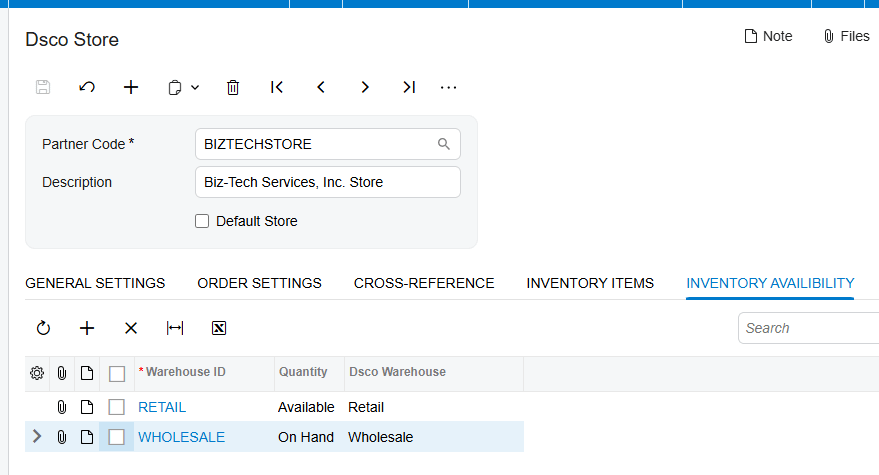
Maintaining accurate stock levels is perhaps the most important part of the configuration. In the inventory availability settings, you must select the specific warehouses that should be synchronized with DSCO. You can also choose how the system calculates the quantity to send, whether it should be based on what is On Hand, Available, or Available for Shipment. When multiple warehouses are selected, the Biz-Tech Services DSCO Acumatica integrator can automatically sum the quantities from all locations to provide an accurate total to your partners.
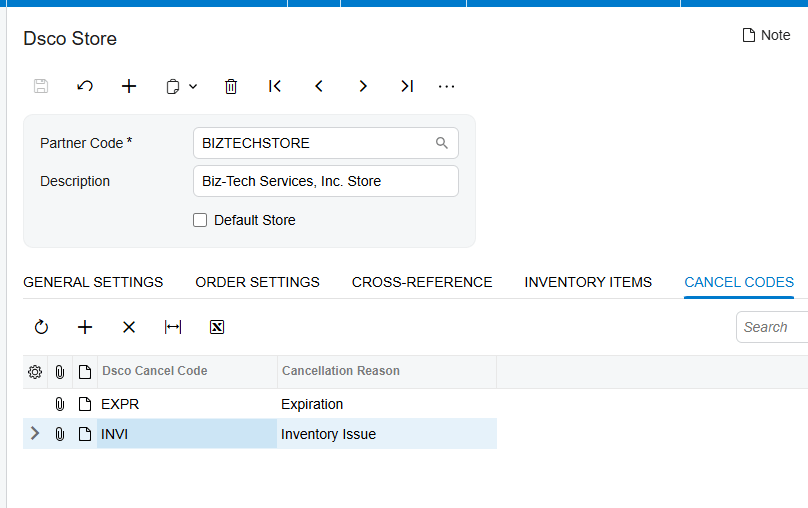
Finally, your business needs a plan for when things do not go as expected. You must add order cancel reasons to the connector and map them to DSCO cancel codes. This ensures that if an order is canceled due to fraud, an incorrect address, or a customer request, the reason is captured correctly in both systems. By setting these reason codes up beforehand, you prevent manual follow-ups and ensure your reporting remains accurate.
Validation and Readiness
The final phase of your checklist involves testing the export workflows. Your business should verify that shipments are being exported correctly when invoices are prepared. This automated step sends tracking numbers back to DSCO and updates the order status without any manual intervention from your team. Make sure the checkboxes of Default Export Options panel are selected.
This level of automation is designed for operations managers who need to eliminate the data gap between their warehouse and their back office. By following this structured configuration checklist, we ensure that your Biz-Tech Services DSCO Acumatica DSCO integration is stable, reliable, and ready to handle your growth.
If you are ready to streamline your drop-ship operations and want to see how these automated workflows can benefit your business, we invite you to visit biz-techservices.com to schedule a demo of the Biz-Tech Services DSCO Acumatica Connector.

