
Salesforce Acumatica Integration Configuration Checklist
In many fast-growing companies, an invisible wall often exists between the sales team and the finance department. Your sales representatives live and breathe in their Customer Relationship Management, or CRM, platform to close deals, while your accounting and operations teams rely on their Enterprise Resource Planning, or ERP, system to manage inventory and billing. When these two worlds do not talk to each other, your business suffers from manual data entry, duplicate records, and a lack of real-time visibility into customer health. We at Biz-Tech Services know that bridging the gap between Salesforce and Acumatica is not just a technical task, but a strategic move to streamline your entire order-to-cash cycle.
The Biz-Tech Services Salesforce Acumatica Connector is a robust integrator designed to ensure data flows smoothly between these two powerful platforms. It provides a comprehensive solution for synchronizing customer data, automating complex workflows, and maintaining accurate financial reporting. To help your business prepare for a successful integration, we have developed a practical configuration checklist that covers everything from technical foundations to go-live readiness.
The Essential Technical Foundation
The first step in your configuration journey is ensuring your system meets the basic requirements for the Biz-Tech Services SalesForce Acumatica integration. Before we begin the setup, your business must have the correct license installed on your Acumatica system, such as a Software as a Service, or SAAS, or a Perpetual license. Once the license is in place, the primary technical task is establishing a secure link through the Application Programming Interface.
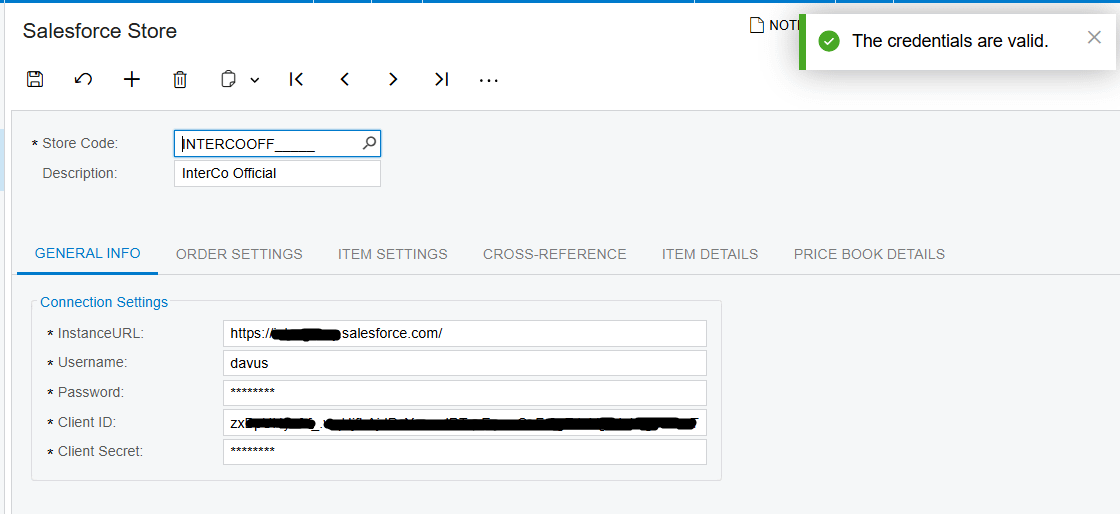
You will need to gather several key pieces of information from your Salesforce instance to facilitate this connection. First, you must identify your specific instance URL and the Username and Password for the integrator account. Second, you will need a Client ID and a Client Secret, which act as the digital keys for the Biz-Tech Services SalesForce Acumatica integrator. After entering these credentials into the general information area, we use the actions feature to Test Credentials. This validation step confirms the correctness of the login details and ensures the two systems can communicate before any data begins to move.
Defining Your Order and Customer Logic
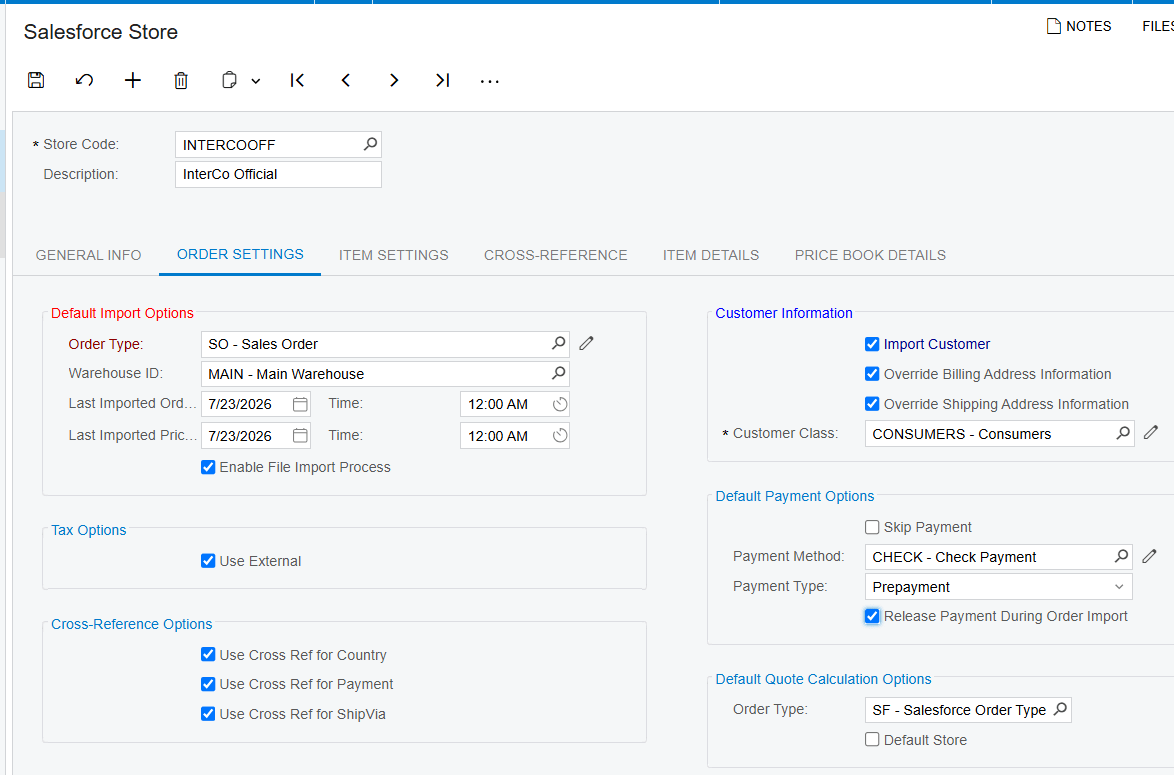
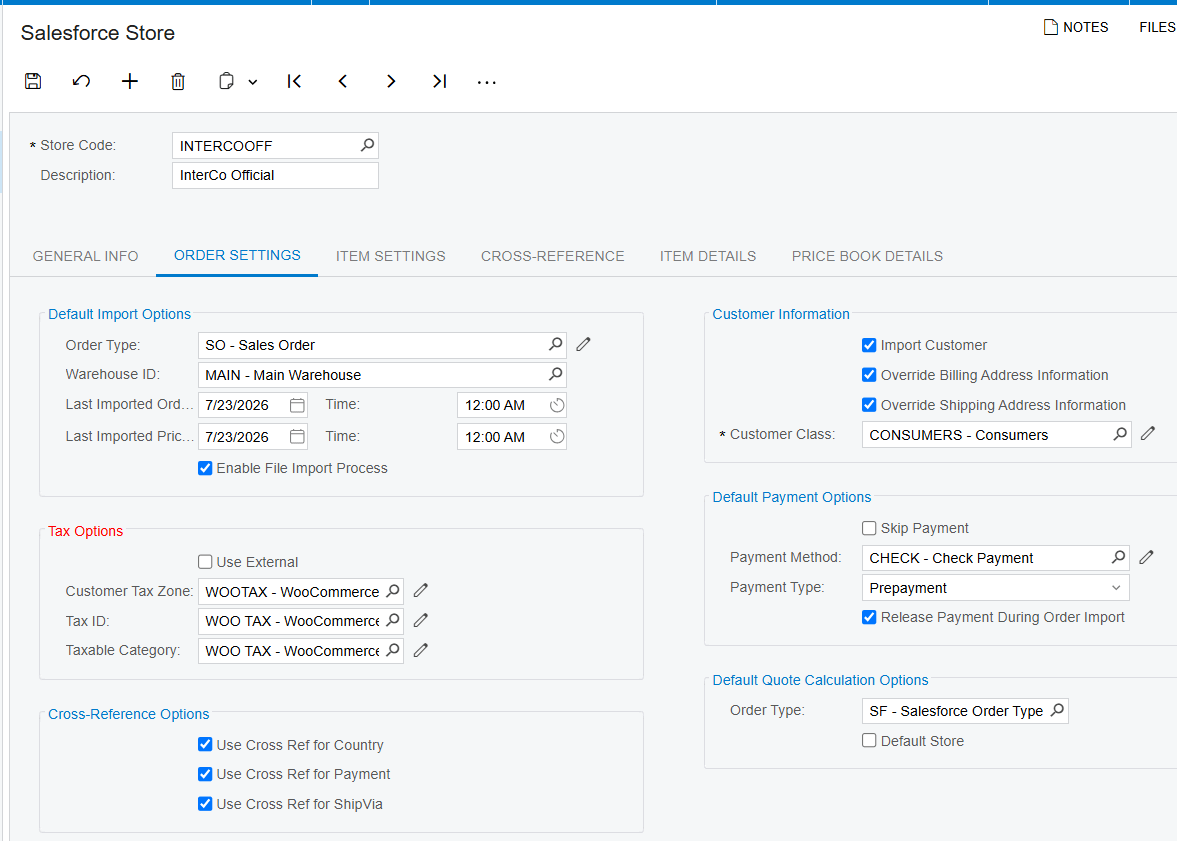
Once the technical bridge is built, your business must decide how information should be organized as it enters your ERP. The first item on this part of the checklist is defining your Default Import Options. You must select a specific order type to indicate which document category the Salesforce orders should land in, and assign a default warehouse identification number to ensure your inventory is tracked correctly. We also recommend setting a beginning date for your first import to ensure the system only retrieves the records you are ready to process.
The second consideration is how the system should handle Customer records. You have the option to enable an import customer feature that automatically creates new customer records in Acumatica during the order import process. This automated creation includes the customer’s email, contact information, and assigned customer class. If you choose not to enable this, the system can be configured to use a default customer record for every imported order instead. Additionally, you must decide if the Biz-Tech Services SalesForce Acumatica integration should override existing billing and shipping address information with the data provided in the Salesforce order, ensuring your shipments always reach the correct destination.
Mapping Data with Cross-References and Items
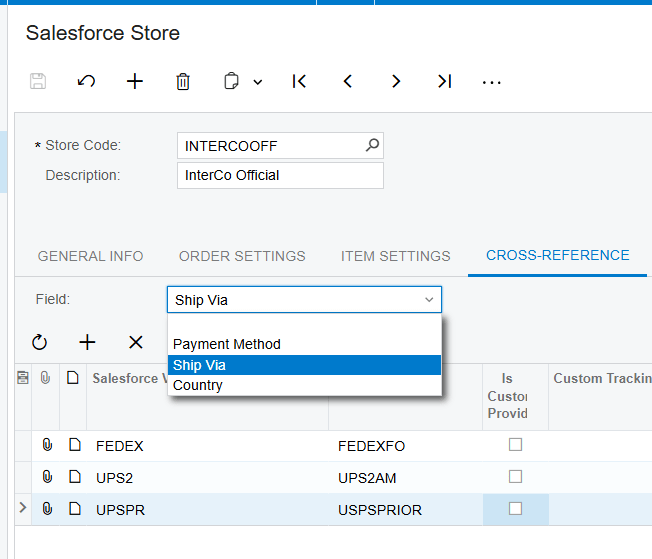
For the Biz-Tech Services SalesForce Acumatica integration to be truly seamless, the two systems must speak the same language regarding shipping and payments. This is where cross-reference options become critical. First, you must create mappings for common fields like payment methods, countries, and Ship Via services. For example, if a salesperson selects a specific shipping carrier in Salesforce, the cross-reference ensures the correct internal shipping code is applied in Acumatica.
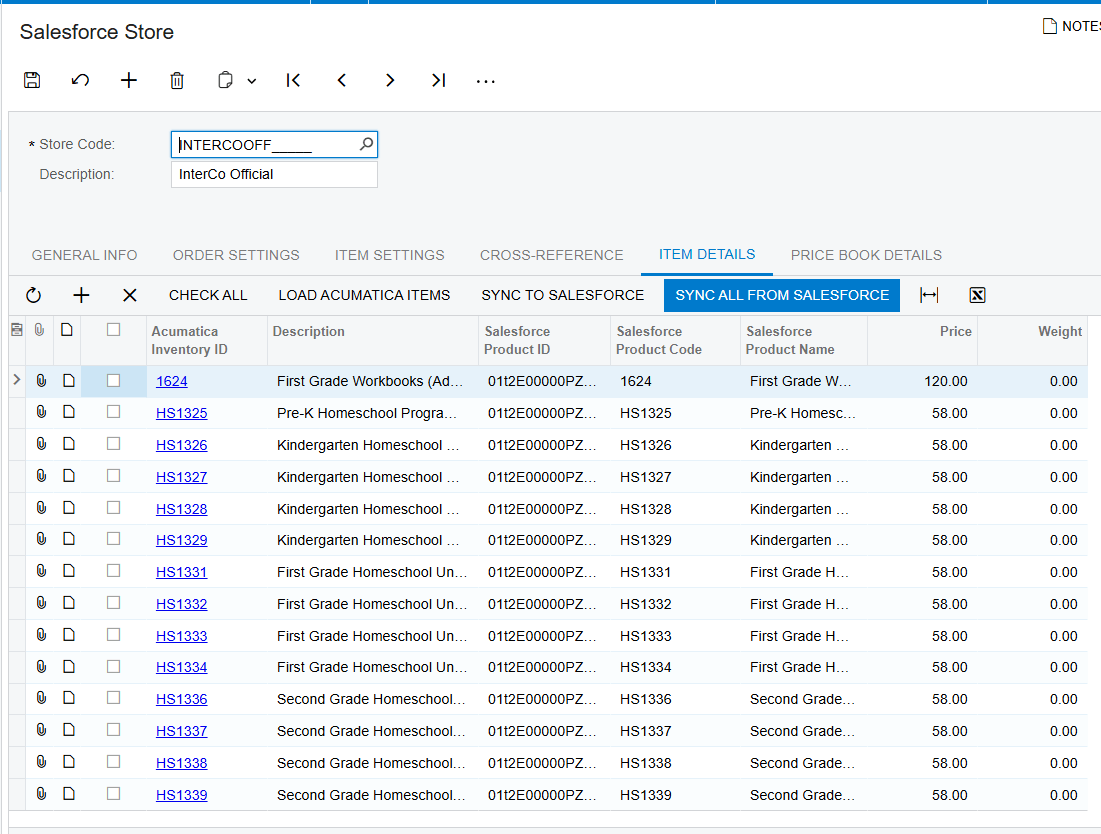
Second, your business must prepare its inventory data. You can enable a feature on Ityem Settings tab that creates new items in your ERP based on information from Salesforce. If this is not enabled, the system will search for an existing inventory identification by using the Salesforce product Stock Keeping Unit, or SKU.
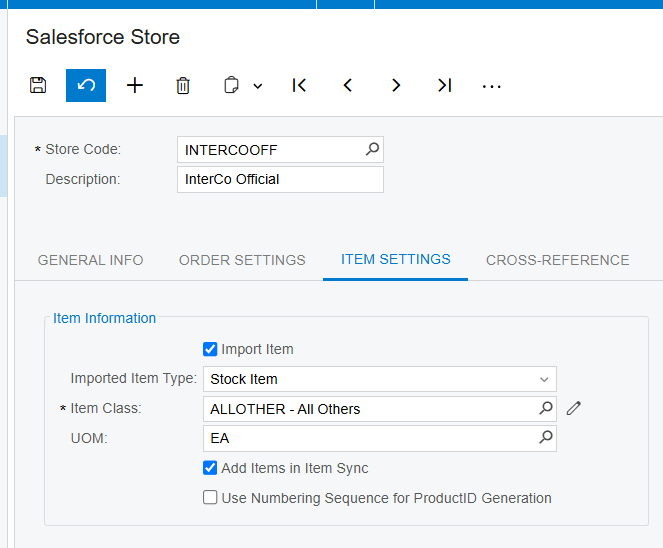
If the product does not already exist in your ERP, the system will display an error message to prevent data discrepancies. Here we have already performed Sync All From SalesFore process and got Stock Items created
Third, we look at tax options. You can choose to use your internal tax categories or enable an External Tax calculation service, such as Avalara, to handle complex tax requirements automatically.
Managing Prices, Discounts, and Payments
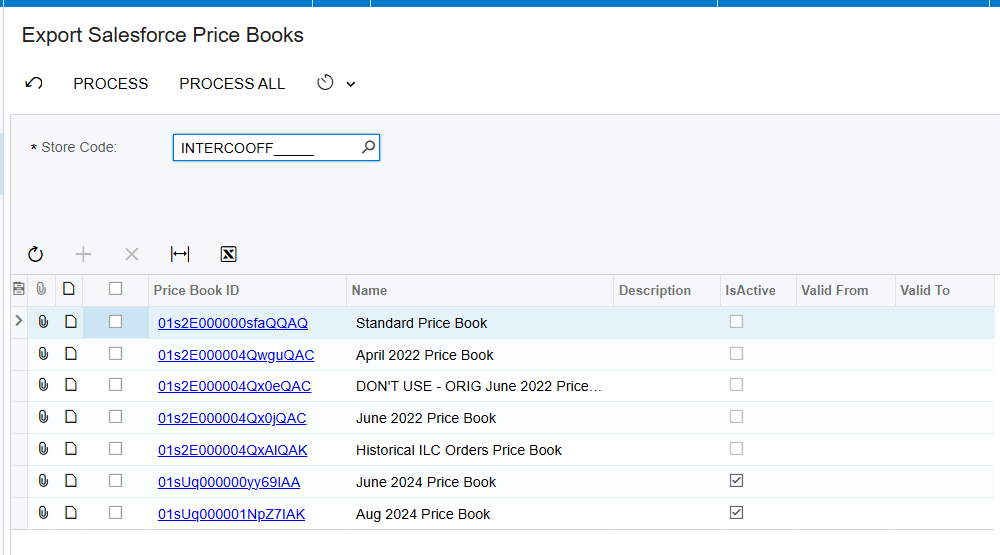
A vital part of your go-live readiness is ensuring your pricing and promotions are synchronized. The Biz-Tech Services SalesForce Acumatica connector allows your business to manage price books directly. You can retrieve all existing items from a Salesforce price book and display them within your ERP, allowing you to manually define or update list prices as needed. It is important to remember that items must be included in your standard price book before they can be added to any specialized price books.
Furthermore, the checklist should include your promotional strategies. When you configure discount codes in your ERP, they can be exported to Salesforce for use during the order creation process. These discounts can be applied at either the individual line level or the overall document level. Finally, you must define your default payment options. You can choose to release payments automatically during the import process or skip the payment step if you prefer to handle billing as a separate financial task.
Validation and Real-Time Synchronization
As you move toward your launch date, testing the Sync Orders to Salesforce feature is essential. This capability allows your team to update imported order data within Acumatica — such as changing a shipping address or adding a new line item — and then process those changes back to Salesforce. This ensures that your sales team always sees the most current information regarding an order’s total, tax, and freight amounts. The system even retrieves internal notes from Salesforce and displays them in the sales order notes area of your ERP, though these are kept uneditable to maintain the integrity of the original sales record.
This Biz-Tech Services SalesForce Acumatica integrator is built for modern enterprises that need to eliminate the data gap between their front-office sales activities and their back-office financial functions. By following this structured configuration checklist, we ensure that your teams can make informed decisions based on up-to-date, synchronized information.
If you are ready to streamline your order processing and improve visibility across your entire organization, we are here to help you every step of the way. We invite you to visit https://biz-techservices.com to learn more about our integration expertise or to schedule a personalized demo of the Biz-Tech Services Salesforce Acumatica Connector.

