
How to Connect Shopify to Acumatica
Link your Shopify store to your ERP so orders, products, inventory, customers, and fulfillment stay in sync — automatically.
Two systems that don’t talk to each other
If you sell on Shopify and run your business on Acumatica, you’re really running two systems that don’t naturally talk to each other. Orders land in Shopify, and someone has to move them into Acumatica. Stock counts drift apart. A product keeps selling online after you’ve run out. Every manual handoff is slow, and every one is a chance for a mistake.
The Biz-Tech Shopify Connector ties the two together, so orders, products, inventory, customers, and fulfillment flow between them automatically. Let’s walk through how you connect them.
Step one: enter your Shopify credentials
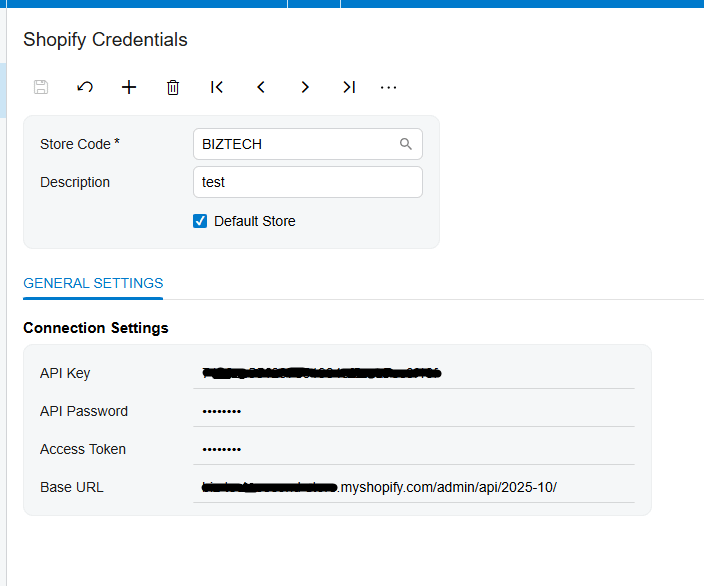
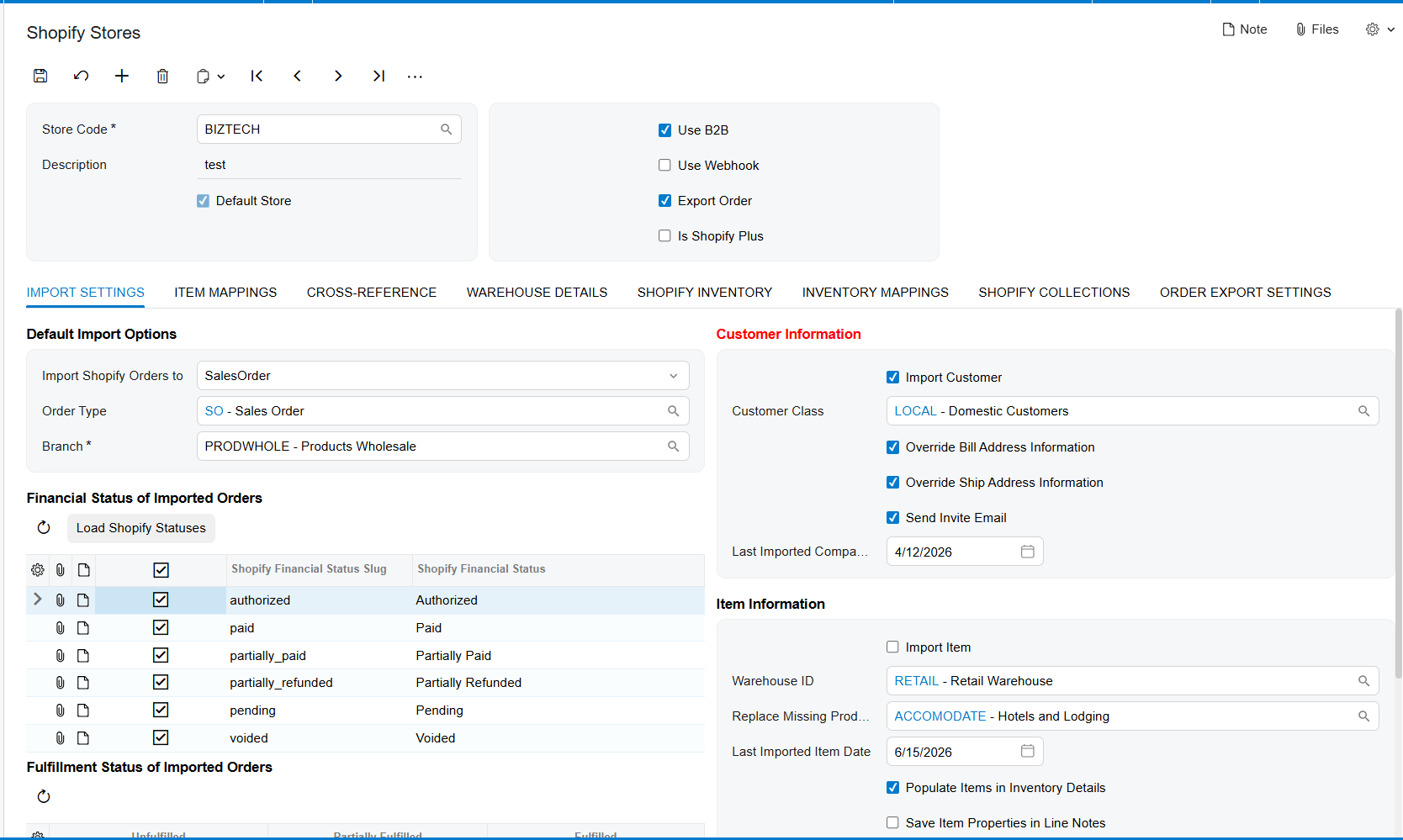
The connection starts with credentials. Once the connector is installed, a Shopify workspace appears inside Acumatica. You open the Shopify Store screen, add a new store, and enter the API credentials from your Shopify account. Then you press Test Credentials, and when the connection succeeds, the two systems are linked. From here you set a few ground rules, like whether this is your default store, whether you’re running business-to-business, and whether orders should also export back to Shopify.
Setting up how orders come in
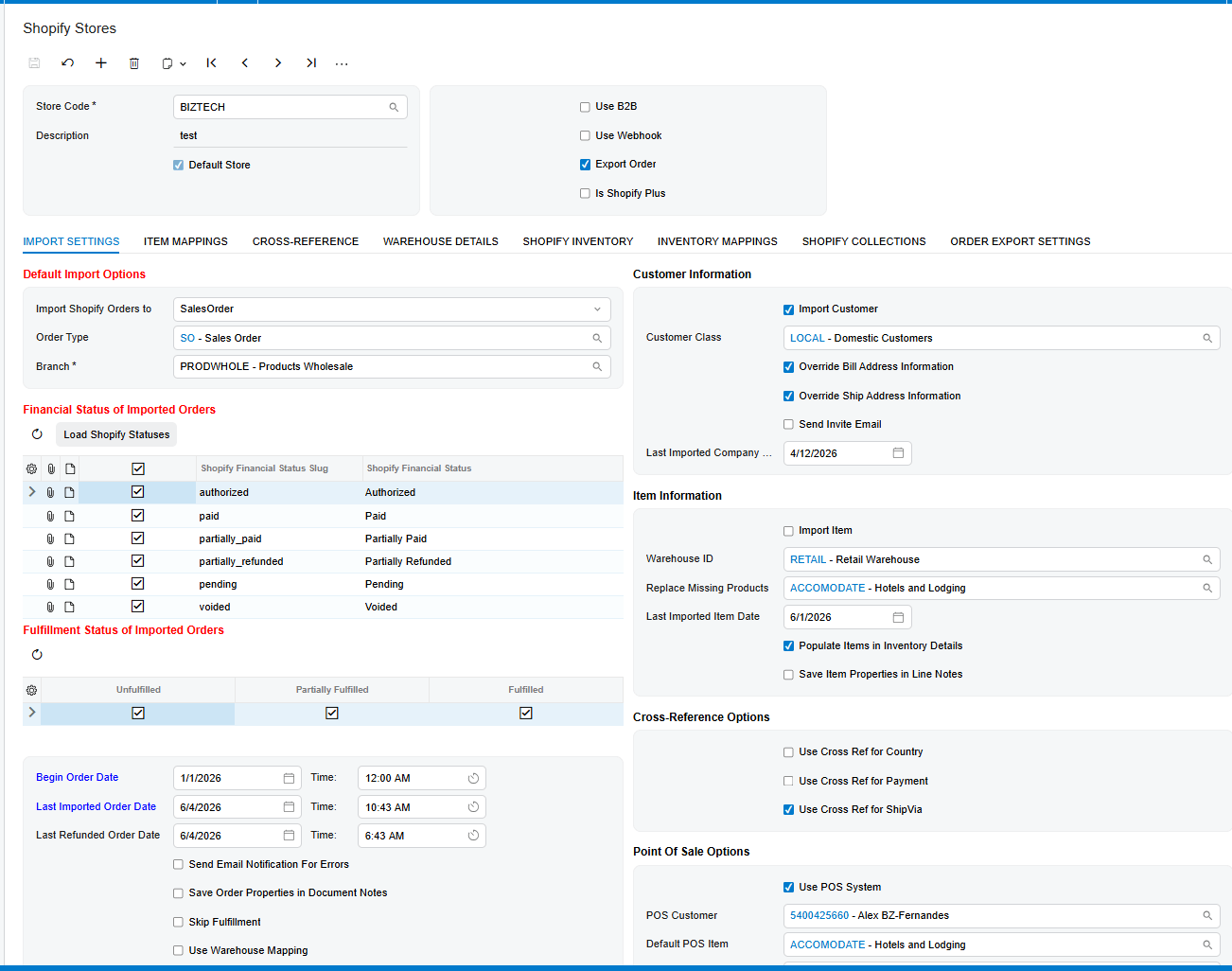
Next you decide how orders are handled. You choose whether each Shopify order becomes a sales order or an invoice in Acumatica, you pick the order financial statuses, and you select which order statuses to pull in, like fulfilled, unfulfilled, or partially fulfilled. You also set a start date so it only imports from the point you choose. Configure the “Begin Order Date” field for the 1st time order retrieval, and the “Last Imported Order Date” field will be updated to keep a date of the rrecently updated order to start the next order retrieval from that point. After that, bringing orders in is simple. On the Import Shopify Orders screen you press Get Orders, then import them one at a time or all at once, and you can put that on a schedule so it runs on its own.
Matching up your locations
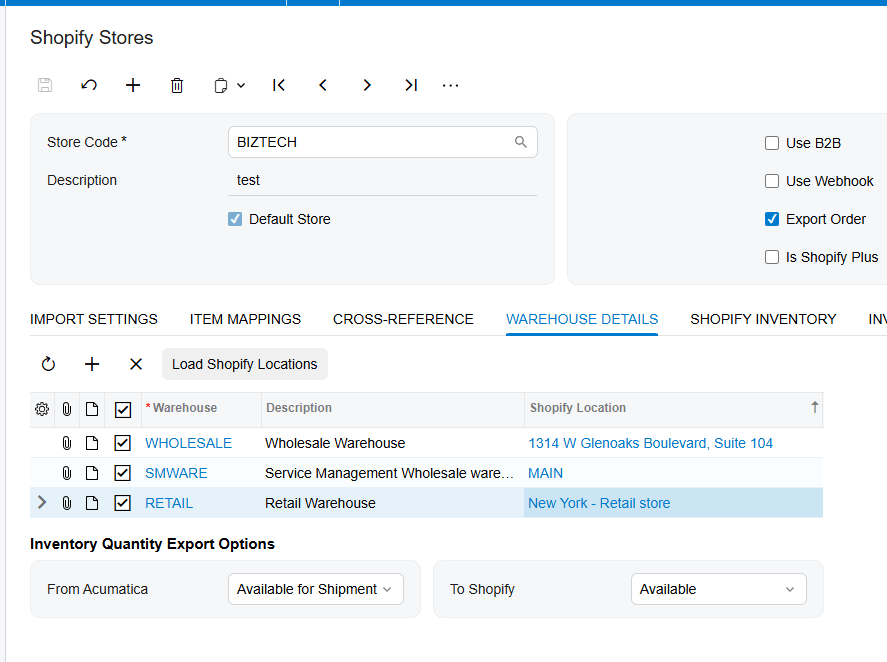
Shopify and Acumatica each track stock by location, so you line them up. The connector loads your Shopify locations and lets you map each one to the matching Acumatica warehouse. You also choose which quantity it should report, whether that’s on hand, available, or available for shipment, and when several warehouses feed a location, it adds them together so your storefront shows an accurate number.
Keeping products and variants in sync
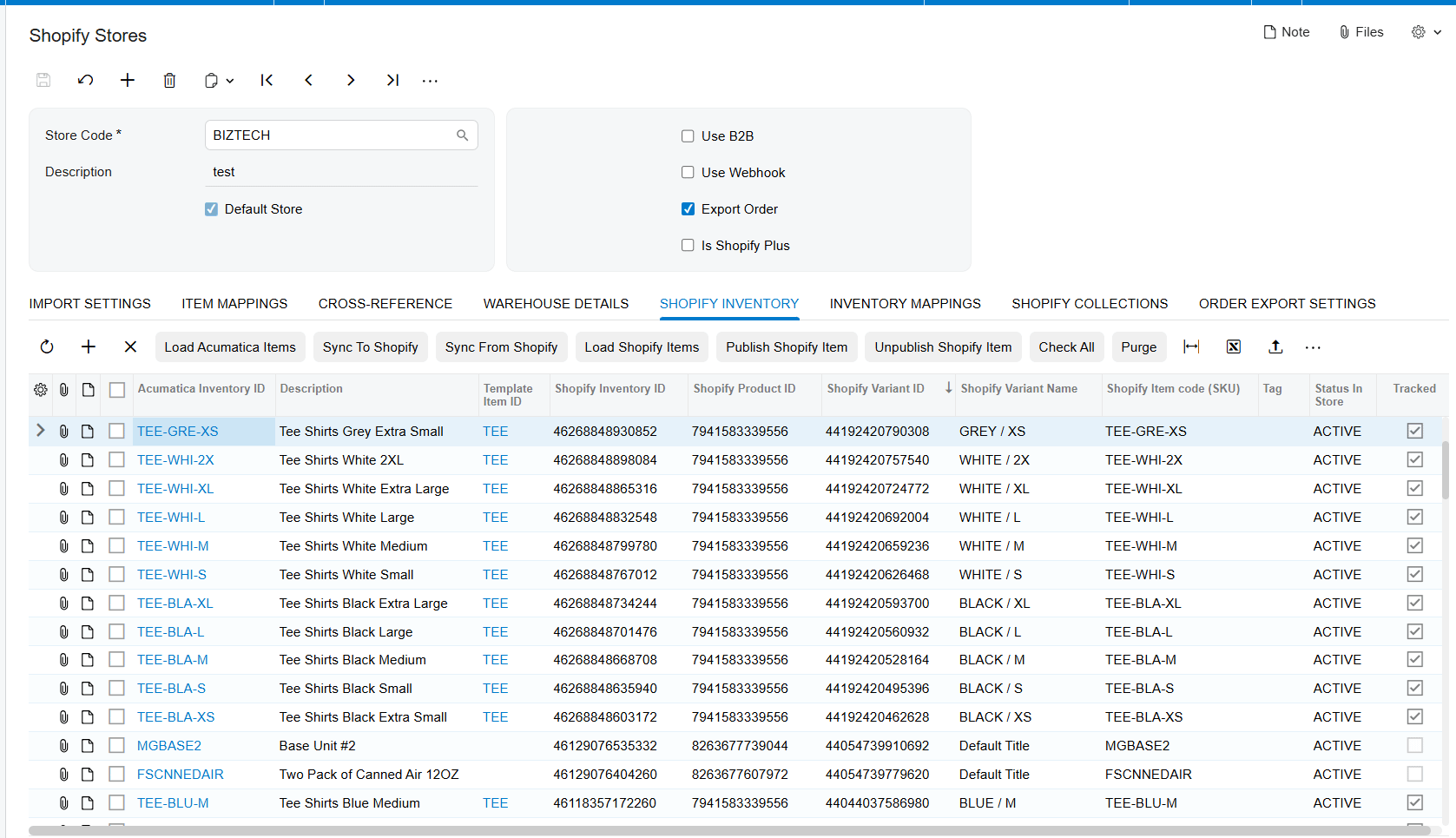
Your catalog stays aligned too. You can push your Acumatica items out to Shopify, or pull Shopify items in, matched up by their SKU. And if you sell variations, say a t-shirt in several sizes and colors, the connector handles that through template and matrix items. One template product carries its individual variants, and each variant has its own SKU, price, and stock.
Connecting customers and B2B companies
Customers come across as well. When an order arrives, the connector can create or match the customer record in Acumatica, and it can sync customer details back to Shopify so both sides stay current. If you sell business-to-business on Shopify Plus, it goes further. Turning on the B2B option lets you sync whole company profiles, with their multiple contacts, their locations, and their custom price lists, and you can import or export those companies in bulk.
Turning on webhooks for real-time updates
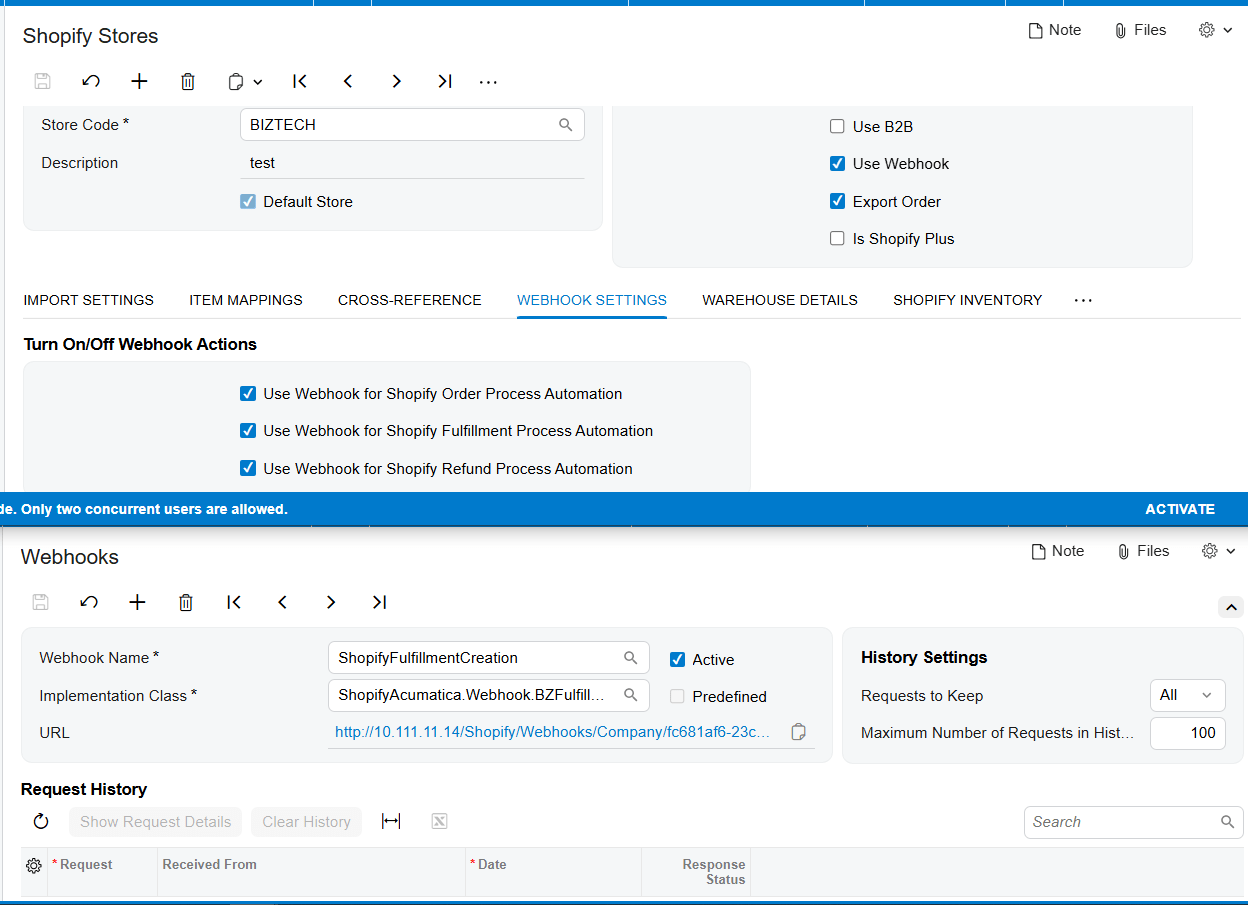
For everything to feel instant, you can turn on webhooks. With webhooks enabled, a new order, a fulfillment, or a refund in Shopify triggers the matching process in Acumatica automatically. So an order placed on your store can appear in Acumatica on its own, without anyone pressing a button.
Inventory that stays honest
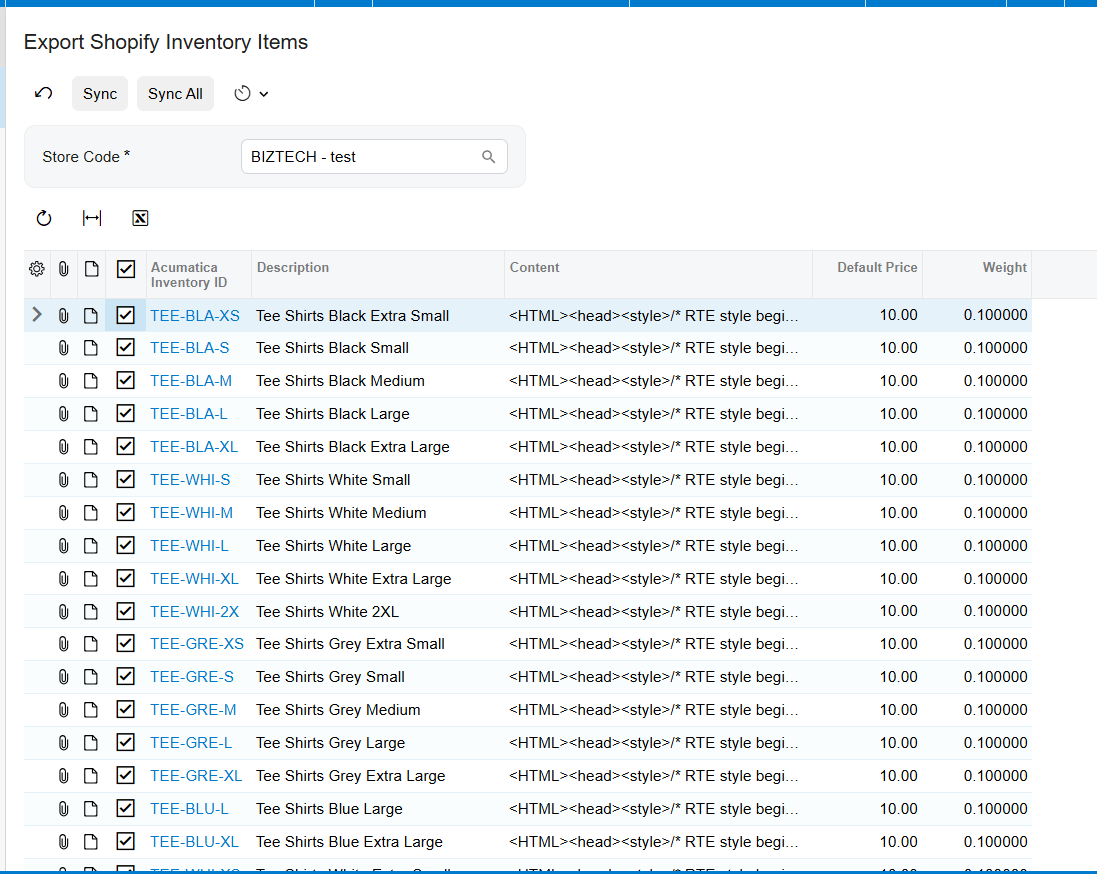
Once your products are connected, keeping quantities aligned is automatic. From the inventory export screen, the connector sends your Acumatica stock levels to Shopify, using the combined total across the warehouses you selected, and you can schedule that to run regularly. That’s what keeps you from overselling something you no longer have.
Closing the loop with fulfillment
Fulfillment is where the connection really pays off. When you Prepare Invoice in Acumatica, the connector reports that fulfillment back to Shopify, and sends the tracking number across. Your customer is updated automatically, and the order shows as fulfilled on both sides.
Handling refunds cleanly
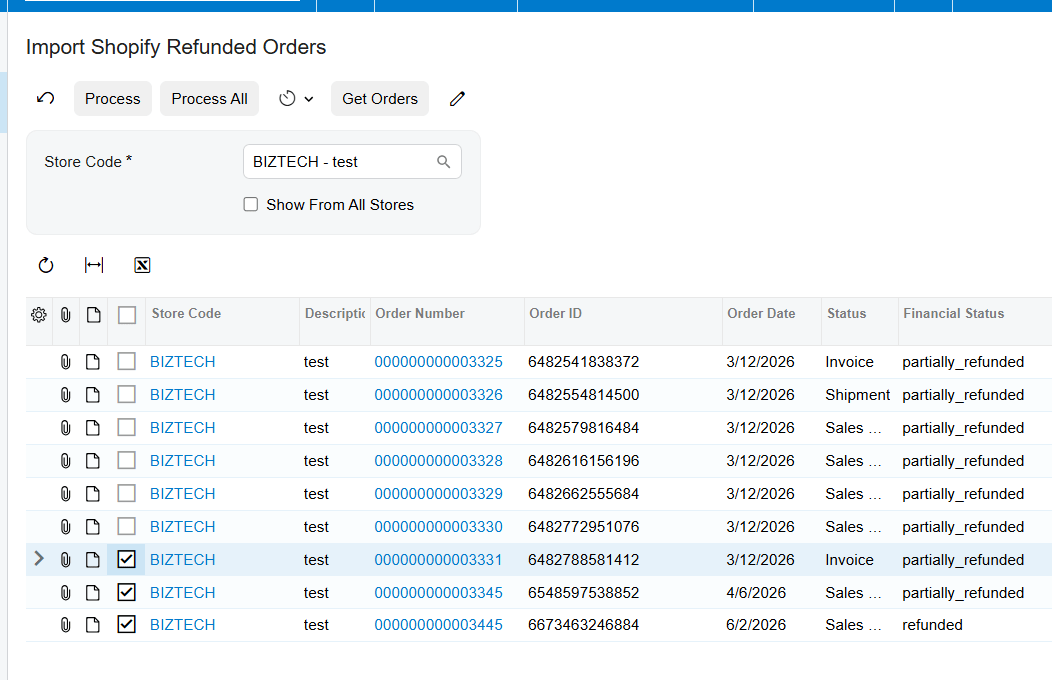
Refunds are handled with the same care. You can import refunded orders from Shopify, and the connector works out the right response based on where the order stands. It might create a customer refund payment, remove a shipment that hasn’t been confirmed yet, or issue a credit memo if the order has already been invoiced. Either way, your books stay in step with what actually happened on the store.
The bottom line
Once it’s connected, your Shopify store and your Acumatica system work as one. Orders flow in, inventory stays honest, customers and catalog stay in step, and fulfillment and refunds take care of themselves. Your team stops copying data and gets back to growing the business.
If you’d like help connecting your own store, the team at Biz-Tech Services does exactly this. Visit biz-techservices.com to book a walkthrough and see your Shopify orders flow straight into Acumatica.