
How to Connect DSCO to Acumatica
Link the Dsco retail network to your ERP so orders flow in and acknowledgements, shipments, and invoices flow back — automatically.
Selling through retailers means moving fast
If you sell through major retailers, there’s a good chance your orders come through DSCO Connector. It’s the network that connects suppliers like you to the retailers you sell through, passing orders one way and acknowledgements, tracking, and invoices back the other. The catch is the pace. Retailers expect quick acknowledgements and accurate, on-time shipping, and doing all of that by hand between Dsco and Acumatica is slow and risky.
The Biz-Tech Dsco Connector takes that pressure off. DSCO Integration with Acumatica handles retail orders flow in, and acknowledgements, shipments, and invoices flow back automatically. Let’s walk through how you connect them.
Step one: enter your DSCO credentials
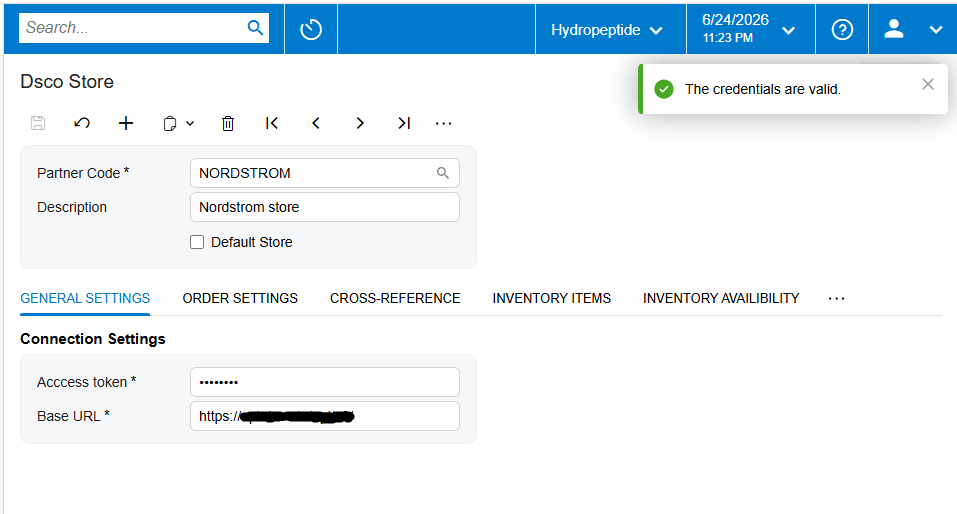
Setup starts with credentials. Once the connector is installed, a DSCO Integrator workspace appears inside Acumatica. On the Dsco Store screen you enter your connection details, which are your DSCO access token and the base web address for the Dsco service, and then you press Test Credentials. When the connection succeeds, your store is linked and you can set how everything should behave.
Setting up how orders come in
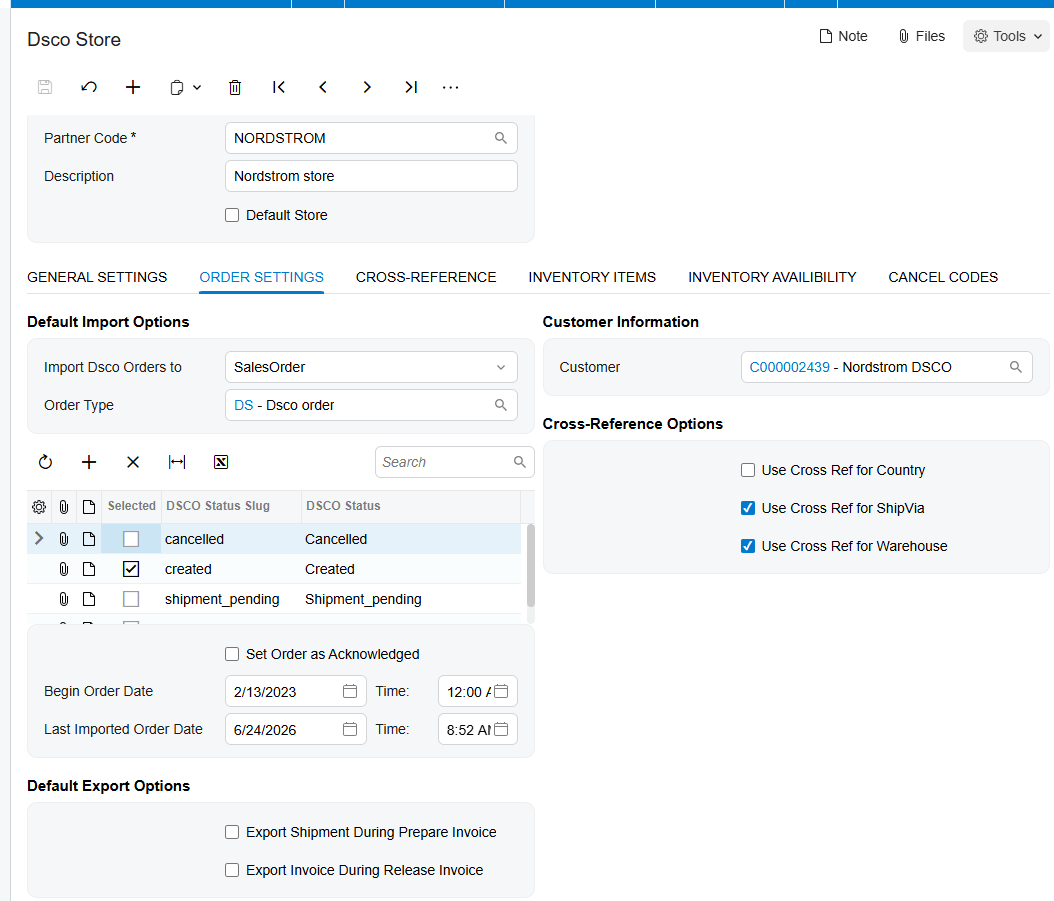
First, you decide how incoming orders are handled. You choose whether each DSCO order becomes a sales order or an invoice in Acumatica, set a default order type, and pick which Dsco order statuses to bring in. You can also decide whether orders should be treated by DSCO Integrator as automatically acknowledged, or whether you’ll send the acknowledgement yourself, which matters because retailers watch that step closely.
Mapping items and warehouses
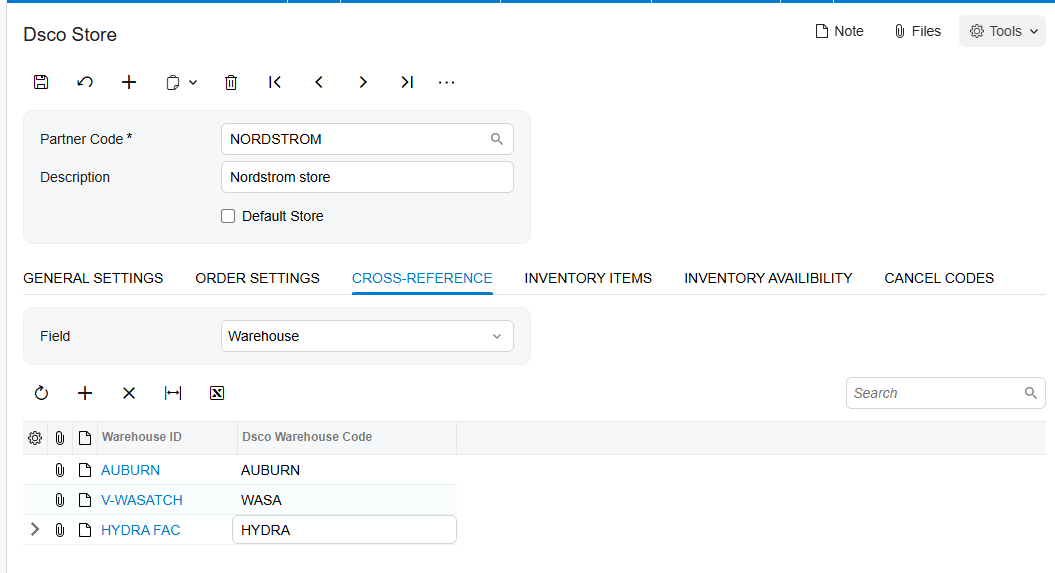
Next you connect the pieces the two systems share. The most important is item matching. In the inventory cross-reference, you tell the integrator how to find each product, usually by its SKU, and link it to the right Acumatica inventory item. You also map your Dsco warehouses to your Acumatica warehouses, so orders pull from the right stock and nothing errors out. You can also pick a default customer to stand behind these orders, so each one is booked correctly even though it arrives from the retail channel rather than a named buyer. And you set up your cancellation reason codes in advance, so they’re ready the moment you need them.
The order flow: acknowledge, ship, invoice
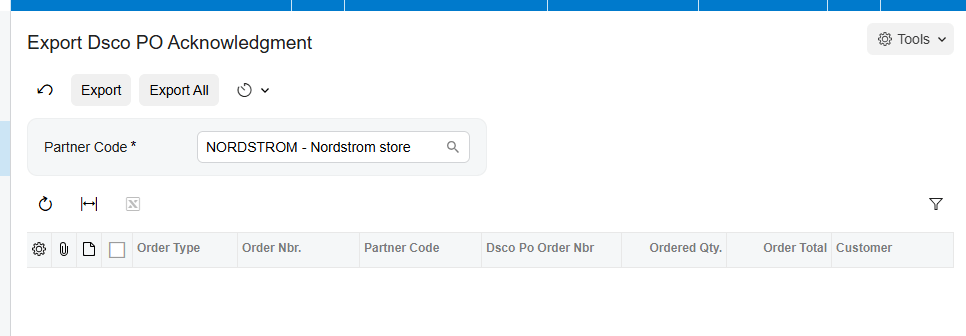
With setup done, the order flow runs cleanly. You get and import your Dsco orders, in bulk or one at a time. If you didn’t set them to auto-acknowledge, you send the purchase order acknowledgement back to Dsco to confirm you’ve received the order. When you ship, the connector sends the shipment confirmation to Dsco and sets the tracking number on the order. And when you release the invoice, it sends the invoice across and moves the Dsco order to shipped. Every step the retailer is waiting on happens on its own. Throughout, the order carries its Dsco status with it, so you can always see whether it’s been acknowledged, shipped, or invoiced, and refresh it from Dsco if anything changes on the retailer’s side.
Handling cancellations
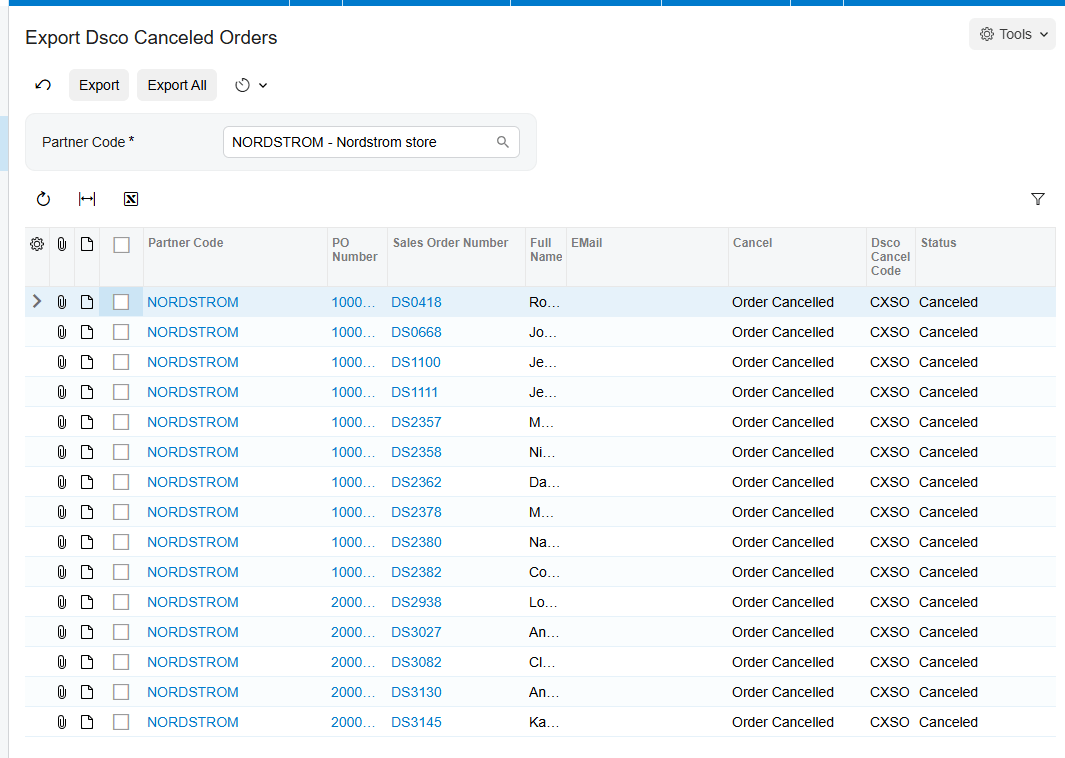
Cancellations are covered too. If you need to cancel a whole order via Export Dsco Canceled Orders screen, or just a single line, you do it right from the sales order and choose the matching DSCO cancel code. The integration then sends the cancellation to DSCO for you, so the retailer’s system stays accurate and in step with yours. You can use the Export Dsco Order Item Canceled screen to cansel a single item of order or cansel all the orders to automatically cansell the whole order.
Keeping inventory current
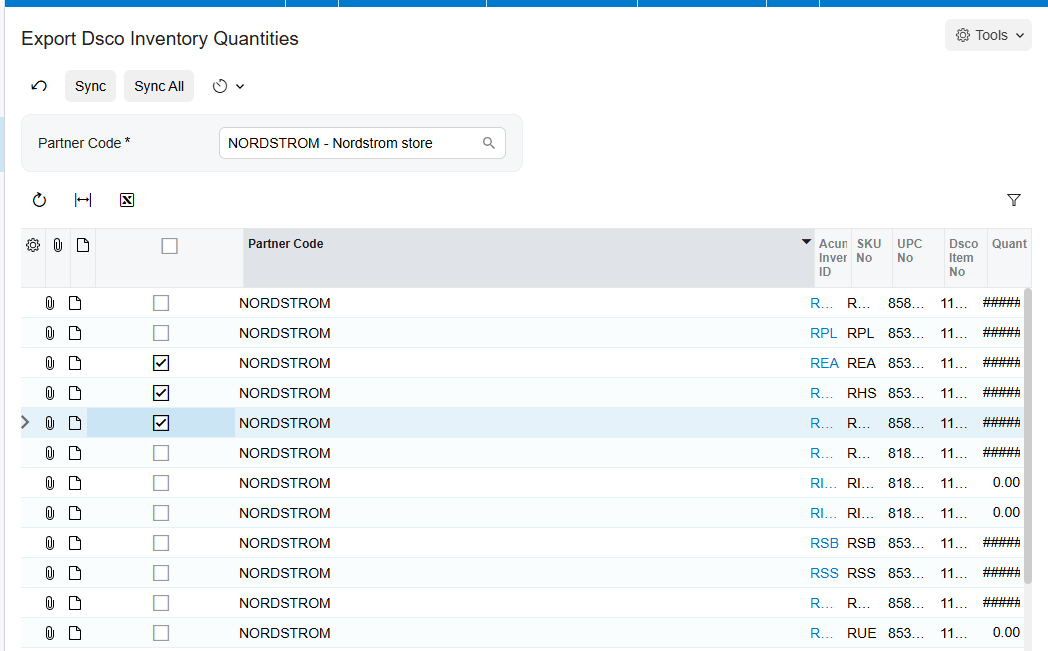
And to keep retailers from ordering what you don’t have, the DSCO Integration allows to keep your inventory current in DSCO. It sends your Acumatica quantities up to DSCO, using the combined total across the warehouses you choose and the measure you prefer, like on hand or available, so the stock they see is the stock you actually have. You can let it publish your live Acumatica quantity automatically, or set a specific number to send, which gives you control when you want to hold some stock back.
The bottom line
Once it’s connected, DSCO Connector and Acumatica work as one. Retail orders flow in, and acknowledgements, shipments, invoices, and inventory all flow back without anyone re-keying a thing. Your team hits the retailers’ deadlines without the manual scramble.
If you’d like help connecting your own Dsco account, the team at Biz-Tech Services does exactly this. Visit biz-techservices.com to book a walkthrough and see your Dsco orders flow straight into Acumatica.