
CommerceHub Acumatica Connector Configuration Checklist
Managing a growing supply chain for major retailers like Costco, Home Depot, or Lowe’s often brings a unique set of technical hurdles. When your business moves from small-scale fulfillment to high-volume drop-shipping, the manual effort required to keep your vendor portals in sync with your financial records can become overwhelming. You might find your team constantly logging into different systems just to update inventory or confirm a shipment, which increases the risk of costly errors. We at Biz-Tech Services recognize that for your operations to remain efficient, your Enterprise Resource Planning, or ERP, software must handle these complex retail relationships automatically.
The Biz-Tech Services CommerceHub Acumatica Connector provides the necessary infrastructure to bridge this gap. CommerceHub is a platform that facilitates e-commerce operations by connecting retailers, brands, and suppliers. Unlike many modern integrations that rely on direct digital handshakes, CommerceHub primarily operates using Secure File Transfer Protocol, or SFTP, for data exchange. This means the information is written into text files and then read for data transmissions, rather than using standard Application Programming Interface, or API, requests. To ensure your business is prepared for this specific type of integration, we have outlined a configuration checklist to guide your pre-launch phase.
The Foundation of Secure File Transfer
The first and most critical prerequisite for your business is establishing the secure pathway for your data. Because this connector uses file-based transfers, you will need to utilize a tool like FileZilla, which is software used for transferring files between a client and a server. We use this technology to manage the automated or semi-automated synchronization of your product data between the file server and the CommerceHub platform.
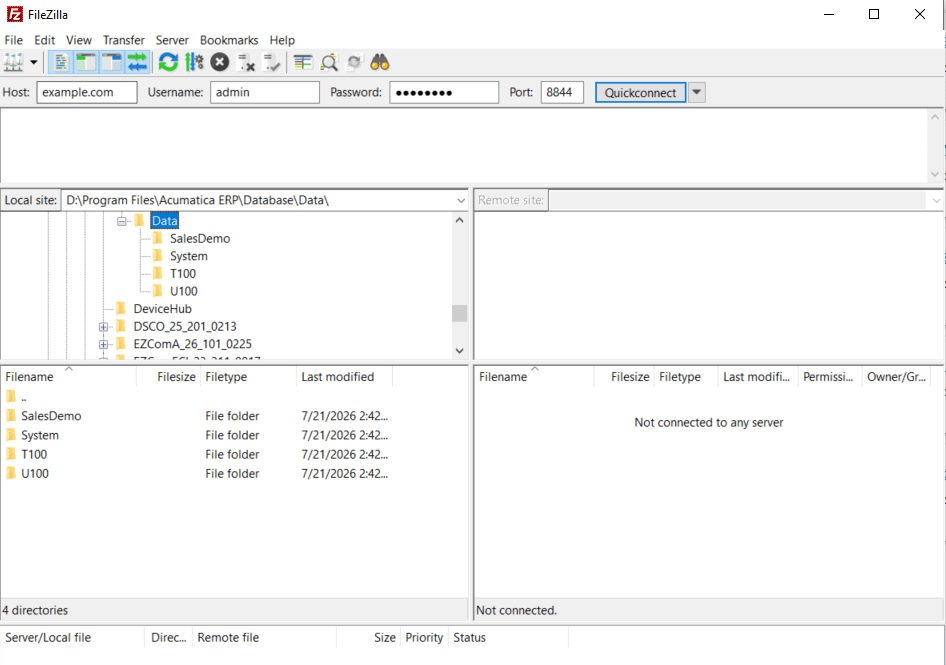
Once the connector package is published in your Acumatica environment, the CommerceHub workspace and its related screens become available for setup. Your first technical task is to enter your connectivity credentials within the mappings screen. You will need to gather your Secure File Transfer Protocol host address, the specific port number, and your unique username and password. Additionally, you must define the precise transfer paths and export paths on the server where the text files will be stored and retrieved. Validating this connection is the essential first step before any retail data can move.
Tailoring Setup with Source Codes
One of the standout features of this integration is the use of store codes, which allow your business to manage distinct configurations for specific retail partners. Each store can be individually set up with unique parameters to accommodate diverse requirements. For example, your configuration for Costco might require different document types or transaction descriptions than your setup for Home Depot.
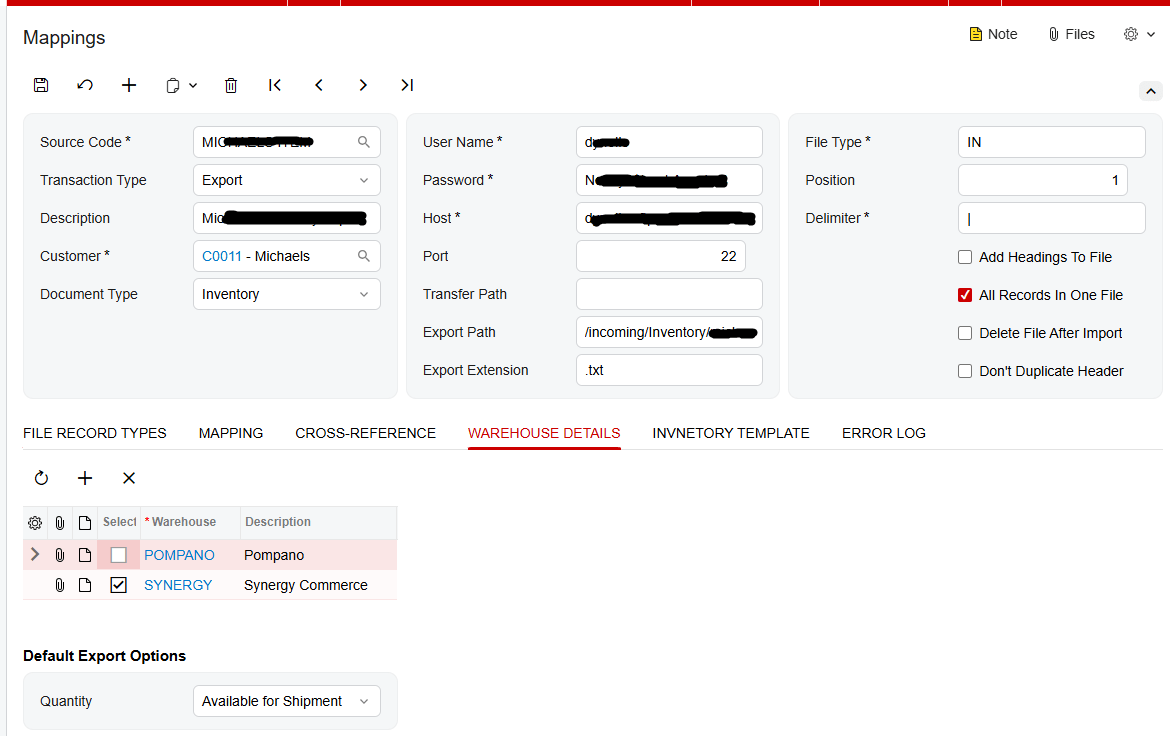
During the configuration process, you will use these store codes to define the behavior for each import and export operation. You must decide for each partner whether the transaction type is an import or an export and which default customer record in Acumatica should be associated with those orders. While the system uses a default customer for the initial sales order, it is designed to override the default address information with the actual customer address received from the imported order, ensuring your shipments always go to the right place.
The Core Configuration Checklist
To achieve a seamless flow of information, your business must complete a detailed mapping of how files are structured and how data is cross-referenced.
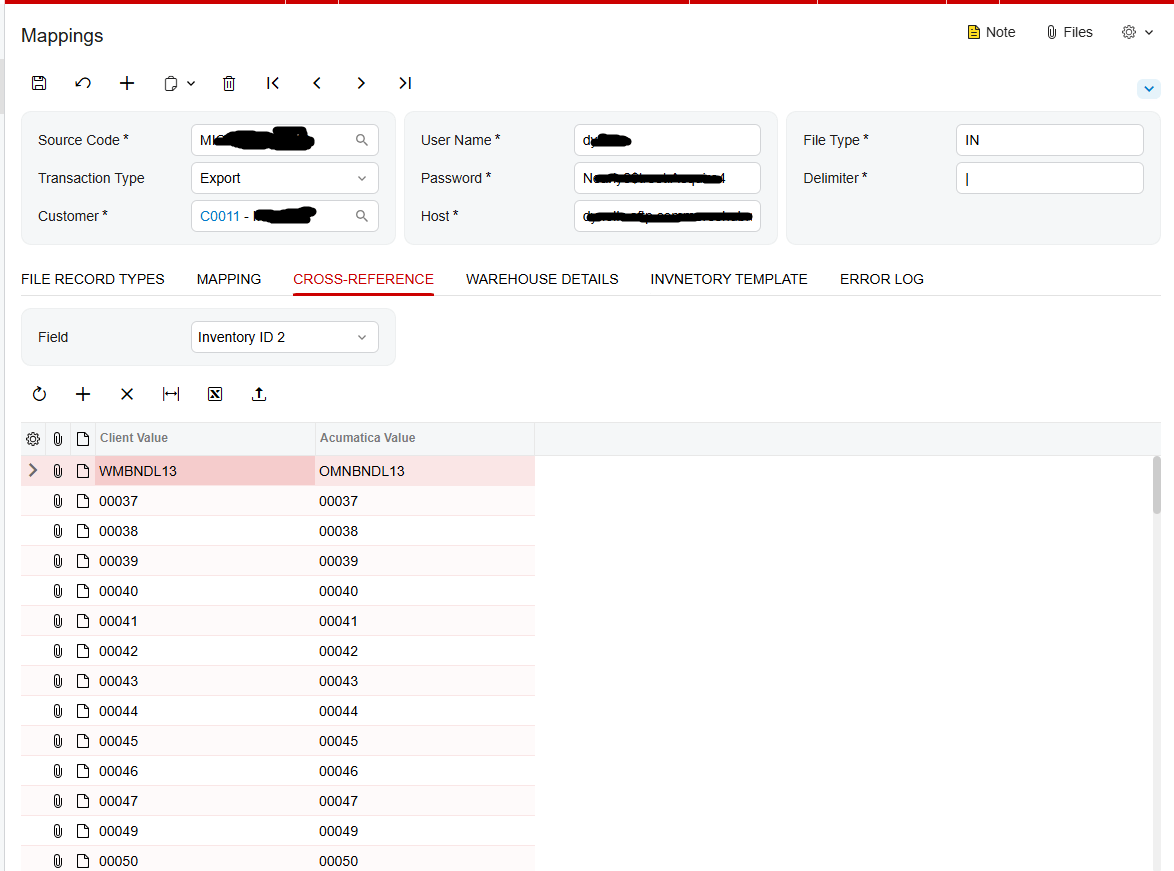
First, you must address the file record types and delimiters. This involves defining the specific positions of data within the text files, such as which column contains the order ID or the item description. You must also specify the file type and the delimiter used to separate data points. Second, you need to establish item cross-references. This enables the mapping of your Acumatica inventory items to the respective item identifications contained within the retail partner’s files. Without this step, the system will not know which of your products matches the order being imported.
Third, your business must configure your warehouse details. You need to add the specific warehouses that should be included in the export and determine which inventory quantity should be synchronized. You can choose to export the quantity on hand, the available quantity, or the quantity available for shipment. Fourth, we utilize the inventory template to select the specific items that will be displayed in the inventory export screen. This ensures that only the relevant products are synchronized with your retail partners, keeping your data clean and focused.
Operational Readiness and Error Management
The final phase of your checklist involves preparing for the daily lifecycle of an order. You must verify that your business can handle acknowledgments, shipments, and invoices correctly. When an order is generated, it initially maintains an open status for both the acknowledgment and the purchase order acknowledgment fields. Your team must be prepared to process these through the dedicated export screens to transition the status to closed.
We also recommend a thorough review of the shipment and invoice export workflows. The system provides a screen that displays all orders with a confirmed shipment status, allowing you to export those details back to the retailer. Similarly, you can export orders that have been invoiced or released to ensure your billing is always up to date. Finally, your business should familiarize itself with the error management tools. The connector includes an error log and a dedicated screen for failed purchase orders, allowing your team to review, resolve, and re-import any orders that encountered issues during the initial synchronization.
This integration is ideal for operations managers who need to automate the complex requirements of major retail vendor portals. By following this structured configuration checklist, we help you ensure that your warehouse, sales, and accounting teams are all operating from a single, reliable source of truth.
If you are ready to streamline your retail partnerships and eliminate manual file transfers, we are here to help. We invite you to visit biz-techservices.com to learn more about our solutions or to schedule a demo of the CommerceHub Acumatica Connector.

