
How to Import Magento Orders into Acumatica
To import Magento orders into Acumatica, retrieve eligible orders on the Import Magento Orders screen, review the staged order records, and use Import, Import All, or the individual order action to create the corresponding Acumatica sales order. This guide explains the settings that control that task, the documented actions, the mappings that shape the result, and the checks to make when an order does not import as expected.
The Biz-Tech Services Magento Acumatica Connector supports a controlled order-import process rather than a blind transfer. If you need the broader inbound and outbound sequence, see the sibling article How Magento Data Flows into Acumatica ERP. Here, the focus stays on the operator workflow for Magento orders and on what the product documentation actually confirms about sales orders, payments, customers, taxes, discounts, shipping, and item handling.
Before You Start: What Must Be Configured
The Biz-Tech Services Acumatica Magento Connector depends on the Magento Credentials and Magento Store configuration before an operator retrieves an order. The customization project must be installed and published through Customization Projects (SM204505), and the connector must run under one of the documented licenses: PCSR, PERP, or SAAS.
1. On Magento Credentials, identify the store with Store Code, add a Description if needed, and use Default Store when the record should be the default.
2. Enter Username, Password, and Base URL on the Connection Settings tab, then use Test Credentials to test the application programming interface (API) connection.
3. On Magento Store, choose the entities in Get Magento and set Import Magento Orders to. The manual names this destination setting but does not list its available values.
4. Set Order Type, Begin Order Date, and the default Warehouse ID used on imported orders. Last Imported Order Date is maintained as the date of the last import.
5. Decide whether Import Customer and Import Item are enabled. If the connector may create customers or items, set Customer Class, Import Item Type, Item Class, Unit of Measure (UOM), and the other documented defaults.
6. Configure payment, tax, freight, discount, address, shipping, and cross-reference options before testing a production order.
7. Add an email address on the Order Settings tab if Send Email Notifications for Errors will be used. The manual says failed-order notices go to that address.
How to Import Magento Orders into Acumatica, Step by Step
The Biz-Tech Services Magento Acumatica Integration separates retrieval from import, giving the operator a staged list to review before Acumatica creates a sales order.
Step 1: Retrieve eligible Magento orders
Open the Import Magento Orders screen and click Get Orders. A timer shows elapsed time while the retrieval runs. The manual says the processing page shows Magento orders with Partially Shipped, on hold, Pending, and Processing statuses. If necessary, click the loading icon next to the timer to cancel the retrieval process.
Step 2: Review the retrieved order list
Use the grid as a staging point. Each retrieved order number is a hyperlink to its Magento Orders record. Open that record before import when you need to inspect Document Details, Addresses, credit card payment information, or the order-level values used for validation.
Step 3: Inspect the individual Magento Orders record
Confirm the Magento Order ID, Magento order status, payment method, Ship Via, total line amount, discount total, shipping total, total tax, and total. The Sales Order Number field is populated if the order has been imported, while Invoice Number is displayed if the order is invoiced. The Refund Info tab appears when an order has been refunded.
Step 4: Import selected orders or the whole grid
Return to Import Magento Orders. Select the orders you intend to process and click Import, or click Import All to process every order displayed in the grid. The documentation does not specify row-level validation messages, retry behavior, or whether Import All continues after one order fails, so confirm results for every processed order.
Step 5: Import one order from its order record
For a single staged order, open the Magento Orders screen and choose Import Order from the Actions workspace. A confirmation popup asks whether you want to create a Sales Order for that Magento order in Acumatica. Confirm only after the order details and mappings have been reviewed.
Step 6: Refresh and record the result
After import, verify that Sales Order Number is present on the Magento Orders record. Use Refresh Order when you need Acumatica to update the stored Magento status to match the store. This status refresh is different from creating the Acumatica sales order.
Document Triggers: What Each Action Creates
The manual documents several actions, but only one order action explicitly confirms document creation. Keeping retrieval, creation, status refresh, and later invoice activity separate prevents an operator from expecting the wrong result.
1. Get Orders retrieves qualifying Magento orders and displays them on Import Magento Orders. It does not state that an Acumatica order is created at retrieval time.
2. Import processes selected rows. Import All processes all rows displayed in the grid.
3. Import Order on an individual Magento Orders record opens a confirmation popup that explicitly asks whether to create a Sales Order in Acumatica.
4. Receive Orders retrieves an individual order when the Magento store code and order ID are supplied.
5. Refresh Order updates the Magento order status stored in Acumatica.
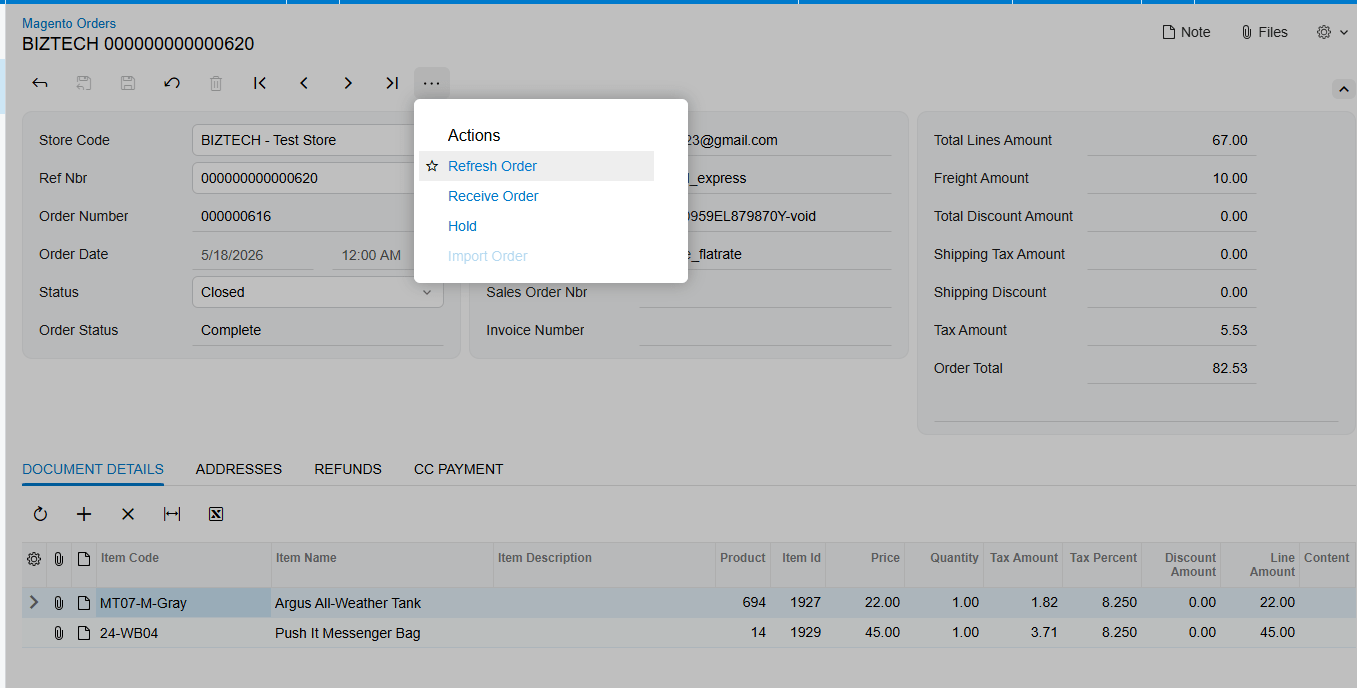
6. Sales Order Number identifies the imported sales order. Invoice Number is shown if the order is invoiced, but the manual does not say that initial order import creates an invoice.
Mapping Rules That Decide What Appears on the Order
Magento Store settings provide the documented rules and defaults that shape the imported record. Review them before troubleshooting the result.
1. Order Type sets the default type of order created by the integration.
2. Warehouse ID supplies the default warehouse for orders imported from Magento.
3. Cross-Reference Options chooses entities to match between Magento and Acumatica. In the Cross-reference area, Field selects the entity, while Magento Value/Ship Via records the matching Magento and Acumatica values.
4. Import Customer can create a new Acumatica customer from Magento customer information. Customer Class is the default for a new customer created by the integration.
5. Override Ship Address Information and Override Bill Address Information bring the documented shipping and billing addresses from Magento.
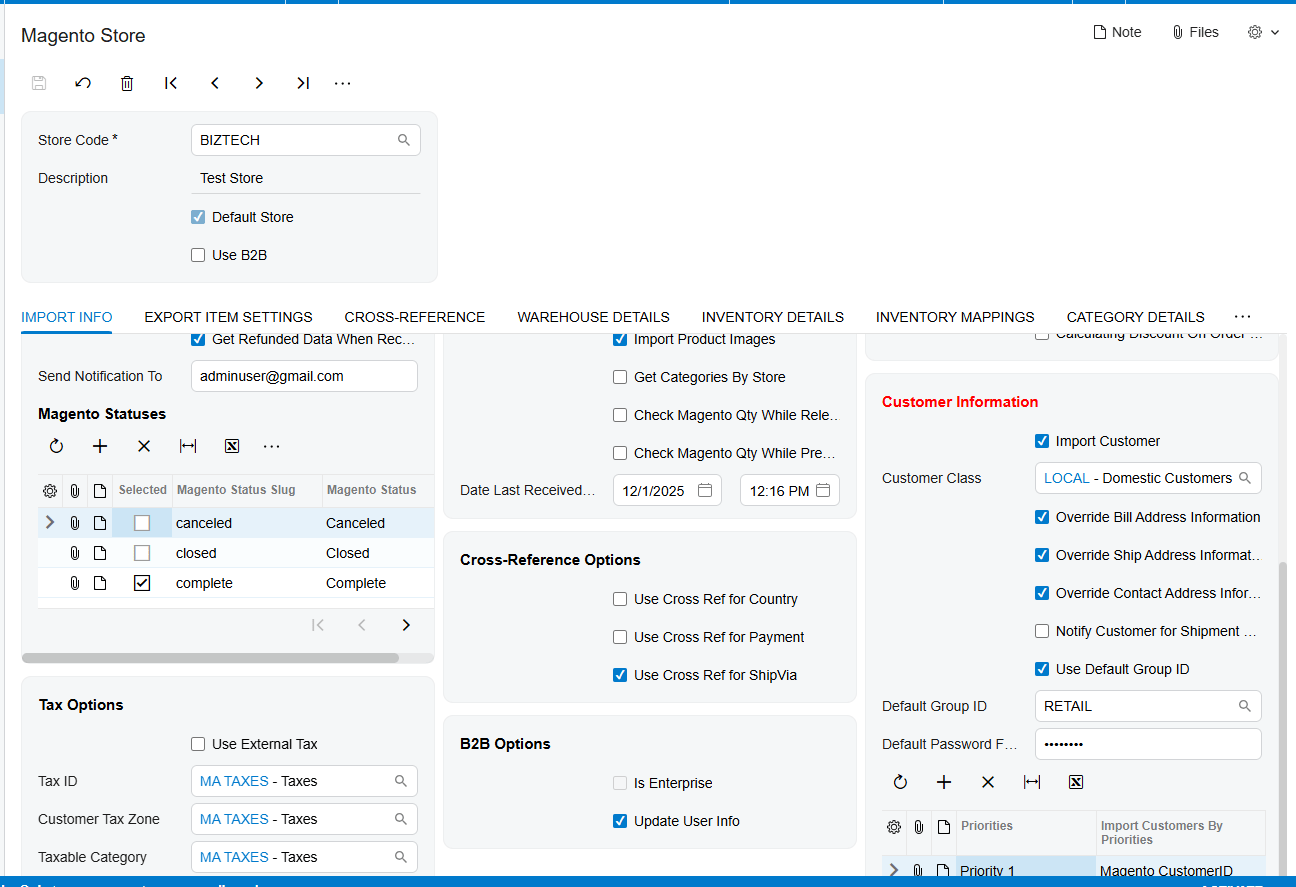
6. Tax ID is the default tax identifier on orders. Customer Tax Zone, Taxable Category, and Is Freight Included In Magento control the documented tax context.
7. Payment Method and Payment Type govern the imported payment. Skip Magento Payment imports the order without payment, while Release Payment during Order Import releases the payment during import.
8. Use Credit Card Payment exposes the CC Payment Mapping tab for mapping Magento credit card payment methods to Acumatica.
9. Calculate Discount On Order Lines places discounts in Discount Amount and Discount Code on sales order lines; otherwise, the documentation says the discount is calculated for the order and shown in the Discount section.
10. The Magento product stock-keeping unit (SKU) is used to find the Acumatica Inventory CD. Import Item can create a missing item; Replace Missing Products can substitute a selected item when Import Item is disabled.
Validation and Common Exceptions
Validation should begin with what the manual makes observable: connection testing, eligible Magento statuses, item lookup, configured defaults, and order-level totals. The source includes one explicit item error and two Magento quantity checks, but it does not provide a comprehensive error catalog.
A Magento order is not listed after Get Orders
Check the Begin Order Date and confirm that the Magento status is Partially Shipped, on hold, Pending, or Processing. Test the credentials and connection. The manual does not describe other filters, paging limits, or a message for an excluded order.
An order contains an item that Acumatica cannot find
The connector searches Inventory CD using the Magento Product SKU. If Import Item is disabled and no matching item exists, the source shows the message “The item {0} does not exist in the system.” The manual prints this message with a missing closing quotation mark. Configure item creation or Replace Missing Products before retrying.
An imported customer or address is not what you expected
Review Import Customer, Customer Class, Override Ship Address Information, and Override Bill Address Information. These settings determine whether a customer may be created and whether Magento address information overrides the order addresses.
Payment, tax, shipping, or discount values need review
Compare Payment Method, Payment Type, Skip Magento Payment, Release Payment during Order Import, Tax ID, Customer Tax Zone, Taxable Category, freight treatment, Ship Via cross-references, and Calculate Discount On Order Lines with the displayed order values.
Invoice preparation or release finds insufficient Magento quantity
Check Magento Qty While Prepare Invoice validates quantity before invoice creation, and Check Magento Qty While Release Invoice validates it during release. The documentation does not state the exact failure message or remediation sequence.
A failed import notice is not received
Confirm Send Email Notifications for Errors and the email address on the Order Settings tab. The manual says notices can occur during batch imports and process updates because orders in the selected period are checked again, but it does not document the email template or delivery troubleshooting.
Where to Check Your Work
The Biz-Tech Services Magento Acumatica Integrator exposes the order result through the staged import grid, the individual Magento Orders record, and the created Acumatica document. Check these documented points after each import:
1. Import Magento Orders grid: confirm the expected order was retrieved and selected or included in Import All.
2. Magento Orders hyperlink: open the individual record from the order number.
3. Document Details tab: review the imported item information.
4. Addresses tab: compare customer shipping and billing details with the configured override options.
5. CC Payment tab: review credit card payment information when that tab is applicable.
6. Magento Order ID and Magento order status: confirm identity and the status captured from Magento.
7. Payment Method and Ship Via: compare these values with payment and cross-reference settings.
8. Total Lines Amount, Discount Total, Shipping Total, Total Tax, and Total: reconcile the staged values before and after import.
9. Sales Order Number: verify that the imported order has an Acumatica sales order reference.
10. Invoice Number: check this field only when the order has subsequently been invoiced.
11. Refresh Order: update the displayed Magento order status when the store status changed after import.
How to Import Magento Orders into Acumatica: Frequently Asked Questions
Which Magento order statuses appear for import?
The source says the processing page shows Partially Shipped, on hold, Pending, and Processing orders.
Does Get Orders create a sales order in Acumatica?
No creation is documented for Get Orders. It retrieves orders into the processing screen; Import, Import All, or Import Order performs the documented import step.
Can I import one Magento order without processing the entire grid?
Yes. Select a row and use Import, or open its Magento Orders record and use Import Order. Receive Orders can retrieve an individual order by store code and order ID.
Why did a Magento item stop the order import?
The Biz-Tech Services Acumatica Magento Integration looks up Inventory CD by Magento Product SKU. If the item does not exist and creation or replacement is not configured, the documented missing-item error can block the import.
Can Magento orders be imported without payment?
Yes. The Skip Magento Payment option is documented as importing the order without payment.
Does importing a Magento order create a purchase order or invoice?
The manual explicitly confirms sales order creation through the individual Import Order confirmation. It does not document purchase order creation during this workflow, and it only says Invoice Number is displayed if the order is invoiced.
How can I cancel a long Get Orders operation?
Click the loading icon next to the elapsed-time timer. The source identifies that icon as the control for canceling retrieval.
Where do failed-order email notifications go?
They go to the email address entered on the Order Settings tab when Send Email Notifications for Errors is enabled.
Work With the Biz-Tech Services Magento
A reliable Magento order import starts with tested credentials, intentional defaults, reviewed mappings, and a check of each staged and created record. The documented workflow gives operators distinct controls for retrieval, selected or bulk import, individual order processing, and status refresh.
If your business needs help configuring and validating the Biz-Tech Services Acumatica Magento Integrator for dependable order processing, visit https://biz-techservices.com to learn more and contact Biz-Tech Services.
Check the YouTube video for more details – https://www.youtube.com/watch?v=o8rZAgH0ASk

