
How to Import DSCO Orders into Acumatica
Importing DSCO orders into Acumatica is a two-stage task: retrieve orders for the configured period on the Import DSCO Orders screen, then process selected records to create either Sales Orders or SO Invoices. This guide focuses on that operating procedure, the settings that control document creation, and the checks to make when an order does not import.
The Biz-Tech Services DSCO Acumatica Connector lets an operator review retrieved records before choosing IMPORT or IMPORT ALL. You will learn how to configure the import target, select orders, understand the documented triggers, verify mappings, and trace common exceptions without repeating the broader order-to-cash overview covered in How DSCO Data Flows Through Acumatica Order-to-Cash Automation.
Before You Start: What Must Be Configured
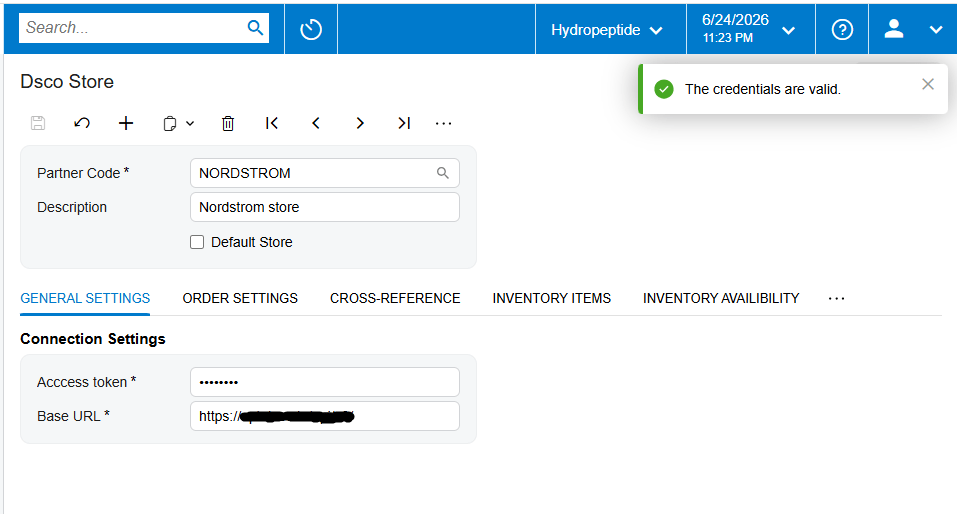
The Biz-Tech Services Acumatica DSCO Connector depends on a published customization and a working DSCO Store connection. The source identifies the Customization Projects screen by form ID SM204505. On the DSCO Store General Settings tab, enter the Partner Code, Access Token, and Base URL, then use Test Credentials to test the application programming interface, or API, connection before retrieving orders.
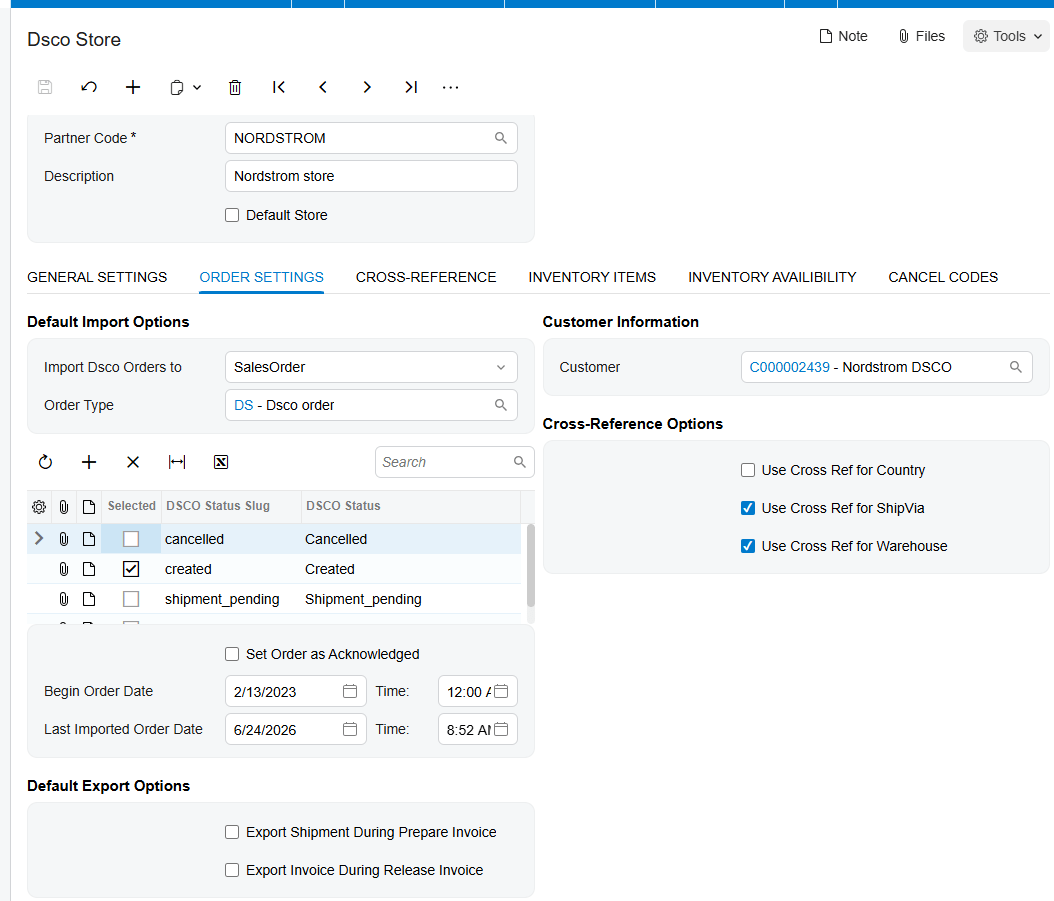
1. Keep the order prerequisites tight and complete before the first production import:
2. Import DSCO Orders to: choose the Acumatica document type. The documented choices are Sales Order and SO Invoice.
3. Order Type: select the default order type that the integration will use for created orders.
4. DSCO Status: identify the DSCO order status eligible for import, and select the corresponding order-status checkbox. The manual says the checkbox must be selected for orders in that status to be retrieved and imported.
5. Begin Order Date: set the date used to filter retrieval. Review Last Imported Order Date, which records when the last order was imported.
6. Customer: choose the default customer that will be assigned to imported DSCO orders.
7. Cross-Reference options: select the entities that must be matched between DSCO and Acumatica. Only checked entities become available in the Cross-Reference tab drop-down.
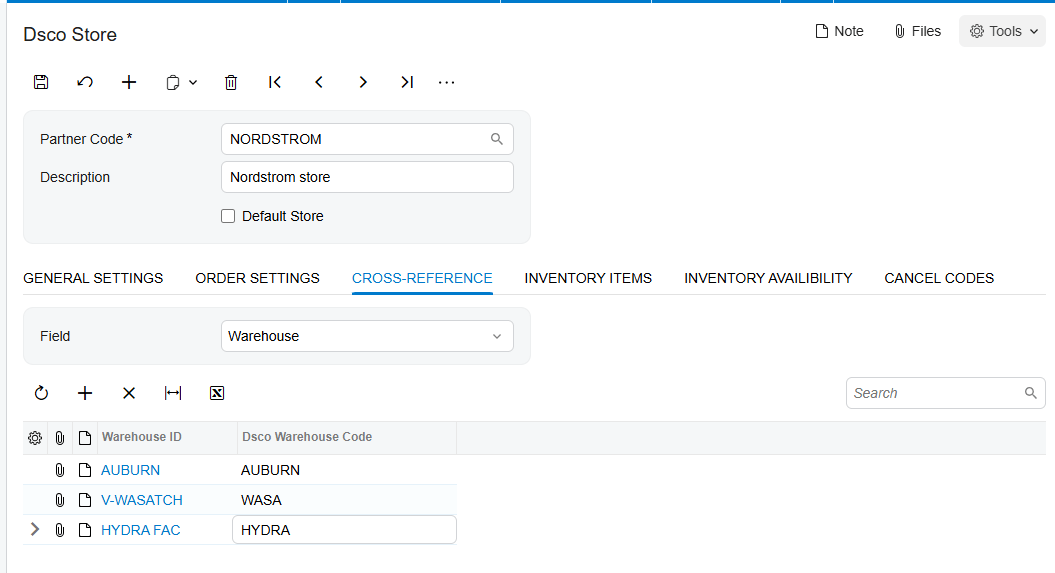
8. Use Cross Ref for Warehouse: when selected, map each DSCO item warehouse to an Acumatica warehouse value on the Cross-Reference tab.
9. Inventory Items: choose the lookup basis used to associate DSCO items with Acumatica Inventory IDs. The manual illustrates SKU as one selection.
The documentation describes acknowledgments and outbound shipment and invoice settings, but those options do not replace the core order-import configuration. Set Order as Acknowledged decides whether a separate acknowledgment is necessary. Export Shipment During Prepare Invoice and Export Invoice During Release Invoice control later outbound actions.
How to Import DSCO Orders into Acumatica, Step by Step
The Biz-Tech Services DSCO Acumatica Integration separates retrieval from document creation. GET ORDERS fills the review grid for the selected period; IMPORT and IMPORT ALL process records from that grid into the configured Acumatica document type.
How do you retrieve DSCO orders for review?
Open the Import DSCO Orders screen and press GET ORDERS. A timer displays elapsed time while the request runs. The source states that the action retrieves and displays all orders for the selected period at once, subject to the DSCO Status and corresponding status-checkbox configuration.
How do you inspect an order before importing it?
Click the Order Number in the grid to open the corresponding order in a pop-up window. The manual says the most important information is shown on the DSCO Orders screen. Use this review point to confirm that the order belongs in the current batch and that its visible values are consistent with the configured customer, warehouse, and item rules.
How do you import selected DSCO orders?
Select the order or orders that should be processed and click IMPORT. To process every record currently in the grid, click IMPORT ALL. After IMPORT is pressed, successfully processed selected orders are filtered from the Import DSCO Orders screen. If the batch must be stopped while processing, click Cancel Processing.
How do you confirm which Acumatica document was created?
Open the DSCO Orders screen after import. The record shows its DSCO Order Status and, when applicable, the associated sales order number and invoice number. The result depends on Import DSCO Orders to: Sales Order creates a sales order path, while SO Invoice creates the invoice-oriented path described by the manual. The source does not document a separate purchase-order document being created in Acumatica.
How do you handle the acknowledgment after import?
If Set Order as Acknowledged is enabled, the manual says sending a separate acknowledgment is unnecessary and the Acknowledged Status in DSCO field on the Sales Orders screen should be Closed. If the checkbox is not selected, the imported order appears on Export DSCO PO Acknowledgement. Process it there; it should leave that screen, and Acknowledged Status in DSCO should become Closed.
Document Triggers: What Each Action Creates
These controls distinguish retrieval, Acumatica document creation, and later DSCO status updates:
1. GET ORDERS retrieves and displays DSCO orders for the selected period. It does not, by itself, document the creation of the configured Acumatica order or invoice.
2. IMPORT processes selected grid records and creates the document type selected in Import DSCO Orders to.
3. IMPORT ALL applies the same import processing to all records currently displayed in the grid.
4. Import DSCO Orders to = Sales Order directs imported DSCO orders into Acumatica sales orders, using the configured Order Type.
5. Import DSCO Orders to SO Invoice directs the imported records into Acumatica SO Invoices. The manual does not describe additional invoice field rules for this choice.
6. Prepare Invoice, with Export Shipment During Prepare Invoice selected, sends shipment information to DSCO and marks the order as shipment pending.
7. Release Invoice, with Export Invoice During Release Invoice selected, sends invoice information to DSCO and changes the DSCO order to Shipped.
The last two triggers occur after import and document processing. They explain how later shipment and invoice actions can update DSCO, but they should not be confused with GET ORDERS or IMPORT.
Mapping Rules That Decide What Appears on the Order
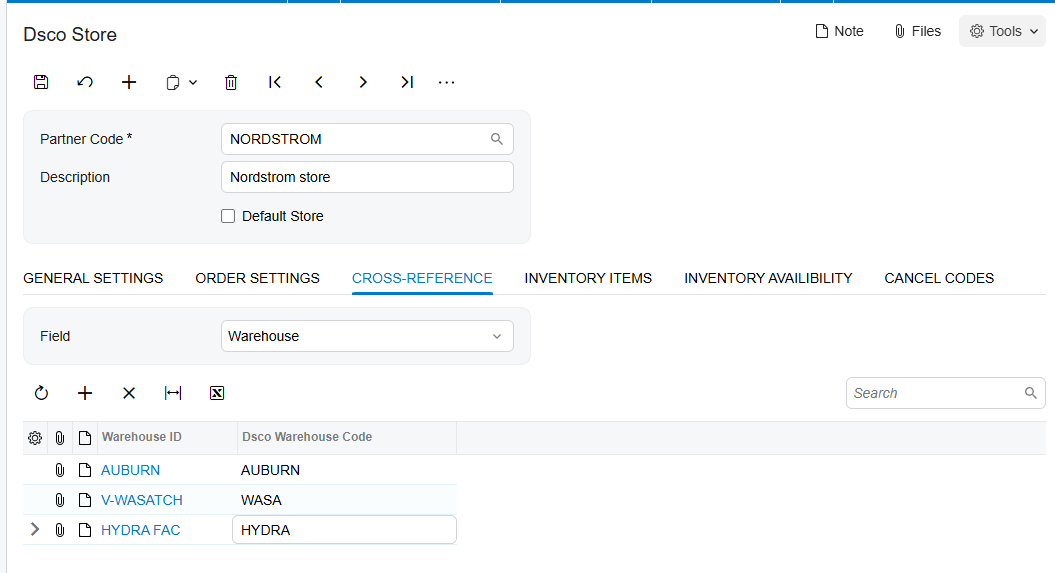
The default Customer setting is assigned to DSCO orders during import. Cross-Reference options determine which entities can be matched, and checked options become available for configuration on the Cross-Reference tab. When Use Cross Ref for Warehouse is enabled, the incoming DSCO warehouse value must map to an Acumatica warehouse value.
On Inventory Items, choose how the connector searches for an item and associates it with an Acumatica Inventory ID. The source gives SKU as its example lookup value. These item and warehouse relationships affect whether an order can be built with valid Acumatica values. The manual also warns that inaccurate or incomplete cross-references can prevent later API requests from updating order status and tracking numbers correctly.
The source does not provide a field-by-field transformation table for prices, taxes, freight, addresses, purchase-order numbers, or invoice lines. It also does not state precedence when a default value and an incoming value are both present. Those details should be confirmed in the implemented configuration rather than inferred from the manual.
Validation and Common Exceptions
Validate the connection first with Test Credentials, then validate the actual batch in the Import DSCO Orders grid. If processing fails, the affected row displays an error indicator. Hover over the red cross for additional information, and use TOOLS > Trace when more detail is needed.
1. No expected orders after GET ORDERS: review Begin Order Date, Last Imported Order Date, DSCO Status, and the corresponding status checkbox. The manual does not provide a specific message for an empty result.
2. Warehouse does not have value: this is the one exact import error documented. It occurs when warehouse cross-referencing is enabled but the DSCO warehouse value is not mapped to an Acumatica warehouse.
3. Item mapping failure: the manual warns that an error appears when item values are not mapped, but it does not supply the error text. Review the Inventory Items lookup choice and Inventory ID association.
4. Order remains on the processing grid with a red cross: hover over the indicator, then inspect TOOLS > Trace. Correct only the configuration or data supported by the displayed detail, and retry the appropriate order.
5. Unexpected document type: verify Import DSCO Orders to and Order Type before reprocessing. The source does not explain duplicate handling, reversal, or recovery after an unintended document is created.
6. Acknowledgment remains pending: verify Set Order as Acknowledged. If it is cleared, process the order on Export DSCO PO Acknowledgement and check that the record disappears and the Sales Orders field becomes Closed.
The manual does not provide a comprehensive error catalog, required-field matrix, duplicate-order rule, retry policy, or rollback procedure. Its validation guidance is limited to connection testing, the warehouse error, a general item-mapping warning, the row-level red cross, and TOOLS > Trace.
Where to Check Your Work
The Biz-Tech Services Acumatica DSCO Integration exposes the import result across the configuration, processing, and result screens. Check these documented locations:
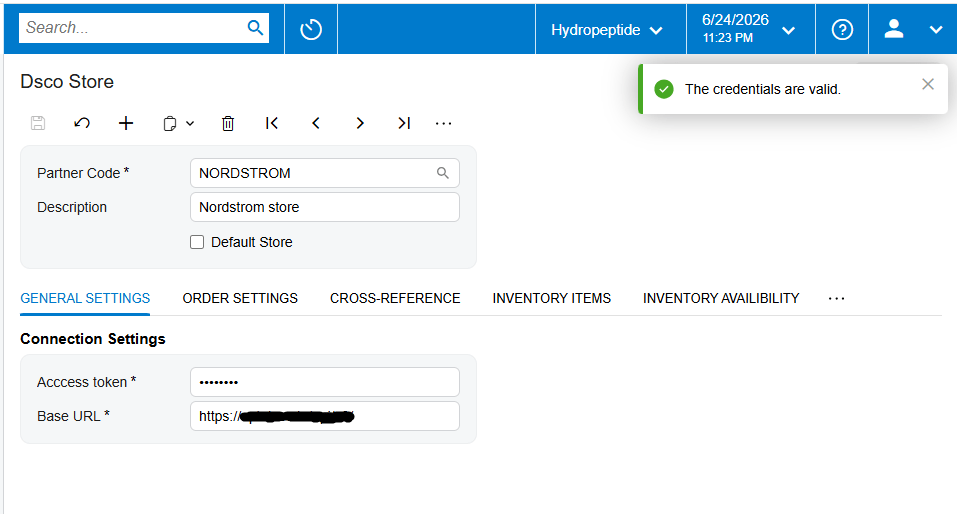
1. DSCO Store – General Settings: Partner Code, Access Token, Base URL, and Test Credentials.
2. DSCO Store – Order Settings: Import DSCO Orders to, Order Type, DSCO Status, status checkbox, Begin Order Date, and Last Imported Order Date.
3. DSCO Store – Customer Information: default Customer, Cross-Reference options, and Use Cross Ref for Warehouse.
4. DSCO Store – Cross-Reference: selected entity mappings, especially DSCO-to-Acumatica warehouse values.
5. DSCO Store – Inventory Items: lookup selection and the association to Acumatica Inventory ID.
6. Import DSCO Orders: retrieved period, Order Number pop-up, selected rows, elapsed-time indicator, and records remaining after processing.
7. Import DSCO Orders error row: red cross details and TOOLS > Trace.
8. DSCO Orders: DSCO Order Status, sales order number, and invoice number.
9. Sales Orders: Acknowledged Status in DSCO when acknowledgment behavior applies.
10. Export DSCO PO Acknowledgement: orders waiting for manual acknowledgment when Set Order as Acknowledged is cleared.
How to Import DSCO Orders into Acumatica: Frequently Asked Questions
Why did GET ORDERS return no DSCO orders?
Check the selected period through Begin Order Date and the recorded Last Imported Order Date. Also confirm DSCO Status and its corresponding checkbox. The manual says the status checkbox must be selected for orders with that status to be retrieved and imported, but it does not document a no-results error message.
Why does an order show Warehouse does not have value?
Use Cross Ref for Warehouse is enabled, but the incoming DSCO warehouse does not have an Acumatica warehouse mapping. Add or correct that relationship on the Cross-Reference tab before retrying the order.
Why is a DSCO item not importing into Acumatica?
Review the Inventory Items cross-reference selection and confirm that the incoming item can be associated with an Acumatica Inventory ID. The source warns that an unmapped item produces an error but does not provide the exact message.
Can I import only selected DSCO orders?
Yes. Select the required rows and click IMPORT. Use IMPORT ALL only when every order currently displayed in the grid should be processed. The Biz-Tech Services DSCO Acumatica Integrator also provides Cancel Processing when an active import must be stopped.
Can DSCO orders create invoices instead of sales orders?
Yes. Import DSCO Orders to supports Sales Order and SO Invoice. Choose the required destination before processing. The documentation does not provide a separate mapping table or validation sequence for SO Invoice creation.
Does importing a DSCO order create an Acumatica purchase order?
The manual describes incoming DSCO orders becoming Sales Orders or SO Invoices. It calls the acknowledgment screen Export DSCO PO Acknowledgement, but it does not document the creation of a separate Acumatica purchase order. Do not treat the acknowledgment label as proof that an Acumatica purchase-order document is created.
Why is the acknowledgment still waiting after import?
When Set Order as Acknowledged is cleared, the imported order must be processed on Export DSCO PO Acknowledgement. After processing, it should disappear from that screen and Acknowledged Status in DSCO on Sales Orders should be Closed.
Where can I find more detail for a failed import?
Hover over the red cross on the failed order row to view additional information. Then open TOOLS > Trace for further detail. The source does not list all possible messages or prescribe a universal correction.
Work With the Biz-Tech Services DSCO Connector
A reliable DSCO order import starts with the correct target document, eligible status, date filter, customer default, and complete warehouse and item mappings. Retrieve first, inspect the grid, import deliberately, and verify the linked sales order or invoice on DSCO Orders.
If your team needs help configuring, validating, or troubleshooting the Biz-Tech Services Acumatica DSCO Integrator, visit https://biz-techservices.com to work with Biz-Tech Services on an Acumatica integration grounded in your documented DSCO workflow.
Check the video for mre details – https://www.youtube.com/watch?v=Hk296jscNtA
How to Import DSCO Orders into Acumatica
Importing DSCO orders into Acumatica is a two-stage task: retrieve orders for the configured period on the Import DSCO Orders screen, then process selected records to create either Sales Orders or SO Invoices. This guide focuses on that operating procedure, the settings that control document creation, and the checks to make when an order does not import.
The Biz-Tech Services DSCO Acumatica Connector lets an operator review retrieved records before choosing IMPORT or IMPORT ALL. You will learn how to configure the import target, select orders, understand the documented triggers, verify mappings, and trace common exceptions without repeating the broader order-to-cash overview covered in How DSCO Data Flows Through Acumatica Order-to-Cash Automation.
Before You Start: What Must Be Configured
The Biz-Tech Services Acumatica DSCO Connector depends on a published customization and a working DSCO Store connection. The source identifies the Customization Projects screen by form ID SM204505. On the DSCO Store General Settings tab, enter the Partner Code, Access Token, and Base URL, then use Test Credentials to test the application programming interface, or API, connection before retrieving orders.
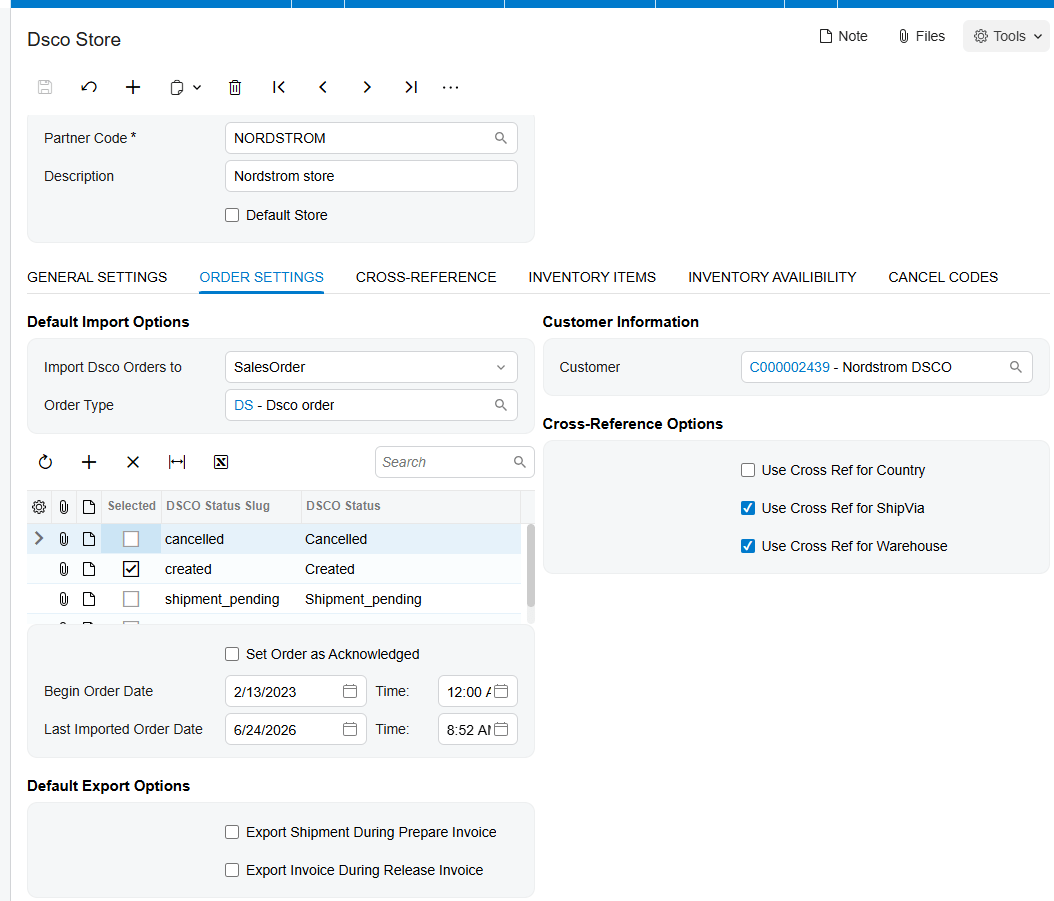
1. Keep the order prerequisites tight and complete before the first production import:
2. Import DSCO Orders to: choose the Acumatica document type. The documented choices are Sales Order and SO Invoice.
3. Order Type: select the default order type that the integration will use for created orders.
4. DSCO Status: identify the DSCO order status eligible for import, and select the corresponding order-status checkbox. The manual says the checkbox must be selected for orders in that status to be retrieved and imported.
5. Begin Order Date: set the date used to filter retrieval. Review Last Imported Order Date, which records when the last order was imported.
6. Customer: choose the default customer that will be assigned to imported DSCO orders.
7. Cross-Reference options: select the entities that must be matched between DSCO and Acumatica. Only checked entities become available in the Cross-Reference tab drop-down.
8. Use Cross Ref for Warehouse: when selected, map each DSCO item warehouse to an Acumatica warehouse value on the Cross-Reference tab.
9. Inventory Items: choose the lookup basis used to associate DSCO items with Acumatica Inventory IDs. The manual illustrates SKU as one selection.
The documentation describes acknowledgments and outbound shipment and invoice settings, but those options do not replace the core order-import configuration. Set Order as Acknowledged decides whether a separate acknowledgment is necessary. Export Shipment During Prepare Invoice and Export Invoice During Release Invoice control later outbound actions.
How to Import DSCO Orders into Acumatica, Step by Step
The Biz-Tech Services DSCO Acumatica Integration separates retrieval from document creation. GET ORDERS fills the review grid for the selected period; IMPORT and IMPORT ALL process records from that grid into the configured Acumatica document type.
How do you retrieve DSCO orders for review?
Open the Import DSCO Orders screen and press GET ORDERS. A timer displays elapsed time while the request runs. The source states that the action retrieves and displays all orders for the selected period at once, subject to the DSCO Status and corresponding status-checkbox configuration.
How do you inspect an order before importing it?
Click the Order Number in the grid to open the corresponding order in a pop-up window. The manual says the most important information is shown on the DSCO Orders screen. Use this review point to confirm that the order belongs in the current batch and that its visible values are consistent with the configured customer, warehouse, and item rules.
How do you import selected DSCO orders?
Select the order or orders that should be processed and click IMPORT. To process every record currently in the grid, click IMPORT ALL. After IMPORT is pressed, successfully processed selected orders are filtered from the Import DSCO Orders screen. If the batch must be stopped while processing, click Cancel Processing.
How do you confirm which Acumatica document was created?
Open the DSCO Orders screen after import. The record shows its DSCO Order Status and, when applicable, the associated sales order number and invoice number. The result depends on Import DSCO Orders to: Sales Order creates a sales order path, while SO Invoice creates the invoice-oriented path described by the manual. The source does not document a separate purchase-order document being created in Acumatica.
How do you handle the acknowledgment after import?
If Set Order as Acknowledged is enabled, the manual says sending a separate acknowledgment is unnecessary and the Acknowledged Status in DSCO field on the Sales Orders screen should be Closed. If the checkbox is not selected, the imported order appears on Export DSCO PO Acknowledgement. Process it there; it should leave that screen, and Acknowledged Status in DSCO should become Closed.
Document Triggers: What Each Action Creates
These controls distinguish retrieval, Acumatica document creation, and later DSCO status updates:
1. GET ORDERS retrieves and displays DSCO orders for the selected period. It does not, by itself, document the creation of the configured Acumatica order or invoice.
2. IMPORT processes selected grid records and creates the document type selected in Import DSCO Orders to.
3. IMPORT ALL applies the same import processing to all records currently displayed in the grid.
4. Import DSCO Orders to = Sales Order directs imported DSCO orders into Acumatica sales orders, using the configured Order Type.
5. Import DSCO Orders to SO Invoice directs the imported records into Acumatica SO Invoices. The manual does not describe additional invoice field rules for this choice.
6. Prepare Invoice, with Export Shipment During Prepare Invoice selected, sends shipment information to DSCO and marks the order as shipment pending.
7. Release Invoice, with Export Invoice During Release Invoice selected, sends invoice information to DSCO and changes the DSCO order to Shipped.
The last two triggers occur after import and document processing. They explain how later shipment and invoice actions can update DSCO, but they should not be confused with GET ORDERS or IMPORT.
Mapping Rules That Decide What Appears on the Order
The default Customer setting is assigned to DSCO orders during import. Cross-Reference options determine which entities can be matched, and checked options become available for configuration on the Cross-Reference tab. When Use Cross Ref for Warehouse is enabled, the incoming DSCO warehouse value must map to an Acumatica warehouse value.
On Inventory Items, choose how the connector searches for an item and associates it with an Acumatica Inventory ID. The source gives SKU as its example lookup value. These item and warehouse relationships affect whether an order can be built with valid Acumatica values. The manual also warns that inaccurate or incomplete cross-references can prevent later API requests from updating order status and tracking numbers correctly.
The source does not provide a field-by-field transformation table for prices, taxes, freight, addresses, purchase-order numbers, or invoice lines. It also does not state precedence when a default value and an incoming value are both present. Those details should be confirmed in the implemented configuration rather than inferred from the manual.
Validation and Common Exceptions
Validate the connection first with Test Credentials, then validate the actual batch in the Import DSCO Orders grid. If processing fails, the affected row displays an error indicator. Hover over the red cross for additional information, and use TOOLS > Trace when more detail is needed.
1. No expected orders after GET ORDERS: review Begin Order Date, Last Imported Order Date, DSCO Status, and the corresponding status checkbox. The manual does not provide a specific message for an empty result.
2. Warehouse does not have value: this is the one exact import error documented. It occurs when warehouse cross-referencing is enabled but the DSCO warehouse value is not mapped to an Acumatica warehouse.
3. Item mapping failure: the manual warns that an error appears when item values are not mapped, but it does not supply the error text. Review the Inventory Items lookup choice and Inventory ID association.
4. Order remains on the processing grid with a red cross: hover over the indicator, then inspect TOOLS > Trace. Correct only the configuration or data supported by the displayed detail, and retry the appropriate order.
5. Unexpected document type: verify Import DSCO Orders to and Order Type before reprocessing. The source does not explain duplicate handling, reversal, or recovery after an unintended document is created.
6. Acknowledgment remains pending: verify Set Order as Acknowledged. If it is cleared, process the order on Export DSCO PO Acknowledgement and check that the record disappears and the Sales Orders field becomes Closed.
The manual does not provide a comprehensive error catalog, required-field matrix, duplicate-order rule, retry policy, or rollback procedure. Its validation guidance is limited to connection testing, the warehouse error, a general item-mapping warning, the row-level red cross, and TOOLS > Trace.
Where to Check Your Work
The Biz-Tech Services Acumatica DSCO Integration exposes the import result across the configuration, processing, and result screens. Check these documented locations:
1. DSCO Store – General Settings: Partner Code, Access Token, Base URL, and Test Credentials.
2. DSCO Store – Order Settings: Import DSCO Orders to, Order Type, DSCO Status, status checkbox, Begin Order Date, and Last Imported Order Date.
3. DSCO Store – Customer Information: default Customer, Cross-Reference options, and Use Cross Ref for Warehouse.
4. DSCO Store – Cross-Reference: selected entity mappings, especially DSCO-to-Acumatica warehouse values.
5. DSCO Store – Inventory Items: lookup selection and the association to Acumatica Inventory ID.
6. Import DSCO Orders: retrieved period, Order Number pop-up, selected rows, elapsed-time indicator, and records remaining after processing.
7. Import DSCO Orders error row: red cross details and TOOLS > Trace.
8. DSCO Orders: DSCO Order Status, sales order number, and invoice number.
9. Sales Orders: Acknowledged Status in DSCO when acknowledgment behavior applies.
10. Export DSCO PO Acknowledgement: orders waiting for manual acknowledgment when Set Order as Acknowledged is cleared.
How to Import DSCO Orders into Acumatica: Frequently Asked Questions
Why did GET ORDERS return no DSCO orders?
Check the selected period through Begin Order Date and the recorded Last Imported Order Date. Also confirm DSCO Status and its corresponding checkbox. The manual says the status checkbox must be selected for orders with that status to be retrieved and imported, but it does not document a no-results error message.
Why does an order show Warehouse does not have value?
Use Cross Ref for Warehouse is enabled, but the incoming DSCO warehouse does not have an Acumatica warehouse mapping. Add or correct that relationship on the Cross-Reference tab before retrying the order.
Why is a DSCO item not importing into Acumatica?
Review the Inventory Items cross-reference selection and confirm that the incoming item can be associated with an Acumatica Inventory ID. The source warns that an unmapped item produces an error but does not provide the exact message.
Can I import only selected DSCO orders?
Yes. Select the required rows and click IMPORT. Use IMPORT ALL only when every order currently displayed in the grid should be processed. The Biz-Tech Services DSCO Acumatica Integrator also provides Cancel Processing when an active import must be stopped.
Can DSCO orders create invoices instead of sales orders?
Yes. Import DSCO Orders to supports Sales Order and SO Invoice. Choose the required destination before processing. The documentation does not provide a separate mapping table or validation sequence for SO Invoice creation.
Does importing a DSCO order create an Acumatica purchase order?
The manual describes incoming DSCO orders becoming Sales Orders or SO Invoices. It calls the acknowledgment screen Export DSCO PO Acknowledgement, but it does not document the creation of a separate Acumatica purchase order. Do not treat the acknowledgment label as proof that an Acumatica purchase-order document is created.
Why is the acknowledgment still waiting after import?
When Set Order as Acknowledged is cleared, the imported order must be processed on Export DSCO PO Acknowledgement. After processing, it should disappear from that screen and Acknowledged Status in DSCO on Sales Orders should be Closed.
Where can I find more detail for a failed import?
Hover over the red cross on the failed order row to view additional information. Then open TOOLS > Trace for further detail. The source does not list all possible messages or prescribe a universal correction.
Work With the Biz-Tech Services DSCO Connector
A reliable DSCO order import starts with the correct target document, eligible status, date filter, customer default, and complete warehouse and item mappings. Retrieve first, inspect the grid, import deliberately, and verify the linked sales order or invoice on DSCO Orders.
If your team needs help configuring, validating, or troubleshooting the Biz-Tech Services Acumatica DSCO Integrator, visit https://biz-techservices.com to work with Biz-Tech Services on an Acumatica integration grounded in your documented DSCO workflow.
Check the video for mre details – https://www.youtube.com/watch?v=Hk296jscNtA

