
This guide shows you how to create a consignment sales order in Acumatica ERP, move stock into a customer-held consignment warehouse, and turn the units your customer sells into invoices without re-keying anything. Consignment selling breaks the usual rule that shipping equals revenue: the goods leave your building but stay yours until the consignee sells them. The Consignment Processing product from Biz-Tech Services, Inc. adds that distinction to Acumatica, so one order document can carry stock out, hold it at the customer site, and then bill or reclaim it piece by piece.
What follows is a hands-on walkthrough of the order itself: the setup you need before you can pick the order type, the sequence of entries and actions, the documents each action generates in Acumatica, the mapping rules that decide where consigned stock lands, and the errors and disabled buttons that stop users mid-task. Configuration is background here, mentioned only where it changes what happens during order entry.
Before You Start: What Must Be Configured
A consignment order in Acumatica will not behave correctly unless four pieces of setup are in place. The Consignment Processing customization project is published from the Customization Projects (SM204505) form, so if the Consignment Settings below are missing entirely, the package has not been published to your tenant yet.
1. Three consignment order types, defined in the Consignment Settings section of the Sales Orders Preferences (SO101000) form: the Consignment Order Type you select on the order, the Consignment Invoice Order Type used for invoices generated from consigned stock, and the Consignment Return Order Type used when unsold goods come back.

2. The right templates behind those types. The Consignment Order Type and the Consignment Return Order Type must both be created from the Transfer Order template, because both move stock between warehouses rather than recognizing a sale. The Consignment Invoice Order Type must come from the Invoice Order template, because that is the document that bills the customer.
3. A consignment warehouse, defined on the Warehouses (IN204000) form with the Use for Consignment check box selected. That check box designates the warehouse as a consignment location, and until it is selected the warehouse cannot be chosen in the Consignment Settings section at all.
4. A consignment warehouse on the customer record. The Consignment Warehouse associated with the selected customer is used for the sales order and overrides the default set in Sales Order Preferences. This is how a business with many consignees keeps each customer pointed at its own location.
The Consignment Warehouse field in Sales Order Preferences is a fallback, not a rule. It supplies the warehouse selected automatically when you choose a consignment order type on the Sales Orders form, and the customer-level value takes precedence. That hierarchy explains most of the “why did Acumatica pick that warehouse” questions users raise early on.
Creating a Consignment Sales Order, Step by Step
The whole process happens on the Sales Orders (SO301000) form your team already knows. What changes is the order type you pick, where each warehouse is allowed to go, and one extra action after the shipment. Work the steps in order; skipping the last one leaves consigned stock in an incomplete state.
Step 1: Select the Consignment Order Type
Open the Sales Orders form and set the Order Type to your consignment order type. The Biz-Tech Services documentation shows this type as CN, but what matters is the type your administrator entered in the Consignment Order Type field on Sales Orders Preferences. Selecting it switches the document into consignment behavior and triggers automatic selection of the consignment warehouse. Because the type is built from the Transfer Order template, Acumatica treats the document as a stock movement, which is why shipping it will not post revenue.
Step 2: Choose the Customer
Select the customer from the list. The consignment order is associated with that customer for the rest of its life, and the association is not cosmetic: the customer record is where Acumatica reads the consignment warehouse for the order. Changing the customer changes where the goods are destined to sit, so confirm it before adding lines.
Step 3: Add the Items to Be Consigned
Add the items to be shipped as part of the consignment order, with the quantities you intend to place at the customer site. Enter the full quantity you are willing to leave on consignment, not just what you expect the customer to sell, because that quantity is the pool the later sell and return actions draw from. There is no need to split the order by expected outcome; Acumatica tracks sold and unsold quantities against the same document.
Step 4: Apply the Destination Warehouse Versus Line Warehouse Rule
This is where new users get stuck. The consignment warehouse can only be selected as the destination warehouse; a standard, non-consignment warehouse can only be selected in the lines. Reverse them and Acumatica stops you with an error message. The lines say where stock is coming from and the destination says where it is going, so the customer-held location belongs in the destination and your own stocking warehouse belongs on each line.
Step 5: Confirm the Shipment
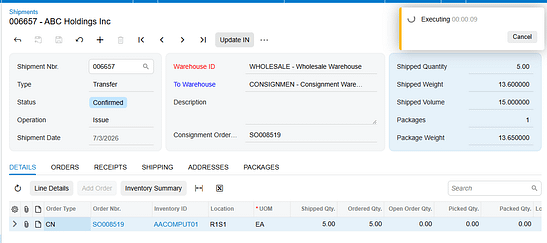
Proceed with the standard shipment confirmation process. Nothing here is special to consignment: warehouse staff pick, pack, and confirm exactly as they do for any Acumatica sales order. Confirming the shipment drives the consignment order status forward, so the order is not ready for the sell and return actions until at least part of it has been confirmed.
Step 6: Run Update IN
After the shipment is confirmed, open the Actions menu on the consignment order and click Update IN. This action reflects the consigned items in inventory. Until you run it, the goods have physically left but the Acumatica inventory records have not caught up, and the consignment-specific actions stay unavailable. Treat Update IN as a required step, not an optional refresh.
Once Update IN completes, the order carries a status of Consignment when all ordered quantities have shipped, or Partial Consignment when only part have gone out. Either status means Acumatica now recognizes the stock as sitting at the customer location and the order is ready to work.
Document Triggers: What Each Action Creates
Three actions on a consignment order generate documents elsewhere in Acumatica. Knowing which action produces which document tells you where to look when something did not appear.
Update IN Creates a Transfer-Type Purchase Receipt
When you run Update IN on a confirmed consignment order, the corresponding items and quantities are issued from the main warehouse and received into the selected consignment warehouse. Acumatica automatically generates and releases a Transfer-type purchase receipt to record the movement. Because the receipt is created and released for you, no separate step is needed; a missing receipt usually means Update IN was never run.
Consignment Sell Items Creates a Consignment Invoice Order
The Consignment Sell Items action opens the Item Selection pop-up, where you select the items and quantities the customer has sold. After clicking Add and Close, Acumatica generates a consignment invoice order with the specified warehouse, items, and quantities, using the Consignment Invoice Order Type from Sales Orders Preferences. Once that invoice is prepared and released, the Cons. Sold Qty. field on the original consignment order is updated. Note the timing: sold quantity moves on release, not when you click Add and Close.
Consignment Return Items Creates a Consignment Return Order
The Consignment Return Items action opens the same Item Selection pop-up, where you specify the items and quantities coming back from the customer. Clicking Add and Close generates a consignment return order. The return then follows a process similar to the original consignment order, including its own Update IN, which creates a purchase receipt. Returning consigned stock is not a one-click reversal in Acumatica; it is a second short document you work to completion.

Mapping Rules That Decide Where Consigned Stock Lands
Two rules govern the destination of consigned inventory in Acumatica, and understanding them prevents most rework on consignment sales orders.
The first rule is positional. A warehouse flagged with Use for Consignment can only be selected as the destination warehouse; a standard warehouse can only be selected in the lines. Acumatica enforces this rather than silently correcting it, so an order that will not save is usually an order with the warehouses transposed. The plain-language version: the consignment warehouse is never a source. Stock always originates from a normal warehouse you control and terminates in the consignment warehouse that represents the customer site.
The second rule is precedence. The Consignment Warehouse field on Sales Orders Preferences is selected automatically when a consignment order type is chosen, but the consignment warehouse associated with the selected customer overrides it. Because the customer value wins, changing the customer on a draft order can change the destination under you. With a single consignee the Preferences default may be all you need; add a second and the customer-level warehouse becomes the field that matters.
Validation and Common Exceptions
Most of what interrupts a user on a consignment order in Acumatica is not an outright failure but a control that refuses to do anything. Here is what the product enforces and what each block means.
The Warehouse Placement Error
If you select a consignment warehouse anywhere other than the destination, or a standard warehouse anywhere other than the lines, Acumatica displays an error message with the corresponding notification and the entry does not stand. The fix is always the same: consignment warehouse in the destination, standard warehouse in the lines.
The Sell and Return Buttons Are Greyed Out
The Consignment Sell Items and Consignment Return Items buttons are enabled under the Actions menu only after Update IN has run and the consignment order has a status of Consignment or Partial Consignment. An order still at Open, or one shipped but not updated, shows both buttons unavailable. When a user reports that they cannot sell consigned items, check the status first and Update IN second.
The Buttons Disable Again on a Closed Order
When all ordered items have been shipped and all shipped items sold or returned, the consignment order status changes to Closed. Item quantities and statuses are updated and the Consignment Sell and Consignment Return buttons are disabled again. This is expected Acumatica behavior, not a permission problem: nothing is left at the customer site to sell or reclaim. If the customer needs more stock, the answer is a new consignment order.
Item-Level Detail Disappears for Closed Orders
Consignment information is available through two Acumatica generic inquiries: Consignment Orders for order-level data and Consignment Item Details for item-level data. The Consignment Item Details inquiry no longer displays item-level information for consignment orders once they reach Closed status, while order-level information for those same orders remains available in Consignment Orders. Users who audit line detail will hit this, so it is worth stating plainly rather than letting it look like missing data.
Consignment Statuses Do Not Match Sales Order Statuses
The statuses of consignment orders and of regular sales orders are entirely distinct and unrelated. Open means the order exists but none of the ordered quantities have shipped. Consignment means all ordered quantities have shipped for consignment. Partial Consignment means some have shipped and others remain pending. Closed means all actions on the order are complete. Do not fold these into standard Acumatica sales order reporting; they function independently.
Where to Check Your Work
Before you hand a consignment order off as finished, walk this list in Acumatica. Each item names a specific field, check box, or document, so a colleague can repeat the check without your context.
1. Order Type on the Sales Orders (SO301000) form matches the Consignment Order Type set in Sales Orders Preferences.
2. Consignment Order Type and Consignment Return Order Type on Sales Orders Preferences (SO101000) were both created from the Transfer Order template, and Consignment Invoice Order Type from the Invoice Order template.
3. The Use for Consignment check box is selected on the Warehouses (IN204000) form for the warehouse you are consigning into.
4. The destination warehouse on the order is the consignment warehouse, and every line warehouse is a standard, non-consignment warehouse.
5. The consignment warehouse on the order matches the Consignment Warehouse on the customer record, not just the Sales Order Preferences default.
6. The shipment has been confirmed for the quantities you expect to be at the customer site.
7. Update IN has been run from the Actions menu after shipment confirmation.
8․ A Transfer-type purchase receipt exists showing the issue from the main warehouse and the receipt into the consignment warehouse.
9․ The consignment order status reads Consignment or Partial Consignment and matches how much of the order actually shipped.
10․ Cons. Sold Qty. on the consignment order has updated after the consignment invoice was released.
11․ For a return, Update IN has been run on the consignment return order and its purchase receipt exists.
12․ The order appears in the Consignment Orders generic inquiry, and its lines appear in Consignment Item Details while the order is still open.
Creating Consignment Sales Orders: Frequently Asked Questions
Why can I not select my consignment warehouse on the order lines?
Because the product does not allow it. A warehouse flagged with Use for Consignment can be selected only as the destination warehouse, while a standard warehouse can be selected only in the lines. Either one placed the other way around produces an error message in Acumatica. Move the consignment warehouse to the destination and put your own stocking warehouse on the lines.
Why are the Consignment Sell Items and Consignment Return Items buttons disabled?
Those actions become available only after Update IN has run and the consignment order carries a status of Consignment or Partial Consignment. If the order is still Open, or the shipment was confirmed but Update IN was never clicked, both buttons stay unavailable. They also disable permanently once the order reaches Closed status.
Why did no purchase receipt appear after I shipped a consignment order in Acumatica?
Confirming the shipment does not create the receipt on its own. The Transfer-type purchase receipt is generated and released automatically by the Update IN action on the Actions menu of the consignment order. If the receipt is missing, open the order and check whether Update IN has been run.
Why has Cons. Sold Qty. not increased after I used Consignment Sell Items?
Selecting items in the Item Selection pop-up and clicking Add and Close only generates the consignment invoice order. Cons. Sold Qty. on the consignment order updates once that invoice has been prepared and released. If the number has not moved, the invoice is most likely still unreleased.
Which warehouse wins, the one on the customer or the one in Sales Order Preferences?
The customer wins. The Consignment Warehouse on Sales Orders Preferences is the default selected automatically when you pick a consignment order type, but the consignment warehouse associated with the selected customer overrides it for that order. This is what lets one Acumatica tenant consign to many customer locations from a single configuration.
How do I return unsold consigned stock?
Use the Consignment Return Items action on the consignment order, select the items and quantities in the Item Selection pop-up, and click Add and Close. That generates a consignment return order, which you process much like the original consignment order. Running Update IN on the return creates its purchase receipt.
Why can I no longer see line detail for an old consignment order?
The Consignment Item Details generic inquiry stops displaying item-level information for consignment orders once they reach Closed status. This is by design rather than a data problem. Order-level information for those orders is still available through the Consignment Orders generic inquiry.
Do consignment order statuses mean the same thing as regular sales order statuses?
No. The statuses of consignment orders and regular sales orders are entirely distinct and unrelated, and they function independently within their own processes. Open, Consignment, Partial Consignment, and Closed describe only the consignment lifecycle, so do not interpret them against standard Acumatica sales order reporting.
Work With the Biz-Tech Services Consignment Processing Product
Creating a consignment sales order in Acumatica comes down to a short, repeatable sequence: pick the consignment order type, pick the customer, add the items, keep the consignment warehouse in the destination and the standard warehouse on the lines, confirm the shipment, and run Update IN. From there the order is a working record of what sits at the customer site. The Consignment Processing product from Biz-Tech Services, Inc. adds all of this to Acumatica ERP so your business can manage quantities and valuation of inventory across multiple consignee locations, see sold versus unsold quantities at a glance, and invoice or reclaim stock straight from the consignment order.
To see how Consignment Processing fits your inventory and order processes, or to talk through configuring consignment order types and warehouses for your Acumatica environment, visit https://biz-techservices.com to learn more and to contact the Biz-Tech Services team.
Watch the video tutorial https://www.youtube.com/watch?v=afFwt8-gZCM

