
Salesforce orders affect inventory allocation in Acumatica only through the sales order they create during import. The Salesforce integration documentation identifies the default warehouse, order type, item matching, and order status inquiry, but it does not document Acumatica allocation rules, available quantity calculations, lot or serial handling, or warehouse transfer behavior.
That distinction matters when a sales team expects a Salesforce order to reserve stock. The import can place the order in an Acumatica document type and default warehouse, while the inventory consequences depend on the Acumatica sales order configuration outside the supplied Salesforce documentation. This article explains the documented handoff and the checks a team should make before treating imported demand as allocated inventory.
What the Salesforce Order Import Documents
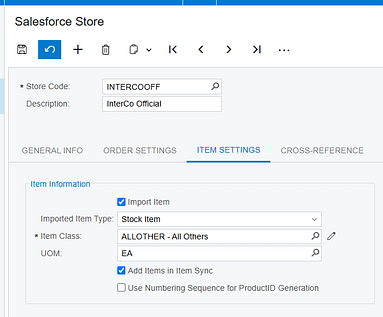
The Biz-Tech Services Salesforce Acumatica Connector provides Salesforce Store settings for order import. In Order Settings, the documented Default Import Options include Order Type and Warehouse ID. The Order Type indicates the document type where the order is imported and placed in Acumatica. Warehouse ID defines the default warehouse for the order.
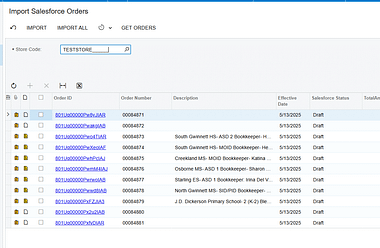
The documentation also says that Get Orders retrieves Salesforce orders related to the setup date in Order Settings. Import brings selected displayed orders into Acumatica, while Import All imports all displayed orders. The Salesforce Orders Inquiry then shows the initial Salesforce order details together with the Acumatica SO number and SO status.
Salesforce Inventory Handling at a Glance
Use the following sequence to understand what the integration documents and where Acumatica inventory processing begins.
1 Configure the Salesforce Store with an Order Type and default Warehouse ID
2 Set whether customers and items can be created during order import
3 Retrieve Salesforce orders with Get Orders based on the last imported order date
4 Import a selected order or all displayed orders into the configured Acumatica document type
5 Match an order item by Salesforce Product SKU to an Acumatica Inventory CD, or create the item if Import Item is enabled
6 Review the resulting SO number and SO status in Salesforce Orders Inquiry
7 Apply your Acumatica sales order and inventory policies to determine whether the imported demand is allocated, available, shipped, or otherwise processed
The Biz-Tech Services Acumatica Salesforce Connector supports the integration setup and import path above. The supplied manual does not say that Salesforce itself calculates, commits, or reserves Acumatica quantities.
Quantity Basis Starts With the Imported Sales Order
The source documentation explains how an item is found during an order import: the integration searches the Acumatica Inventory CD using the Salesforce Product SKU. If a matching inventory item is found, it retrieves that item. If no item is found and Import Item is not enabled, the documented error is “The item {0} does not exist in the system”.
This identifies the item matching basis, but not a quantity availability basis. The manual does not state which quantity fields are evaluated before import, whether Salesforce on-hand figures are sent to Acumatica, or whether a Salesforce quantity is checked against available inventory. A team should therefore avoid representing an imported order as inventory-confirmed until its Acumatica order and inventory settings have been reviewed.
If Import Item is selected, new items can be created in Acumatica based on configured settings. If it is not selected, the program prohibits import and creation of items unless the corresponding items already exist in Acumatica. Add Items in Inventory Sync enables synchronization with Salesforce items, but the source does not define inventory quantity synchronization or stock availability synchronization.
How the Default Warehouse Shapes the Imported Order
The Biz-Tech Services Salesforce Acumatica Integration documents Warehouse ID as the field used to define the default warehouse for an order. That is the clearest warehouse control described in the manual. It means the store setup supplies a warehouse value for imported orders, rather than the manual describing a warehouse selected from each Salesforce order.
The source does not describe multiple-warehouse selection, warehouse mapping tables, location-level assignment, branch-to-warehouse logic, or reallocation after import. It also provides no screen ID for the Salesforce Store, Import Salesforce Orders, or Salesforce Orders Inquiry screens. If a business has more than one fulfillment warehouse, it should validate the imported sales order in Acumatica and confirm that the configured default Warehouse ID is appropriate for the actual fulfillment process.
Allocation Is an Acumatica Policy Decision Not a Salesforce Import Setting
The Biz-Tech Services Acumatica Salesforce Integration does not document a setting called allocation, an allocation status, or a rule that reserves stock when an order is imported. It documents the order type and default warehouse that shape where the order is placed. Whether the resulting Acumatica sales order allocates inventory depends on Acumatica configuration and operational steps that are outside this Salesforce integration guide.
For that reason, use the imported SO number and SO status as the integration evidence, not as proof of allocated stock. The manual says these values are visible in Salesforce Orders Inquiry. It does not define which SO statuses indicate allocation, shipment, backorder, fulfillment, or release. Teams should establish their own Acumatica status and allocation checks with the inventory administrator.
Stock Visibility and Item Synchronization Limits
The Biz-Tech Services Salesforce Acumatica Integrator supports item-related operations through the Item Settings and Item Details areas. Load Acumatica Items retrieves Acumatica items and displays them in a table. Sync to Salesforce creates or updates Acumatica items in Salesforce. Sync All from Salesforce retrieves and creates Salesforce items in Acumatica.
Item Details includes the synced item Salesforce ID, product code, product name, price, and weight. Those fields support product record visibility. The documentation does not list on-hand quantity, available quantity, allocated quantity, safety stock, warehouse quantity, or a stock synchronization schedule. It therefore cannot support a claim that Salesforce inventory visibility is real-time, warehouse-specific, or based on allocated inventory.
Price books have separate behavior. The Price Book Details tab can load Salesforce price books based on Last Imported Price Book Date, and Export Salesforce Price Books sends only items that have been updated or changed. Price book activity should not be confused with stock synchronization because the source describes list prices and products, not inventory balances.
Reconciliation Checks After an Import
The Biz-Tech Services Acumatica Salesforce Integrator gives operations staff a documented path for reconciling the integration result. Start in Import Salesforce Orders, where Get Orders, Import, and Import All control the import process. Then select the Order ID hyperlink to open Salesforce Orders Inquiry and compare the Salesforce order details with the Acumatica SO number and SO status shown there.
1 Confirm the Salesforce Store Order Type and default Warehouse ID before retrieving orders
2 Confirm that the imported order received the intended Acumatica SO number and SO status
3 Review whether the Salesforce Product SKU matched an Acumatica Inventory CD or required item creation
4 Review customer behavior: Import Customer creates a new customer with email, contact information, and the selected customer class, while an unselected setting uses the default customer
5 Review shipping and billing addresses because the manual documents override checkboxes, but its opposite-case wording is contradictory
6 Use your Acumatica inventory process to verify availability and allocation because the Salesforce manual does not provide those checks
Order Updates Do Not Establish Inventory Reconciliation
Sync Orders To Salesforce can process updated imported order data from Acumatica back to Salesforce. At the line level, the guide says it can update line description, discount code, discounted amount, and added or deleted lines. At the document level, it can update addresses, country, order date, description, total, freight, discount, and tax amounts.
The Biz-Tech Services Salesforce Acumatica Integrator can therefore support order-detail updates back to Salesforce. However, the guide does not say that inventory allocations, warehouse changes, quantity availability, shipments, or fulfillment statuses are sent back. It also says only modified orders with On Hold or Open status are displayed on this screen. Use that documented filter when investigating a missing order, but do not infer a broader inventory synchronization rule.
How Salesforce Orders Affect Inventory Allocation in Acumatica Frequently Asked Questions
Does importing a Salesforce order allocate inventory in Acumatica?
The supplied Salesforce integration documentation does not state that import allocates inventory. It documents the order type, default Warehouse ID, item matching, and the resulting SO number and SO status. Confirm allocation through your Acumatica sales order and inventory configuration.
Which warehouse is used for an imported Salesforce order?
The Salesforce Store Order Settings documentation says Warehouse ID defines the default warehouse for the order. The manual does not describe warehouse mapping by Salesforce order, multiple warehouses, or location-level handling.
How does the integration identify the item on a Salesforce order?
It searches the Acumatica Inventory CD using the Salesforce Product SKU. If it cannot find the item and item import is not enabled, the source documents the error The item {0} does not exist in the system.
Can Salesforce show Acumatica available quantity or allocated quantity?
The source does not document an available quantity, on-hand quantity, allocated quantity, or inventory balance synchronization feature. It documents item IDs, product code, product name, price, and weight.
Where can I verify that an order was imported?
Use the Order ID hyperlink on Import Salesforce Orders to open Salesforce Orders Inquiry. The guide says that inquiry shows initial Salesforce order details along with the Acumatica SO number and SO status.
Why did an item fail to import from Salesforce?
When Import Item is not selected, the item must already exist in Acumatica. The documented matching uses Salesforce Product SKU against the Inventory CD, and the guide gives the missing-item error text.
Can a changed Acumatica order be sent back to Salesforce?
Yes, the guide documents Sync Orders To Salesforce for selected imported order changes. It limits the displayed modified orders to On Hold or Open status and does not document inventory allocation or shipment updates.
Work With the Biz-Tech Services Salesforce Acumatica Connector
A reliable process separates what the Salesforce import is documented to do from what Acumatica inventory policy must decide. Configure the default warehouse and order type carefully, validate the imported SO number and SO status, and use Acumatica controls to confirm availability and allocation before promising fulfillment.
For help aligning Salesforce order imports with your Acumatica warehouse and inventory process, work with the Biz-Tech Services Salesforce Acumatica Connector team. Visit https://biz-techservices.com to learn more about Biz-Tech Services integrations.

