
EZCom EDI Acumatica Connector Configuration Checklist
Scaling a wholesale or retail business often means stepping into the world of major retail partners. While these partnerships bring high-volume orders, they also introduce the complexity of Electronic Data Interchange, or EDI. You might find your team buried under a mountain of manual data entry, trying to reconcile purchase orders from retail portals with your internal accounting records. When your shipping notices and invoices do not reach your partners in real time, you risk chargebacks and damaged relationships. We at Biz-Tech Services know that for your business to thrive, your back office must communicate with your retail partners without friction.
The Biz-Tech Services, Inc EZCom Connector for Acumatica is the specialized bridge built to solve this problem. It connects EZCom EDI with your ERP system. This Biz-Tech Services, Inc EZCom Acummatica integration is managed by an intermediate server that we control, ensuring a secure and stable flow of data between your business and the EZCom platform. To help you prepare for a successful integration, we have developed a practical configuration checklist to guide your pre-launch journey.
The Essential Technical Foundation
Your journey begins with the technical setup within your ERP environment. First, your business must install the customization project using the specialized deployment package provided for Acumatica. This process uses the customization projects form to modify your application and add the logic necessary for EDI communication. Once the package is published to your database, you must establish secure communication.
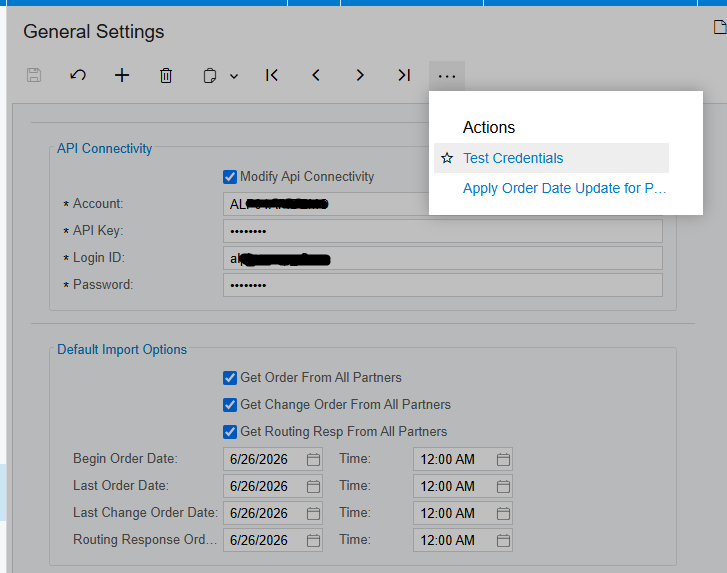
The second technical requirement is the configuration of your connectivity credentials. You will need to provide your account details and a unique Application Programming Interface, or API, key for each of your retail websites. Your team must also enter the login and password for your EZCom admin panel to authorize the connection. We always recommend using the Test Credentials feature to verify the connection between Acumatica and our intermediate server. This simple validation ensures the digital pathway is clear before you attempt to move any live order data.
Mapping Your Business Rules and Partners
Once the connection is established, your business must define how it will interact with each trading partner. You begin by retrieving your list of partners from the EZCom system. For each partner, you must select the default order type, such as a specialized sales order category, that will be used when new purchase orders are imported. You also need to define which order statuses in EZCom should trigger an import into Acumatica.
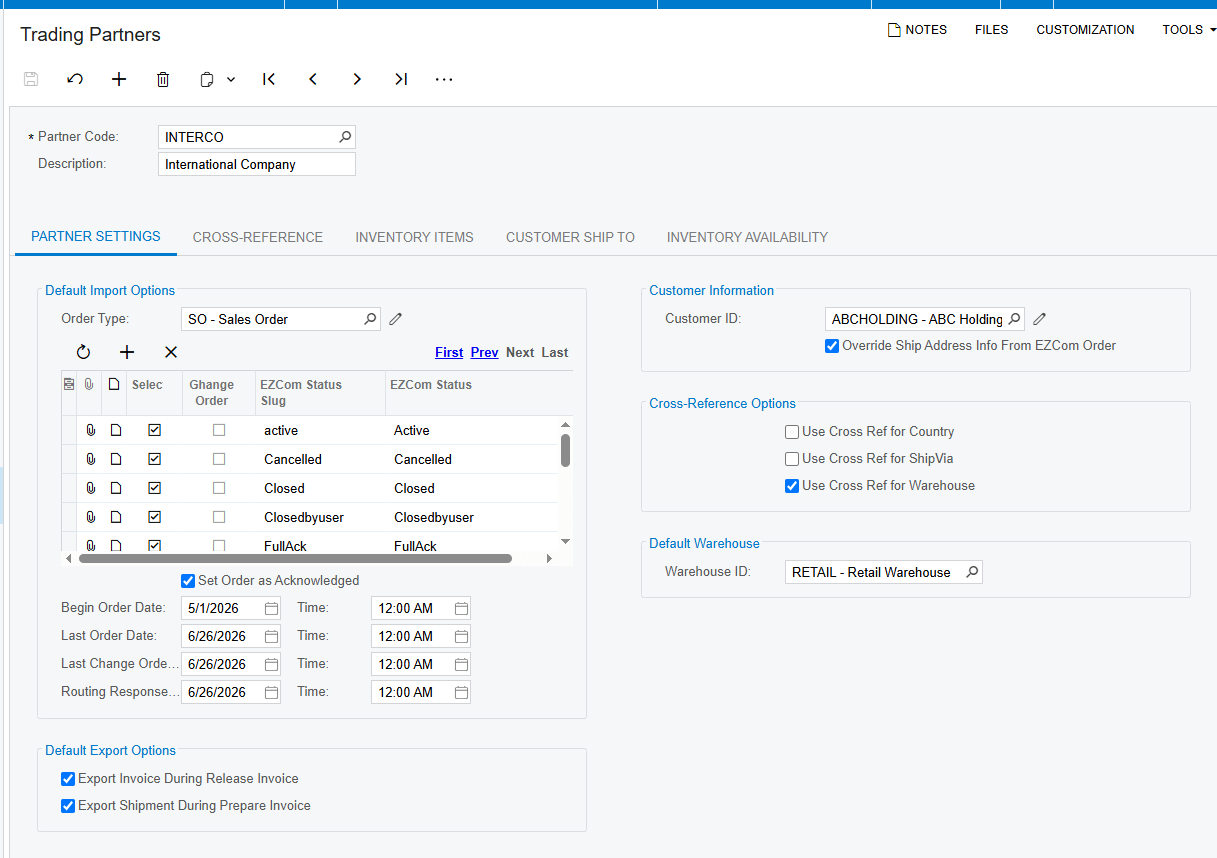
A critical part of this checklist is setting up your date filters. You must establish a beginning order date to ensure the system only retrieves the records you are ready to process. Additionally, you should decide if orders should be automatically acknowledged during the import process. If you choose this automation, the system will mark the order as closed in the warehouse portal without requiring manual intervention from your staff.
The Core Configuration Checklist for Data Accuracy
For the Biz-Tech Services, Inc Acumatica EZCom integration to work smoothly, your data must be perfectly synchronized. This requires a detailed mapping of several key entities.
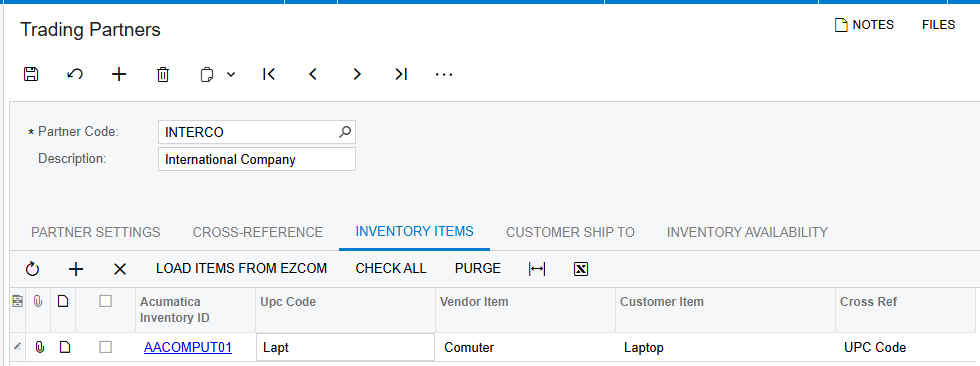
First, you must address your inventory items. Every product in your retail partner’s system must correspond to an inventory ID in Acumatica. You can choose to match these items using a Universal Product Code, or UPC, a vendor item number, or a specific customer item number. If these items are not mapped correctly, the system will generate an error during the order import process to prevent data corruption.
Second, your business must configure cross-references for shipping and location data. This includes mapping your warehouse IDs so the system knows exactly which physical location should fulfill each order. You must also map your Ship Via methods to ensure that when a partner requests a specific carrier service, your warehouse team sees the correct internal shipping code. Third, you need to define your customer identification logic. You can set the system to search for matching parent and child customer accounts based on the location number provided in the EDI data, ensuring that financial records are always associated with the correct entity.
Streamlining Shipping and Financials
The final phase of your checklist involves setting the rules for outbound communication. Your business should decide when invoices and shipments are sent back to the retail partner. You can configure the system to automatically export an invoice the moment it is released in Acumatica. Similarly, you can set the system to send shipment notifications as soon as the shipping labels and documentation are prepared.
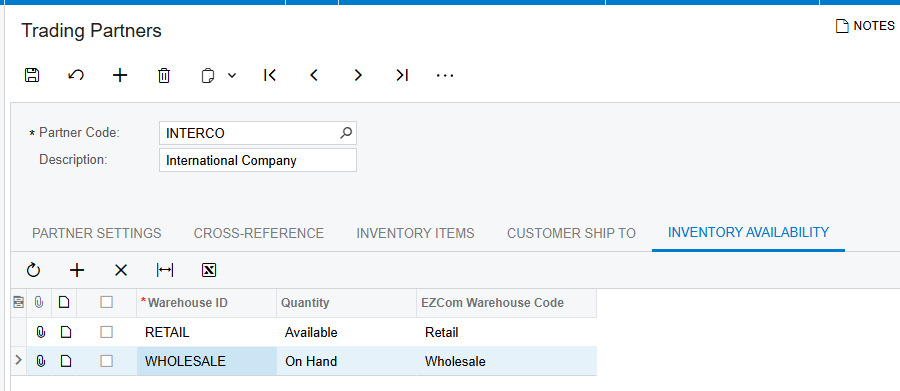
If you prefer more control, you can leave these automated triggers off and manage outbound data through dedicated processing screens. Furthermore, you must configure your inventory availability settings. By mapping your Acumatica warehouses and selecting your quantity options, such as On Hand or Available, you ensure that your retail partners always have an accurate view of what you have in stock.
Launching with Confidence
This Biz-Tech Services, Inc integrator is designed for operations managers who need to eliminate manual errors and business owners who want to scale their retail partnerships. By following this structured configuration checklist, you ensure that your shipping, inventory, and accounting departments are all working from a single, automated source of truth.
If you are ready to remove the complexity of EDI from your daily operations, we invite you to visit biz-techservices.com to learn more or to schedule a personalized demo of the Biz-Tech Services, Inc EZCom Acumatica integration.

