
How to Import ServiceTitan Invoices into Acumatica
Importing ServiceTitan invoices into Acumatica starts on the Import SO Invoices screen, where records are retrieved by updated date and selected status, then created in the Invoices and Memos screen. With the right store options in place, the same process can also bring in taxes, customers, addresses, terms, general ledger accounts, items, and payment information.
This guide focuses on the invoice task itself: the settings that control eligibility, the processing sequence, what happens when payment timing differs, and the places to validate the result. The Biz-Tech Services ServiceTitan Acumatica Connector supports this controlled path from a ServiceTitan invoice to the related Acumatica document.
Before You Start: What Must Be Configured
The Biz-Tech Services Acumatica ServiceTitan Connector depends on a correctly configured ServiceTitan Store. The source documentation calls this store the foundation of the integration and says that no data can be imported when it is not set up correctly. For a broader setup walkthrough, see the sibling article *How to Set Up ServiceTitan in Acumatica*.
1. Enter the credentials generated in ServiceTitan on the Connection Settings tab of ServiceTitan Stores screen, then use Test Credentials to test the application programming interface (API) connection.
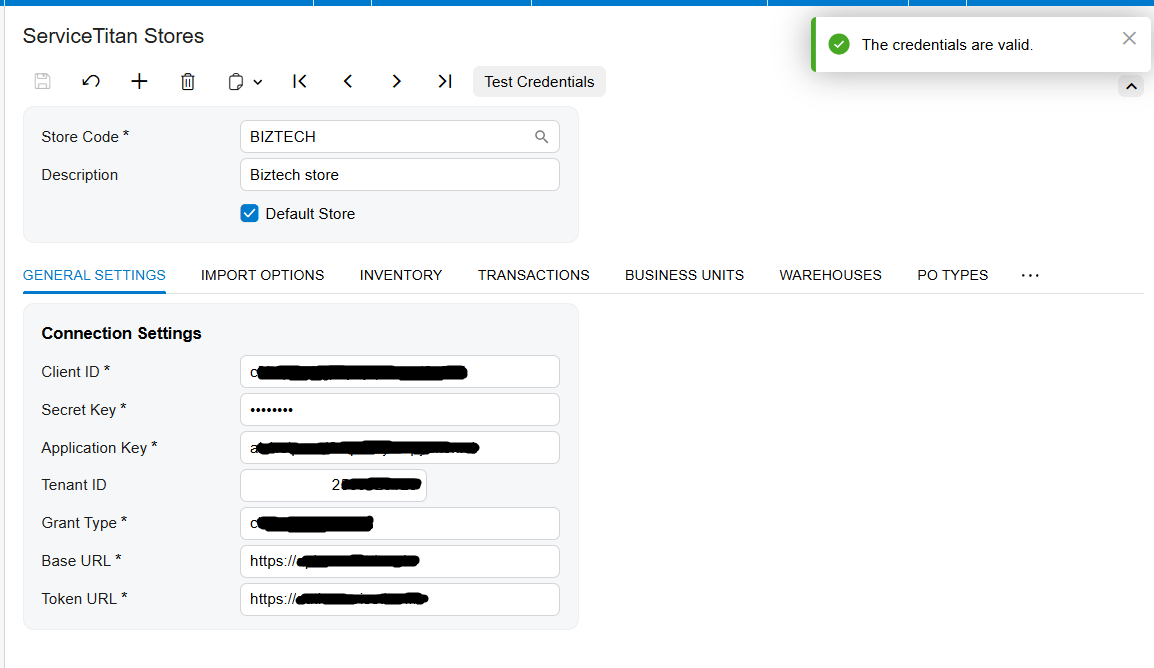
2. Set the Store Code and description. If this is the default store, select Default Store so its code appears automatically on processing screens.
3. Enable Activate Invoice and select the ServiceTitan statuses eligible for import.
4. Set Begin Invoice Date. Review Last Invoice Date, which records the date related to the last invoice import.
5. Enable the tax option when ServiceTitan invoices with taxes should be imported.
6. Enable Activate Payment when invoice payment information should come across. Select the Acumatica payment or prepayment type and decide whether payments should be released after import.
7. Choose whether to import customers. If customer import is disabled, the invoice uses the default customer; if it is enabled, a missing customer can be created using the default customer class.
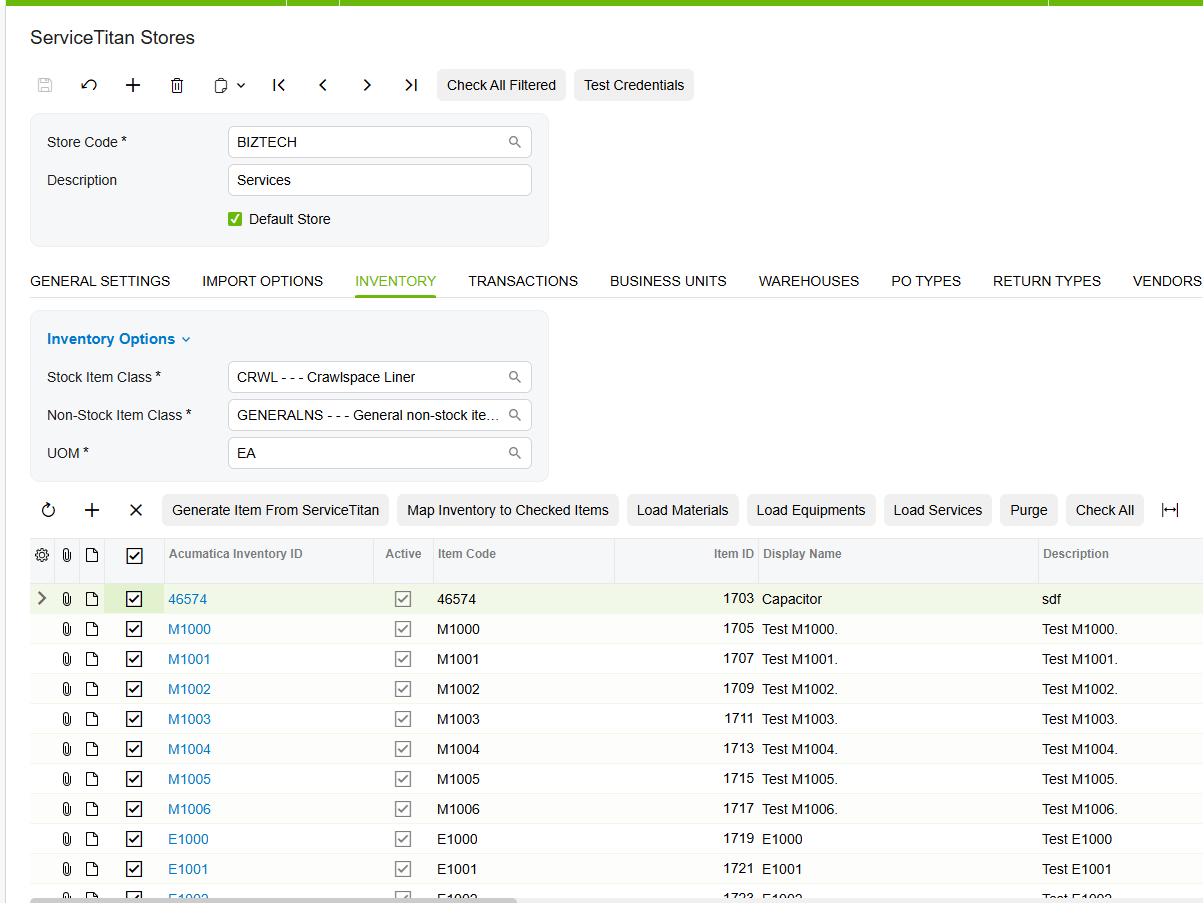
8. Prepare term and general ledger account mappings. If item import is enabled, either configure generated stock and non-stock items or map ServiceTitan items manually.
The configuration checklist in *ServiceTitan Acumatica Integration Configuration Checklist* covers the full store setup. For this invoice procedure, concentrate on invoice status, dates, taxes, payments, customer behavior, and the mappings that populate the resulting Acumatica document.
How to Import ServiceTitan Invoices into Acumatica, Step by Step
The Biz-Tech Services ServiceTitan Acumatica Integration turns the documented settings into a repeatable invoice-processing sequence. Work through the import in this order so that each result can be checked before the next batch.
Step 1: Confirm the store and invoice import window
Open the ServiceTitan Store record used by the process. Confirm that Activate Invoice is enabled, the intended invoice statuses are selected, and Begin Invoice Date is set to the correct starting point. Because retrieval is based on updated date and selected status, these values define which ServiceTitan invoices are candidates for the processing screen.
Step 2: Confirm which related data should be created
Review the tax, payment, and customer options before importing. Activate Payment controls whether payment information accompanies the invoice. The payment type determines whether imported payments are created as payments or prepayments in Acumatica, while Release Payment After Import controls whether those payment documents are released after creation.
For customers, decide whether the import should use the default customer or create a missing customer. When customer creation is active, the default customer class supports that process. The billing and shipping address override checkboxes control whether invoice address information is imported into Acumatica.
Step 3: Retrieve invoices on the Import SO Invoices screen
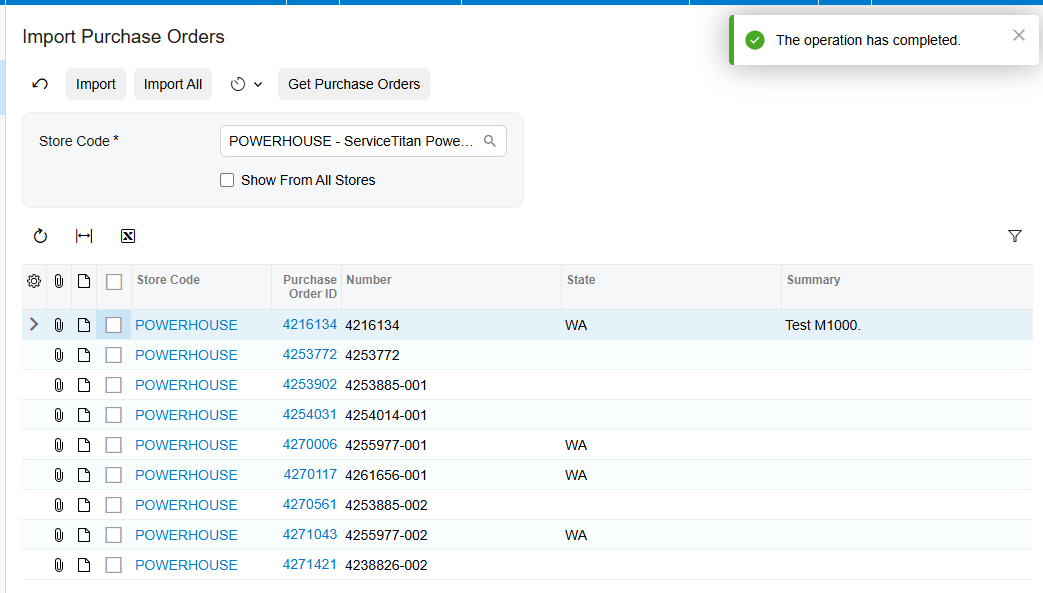
Use the Import SO Invoices screen to retrieve ServiceTitan invoices. The connector filters the records according to the configured updated date and selected status. Review the processing list before starting the import so that the batch matches the intended date and status scope.
Step 4: Process the selected invoice records
Process the selected records. Each imported invoice is created in the Acumatica Invoices and Memos screen. When the invoice includes a payment at retrieval time, the invoice and payment are imported together, and the payment is applied on the Applications tab of the invoice.
Step 5: Reconcile the invoice and payment result
After processing, open the created invoice in Invoices and Memos. If a payment arrived with it, verify the applied payment on the Applications tab. The corresponding payment ID should no longer appear on the Import Invoice Payments screen because that payment was handled during invoice import.
Document Triggers: What Each Action Creates
The records created in Acumatica depend on what ServiceTitan data is available when each processing action runs.
1. Invoice retrieved without a payment: the import creates the invoice in Invoices and Memos.
2. Invoice retrieved with a payment: the import creates both records and applies the payment on the invoice Applications tab.
3. Invoice already imported, payment imported later: the payment process locates the existing invoice and applies the payment to it.
4. Payment imported before the invoice: when the invoice is imported later, the system matches that payment to the corresponding invoice.
5. Payment processed separately: the Import Invoice Payments screen can import it as a deposit or after the invoice already exists.
These are invoice and payment triggers. They are separate from the purchase order workflow, where ServiceTitan purchase orders must be imported before related receipts or bills can be imported independently.
Mapping Rules That Decide What Appears on the Invoice
The imported invoice reflects a combination of store options and mappings rather than a single fixed layout. Review these rules when a document is created but its values are unexpected.
Customer and address rules
When Import Customer is not selected, ServiceTitan invoices use the default customer. When it is selected, a customer missing from Acumatica can be created, using the configured default customer class. The Override Bill Address Information from Invoice and Override Ship Address Information from Invoice options allow invoice billing and shipping addresses to be imported.
Country, terms, and account rules
Country names are passed to Acumatica in International Organization for Standardization (ISO) country code format. Term mappings pair ServiceTitan values with Acumatica terms, and account mappings pair ServiceTitan and Acumatica general ledger (GL) accounts. The source notes that Country Options become invisible when Activate Payment is selected.
Item rules
When Import Item is selected, Generate Item from ServiceTitan becomes available. Materials and Equipment create stock items, while Service creates non-stock items, using the configured stock item class, non-stock item class, and unit of measure (UOM). Manual item mapping is also available instead of generation.
Branch scope
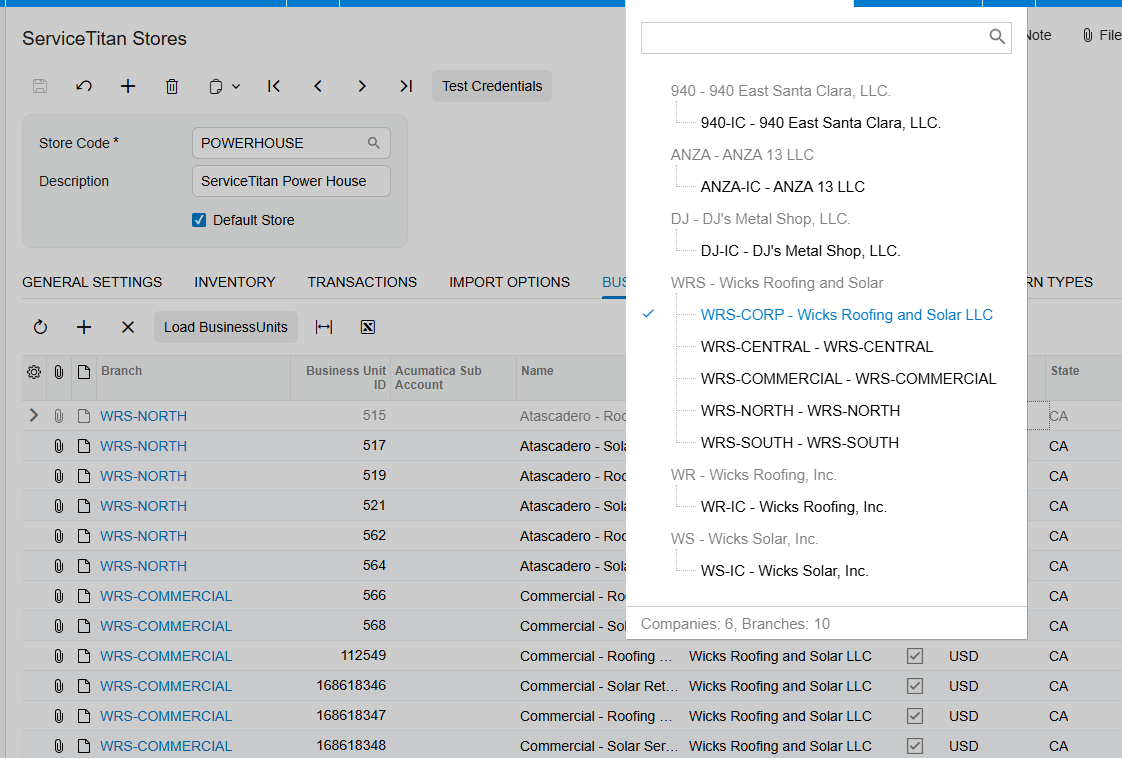
Do not treat the documented Branch field for the bills import process as an invoice setting. The source explicitly says that field is used only when bills are imported and Bills and Adjustments documents are created. Branches can be mapped with Business Units.
Validation and Common Exceptions
Validate the batch by comparing the processing result with the configured rules. The documentation explains the expected invoice and payment outcomes, but it does not provide a catalog of invoice-specific error messages. Avoid inventing error text; use the checks below to isolate the documented causes of an unexpected result.
1. No invoice appears for processing: confirm the ServiceTitan Store is valid, Activate Invoice is enabled, the selected status matches the record, and the begin and last invoice dates define the intended range.
2. The invoice uses the default customer: check whether Import Customer is disabled. That behavior is documented when customer import is not selected.
3. A missing customer was not created as expected: confirm Import Customer and the default customer class.
4. Billing or shipping details did not come from the invoice: review the corresponding address override checkbox.
5. A payment did not accompany the invoice: confirm Activate Payment and whether the payment was available when the invoice was retrieved.
6. An imported payment is not released: review Release Payment After Import.
7. A payment ID remains on Import Invoice Payments: confirm whether invoice processing actually handled and applied that payment.
8. Terms, accounts, or items are unexpected: review the relevant mapping or item-generation options rather than changing the invoice import window.
Where to Check Your Work
The Biz-Tech Services Acumatica ServiceTitan Integration provides several documented checkpoints for confirming an invoice import:
1. ServiceTitan Store – verify the Store Code and Default Store selection.
2. Connection Settings tab – test the ServiceTitan API credentials.
3. Invoice Import Options – confirm Activate Invoice and the selected invoice statuses.
4. Begin Invoice Date and Last Invoice Date – confirm the retrieval window.
5. Tax Options – confirm whether invoices with taxes are enabled for import.
6. Import Payment Options – confirm Activate Payment, Payment Type, and Release Payment After Import.
7. Customer Information – confirm Import Customer, default customer, default customer class, and address override choices.
8. Terms and Account Options – confirm the ServiceTitan-to-Acumatica mappings.
9. Import SO Invoices – review the records retrieved by updated date and selected status.
10. Invoices and Memos – open the created invoice and inspect its Applications tab.
11. Import Invoice Payments – confirm whether a payment remains for separate processing or was removed after invoice import.
How to Import ServiceTitan Invoices into Acumatica: Frequently Asked Questions
Which Acumatica screen receives an imported ServiceTitan invoice?
The invoice is created in the Invoices and Memos screen. The source documentation does not provide a screen ID for this screen.
How does Acumatica decide which ServiceTitan invoices to retrieve?
The Import SO Invoices screen retrieves records based on updated date and the statuses selected in the ServiceTitan Store settings. Begin Invoice Date and Last Invoice Date provide the documented date controls.
What happens when a ServiceTitan invoice includes a payment?
The invoice and payment are imported together. The payment is applied on the invoice Applications tab, and its payment ID is removed from Import Invoice Payments because it has already been processed.
Can a ServiceTitan payment be imported after its invoice?
Yes. The Biz-Tech Services ServiceTitan Acumatica Integrator locates the corresponding imported invoice and applies the later payment automatically.
What if the payment reaches Acumatica before the invoice?
When the invoice is imported afterward, the system matches the existing payment with the corresponding invoice.
Why did an invoice import with the default customer?
That is the documented behavior when Import Customer is not selected. Enable customer import when missing customers should be created, and configure the default customer class used by that process.
Why is the imported payment not released?
Review Release Payment After Import on the ServiceTitan Store. The documentation says that selecting it releases payments after import.
Does the source list invoice import error messages?
No. It describes expected behaviors and settings but does not list invoice-specific error messages. Validate the store, date and status filters, payment availability, and mappings before escalating an unexplained failure.
Work With the Biz-Tech Services ServiceTitan Connector
A reliable invoice import comes from a focused routine: configure the ServiceTitan Store, retrieve the correct date and status range, process invoices, and reconcile payments and mappings in the documented Acumatica screens.
If your team wants help configuring or validating this workflow, the Biz-Tech Services Acumatica ServiceTitan Integrator team can help you plan the import and confirm the resulting documents. Visit https://biz-techservices.com to learn more about Biz-Tech Services and discuss your ServiceTitan-to-Acumatica requirements. Subscribe to https://www.youtube.com/@biz-techservicesinc.670 YuoTube channel for weekly trainin materials.

