
How to Track Consignment Inventory at Customer Locations in Acumatica
Tracking consignment inventory at customer locations in Acumatica requires a clear link between the customer, the consignment warehouse, the shipped quantity, the sold quantity, the returned quantity, and the remaining open balance. Biz-Tech Services Consignment Processing keeps those values connected so users can see where company-owned stock is located and reconcile what the customer still holds.
The operational model is simple: inventory leaves a standard warehouse, enters a designated consignment warehouse, and remains there until the customer sells it or returns it. Acumatica records each transition through consignment orders, transfer-type purchase receipts, invoice orders, return orders, and physical inventory documents.
What Consignment Inventory Tracking in Acumatica Does
Consignment Processing manages the location, quantity, and valuation of inventory held at consignee locations. It distinguishes sold stock from unsold stock, supports invoices for consumed items, and returns unsold items directly from the original consignment order. The customer location and warehouse assignments determine where inventory is tracked.
Consignment Inventory Flow at a Glance
1. Designate an Acumatica warehouse for consignment use and assign the applicable warehouse to the customer.
2. Create a consignment sales order using the configured consignment order type and a standard source warehouse on each line.
3. Confirm the shipment and run Update IN to move quantities into the destination consignment warehouse.
4. Use Consignment Sell Items to invoice quantities sold or consumed by the customer.
5. Use Consignment Return Items to move unsold quantities back through a consignment return order.
6. Use a consignment physical inventory count to compare Book Qty with Physical Qty and generate an invoice for the difference.
7. Monitor order status and open quantities until every shipped unit has been sold or returned and the order closes.
Configure the Consignment Warehouse and Customer Location
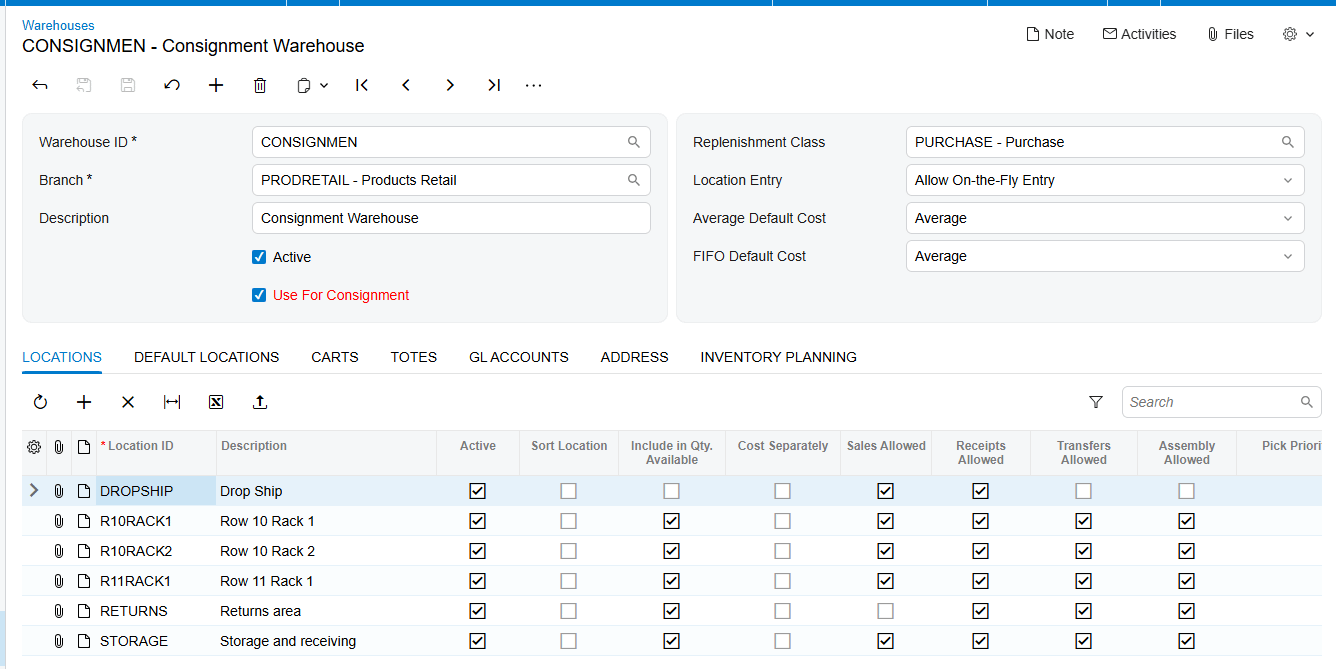
The warehouse is the location anchor for consignment inventory. On Warehouses form IN204000, the Use for Consignment checkbox marks a warehouse as eligible for the Consignment Warehouse field in Sales Order Preferences SO101000. The configured default warehouse is selected when a consignment order is created.
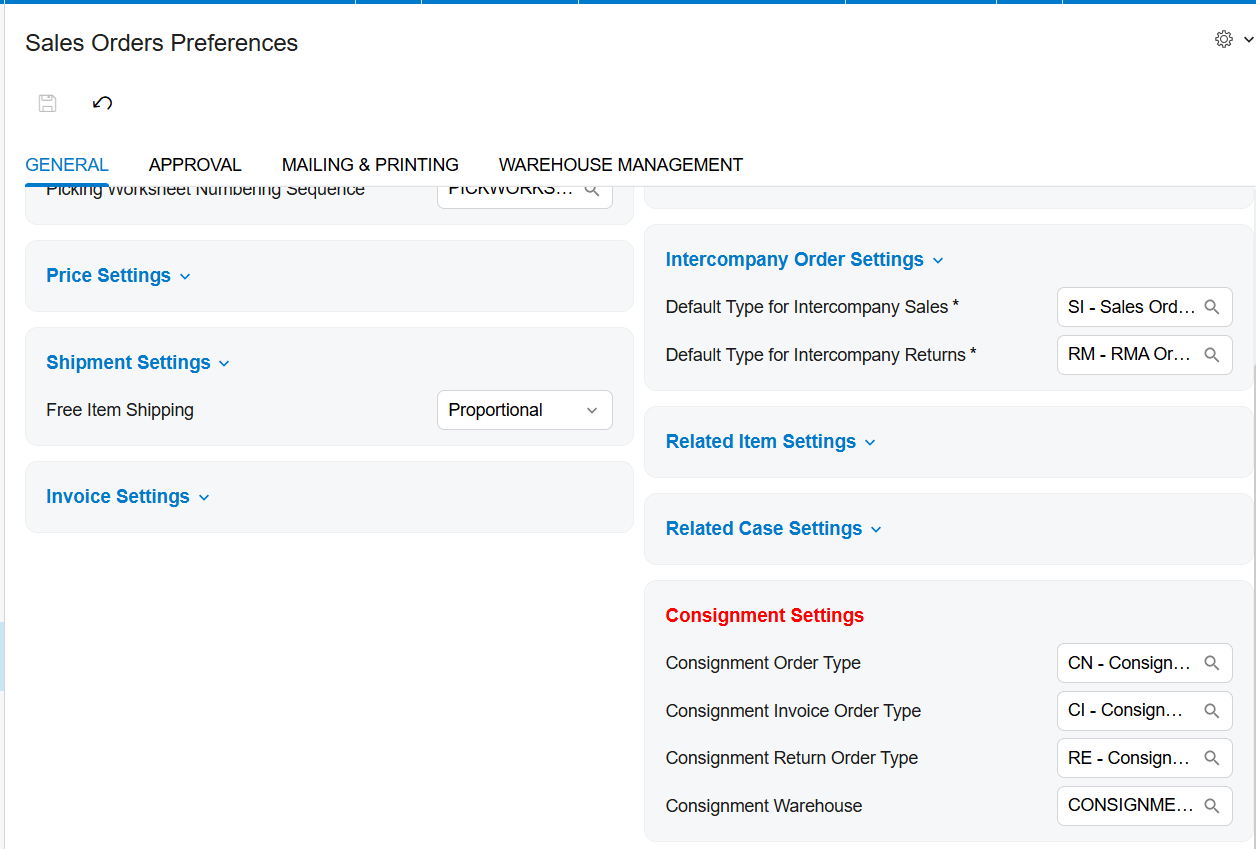
A customer-specific consignment warehouse overrides the default from Sales Order Preferences. This precedence matters when one business serves multiple customer locations. Each customer should point to the warehouse that represents the physical consignee location being tracked.
The warehouse roles are intentionally separated. A consignment warehouse can be used only as the destination warehouse, while a standard non-consignment warehouse can be used only on the order lines. Acumatica displays an error when those roles are reversed.
Move Inventory from the Main Warehouse to the Customer Location
The consignment order begins on Sales Orders with the configured Consignment Order Type. The source documentation uses CN as its example. Users select the customer, add the items and quantities, then complete shipment confirmation.
After shipment confirmation, Update IN performs the inventory transition. The system issues the items from the main warehouse and receives them into the selected consignment warehouse. It also automatically generates and releases a transfer-type purchase receipt. This receipt is the inventory evidence that the quantity moved from internal stock to the customer location.
Why Update IN is a critical control point
A confirmed shipment alone does not complete the documented consignment inventory update. Users should verify that Update IN was executed and that the transfer-type purchase receipt exists and was released. If those records are missing, the physical stock may have moved while the Acumatica balance has not reached the consignment warehouse.
Understand Open Consignment and Partial Consignment Quantities
The consignment order status communicates how much of the ordered quantity has reached the customer location. Open means none has shipped. Consignment means all ordered quantities have shipped and are now consignment inventory. Partial Consignment means only part has shipped and some quantity remains pending. Closed means all shipped items have ultimately been sold or returned.
When the order is in Consignment or Partial Consignment status, the Consignment Sell Items and Consignment Return Items actions become available. These status gates help prevent users from selling or returning quantities before Acumatica recognizes them as consigned inventory.
Track Sold Quantities and Consignment Invoices
Consignment Sell Items opens an Item Selection window where users choose the items and quantities sold by the customer. Add and Close generates a Consignment Invoice Order with the selected warehouse, items, and quantities. After the invoice is prepared and released, the Cons. Sold Qty. on the original consignment order is updated.
Cons. Sold Qty. is the main sold-inventory field. Reconcile it against released consignment invoices rather than treating a created invoice order as final. The quantity update occurs after invoice preparation and release, so unreleased documents can explain a difference between what users selected and what the original order reports.
Track Unsold Quantities and Consignment Returns
Consignment Return Items uses the same selection concept for stock the customer did not sell. After users select items and quantities, Acumatica creates a Consignment Return Order. The return follows a process similar to the original consignment order, including Update IN and creation of a purchase receipt.
Return reconciliation should confirm the selected return quantity, the generated return order, the Update IN action, and the purchase receipt. The order cannot close until every shipped unit has been accounted for as sold or returned.
Reconcile Customer Location Stock with Physical Inventory
Physical inventory provides the strongest reconciliation control for consignment stock held outside the company warehouse. On Physical Inventory Types IN208900, create a type with Consignment Inventory Count selected. The Customer and Location fields then become available and should identify the consignee being counted.
On Prepare Physical Count, select the consignment physical inventory type. Acumatica displays the relevant inventory IDs and Book Qty. For consignment counts, Book Qty is the sum of Open Qty from the Item Selection windows of related consignment orders for the selected customer and warehouse.
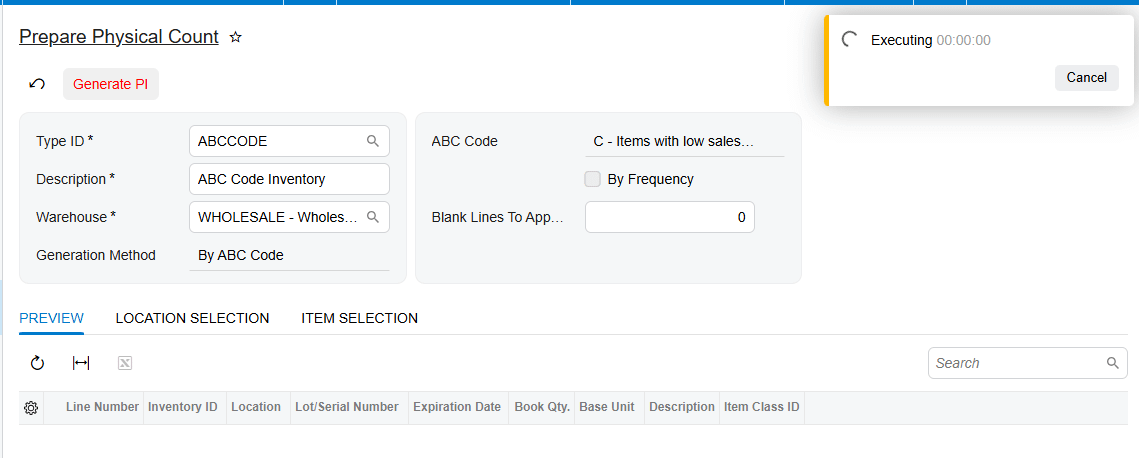
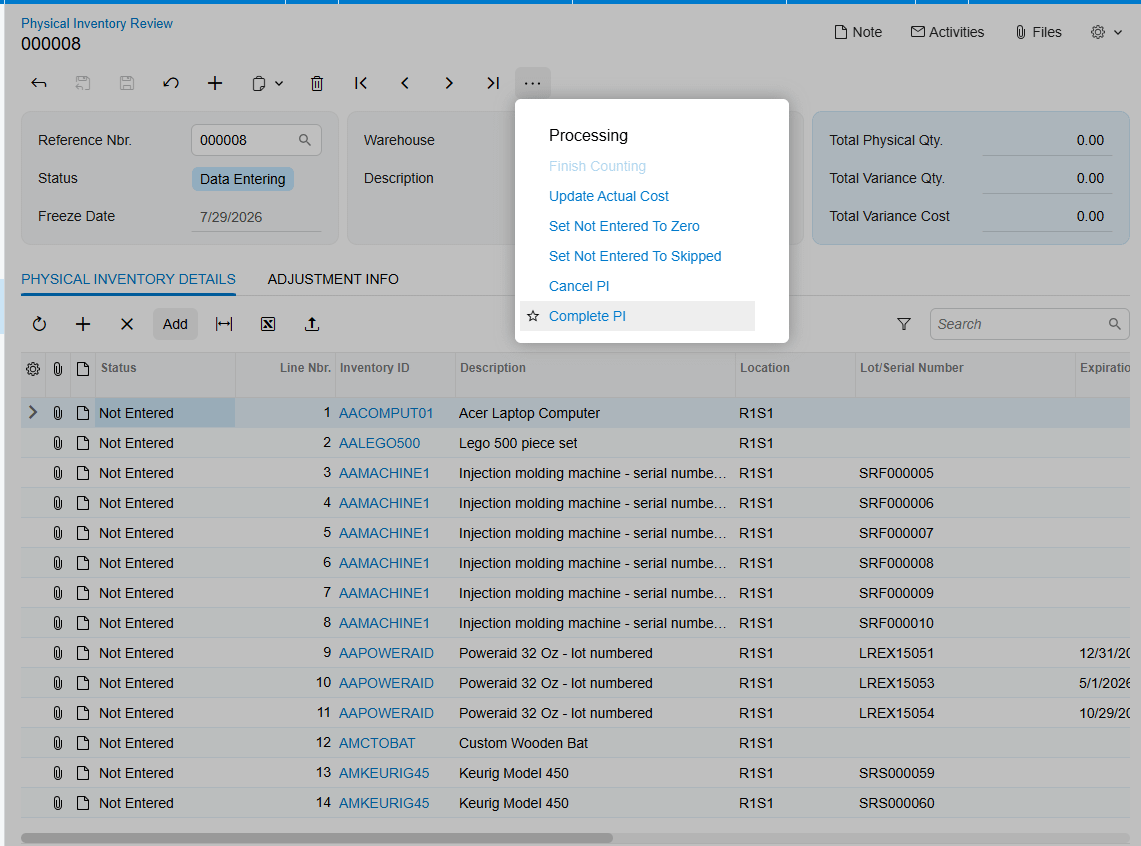
Generate PI opens Physical Inventory Review. Users enter the actual count in Physical Qty., finish counting, and complete the physical inventory. Acumatica then creates a Consignment Invoice Order based on the recorded physical quantities using the standard Consignment Sell Item process. After releasing the invoice, verify that Open Qty on the original consignment order reflects the new balance.
Where to Monitor Consignment Inventory in Acumatica
1. Sales Order Preferences: Consignment Order Type, Consignment Invoice Order Type, Consignment Return Order Type, and default Consignment Warehouse.
2. Warehouses IN204000: Use for Consignment and the distinction between destination and source warehouses.
3. Customer setup: the customer-specific consignment warehouse that overrides the system default.
4. Consignment order: ordered quantities, shipped quantities, Cons. Sold Qty., Open Qty., and Open, Consignment, Partial Consignment, or Closed status.
5. Transfer-type purchase receipt: source, destination, quantity, and released status after Update IN.
6. Consignment Invoice and Return Orders: selected warehouse, item quantities, document status, and release result.
7. Consignment Orders generic inquiry: order-level history, including closed orders.
8. Consignment Item Details generic inquiry: active item-level consignment balances; closed orders are no longer displayed here.
9. Physical Inventory Review: Book Qty., Physical Qty., generated invoice, and resulting Open Qty.
Consignment Inventory Tracking in Acumatica Frequently Asked Questions
Why is the wrong consignment warehouse appearing on an order
A warehouse assigned to the customer overrides the default Consignment Warehouse in Sales Order Preferences. Review the customer assignment first, then verify that the warehouse has Use for Consignment selected.
Why are Consignment Sell Items and Consignment Return Items disabled
Those actions become available after Update IN when the order reaches Consignment or Partial Consignment status. Confirm the shipment, run Update IN, and verify the resulting transfer-type purchase receipt.
How is Book Qty calculated for a consignment physical count
Book Qty is the sum of Open Qty from the Item Selection windows of related consignment orders for the selected customer and warehouse.
When does a consignment order close
The order closes after all ordered items have shipped and every shipped item has been sold or returned. The sell and return actions are then disabled.
Improve Consignment Inventory Visibility with Biz-Tech Services
Accurate consignment inventory depends on consistent customer warehouse assignments, timely Update IN processing, released sell and return documents, and regular comparison of Book Qty with Physical Qty. Biz-Tech Services Consignment Processing brings those controls into Acumatica.
To learn more about tracking inventory at customer locations with Acumatica Consignment Processing, visit https://biz-techservices.com

