
How to Manage Kit Component Inventory in Acumatica
Managing kit component inventory in Acumatica starts with the kit specification, then continues through component quantities, warehouse selection, availability checks, allocation, purchasing, assembly, shipment, and receipt reconciliation. The Biz-Tech Services Kit Processing product for Acumatica exposes those component-level controls from the order workflow so users can see and adjust the inventory records that actually fulfill a kit.
This guide concentrates on inventory, warehouse, and quantity handling. It complements the configuration overview in Kit Processing Configuration Checklist for Acumatica, the lifecycle described in How Kit Processing Works in Acumatica from Order Entry to Fulfillment, and the order-entry procedure in How to Create Sales Orders with Kit Items in Acumatica.
What Kit Component Inventory Means in Acumatica
A kit is defined by a specification and revision. The specification can contain stock components, non-stock components, option components, substitute items, and even child kits. When a kit explodes, Acumatica replaces the kit line with a non-stock placeholder and adds its components to the document. Inventory control therefore depends on the component lines, while the placeholder preserves the kit-level commercial line without representing physical inventory.
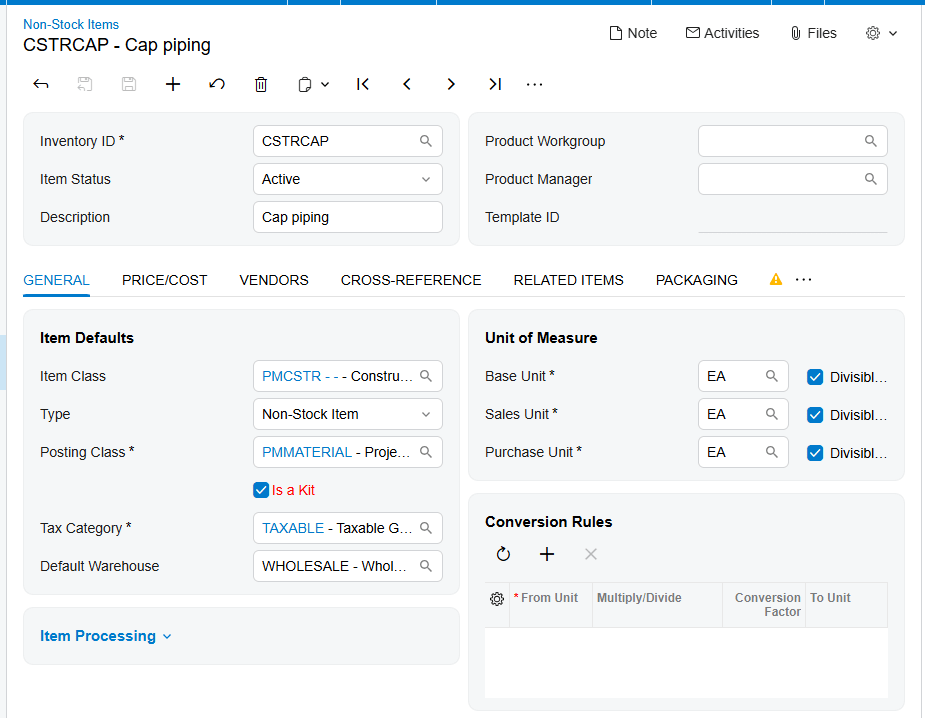
The Kit Assembly feature must be enabled on Enable/Disable Features (CS100000) to use kit specifications and assembly documents. A kit specification can be created only for an item marked as a kit on Stock Items (IN202500) or Non-Stock Items (IN202000). The active specification, its Revision ID, and Current Revision setting determine which component definition is available for processing.
Kit Component Inventory at a Glance
Use this sequence to keep component demand and inventory evidence aligned:
1. Confirm that the kit specification is active and that the intended revision is current.
2. Review the stock, non-stock, option, nested-kit, and substitute components that can appear for the kit.
3. Set the kit quantity or use Load Components to explode the kit into the placeholder and component lines.
4. Open Component Details to review or change each component Quantity and Warehouse.
5. Compare Qty. Available, Qty. Avail for Shipping, and Qty. on Hand before committing shipment quantities.
6. Choose the shipping rule that matches whether partial component availability is acceptable.
7. Create a purchase order for a component when required quantity must be replenished, or generate a kit assembly for an eligible stock kit.
8. Reconcile the component lines against shipments, purchase receipts, inventory receipts, assembly links, and invoices.
Establish the Quantity Basis Before You Allocate Components
The kit quantity drives component demand when the kit explodes. The documentation also identifies a Sales Orders Preferences setting called Not Calculate Component Quantities. When enabled, quantity calculation in Sales Orders is based on the quantity specified for the kit itself. Because the manual does not provide a numeric formula or worked example for this setting, test it with a representative kit revision before relying on it in production.
After explosion, the Component Details window remains the operational place to adjust Quantity and Warehouse. If Allow Edit Exploded Kit Component is selected in the Biz-Tech Kit Processing Settings section of Sales Orders Preferences, users can manually edit component quantities and delete component lines on Sales Orders. The same setting in Purchase Orders Preferences allows quantity control and deletion on Purchase Orders.
Quantity also affects purchasing. To create a purchase order from Component Details, select Mark for PO for the component and click Create PO. The required quantity must have a value. The purchase order uses the component Default Vendor ID, and components with the same vendor are grouped into one purchase order.
Use Component Availability to See Stock Before Shipping
Sales Orders Preferences controls which inventory facts appear in Component Details. Show Qty. Available exposes available quantity, Show Qty. Avail for Shipping exposes quantity available for shipment, and Show Qty. on Hand exposes physical quantity on hand. These values answer different questions, so users should not treat them as interchangeable.
The Component Availability settings can also show information about the next receipt. Show Information About Next Receive can be supplemented with Show Next Receive Type and Show Next Receive Ref. Number. The calculation may include receipt documents, transfer documents, open purchase orders, purchase order receipts, and purchase order transfers through the Inc. In Receipt, Inc. In Transfer, Inc. PO, Inc. PO Receipt, and Inc. PO Transfer options.
These indicators provide the documented stock-visibility layer for Kit Processing. The source does not define the underlying Acumatica availability calculation, its time horizon, or site-level inclusion rules, so use the displayed values as operational evidence and validate unexplained differences through the referenced receipt, transfer, or purchase document.
Map Warehouses at the Component Level
A kit can represent several physical items, and those items may need warehouse decisions of their own. After kit explosion, users can change the Warehouse for components in Component Details. This makes the component row the correct level for confirming where fulfillment inventory will come from.
Warehouse selection also appears in kit assembly. On the Kit Assembly screen, select the Inventory ID, specification revision, warehouse, and desired quantity. The assembly document includes required stock components with quantities and costs calculated from the selected revision, and users can add or remove components before releasing the assembly.
The documentation does not describe an automatic warehouse-mapping hierarchy, split-warehouse rules, or transfer creation when a component is unavailable at the selected warehouse. Treat warehouse mapping as a controlled user decision and verify each component line before shipment or assembly release.
Control Allocation and Partial Shipment Behavior
Components Qty. Is Required for Kit Item Ship determines how component availability constrains shipment. Its Ship Available Qty. option allows the kit or placeholder line to permit back orders and creates a shipment for the minimum component quantity without requiring every component needed for the full kit quantity.
Ship Ordered Qty. requires all components to be allocated and available based on the kit quantity; nothing ships until that condition is met. The third documented option sets the line to allow back orders without requiring component quantity to be available for shipping. The manual does not give a name for that third option.
If a component has zero quantity, the kit is not set to allow back orders, and the component-quantity requirement is selected, Acumatica displays an error. The source does not reproduce the exact message. For a non-stock kit that contains a stock option item, set Explode Option to Automatically so the stock option can be allocated during shipment.
Replenish or Assemble When Components Are Short
A component shortage can lead to purchasing or assembly, depending on the kit and the intended workflow. From Sales Orders, Mark for PO and Create PO produce a component purchase order. If the purchase order or its lines are deleted, the PO number is removed from Component Details. That link is useful when reconciling replenishment to the original kit demand.
When purchasing a kit item on a Purchase Order, the kit can be exploded by Load Components or by assigning a quantity. After its components are received, releasing the purchase receipt automatically generates an inventory receipt. Reconcile the received component quantities and the resulting inventory receipt before treating the stock as replenished.
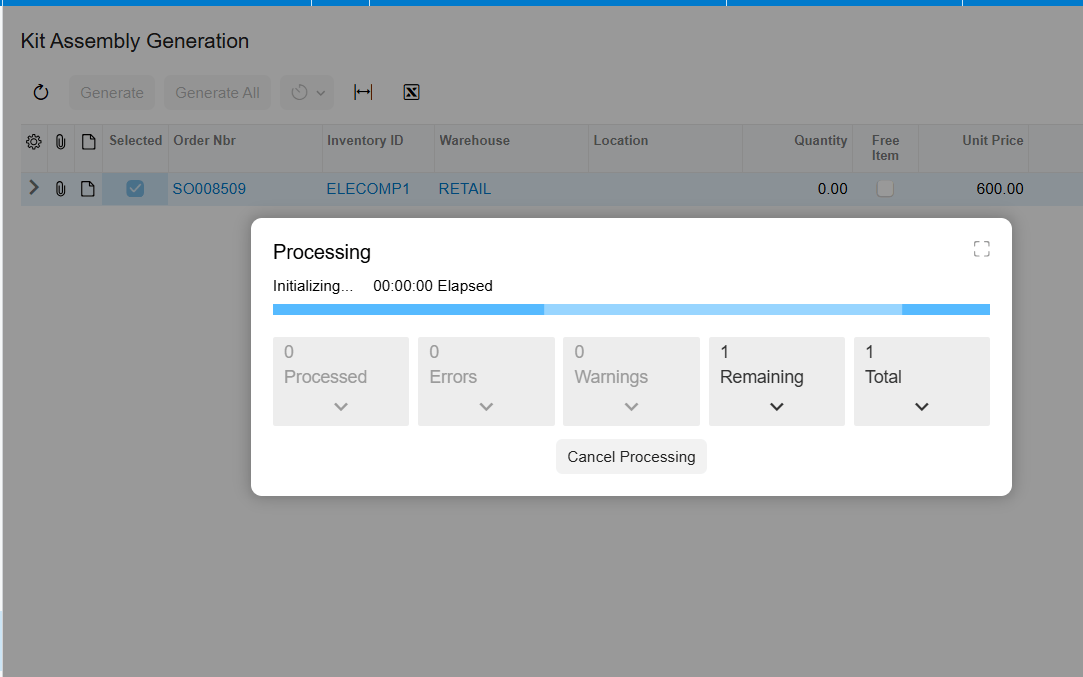
For an eligible stock kit, assembly can be created directly on the Kit Assembly screen or generated from Sales Orders before explosion when Allow Kit Assembly Generation is enabled. On Sales Orders, select Mark for Kit Assembly and run Generate Kit Assembly. The resulting link appears in the Kit Assembly field, and the assembly Orders tab shows the linked sales order. Mark for assembly is disabled for non-stock kits.
Reconcile Components, Costs, and Fulfillment Documents
After explosion, compare the placeholder and component lines with the specification revision. Confirm that component quantities and warehouses match the intended fulfillment plan, and use the availability fields to explain what can ship now and what depends on the next receipt.
The placeholder displays Total Cost of Components, calculated from each component Unit Cost at the time the Sales Order is created multiplied by Quantity. The documentation says that unit cost remains unchanged and that the total carries to the invoice. This creates a stable comparison point for order-to-invoice review, even when the operational component quantities are edited.
For partial shipments with Use Kit Default Price, the first shipment invoice receives the total kit price and the remaining items are invoiced at zero. When Invoice After Full Shipment is enabled, partial shipment is allowed but the placeholder is invoiced only after all components ship. Review the chosen preference before treating a zero amount or delayed placeholder invoice as a discrepancy.
Where to Monitor Kit Component Inventory in Acumatica
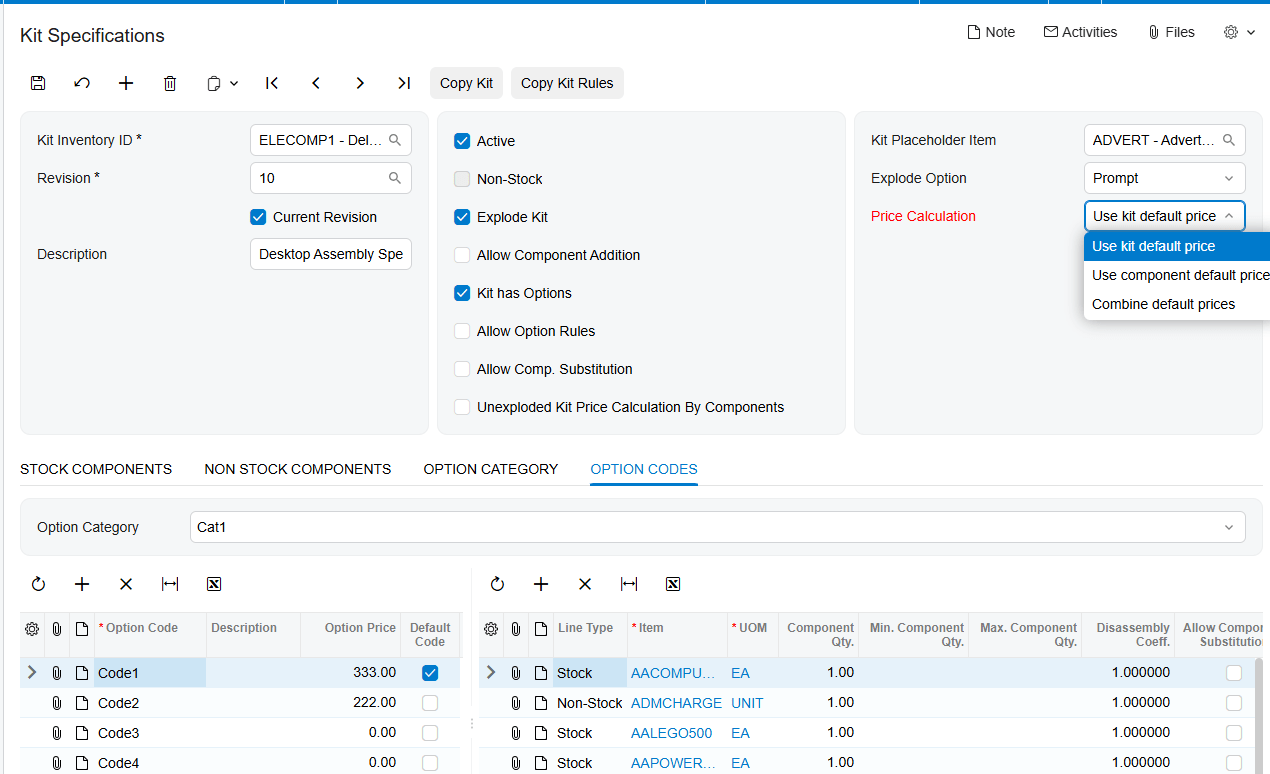
1. Kit Specifications: Kit Inventory ID, Revision ID, Current Revision, Active, stock components, non-stock components, option codes, and substitutions.
2. Stock Items (IN202500) and Non-Stock Items (IN202000): confirm that the inventory record is marked as a kit.
3. Sales Orders Preferences: Not Calculate Component Quantities and the Component Availability display settings.
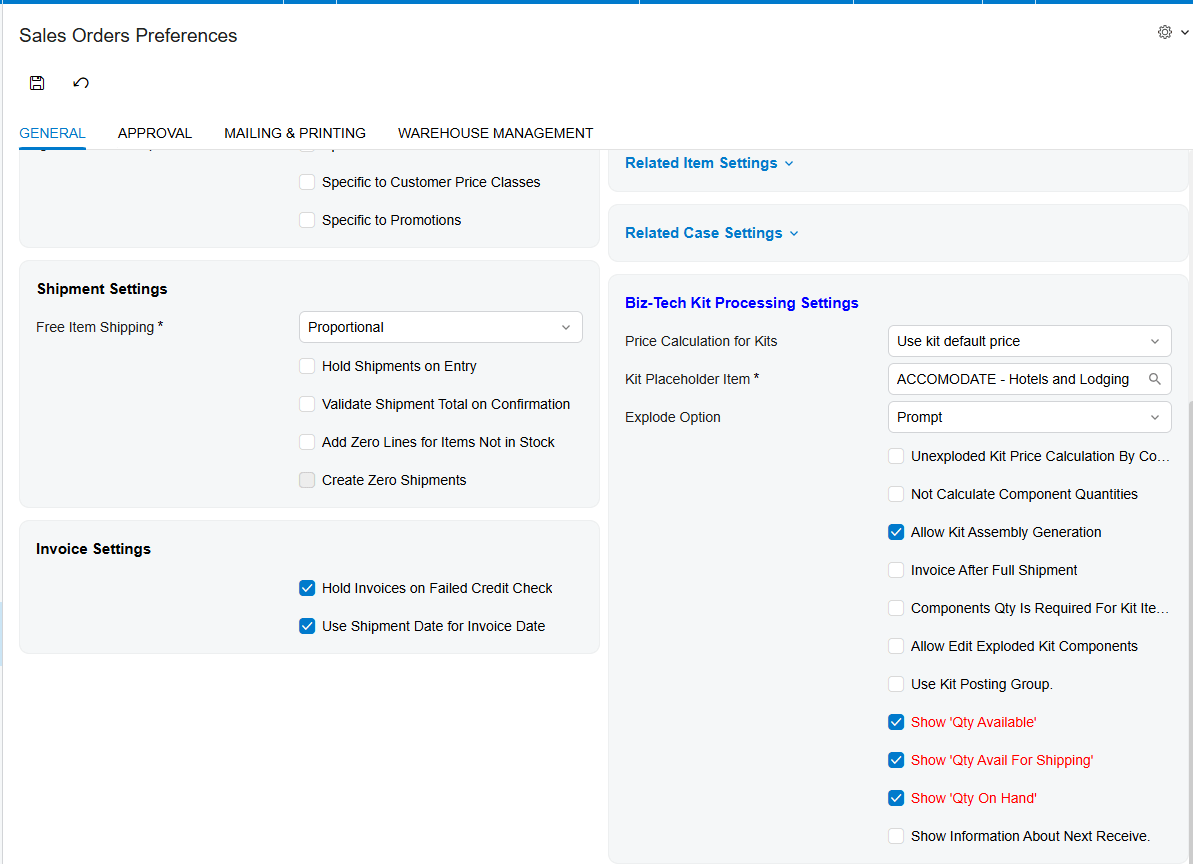
4. Sales Orders Preferences: Components Qty. Is Required for Kit Item Ship and its shipping option.
5. Component Details: component Quantity, Warehouse, Qty. Available, Qty. Avail for Shipping, and Qty. on Hand.
6. Component Details: next receive type, reference number, date, and quantity when those fields are enabled.
7. Component Details: Mark for PO and the resulting PO number for replenishment traceability.
8. Sales Orders Details: Kit Assembly link after Generate Kit Assembly runs.
9. Kit Assembly: Inventory ID, revision, warehouse, desired quantity, stock component quantities, costs, and linked order.
10. Purchase Receipt and automatically generated inventory receipt: confirm received component quantities reached inventory.
11. Shipment and invoice: compare shipped component quantities, placeholder timing, and Total Cost of Components.
Kit Component Inventory in Acumatica: Frequently Asked Questions
Which quantity should I check before shipping a kit?
Review Qty. Avail for Shipping for shipment readiness, while retaining Qty. Available and Qty. on Hand for context. The selected shipping option then decides whether partial quantities are acceptable or all ordered component quantities must be allocated.
Can I change a component warehouse after the kit explodes?
Yes. The documentation states that after explosion users can change Quantity and Warehouse in Component Details. Confirm the availability values again after changing the warehouse.
Why will Acumatica not ship the kit when one component is short?
Ship Ordered Qty. requires all components to be allocated and available for the kit quantity. If the business permits partial fulfillment, review Ship Available Qty. and the back-order settings.
Why does a zero-quantity component cause an error?
The source says an error appears when Components Qty. Is Required for Kit Item Ship is selected, a component has zero quantity, and the kit is not set to allow back orders. It does not provide the exact error text.
How can I see when a missing component is expected?
Enable the next-receive information in Sales Orders Preferences, including type and reference number as needed. Configure which receipt, transfer, purchase order, purchase receipt, and purchase transfer documents contribute to that view.
Can I edit component quantities after explosion?
Yes, when Allow Edit Exploded Kit Component is enabled for the applicable Sales Order or Purchase Order workflow. The setting also permits deletion of exploded component lines.
How do I replenish a component directly from the kit order?
Before explosion, select Mark for PO for the component in Component Details and click Create PO. A required quantity and the component Default Vendor ID are needed for the documented process.
How do I reconcile an assembled kit to its sales order?
Open the link in the Kit Assembly field on the Sales Order Details tab. On the Kit Assembly screen, the Orders tab displays the linked sales order number.
Work With the Biz-Tech Services Kit Processing Product
Reliable kit fulfillment depends on seeing component inventory at the point where quantities, warehouses, allocation rules, receipts, and shipment documents meet. Biz-Tech Services can help configure and test the Kit Processing controls that make those decisions visible in Acumatica.
If your team needs help aligning kit specifications, component availability, warehouse choices, replenishment, and fulfillment controls, visit https://biz-techservices.com to learn more about Biz-Tech Services and Kit Processing for Acumatica. Watch the https://www.youtube.com/watch?v=sP89DBTxCJU video for more details and subcribe to Youtube channel.

