
How to Sync Magento Inventory with Acumatica
Biz-Tech Serives Acumatica Magento Connector gives Acumatica users a controlled way to send inventory quantities to Magento while keeping item identity, warehouse scope, and sellable quantity rules explicit. A reliable setup starts by choosing which Acumatica warehouses contribute stock, selecting the quantity basis that Magento should receive, and confirming that each synchronized item has both a Magento Product SKU and an Acumatica Inventory ID.
This guide explains the inventory workflow documented for the connector: how items become eligible for quantity export, how warehouse quantities are combined, how stock visibility is managed, where quantity checks protect invoice processing, and how to reconcile the two systems without assuming behavior that the product documentation does not define.
Inventory sync at a glance
1. Connect the Magento store and open its settings in Acumatica.
2. Choose the Acumatica warehouses whose quantities should be synchronized.
3. Select On Hand, Available, or Available for Shipment as the quantity basis.
4. In Inventory Details, select and save the items to include, then confirm Magento Product SKU and Acumatica Inventory ID values.
5. Use Export Magento Inventory Quantities to review the Magento Quantity value and run Sync for selected items or Sync All for the displayed list.
6. Monitor item identity, warehouse scope, quantity basis, publication status, and invoice quantity-check results; investigate differences before the next run.
How Magento Connector determines inventory quantity
Choose the quantity basis
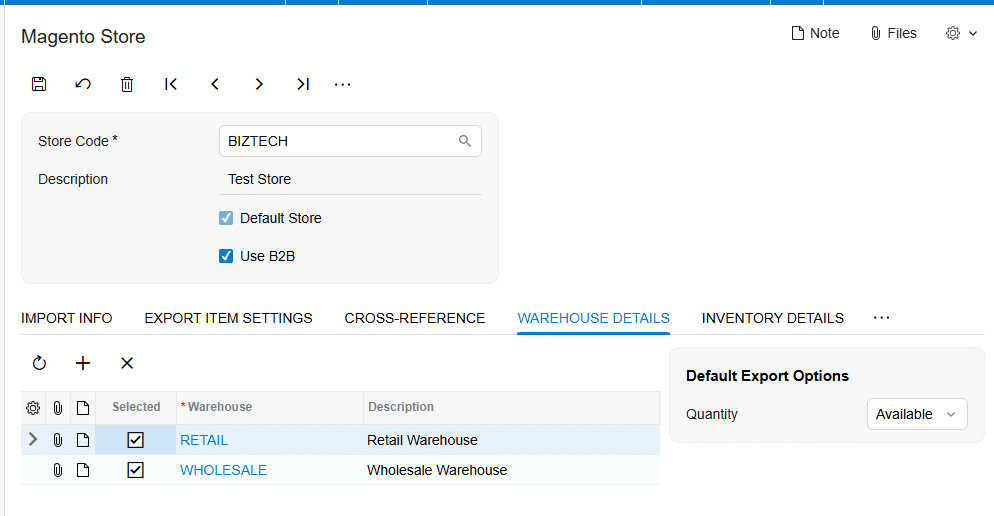
The Warehouse Details area of the Magento Store configuration provides three documented quantity choices: On Hand, Available, and Available for Shipment. The selected value determines which Acumatica quantity is synchronized to Magento. This setting matters because the three measures answer different inventory questions. On Hand reflects physical stock, while Available and Available for Shipment reflect Acumatica availability measures. The connector documentation does not redefine those measures, so their exact values remain governed by the Acumatica inventory configuration and transactions in the implementation.
Choose one basis that matches the business promise made on the storefront. If Magento should show a more operationally constrained quantity than physical stock, evaluate the documented availability choices in Acumatica and confirm the result with representative items before broad synchronization.
Define the warehouse scope
Warehouse Details is also where users identify the warehouses whose quantities need to be synchronized with Magento. When one or more warehouses are selected, the exported item quantity is the sum across those selected warehouses. That rule makes warehouse selection a central part of storefront availability: adding or removing a warehouse changes the quantity pool that can be presented to Magento.
The Magento Store settings also include a Warehouse ID used as the default warehouse on orders imported from Magento. The documentation presents this order warehouse setting separately from the Warehouse Details list used for quantity export. Review both settings together so the stock offered online and the warehouse assigned to imported orders make operational sense, while recognizing that the manual does not state that they must be identical.
Establish item identity before quantity sync
Select and save items in Inventory Details
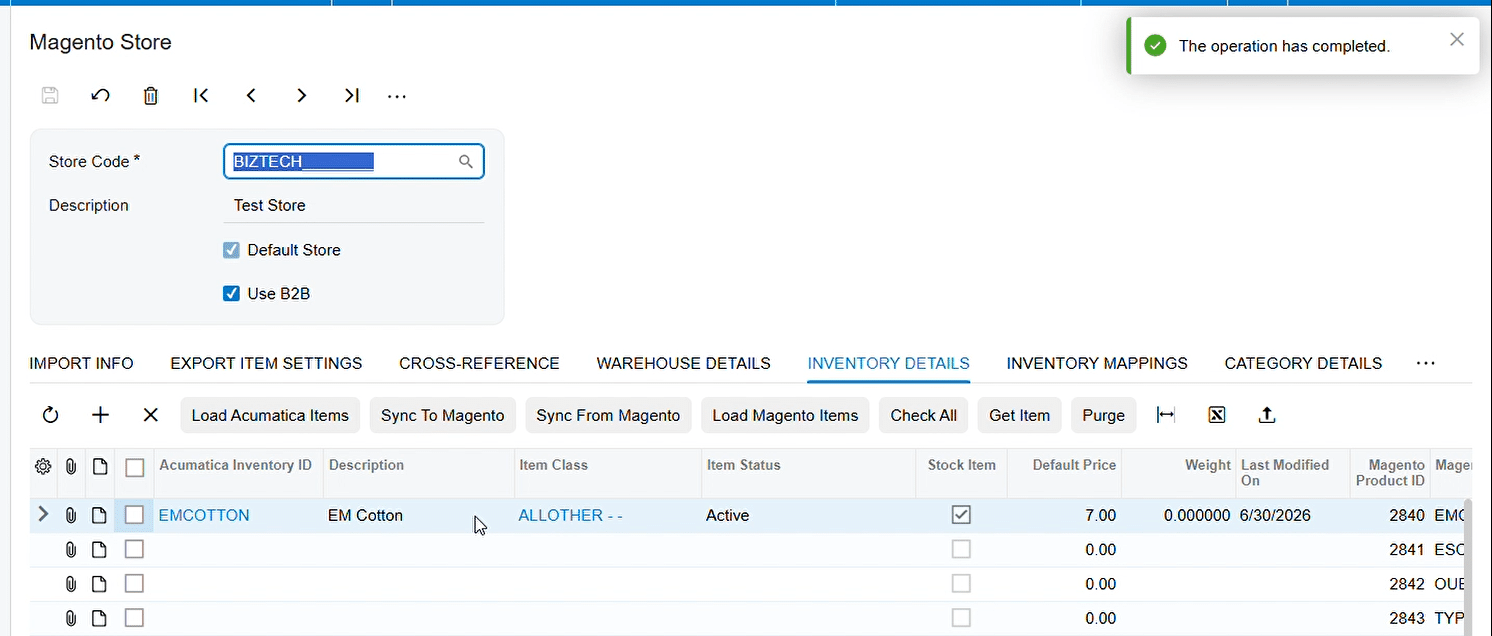
The Export Magento Inventory Quantities screen does not automatically list every Acumatica item. First, use the Inventory Details tab on the Magento Store screen to choose the required items, select their checkboxes, and save. The Magento Product SKU and Acumatica Inventory ID fields must also be set. Only after these steps do the items appear for inventory quantity export.
This prerequisite creates a useful reconciliation key. The Magento Product SKU connects the storefront product to the Acumatica inventory record, while the Acumatica Inventory ID identifies the ERP item. Validate both values when an expected item is missing or when a quantity appears to update the wrong product.
Understand item creation and matching
Inventory Details can load Acumatica stock and non-stock items, load Magento items, synchronize items in either direction, and publish or unpublish selected products. When an Acumatica item is synchronized to Magento and a new Magento item is created, Magento generates a unique product ID. The connector displays that ID in the Magento Store and on the stock item’s Magento Inventory tab. The Export Magento Items process likewise records the Magento Product ID and marks the Magento Item checkbox after synchronization.
During Magento order import, item matching uses the Magento product SKU to search for an Acumatica Inventory CD. If the item is not found, the result depends on configuration: Import Item can allow creation according to the configured item type, item class, warehouse, and unit of measure; when item import is disabled, the connector can use a configured replacement item, or it reports that the item does not exist. These order-import controls support clean item identity, but they are distinct from the prerequisites for exporting inventory quantities.
Run the inventory quantity synchronization
Review the Magento Quantity value
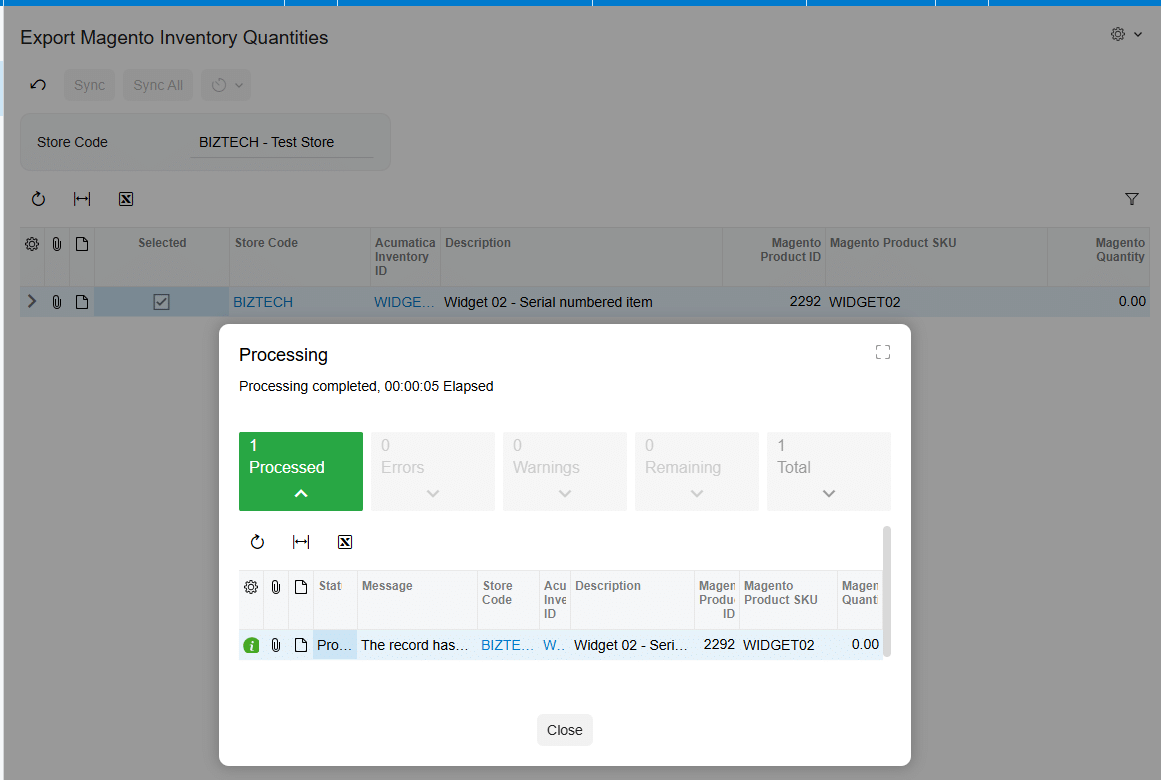
On Export Magento Inventory Quantities, choose the relevant store and review the displayed items. For a particular item, enter or confirm the value in Magento Quantity, select the row, and click Sync. The Magento store quantity is updated from the Magento Quantity value. Use Sync All when every item displayed on the screen is ready to be processed.
The manual documents both the warehouse-derived quantity settings and the editable Magento Quantity field on the export screen, but it does not explain when or how that field is populated from the selected quantity basis. Treat the screen value as the final value to verify before synchronization, especially after changing the warehouse list or quantity basis.
Control stock visibility with publication status
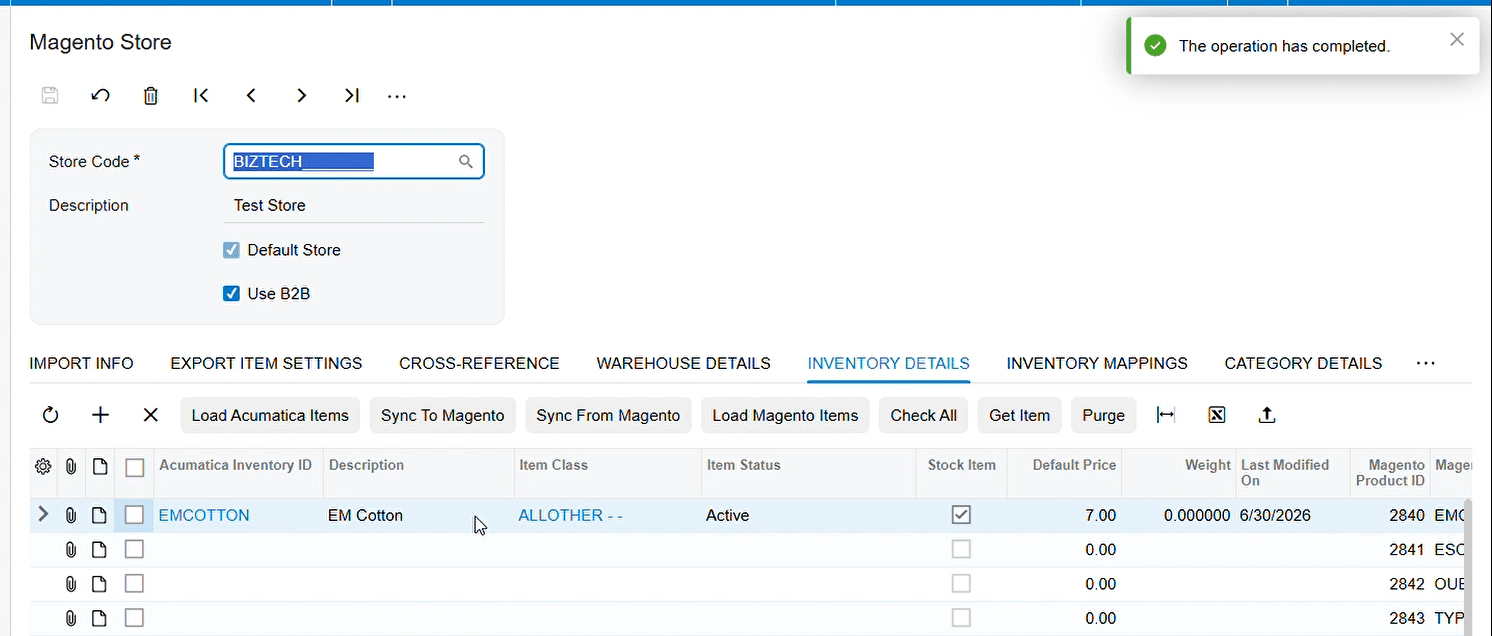
Quantity and product visibility are related but separate controls. Inventory Details tab provides Publish Items in Magento, which sets selected products to Enabled, and Unpublish Items in Magento, which removes the Enabled status and makes the selected products unavailable for purchase. A correct quantity does not by itself prove that a product is purchasable; include publication status in every stock-visibility check. The same item synchronization, publishing, and unpublishing processes can also be performed from the Stock Items and Non-Stock Items screens.
Handle allocation without assuming undocumented logic
The product documentation does not describe a separate Magento Connector allocation, reservation, safety-stock, or oversell engine. Its documented controls are the selected Acumatica quantity basis, the sum across selected warehouses, the Magento Quantity value sent during export, and optional Magento quantity validation during invoice processing. Accordingly, allocation policy should be expressed through the Acumatica quantity measure and warehouse scope chosen for the storefront, then validated in the export screen.
Two Magento Store options can check Magento quantity during Acumatica processing: Check Magento Qty While Prepare Invoice validates that the required Magento stock is available before the invoice is created, and Check Magento Qty While Release Invoice validates Magento product quantities during invoice release. These checks help identify insufficient storefront stock at defined transaction points. The manual does not say that they reserve stock or automatically reconcile differences, so use them as validation controls rather than treating them as an allocation mechanism.
Monitor and reconcile Magento and Acumatica inventory
Use a repeatable reconciliation routine
1. Confirm scope: verify the Magento store, selected warehouses, and quantity basis before comparing values.
2. Confirm identity: check Magento Product SKU, Acumatica Inventory ID, and—where the item has been synchronized—the Magento Product ID.
3. Confirm eligibility: make sure the item is selected and saved in Inventory Details and appears on Export Magento Inventory Quantities.
4. Confirm the outbound value: compare the Magento Quantity field with the expected sum for the selected warehouses and chosen Acumatica quantity basis.
5. Confirm execution: run Sync for approved rows or Sync All only when all displayed rows are ready, then verify the resulting quantity in Magento.
6. Confirm visibility: check whether the item is published and Enabled when it should be available for purchase, or unpublished when it should not be sold.
7. Review transaction checks: investigate failures from the prepare-invoice or release-invoice quantity validations if those options are enabled.
Troubleshoot common discrepancies
If an item is absent from the export screen, return to Inventory Details and verify selection, save status, Magento Product SKU, and Acumatica Inventory ID. If the item appears but the expected quantity differs, recheck the warehouse list and whether On Hand, Available, or Available for Shipment is selected. If quantity is correct but the product cannot be purchased, verify publication status. If invoice preparation or release stops on a Magento quantity validation, compare the required order quantity with current Magento stock and then examine whether a more recent Acumatica quantity needs to be synchronized.
For controlled operations, test configuration changes with a small item set before using Sync All. Record the store, warehouse selection, quantity basis, item identifiers, value reviewed, and time of the sync in an operational log. This logging practice is a recommended control rather than a connector feature described in the manual.
Frequently asked questions
Which Acumatica quantity can Magento Connector send to Magento?
The documented choices are On Hand, Available, and Available for Shipment. The selected value on Warehouse Details determines the Acumatica quantity basis used for synchronization.
How does the connector handle multiple warehouses?
When one or more warehouses are selected in Warehouse Details, the exported item quantity is the sum across those selected warehouses.
Why is an item missing from Export Magento Inventory Quantities?
The item must be selected and saved on the Magento Store Inventory Details tab, and both Magento Product SKU and Acumatica Inventory ID must be set before it appears on the export screen.
Can users synchronize one item instead of the full list?
Yes. Select the item and use Sync. Sync All processes all items displayed on the screen.
Does publishing an item also synchronize its quantity?
The documentation treats publishing and quantity export as separate processes. Publishing sets the selected Magento item to Enabled; quantity synchronization is performed from Export Magento Inventory Quantities.
Does Magento Connector allocate or reserve inventory?
The documentation does not define a connector-level allocation or reservation feature. It documents quantity-basis selection, summed warehouse scope, quantity export, publication controls, and optional Magento quantity checks during invoice preparation and release.
How can Acumatica validate Magento stock during invoicing?
Enable Check Magento Qty While Prepare Invoice to validate stock before invoice creation, or Check Magento Qty While Release Invoice to validate quantities during invoice release.
Build a dependable Magento inventory workflow
A dependable Magento inventory sync is built on explicit choices: which Acumatica warehouses contribute stock, which quantity basis represents sellable inventory, which item identifiers bind the systems, and whether the Magento product is published. Review those controls before each broad synchronization, use the invoice-stage quantity checks where they fit the process, and reconcile exceptions by moving from scope to identity to outbound value to storefront visibility.
For implementation help with Magento Connector and Acumatica, contact Biz-Tech Services.

