
How to Sync Amazon Inventory with Acumatica for FBA and FBM
Synchronizing Amazon inventory with Acumatica requires two related workflows. For Fulfillment by Merchant, or FBM, Acumatica sends the quantity that Amazon can sell. For Fulfillment by Amazon, or FBA, the connector imports Amazon shipment, delivery, warehouse, and order activity so Acumatica can reflect inventory moving into and through Amazon fulfillment centers. The quality of the result depends on accurate store settings, item mappings, warehouse rules, and disciplined validation after each process.
The Biz Tech Amazon Connector routes the connection through a Biz Tech managed intermediate server. It retrieves Amazon data for Acumatica and sends supported inventory and fulfillment events back to Amazon. This guide explains the documented steps for keeping FBA and FBM inventory aligned.
How Amazon inventory sync works in Acumatica
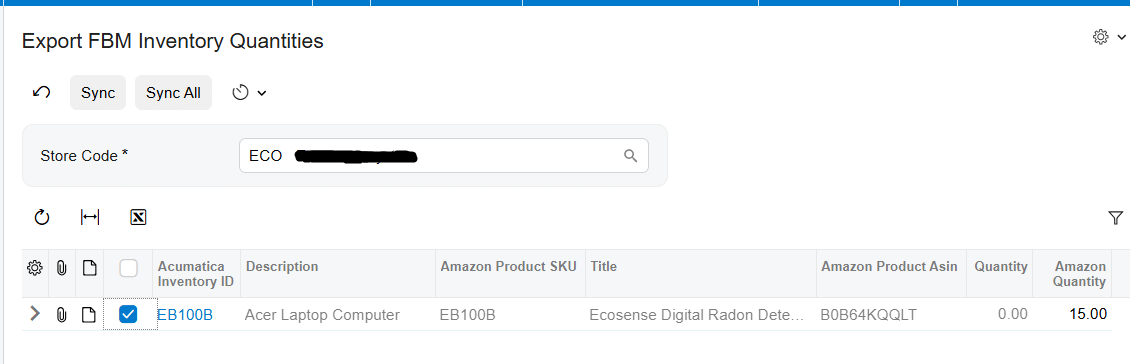
FBM inventory sync is quantity driven. You select the Acumatica warehouses that contribute inventory, choose which quantity basis to publish, map each Amazon SKU to an Acumatica inventory item, and run Export FBM Inventory Quantities screen. The quantity sent to Amazon can come from the Acumatica Quantity column or from an entered Amazon Quantity override.
FBA inventory sync is transaction and warehouse driven. Amazon stores and ships the product, while Acumatica imports FBA shipments, deliveries, and orders. A shipment import creates an Acumatica transfer order using the configured transfer order type. After the transfer is confirmed and updated, delivery processing creates a purchase receipt based on Amazon received quantities. Acumatica can then show inventory in the destination warehouse associated with the FBA flow.
Configure the Amazon Store connection
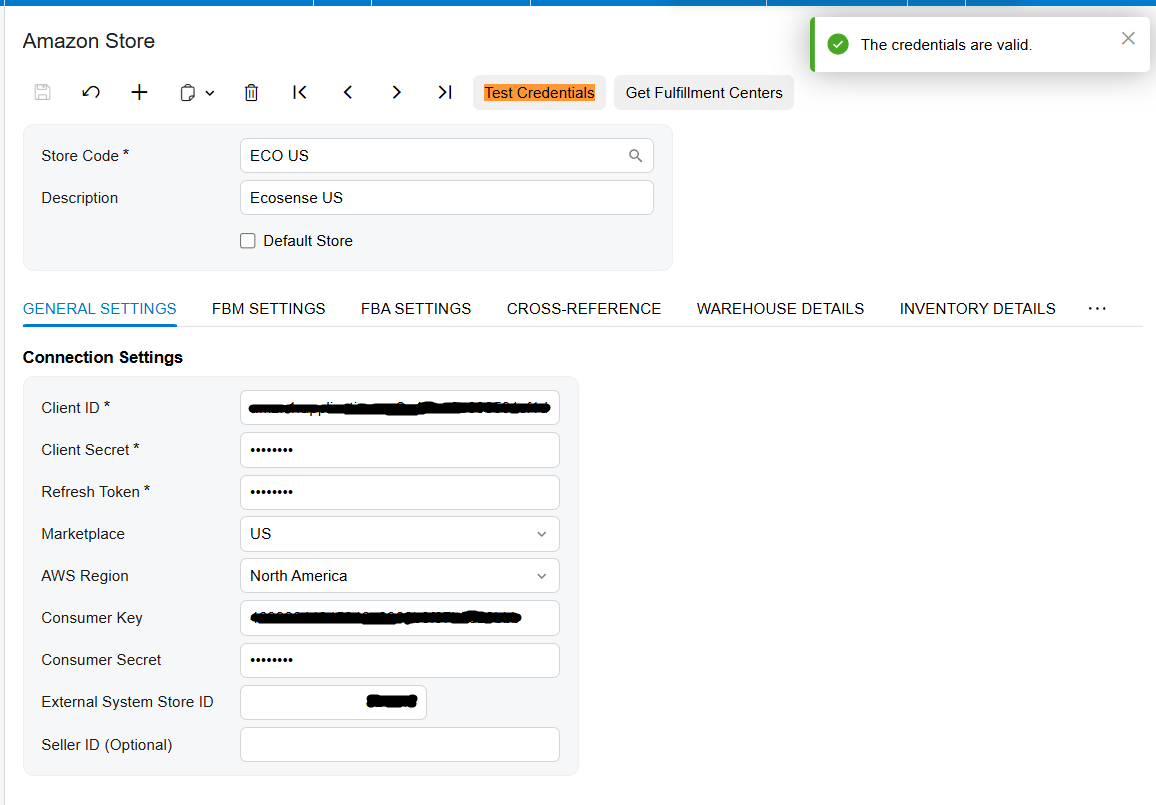
Begin on the Amazon Store screen. Store Code identifies the Amazon store, while Description labels it in Acumatica. Marking a store as the Default Store causes it to appear automatically on processing and store screens. Connection Settings are used to test the connection between Acumatica and the Amazon server.
The source documentation identifies these connection values:
1․ Client ID and Client Secret for application authentication
2․ Refresh Token for obtaining new access tokens
3․ Marketplace and AWS Region for the Amazon store location
4․ Consumer Key and Consumer Secret
5․ External System Store ID
6․ Seller ID and MWS Auth Token generated through the developer authorization process
Treat these credentials as controlled configuration. Test the connection before configuring inventory processes, because a warehouse or SKU mapping cannot compensate for a failed connection.
Set up FBM inventory quantity synchronization
Choose the warehouses and quantity basis
In Warehouse Details, add every Acumatica warehouse that should contribute to the Amazon quantity. When more than one warehouse is selected, the exported item quantity is the sum across those warehouses. Select the quantity basis that matches your availability policy: On Hand, Available, or Available for Shipment. The selected value determines which Acumatica quantity is synchronized to Amazon.
The manual defines these settings but does not prescribe one for every business. Select the measure that matches how your organization reserves stock and decides what it can promise to Amazon buyers.
Map Amazon SKUs to Acumatica items
Create SKU mappings in the Amazon Store screen’s Inventory Details tab. You can retrieve a product by ASIN or Seller SKU. Load FBA Products displays products for the store, and Sync From Amazon can create a selected FBA item in Acumatica using the product SKU.
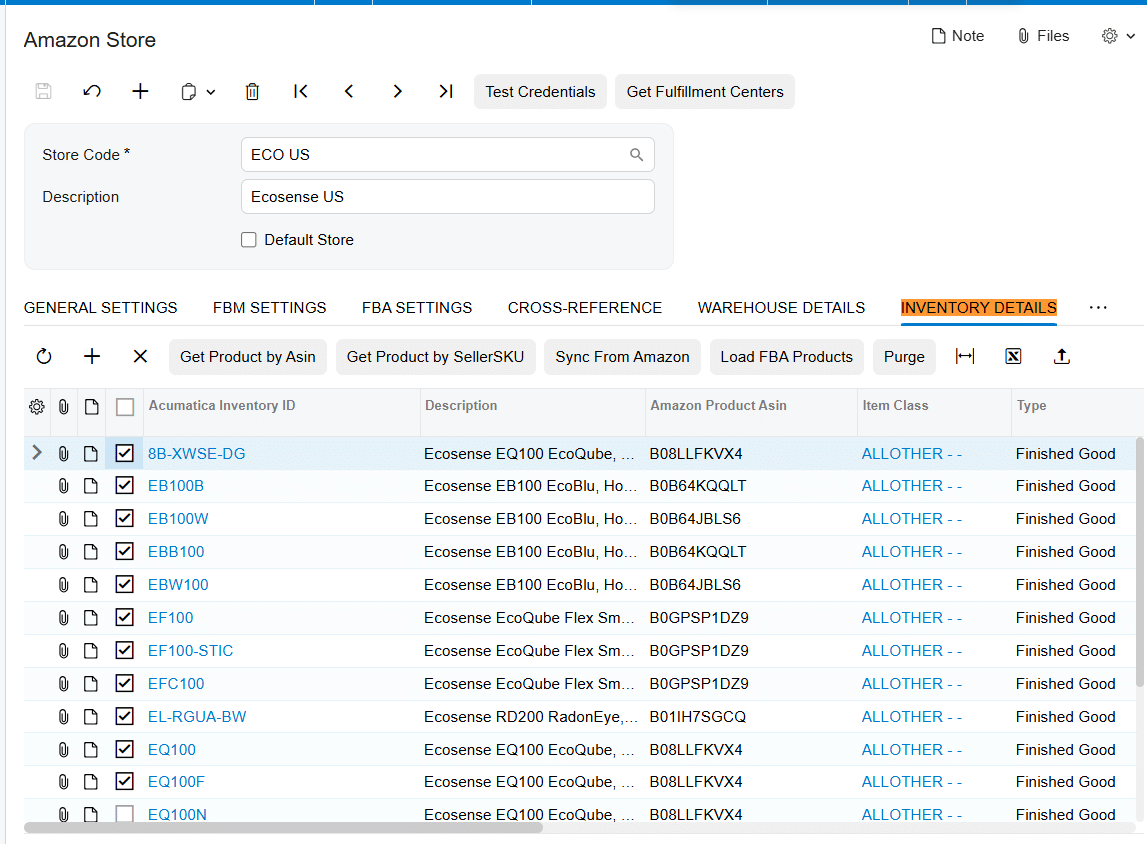
The Import Item setting controls what happens when an imported order contains a product that does not exist in Acumatica. When enabled, the connector creates an Acumatica Inventory ID based on the Amazon SKU. When disabled, the missing item causes an integration error. Insert Item in Inventory Details Tab adds items to the mapping area during order import. The documentation also states that an existing mapping can be updated with a different SKU without creating a new Acumatica item.
Confirm the Warehouse ID and unit of measure used for imported orders. A SKU match alone is not enough if the order points to the wrong warehouse or the unit of measure does not match the item setup.
Export FBM quantities to Amazon
1․ Open Export Amazon Inventory Quantities and review the selected store and mapped items.
2․ Compare the Acumatica Quantity value with the amount you intend to make available on Amazon.
3․ For the normal Acumatica driven value, leave the row override checkbox unselected and run Sync. Amazon Inventory Quantity is updated from the Quantity column.
4․ To send a different value, enter it in Amazon Quantity, select the checkbox for that row, and run Sync.
5․ Verify the resulting Amazon quantity and investigate any item that did not update.
An override is a deliberate exception to the calculated Acumatica quantity. Document why it was used and remove or revise it when the underlying condition ends, so a temporary decision does not become a persistent inventory discrepancy.
Configure FBA warehouse and order settings
The FBA settings in the Amazon Store control how orders and inventory movements enter Acumatica. FBA orders are imported as invoices. Begin Order Date filters retrieval, and Last Imported Order Date records the most recent imported order date. Status mappings connect Amazon order statuses to Acumatica statuses; the corresponding Order Status checkbox must be selected for an order to be retrieved and imported.
Key FBA warehouse and shipment settings include:
1․ Destination Warehouse, which identifies where Amazon goods are intended to be received in Acumatica
2․ Enable Ship From Mapping, which maps each Amazon Fulfillment Center to an Acumatica Ship From Warehouse ID
3․ Ship From Warehouse ID, used as the source warehouse when fulfillment center mapping is disabled
4․ Destination Order Type, which must be a transfer order type for FBA shipment imports
5․ Select Shipments and Select Deliveries, which enable the corresponding import processes
6․ Release PO Receipt During FBA Shipment Import, which imports the purchase receipt as released when selected
7․ Last Imported Shipment Date and Last Imported Deliveries Date for tracking the latest imported activity
The same transfer order type can be configured in only one store. The connector also provides a Destination Order Type indicator for transfer order types; when selected, the Order Type field is disabled to identify the Amazon FBA order type.
Run the FBA inventory workflow
1․ Retrieve FBA shipments from Amazon Seller Central on the Import FBA Shipments screen.
2․ Import the shipment. Acumatica creates a sales order with the transfer order type configured for the FBA store. The grid shows the destination warehouse, while the order line shows the source warehouse.
3․ Confirm the transfer shipment and use Update In. This moves the items from the source warehouse to the destination warehouse in Acumatica.
4․ After the shipment is closed in Seller Central, retrieve it through Import FBA Deliveries.
5․ Process the delivery so Acumatica creates a purchase receipt based on the received quantity. Release the receipt when required by your configuration and process, then verify the destination warehouse quantity.
6․ Import FBA orders according to the configured dates and statuses. The imported FBA orders appear on the Sales Order Invoice screen.
The FBA Destination Warehouse Quantities screen supports warehouse level validation by showing quantities for the selected destination warehouse and the current warehouse. The FBM and FBA Orders screen distinguishes the two channels through the Fulfillment Channel field.
Monitor and validate the synchronization
Use a repeatable validation routine after each quantity export or FBA import. Check the store, SKU, Acumatica inventory item, warehouse, quantity basis, and fulfillment channel before investigating the integration itself. For FBM, compare the Acumatica Quantity, any Amazon Quantity override, and the quantity visible in Amazon. For FBA, compare shipped quantity, received quantity, source warehouse movement, destination warehouse quantity, and purchase receipt status.
The connector records Last Imported Order Date, Last Imported Shipment Date, and Last Imported Deliveries Date. These dates indicate whether a process has run but do not replace transaction review. Import errors appear on the affected line; more detail may be available from the red cross and Tools and Trace. FBM settings can also enable email notifications for order IDs with errors.
Common pitfalls to avoid
1․ Publishing the wrong availability measure. On Hand, Available, and Available for Shipment can produce different sellable quantities.
2․ Leaving out a warehouse or including one that should not contribute. The connector sums quantities across selected warehouses.
3․ Using an incorrect or missing SKU mapping. Verify Inventory Details before assuming an inventory calculation is wrong.
4․ Relying on Import Item without reviewing item setup. Automatic creation uses the Amazon SKU as the Acumatica Inventory ID, but warehouse and unit of measure still require attention.
5․ Reusing an FBA transfer order type across stores. The documentation states that the same order type cannot be configured in more than one store.
6․ Importing an FBA delivery when received quantity exceeds shipped quantity. The connector raises an error; adjust quantities on the FBA Shipments screen before importing.
7․ Confusing FBA with FBM. Use the Fulfillment Channel field to identify the flow before correcting inventory or order records.
Frequently asked questions
Which Acumatica quantity is sent to Amazon for FBM
The value depends on the Warehouse Details setting. You can synchronize On Hand, Available, or Available for Shipment. If multiple warehouses are selected, their quantities are summed. A selected override row sends the entered Amazon Quantity instead.
How are Amazon SKUs connected to Acumatica inventory items
Mappings are maintained in the Amazon Store Inventory Details tab. Products can be retrieved by ASIN or Seller SKU. Import Item can create a missing Acumatica inventory item during order import, and Sync From Amazon can create a selected loaded FBA product using its SKU.
What documents are created for FBA inventory movements
An imported FBA shipment creates a sales order with the configured transfer order type. FBA delivery processing creates a purchase receipt based on the received quantity. FBA customer orders are imported as invoices.
What happens when Amazon receives less or more than it shipped
A delivery can be imported when received quantity equals shipped quantity or is lower. If received quantity is greater than shipped quantity, the connector displays an error and the quantities must be adjusted on the FBA Shipments screen before import.
How often does inventory synchronization run
The supplied documentation explains the processing screens and actions but does not define an automatic schedule, polling interval, or recommended frequency. Confirm the operating cadence configured for your implementation.
Does the documentation define conflict resolution or retry rules
No. It describes visible processing errors, trace access, and selected process controls, but it does not specify retry limits, duplicate handling, API throttling, or a formal source of truth when quantities conflict. These rules should be confirmed during implementation.
Plan your Amazon Acumatica inventory integration
A reliable Amazon Acumatica inventory sync starts with correct store credentials, explicit warehouse rules, clean SKU mappings, and separate operating procedures for FBA and FBM. Biz Tech Services can help configure and validate the connector for your fulfillment model. Contact Biz Tech Services to discuss your Amazon and Acumatica integration.

