
How to Sync ShipHero Inventory with Acumatica
A reliable ShipHero Acumatica inventory sync starts with one clear decision: which system initiates the operational workflow. The connector supports ShipHero to Acumatica and Acumatica to ShipHero integration options. That choice controls the available setup tabs, the direction of order processing, and how shipments return to Acumatica. Inventory accuracy then depends on consistent item, warehouse, location, vendor, and quantity settings across both systems.
This guide covers inventory items and the orders, shipments, receipts, transfers, and returns that change inventory.
Choose the ShipHero Acumatica Sync Direction
The Integration Option on the ShipHero Store determines the overall flow. With ShipHero to Acumatica selected, the connector retrieves and imports shipped orders and retains generated labels and tracking numbers. The store exposes setup areas for General Info, Import Info, Ship Via Cross Reference, Warehouse Cross Reference, Inventory Details, Sync Info, and Locations.
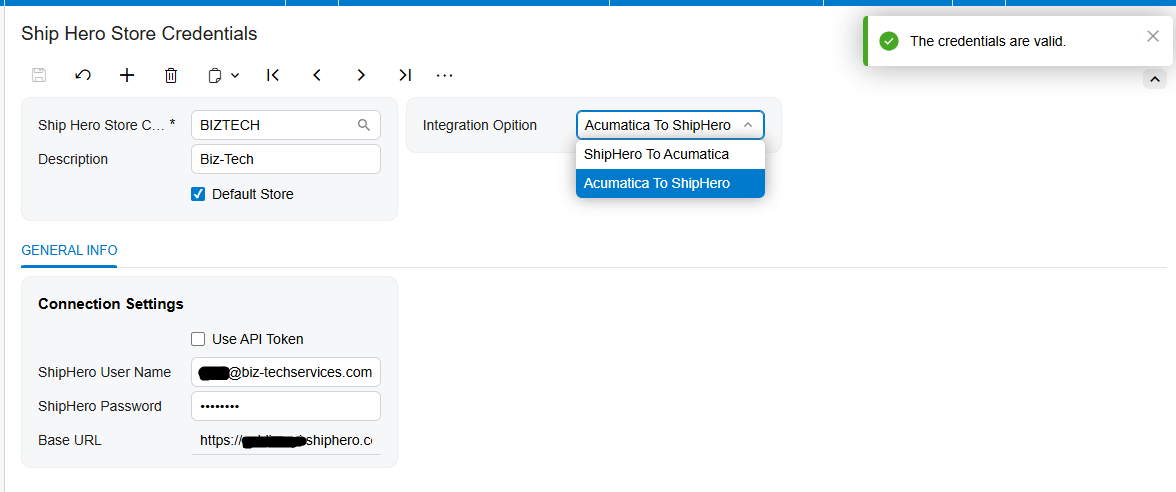
With Acumatica to ShipHero selected, users export Acumatica orders for fulfillment and bring the resulting shipments back. This direction adds box mapping, vendor sync, order-type, and return reason-code settings.
For multiple stores, Default Store determines the store code shown during Acumatica sync processes. Confirm it before loading records.
Configure the ShipHero Store Connection
Install the connector package through Acumatica’s Customization Projects screen, form SM204505, then validate and publish the project. After publication, configure a ShipHero Store record.
Enter the ShipHero username, password, and base URL under Connection Settings. Use Test Credentials to confirm that Acumatica can connect to ShipHero through the API. Use Edit Credentials when those values must change. Select the ShipHero Store Code and enter a description that clearly identifies the corresponding ShipHero store.
A successful credential test proves connectivity, not mapping accuracy. Validate mappings before processing live inventory transactions.
Map Warehouses Locations and Shipping Values
Warehouse Cross Reference maps ShipHero warehouses to Acumatica warehouses. The connector uses this mapping during item synchronization and order import. Imported orders receive the mapped warehouse on the Acumatica sales order, and synchronized items are associated with the warehouse defined by the same setup.
Enable Use Cross Ref for Warehouse when warehouse values differ between the systems. Enable Use Cross Ref for Ship Via when carrier or service values require mapping; the corresponding cross-reference tabs then become available. These mappings also matter for return processing, where the documentation requires both reason-code and ship-via mappings before returns are exported.
For warehouse locations, first enable Multiple Warehouse Locations through Acumatica’s Enable Disable Features screen. The store setup then exposes Sellable Location, Non Sellable Location, Release Transfer During Import Process, and Begin Bin Transfers Date. If Use Location Mapping is enabled, map locations in the Locations grid. Otherwise, configure the two default sellable and non-sellable locations.
For purchase-order receipts created in ShipHero, this setup determines the default sellable and non-sellable quantities in Acumatica. For an exported Acumatica sales order returned as a shipment, the connector sets the sellable location on the lines.
Set Inventory Item Defaults and Quantity Rules
The Inventory Details tab is the working area for loading and synchronizing item records:
1. Load Acumatica Items displays Acumatica inventory items, and Sync Acumatica Items exports selected items to ShipHero.
2. Load ShipHero Items displays ShipHero items, and Sync ShipHero Items imports selected items into Acumatica.
3. Select All selects or clears all displayed items, while Purge removes the displayed rows from the Inventory Details grid.
The connector includes previously synchronized vendor information with a ShipHero stock item. Set Default Vendor Class ID before using Sync ShipHero Vendors.
The Import Item option controls how unknown products are handled during item synchronization and order import. When enabled, the connector can create a missing Acumatica item. The Imported Item Type, Item Class, UOM, and Warehouse ID fields supply the defaults for that new record. Review these values carefully because they determine how newly created inventory items enter Acumatica.
When Import Item is disabled, the connector does not create the missing product. Instead, it uses the configured Replace Missing Products item and the Warehouse ID value. This can keep an order moving, but it also means the transaction will not identify the original product as a new Acumatica inventory item. Monitor use of the replacement item so unresolved product mappings do not accumulate.
For exports to ShipHero, Export Price Type selects either the default item price or MSRP. Export Price Quantity selects the inventory basis sent to ShipHero: On Hand, Available, or Available for Shipment. Choose the quantity that matches the business promise made in the storefront and fulfillment process. The documentation lists the choices but does not define their Acumatica calculation rules, so confirm the selected measure against the site’s own inventory configuration.
Run a Practical Inventory Sync Workflow
1. Create the ShipHero Store record, choose the integration direction, and test the credentials.
2. Set warehouse and ship-via cross references. If bin-level inventory is required, enable multiple warehouse locations and configure location mapping or the default sellable and non-sellable locations.
3. Configure Import Item behavior and the defaults for item type, item class, UOM, and warehouse. Select the price and quantity values to export.
4. Load a limited set of items from the intended source system. Review the displayed records, select only the pilot items, and run the matching Sync action.
5. Validate the resulting item and warehouse records in the destination. If locations are in scope, load and synchronize locations only for warehouses already configured in Warehouse Cross Reference.
6. Test one operational cycle. Depending on the integration direction, import a ShipHero order or export an open Acumatica order whose order type is active for export. Then import its ShipHero shipment into Acumatica.
7. Test inventory-increasing and movement transactions separately by exporting an open purchase order, importing its receipt, and importing a bin transfer when multiple warehouse locations are enabled.
Process Transactions That Change Inventory
The Import ShipHero Orders screen retrieves orders for the selected store. Get Orders places them on the ShipHero Order screen, and Import creates the Acumatica document defined by the store setup, either a sales order or an invoice. Import Freight and Import Tax control whether those amounts are included.
For the opposite direction, Export ShipHero Order displays eligible Acumatica orders only when they are open and their order type is configured and active in Order Types to Export. Export creates the order in ShipHero. Import Shipments from ShipHero then retrieves shipment records; Import creates the shipment in Acumatica and confirms it.
Purchase orders follow a similar cycle. Only open purchase orders appear for export to ShipHero. Import Receipts from ShipHero retrieves receipts for exported purchase orders and creates Acumatica purchase receipts. If Release PO Receipt During Import Process is enabled, imported receipts are released automatically; otherwise, they remain unreleased. The documentation also notes that the last receipt in a partial-receipt sequence is released.
Bin transfers are imported according to the Begin Bin Transfers Date and appear on the Transfers screen with the source and destination locations inside the same warehouse. They can be released automatically when Release Transfer During Import Process is enabled. This process works only when Multiple Warehouse Locations is selected.
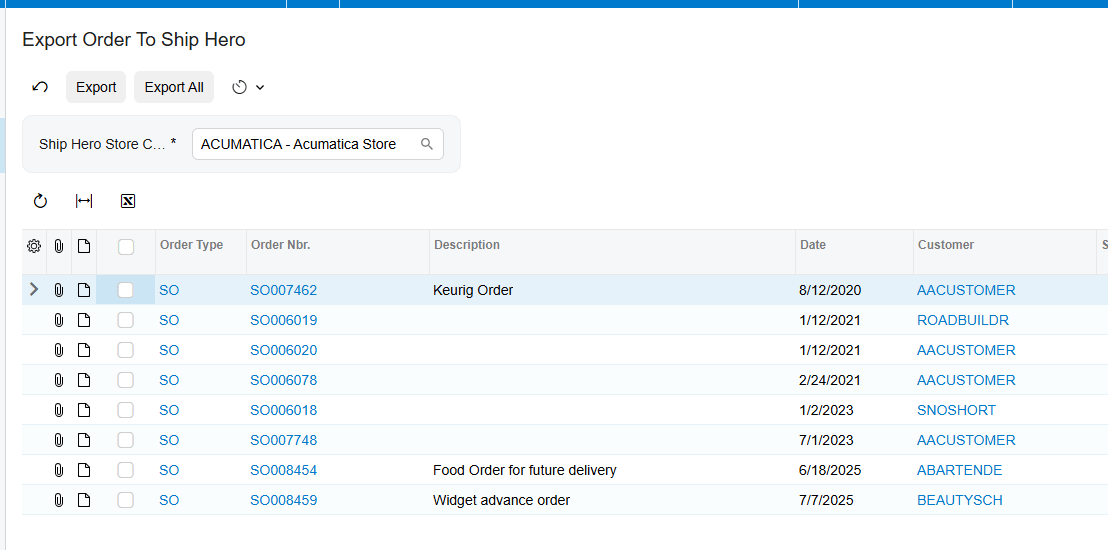
Use Webhooks for Real Time Processing
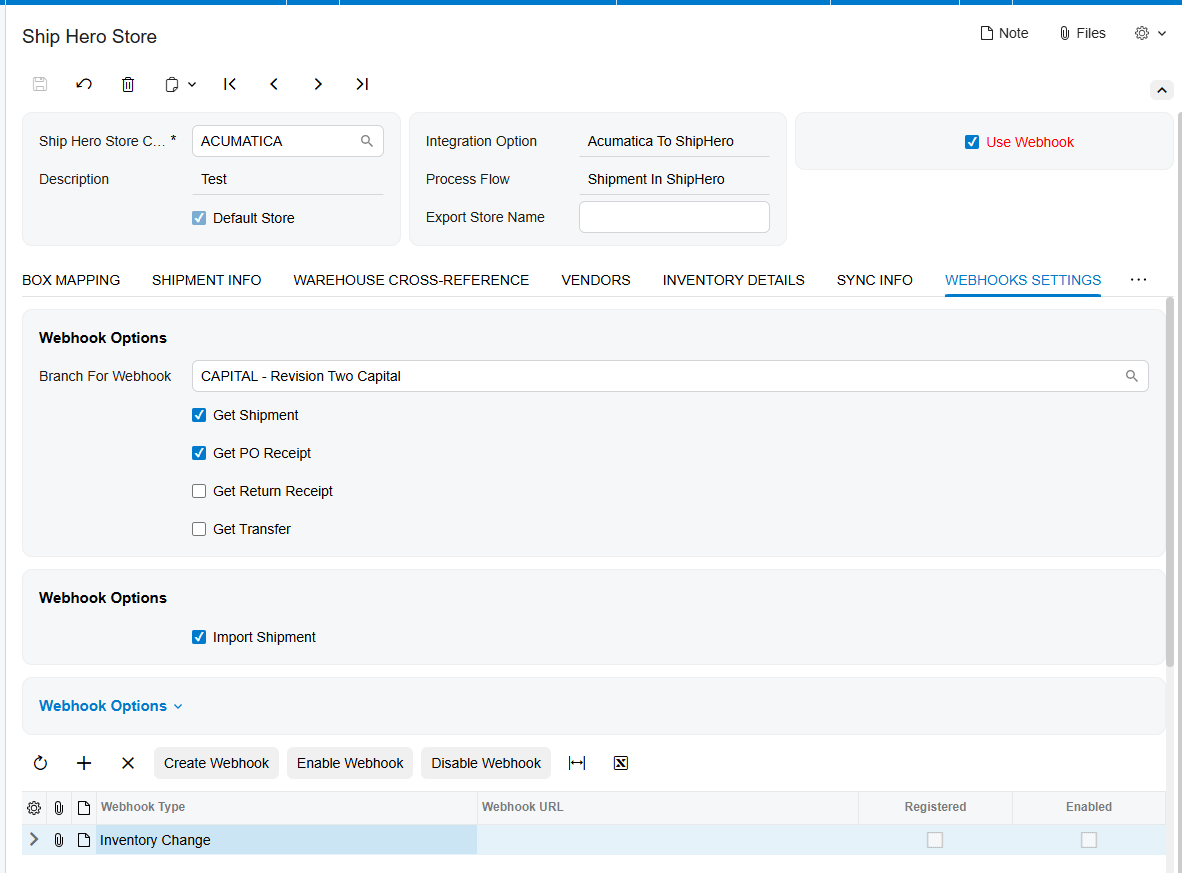
The Biz-Tech Services ShipHero Acumatica connector can receive ShipHero events through webhooks. Enable Use Webhook to expose Webhook Settings. The Webhook Name on the Webhooks screen must exactly match the Webhook Type in the ShipHero Store; otherwise, the webhook will not work. Generate the URL, place it in Webhook Settings, and select Create Webhook to register it with ShipHero for POST requests. The same URL can be registered only once.
Select Branch for Webhooks before enabling processing. The connector processes incoming shipments, purchase receipts, transfers, and returns under this branch. A missing branch prevents the webhooks from working. The grid shows Webhook Type, Webhook URL, Registered, and Enabled. Use Enable Webhook to start receiving events and Disable Webhook to stop events while retaining the configuration.
Webhook events can import shipments, create purchase receipts, update received quantities, capture return receipts, and import transfers. Check Registered and Enabled, then verify the resulting Acumatica document.
Monitor and Validate the Integration
Use Last Import Date and Last Imported Order Date to confirm the processing window. Review the ShipHero Order inquiry for identifiers, statuses, line details, and linked shipments. Review the ShipHero Shipment inquiry for package and label information and the Processed indicator.
The ShipHero Item inquiry shows warehouse availability, vendors, and bin transfers. Update Item retrieves ShipHero changes, Sync ShipHero Item imports the item, and Update Warehouse in ShipHero sends updated quantity. For purchase orders, Update Order retrieves ShipHero changes.
For each pilot, compare the inventory ID, warehouse, location, quantity basis, status, and related shipment or receipt. Confirm automatic releases, or review unreleased documents when release is disabled.
Common ShipHero Acumatica Sync Pitfalls
1. Wrong integration direction. Confirm it before configuring mappings.
2. Missing warehouse mapping. Item sync and order import both rely on Warehouse Cross Reference.
3. Unexpected replacement products. With Import Item disabled, unknown products use Replace Missing Products instead of creating a new inventory item.
4. Incorrect quantity exposure. Validate On Hand, Available, or Available for Shipment against the intended sales promise.
5. Bin transfers that never appear. Multiple Warehouse Locations must be enabled, and the begin date and location setup must be correct.
6. Webhooks that do not process. Match the event names, select a branch, and verify Registered and Enabled.
7. Orders missing from export. Acumatica orders must be open, and their order type must be configured as active for the selected store.
ShipHero Acumatica Inventory Sync FAQ
Can the connector create missing inventory items in Acumatica
Yes. Enable Import Item and configure Imported Item Type, Item Class, UOM, and Warehouse ID. If Import Item is disabled, the connector uses the configured replacement product instead of creating the missing item.
Which inventory quantity can Acumatica send to ShipHero
The choices are On Hand, Available, and Available for Shipment. Select the intended measure and validate it with a controlled item test.
Can ShipHero inventory locations sync with Acumatica
Yes. Enable Multiple Warehouse Locations, configure warehouse cross references, and either use the Locations grid for mapping or set default sellable and non-sellable locations. The Locations grid loads records only for warehouses already included in Warehouse Cross Reference.
Can purchase receipts and transfers release automatically
Yes. Release PO Receipt During Import Process and Release Transfer During Import Process control automatic release. Leave them disabled when the business requires review before release.
Does the connector support real time synchronization
The documented webhook setup supports real-time event handling for shipments, purchase receipts, returns, transfers, and inventory-change event types. Correct event names, a unique registered URL, an assigned branch, and an enabled status are required for processing.
Plan Your ShipHero Acumatica Integration
A successful rollout depends on disciplined mapping and small, traceable tests before broad synchronization. BizTech Services can help configure the connector around your item, warehouse, location, order, receipt, transfer, and return workflows. Contact BizTech Services to discuss your ShipHero and Acumatica integration.
How to Sync ShipHero Inventory with Acumatica
A reliable ShipHero Acumatica inventory sync starts with one clear decision: which system initiates the operational workflow. The connector supports ShipHero to Acumatica and Acumatica to ShipHero integration options. That choice controls the available setup tabs, the direction of order processing, and how shipments return to Acumatica. Inventory accuracy then depends on consistent item, warehouse, location, vendor, and quantity settings across both systems.
This guide covers inventory items and the orders, shipments, receipts, transfers, and returns that change inventory.
Choose the ShipHero Acumatica Sync Direction
The Integration Option on the ShipHero Store determines the overall flow. With ShipHero to Acumatica selected, the connector retrieves and imports shipped orders and retains generated labels and tracking numbers. The store exposes setup areas for General Info, Import Info, Ship Via Cross Reference, Warehouse Cross Reference, Inventory Details, Sync Info, and Locations.
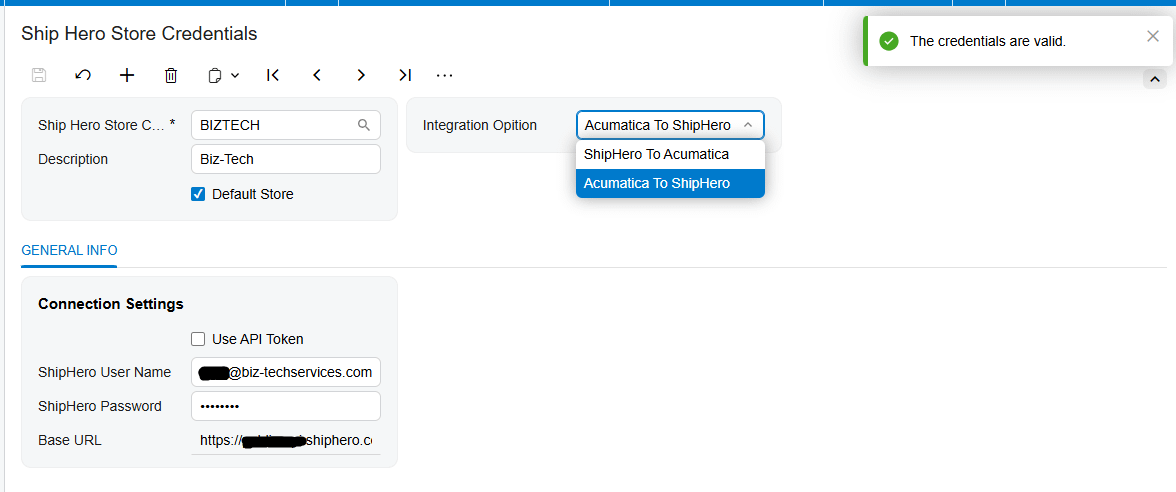
With Acumatica to ShipHero selected, users export Acumatica orders for fulfillment and bring the resulting shipments back. This direction adds box mapping, vendor sync, order-type, and return reason-code settings.
For multiple stores, Default Store determines the store code shown during Acumatica sync processes. Confirm it before loading records.
Configure the ShipHero Store Connection
Install the connector package through Acumatica’s Customization Projects screen, form SM204505, then validate and publish the project. After publication, configure a ShipHero Store record.
Enter the ShipHero username, password, and base URL under Connection Settings. Use Test Credentials to confirm that Acumatica can connect to ShipHero through the API. Use Edit Credentials when those values must change. Select the ShipHero Store Code and enter a description that clearly identifies the corresponding ShipHero store.
A successful credential test proves connectivity, not mapping accuracy. Validate mappings before processing live inventory transactions.
Map Warehouses Locations and Shipping Values
Warehouse Cross Reference maps ShipHero warehouses to Acumatica warehouses. The connector uses this mapping during item synchronization and order import. Imported orders receive the mapped warehouse on the Acumatica sales order, and synchronized items are associated with the warehouse defined by the same setup.
Enable Use Cross Ref for Warehouse when warehouse values differ between the systems. Enable Use Cross Ref for Ship Via when carrier or service values require mapping; the corresponding cross-reference tabs then become available. These mappings also matter for return processing, where the documentation requires both reason-code and ship-via mappings before returns are exported.
For warehouse locations, first enable Multiple Warehouse Locations through Acumatica’s Enable Disable Features screen. The store setup then exposes Sellable Location, Non Sellable Location, Release Transfer During Import Process, and Begin Bin Transfers Date. If Use Location Mapping is enabled, map locations in the Locations grid. Otherwise, configure the two default sellable and non-sellable locations.
For purchase-order receipts created in ShipHero, this setup determines the default sellable and non-sellable quantities in Acumatica. For an exported Acumatica sales order returned as a shipment, the connector sets the sellable location on the lines.
Set Inventory Item Defaults and Quantity Rules
The Inventory Details tab is the working area for loading and synchronizing item records:
1. Load Acumatica Items displays Acumatica inventory items, and Sync Acumatica Items exports selected items to ShipHero.
2. Load ShipHero Items displays ShipHero items, and Sync ShipHero Items imports selected items into Acumatica.
3. Select All selects or clears all displayed items, while Purge removes the displayed rows from the Inventory Details grid.
The connector includes previously synchronized vendor information with a ShipHero stock item. Set Default Vendor Class ID before using Sync ShipHero Vendors.
The Import Item option controls how unknown products are handled during item synchronization and order import. When enabled, the connector can create a missing Acumatica item. The Imported Item Type, Item Class, UOM, and Warehouse ID fields supply the defaults for that new record. Review these values carefully because they determine how newly created inventory items enter Acumatica.
When Import Item is disabled, the connector does not create the missing product. Instead, it uses the configured Replace Missing Products item and the Warehouse ID value. This can keep an order moving, but it also means the transaction will not identify the original product as a new Acumatica inventory item. Monitor use of the replacement item so unresolved product mappings do not accumulate.
For exports to ShipHero, Export Price Type selects either the default item price or MSRP. Export Price Quantity selects the inventory basis sent to ShipHero: On Hand, Available, or Available for Shipment. Choose the quantity that matches the business promise made in the storefront and fulfillment process. The documentation lists the choices but does not define their Acumatica calculation rules, so confirm the selected measure against the site’s own inventory configuration.
Run a Practical Inventory Sync Workflow
1. Create the ShipHero Store record, choose the integration direction, and test the credentials.
2. Set warehouse and ship-via cross references. If bin-level inventory is required, enable multiple warehouse locations and configure location mapping or the default sellable and non-sellable locations.
3. Configure Import Item behavior and the defaults for item type, item class, UOM, and warehouse. Select the price and quantity values to export.
4. Load a limited set of items from the intended source system. Review the displayed records, select only the pilot items, and run the matching Sync action.
5. Validate the resulting item and warehouse records in the destination. If locations are in scope, load and synchronize locations only for warehouses already configured in Warehouse Cross Reference.
6. Test one operational cycle. Depending on the integration direction, import a ShipHero order or export an open Acumatica order whose order type is active for export. Then import its ShipHero shipment into Acumatica.
7. Test inventory-increasing and movement transactions separately by exporting an open purchase order, importing its receipt, and importing a bin transfer when multiple warehouse locations are enabled.
Process Transactions That Change Inventory
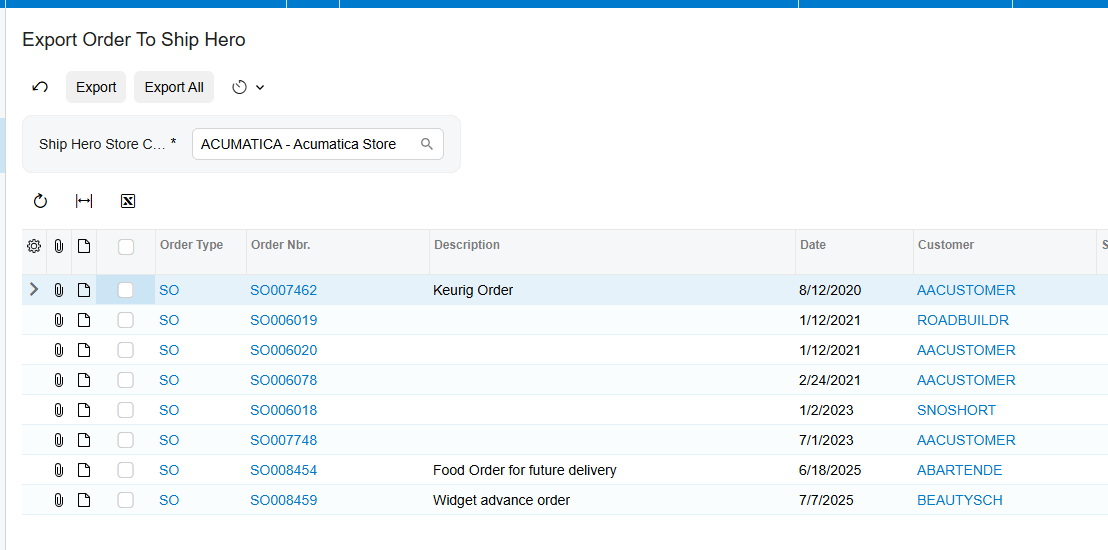
The Import ShipHero Orders screen retrieves orders for the selected store. Get Orders places them on the ShipHero Order screen, and Import creates the Acumatica document defined by the store setup, either a sales order or an invoice. Import Freight and Import Tax control whether those amounts are included.
For the opposite direction, Export ShipHero Order displays eligible Acumatica orders only when they are open and their order type is configured and active in Order Types to Export. Export creates the order in ShipHero. Import Shipments from ShipHero then retrieves shipment records; Import creates the shipment in Acumatica and confirms it.
Purchase orders follow a similar cycle. Only open purchase orders appear for export to ShipHero. Import Receipts from ShipHero retrieves receipts for exported purchase orders and creates Acumatica purchase receipts. If Release PO Receipt During Import Process is enabled, imported receipts are released automatically; otherwise, they remain unreleased. The documentation also notes that the last receipt in a partial-receipt sequence is released.
Bin transfers are imported according to the Begin Bin Transfers Date and appear on the Transfers screen with the source and destination locations inside the same warehouse. They can be released automatically when Release Transfer During Import Process is enabled. This process works only when Multiple Warehouse Locations is selected.
Use Webhooks for Real Time Processing
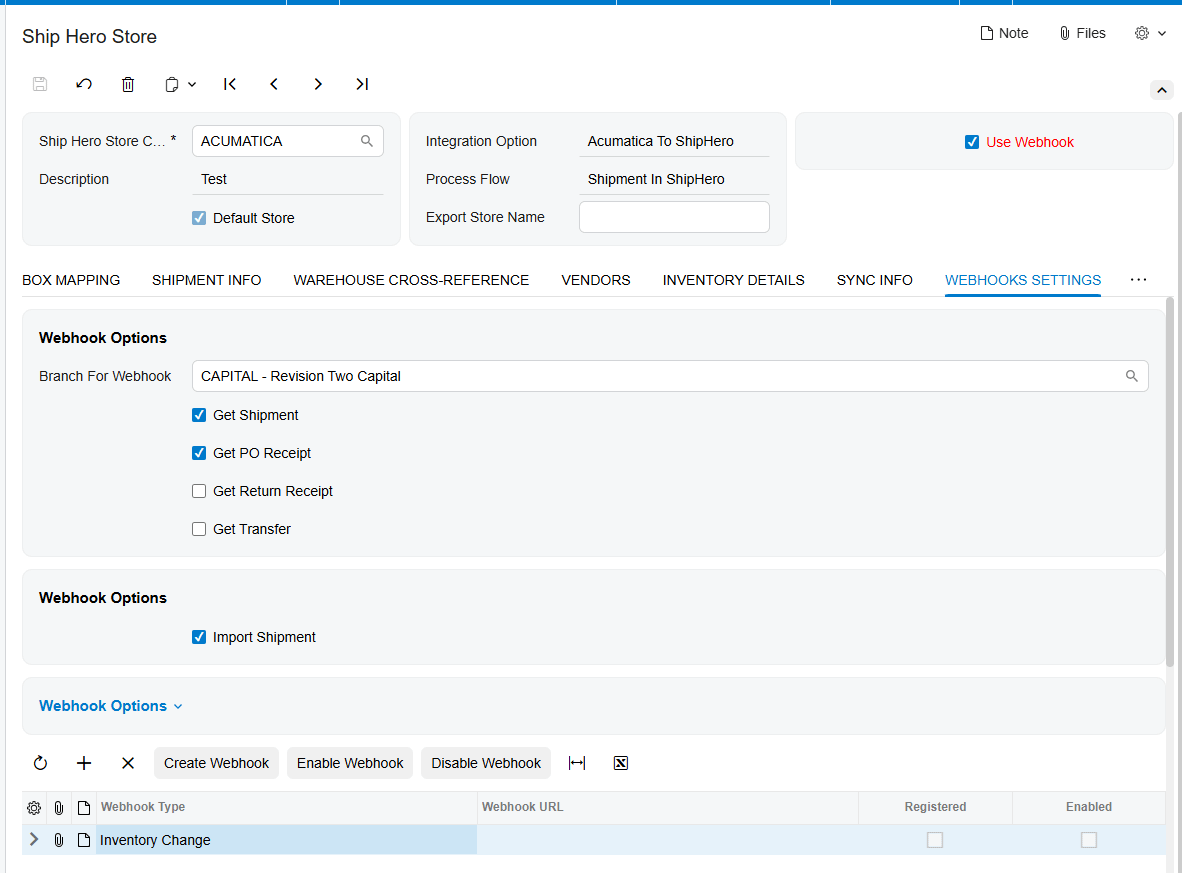
The Biz-Tech Services ShipHero Acumatica connector can receive ShipHero events through webhooks. Enable Use Webhook to expose Webhook Settings. The Webhook Name on the Webhooks screen must exactly match the Webhook Type in the ShipHero Store; otherwise, the webhook will not work. Generate the URL, place it in Webhook Settings, and select Create Webhook to register it with ShipHero for POST requests. The same URL can be registered only once.
Select Branch for Webhooks before enabling processing. The connector processes incoming shipments, purchase receipts, transfers, and returns under this branch. A missing branch prevents the webhooks from working. The grid shows Webhook Type, Webhook URL, Registered, and Enabled. Use Enable Webhook to start receiving events and Disable Webhook to stop events while retaining the configuration.
Webhook events can import shipments, create purchase receipts, update received quantities, capture return receipts, and import transfers. Check Registered and Enabled, then verify the resulting Acumatica document.
Monitor and Validate the Integration
Use Last Import Date and Last Imported Order Date to confirm the processing window. Review the ShipHero Order inquiry for identifiers, statuses, line details, and linked shipments. Review the ShipHero Shipment inquiry for package and label information and the Processed indicator.
The ShipHero Item inquiry shows warehouse availability, vendors, and bin transfers. Update Item retrieves ShipHero changes, Sync ShipHero Item imports the item, and Update Warehouse in ShipHero sends updated quantity. For purchase orders, Update Order retrieves ShipHero changes.
For each pilot, compare the inventory ID, warehouse, location, quantity basis, status, and related shipment or receipt. Confirm automatic releases, or review unreleased documents when release is disabled.
Common ShipHero Acumatica Sync Pitfalls
1. Wrong integration direction. Confirm it before configuring mappings.
2. Missing warehouse mapping. Item sync and order import both rely on Warehouse Cross Reference.
3. Unexpected replacement products. With Import Item disabled, unknown products use Replace Missing Products instead of creating a new inventory item.
4. Incorrect quantity exposure. Validate On Hand, Available, or Available for Shipment against the intended sales promise.
5. Bin transfers that never appear. Multiple Warehouse Locations must be enabled, and the begin date and location setup must be correct.
6. Webhooks that do not process. Match the event names, select a branch, and verify Registered and Enabled.
7. Orders missing from export. Acumatica orders must be open, and their order type must be configured as active for the selected store.
ShipHero Acumatica Inventory Sync FAQ
Can the connector create missing inventory items in Acumatica
Yes. Enable Import Item and configure Imported Item Type, Item Class, UOM, and Warehouse ID. If Import Item is disabled, the connector uses the configured replacement product instead of creating the missing item.
Which inventory quantity can Acumatica send to ShipHero
The choices are On Hand, Available, and Available for Shipment. Select the intended measure and validate it with a controlled item test.
Can ShipHero inventory locations sync with Acumatica
Yes. Enable Multiple Warehouse Locations, configure warehouse cross references, and either use the Locations grid for mapping or set default sellable and non-sellable locations. The Locations grid loads records only for warehouses already included in Warehouse Cross Reference.
Can purchase receipts and transfers release automatically
Yes. Release PO Receipt During Import Process and Release Transfer During Import Process control automatic release. Leave them disabled when the business requires review before release.
Does the connector support real time synchronization
The documented webhook setup supports real-time event handling for shipments, purchase receipts, returns, transfers, and inventory-change event types. Correct event names, a unique registered URL, an assigned branch, and an enabled status are required for processing.
Plan Your ShipHero Acumatica Integration
A successful rollout depends on disciplined mapping and small, traceable tests before broad synchronization. BizTech Services can help configure the connector around your item, warehouse, location, order, receipt, transfer, and return workflows. Contact BizTech Services to discuss your ShipHero and Acumatica integration.

