
How to Update Acumatica Shipments with ShipStation Tracking Data
Updating Acumatica with ShipStation tracking data is a controlled two-system workflow: send an eligible Acumatica order to ShipStation, complete the shipment there, and then import the shipment back into Acumatica. When the integration is configured correctly, Acumatica adds the shipment number and tracking number to the corresponding order and updates the order status to Prepare Invoice. This guide explains the required settings, the operational steps, the fields to verify, and the common configuration problems that interrupt the handoff.
How the ShipStation Tracking Update Works
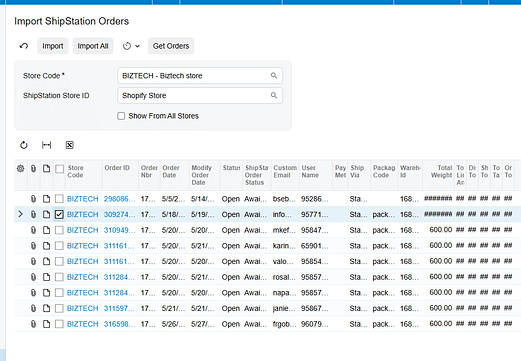
The relevant integration direction is Acumatica to ShipStation. Within that direction, the Process Flow must be set to Shipment in ShipStation. Acumatica remains the source of the order, while ShipStation is where the shipment is created. After shipping activity is complete, Acumatica retrieves the corresponding ShipStation shipment and associates it with the order that was exported.
The ShipStation Order ID provides the key operational link. When an order is exported, ShipStation creates the order and Acumatica displays that identifier in the ShipStation Order ID field on the Sales Orders screen. The later import uses the established relationship to bring the shipment number and tracking number back to the correct Acumatica order.
Configure the ShipStation Store in Acumatica
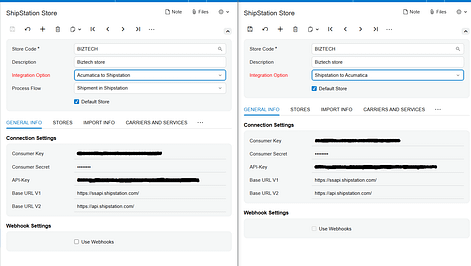
Begin on the ShipStation Store screen. Select the correct Store Code and add a useful Description so administrators can distinguish the connection. Under Connection Settings, enter the Consumer Key, Consumer Secret, and ShipStation Base URL. These values authenticate API communication between Acumatica and ShipStation. Use Test Credentials before attempting an export or import. If the test fails, use Edit Credentials to correct the values before troubleshooting order data.
Set the Direction and Process Flow
Set Integration Option to Acumatica to ShipStation. This selection makes Process Flow available. Choose Shipment in ShipStation for a workflow in which orders leave Acumatica, shipments are created in ShipStation, and shipment details return to Acumatica. Do not choose Shipment in Acumatica for this scenario; that alternative creates the ShipStation order and shipment from Acumatica during shipment confirmation and uses a different sequence.
Load Supporting ShipStation Values
For an Acumatica-to-ShipStation setup, the store screen includes General Info, Carriers and Services, Packages, and ShipStation Warehouses. Open each applicable tab and retrieve its values from ShipStation. For example, Get Carriers loads carrier codes and Get Packages loads available packages. Select the records that should be used for order processing. The ShipStation Warehouses tab follows the same retrieve-and-select pattern. Accurate carrier, service, package, and warehouse choices reduce mapping errors when Acumatica creates orders in ShipStation.
Workflow for Updating Acumatica with Tracking Data
1 Confirm the store configuration
Verify the Store Code, credentials, Integration Option, and Process Flow. The required combination is Acumatica to ShipStation plus Shipment in ShipStation.
2 Export the Acumatica order
Open Create Orders in ShipStation to view eligible Acumatica orders. Select the required order and process it using the configured Store Code and ShipStation Store ID. You can also open the Sales Orders screen and choose Create ShipStation Order from the ShipStation group in the Actions menu.
3 Validate the outbound result
Return to the Sales Orders screen and confirm that the ShipStation Order ID field is populated. This shows that the order was created in ShipStation and that Acumatica retained the external identifier needed for the return flow.
4 Create the shipment in ShipStation
Process the exported order in ShipStation and create its shipment. The shipment must exist in ShipStation before Acumatica can retrieve its shipment and tracking details.
5 Import the shipment into Acumatica
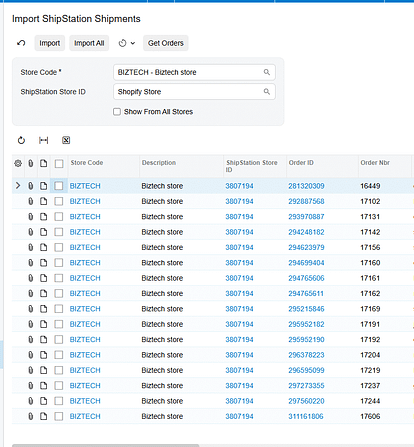
Open Import Shipment from ShipStation. This processing screen displays Acumatica orders that have already been exported to ShipStation. Process the order after its ShipStation shipment exists. As an alternative, use Get ShipStation Shipments from the ShipStation group in the Sales Orders Actions menu.
6 Verify the Acumatica update
Confirm that the shipment number and tracking number were added to the corresponding Acumatica order. The documented workflow also updates the order status to Prepare Invoice.
Key Fields and Settings to Check
- Store Code identifies the ShipStation store used by the integration.
- ShipStation Store ID determines the connected store used when Acumatica exports the order.
- Consumer Key, Consumer Secret, and Base URL control API authentication and connectivity.
- Integration Option must be Acumatica to ShipStation for this workflow.
- Process Flow must be Shipment in ShipStation to retrieve shipments created in ShipStation.
- ShipStation Order ID should appear on the Acumatica sales order after export.
- Shipment number and tracking number should return to the corresponding Acumatica order after import.
- Order status should advance to Prepare Invoice after the shipment is imported.
Monitoring and Validation
Monitor the integration at each handoff instead of waiting until invoicing. First, test the API credentials on the store record. Next, verify that the outbound process places a ShipStation Order ID on the sales order. After the shipment is created in ShipStation, confirm that the order appears on the Import Shipment from ShipStation screen. Finally, inspect the Acumatica order for the imported shipment number, tracking number, and Prepare Invoice status.
The ShipStation Orders and ShipStation Shipments screens are Generic Inquiries that expose the initial integration information for orders and shipment orders. Use them as operational views when confirming whether data has reached Acumatica. They complement, but do not replace, checking the actual sales order fields and status after processing. Review these views regularly during testing and routine operations.
Common Pitfalls
- Wrong integration direction: If the store is configured as ShipStation to Acumatica, the outbound Create Orders in ShipStation and return-shipment workflow described here is not the applicable process.
- Wrong process flow: Shipment in Acumatica follows a different model in which a sales order and shipment are created in Acumatica, ShipStation information is entered on the shipment, and confirmation creates both records in ShipStation.
- Credentials were entered but not tested: A failed connection blocks both outbound order creation and inbound shipment retrieval. Test credentials before analyzing individual transactions.
- The order was never exported: Import Shipment from ShipStation lists Acumatica orders that were previously exported. If the ShipStation Order ID is missing, correct the outbound step first.
- The shipment does not yet exist in ShipStation: Acumatica cannot import tracking data until ShipStation has created the shipment for the exported order.
- Carrier package or warehouse values were not loaded: Incomplete selections on the Acumatica-to-ShipStation store tabs can disrupt the order and shipment setup that precedes tracking retrieval.
Frequently Asked Questions
Which integration settings are required to import ShipStation tracking data into Acumatica
Set Integration Option to Acumatica to ShipStation and Process Flow to Shipment in ShipStation.
Where can I start the outbound order export
Use the Create Orders in ShipStation processing screen, or run Create ShipStation Order from the ShipStation group in the Sales Orders Actions menu.
Where can I import the ShipStation shipment
Use Import Shipment from ShipStation, or run Get ShipStation Shipments from the ShipStation group in the Sales Orders Actions menu.
What information is updated in Acumatica
The documented workflow adds the shipment number and tracking number to the corresponding order and changes the order status to Prepare Invoice.
How can I tell whether the order was exported successfully
Check the ShipStation Order ID field on the Sales Orders screen. A populated value indicates that the ShipStation order was generated and linked.
Can Acumatica create the shipment instead
Yes, but that requires Process Flow set to Shipment in Acumatica. In that workflow, users create the sales order and shipment in Acumatica, complete the ShipStation Information area on the shipment, and confirm the shipment to create the order and shipment in ShipStation.
Get Help with Acumatica and ShipStation Integration
A reliable tracking-data workflow depends on correct store credentials, direction, process flow, and transaction matching. If you need help configuring the integration or validating the order-to-shipment handoff, contact Biz-Tech Services to discuss your Acumatica and ShipStation requirements.

