
Mapping consignment items to customer locations in Acumatica means associating a customer with a consignment warehouse and placing the correct inventory items on that customer’s Consignment Order. The Biz-Tech Services Consignment Processing product then uses the selected customer, warehouse, order lines, and quantities to track stock held at the customer location.
This mapping is operational rather than a separate item-master cross-reference process in the supplied product documentation. The documented flow identifies the customer location through its Consignment Warehouse, identifies products through inventory items on the Consignment Order, and validates the result through quantities and order status. This guide focuses on that relationship and does not repeat the full configuration, shipment-to-invoice, sales order, or location-tracking workflows covered in earlier consignment articles.
Consignment Item Mapping Definition and Prerequisites
Consignment Processing is designed to manage the location, quantity, and valuation of inventory held by customers. It shows sold and unsold quantities and supports invoicing sold items or returning unsold items from a Consignment Order. For item mapping, the important relationship is customer to Consignment Warehouse to inventory item line. The documentation does not define a separate mapping screen where an external stock keeping unit, or SKU, is translated to an Acumatica Inventory ID.
Before building this relationship, the customization package must be published through the Customization Projects form (SM204505). The Sales Order Preferences form (SO101000) must contain the Consignment Order Type, Consignment Invoice Order Type, Consignment Return Order Type, and Consignment Warehouse settings. The warehouse used for consignment must have the Use for Consignment checkbox selected on the Warehouses form (IN204000).

The Consignment Order Type is based on the Transfer Order template, the Consignment Invoice Order Type is based on the Invoice Order template, and the Consignment Return Order Type is based on the Transfer Order template. These order types establish how the documented transactions are created. They do not create item aliases or customer-specific SKU translations.
Consignment Item Mapping Step by Step
Use the following sequence to establish and verify the documented relationship in Acumatica.
1 Confirm that the destination warehouse is marked Use for Consignment on Warehouses (IN204000).
2 Associate the customer with the appropriate Consignment Warehouse. The customer-specific warehouse overrides the default Consignment Warehouse from Sales Order Preferences.
3 Open Sales Orders (SO301000) and select CN as the Order Type.
4 Select the corresponding Customer. This selection associates the Consignment Order with that customer and determines the customer-specific Consignment Warehouse when one is assigned.
5 Add each inventory item that will be shipped on consignment. The item and quantity on each order line are the documented product-level identifiers for the relationship.
6 Review the warehouse roles before processing. The consignment warehouse can be selected only as the destination warehouse, and a standard non-consignment warehouse can be selected only on the lines.
7 Complete Shipment Confirmation and run Update IN from the Actions menu. The system issues the item quantities from the main warehouse and receives them into the selected consignment warehouse.
8 Verify the customer, warehouse, inventory items, quantities, and resulting Consignment or Partial Consignment status before users sell, return, or count the stock.
How the Customer Location Controls the Mapping
The selected customer is the first control in the mapping. The documentation states that the specific Consignment Warehouse associated with the customer is used for the sales order. This customer-level choice overrides any default warehouse entered under Consignment Settings on Sales Order Preferences.
Inage_4_Customers_ShippingTab_ConsignmentWarehouse
That override matters when multiple customers hold consigned stock. A single default warehouse may help populate a new order, but the customer-specific Consignment Warehouse is the documented way to direct the order to the relevant customer location. Before adding item lines, confirm that the customer record points to the intended consignment warehouse.
The documentation does not name a customer form ID, a customer-location tab, or a field other than Consignment Warehouse for this association. It also does not describe separate behavior for multiple locations under the same customer. If the implementation needs one warehouse per customer location, confirm that design in the configured Acumatica environment before loading orders.
How Inventory Items and Quantities Represent the Product Mapping
The item-level side of the mapping is created when the user adds Item(s) to the Consignment Order. After shipment and Update IN, the same items and quantities become part of the stock at the selected consignment warehouse. The documentation later uses the Item Selection pop-up to identify the items and quantities that will be sold or returned.
For a sale, Consignment Sell Items opens Item Selection. The user selects the items and quantities, then clicks Add & Close. The system creates a Consignment Invoice Order with the specified warehouse, items, and quantities. After the invoice is prepared and released, Cons. Sold Qty. on the original Consignment Order is updated.
For a return, Consignment Return Items opens Item Selection. The user selects the items and return quantities and clicks Add & Close. The system creates a Consignment Return Order. Running Update IN for the return creates a Purchase Receipt according to the documented return process.
These actions preserve the connection among the customer, consignment warehouse, item line, and quantity. They do not document a second product identifier, external SKU, or customer-specific item number.
Cross References Aliases and Item Classes
The supplied Consignment Processing documentation does not describe cross-references, alternate IDs, aliases, customer part numbers, external SKUs, barcodes, or item-class mapping. It does not identify a screen, field, import, or rule that translates one product code into another. Therefore, an article based on this source cannot claim that the product automatically resolves an alias to an Acumatica Inventory ID.
The documentation also does not state that item classes control whether an item can be placed on a Consignment Order. It names inventory items and inventory IDs, but it does not define class-based inclusion, exclusion, defaults, or validation. Treat item-class behavior as an implementation question unless it is confirmed in the configured system or in separate approved documentation.
A practical review should use the Inventory ID already present in Acumatica and make sure the intended item appears on the Consignment Order for the correct customer and warehouse. If a business requires aliases or customer-specific SKUs, that requirement needs separate design and validation outside the behavior documented for Consignment Processing.
Warehouse Rules That Validate the Location Relationship
Warehouse designation is the only explicit mapping validation described in the documentation. A warehouse becomes eligible as a consignment warehouse when Use for Consignment is selected on Warehouses (IN204000). The selected consignment warehouse is allowed only as the destination warehouse. A standard non-consignment warehouse is allowed only on the lines.
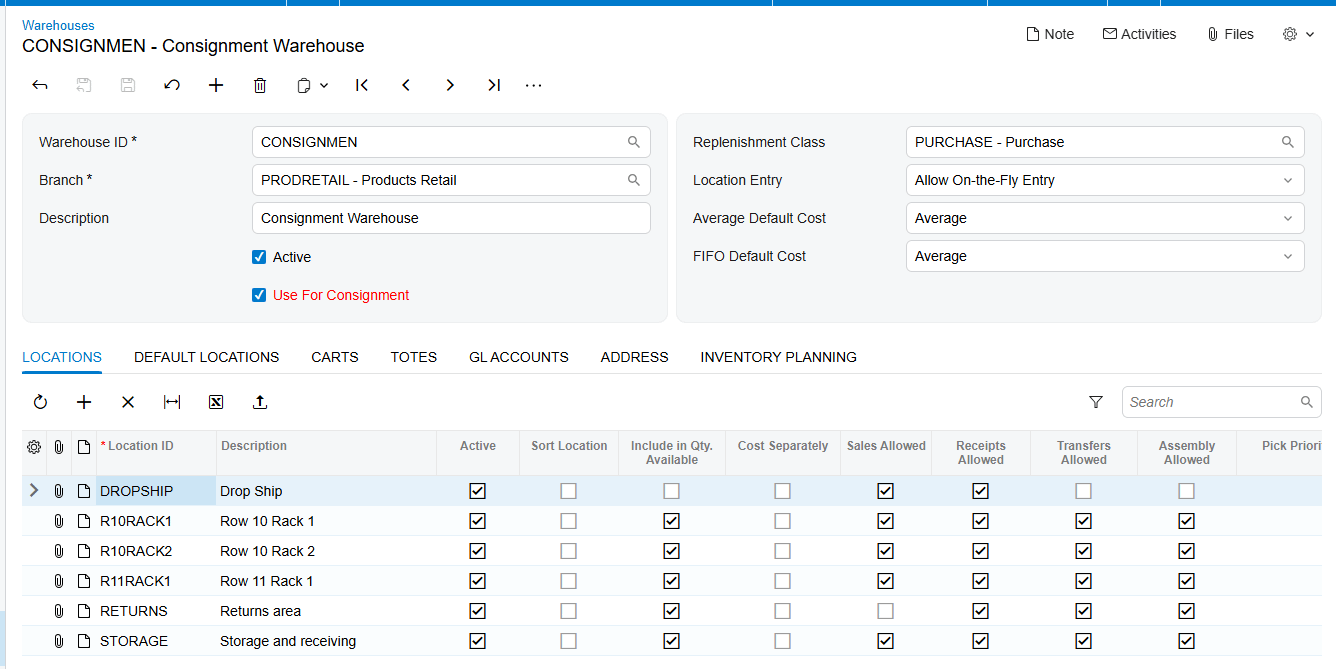
If those roles are reversed, the documentation says that an error message with a corresponding notification appears. It does not provide the message text, error code, or a list of conditions that trigger it. Troubleshooting should therefore begin by comparing the destination warehouse and line warehouse against the documented designation rule rather than searching for an undocumented message string.
This rule validates the warehouse relationship, not the identity of an item. The source does not describe validation for inactive inventory items, duplicate aliases, missing cross-references, restricted item classes, or customer-specific product eligibility.
Unmapped Records and Documented Source Limits
The documentation does not define an unmapped-record queue, exception inquiry, mapping status, retry action, or rejection report. It also does not explain what happens when an external SKU cannot be matched, because no external item feed or alias mapping flow is documented for this product.
Within the documented workflow, a missing relationship is more likely to appear as an incorrect or absent customer warehouse selection, an item missing from the order, a quantity that does not agree with the physical stock, or a warehouse-role error. Those are review points, not named product error categories.
Do not interpret a blank alias or missing cross-reference as a Consignment Processing failure unless the implementation includes a separate customization or integration that uses those fields. Keep the documented consignment relationship separate from any external product-master mapping performed by another system.
Physical Inventory as an Item Location Reconciliation Check
Physical inventory provides a documented way to reconcile inventory held at customer locations. On Physical Inventory Types (IN208900), a PI Type can be created with Consignment Inventory Count selected. When that checkbox is enabled, Customer and Location fields are displayed and specified for the PI Type. Consignment orders must already exist for the relevant customer and warehouse.
On Prepare Physical Count (IN504000), select the consignment PI Type ID. The form displays the related Inventory IDs and Book Qty. The documentation defines Book Qty as the sum of Open Qty from the Item Selection pop-up of related Consignment Orders for the specified customer and warehouse.
Generate PI to open Physical Inventory Review (IN305000), enter the actual value in Physical Qty. for each line, and use Finish Counting. Complete PI then generates a Consignment Invoice order based on the recorded physical quantities. After the invoice is released, verify that Open Qty in Item Selection on the original Consignment Order reflects the new balance.
Where to Check Your Work
Use these checks to confirm that items are tied to the intended customer location.
1 On Warehouses (IN204000), confirm that the destination warehouse has Use for Consignment selected.
2 On the customer record, confirm that the intended Consignment Warehouse is associated with the selected customer.
3 On Sales Orders (SO301000), confirm CN as the Order Type and verify the Customer before reviewing the item lines.
4 Confirm that each item and quantity on the order matches the stock being sent to that customer location.
5 Confirm that the consignment warehouse is the destination and that the standard non-consignment warehouse appears on the lines.
6 After Update IN, confirm the Consignment or Partial Consignment status and review the item quantities on the Consignment Order.
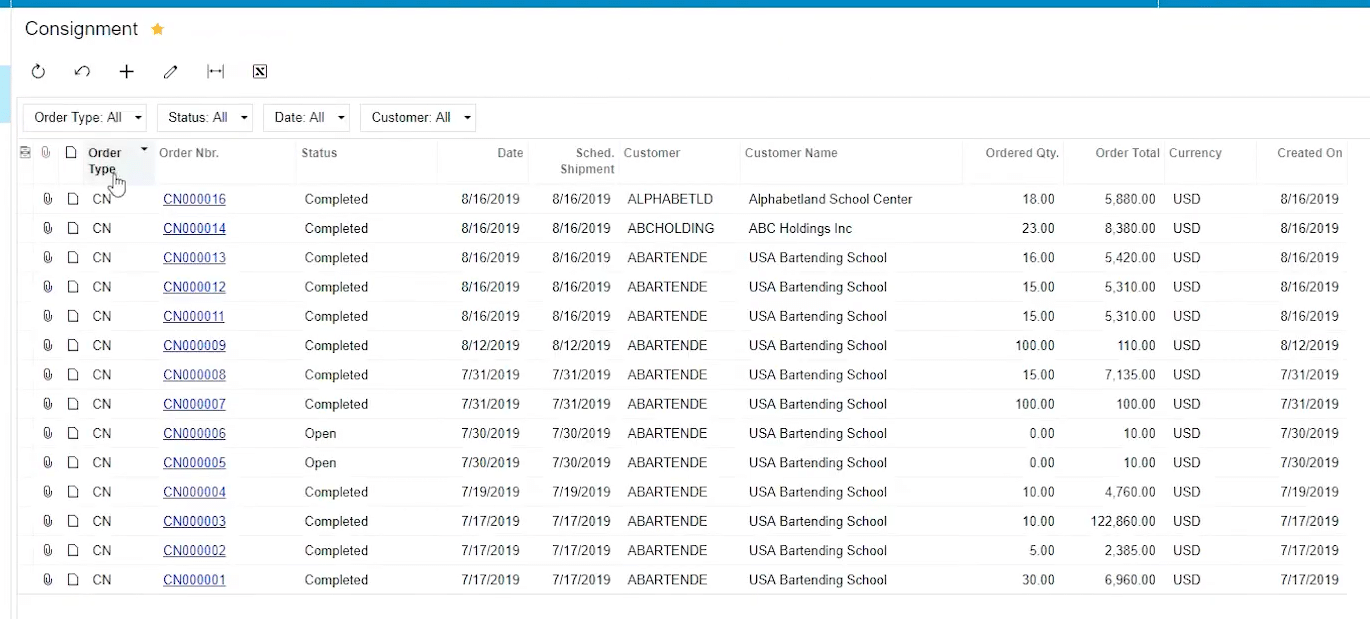
7 Use the Consignment Orders Generic Inquiry for order-level information and Consignment Item Details for open item-level information.
8 For a physical count, verify Inventory ID, Book Qty, Physical Qty., and the revised Open Qty after Complete PI and invoice release.
9 Remember that Consignment Item Details no longer displays item-level information for a Closed order. Order-level information remains available in Consignment Orders.
Consignment Item Mapping Frequently Asked Questions
Does Consignment Processing include a separate item mapping screen?
The supplied documentation does not identify a separate mapping screen. It documents the customer’s Consignment Warehouse and the inventory items entered on the Consignment Order as the working relationship.
Can I map a customer SKU or alias to an Acumatica Inventory ID?
The documentation does not describe aliases, customer part numbers, alternate IDs, or SKU cross-references. Do not assume that Consignment Processing performs that translation without separate approved documentation or testing.
Do item classes control which products can be consigned?
No item-class rule is documented. The source names items and Inventory IDs but does not state that an item class includes, excludes, or defaults products for consignment.
Why did the default consignment warehouse change after I selected the customer?
A customer-specific Consignment Warehouse overrides the default warehouse from Sales Order Preferences. Verify the warehouse associated with the selected customer.
Why does Acumatica reject the warehouse selection?
Confirm that Use for Consignment is selected for the destination warehouse on Warehouses (IN204000). The consignment warehouse can be used only as the destination, while a standard non-consignment warehouse can be used only on the lines. The source does not provide the exact error text.
Where can I see item level consignment records?
Use the Consignment Item Details Generic Inquiry for item-level information on orders that are not Closed. Closed orders disappear from that inquiry, while order-level records remain in Consignment Orders.
How can I find quantity differences at a customer location?
Use a PI Type with Consignment Inventory Count selected, prepare the count on IN504000, enter Physical Qty. on IN305000, and complete the count. Compare Book Qty, Physical Qty., and the revised Open Qty on the original order.
What happens to the item relationship when the consignment order closes?
When all ordered items have been shipped and all shipped items have been sold or returned, the order changes to Closed. Consignment Sell Items and Consignment Return Items are disabled, and Consignment Item Details no longer shows the item-level information for that order.
Work With Biz Tech Services Consignment Processing
A reliable consignment item relationship starts with the correct customer, the correct customer-specific Consignment Warehouse, and accurate Inventory IDs and quantities on the Consignment Order. The documented checks in Sales Orders, the consignment inquiries, and physical inventory help confirm that stock remains tied to the intended customer location.
If your team needs help configuring or validating Consignment Processing in Acumatica, visit https://biz-techservices.com to learn more about Biz-Tech Services and schedule a personalized consultation.
Check the YouTube video for visual explanation: https://www.youtube.com/watch?v=afFwt8-gZCM

