
Mapping ShipHero SKUs to Acumatica inventory items requires a careful reading of what the connector documentation actually defines. The manual documents bidirectional item synchronization, missing-item creation or replacement, item-class defaults, and warehouse cross-references, but it does not name a ShipHero SKU field or state the exact comparison rule that links an SKU to an existing Inventory ID.
The Biz-Tech Services ShipHero Acumatica Connector provides the controls needed to load and synchronize items and to decide what happens when a record is missing. This guide focuses on those documented item-level controls and marks the unsupported areas clearly.
What ShipHero Item Mapping in Acumatica Establishes
The Biz-Tech Services Acumatica ShipHero Connector uses the Inventory Details tab to load and display items from both systems. Load Acumatica Items displays the ERP items, Load Ship Hero Items displays the warehouse management system items, Sync Acumatica Items exports items to ShipHero, and Sync Ship Hero Items imports items into Acumatica.
When an imported ShipHero item does not exist in Acumatica, Import Item controls whether a new inventory record may be created. When that checkbox is selected, imported item type, item class, UOM, and warehouse ID become available as defaults. When it is not selected, the source says the connector does not create a new item and uses the configured Replace Missing Products default instead.
Warehouse Cross-Reference is part of the item synchronization path, but it maps warehouse values rather than item identifiers. The source says the connector creates or assigns the warehouse for an imported item according to this setup. It does not say that Warehouse Cross-Reference maps an SKU, Inventory ID, alias, or product code.
ShipHero Item Mapping at a Glance
Use this sequence to configure the documented item behavior without assuming an undocumented SKU rule.
1 Select the integration direction on Ship Hero Store because the available tabs and processing behavior change between Ship Hero to Acumatica and Acumatica to Ship Hero.
2 Configure Warehouse Cross-Reference for the warehouse values used during item synchronization and order import.
3 On Sync Info, decide whether Import Item should create a missing Acumatica item or whether the connector should use Replace Missing Products.
4 If Import Item is selected, set imported item type, item class, UOM, and warehouse ID as the defaults for a newly created item.
5 Open Inventory Details and use Load Ship Hero Items or Load Acumatica Items to review the records available for processing.
6 Run Sync Ship Hero Items to import selected ShipHero items or Sync Acumatica Items to export ERP items.
7 Open the Ship Hero Item inquiry to review item availability, connected vendors, bin transfers, and the result of Sync Ship Hero Item.
8 Treat the SKU, alias, duplicate, and precedence rules as unresolved until Biz-Tech Services supplies product-specific guidance because the manual does not define them.
Choose the Item Synchronization Direction
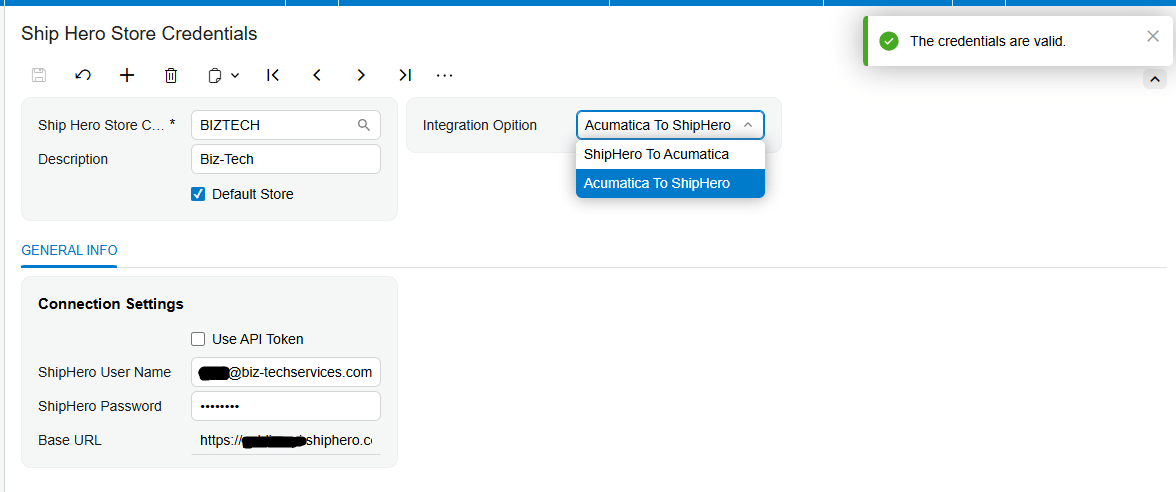
Ship Hero Store includes an Integration Option that determines the workflow direction. Ship Hero to Acumatica brings data from the warehouse management system into the ERP and exposes General Info, Import Info, Ship Via Cross Reference, Warehouse Cross Reference, Inventory Details, Sync Info, and Locations.
The Inventory Details actions show the documented item flow. Load Acumatica Items retrieves the ERP item list, and Load Ship Hero Items retrieves the ShipHero item list. Sync Acumatica Items sends ERP items to ShipHero. Sync Ship Hero Items brings ShipHero items into Acumatica. Purge deletes the items displayed on the Inventory Details table, while Sellect All, as written in the source, selects all displayed items.
The manual does not list Inventory Details grid columns or identify an SKU, product ID, inventory code, or line-level key on that tab. It also does not explain whether synchronization updates an existing record or creates a new one based on an SKU comparison. Confirm the visible fields in the installed customization before documenting a local matching procedure.
Configure Missing Item Creation and Item Class Defaults
Import Item is the documented switch for missing inventory records. Select it when the connector should allow a new item to be created during synchronization or order import. The following default fields then appear: imported item type, item class, UOM, and warehouse ID.
Item class is used as a default for new item creation. The source does not describe item class as a cross-reference, a match condition, or a way to resolve multiple records with the same external identifier. It also does not state whether any attributes or settings inherited from the class are required by the connector.
When Import Item is not selected, the manual says that the connector does not create a new item and sets a default item for each missing product. Replace Missing Products supplies that default item, and Warehouse ID supplies the warehouse value. The source also contains an awkward sentence saying it sets Replace Missing Products as the item name; it does not clarify whether this means the selected replacement item, the displayed line description, or another value.

These controls define how an unmapped or missing product can be handled during import, but they do not define the condition that makes a product missing. No rule is given for blank SKUs, unknown SKUs, duplicate SKUs, inactive items, stock versus non-stock items, or a ShipHero record whose code differs from the Acumatica Inventory ID.
Separate Warehouse Cross-References from Item Identity
Warehouse Cross-Reference is explicitly used by item synchronization and order import. Based on that setup, an imported order receives the mapped warehouse on the sales order, and an imported item receives or creates the warehouse associated with that mapping.
The Biz-Tech Services ShipHero Acumatica Integration also uses the mapped warehouses when locations are loaded. The Locations note states that locations are loaded for warehouses configured on Warehouse Cross-Reference. When Use Location Mapping is selected, a grid appears to map locations; otherwise, Sellable Location and Non-Sellable Location provide the documented defaults.
Ship Via Cross-Reference serves a different purpose. The Import Info settings expose Use Cross Ref for Ship Via and Use Cross Ref for Warehouse. Selecting these options shows the corresponding tabs so ShipHero values can be matched with Acumatica values. The manual does not provide an item cross-reference option or an SKU cross-reference tab.

Box Mapping and Reason Code Mapping are also named mapping features, but neither identifies an inventory item. Box Mapping pairs Acumatica Box ID with ShipHero Box name. Reason Code Mapping supports return orders. Keep these mappings separate from the unresolved item-identity question.
Validate Imported Items Vendor Data and Locations
When Sync Ship Hero Items imports an item, vendor information is also synchronized if the stock item has a vendor or vendors that have already been synchronized to ShipHero. The source does not state which vendor field is used for the connection or what happens when the vendor has not been synchronized.
The Ship Hero Item inquiry provides three review areas. Warehouse Details displays item availability. Vendors displays the vendor connected with the item in ShipHero. Bin Transfers displays transfers for the item. Update Item displays changes made to the ShipHero item, Sync Ship Hero Item synchronizes the item into Acumatica, and Update Warehouse In Ship Hero updates item quantity in ShipHero.
Location setup should be reviewed with the item. Load Acumatica Locations displays ERP locations, and Sync Acumatica Locations exports them to ShipHero. Load Ship Hero Locations displays warehouse-system locations. The documentation says only locations for warehouses configured on Warehouse Cross-Reference are loaded.
The manual supplies no screen IDs for Ship Hero Store, Inventory Details, Warehouse Cross-Reference, Locations, or Ship Hero Item. The only screen ID stated in the document is Customization Projects (SM204505), which is used for package installation and is not an item-mapping screen.
Apply the Documented Mapping Validation Rules
The source provides configuration dependencies rather than a formal SKU validation table.
1 Select a Ship Hero Store integration direction before expecting the related item and mapping tabs to appear.
2 Select Use Cross Ref for Warehouse before expecting Warehouse Cross-Reference to appear.
3 Configure the mapped warehouse because the setup is used for both item synchronization and order import.
4 Select Import Item before expecting imported item type, item class, UOM, and warehouse ID defaults to appear.
5 If Import Item is not selected, confirm Replace Missing Products and Warehouse ID before importing a product that may not exist.
6 Confirm that a vendor is already synchronized before expecting the vendor information of an imported stock item to synchronize with the item.
7 Configure Warehouse Cross-Reference before loading locations because the source limits loaded locations to configured warehouses.
The documentation does not provide error-message text, validation codes, duplicate handling, or a rejected-record inquiry for item synchronization. It does not say how a failed item appears on Inventory Details or whether Purge removes only the displayed staging records or affects data outside the table.
Document the SKU and Alias Rules the Manual Does Not Define
Despite the business need to map ShipHero SKUs, the source never names an SKU field. It does not say that ShipHero SKU equals Acumatica Inventory ID, Inventory CD, Alternate ID, or another field. It also does not show item-level mapping columns on Inventory Details or provide a sample product-to-item mapping.
No alias mechanism is documented. The manual does not identify customer part numbers, vendor part numbers, global trade item numbers, universal product codes, barcodes, alternate IDs, wildcard matching, or case-insensitive matching as valid connector keys. It does not define which identifier wins if multiple candidates exist.
Unmapped-record behavior is documented only through Import Item and Replace Missing Products. The source does not identify a holding queue, error log, notification, or correction screen for a product that cannot be matched or created. It also does not state whether a later successful match replaces an earlier replacement-product line.
A safe implementation record should therefore distinguish documented configuration from tested local behavior. Record the installed screen fields, the exact ShipHero value, the resulting Inventory ID, the Import Item state, the selected defaults, and the warehouse mapping observed in a controlled test. Do not present the observed key as a product guarantee unless it is confirmed by Biz-Tech Services.
Where to Check Your Work
The Biz-Tech Services ShipHero Acumatica Integrator exposes the documented item result in these locations.
1 Ship Hero Store: confirm Store Code, Integration Option, and the tabs displayed for the selected direction.
2 Import Info: confirm Use Cross Ref for Warehouse and Use Cross Ref for Ship Via when those mappings are required.
3 Warehouse Cross-Reference: compare the ShipHero warehouse value with the Acumatica warehouse value used during item synchronization and order import.
4 Sync Info: check Import Item, imported item type, item class, UOM, warehouse ID, Replace Missing Products, Export Price Type, and Export price Quantity.
5 Inventory Details: load both item lists, review the displayed records, and run only the synchronization direction intended for the test.
6 Ship Hero Item: review Warehouse Details, Vendors, and Bin Transfers, then use Update Item or Sync Ship Hero Item as documented.
7 Locations: confirm that the expected warehouses were mapped before loading locations, and review Use Location Mapping, Sellable Location, and Non-Sellable Location.
8 The resulting Acumatica inventory item and sales order line: compare the item, warehouse, UOM, and replacement-product outcome with the configured defaults. The manual does not provide a specific screen ID for this review.
ShipHero SKU and Inventory Item Mapping Frequently Asked Questions
Does the connector documentation say which Acumatica field matches a ShipHero SKU?
No. The manual documents item synchronization and missing-item settings but does not name a ShipHero SKU field or state that it matches Inventory ID, Inventory CD, Alternate ID, or another Acumatica field.
Can the connector create an inventory item that does not exist in Acumatica?
Yes, when Import Item is selected. The connector can create a new item using imported item type, item class, UOM, and warehouse ID as the documented defaults.
What happens when Import Item is not selected?
The source says the connector does not create the new item. It uses the default configured in Replace Missing Products and takes the warehouse from Warehouse ID.
Is item class used to match ShipHero products?
The manual only identifies item class as a default for new item creation. It does not define item class as an SKU match, alias, or cross-reference rule.
Does Warehouse Cross-Reference map ShipHero SKUs?
No SKU behavior is documented for that tab. It maps warehouse values used during item synchronization and order import, including the warehouse associated with an imported item.
Where can I review a synchronized ShipHero item?
Use Inventory Details to load and process item records, then use the Ship Hero Item inquiry to review Warehouse Details, Vendors, and Bin Transfers. The source provides no screen IDs for those locations.
Does the connector support aliases or alternate item identifiers?
The Biz-Tech Services Acumatica ShipHero Integration documentation does not define item aliases, alternate IDs, barcodes, customer part numbers, vendor part numbers, or wildcard matching. Obtain product-specific confirmation before building a mapping process around any of those identifiers.
How can I validate an SKU mapping when the manual does not define the key?
Run a controlled item synchronization and record the exact source value, resulting inventory item, Import Item setting, item defaults, replacement-product outcome, and warehouse mapping. Treat the result as environment-specific until the key is confirmed by Biz-Tech Services.
Work With the Biz-Tech Services ShipHero Connector
A reliable mapping design starts with the controls the manual actually documents: synchronization direction, missing-item handling, creation defaults, and warehouse mapping. The SKU key, aliases, matching precedence, and rejected-record workflow require product-specific confirmation.
If you need help confirming ShipHero item identifiers, testing missing-item behavior, or documenting a controlled SKU-mapping process, visit https://biz-techservices.com to work with the Biz-Tech Services Acumatica ShipHero Integrator.

