
Mapping DSCO SKUs to Acumatica Inventory IDs uses the cross-reference controls on the Inventory Items tab of DSCO Store. The documented example selects SKU as the search method, finds the corresponding DSCO item, and associates that product with its Acumatica Inventory ID for order import.
The Biz-Tech Services DSCO Acumatica Connector uses this item relationship separately from warehouse and shipping cross-references. This guide focuses on SKU lookup, line-level item matching, unmapped-product errors, and the limits of the source. Earlier DSCO articles cover setup, order-to-cash flow, order import, and inventory quantity synchronization.
DSCO SKU Mapping Definition and Prerequisites
The Biz-Tech Services Acumatica DSCO Connector is installed through Customization Projects (SM204505). After the connection is established, DSCO Store contains General Settings, Order Settings, Cross-Reference, Inventory Items, Inventory Availability, and other connector controls.
Cross-Reference Options determines which entities appear in the Cross-Reference Field list. The Inventory Items tab contains its own cross-reference section with dropdown fields that determine how the connector searches for an item and maps it to Acumatica Inventory ID. The source gives SKU as its only item-search example.
Before importing orders, confirm that the correct Partner Code is selected and that the required entity is enabled under Cross-Reference Options. The documentation does not provide all possible Inventory Items search values, exact mapping-grid column names, or a separate item-master setup screen.
DSCO SKU Mapping Step by Step
Use this sequence to set up and check the documented item relationship.
1 Open DSCO Store for the intended Partner Code.
2 Review Cross-Reference Options and enable the entity required for item matching so it becomes available in the relevant Field list.
3 Open the Inventory Items tab and locate its cross-reference section.
4 Select the item search method from the dropdown. Use SKU when applying the example documented in the source.
5 Associate the corresponding DSCO SKU with the intended Acumatica Inventory ID.
6 Save the DSCO Store record before importing an order or selecting products for quantity synchronization.
7 Retrieve the order on Import DSCO Orders and run the import process.
8 If the order line fails, review the line error, hover over the red cross for more information, and use Tools and Trace when additional detail is needed.
How SKU Search Maps to Inventory ID
The Inventory Items documentation describes dropdown fields that choose how to search for an item within the connector. In its example, SKU is selected. The system searches for the item with the corresponding SKU number and associates it with an Acumatica Inventory ID.
This establishes the documented line-level relationship for DSCO orders. A source product identifier is resolved through the selected search method, and the resulting Inventory ID identifies the item used in Acumatica. The source does not describe a separate item-creation option when that Inventory ID is missing.
The documentation also does not state whether SKU matching is case-sensitive, whether leading zeros are preserved, or how spaces and punctuation are normalized. It gives no rule for duplicate SKU values or for multiple source records pointing to one Inventory ID. Those cases require controlled validation in the configured environment.
Cross References Warehouses and Product Aliases
The Biz-Tech Services DSCO Acumatica Integration uses Cross-Reference Options for more than one entity, but the source separates item matching from warehouse mapping. If Use Cross Ref for Warehouse is selected, the source warehouse value must be mapped to an Acumatica warehouse through Cross-Reference.
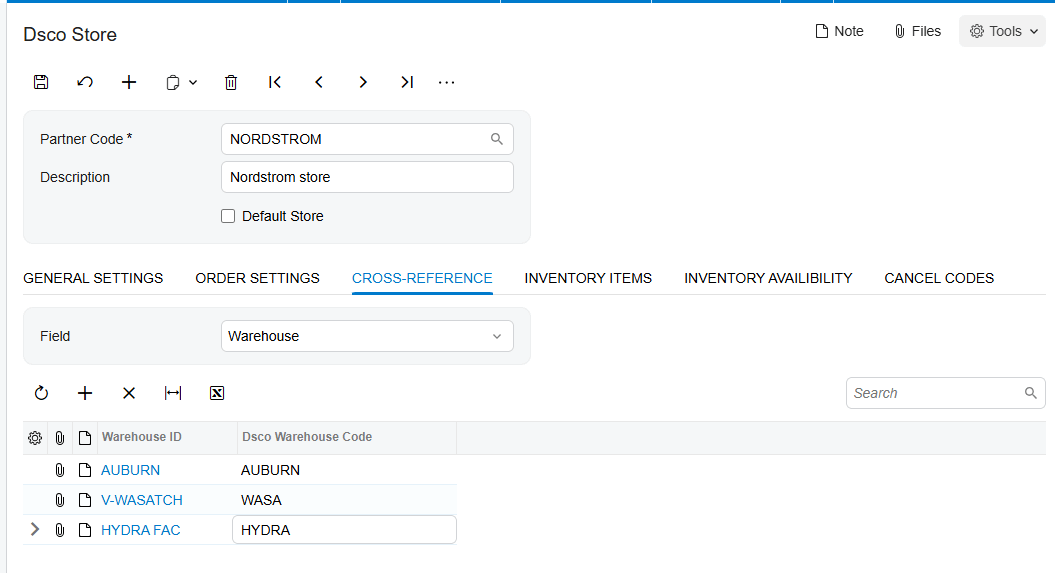
The documented warehouse validation is explicit. If a warehouse value is not mapped, order import displays Warehouse does not have value. This error concerns the warehouse relationship, not the SKU-to-Inventory-ID relationship.
The source does not document an Alias field, alternate item ID, vendor part number, customer part number, or precedence among multiple identifiers. Although the Inventory Items dropdown allows a search method to be chosen, only SKU is named. Do not claim that additional aliases are supported without separate approved documentation.
Unmapped Items and Import Validation
The manual warns that an error appears during order import when item values are not mapped. It does not provide the actual item error text, error code, or the exact field displayed in the grid. Therefore, troubleshooting should begin with the SKU selection and Inventory ID association rather than an invented message string.
Import DSCO Orders displays an error on the line corresponding to the order when processing fails. Users can hover over the red cross to view additional information and open Tools and Trace for more detail. These are order-import diagnostics; the source does not define a dedicated unmapped-item inquiry.
No unmapped-record queue, Unmapped status, retry counter, automatic substitute item, or batch remediation action is documented. The source also does not state whether correcting a mapping allows the same retrieved order to be reprocessed or requires retrieving it again.
Item Classes and Other Mapping Limits
The DSCO manual does not document Item Class selection, item-type defaults, unit-of-measure mapping, new-item creation, or product-category mapping. It only describes searching for a source item and associating it with Acumatica Inventory ID.
The manual also does not name product attribute mappings, metadata fields, product variants, or parent-child item relationships. These omissions matter because the selected SKU may identify a product, but the source does not explain how additional product properties are transferred to an inventory record.
Inventory Availability is downstream of the saved item setup. Users choose the required items from Inventory Items on DSCO Store and save them before they appear for quantity synchronization. This requirement confirms that selected item records feed the quantity process, but it does not add another documented identifier or alias rule.
How Inventory Quantity Records Confirm the Item Relationship
Export DSCO Inventory Quantities synchronizes quantities for items selected and saved on Inventory Items. Quantity is a read-only field representing the inventory quantity in Acumatica. DSCO Quantity is editable and can be sent as the source-system inventory quantity.

This screen can confirm that a saved item is available to the downstream process. It does not prove that every SKU on every incoming order is mapped correctly, and it does not expose an alias chain. Use the order-import result to validate the actual line relationship.
Inventory Availability also determines which warehouses contribute to synchronized quantity and whether the value represents On hand, Available, or Available for Shipment. Those warehouse and quantity choices are covered in the inventory synchronization workflow and should not be confused with product identity mapping.
Where to Check Your Work
The Biz-Tech Services DSCO Acumatica Integrator provides these documented checkpoints for SKU mapping.
1 On DSCO Store, confirm the intended Partner Code.
2 Under Cross-Reference Options, confirm that the entity needed for item matching is enabled.
3 On Inventory Items, confirm the selected search method and use SKU when following the documented example.
4 Confirm that the source SKU is associated with the intended Acumatica Inventory ID.
5 Save the DSCO Store record before order import or quantity synchronization.
6 On Import DSCO Orders, review the corresponding order line after processing.
7 If a red cross appears, hover over it for additional information and open Tools and Trace when necessary.
8 If Warehouse does not have value appears, correct the warehouse cross-reference rather than changing the product mapping.
9 On Export DSCO Inventory Quantities, confirm that the selected item appears and that Quantity reflects the intended inventory record.
DSCO SKU Mapping Frequently Asked Questions
What DSCO value maps to Acumatica Inventory ID?
The source example uses SKU. The Inventory Items dropdown selects the search method, and the corresponding SKU is associated with Acumatica Inventory ID.
Does the connector support product aliases?
No product-alias behavior is documented. The manual does not name alternate IDs, vendor numbers, customer numbers, or identifier precedence.
What happens when a DSCO item is not mapped?
The manual says order import displays an error, but it does not give the item-specific error text. Review the line error, the red-cross detail, and Tools and Trace.
Can the connector create a missing Acumatica item?
The Biz-Tech Services Acumatica DSCO Integration documentation does not describe automatic item creation. It describes mapping a searched source item to an existing Inventory ID.
Does Item Class control DSCO product mapping?
No Item Class field or class-based rule is documented for DSCO item mapping. The source also omits item-type and unit-of-measure defaults.
Is the warehouse cross reference part of SKU mapping?
It is a separate relationship. Use Cross Ref for Warehouse maps source warehouse values to Acumatica warehouses. Missing warehouse mapping produces Warehouse does not have value.
Where can I review unmapped products?
The source identifies no unmapped-product queue or mapping inquiry. Review Inventory Items on DSCO Store and the error shown on Import DSCO Orders.
Does the quantity screen validate each incoming SKU?
No. Export DSCO Inventory Quantities confirms that selected and saved items participate in quantity synchronization. Incoming line validation occurs during order import.
Work With Biz Tech Services DSCO Mapping
A reliable DSCO item relationship starts with the intended search method, a consistent SKU, and the correct Inventory ID. Cross-reference setup, order-line errors, and saved Inventory Items provide the documented points for validating that relationship.
For help configuring and validating the Biz-Tech Services Acumatica DSCO Integrator, visit https://biz-techservices.com to learn more about Biz-Tech Services and schedule a personalized consultation.

