
How to Sell Gift Cards Through Sales Orders in Acumatica
To sell a gift card on a sales order in Acumatica, you add a gift card item to the order line, let the system produce a number for it, and confirm that number before the order moves to fulfillment. This article walks that task end to end for both kinds of gift card item the Biz-Tech Services Gift Card Processing product supports: a non-stock card, numbered on the order itself, and a stock card, whose number already exists as a serial number and has to be allocated. You will learn which record the sale creates, which setting decides the card number, and what stops a sale.
Gift Card Processing is an Acumatica ERP customization published by Biz-Tech Services, Inc. It extends the Sales Orders screen (SO301000), the Payment Methods screen (CA204000), and the Stock Items screen (IN202500) so a gift card can be sold like any other item and later spent like a tender. This article covers only the selling half; redemption and returns are covered separately. The finish line is a numbered, valid gift card record your business can hand to a customer.
Before You Start: What Must Be Configured
Three pieces of setup must exist before the first gift card sales order behaves correctly. All are one-time tasks, but a gap in any of them surfaces later as a line that cannot produce a card number.
A Gift Card Payment Method and Its Cash Account
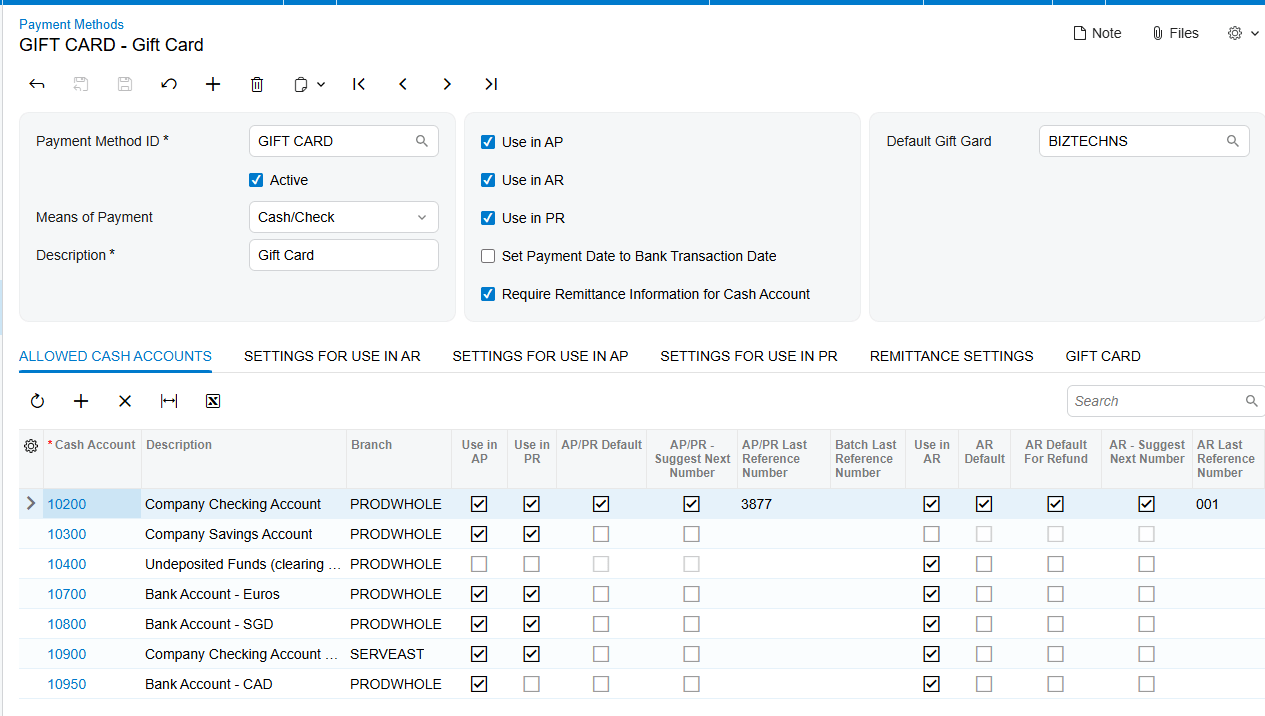
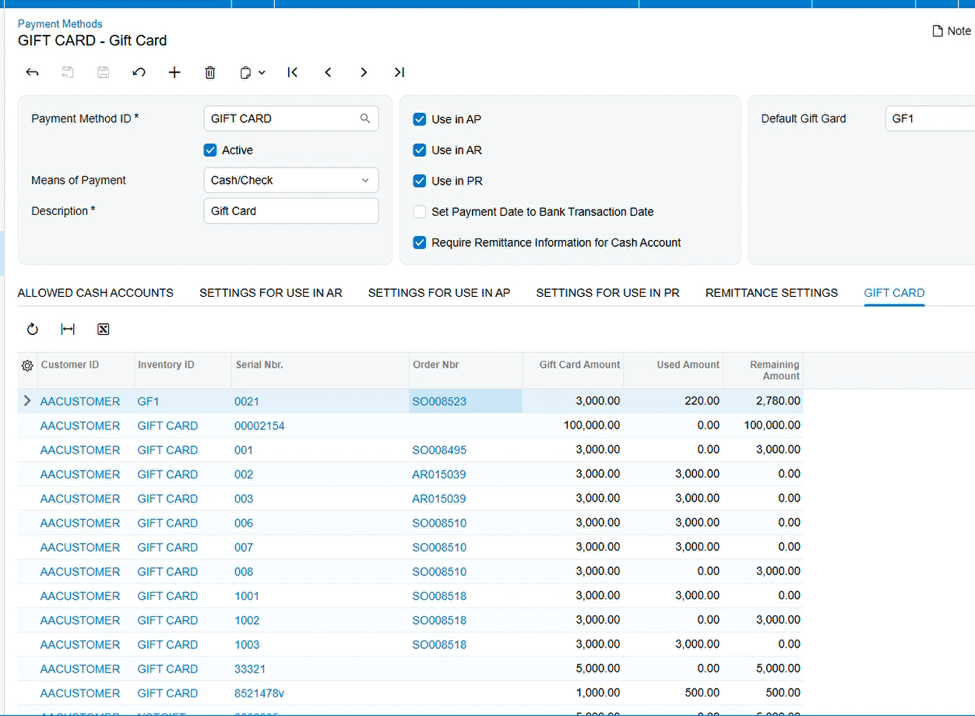
Create a gift card payment method on the Payment Methods screen (CA204000), then add the gift card cash account under its Allowed Cash Accounts tab. Because payment methods in Acumatica are linked to cash accounts, Biz-Tech Services strongly recommends a dedicated general ledger (GL) account for the gift card item; the balance on unspent cards is a liability and belongs apart from ordinary cash. The screen also carries a Default Gift Card field, which sets the card shown by default in the Create Payment popup.
A Gift Card Item
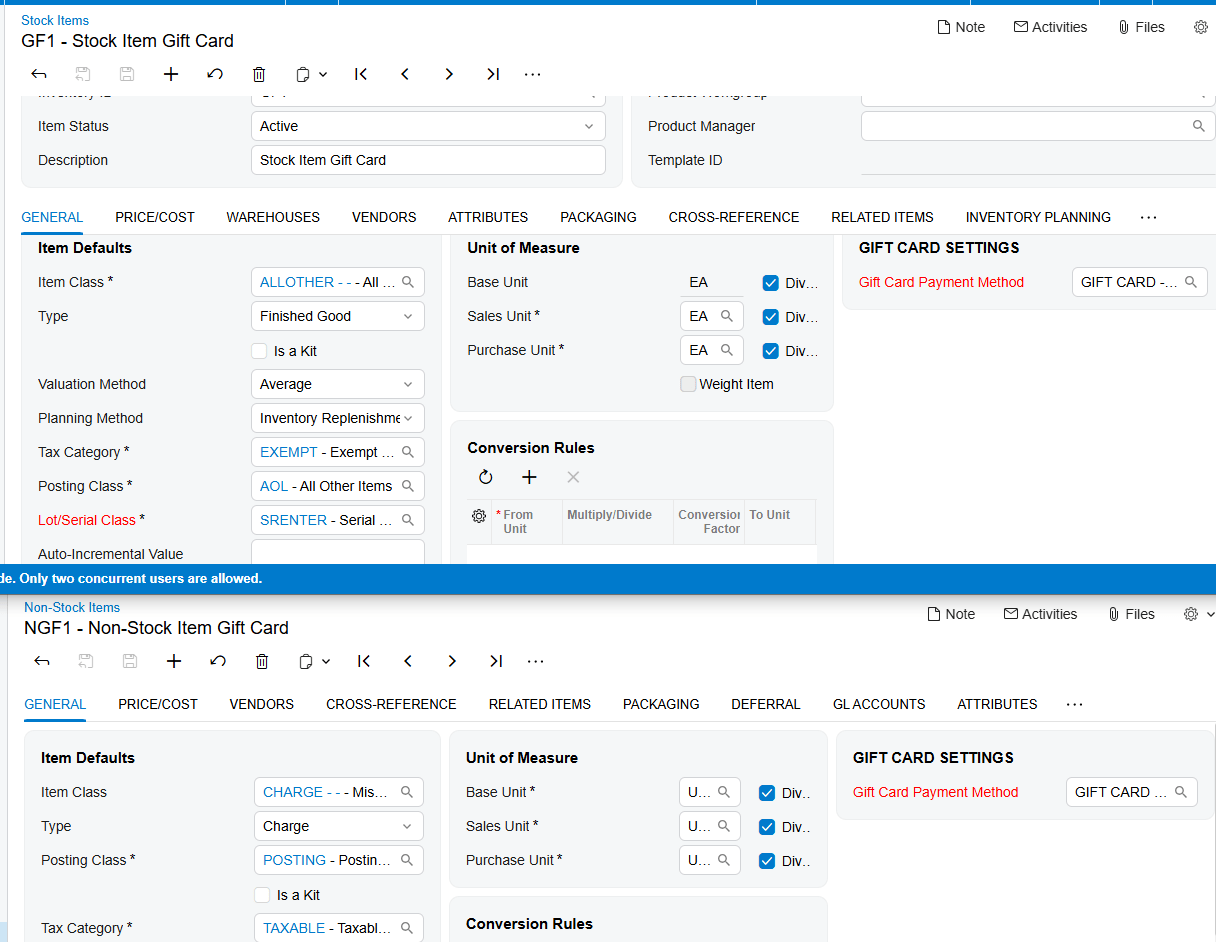
A gift card item is an Acumatica item with the gift card payment method attached to it. It can be non-stock or stock, and the choice changes the whole order entry procedure. Non-stock suits cards issued electronically or numbered at the moment of sale; stock suits physical, pre-printed cards received into inventory with serial numbers already on them.
A Numbering Choice in Gift Card Preferences
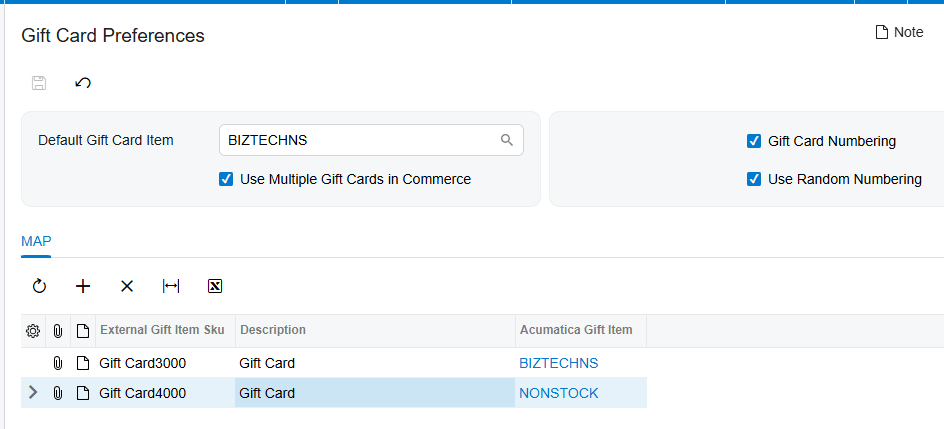
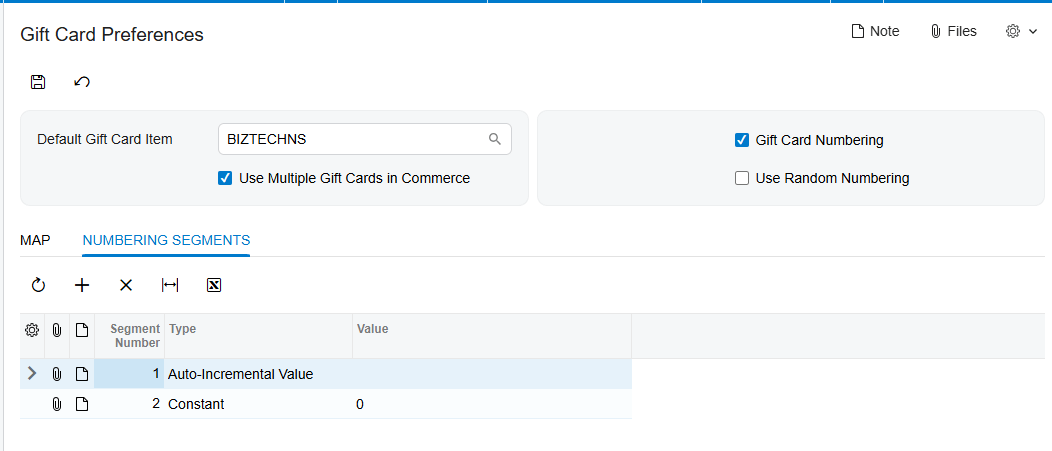
The Gift Card Preferences screen (BZ102000) decides how non-stock gift card numbers are produced. Two checkboxes drive it: Gift Card Numbering, which exposes a Numbering Segments tab for a structured number, and Use Random Numbering, which hides that tab and has Acumatica generate random numbers instead. The same screen holds the Default Gift Card Item field and the Use Multiple Gift Cards in Commerce checkbox, which govern imported orders.
Selling a Non-Stock Gift Card on a Sales Order
Non-stock gift cards are sold on the standard Acumatica Sales Order screen. There is no special order type and no separate screen; the gift card behavior attaches to the line.
Step 1: Add the Gift Card Item to the Order
Create the order and add the non-stock gift card item on the Details tab as you would any other item, with quantity and amount. The sale records a Gift Card Amount for the card, so enter the value the customer is buying. Once Acumatica recognizes the line as a gift card item, the Details tab exposes a Gift Card Numbers field where the produced number is shown.
Step 2: Let the Number Be Produced, or Type It
For orders created inside Acumatica, the gift card number can be entered manually or generated according to the Gift Card Numbering setup on Gift Card Preferences. That gives three modes: manual entry, where a user types the number printed on the card stock; a numbering sequence, where Acumatica builds the number from the segments you defined; and random numbering, generated as soon as the item and a quantity are entered.
Choose deliberately. A sequence is easy to reconcile but also easy to guess: if card 100045 is valid, card 100046 probably is too. Use Random Numbering exists to prevent users from using gift cards based on a predefined numbering sequence.
Step 3: Check the Gift Card Numbers Popup
The generated number appears in the Gift Card Numbers field on the Details tab and in the Gift Card Numbers popup available during order creation. The popup confirms what Acumatica produced, and it is line-scoped: it displays the number based on the selected line of the item. On an order with three gift card lines you see one at a time, so click through each.
Step 4: Handle a Quantity Greater Than One
A single line can sell more than one card. When the gift card quantity is more than 1, the individual numbers appear in the Gift Card Numbers popup rather than on the line, and under random numbering they are generated based on the entered quantity. The popup is then the only place the full set is visible.
Step 5: Expect the Ship Complete Rule
The shipping rule for the corresponding non-stock gift card becomes Ship Complete on the sales order line. Acumatica sets this rather than keeping the customer or order type default, because a line for five cards has five numbers bound to it and partial shipment would split an issued set across documents. If a user cannot partially ship a gift card line, this rule is the reason.
Selling a Stock Gift Card: Receipt First, Then Allocation
A stock gift card is a physical card that exists in inventory before anyone sells it. Order entry is shorter than on the non-stock path, but two steps must precede it or the card cannot be sold.
Step 1: Create the Item as a Serialized Stock Item
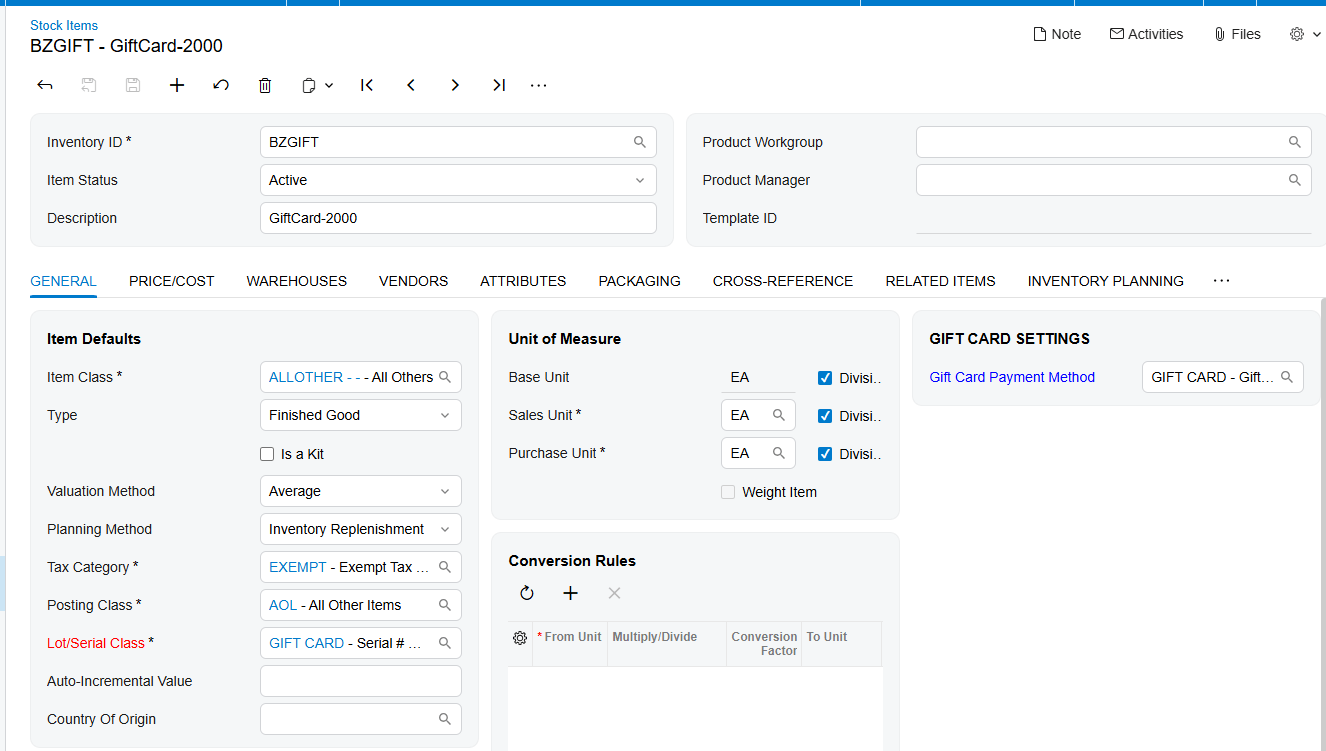
A gift card item can be created from the Stock Items screen (IN202500). You must select a payment method to associate with the item for gift card payments, and that field is enabled only for serialized items. A serial class specifically for the gift card item therefore has to be created on the Lot/Serial Classes screen and assigned first; a disabled payment method field means the item is not serialized yet. On that serial class, select Track Expiration Date if your cards expire.
Step 2: Run the Gift Card Receipt Process
Receiving stock gift cards into Acumatica takes three actions. Add the gift card item to the Receipts screen, enter the quantity, then generate the serial numbers with their respective expiration dates from the Line Details popup window. Those date fields appear when Track Expiration Date is selected on the serial class. The documentation is explicit that the expiration date should be established during the receipt process, so treat receipt as the last chance.
Step 3: Allocate the Serial Number on the Sales Order
Stock gift cards are also sold on the Acumatica Sales Order screen (SO301000). Add the item to the line, open Line Details, and pick the serial number in the Lot/Serial Nbr field. Allocation is required for all stock gift card items, so the line is not complete until a serial number is bound to it. The lookup shows all available gift card-related serial numbers with their expiration dates, which lets users issue the oldest card first.
Notice what is absent: no number generation and no Gift Card Numbers popup, because the number was created at receipt. The Gift Card Preferences numbering settings govern non-stock cards only.
Document Triggers: What the Gift Card Sales Order Creates
Once a gift card item is sold, Acumatica writes the customer information, order information, and gift card amount into the Gift Cards tab of the Payment Methods screen. This happens for both non-stock and stock items, and it turns an order line into a spendable card.
The Gift Card Record on the Payment Methods Screen
The Gift Cards tab added to the Payment Methods screen displays all related information for the card. The documented fields are Customer ID, Inventory ID, Gift Card Serial Number, Order Number, Gift Card Amount, Used Amount, and Remaining Amount. Read as a set, they answer what a support agent asks: who owns this card, which item was sold, which card is it, which order created it, and what is left. Used Amount and Remaining Amount are written at the moment of sale and maintained as the card is spent, so on a freshly sold card Remaining Amount should equal Gift Card Amount.
The Gift Card History Entry
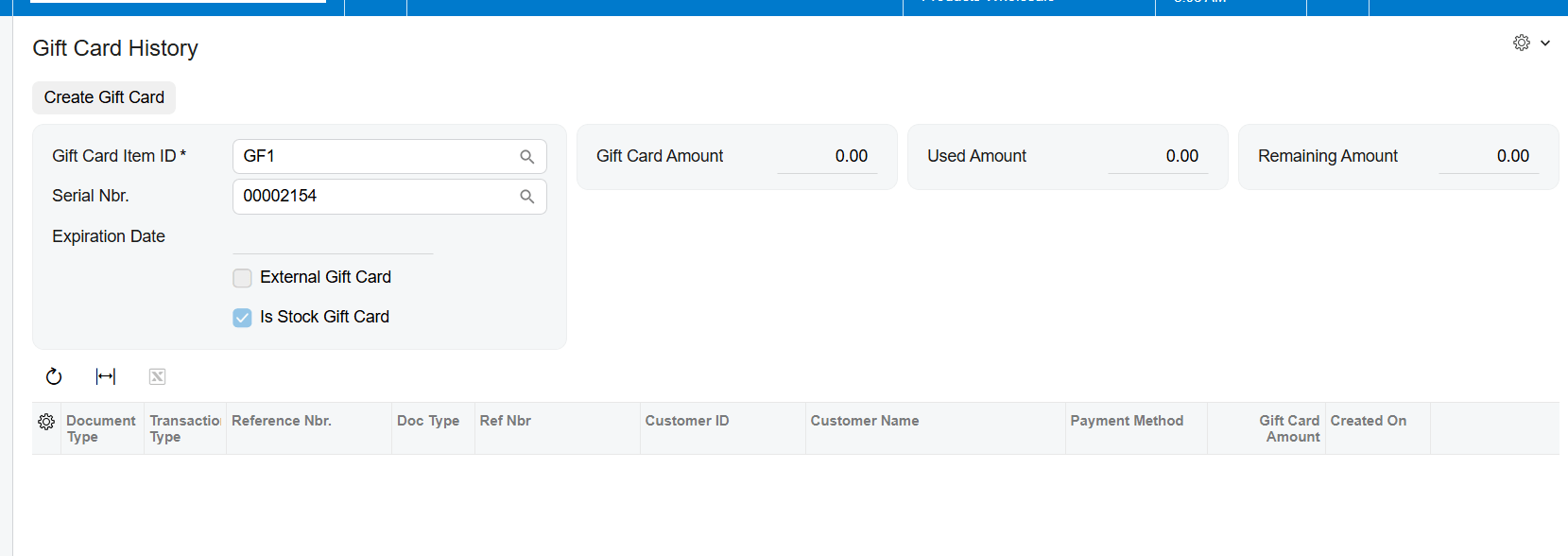
Clicking the serial number in the Gift Cards tab opens the Gift Card History screen (BZ407099), which displays all related information for the card. Two flags there identify its origin: External Gift Card indicates the card was imported from an external system, and Is Stock Gift Card indicates whether the card is a stock or non-stock item. Both help during triage, because they tell you which creation path produced the record.
That screen also carries a Create Gift Card button, a separate creation path and the same action exposed as Create Gift Card in the Gift Card History endpoint of the Biztech application programming interface (API) for imports from an external system. Those cards appear under the Gift Card tab of Payment Methods exactly like cards created by a sale. A sold card is now redeemable as a payment method in Acumatica; spending it is outside this article.
Mapping Rules That Decide the Card Number and Item
Four settings determine what number a card gets and, on imported orders, which Acumatica item the card is booked against.
Numbering Segments and the Auto-Incremental Value
When Gift Card Numbering is selected and Use Random Numbering is unselected on the Gift Card Preferences screen, the Numbering Segments tab becomes available. You use it to define the numbering structure for non-stock gift cards, and Acumatica generates the numbers from that configuration. One requirement is easy to miss: it is essential to configure the Auto-Incremental Value for automatic generation of the gift card number. A structure with no incrementing segment has nothing to advance.
Random Numbering as the Alternative
Selecting Use Random Numbering hides the Numbering Segments tab. Acumatica then generates random numbers when a gift card item is entered on the sales order and a quantity is specified. The two modes are alternatives, not layers. If the Numbering Segments tab has disappeared, someone turned on random numbering, and the segments you configured earlier are no longer in force.
The Default Gift Card Item
The Default Gift Card Item field names the non-stock item that should be considered the default gift card item for an external gift card during the order import process. It is the fallback for a card arriving from outside Acumatica without a specific item attached, and plays no part in an order a user keys by hand.
External SKU Mapping for Imported Orders
The Use Multiple Gift Cards in Commerce checkbox lets you map an external gift card stock keeping unit (SKU) to the corresponding Acumatica gift card item. That mapping is used when processing orders that involve multiple gift cards, which is what a storefront selling several denominations produces. If the checkbox is not selected, the system defaults to the non-stock item specified in Default Gift Card Item during the external order import process. Unchecked means every imported card lands on one item; checked means each SKU can land on its own.
Validation and Common Exceptions
Biz-Tech Services documents these as requirements rather than error messages, so the symptom is usually a field that stays empty or disabled. Each condition below must be satisfied for a gift card sale to complete.
No Numbering Configuration Means No Automatic Number
1. Automatic generation depends on the Auto-Incremental Value in the Numbering Segments tab. Without it, structured numbering cannot produce a number.
2. If neither Gift Card Numbering nor Use Random Numbering is in force, the only documented option left on an Acumatica order is manual entry on the line.
3. On an imported order, without external SKU mapping enabled the import falls back to the Default Gift Card Item, so that field needs a value.
Stock Gift Cards Require Serialization
1. The payment method field on the Stock Items screen is enabled only for serialized items, so a non-serialized item cannot become a gift card item.
2. A serial class specifically for the gift card item must be created on the Lot/Serial Classes screen and assigned to the item.
3. Allocation is required for all stock gift card items: the line needs a serial number in Lot/Serial Nbr under Line Details.
Expiration Dates Are Set at Receipt Only
1. Track Expiration Date must be selected on the serial class before receipt, or no expiration date fields are offered.
2. The date is established during the gift card receipt process. No step is documented for adding one at the point of sale, so a card received without a date is sold without one.
Order Line Behavior You Cannot Override
1. The shipping rule for a non-stock gift card line becomes Ship Complete, so plan fulfillment around it rather than splitting the line.
2. The Gift Card Numbers popup shows numbers for the selected line only, so check a multi-line order line by line.
3. When quantity is greater than one, the individual numbers live in the popup. Confirm the count before shipping.
Configuration Gaps That Surface Later
1. The gift card cash account must be added under the Allowed Cash Accounts tab of the payment method, because payment methods in Acumatica are linked to cash accounts.
2. A gift card item is defined by having the gift card payment method selected on it. Without that, it is an ordinary item and produces no gift card record.
Where to Check Your Work
After you save a gift card sales order, walk this checklist before it goes to shipping. Each item names an Acumatica field you can look at directly, and together they confirm the sale produced a card your customer can spend.
1. Sales Orders (SO301000), Details tab: the gift card item is on the line with the right quantity and amount.
2. Details tab: the Gift Card Numbers field on the line is populated, not blank.
3. Gift Card Numbers popup, with that line selected: the number matches the card being issued.
4. Gift Card Numbers popup: the count of numbers equals the line quantity when quantity exceeds one.
5. Sales order line: the shipping rule reads Ship Complete for a non-stock gift card line.
6. Line Details, Lot/Serial Nbr: a serial number is allocated on every stock gift card line, with the expiration date you expect for that batch.
7. Payment Methods (CA204000), Gift Cards tab: a row exists for the card you just sold.
8. Gift Cards tab, Customer ID: it matches the customer on the sales order.
9. Gift Cards tab, Inventory ID: it is the gift card item you intended, which matters most on imported orders.
10. Gift Cards tab, Order Number: it points back to the sales order you entered.
11. Gift Cards tab: Gift Card Amount equals Remaining Amount, with Used Amount at zero.
12. Gift Card History (BZ407099), reached by clicking the serial number: the entry exists and the Is Stock Gift Card and External Gift Card flags read as expected.
Selling Gift Cards on Sales Orders: Frequently Asked Questions
Why is the Gift Card Numbers field empty on my sales order line?
Automatic numbering has nothing to work with. Structured numbering requires the Auto-Incremental Value in the Numbering Segments tab, and random numbering fires only once a quantity is specified on the line. Check the quantity, then check which numbering checkbox is selected on Gift Card Preferences. If neither mode is in force, type the number manually.
The Numbering Segments tab disappeared from Gift Card Preferences. What happened?
Someone selected Use Random Numbering, which hides that tab and has Acumatica generate random numbers as the item and quantity are entered on the order. Clearing the checkbox and selecting Gift Card Numbering brings the tab back. The two modes are mutually exclusive.
Why can I not select a payment method on my stock gift card item?
The payment method field on the Stock Items screen (IN202500) is enabled only for serialized items, so a disabled field means the item has no serial class. Create a serial class specifically for the gift card item on the Lot/Serial Classes screen and assign it, and the field becomes available. This is a hard prerequisite in Acumatica, not a preference.
Can I sell more than one gift card on a single order line?
Yes. Enter the quantity and Acumatica produces a number for each card. When the quantity is more than one, the individual numbers live in the Gift Card Numbers popup rather than on the line. Open the popup with that line selected and confirm the count before the order ships.
Why did my gift card line switch to Ship Complete?
That is intended. In Acumatica the shipping rule for a non-stock gift card becomes Ship Complete on the sales order line, which keeps a set of issued numbers from being split across partial shipments. If a customer needs cards delivered in batches, use separate lines or separate orders.
I forgot to set an expiration date. Can I add it on the sales order?
No. The expiration date should be established during the gift card receipt process, and the date fields only appear when Track Expiration Date is selected on the serial class. Acumatica offers no documented way to set the date later from the sales order, so contact Biz-Tech Services about cards already received without one.
An imported order created the card on the wrong inventory item. Where do I fix it?
On the Gift Card Preferences screen. If Use Multiple Gift Cards in Commerce is not selected, the system defaults to the item named in Default Gift Card Item for every imported gift card, whichever card the storefront sold. Select the checkbox and map each external SKU to its Acumatica gift card item so future imports land correctly.
How do I confirm that a sale actually produced a usable gift card?
Open the Payment Methods screen (CA204000) and go to the Gift Cards tab. A row should show the Customer ID, Inventory ID, serial number, Order Number, Gift Card Amount, Used Amount, and Remaining Amount. If Remaining Amount equals Gift Card Amount and Order Number points at your order, the card was created correctly.
Work With the Biz-Tech Services Gift Card Processing Product
To sell gift cards in Acumatica reliably, configure the gift card payment method with its own cash account, build the item as non-stock or as a serialized stock item, and choose a numbering mode on the Gift Card Preferences screen. Then, on the gift card sales order, add the item and either confirm the generated number in the Gift Card Numbers popup or allocate a serial number in Lot/Serial Nbr. The sale writes a record onto the Gift Cards tab of the Payment Methods screen plus a matching Gift Card History entry, and the card is then redeemable as a payment method. Most problems trace back to four things: a missing Auto-Incremental Value, an unserialized stock item, an expiration date never set at receipt, or an external SKU never mapped.
If your business is planning to sell gift cards through Acumatica sales orders, or is already selling them and wants the numbering, mapping, and validation rules configured correctly the first time, the Biz-Tech Services Gift Card Processing product and the team behind it can help. Visit https://biz-techservices.com to learn more about our Acumatica expertise or to schedule a personalized demonstration.
Check also https://www.youtube.com/watch?v=FyVcs9bR5NY video training.

