
How to Add CRV Fees to Sales Orders in Acumatica
Adding California Redemption Value, or CRV, fees to a sales order in Acumatica should take no extra clicks from the order entry user: you select the customer, add the beverage item, and the CRV line appears on its own. This article walks through exactly what has to be configured for that to happen, what the system does the moment a parent item is entered, and the short sequence of checks to run when the CRV line does not show up.
CRV is a refundable deposit collected on eligible beverage containers under California’s recycling program. Which containers qualify and at what rate is settled outside your ERP, but charging the fee, passing it through shipments and invoices, and keeping it traceable to the product that generated it are squarely ERP problems. The Biz-Tech Services CRV solution for Acumatica ERP, from Biz-Tech Services, Inc., handles that side: it links each sellable product to a CRV item, prices that item by unit of measure, and decides per customer location whether the fee is charged at all.
What Has to Be in Place Before CRV Appears on an Order
A CRV sales order line is the end result of four pieces of setup. If any one of them is missing, order entry looks normal but the fee line never gets created. Confirm all four before you start testing orders.
1. The CRV item exists as a non-stock item. In Acumatica, CRV items are only ever non-stock items. They represent an environmental fee, not something you hold in inventory, so a CRV item created as a stock item will not behave correctly.
2. The parent product points at that CRV item. On the Stock Items screen in Acumatica, open the beverage product, go to the Price/Cost tab, and select the appropriate CRV item in the CRV Item field. This is the link that tells Acumatica which fee belongs to which product.
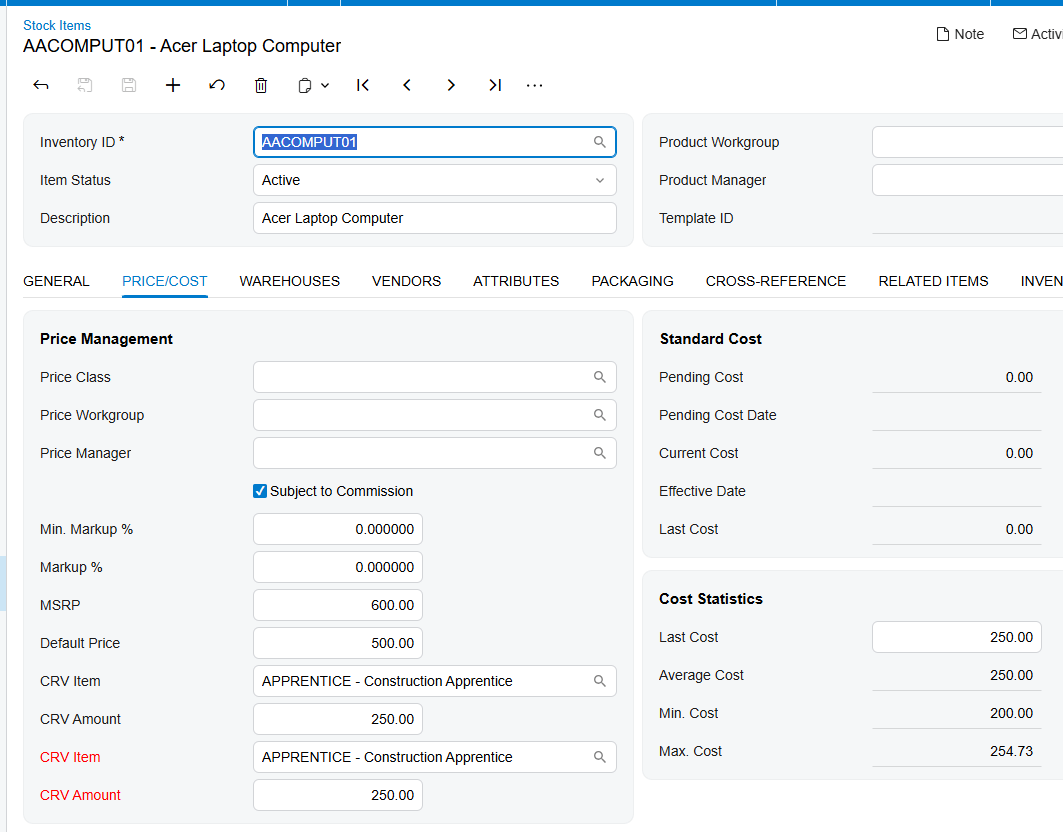
3. The CRV Amount field is populated. This field, on the General tab of the Stock Items screen, determines the amount charged for the associated CRV item based on the selected unit of measure, or UOM. It lets you define a separate price for the CRV item rather than folding the fee into the product price.
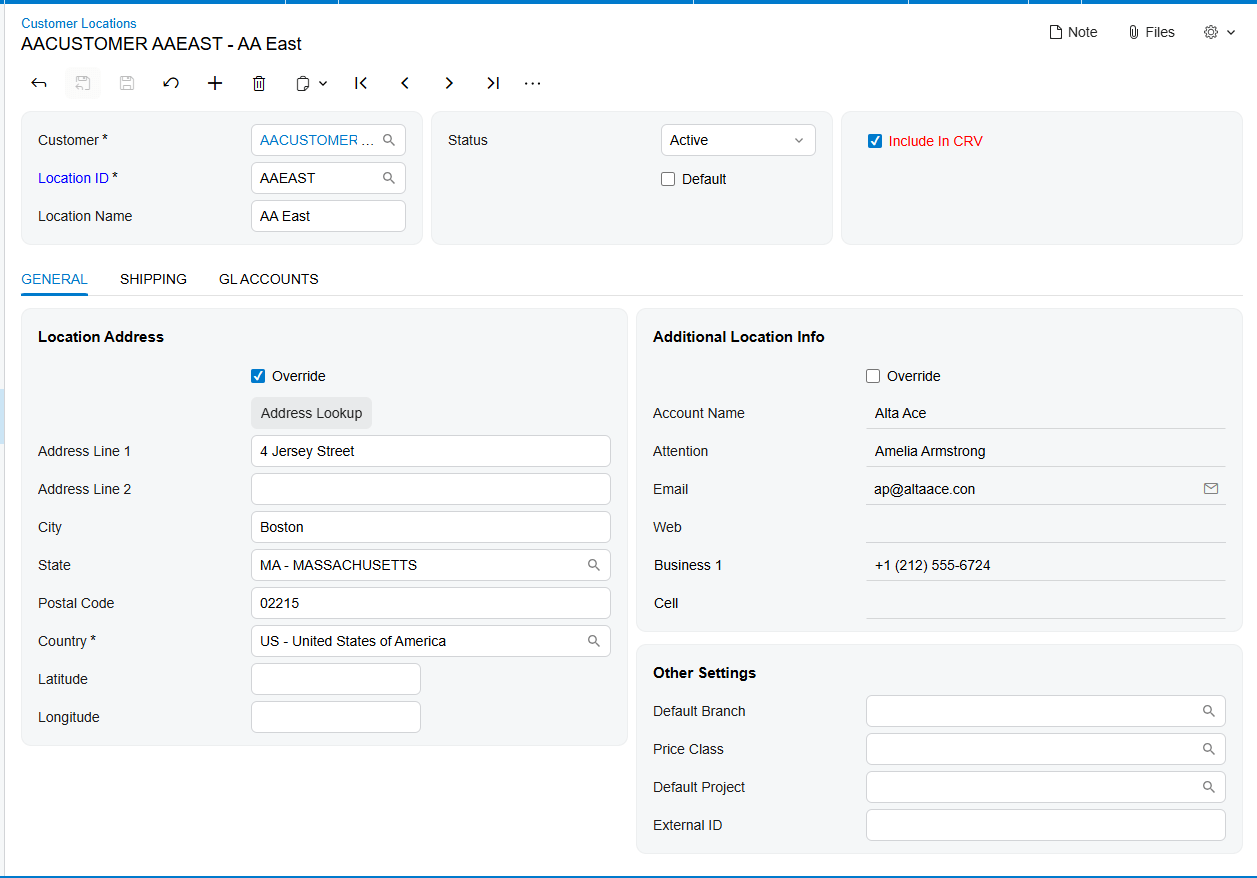
4. The customer default location has Include in CRV selected. The Include in CRV checkbox was added to the customer default location, and its state determines whether the CRV item is displayed on the sales order.
Sequence matters less than completeness, but most Acumatica implementations create the CRV non-stock items first, assign them across the catalog and set amounts by UOM next, and switch on customer locations last, so no order picks up a fee before the amounts are correct.
Adding a CRV Item to a Sales Order, Step by Step
With the setup above in place, entering a CRV-bearing order in Acumatica is ordinary order entry. The steps below separate what the user does from what Acumatica contributes.
Step 1: Select a customer whose location is flagged for CRV
Open the Sales Orders screen in Acumatica and select the customer. The deciding factor is not the customer record on its own but the location: the location must have the Include in CRV checkbox selected. For a customer with several locations, confirm you are on the location you intend to charge, because the checkbox is set at that level.
Step 2: Add the parent beverage item
Add the main item to the order lines as usual, with the quantity, warehouse, and unit of measure the customer is buying. This is the parent item. You do not add the CRV item yourself and should not need to look it up; the fee follows the product automatically.
Step 3: Let Acumatica add the CRV line
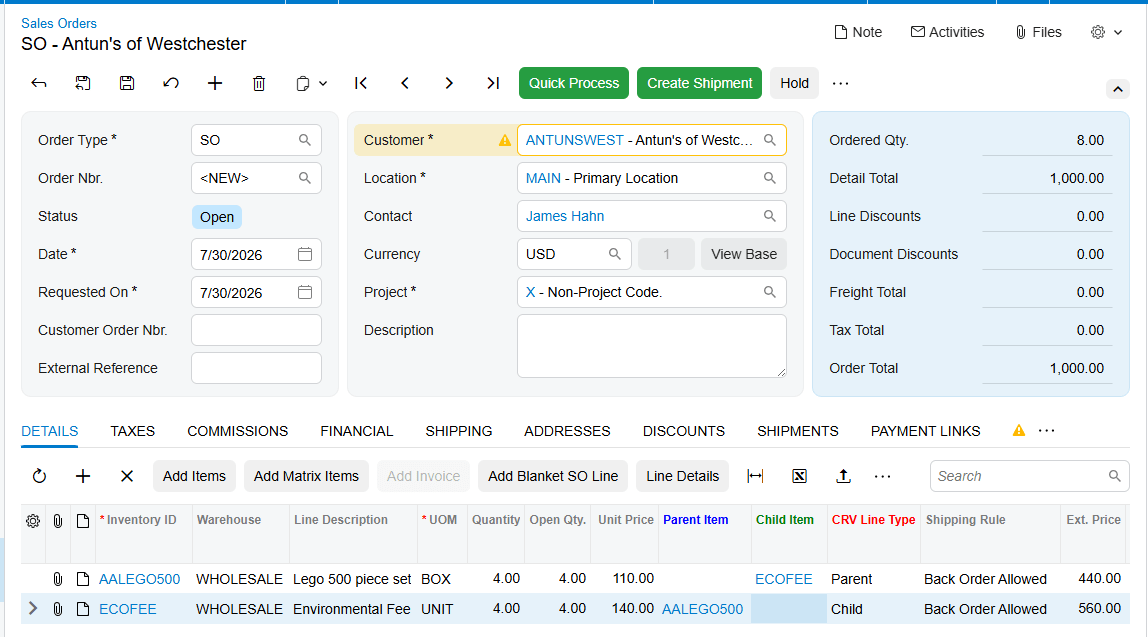
When the parent item is added, Acumatica automatically adds the associated CRV item as a new line on the order. The child line is created with the same quantity and the same warehouse as the parent line, so the fee scales with what is being sold and stays consistent with where it ships from. The amount comes from the CRV Amount configured for the selected unit of measure.
Document Triggers: What Adding the Parent Item Creates
The trigger here is narrow and easy to reason about. Adding a parent item to a sales order for a CRV-enabled customer location is what creates the CRV line. There is no separate action to run, no button to press, and no batch process to schedule; the child line is produced as part of entering the parent line.
That child line is a real order line, so it flows forward like any other. To keep the relationship visible, the Parent Item and Child Item fields have been added to the Sales Orders, Shipments, and Invoices screens in Acumatica. On each document you can see which line is the main item and which is its associated CRV item, so the pairing survives the handoff from order to shipment to invoice.
That is what makes CRV auditable in Acumatica. When a customer questions a fee on an invoice, the Parent Item and Child Item fields let you walk from the fee line back to the product that generated it without reconstructing the logic by hand.
Mapping Rules That Decide the Fee and Who Pays It
Three independent mapping rules decide whether Acumatica creates a CRV sales order line and what it costs. Keeping them separate makes troubleshooting faster, because each fails in a different, recognizable way.
Product to fee item. The CRV Item field on the Price/Cost tab of the Stock Items screen maps one product to one CRV item. This is a per-product decision: a product with no CRV item selected will never generate a fee line, no matter how the customer is configured.
Unit of measure to amount. The CRV Amount field on the General tab determines the amount for the associated CRV item based on the selected unit of measure. That matters because the same product is often sold in more than one UOM. The amount on the order line follows the UOM chosen on the parent line.
Customer location to eligibility. The Include in CRV checkbox on the customer default location controls whether Acumatica displays the CRV item on the sales order at all. Because this control sits on the location rather than on the customer, one customer can be charged CRV at some locations and not at others. That is the right behavior for chains and distributors whose sites are not all treated alike, and the most common reason a fee appears on one order and not the next for the same account.
Validation and Common Exceptions
Almost every CRV question that reaches a support queue is a version of the same one: the CRV line did not appear. Because three separate settings feed the result, guessing is slow. Run these checks in order and each one rules out a mapping rule above.
Check 1: the customer location. Open the customer’s default location in Acumatica and confirm the Include in CRV checkbox is selected. If it is not, no CRV line will be added regardless of how the products are configured, which makes this the fastest thing to rule out.
Check 2: the parent product. Open the item on the Stock Items screen, go to the Price/Cost tab, and confirm the CRV Item field has the correct CRV item selected. An empty CRV Item field is the usual explanation when the fee appears for most beverages on an order but is missing for one line, and it usually points at a recently added product that missed the setup pass.
Check 3: the CRV item itself. Confirm the item selected in the CRV Item field is configured as a non-stock item. CRV items in Acumatica are only non-stock items, so a fee item created as a stock item, or a CRV Item field pointed at an ordinary inventory item, is not a valid configuration even though the field looks populated.
The multi-UOM exception. A related case is a CRV line that appears but carries an unexpected amount. Because the CRV Amount on the General tab is tied to the selected unit of measure, a product sold in more than one UOM needs the amount defined for the UOM actually used on the order line. Review the CRV Amount configuration for that unit of measure before assuming the calculation is wrong.
Where to Check Your Work
After entering a test order in Acumatica, verify the result across all three documents rather than stopping at the sales order. These are the exact fields to look at.
1. On the customer default location: the Include in CRV checkbox is selected for the location used on the order.
2. On the Stock Items screen, Price/Cost tab: the CRV Item field on the parent product names the intended CRV item.
3. On the Stock Items screen, General tab: the CRV Amount field is populated for the unit of measure the order uses.
4. On the CRV item record: the item is a non-stock item.
5. On the sales order: a separate CRV line exists beneath the parent beverage line.
6. On the sales order: the CRV line carries the same quantity as the parent line.
7. On the sales order: the CRV line carries the same warehouse as the parent line.
8. On the sales order, shipment, and invoice: the Parent Item and Child Item fields correctly identify the main item and its associated CRV item.
9. On the invoice: the CRV amount billed matches the CRV Amount configured for the unit of measure on the order line.
Adding CRV to Sales Orders: Frequently Asked Questions
Why is the CRV line not appearing on my sales order?
Work through three checks in order. First, confirm the Include in CRV checkbox is selected on the customer location used for the order. Second, confirm the CRV Item field on the Price/Cost tab of the parent product is populated. Third, confirm the item selected there is a non-stock item, since CRV items in Acumatica are only non-stock items.
Do I have to add the CRV item to the order manually?
No. When you add the parent item to a sales order for a customer location flagged with Include in CRV, Acumatica adds the associated CRV item as a new line automatically. The child line inherits the parent line’s quantity and warehouse, so manual entry is neither required nor expected.
Can one customer be charged CRV at some locations but not others?
Yes. The Include in CRV checkbox sits on the customer default location, not on the customer record as a whole, so eligibility is decided per location. That is why the same account can show a CRV line on one order and not another. Always verify the location on the order itself.
Why is the CRV amount different from what I expected?
The CRV Amount field on the General tab of the Stock Items screen determines the amount for the associated CRV item based on the selected unit of measure. If the order line uses a different UOM than the one you configured, the amount follows that UOM instead. Review the CRV Amount setup for every unit of measure in which the product is sold.
Can a CRV item be a stock item?
No. CRV items in Acumatica are only non-stock items. They carry an environmental fee rather than representing physical inventory you receive, count, and ship, so creating one as a stock item keeps the configuration from working even if every other field is set correctly.
How do I tell which fee line belongs to which product?
Use the Parent Item and Child Item fields, added to the Sales Orders, Shipments, and Invoices screens in Acumatica. They identify the main item and its associated CRV item on each document, so you can match a fee line to the product that generated it at any stage without guessing from line sequence.
Does the CRV line carry through to shipments and invoices?
Yes. The CRV item is added as an order line, and Acumatica carries the Parent Item and Child Item fields onto the Shipments and Invoices screens so the parent and child pairing stays identifiable, giving your billing and audit teams a consistent view from order entry through invoicing.
Work With the Biz-Tech Services CRV Solution
Getting CRV onto sales orders in Acumatica comes down to four pieces of setup and one trigger. The CRV item must be a non-stock item, the parent product must point at it through the CRV Item field, the CRV Amount must be defined for the unit of measure being sold, and the customer location must have Include in CRV selected. With those in place, adding the parent item creates the CRV line automatically at the same quantity and warehouse, and the Parent Item and Child Item fields keep the pair traceable through shipments and invoices.
If your business sells beverage products into California and wants CRV handled inside order entry rather than in a spreadsheet beside it, the Biz-Tech Services CRV solution is built for that. Visit https://biz-techservices.com to learn more about our Acumatica expertise or to schedule a personalized demonstration.

