
How to Import CommerceHub Purchase Orders into Acumatica
Importing CommerceHub purchase orders into Acumatica starts on the Import Purchase Orders screen, where a user selects a store code, chooses specific orders or the full available set, and processes them into Sales Orders. This task-focused guide explains the documented prerequisites, import actions, mappings, acknowledgements, validation points, and recovery path for failed orders.
The Biz-Tech Services CommerceHub Acumatica Connector uses Secure File Transfer Protocol (SFTP) and text files rather than direct application programming interface (API) requests. The earlier article, How CommerceHub Files Flow Through Acumatica ERP, follows that complete inbound and outbound file path; here, the emphasis is the purchase-order import itself and the Acumatica records that users should inspect afterward.
Before You Start: What Must Be Configured
The Biz-Tech Services Acumatica CommerceHub Connector adds a CommerceHub workspace and process-specific screens after its customization package is published. Before importing an order, confirm the following documented configuration elements are ready:
1. SFTP file exchange is available. CommerceHub data reaches Acumatica through text files, with FileZilla described in the documentation as the intermediary transfer tool.
2. The required store code is configured. Store codes separate configurations for import and export processes and can carry values such as Transaction Type, Description, Default Customer, and Document Type.
3. Item cross-references are complete. The Cross-reference tab maps Acumatica items to the item IDs contained in inbound order files.
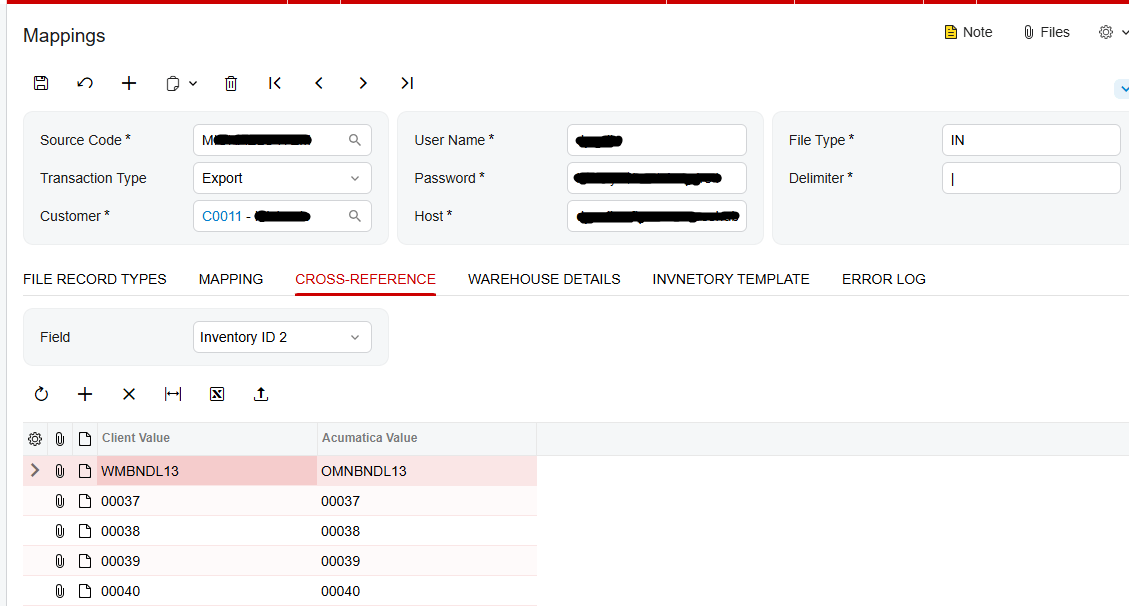
4. A default customer is defined for the store configuration. Imported CommerceHub customers are not created in Acumatica; the connector assigns the default customer to each resulting Sales Order.
5. Users know where to review Error Log entries and how to reach the Import Failed Purchase Orders screen if an order does not complete.
For a broader configuration review, use the sibling article CommerceHub Acumatica Connector Configuration Checklist. It covers the setup foundation; the steps below begin once that foundation is in place.
How to Import CommerceHub Purchase Orders into Acumatica, Step by Step
The Biz-Tech Services CommerceHub Acumatica Integration presents the import as a controlled processing task. The documentation supports selection by store code, processing selected orders, or processing all available orders.
Step 1: Open Import Purchase Orders
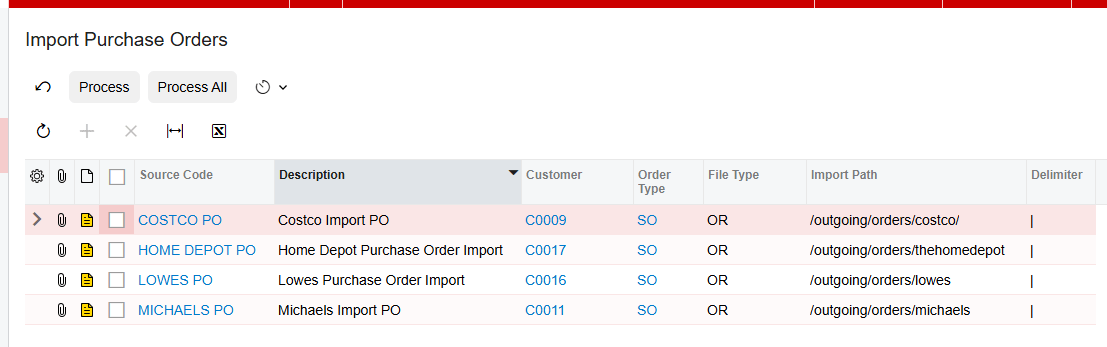
Open the CommerceHub workspace in Acumatica and go to Import Purchase Orders. This is the screen dedicated to purchase orders received from CommerceHub.
Step 2: Select the correct store code
Choose the store code for the purchase orders you intend to import. This choice matters because the connector uses store codes to apply distinct settings and functionality to individual import and export processes. Confirm the store before processing so the intended default customer, document type, transaction type, and description settings govern the import.
Step 3: Review the available purchase orders
Review the orders presented for the selected store code. The source does not document column names, filters, or a preview procedure, so use the visible order information on the screen and your internal control process to decide which records belong in the current run.
Step 4: Process selected orders or process all
To import only chosen purchase orders, select those orders and click Process. To import every available order for the current selection, click Process All. Use the narrower Process action when you need to control the batch; use Process All only when all displayed orders are ready.
Step 5: Find the created records in Sales Orders
After a successful import, the CommerceHub purchase order appears in the Sales Orders screen as a Sales Order. The documentation does not describe creation of an Acumatica Purchase Order from this inbound file. This distinction is important: the incoming CommerceHub record is called a purchase order, while the documented Acumatica result is a Sales Order.
Step 6: Verify the customer and address
Confirm that the Sales Order carries the configured default customer. Then review the Addresses tab. Although the customer master record is not imported from CommerceHub, the default address on the Sales Order is overridden with the actual customer address received on the imported order.
Step 7: Review acknowledgement status
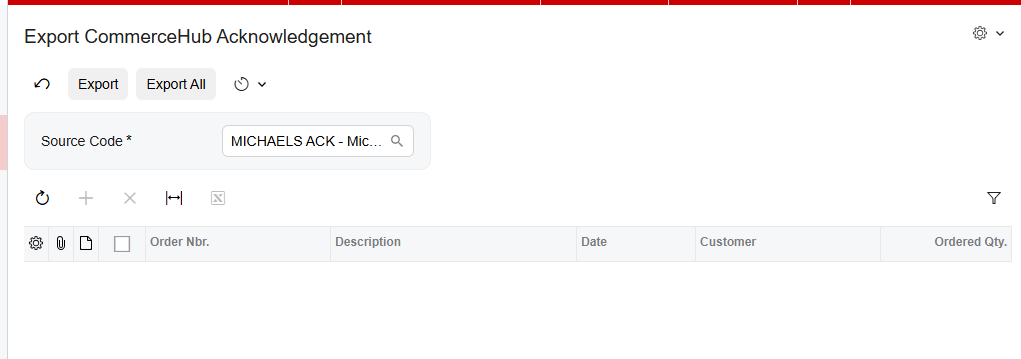
The Sales Order includes Acknowledgement and PO Acknowledgement fields. Both begin with an Open status. While they remain open, the order is available on the Export CommerceHub Acknowledgment and Export CommerceHub PO Acknowledgment screens. After each acknowledgement is processed, the order leaves the corresponding export screen and its acknowledgement status changes to Closed.
Step 8: Recover orders that fail
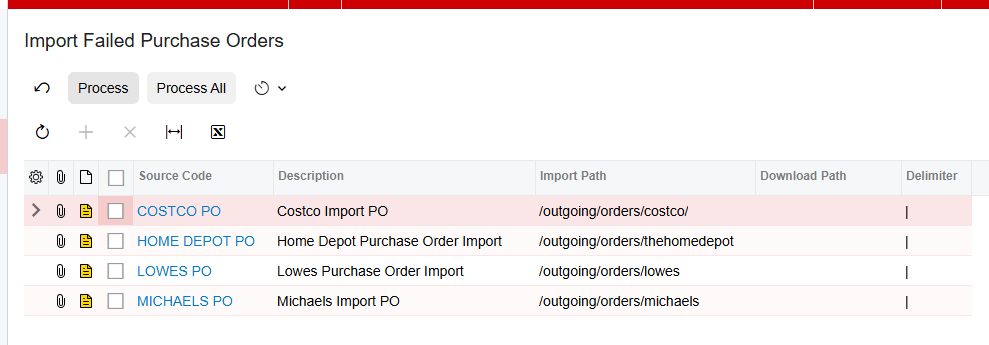
If an order fails during Import Purchase Orders processing, select the applicable store code on Import Failed Purchase Orders and use that screen to import the failed order. Review the Error Log tab and the CommerceHub Errors screen for recorded details before retrying. The manual identifies these review locations but does not publish a catalog of exact error messages or corrective actions.
Document Triggers: What Each Action Creates
The documented trigger chain is concise and should be interpreted literally:
1. Process on Import Purchase Orders imports the selected CommerceHub purchase orders.
2. Process All imports all purchase orders available under the current screen selection.
3. A completed import creates a Sales Order in Acumatica; the source does not state that this step creates an Acumatica Purchase Order or invoice.
4. Sales Order creation initializes the Acknowledgement and PO Acknowledgement fields as Open.
5. An Open acknowledgement makes the order available on its related CommerceHub acknowledgement export screen.
6. Processing each acknowledgement removes the order from that export screen and changes its related status to Closed.
7. An invoice is not documented as part of the import trigger. Separately, Export CommerceHub Invoices displays orders that are invoiced or released for a selected store code.
8. A shipment is also a later outbound event. Export CommerceHub Shipment displays orders with Confirmed shipment status for the selected store code.
Mapping Rules That Decide What Appears on the Order
Several mapping choices determine how the inbound file becomes an Acumatica Sales Order:
1. Store code settings define process-specific values, including Transaction Type, Description, Default Customer, and Document Type.
2. The Cross-reference tab pairs the item IDs contained in the inbound file with Acumatica items.
3. The connector does not import the CommerceHub customer as a new customer record. It assigns the configured default customer.
4. The Addresses tab on the resulting Sales Order uses the actual customer address received from the order to override the default address.
The source does not document field-by-field line mappings, unit-of-measure conversions, tax logic, price precedence, or behavior for an unmapped item. Those details should not be assumed from other connectors. If a resulting order is incomplete, compare the inbound file, the Cross-reference tab, the active store-code configuration, and the recorded error information.
Validation and Common Exceptions
Validation should focus on the few outcomes the product documentation explicitly describes.
The purchase order does not appear in Sales Orders
First confirm that the intended store code was selected and that the order was included in the Process selection or the Process All run. Then review the Import Failed Purchase Orders screen, Error Log tab, and CommerceHub Errors screen. The source provides these locations but no exact error text.
The Sales Order shows the default customer
This is expected behavior. CommerceHub customers are not imported as customer records; the configured default customer is assigned to the Sales Order. Validate the actual customer address separately on the Addresses tab.
An item does not match the expected Acumatica inventory item
Review the Cross-reference tab, which maps Acumatica items to item IDs in the inbound file. The manual does not define the error or fallback result for a missing cross-reference, so rely on the recorded order error rather than assuming how the connector resolves it.
Acknowledgements remain open
An Open status means the acknowledgement is still pending. Look for the order on both acknowledgement export screens and process the applicable records. The statuses change to Closed after those acknowledgements are processed.
A failed order needs another import attempt
Use Import Failed Purchase Orders with the appropriate store code. Review available error details before retrying so the underlying mapping or file problem is not repeated.
Where to Check Your Work
The Biz-Tech Services CommerceHub Acumatica Integrator keeps the key checkpoints inside the CommerceHub workspace and the resulting Sales Order. Check these locations after each import:
1. Import Purchase Orders: confirm the intended store code and whether Process or Process All was used.
2. Sales Orders: confirm that a Sales Order was created from the imported CommerceHub purchase order.
3. Customer on the Sales Order: confirm the configured default customer was assigned.
4. Addresses tab: confirm the order carries the actual customer address received from CommerceHub.
5. Order lines: compare item results with the Cross-reference tab and the item IDs in the inbound file.
6. Acknowledgement field: confirm whether it is Open or Closed.
7. PO Acknowledgement field: confirm whether it is Open or Closed.
8. Export CommerceHub Acknowledgment: check for orders whose acknowledgement remains open.
9. Export CommerceHub PO Acknowledgment: check for orders whose PO acknowledgement remains open.
10. Import Failed Purchase Orders: find orders that failed during the original import process.
11. Error Log tab: review order errors recorded during import and export; use Purge Logs only when deleting all displayed error messages is intentional.
12. CommerceHub Errors: review errors received from CommerceHub across the connector processes.
Importing CommerceHub Purchase Orders into Acumatica: Frequently Asked Questions
Does a CommerceHub purchase order create an Acumatica purchase order?
No such result is documented. The manual says that after the CommerceHub purchase order is imported, it appears in the Sales Orders screen. It does not say the import creates an Acumatica Purchase Order.
Can I import only selected CommerceHub orders?
Yes. Select the specific orders and click Process. Process All imports every order available under the current selection.
Why does the imported Sales Order use a default customer?
The connector does not import customers from CommerceHub. It assigns the default customer configured for the process while overriding the Sales Order address with the actual customer address received in the order.
Where do I map CommerceHub item IDs to Acumatica items?
Use the Cross-reference tab. The Biz-Tech Services Acumatica CommerceHub Integration uses this mapping to associate Acumatica items with the item IDs contained in the inbound order file.
What should I do when a CommerceHub order fails to import?
Check Error Log and CommerceHub Errors for available details, then choose the related store code on Import Failed Purchase Orders. The source does not provide a complete list of error messages, so the recorded details are the authoritative starting point.
Why is an imported order visible on an acknowledgement export screen?
A newly generated order starts with Open values in its Acknowledgement and PO Acknowledgement fields. It remains visible on the corresponding export screen until that acknowledgement is processed, after which the status becomes Closed.
Does importing the order also export its shipment or invoice?
The documentation treats those as separate outbound processes. Confirmed shipments appear on Export CommerceHub Shipment, while invoiced or released orders appear on Export CommerceHub Invoices for the selected store code.
Work With the Biz-Tech Services CommerceHub Connector
A reliable CommerceHub purchase-order import depends on the right store code, complete item cross-references, deliberate processing, and a disciplined review of the resulting Sales Order and acknowledgement fields. Failed records should be handled through the documented failed-order and error screens instead of bypassing the connector workflow.
If your business needs help configuring, validating, or troubleshooting the Biz-Tech Services Acumatica CommerceHub Integrator, visit https://biz-techservices.com to work with a team experienced in Acumatica commerce integrations.
Check here for more details – https://www.youtube.com/watch?v=ExAeaMohneU

