
How to Create PayPal Invoices from Acumatica Orders
Creating PayPal invoices from Acumatica orders starts with a Sales Order in SO301000, where the Create Payment action prepares an Accounts Receivable payment and the Request PayPal Payment action sends a live invoice to the customer. This article shows the supported invoice-creation paths, the values each path uses, and the checks to make before sending a request.
The Biz-Tech Services PayPal Acumatica Integration keeps this work inside Acumatica and supports requests from a Sales Order, an Accounts Receivable invoice, or a standalone payment. The product guide does not document a purchase-order-to-PayPal-invoice workflow, so the steps below stay within those three supported entry points. Connection setup and the full status lifecycle are covered separately in How PayPal Payment Data Flows into Acumatica ERP.
Before You Start: What Must Be Configured
The Biz-Tech Services PayPal Acumatica Connector requires a published customization and a dedicated PayPal payment method before users can create invoices. Treat these items as prerequisites rather than part of the daily order workflow:
1. Confirm that the Accounts Receivable (AR) and Sales Orders (SO) modules are available.
2. Use a PayPal Business account. The guide states that personal accounts do not support the invoicing application programming interface (API).
3. In Payment Methods (CA205000), configure the Client ID, Client Secret, the appropriate sandbox or live base URL, the PayPal Means of Payment selection, and the Is PayPal Payment checkbox.
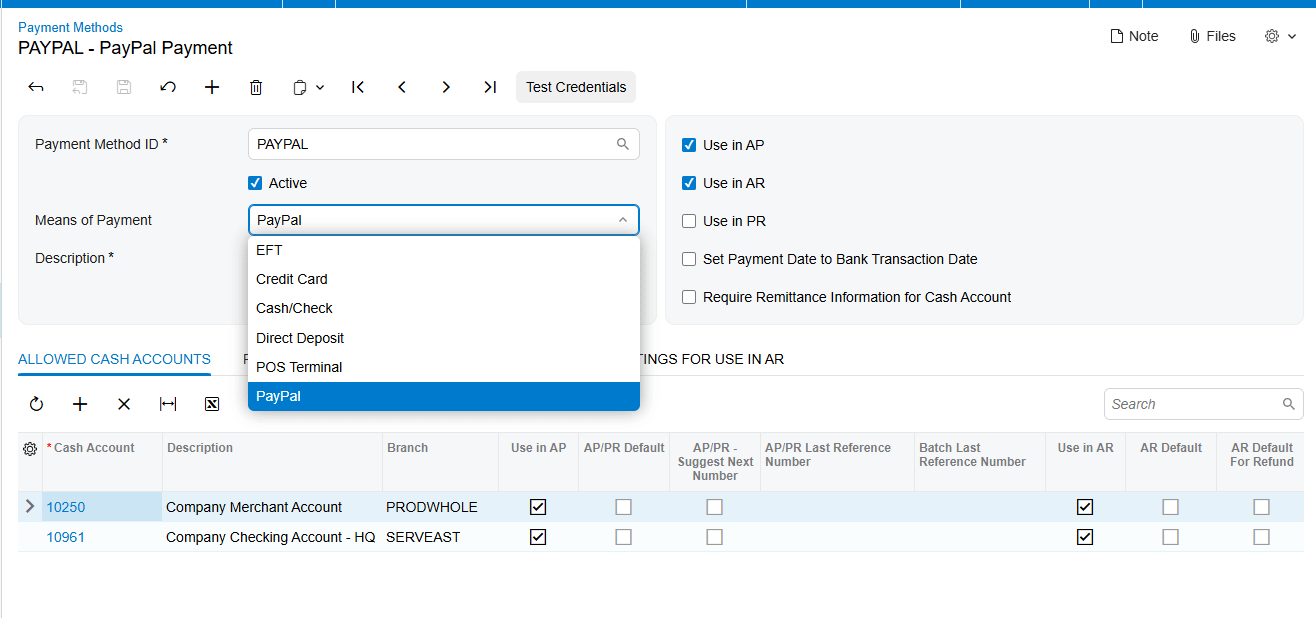
4. Use Test Connection and save only after the credentials are accepted.
5. Add the cash or bank account on the Allowed Cash Accounts tab so collected payments have a posting destination.
6. In Customer Payment Methods (AR303010), associate the customer with the PayPal payment method and enter the PayPal email address that will receive the invoice notification.
When the Sandbox Base URL contains a value, the system uses it and ignores the Live Base URL. Clear or leave the Sandbox Base URL blank when moving to production. The guide also requires outbound Hypertext Transfer Protocol Secure (HTTPS) access to the selected PayPal endpoint on port 443.
How to Create PayPal Invoices from Acumatica Orders, Step by Step
The Biz-Tech Services Acumatica PayPal Connector provides three supported entry points. Choose the one that matches the business document already present in Acumatica; each route ultimately creates or uses an AR Payment on Hold and sends a PayPal invoice.
Step 1: Open the Sales Order in SO301000
Navigate to Sales Orders (SO301000), open the order for which payment will be collected, and review the customer, currency, and order total. The guide identifies this as the most common route when payment is collected before or upon shipment.
Step 2: Create the Acumatica payment
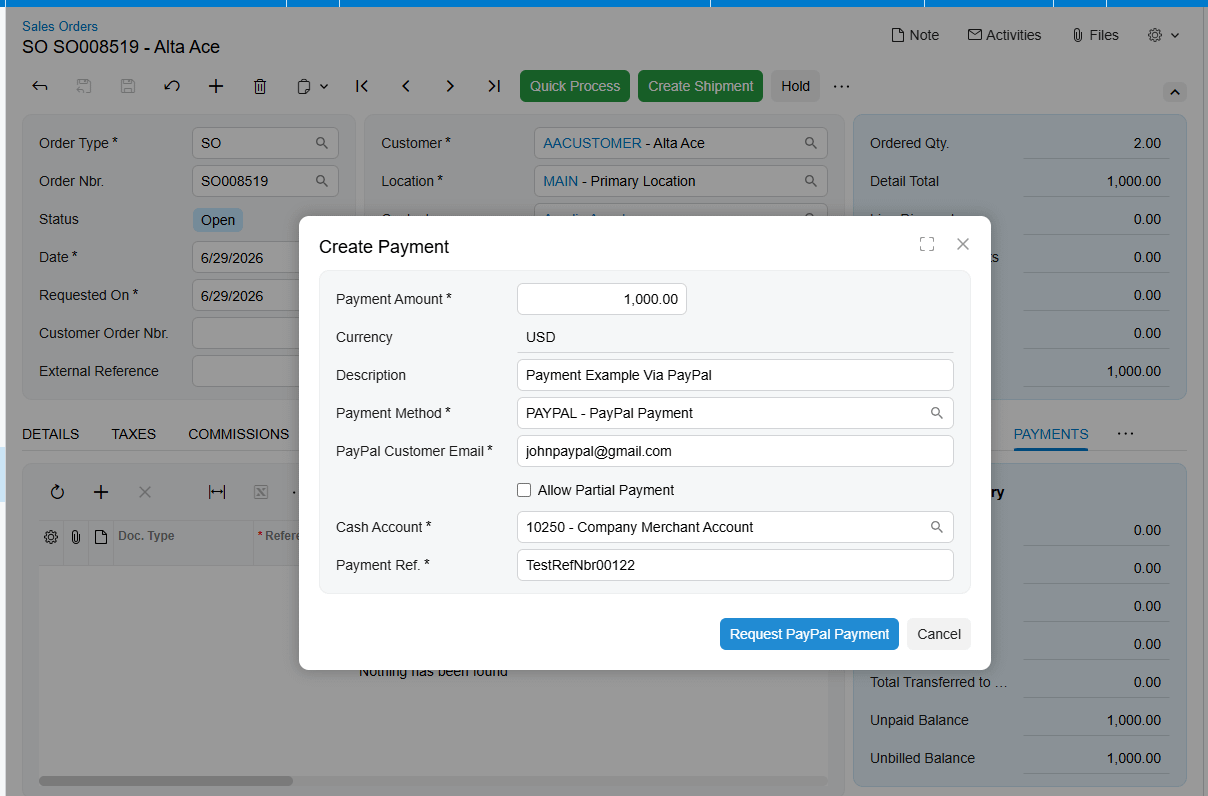
On the PAYMENTS tab, click Create Payment. Acumatica reads the order total, currency, and customer details. Add the Cash Account and Payment Reference. After those values are present, the New Request PayPal Payment button appears.
Step 3: Send the PayPal invoice
Click New Request PayPal Payment. The customization creates a new AR Payment linked to the Sales Order, sends the PayPal invoice to the customer email, and stores the PayPal Invoice ID, Invoice URL, and Invoice Number on the payment. It places the payment on Hold and gives it the status Sent. A confirmation message appears, and the payment remains accessible from the Sales Order Payments tab.
Step 4: Use an AR invoice when billing is already posted
If shipment or service delivery has already produced an Accounts Receivable invoice, open the invoice from the Invoices screen or through the Sales Order. The guide identifies this screen as SO303000. Click Request PayPal Payment. The system creates a Payment pre-applied to the invoice, sends the PayPal invoice, and leaves the payment on Hold. The PayPal invoice amount is the outstanding balance on the AR invoice.
Step 5: Create a standalone request in AR302000
For a deposit or another collection that does not begin from a specific document, open Payments and Applications (AR302000) and create a payment. Select the customer and PayPal payment method. Confirm or adjust the PayPal Customer Email, enter the amount and an optional description, and optionally apply the payment through Orders to Apply or Documents to Apply. Click Send PayPal Request. The system sends the invoice and leaves the payment on Hold with status Sent.
Document Triggers: What Each Action Creates
Each action begins from a different business record, but the documented result is consistent: an AR Payment in Acumatica on Hold and a live PayPal invoice delivered to the customer email.
1. Create Payment on a Sales Order: prepares a payment using the order customer, currency, and total. After Cash Account and Payment Reference are added, the PayPal request action becomes available.
2. New Request PayPal Payment from the Sales Order: creates the linked AR Payment, sends the invoice, stores the PayPal identifiers and URL, and sets Sent status.
3. Request PayPal Payment from an AR invoice: creates a Payment already applied to the invoice and uses the invoice outstanding balance as the PayPal invoice amount.
4. Send PayPal Request from Payments and Applications: sends an invoice for the entered payment amount, whether the payment is standalone or optionally applied to an order or invoice.
The source does not describe a trigger from a Purchase Order or a mapping from Purchasing documents. Teams should not assume that a Purchase Order action creates a PayPal invoice based on this guide.
Mapping Rules That Decide What Appears on the PayPal Invoice
The Biz-Tech Services PayPal Acumatica Integrator derives request values from the selected entry point and preserves the returned PayPal references on the related payment.
1. Customer: comes from the Sales Order, AR invoice, or newly created AR Payment.
2. Customer email: is pre-filled from the Customer Payment Method and can be changed on an individual payment for a one-time override.
3. Amount from a Sales Order: comes from the order total when Create Payment is used.
4. Amount from an AR invoice: equals the invoice outstanding balance.
5. Amount from AR302000: is entered directly on the standalone payment.
6. Currency: is read from the Sales Order for the order-based path and appears with the amount in the processing view.
7. Applications: Orders to Apply and Documents to Apply can associate a standalone payment with a Sales Order or invoice.
8. Returned references: PayPal Invoice ID supports API calls, PayPal Invoice Number is the customer-facing number, and PayPal Invoice URL provides a direct link in PayPal.
The guide does not provide line-level item, tax, freight, discount, due-date, or purchase-order mapping rules for the PayPal invoice. It documents header-level customer, email, amount, currency, description, application, and reference behavior only.
Validation and Common Exceptions
Validate the record before sending because a request that has already gone to PayPal cannot simply be resent from the same payment. The guide states that the Payment Method ID becomes locked after an invoice is sent, which helps prevent an accidental change to the payment route.
1. Missing customer email: the documented Customer email not configured error means the customer lacks a Customer Payment Method with a PayPal email. Add the PayPal payment method and email on the customer Payment Methods tab.
2. Existing PayPal request: do not click Send PayPal Request when the payment was previously sent to PayPal. The guide does not document a duplicate-request recovery action.
3. Connection failure: verify the Client ID, Client Secret, selected environment URL, trailing slash, firewall, proxy, and outbound HTTPS access on port 443.
4. Sandbox selected unexpectedly: a populated Sandbox Base URL takes precedence even if the Live Base URL is also populated.
5. Unpaid request: Sent status and Hold are expected after creation. The request does not become a released payment until PayPal reports that it is fully paid and Acumatica performs a status check.
6. Cancellation: only a request in Sent status and still on Hold can be cancelled. Cancellation deletes the AR Payment and is irreversible; a new request must be created from scratch.
Beyond the named customer-email and connection cases, the guide does not publish a comprehensive validation sequence, required-field matrix, or exact error-message catalog for invoice creation. It also does not define purchase-order exceptions.
Where to Check Your Work
After sending, the Biz-Tech Services Acumatica PayPal Integration exposes the request on the AR Payment and in the Check PayPal Payment Status processing screen. Confirm these records and fields:
1. Sales Order Payments tab: open the AR Payment created from the order.
2. Payments and Applications (AR302000): confirm that the payment is on Hold and that its PayPal Invoice Status is Sent.
3. PayPal Customer Email: verify the notification went to the intended address.
4. PayPal Invoice ID: confirm that the internal identifier used for API calls was returned.
5. PayPal Invoice Number: confirm that the customer-facing invoice number was stored.
6. PayPal Invoice URL: use the stored direct link with the Open in PayPal action.
7. Linked Sales Order number: confirm the order relationship in the processing grid when the request began from SO301000.
8. Linked Invoice Nbr: confirm the Accounts Receivable invoice relationship when the request began from an invoice or was applied to one.
9. Currency / Amount: compare the processing-grid values with the source order, outstanding invoice balance, or manually entered payment.
10. Processing log: review successes and errors after Process or Process All checks selected payments.
Creating PayPal Invoices from Acumatica Orders: Frequently Asked Questions
What does the Sales Order action create in Acumatica?
The action creates a linked AR Payment, sends a PayPal invoice to the customer email, stores the PayPal invoice references, and keeps the payment on Hold with status Sent.
Which amount is sent when I request PayPal payment from an AR invoice?
The PayPal invoice amount matches the outstanding balance on the AR invoice. The resulting payment is pre-applied to that invoice.
Can I send a PayPal invoice for a deposit not tied to an order?
Yes. The Biz-Tech Services Acumatica PayPal Integrator supports a standalone payment in AR302000. Enter the customer, PayPal payment method, email, amount, and optional description, then click Send PayPal Request. Applying it to an order or invoice is optional.
Why does the PayPal request button not appear on the Sales Order payment?
The documented sequence is to click Create Payment and then add the Cash Account and Payment Reference. The New Request PayPal Payment button appears after those values are added. Also confirm that the selected payment method is configured for PayPal.
Why do I get the Customer email not configured error?
The customer does not have a Customer Payment Method with a PayPal email address. Configure it in AR303010 or on the customer Payment Methods tab before retrying.
Can I send the same AR Payment to PayPal again?
The guide says a payment must not have been sent previously before Send PayPal Request is clicked. It does not document a resend workflow for the same payment.
Can an Acumatica Purchase Order create a PayPal invoice?
The product guide does not document any Purchase Order entry point. It documents Sales Orders, Accounts Receivable invoices, and Payments and Applications only.
Why is a newly created PayPal payment still on Hold?
Hold with Sent status is the expected state immediately after the invoice is sent. Acumatica checks PayPal on demand, and the payment is released only after PayPal reports it fully paid and a status check is triggered.
Work With the Biz-Tech Services PayPal Integration
A reliable order-to-invoice process starts with the right PayPal payment method, customer email, cash account, and source document. From there, users can create a linked request from SO301000, bill an outstanding AR invoice, or send a standalone request from AR302000 while retaining PayPal identifiers on the Acumatica payment.
If your team wants help implementing this order-focused workflow, the Biz-Tech Services PayPal Acumatica Integration team can help align the documented PayPal invoice actions with your Acumatica processes. Visit https://biz-techservices.com to learn more about the Biz-Tech Services Acumatica PayPal Connector.
Check here for details – https://www.youtube.com/watch?v=wkjPKdLzv2M

