
How to Track Gift Card Inventory and Balances in Acumatica
Tracking gift card inventory and balances in Acumatica requires two connected controls: inventory or numbering for each gift card issued, and a financial balance that changes as the card is sold, redeemed, or returned. Biz-Tech Services Gift Card Processing supports both stock and non-stock gift cards while keeping the serial number, original amount, used amount, and remaining amount visible inside Acumatica.
Stock gift cards are serialized inventory and must be received, assigned, and allocated. Non-stock gift cards are generated by numbering rules or entered manually. Once either type is sold, the Gift Card tab on Payment Methods becomes the central balance record.
What Gift Card Inventory and Balance Tracking in Acumatica Does
Gift Card Processing lets companies sell serialized gift cards and accept sold gift cards as payment. Acumatica stores Customer ID, Inventory ID, Gift Card Serial Number, Order Number, Gift Card Amount, Used Amount, and Remaining Amount. These fields connect the issued card to its owner, sale, and redemption history.
Gift Card Inventory and Balance Flow at a Glance
1. Create the Gift Card payment method and connect it to an allowed cash account.
2. Configure default items, external item mappings, and sequential or random numbering on Gift Card Preferences.
3. For stock gift cards, receive serialized inventory and record expiration dates when applicable.
4. For non-stock gift cards, generate or enter one gift card number for every ordered quantity.
5. Allocate a stock card serial number or assign a non-stock card number on the sales order.
6. Fulfill the sale so the card record appears on the Gift Card tab of Payment Methods.
7. Redeem the card through a sales order, Payments and Applications, or an invoice, then release the payment.
8. Monitor Used Amount, Remaining Amount, Gift Card History, and Gift Card Summary after every transaction.
Choose Stock or Non Stock Gift Card Inventory
A non-stock gift card does not require a physical inventory receipt. It can be sold in Acumatica or imported from an external system, and its number can be entered manually or generated from Gift Card Preferences. The sales order line uses the Ship Complete shipping rule. When quantity is greater than one, the Gift Card Numbers window should show the individual numbers associated with the selected line.
A stock gift card is created on Stock Items IN202500 and uses a Lot Serial Class. The payment method field is enabled for serialized items, so the gift card must be associated with the applicable Gift Card payment method. Stock cards are physical serialized inventory and therefore require receipt and allocation before sale.
Configure Gift Card Numbering and External Item Mapping
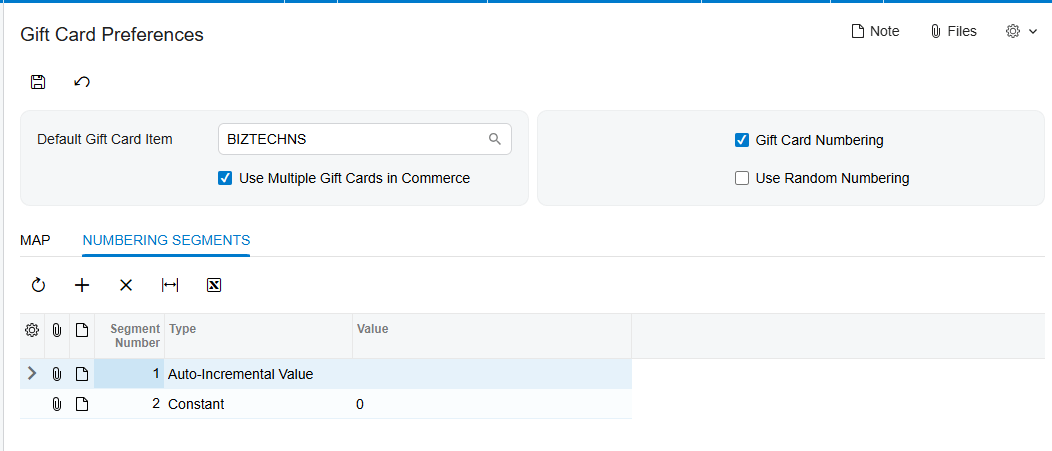
Gift Card Preferences controls how non-stock card numbers are created. Gift Card Numbering exposes Numbering Segments, where administrators define the structure and Auto-Incremental Value. The auto-increment value is required for automatic generation.
Use Random Numbering hides Numbering Segments and generates random numbers when the gift card item and quantity are entered on the sales order. The generated numbers appear in the Gift Card Numbers window. This option prevents users from relying on a predefined sequence.
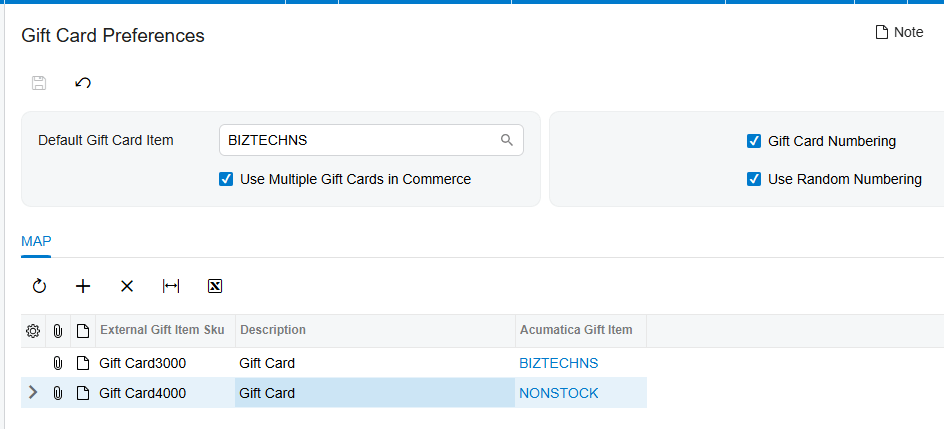
Default Gift Card Item identifies the non-stock item used for external gift cards during order import. If Use Multiple Gift Cards in Commerce is enabled, external Gift Card SKUs can be mapped to corresponding Acumatica items. If it is disabled, imported orders use the Default Gift Card Item.
Receive and Allocate Stock Gift Cards
The stock gift card receipt process establishes inventory availability. Add the Gift Card Item to the Receipts screen, enter the quantity, and generate serial numbers in Line Details. If Track Expiration Date is enabled on the serial class, enter the expiration date during receipt.
Allocation is required for stock gift card items. On Sales Orders, select the serial number in the Lot Serial Nbr. field of Line Details. The selection list shows available gift card serial numbers and their expiration dates. This allocation connects one physical card to one order quantity and prevents the same available serial from being assigned as if it were unallocated inventory.
Match Gift Card Quantity to Serial Numbers
Quantity is the core reconciliation rule for both inventory models. A stock order quantity must be supported by allocated serial numbers. A non-stock quantity must be supported by the corresponding number of generated or manually entered gift card numbers. When quantity exceeds one, users should open Gift Card Numbers and verify every number before fulfillment.
For imported orders, also confirm that the mapped or default Gift Card Item is correct. An item mismatch can make the transaction appear under the wrong inventory ID even when the serial number and amount are valid.
Track Gift Card Amount Used Amount and Remaining Amount
Once a gift card is sold, Acumatica stores its Customer Info, Order Info, and Gift Card Amount on the Gift Card tab of Payment Methods. Gift Card Amount is the original value. Used Amount accumulates released redemptions. Remaining Amount is the balance still available.
The balance update depends on transaction completion. When a gift card is used against an invoice, both the invoice and payment must be released before Used Amount and Remaining Amount update on Payment Methods and Gift Card History. An unreleased payment is therefore the first place to look when a redemption does not appear in the balance.
Redeem Gift Cards Without Losing Balance Control
A gift card can be selected as the payment method on Sales Orders, Payments and Applications, or Invoices. The Gift Card field appears after the Gift Card Payment method and cash account are selected. A Default Gift Card can populate automatically; otherwise users select the gift card item and enter the applicable serial number.
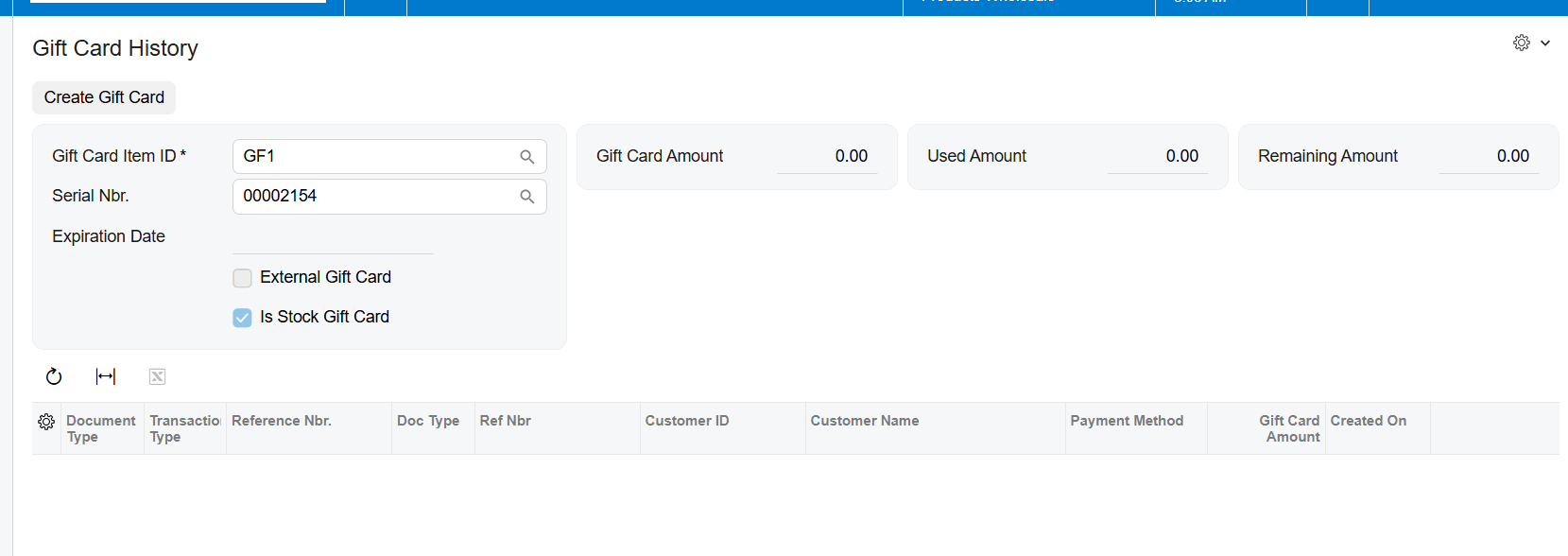
The payment must be released. After release, verify that Used Amount increased by the applied amount and Remaining Amount decreased by the same value. Then open Gift Card History through the serial number to confirm the transaction is associated with the expected order, invoice, and customer.
Reconcile Gift Card Returns
A gift card return uses an RC return order on Sales Orders. Users can add lines from the original sales invoice or add the applicable Gift Card Item and select its serial number from Sold Serial Numbers in Line Details. The receipt operation returns stock inventory through Shipments, and a released credit memo reduces the customer balance.
After the return is processed, Acumatica updates the amount information on Gift Card History. Reconciliation should confirm the returned serial number, inventory receipt where applicable, released credit memo, and resulting gift card amount history.
Where to Monitor Gift Card Inventory and Balances in Acumatica
1. Gift Card Preferences: Default Gift Card Item, external SKU mapping, Gift Card Numbering, Use Random Numbering, Numbering Segments, and Auto-Incremental Value.
2. Stock Items and Lot Serial Classes: payment method, serial class, Track Expiration Date, and received serial numbers.
3. Sales Orders: item quantity, Gift Card Numbers, Lot Serial Nbr., allocated serials, expiration dates, and Ship Complete behavior.
4. Payment Methods Gift Card tab: Customer ID, Inventory ID, Gift Card Serial Number, Order Number, Gift Card Amount, Used Amount, and Remaining Amount.
5. Gift Card History: stock or non-stock indicator, external gift card indicator, and the transactions associated with the serial number.
6. Payments and Applications and Invoices: payment method, cash account, gift card item, serial number, applied amount, and release status.
7. Gift Card Summary: current summary information and any exchange with an external system.
8. Returns: RC order, Sold Serial Numbers selection, receipt confirmation, credit memo, and updated history.
Gift Card Inventory and Balance Tracking Frequently Asked Questions
Why is a stock gift card serial number unavailable on the sales order
Confirm that the card was received, its serial number was generated, and it remains available. Also verify that the item uses the correct Lot Serial Class and that the selected serial has not already been allocated.
How many gift card numbers should an order contain
The assigned gift card numbers should match the gift card quantity. When quantity is greater than one, review the Gift Card Numbers window for the selected line.
Why did the remaining gift card balance not change
Confirm that the payment was released. For invoice-based redemption, both the invoice and payment must be released before Used Amount and Remaining Amount update.
Where can I check a gift card balance in Acumatica
Use the Gift Card tab on Payment Methods to review Gift Card Amount, Used Amount, and Remaining Amount. Open the linked serial number for transaction-level detail in Gift Card History.
Improve Gift Card Control with Biz Tech Services
Reliable gift card control joins quantity, serial identity, allocation, payment release, and balance history. Biz-Tech Services Gift Card Processing keeps these records connected in Acumatica for both physical stock cards and generated non-stock cards.
To learn more about tracking gift card inventory and balances in Acumatica, visit https://biz-techservices.com
Check here for video-details: https://www.youtube.com/watch?v=FyVcs9bR5NY

