
How to Keep CRV Quantities Consistent with Beverage Order Lines in Acumatica
Keeping California Redemption Value or CRV quantities consistent in Acumatica depends on preserving the relationship between each beverage line and its automatically generated CRV line. Biz-Tech Services CRV processing copies the parent item quantity and warehouse to the associated non-stock CRV item, then carries the relationship through sales orders, shipments, and invoices.
The control is intentionally direct. Configure the beverage item with the correct CRV Item and CRV Amount, enable Include in CRV for the customer location, and monitor the Parent Item and Child Item fields on every downstream document.
What CRV Quantity Management in Acumatica Does
A CRV item is a non-stock item used in Acumatica inventory and sales processing to represent the environmental fee associated with eligible beverage products. When a qualifying parent item is added for an enabled customer location, Acumatica creates the CRV item as a child line with the same quantity and warehouse.
CRV Quantity Flow at a Glance
1. Create the fee as a non-stock CRV item.
2. Link the correct CRV Item to the beverage stock item on the Price Cost tab.
3. Set the CRV Amount on the beverage Stock Item General tab based on the applicable unit of measure.
4. Enable Include in CRV on the customer default location.
5. Add the beverage parent item to the sales order and verify that Acumatica creates the CRV child line.
6. Confirm that parent and child have the same quantity and warehouse.
7. Monitor Parent Item and Child Item on the sales order, shipment, and invoice to preserve the relationship.
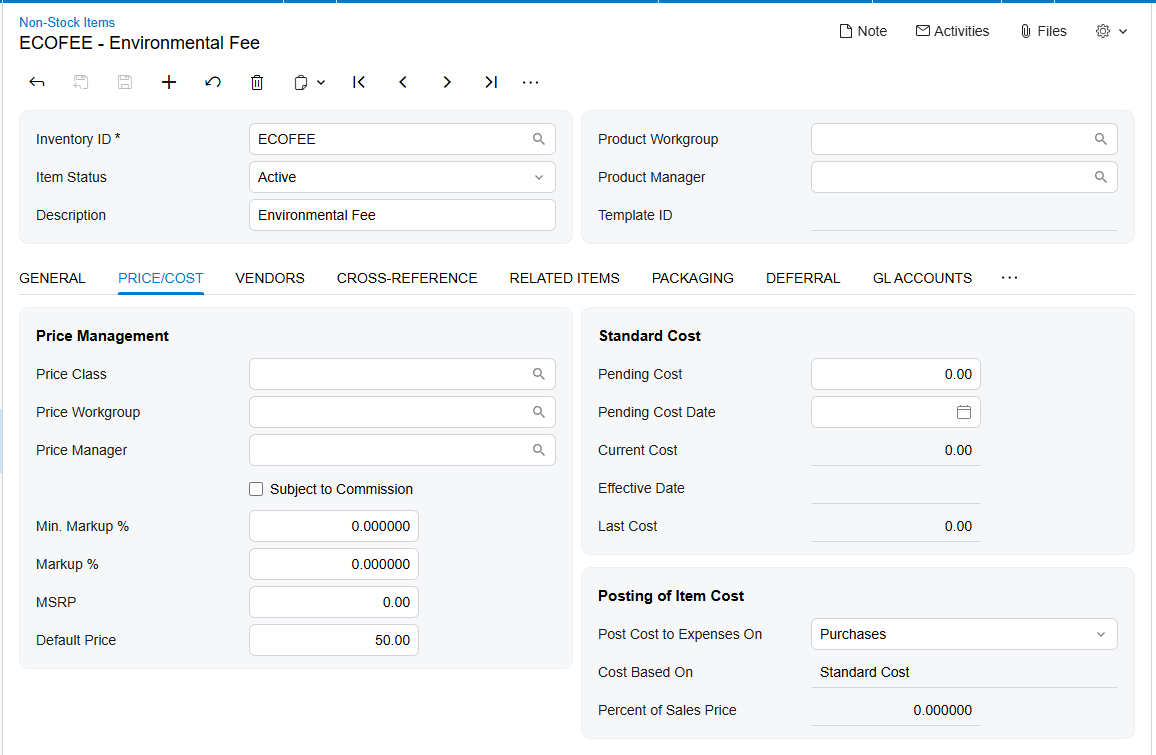
Configure the CRV Item as a Non-Stock Item
The associated CRV item must be configured as a non-stock item. It represents the fee rather than a separate physical beverage unit. This distinction lets the beverage remain the inventory item while the CRV line follows its quantity for sales and billing.
On the beverage Stock Item, open the Price Cost tab and select the appropriate value in CRV Item. This creates the item-level relationship used when Acumatica generates the child line.
Use CRV Amount and Unit of Measure Together
The CRV Amount field on the General tab of the beverage Stock Item determines the amount for the associated CRV item based on the selected unit of measure or UOM. The UOM therefore affects the fee amount while the beverage order quantity determines how many units of that fee line are created.
For consistent results, verify the beverage UOM before reviewing the CRV amount. If an order uses a different UOM from what the stock-item configuration anticipates, the quantity may still match while the expected fee amount differs. The source documentation does not describe conversion behavior, so businesses using multiple UOMs should validate each supported order scenario before production use.
Enable CRV at the Customer Location
Include in CRV on the Customer Default Location is the customer-level switch. When selected, adding the linked parent beverage item creates the CRV child line. When cleared, the CRV line is not displayed on the sales order.
This setting explains many apparent quantity problems. Before changing item setup, confirm that the sales order uses the intended customer location and that Include in CRV is selected there.
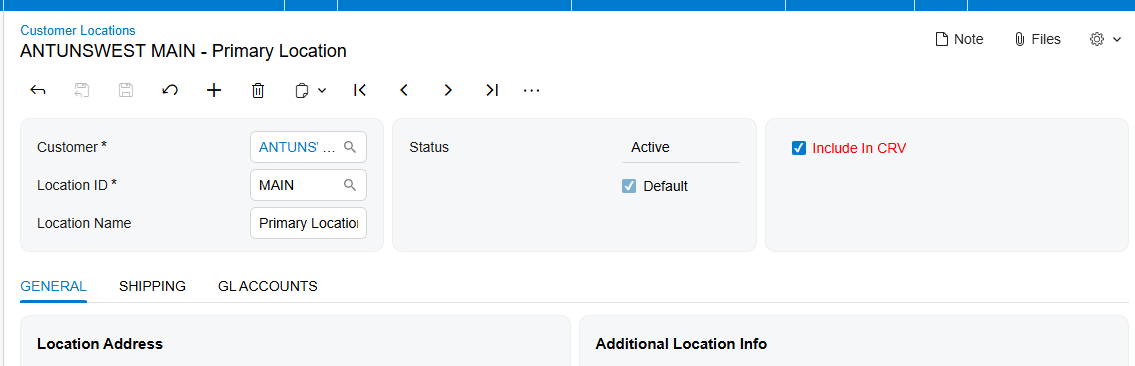
How Acumatica Keeps Parent and Child Quantities Aligned
When the parent item is added, Acumatica automatically adds the associated CRV item as a new line. The child line receives the same quantity as the beverage line. This one-to-one quantity inheritance is the foundation of CRV consistency.
Users should review the two lines together whenever the beverage quantity changes. The source confirms automatic quantity creation but does not document manual-edit or recalculation behavior after later changes. A safe operating procedure is to verify the child quantity immediately after adding or changing the parent line and again before shipment and invoicing.
Keep the CRV Warehouse Consistent
The CRV child line also receives the same warehouse as the parent beverage item. Although the CRV item is non-stock, matching the warehouse preserves the operational relationship on the transaction and makes it easier to review the two lines as a pair.
There is no separate CRV warehouse mapping documented. Warehouse consistency comes from inheritance from the parent line. If the beverage warehouse is changed, users should confirm that the associated child line still shows the same warehouse before the order proceeds.
Monitor CRV Lines Through Shipment and Invoice
Parent Item and Child Item fields are available on Sales Orders, Shipments, and Invoices. These fields identify the beverage line and its associated CRV fee line after the order moves downstream.
On the shipment, compare the parent and child references with the sales order and confirm that the beverage quantity being fulfilled remains associated with the correct CRV line. On the invoice, confirm the same relationship, quantity, warehouse context, and CRV amount. This document-by-document comparison is the primary reconciliation method described by the source.
Reconcile CRV Quantity and Amount Before Release
CRV reconciliation should answer four questions. Is the correct non-stock CRV item linked to the beverage? Is Include in CRV enabled for the order location? Does the child line quantity match its parent? Does CRV Amount reflect the parent item UOM?
Then trace Parent Item and Child Item through the sales order, shipment, and invoice. Any broken link, missing line, warehouse mismatch, or quantity difference should be resolved before the invoice is released.
Where to Monitor CRV Quantities in Acumatica
1. Beverage Stock Item Price Cost tab: the linked CRV Item.
2. Beverage Stock Item General tab: CRV Amount and the UOM that determines the associated amount.
3. CRV non-stock item: correct item identity and non-stock classification.
4. Customer Default Location: Include in CRV and the location selected on the order.
5. Sales Order: parent beverage quantity, child CRV quantity, matching warehouse, Parent Item, and Child Item.
6. Shipment: parent and child references and the quantities carried into fulfillment.
7. Invoice: parent and child references, quantity relationship, and final CRV amount before release.
CRV Quantity Management in Acumatica Frequently Asked Questions
Why is the CRV line missing from the sales order
Verify that the beverage Stock Item has a CRV Item selected, the linked CRV item is non-stock, and Include in CRV is selected for the customer location used on the order.
What quantity should appear on the CRV line
The CRV child line should receive the same quantity as the parent beverage item.
What warehouse should the CRV line use
The associated child item receives the same warehouse as the parent beverage item.
How is the CRV amount determined
The CRV Amount field on the beverage Stock Item General tab determines the associated CRV item amount based on the selected UOM.
How do I match a CRV line to its beverage item
Use Parent Item and Child Item on Sales Orders, Shipments, and Invoices. These fields preserve the documented relationship through the transaction flow.
How should CRV lines be reconciled
Compare the linked item, quantity, warehouse, UOM-based amount, and parent-child fields on the sales order, shipment, and invoice before release.
Improve CRV Quantity Control with Biz Tech Services
Accurate CRV processing depends on a reliable relationship between beverage items and fee lines. Biz-Tech Services CRV processing automates line creation and carries the identifying fields through Acumatica so users can validate quantity and warehouse consistency.
To learn more about managing CRV lines and beverage quantities in Acumatica, visit https://biz-techservices.com

