
How PDF Order Automation Affects Inventory Allocation in Acumatica
PDF order automation can improve inventory allocation in Acumatica by improving the sales-order data that allocation depends on. When customer purchase orders are converted into sales orders quickly and consistently, planners see demand sooner, item identities are less likely to be mistyped, and warehouse teams can act on cleaner order lines. The important distinction is that PDF automation creates and validates the transaction; Acumatica still controls whether and how stock is reserved, shipped, back ordered, or supplied from another warehouse.
DocVision PDF Scan and Import is designed to upload customer PDF documents, recognize customer and ship-to information, map PDF values to Acumatica fields, and generate sales orders. Its documented workflow includes customer-specific templates, inventory and customer cross-references, validation statuses, batch generation, and a Generic Inquiry for monitoring. Used correctly, those controls can make allocation decisions earlier and more reliable. Used without strong mappings and validation, automation can simply create incorrect demand faster.
Why PDF Order Automation Matters for Inventory Allocation
Inventory allocation starts with a trustworthy order line. Acumatica needs the correct customer, inventory ID, quantity, unit of measure, warehouse context, shipping rule, and requested timing before users can make sound fulfillment decisions. A PDF order may express those values in a customer-specific format or use the customer’s own item number. DocVision standardizes that input by applying a template and translating source values into Acumatica values.
The effect is indirect, not magical. Official Acumatica guidance treats allocation as reservation of stock-item quantities on a sales order, often through line details and allocation splits. Availability can lead to partial allocation, additional splits, another allocation warehouse, a transfer, or a back-order outcome. Non-stock items cannot be allocated. Depending on the Acumatica version and configuration, stock allocation functionality also depends on enabled inventory features. None of these rules is replaced merely because the order originated from a PDF.
The PDF to Sales Order and Allocation Workflow
1 Configure the connection and PDF import settings
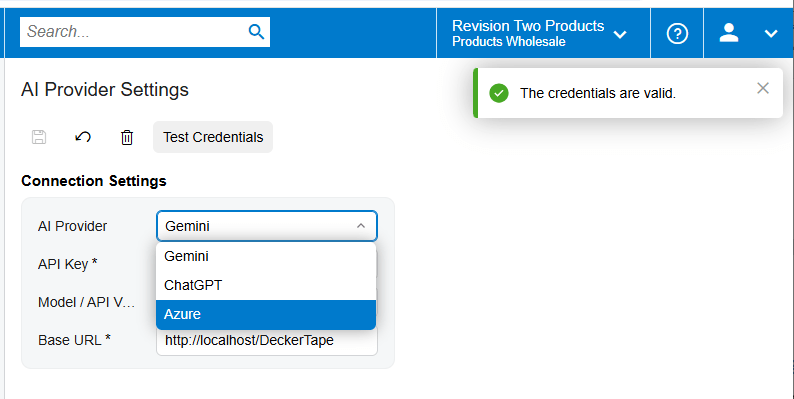
Begin with the environment and credentials required by the solution, then use Test Credentials to confirm the setup. In PDF Import Settings, create a template by importing a representative customer PDF. The source documentation describes a page viewer with previous-page, next-page, and zoom controls, which lets the configurator compare the original document with the extracted values while building the mapping.
2 Map header and detail data
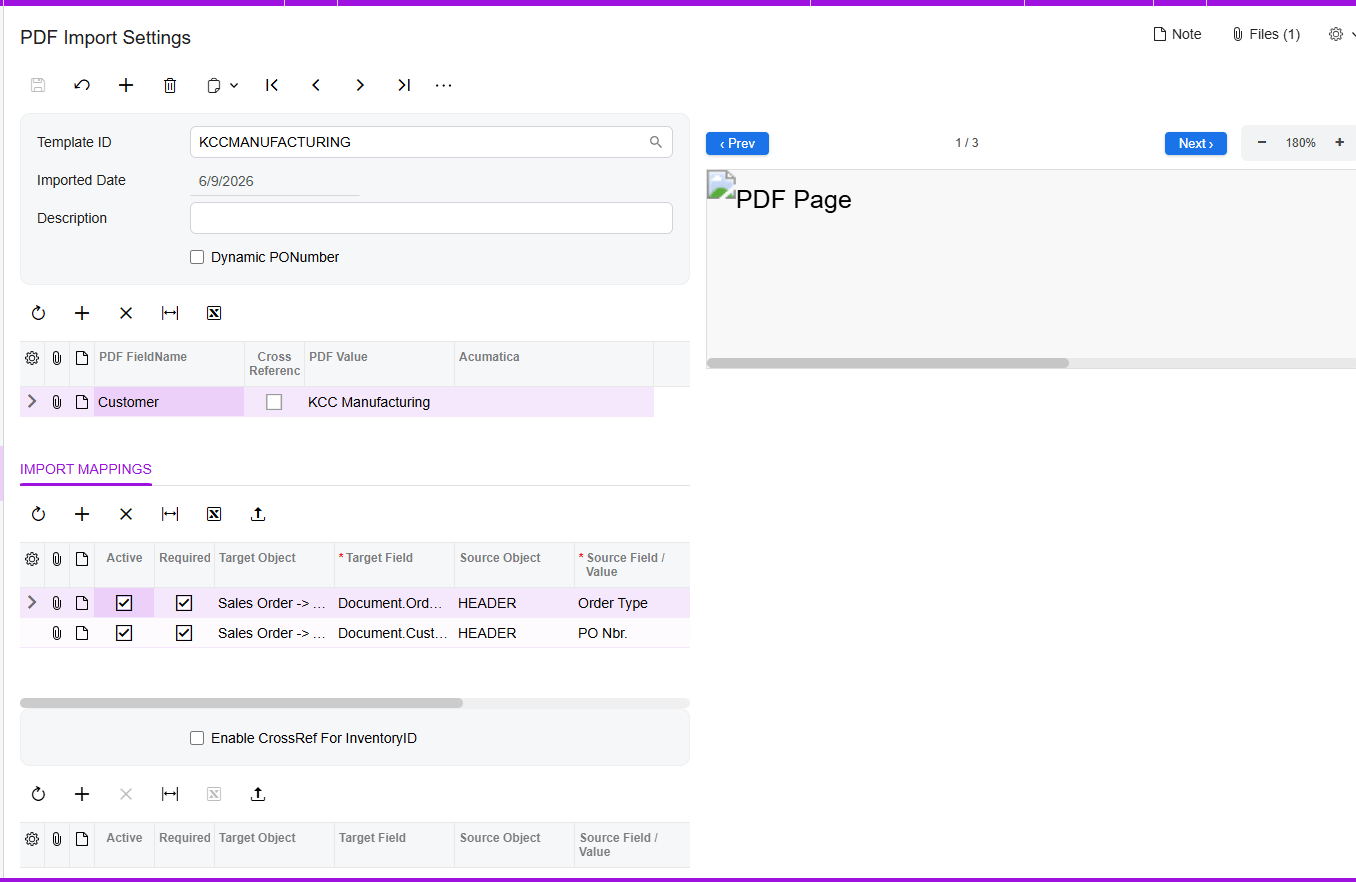
The system populates PDF FieldName and PDF Value and proposes mappings between Target Object and Source Field. Review every proposed mapping. For sales-order header fields, the documented target is Sales Order, Advanced. For line data, use Sales Order, Details, Advanced. Only mappings with the Active checkbox selected are uploaded during sales-order generation, so an apparently complete template can still omit operationally important data if a row is inactive.
Pay particular attention to Order Type, Customer, Customer Location or Ship-To, document or purchase-order number, Inventory ID, quantity, unit of measure, and any warehouse or date field included in the implementation. The source specifically documents Template ID, document number, Order Type, and Customer on imported documents. It does not provide a complete standard list of allocation fields, so warehouse, location, shipping rule, dates, and allocation behavior should be confirmed against the organization’s Acumatica configuration and the actual target fields exposed by the customization.
3 Resolve customer and inventory identities
Enable CrossRef for Inventory ID when customer documents use item codes that do not match Acumatica inventory IDs. This exposes the Inventory Cross-Reference tab, where users can map PDF item values manually or import mappings through Excel. A separate Customer Cross-Reference tab can map PDF customer and location values to Acumatica customers and locations.
4 Handle purchase order numbers deliberately
The Dynamic PO Number setting addresses PDFs with no identifiable purchase-order number. The documented workflow selects this option automatically and displays a warning that the mapping document has no number and requires an alternative PO number. The Release PO Number field then allows a header value to be mapped to an existing field value. This matters operationally because a stable source-document identifier helps prevent duplicate processing and supports reconciliation between the PDF, imported document, and generated sales order.
5 Validate before generating the sales order
On Import Documents, select a document number to review the PDF, its mappings, and the retained Template ID. The interface uses green for a correctly mapped file that is ready to generate a sales order, red for an item-line error accompanied by an Error Message, and yellow for a warning such as an unmapped item. The Validate Items action attempts to map PDF items to Acumatica values and displays them in Details when the mappings already exist in Inventory Cross Reference.
Treat green as an automation checkpoint, not proof that stock is available or allocated. Before generation, confirm that quantities, units, item identities, customer, location, and order type match the PDF. If allocation is time-sensitive, also review the warehouse and requested dates after generation, because the supplied DocVision guide does not state that its color status checks real-time inventory availability.
6 Generate and review the sales order
Use Generate Sales Order from the document action menu, or use the modified generation screen for batch processing. The generation screen can filter by Document Number and create the corresponding order. After success, the imported record should show the order number and order type, and the Generated checkbox should be selected. The source document number should also be visible on the Sales Orders screen, giving operations a traceable path back to the PDF.
At this point Acumatica’s order-management rules become decisive. Verify the order status and whether the selected order type places new orders on hold. Review availability and line details, then allocate stock manually or follow the configured fulfillment process. Where full quantity is unavailable, Acumatica documentation describes partial allocation and line splits; users may select another allocation warehouse, arrange a transfer, adjust quantity, or allow the configured shipping rule to determine whether a partial shipment, back order, or cancellation of the remainder is appropriate.
Key Fields and Settings That Influence the Result
1. Template ID: ties an imported document to the customer-specific parsing and mapping design.
2. PDF FieldName and PDF Value: show what the solution extracted from the source PDF.
3. Target Object and Source Field: control where each extracted value is written in Acumatica.
4. Active: determines whether a mapping is included when the sales order is generated.
5. CrossRef and Inventory Cross-Reference: translate customer item values into valid Acumatica Inventory IDs.
6. Customer Cross-Reference: translates customer and location values into Acumatica records.
7. Dynamic PO Number and Release PO Number: provide a controlled alternative when the PDF lacks a usable order number.
8. Order Type: invokes the applicable Acumatica sales-order workflow and defaults; confirm hold, shipping, and fulfillment behavior in Order Types.
9. Inventory ID, quantity, UOM, and warehouse: form the core demand signal to validate before allocation.
10. Shipping rule and requested dates: can affect whether an order waits for full availability, ships partially, back orders, or cancels a remainder; verify the values inherited by the generated order.
Monitoring and Validation After Go Live
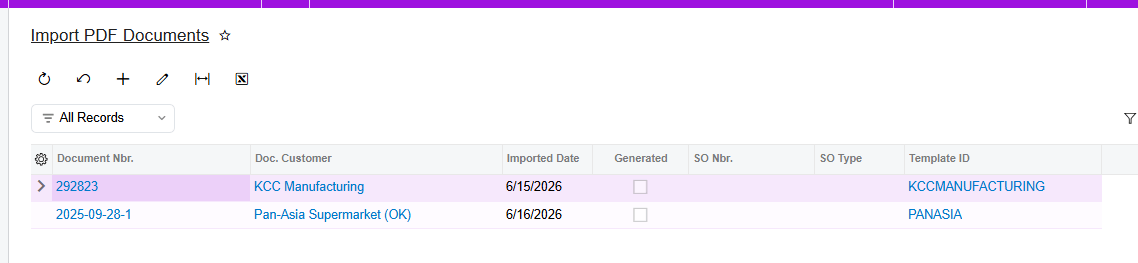
Use the Import PDF Documents Generic Inquiry as the operational register. The documented GI includes document numbers, Template IDs, customer information, and document generation dates, with hyperlinks back to Import Documents. This supports exception review, throughput monitoring, and traceability. A daily control can compare imported documents, records marked Generated, and the sales orders actually created.
Add allocation-focused validation outside the capture status. Sample generated orders and compare the PDF to Customer, Location, Order Type, Inventory ID, UOM, Order Qty., Warehouse, and requested dates. Then inspect availability, allocated quantity or line splits, order hold status, and shipment eligibility in Acumatica. Track red and yellow imports, unmapped item codes, duplicate source numbers, orders generated without expected lines, and orders that remain unallocated because inventory is unavailable or a required workflow step was not completed.
Common Pitfalls
1. Assuming generation equals allocation. A created sales order records demand; stock reservation still follows Acumatica features, settings, availability, and user actions.
2. Activating incomplete mappings. Only active mapping rows are uploaded, so missing quantity, UOM, warehouse, customer location, or dates can distort fulfillment decisions.
3. Using weak item cross-references. A valid but incorrect Inventory ID is more dangerous than a visible unmapped-item warning.
4. Treating green status as inventory confirmation. The documented colors describe mapping readiness and errors, not a guarantee of available or reserved stock.
5. Batch-generating unresolved documents. Batch processing increases throughput, but it also multiplies the impact of a bad template or cross-reference.
6. Skipping reconciliation. Use the Generated checkbox, generated order number, source document number, and GI links to prove that each PDF produced the intended order once.
Frequently Asked Questions
Does PDF order automation automatically allocate inventory in Acumatica
Not based on the supplied DocVision documentation. It automates PDF import, mapping, validation, and sales-order generation. Inventory reservation remains an Acumatica order-management function governed by available stock, enabled features, order configuration, and the allocation or shipment workflow.
What mapping has the greatest effect on allocation accuracy
Inventory ID is critical because allocation evaluates a specific stock item, but quantity, UOM, warehouse, customer location, order type, and dates can be equally material. Validate the complete order line and the defaults applied to the generated order.
What should users do with yellow or red imported lines
For yellow item-mapping warnings, confirm that the customer item exists in Inventory Cross Reference and use Validate Items. For red lines, read the Error Message and correct the source mapping or reference data before generation. Do not use batch generation to bypass unresolved exceptions.
Can Acumatica allocate part of an order
Yes. Official Acumatica guidance describes partial allocation and line splits when the full requested quantity is unavailable. Remaining demand may be assigned to another warehouse, supplied through a transfer, adjusted, or handled according to the applicable shipping rule and workflow.
How can the business audit automated orders
Use the Import PDF Documents GI, its hyperlinks to Import Documents, the Generated checkbox, the generated order number and type, and the source document number carried to the sales order. Reconcile those records with sales-order status, allocation details, and shipment results.
Build a Controlled PDF Order Automation Process
The strongest implementation combines fast PDF capture with disciplined master data, cross-reference ownership, exception handling, and Acumatica allocation controls. If you want to assess your customer document formats, map the right sales-order fields, and design an end-to-end validation process, contact BizTech Services to plan a practical Acumatica PDF order automation rollout.

