
Configuring serialized and non-stock gift cards in Acumatica starts with choosing the item model that matches how each card will be created, numbered, received, and selected on an order. A non-stock gift card can use numbers generated from Gift Card Preferences, while a stock gift card must be a serialized stock item whose serial number is received and allocated before sale.
The Biz-Tech Services Gift Card Processing product supports both models and also provides a documented mapping path for gift cards imported from an external system. This guide concentrates on item-level setup, external SKU mapping, and the checks that distinguish a valid configuration from an incomplete one.
What Serialized and Non-Stock Gift Card Items Are
A non-stock gift card item is an Acumatica Non-Stock Item associated with the Gift Card Payment Method. It can be sold in Acumatica or mapped to an external gift card for external order import. Its gift card number may be entered manually or generated from the setup on the Gift Card Preferences screen (BZ102000).
A serialized gift card is created as a stock item on the Stock Items screen (IN202500). The documentation states that the Payment Method field is enabled only for serialized items, so a serial class specifically for the gift card item must be created. This model also brings the stock receipt and allocation controls documented for stock gift cards.
The two models therefore use different sources for the number attached to the gift card. The non-stock model can generate a number when an item and quantity are entered on a sales order. The stock model uses a serial number created during receipt and selected from available values during allocation on the sales order.
Gift Card Item Configuration at a Glance
Use this sequence to keep the item, payment method, numbering, and external mapping decisions aligned.
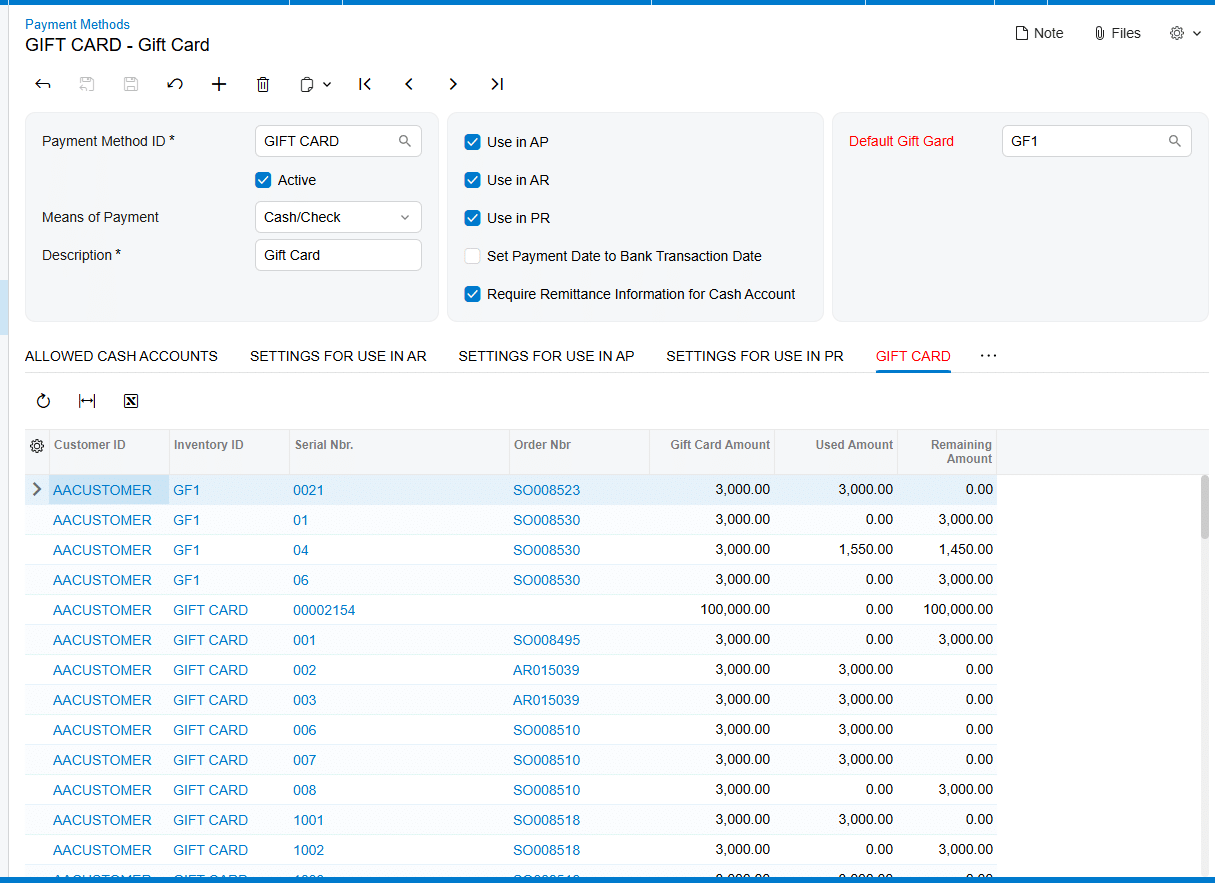
1 Create the Gift Card Payment Method on the Payment Methods screen (CA204000), connect the appropriate cash account, and set a Default Gift Card if one should appear automatically during payment creation.
2 For a non-stock model, prepare the Acumatica Non-Stock Item that uses the Gift Card Payment Method.
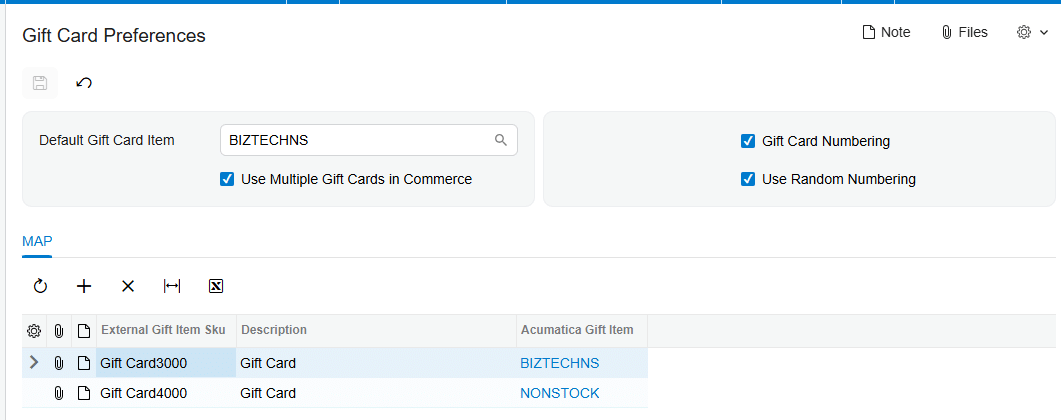
3 On Gift Card Preferences (BZ102000), select a Default Gift Card Item for external order import when one default item should represent external gift cards.
4 If external orders can contain multiple gift card SKUs, select Use Multiple Gift Cards in Commerce and map each documented External Gift Card SKU to the corresponding Acumatica Gift Card Item.
5 Choose Gift Card Numbering with Numbering Segments, including the required Auto-Incremental Value, or select Use Random Numbering for automatically generated random numbers.
6 For a stock model, create the item on Stock Items (IN202500), assign a gift-card-specific serial class, associate the Payment Method, and configure expiration tracking when required.
7 Receive stock gift card quantities and generate their serial numbers before trying to allocate them on a sales order.
8 Validate the resulting gift card item, number, and stock status on the documented setup, order, payment, and gift card inquiry screens.
Configure the Gift Card Payment Method Foundation
Both item models depend on the payment method setup. The documentation directs administrators to the Payment Methods screen (CA204000) to create a new Payment Method. Because payment methods are linked to cash accounts, it strongly recommends creating a new general ledger account for the newly created gift card item and adding the Gift Card Payment cash account on the Allowed Cash Accounts tab.
The Default Gift Card field on Payment Methods controls which gift card appears by default in the Gift Card field of the Create Payment popup. This is a payment-entry default, not the same setting as Default Gift Card Item on Gift Card Preferences. The latter determines which non-stock item represents an external gift card during order import when multiple external gift card mapping is not enabled.
Keep those two defaults separate during review. One points to the gift card used as a payment selection; the other points to the non-stock inventory item used when an external order is imported. The source documents both fields but does not describe a validation message that warns if administrators confuse them.
Configure a Non-Stock Gift Card Item and Its Numbering
The non-stock setup is the direct choice when the business wants Acumatica to treat the gift card as a Non-Stock Item and generate or accept a gift card number during order entry. The documentation says that the corresponding Acumatica Non-Stock Item for which the Gift Card Payment Method is selected can be used as a Gift Card Item and can also be mapped to external gift cards for external order import.
Open Gift Card Preferences (BZ102000) screen to control automatic numbering. When Gift Card Numbering is selected, the Numbering Segments tab becomes available. Define the numbering structure there and configure the Auto-Incremental Value, which the source identifies as essential for automatic gift card number generation.
Use Random Numbering is the alternative. When it is selected, the Numbering Segments tab is hidden. The system then generates random numbers when a gift card item and quantity are entered on a sales order. The generated values appear in the Gift Card Numbers popup. The manual says this mode prevents users from relying on a predefined numbering sequence.
For an order created in Acumatica, the gift card number can be entered manually or produced according to Gift Card Preferences. The Gift Card Numbers popup is tied to the selected item line. When quantity is greater than one, the numbers are shown in the popup. The source also states that the shipping rule for the corresponding non-stock gift card becomes Ship Complete on the sales order line.
Map External Gift Card SKUs in Gift Card Preferences
Gift Card Preferences (BZ102000) is the documented mapping point between external gift card items and Acumatica gift card items. The Default Gift Card Item field accepts the non-stock item that should represent an external gift card during order import. If Use Multiple Gift Cards in Commerce is not selected, external order import uses that default non-stock item.
Select Use Multiple Gift Cards in Commerce when the external system sends more than one gift card SKU and those SKUs must resolve to different Acumatica gift card items. The documentation states that this option allows an External Gift Card SKU to be mapped to the corresponding Acumatica Gift Card Item, and that the mapping is used when processing orders involving multiple gift cards.
A practical review should therefore compare the external SKU and the Acumatica item selected in each documented mapping. The manual does not name the individual grid columns beyond External Gift Card SKU and Acumatica Gift Card Item, and it does not describe a separate alias, cross-reference, or alternate-ID table. Use only the fields shown in Gift Card Preferences rather than assuming that another Acumatica cross-reference screen participates in this product workflow.
The documentation also does not state what happens when an incoming external gift card SKU has no matching row while Use Multiple Gift Cards in Commerce is selected. It provides no rejection message, fallback rule, error inquiry, or automatic record-creation behavior for an unmapped SKU. Test that case in a non-production environment and document the observed result before relying on it in live imports.
Configure a Serialized Stock Gift Card Item
Create a stock gift card on the Stock Items screen (IN202500). Associate the chosen item with the Payment Method used for gift card payments. The source states that the Payment Method field is enabled only for serialized items, so create and assign a Serial Class specifically for the gift card item before expecting that field to be available.
If the gift card requires an expiration date, select Track Expiration Date for its serial class. The documentation says the expiration date is established during the gift card receipt process. It does not describe setting or replacing the expiration date as part of the sales order mapping step.
Receive the item before sale. On the Receipts screen, add the Gift Card Item, enter the quantity, and generate the serial numbers with their respective expiration dates in the Line Details popup when expiration tracking is selected. The manual does not provide a screen ID for the Receipts screen or the Lot/Serial Classes screen, so none should be inferred from standard product knowledge.
On the Sales Orders screen (SO301000), allocation is required for stock gift card items. Select the serial number from the Lot/Serial Nbr field on the Line Details tab. The available gift card-related serial numbers and their expiration dates are displayed there. This is the documented stock-item selection rule; it is different from generating a new non-stock number through Gift Card Preferences.
Apply Stock Receipt and Sales Order Validation
The source documents several configuration conditions that can be checked without inventing application behavior.
1 Confirm that the Payment Method is associated with the gift card item. For a stock item, confirm that the item is serialized because the Payment Method field is enabled only for serialized items.
2 If Gift Card Numbering is used for non-stock cards, confirm that Numbering Segments are visible and that Auto-Incremental Value is configured.
3 If Use Random Numbering is selected, expect Numbering Segments to be hidden and check the Gift Card Numbers popup after entering the sales order quantity.
4 If multiple external gift card products are expected, confirm that Use Multiple Gift Cards in Commerce is selected and review each External Gift Card SKU to Acumatica Gift Card Item mapping.
5 If the stock card tracks expiration, enter the expiration date while generating serial numbers during receipt.
6 Before selling a stock gift card, confirm that a received serial number is available for allocation in Lot/Serial Nbr on the sales order Line Details tab.
7 After sale, confirm that the Gift Card tab on Payment Methods contains Customer ID, Inventory ID, Gift Card Serial Number, Order Number, Gift Card Amount, Used Amount, and Remaining Amount.
The manual does not provide the exact text of any validation error raised when these conditions are missing. It documents the required setup and expected field availability, but it does not identify a formal validation-rule list, severity level, or error code.
Handle Mapping Topics the Documentation Does Not Define
The source provides one explicit item-mapping mechanism: External Gift Card SKU to Acumatica Gift Card Item on Gift Card Preferences (BZ102000), enabled through Use Multiple Gift Cards in Commerce. It also provides one defaulting mechanism: Default Gift Card Item for external order import when multiple gift card mapping is not selected.
It does not document Acumatica item cross-references, vendor or customer part numbers, aliases, wildcard mappings, case sensitivity, duplicate external SKUs, or precedence between a mapping row and another inventory identifier. It also does not describe how unmapped records are queued, rejected, logged, or corrected. Administrators should not design those behaviors from assumptions about another connector or standard Acumatica feature.
Item classes are also absent from the Gift Card Processing manual. No item class is required by name, no class-level default is described, and no inheritance rule is given for the Payment Method, Serial Class, or gift card flags. If an implementation uses item classes for internal governance, validate that local design separately; it is not part of the documented product mapping.
Finally, the manual does not state that a serialized stock gift card can be selected as Default Gift Card Item for external imports. Its definition identifies that field as a Non-stock Item. Follow that documented restriction unless Biz-Tech Services supplies product-specific guidance for a different configuration.
Where to Check Your Work
Use these documented screens and fields to confirm the configuration from setup through the resulting gift card record.
1. Payment Methods (CA204000): confirm the Gift Card Payment Method, Allowed Cash Accounts, the payment-level Default Gift Card selection, and the Gift Card tab after sale.
2. Gift Card Preferences (BZ102000): confirm Default Gift Card Item, Use Multiple Gift Cards in Commerce, each External Gift Card SKU mapping, Gift Card Numbering, Use Random Numbering, and Numbering Segments when visible.
3. Stock Items (IN202500): confirm that the stock gift card is serialized and that the Payment Method is associated with the item.
4. The item serial class: confirm Track Expiration Date when expiration control is required. The source does not provide the Lot/Serial Classes screen ID.
5. The Receipts screen and Line Details popup: confirm the received quantity, generated serial numbers, and expiration dates when tracked. The source does not provide the Receipts screen ID.
6. Sales Orders (SO301000): for non-stock cards, check Gift Card Numbers on the selected line and in the popup; for stock cards, check Lot/Serial Nbr on Line Details and confirm allocation.
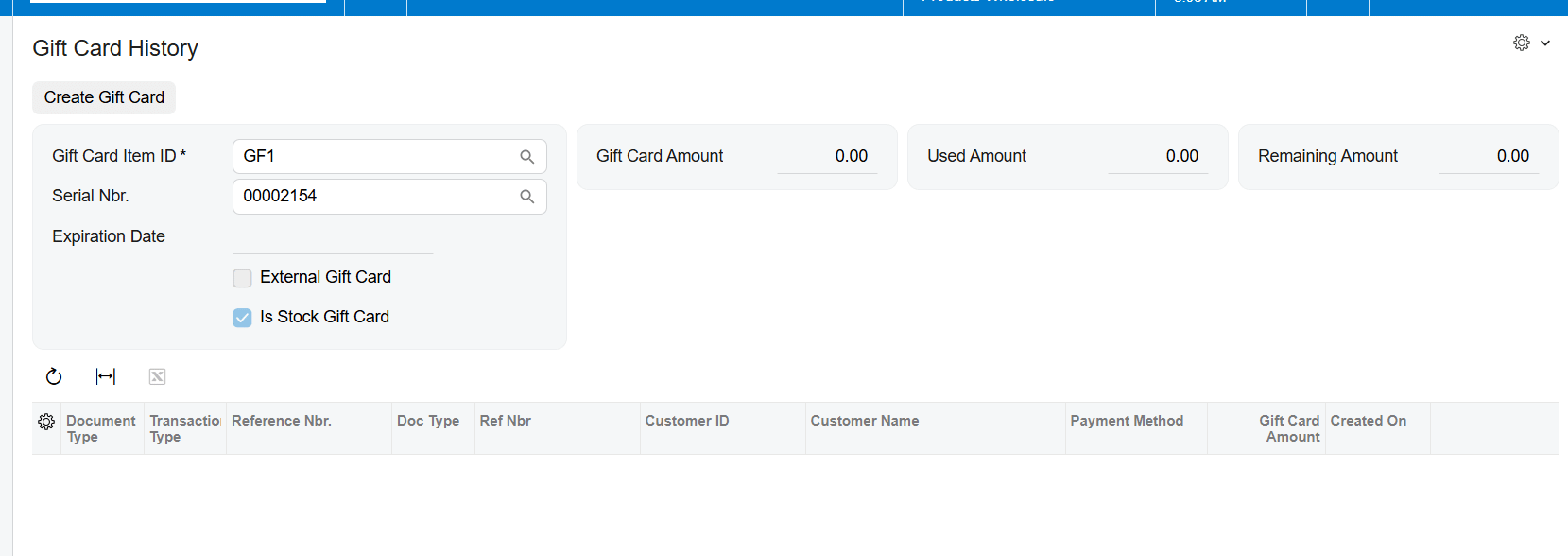
7. Gift Card History (BZ407099): confirm External Gift Card and Is Stock Gift Card indicators and review the card record reached through its serial number.
8. Gift Card Summary: review the corresponding gift card information. The source names this screen but does not provide its screen ID.
Serialized and Non-Stock Gift Card Configuration Frequently Asked Questions
What is the main difference between serialized and non-stock gift cards in Acumatica?
A non-stock gift card can receive a manually entered number or a number generated from Gift Card Preferences. A stock gift card must be serialized, received into stock, and allocated by its available Lot/Serial Nbr on the sales order.
Where do I map an external gift card SKU to an Acumatica item?
Use Gift Card Preferences (BZ102000). Select Use Multiple Gift Cards in Commerce, then map the External Gift Card SKU to the corresponding Acumatica Gift Card Item.
What happens when Use Multiple Gift Cards in Commerce is not selected?
External order import uses the Non-Stock Item selected in Default Gift Card Item. The documented default applies instead of individual external SKU mappings.
Why is the Payment Method field unavailable for my stock gift card item?
The documentation states that the field is enabled only for serialized items. Create and assign a Serial Class specifically for the gift card item, then review the stock item setup again.
Why did the Numbering Segments tab disappear?
The tab is hidden when Use Random Numbering is selected. Clear that option and use Gift Card Numbering when the implementation requires a predefined numbering structure.
Where is the expiration date entered for a serialized gift card?
Select Track Expiration Date for the serial class, then enter the expiration date when serial numbers are generated during the gift card receipt process. The source does not describe adding it during sales order mapping.
Does the product use item cross-references or aliases for gift card mapping?
The documentation does not say that it does. It documents External Gift Card SKU to Acumatica Gift Card Item mapping on Gift Card Preferences and does not define a separate cross-reference or alias process.
How does Acumatica handle an unmapped external gift card SKU?
The manual does not define the result, error message, fallback, or correction queue for an unmapped SKU when multiple mapping is enabled. Test the condition outside production and obtain product-specific guidance before establishing an operating procedure.
Work With Biz-Tech Services Gift Card Processing
A reliable gift card item configuration keeps three decisions distinct: whether the item is non-stock or serialized stock, how its number is created, and how an external SKU resolves to an Acumatica item. Gift Card Preferences handles documented defaulting and external SKU mapping, while serialized stock cards add receipt, expiration, and allocation controls.
If you need help validating serialized and non-stock gift card setup, external SKU mappings, or numbering behavior in your Acumatica environment, visit https://biz-techservices.com to speak with Biz-Tech Services about Gift Card Processing.
Chech also Youtube video for detailed explanation: https://www.youtube.com/watch?v=FyVcs9bR5NY

