
Mapping Shopify products and variants to Acumatica inventory items depends on the direction of the synchronization. On import, the connector can use a Shopify SKU to create an Acumatica Inventory ID, create a new item when allowed, or use the configured missing-product default. On export, the documentation states that item mapping is not supported and the Acumatica Inventory CD becomes the Shopify SKU.
The Biz-Tech Services Shopify Acumatica Connector also separates identity mapping from field mapping. The Shopify Inventory tab handles product and item synchronization, Inventory Mapping connects ERP properties to Shopify fields and metafields, and the template and matrix item workflow represents Shopify products and variants. This article stays focused on those product, variant, SKU, cross-reference, item-class, and validation decisions rather than repeating connection setup, order import, or quantity synchronization.
What Shopify Product and Variant Mapping Does
The Biz-Tech Services Acumatica Shopify Connector provides documented paths for resolving item identity and synchronizing product data. When Sync from Shopify runs on the Shopify Inventory tab, the connector takes the Shopify item SKU and creates an Acumatica Inventory ID. When an order import encounters an item that does not exist, the Import Item setting determines whether a new inventory item may be created.
Field mapping is configured separately on the Inventory Mapping tab. That tab connects Acumatica attributes, item currency settings, and user-defined fields with Shopify fields. It also supports Shopify metafields at the product or variant level. A product or variant can therefore have both an item identity, normally tied to SKU, and a set of mapped descriptive or custom properties.
The connector documents a third layer for catalog structure. An Acumatica Template Item represents the base product, while Matrix Items represent the sellable Shopify variants. Each Matrix Item is a unique attribute combination, such as a specific size and color, and is stocked, priced, and sold separately.
Shopify Product and Variant Mapping at a Glance
Use this sequence to separate item identity, missing-item behavior, field mapping, and variant structure.
1 Review Import Item on the Shopify store Import Settings before importing products or order lines that may not exist in the ERP.
2 If new items may be created, set the imported item type, item class, UOM, and warehouseID defaults that appear when Import Item is selected.
3 If Shopify may send an item without an SKU, decide whether Use Numbering Sequence for SKU Generation should generate a new value from the configured numbering sequence.
4 Load Shopify items on the Shopify Inventory tab, then use Sync from Shopify for the documented SKU-to-Inventory ID import path.
5 Use Inventory Mapping to pair ERP properties with Shopify properties and to configure product-level or variant-level metafield mappings.
6 For products with options, sync the Acumatica Template Item as the Shopify product and select the Matrix Items that should become Shopify variants.
7 Select the required import or export checkbox for each field mapping before processing mapped values.
8 Validate the resulting SKU, Inventory ID or Inventory CD, Shopify product identity, template identity, matrix-item selection, and required field checkboxes on the documented screens and tabs.
Resolve Shopify SKUs to Acumatica Inventory Items
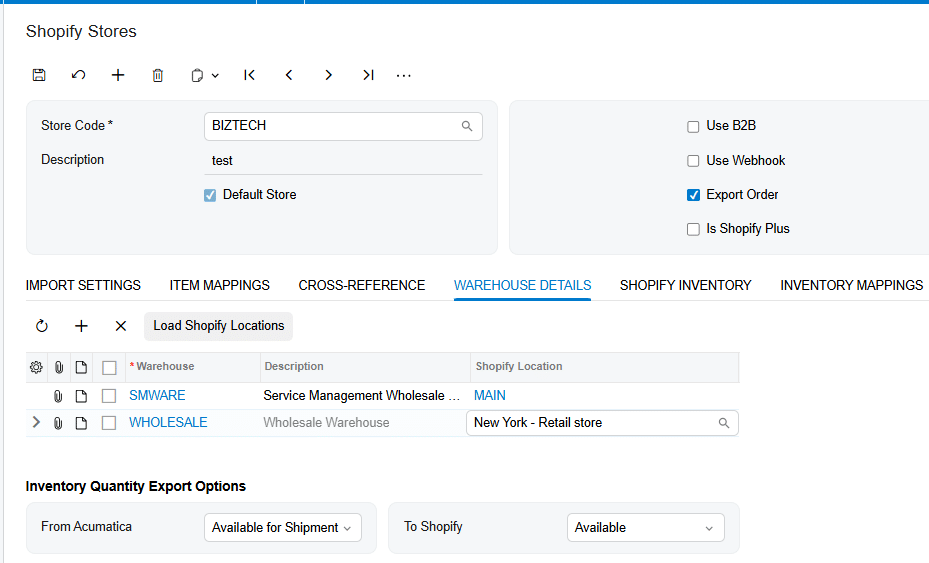
The Shopify Inventory tab can load both Acumatica and Shopify items. Load Acumatica Items retrieves stock and non-stock records. Load Shopify Items retrieves Shopify items. Sync to Shopify exports ERP items, while Sync from Shopify imports Shopify items into the ERP. Get Item by ID retrieves a Shopify item by its ID, and Purge removes the items displayed in the table.
For Sync from Shopify, the manual gives a direct identity rule: the connector takes the Shopify item SKU and creates an Acumatica Inventory ID. That statement establishes SKU as the documented import identifier. The manual does not say whether the comparison is case-sensitive, whether spaces or punctuation are normalized, or how duplicate Shopify SKUs are resolved.
The export direction uses a different rule. The connector does not support item mapping when an ERP inventory item is exported to Shopify. Instead, it sets the item Inventory CD as the Shopify SKU. Before choosing an item-code design, account for that restriction because the manual does not document an export alias that substitutes a different Shopify SKU.
The manual alternates between Inventory ID for the imported item and Inventory CD for the value sent as the Shopify SKU. It does not explain whether those terms refer to the same visible item identifier in this connector context. Preserve the documented terms when testing each direction and verify the actual values displayed in the Shopify Inventory table and the inventory record.
Configure Missing Product Creation and Item Defaults
Import Item controls the connector behavior when a Shopify item is not found in the ERP during synchronization or order import. When the checkbox is selected, the system allows a new item to be created. The imported item type, item class, UOM, and warehouseID options then appear and supply the documented default values for that new item.
Item class is therefore documented as a new-item default, not as an alternate matching key. The source does not state that an item class decides which existing inventory record matches a Shopify SKU, nor does it document class-based product aliases or variant resolution. Use the item class to classify newly created items only to the extent shown by the setting.
When Import Item is not selected, the source says the new item import case uses Replace Missing Products as the item name and takes the warehouse from Warehouse ID. The wording is imprecise, but it clearly identifies Replace Missing Products as the documented fallback setting for a missing imported item rather than describing automatic creation of a normal inventory record.
Use Numbering Sequence for SKU Generation applies during item creation when the system does not find an SKU number. In that case, the connector generates a new value from the numbering sequence setup. The documentation also warns that an absent corresponding numbering sequence produces an error message, although it does not provide the exact message text.
Populate Items in Inventory Details adds the imported item to Inventory Details. Save Item Properties in Line Notes allows item properties from the order to be synchronized to line and header notes. These settings affect the created record or imported order context; the manual does not present them as matching or alias rules.
Use Cross-References Without Assuming an Item Alias Model
Cross-Reference options on Import Settings determine which entities may be set up and matched between Shopify and Acumatica. The Cross-Reference tab visibly supports values such as Ship Via. For customer imports that use tags and the Code type, the source specifically describes Shopify Value and Acumatica Value fields and explains how a Shopify tag can select a customer record.
The manual then states that the same logic works for items, but it does not provide the corresponding item example, item field names, or a complete matching sequence. It does not say whether the Shopify value is an SKU, tag, product ID, variant ID, title, or another property. It also does not explain the relationship between an item cross-reference and the SKU-based behavior on Shopify Inventory.
The Biz-Tech Services Shopify Acumatica Integration should therefore be configured only from the item choices actually exposed in Cross-Reference options. Do not infer a customer part-number, vendor part-number, alternate ID, wildcard, or alias table from the brief statement that item logic is similar. The documentation does not define those mechanisms.
For an unmapped record, the documented outcomes depend on the workflow and settings. Shopify Inventory import can create an Acumatica Inventory ID from the Shopify SKU. Order import can create a new item when Import Item is selected, or use Replace Missing Products when it is not. The manual does not state which behavior takes precedence if an item cross-reference exists but conflicts with the SKU, or if an item cross-reference is enabled but no row matches.

Map Product Variant and Metafield Properties
Inventory Mapping handles field-level data after the product or variant identity is established. The tab supports Acumatica attributes, item currency settings, user-defined fields, and Shopify fields. It also supports exporting and updating Shopify metafields at the product or variant level.

Use Get Metafields to retrieve existing Shopify metafields before organizing the mapping. Each mapping has checkboxes that specify whether it applies to import or export. Select the appropriate direction before processing; the source explicitly tells users to confirm that the corresponding checkbox is selected before importing or exporting mapped values.
The documentation defines Acumatica property as the Acumatica item category and Shopify property as the Shopify item category. It does not list the complete set of allowed categories, provide sample product-level and variant-level rows, or describe type conversion between the platforms. It also does not define what happens when a metafield type or mapped value is invalid.
Export Item Mappings is a related but separate tab. It determines which product-related fields are synchronized to Shopify, and its checkboxes can exclude fields that should not be updated. The source warns that if required fields are not selected for creation or update, corresponding data such as price, description, or weight will not be updated on Shopify processing screens.
Connect Template Items Matrix Items and Shopify Variants
An Acumatica Template Item is the base product used to create multiple Matrix Items and is not itself a sellable product. A Matrix Item is a child product generated from the template. Each Matrix Item represents one attribute combination and is stocked, priced, and sold separately. In Shopify terms, the template supplies the product structure and the matrix items supply the variants.
After the Template Item is synchronized, the Shopify-generated Template ID is displayed on the Shopify Product tab. Syncing can then include selected matrix items or all matrix items.
1 Select Sync Matrix Items.
2 Open the Matrix Items tab.
3 Select the desired items.
4 Select Include Item in Sync.
5 Confirm that the selected items appear on the Shopify Details tab, which the manual uses as confirmation that they are in the Shopify store and ready to synchronize.
Sync All Matrix Items sends all matrix items with the template product. After the template item exists in Shopify, Shopify Product Data becomes available on the Shopify Product tab. Selecting it exposes additional fields such as Custom URL, Meta Description, and Page Title. Export to Shopify is automatically selected when the product exists in Shopify.
The same selected-checkbox logic applies to stock items. When the template and matrix synchronization checkboxes are selected, the items synchronize as one template with its matrix items. When they are not selected, the manual says items export as ordinary individual products.
Understand Export Direction and Validation Limits
The export path must be reviewed separately from import. Because export item mapping is not supported, the Acumatica Inventory CD becomes the Shopify SKU. If the connector cannot find some items in the Shopify store during synchronization, the documentation says it creates them automatically. On sales order export, Create Product determines whether a missing Shopify product is created; when it is not selected, the default product under Replace Missing Products is used.
Track Quantity has a documented validation rule. If Track Quantity is not selected in either Shopify or Acumatica, an error message should appear during synchronization. If it is not selected in Shopify but is selected in the ERP, synchronization should update the quantity and automatically select the option in Shopify. The source does not provide the error text or describe the opposite mismatch.
Product-field synchronization also depends on selected checkboxes in Export Item Mappings. Price, description, weight, and other fields are not updated when their required creation or update fields are not selected. Image synchronization depends on Product Image, but the source separately warns that punctuation marks can duplicate an image without defining which punctuation, filename field, or comparison rule is involved.
The source does not provide screen IDs for Shopify Stores, Shopify Inventory, Inventory Mapping, Export Item Mappings, Export Shopify Inventory Items, Stock Items, or the template and matrix workflow. No screen ID should be inferred from a standard installation or from another connector.
Where to Check Your Work
The Biz-Tech Services Shopify Acumatica Integrator exposes the documented mapping result across these screens and tabs.
1 Shopify Stores Import Settings: check Import Item, imported item type, item class, UOM, warehouseID, Use Numbering Sequence for SKU Generation, Replace Missing Products, Warehouse ID, Populate Items in Inventory Details, and Save Item Properties in Line Notes.
2 Cross-Reference options and Cross-Reference tab: confirm that the item entity is selected before expecting its values to appear, then review the Shopify Value and Acumatica Value fields that the screen exposes.
3 Shopify Inventory: use Load Shopify Items or Get Item by ID, review the Shopify SKU, and confirm the result of Sync from Shopify in the Acumatica inventory record.
4 Inventory Mapping: confirm the Acumatica property, Shopify property, product-level or variant-level metafield selection, and the import or export checkbox for each mapping.
5 Export Item Mappings: confirm that every product field intended for synchronization is selected before running a related processing screen.
6 Shopify Product tab: after template synchronization, confirm the generated Template ID, Shopify Product Data, and Export to Shopify state.
7 Matrix Items and Shopify Details tabs: confirm which matrix items were selected with Include Item in Sync and which variants are ready to synchronize.
8 Export Shopify Inventory Items: confirm that the intended price, description, and weight checkboxes were enabled in Export Item Mappings before processing.
9 Import Shopify Orders or another importing workflow: when a line does not resolve to the expected item, compare the SKU, Import Item state, item creation defaults, Cross-Reference setup, Replace Missing Products, and Warehouse ID.
Shopify Product and Variant Mapping Frequently Asked Questions
Does the connector map a Shopify SKU to an Acumatica inventory item?
Yes, in the documented Shopify-to-Acumatica path. Sync from Shopify takes the Shopify item SKU and creates an Acumatica Inventory ID. The source does not describe normalization or duplicate-SKU handling.
Can I map a different Acumatica item code when exporting to Shopify?
The documentation says the connector does not support mapping during Acumatica item export. It sends the Acumatica Inventory CD as the Shopify SKU.
What happens when a Shopify item does not exist in Acumatica?
With Import Item selected, the connector can create a new item using the configured imported item type, item class, UOM, and warehouseID defaults. Without Import Item, the documented fallback uses Replace Missing Products and Warehouse ID, although the manual does not explain the fallback record in detail.
Can the connector generate an SKU when Shopify does not provide one?
Use Numbering Sequence for SKU Generation allows a value to be generated during item creation when the system does not find an SKU. The corresponding numbering sequence must be configured or an error message is displayed.
How are Shopify variants represented in Acumatica?
The documented model uses a Template Item as the base product and Matrix Items as the individual variants. Each matrix item represents one attribute combination and is stocked, priced, and sold separately.
Can product and variant metafields use different mappings?
Inventory Mapping supports Shopify metafields at the product or variant level. Retrieve existing fields with Get Metafields and select import or export for each mapping. The source does not provide examples of the allowed data types or conversion rules.
Does the connector support item aliases and alternate identifiers?
The Biz-Tech Services Acumatica Shopify Integration documents SKU-based identity, selected Cross-Reference entities, and property mapping. It does not define an alias table, alternate item ID, wildcard match, customer part number, or vendor part number for product and variant resolution.
Why did a product field fail to update in Shopify?
Check Export Item Mappings and the relevant Inventory Mapping direction. The manual warns that price, description, weight, or other data is not updated when the required creation or update checkbox is not selected.
Work With the Biz-Tech Services Shopify Connector
Reliable Shopify product mapping starts by treating item identity, field properties, and variant structure as separate controls. Validate the SKU and missing-item behavior first, then configure Inventory Mapping, and finally confirm how Template Items and Matrix Items appear as products and variants.
If you need help validating Shopify SKU resolution, item-creation defaults, metafield mappings, or template and matrix item synchronization, visit https://biz-techservices.com to work with the Biz-Tech Services Acumatica Shopify Integrator.

