
Amazon SKUs map to Acumatica Inventory IDs through the Amazon Store’s Inventory Details and Cross-Reference settings. The documentation supports direct Amazon Value to Acumatica Value matching, SKU-based Inventory ID creation when Import Item is enabled, and SKU maintenance for existing items in Inventory Details.
The Biz-Tech Services Amazon Acumatica Connector gives administrators a choice between mapping an Amazon item to an existing inventory record and allowing a new record to be created during import. This article focuses on those documented item and SKU controls, the behavior of unmapped items, the product lookup actions, and the limited error information available during order import.
What Amazon SKU Mapping Does in Acumatica
The Biz-Tech Services Acumatica Amazon Connector uses item mapping to associate an Amazon product identifier with an inventory record. The Amazon guide names two related work areas on the Amazon Store screen: Cross-Reference, which matches external and internal values for selected entities, and Inventory Details, where a new Amazon SKU is mapped and existing SKU assignments can be changed.
The guide also describes Import Item. When this checkbox is selected and an order contains a product that does not yet exist in the ERP, the connector imports the new product information and generates an Inventory ID based on the SKU. When Import Item is not selected, the documentation says an integration error occurs for a product that does not exist.
These controls establish the documented mapping boundary. The manual does not define a general alias engine, item-class default, or external-ID hierarchy. It describes Amazon Value, Acumatica Value, SKU, ASIN, SELLERSKU, and Inventory ID, but it does not specify matching precedence among them.
Map Amazon SKUs to Acumatica Inventory IDs Step by Step
Use the following documented controls to prepare item matching. The source does not supply one end-to-end numbered workflow, so each step below stays within the functions it explicitly assigns to the Amazon Store settings.
1 Open the Amazon Store record for the store whose Amazon products need to be matched
2 In Cross-Reference Options, select Items so the item entity is available in the Cross-Reference Field list
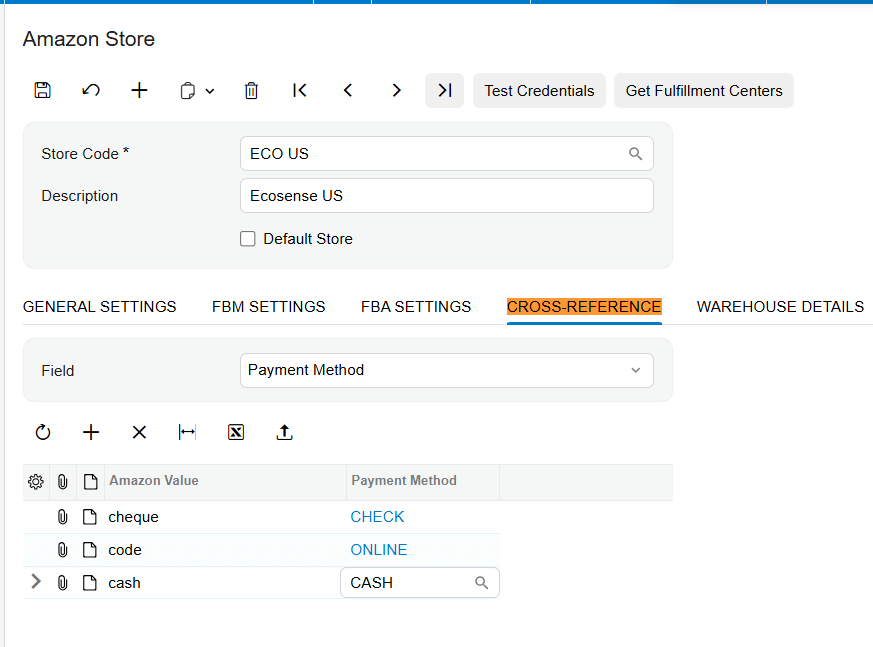
3 In Cross-Reference, select the item entity in Field and enter the Amazon Value and corresponding Acumatica Value
4 In Inventory Details, create the mapping required for a new Amazon SKU or review the SKU assigned to an existing Acumatica item
5 Decide whether Import Item should create product information for Amazon items that do not yet exist in Acumatica
6 If order imports should populate Inventory Details, select Insert Item in Inventory Details Tab
7 Use Get Product by ASIN or Get Product by SELLERSKU to retrieve and display the Amazon item in Inventory Details
8 For Fulfillment by Amazon products, use Load FBA Products to display store products and Sync From Amazon on a loaded item when an Acumatica item must be created from its SKU
9 Import a controlled Amazon order and review the order line or import error before applying the setup to a larger group of orders
How Import Item Handles an Unmapped Amazon Product
Import Item determines what the connector does when Amazon supplies product information that does not exist in the ERP. With the checkbox selected, the connector imports the new product information. The Inventory Details note adds that order import generates an Acumatica Inventory ID based on the SKU.
With Import Item cleared, the guide says an integration error occurs. It does not provide the exact error text, identify a separate queue for unmapped items, or state whether the order is partly imported. It also does not say whether the error can be resolved directly from the order grid or requires a new mapping on the Amazon Store screen.
Send Email Notifications for Errors can send notifications about Order IDs that have errors. On the Amazon Orders screen, an error message can be displayed for an order, and the import grid can show a red cross with more information on hover. The guide also points users to Tools and Trace for additional error details, but it does not tie a named message specifically to an unmapped SKU.
How Amazon and Acumatica Values Are Cross Referenced
The Biz-Tech Services Amazon Acumatica Integration includes cross-reference functionality for Items, Payments, and Ship Via. Cross-Reference Options selects which external and internal entities should be matched. Only selected entities appear in the Field drop-down on Cross-Reference.
For each selected entity, Field identifies what is being matched. Amazon Value specifies the external value, and Acumatica Value specifies the corresponding internal value. These are the exact field labels documented for general cross-references. The source does not show a completed item example or explicitly state whether the value displayed for Items is the Inventory ID.
The Cross-Reference settings and Inventory Details both participate in product setup, but the guide does not explain their precedence or whether they store the same relationship. Do not assume that an item entered in one area automatically appears in the other without confirming the result in the installed connector.
How Inventory Details Maintains Amazon SKUs
The Amazon Store Inventory Details tab is the documented location for creating a mapping for a new Amazon SKU. The guide also says that an existing item’s SKU can be changed in Inventory Details and imported without creating a new Acumatica item. This gives the setup a documented maintenance path as well as an initial creation path.
Insert Item in Inventory Details Tab controls whether items retrieved during order import are placed in the Amazon Store’s Inventory Details tab. The guide does not say whether this action creates a complete mapping, creates a pending record, or only displays the Amazon product for review.

When an item already exists on the Stock Item screen, Import Item does not update its description. Instead, the Sales Order line description is set to the Amazon item title. During order import, the connector also uses the Amazon item price rather than the mapped Acumatica item price. Description and price therefore do not establish or change the SKU-to-Inventory-ID relationship described here.
Amazon Product Lookup and FBA Item Creation
Inventory Details includes two documented lookup actions. Get Product by ASIN retrieves and displays an Amazon item by Amazon Standard Identification Number, or ASIN. Get Product by SELLERSKU retrieves and displays the product by its seller SKU. The guide does not state which identifier wins if the values identify different products.
For Fulfillment by Amazon, Load FBA Products loads and displays all Amazon products in the store. After a loaded FBA item is selected, Sync From Amazon creates the local item through the product SKU. The source also says FBA products are loaded through API requests and mapped with local inventory, but it does not provide the mapping fields used by that API process.
The manual does not state whether the FBA action applies the same Inventory Details mapping used for Fulfillment by Merchant orders. It also does not define duplicate detection when an Inventory ID already exists for a similar SKU.
Validation and Mapping Exceptions for Amazon Items
The documented validation evidence appears during order processing rather than as a dedicated item-mapping validation screen. Users can view an Amazon order before import. If an error appears, the Amazon Orders screen displays an error message intended to indicate what must be corrected and in which system.
During import, a line-level error appears on the corresponding order row. Hovering over the red cross shows additional information, and Tools and Trace provides another diagnostic location. These controls are documented for order errors in general. The guide does not identify an Inventory ID validation button, a mapping status field, or an item-specific error catalog.
Import Item provides the only explicit rule for a missing product: create the product information when selected, or encounter an integration error when it is not selected. No rule is supplied for blank SKUs, duplicate SKUs, different letter case, leading zeros, inactive Inventory IDs, or stock versus non-stock items.

Mapping Features Not Defined in the Amazon Guide
The guide does not describe item classes, item-class defaults, alternate SKU aliases, wildcard matching, SKU normalization, units of measure for SKU matching, or an unmapped-item inquiry. It does not show whether the generated Inventory ID is identical to the Amazon SKU or transformed to meet local numbering rules.
The source also does not explain how Inventory Details interacts with the general Cross-Reference table, what value uniquely identifies an existing item during an SKU change, or how conflicts are handled when Amazon Value, ASIN, and SELLERSKU point to different records. Those are implementation questions, not documented connector behaviors.
Where to Check Your Amazon SKU Mapping
The Biz-Tech Services Amazon Acumatica Integrator exposes the following documented places to review item setup and import results.
1 On Amazon Store, confirm the Store Code for the store whose products are being mapped
2 In Cross-Reference Options, confirm that Items is selected as an entity to be matched
3 In Cross-Reference, review Field, Amazon Value, and Acumatica Value
4 In Inventory Details, review the Amazon SKU and its existing Acumatica item assignment
5 In the Import Settings area, confirm the intended status of Import Item and Insert Item in Inventory Details Tab
6 Use Get Product by ASIN or Get Product by SELLERSKU to verify that the intended Amazon product is displayed
7 On Amazon Orders, view the order and inspect any displayed error message before import
8 In the import grid, hover over a red cross for additional error information and use Tools and Trace when more detail is needed
9 On the resulting Sales Order, confirm the Inventory ID, Amazon item title in the line description, and Amazon item price
Amazon SKU and Inventory ID Mapping Frequently Asked Questions
Where do I map a new Amazon SKU in Acumatica?
Create the mapping in the Inventory Details tab of the Amazon Store. The guide identifies this tab as the location required to upload a new Amazon item SKU.
What happens when an Amazon item does not exist in Acumatica?
When Import Item is selected, the connector imports the new product information and can generate an Inventory ID based on the SKU. If it is not selected, the guide says an integration error occurs.
Can an existing Amazon SKU be changed without creating a new item?
Yes. The documentation says the SKU can be changed for an existing item in Amazon Store Inventory Details and imported without creating a new Acumatica item.
How does the Amazon item cross reference work?
The Biz-Tech Services Acumatica Amazon Integration uses Cross-Reference Options to select entities and uses Field, Amazon Value, and Acumatica Value to define the match. The guide does not show a completed item record or explain its relationship to Inventory Details.
Can I find an Amazon item by ASIN or seller SKU?
Yes. Inventory Details provides Get Product by ASIN and Get Product by SELLERSKU. Both actions retrieve and display the Amazon product using the selected identifier.
Does item mapping use the Acumatica price or Amazon price?
The guide states that order import uses the Amazon item’s price rather than the mapped Acumatica item’s price.
Can Amazon SKUs be mapped by Acumatica item class?
The source does not document item-class mapping, item-class defaults, or alias rules. It documents Inventory Details and value-based cross-references.
Where can I see an Amazon item mapping error?
Review the Amazon Orders screen and the import grid. An error can appear for the order, a red cross can expose more information on hover, and Tools and Trace can provide additional details. No item-specific error list is included in the guide.
Work With Biz Tech Services on Amazon Item Mapping
Amazon item setup in Acumatica depends on a documented choice: match the Amazon value and SKU to an existing item, or enable Import Item so a missing product can be created from the SKU. Inventory Details, Cross-Reference, and the order-import error displays provide the available control points.
If your team needs help reviewing Amazon SKU mappings and Inventory ID behavior, the Biz-Tech Services Acumatica Amazon Integrator can support your connector implementation. Visit https://biz-techservices.com to contact Biz-Tech Services or schedule a personalized demonstration.

