
Mapping CommerceHub items to Acumatica Inventory IDs is performed on the Cross-reference tab of the CommerceHub Mappings screen. The documented purpose of that tab is to associate an Acumatica item with the Item ID contained in the inbound file during order import.
The Biz-Tech Services CommerceHub Acumatica Connector uses a file-based Secure File Transfer Protocol, or SFTP, flow rather than direct application programming interface requests.
What CommerceHub Item Mapping Does
The Biz-Tech Services Acumatica CommerceHub Connector uses the Cross-reference tab to map Acumatica items to the Item IDs contained in CommerceHub files during order import. The source identifies the two sides of the relationship at a high level: the Acumatica item and the external file Item ID.
The Mappings screen controls connector behavior for import, export, and synchronization. Store Codes provide distinct configurations for specific processes, with parameters such as Transaction Type, Description, Default Customer, and Document type. Item mapping should therefore be reviewed in the store and process context used for the inbound order file.
The source does not name the individual Cross-reference grid fields, a match button, or a save sequence. It also does not say whether the Acumatica side displays Inventory ID, Inventory CD, a description, or another item field. Use only the controls visible in the installed Mappings screen.
CommerceHub Item Mapping at a Glance
Use this sequence to configure and test the documented file Item ID relationship.
1. Open the CommerceHub workspace that appears after the connector customization is published.
2. Open Mappings and select the Store Code used for the relevant order-import process.
3 Confirm the store parameters, including Transaction Type, Description, Default Customer, and Document type, before changing item cross-references.
4. Open Cross-reference and associate each inbound file Item ID with the intended Acumatica inventory item.
5. Retrieve a purchase order with Import Purchase Orders for the same Store Code.
6. Process one selected order and confirm the resulting item lines on Sales Orders before using Process All.
7. Review Error Log, CommerceHub Errors, and Import Failed Purchase Orders when an item or order does not process as expected.
8. Keep Inventory Template selection separate from inbound Cross-reference mapping because it controls which items appear for inventory quantity export.
Select the Store and Process Context
CommerceHub data moves through text files over SFTP. The manual describes a path through FileZilla between CommerceHub and Acumatica in both directions. Because the transfer is file-based, the Item ID in the file is the documented external side of the item cross-reference.

Store Codes allow individual configuration for different import and export operations. The source names Inventory, Item, and Shipment as examples of processes that can have distinct parameters. Before reviewing an item mapping, confirm that the selected Store Code belongs to the inbound order process under test.
The documentation does not explain whether a Cross-reference row is shared among Store Codes or isolated by Store Code, Transaction Type, or process. It does not define what happens when the same file Item ID exists in more than one configuration. Treat each configured process as separate until its behavior is confirmed in the installed connector.
Map the File Item ID to an Inventory Item
The Cross-reference tab maps Acumatica items to their respective Item IDs contained within the file during order import. This is the only documented product-to-item identity rule in the manual.
The source does not provide a sample value or screen-level field list. It does not say whether the external Item ID is an SKU, universal product code, vendor part number, retailer item number, or CommerceHub internal identifier. It also does not define the file name, record type, or column in which the Item ID appears.
The Biz-Tech Services CommerceHub Acumatica Integration should therefore be configured from the actual inbound file and the fields exposed by Cross-reference. Do not relabel the external value as an SKU or alias unless that meaning is confirmed by the CommerceHub file specification used by the implementation.
No bulk mapping import, spreadsheet loader, wildcard, automatic item creation, or default replacement item is documented. The manual also does not explain whether one file Item ID may map to multiple inventory items or whether duplicate rows are rejected.
Validate the Result on an Imported Sales Order
Import Purchase Orders retrieves CommerceHub purchase orders for a selected Store Code. Process imports selected records, while Process All imports every order shown. The imported document appears on Sales Orders.
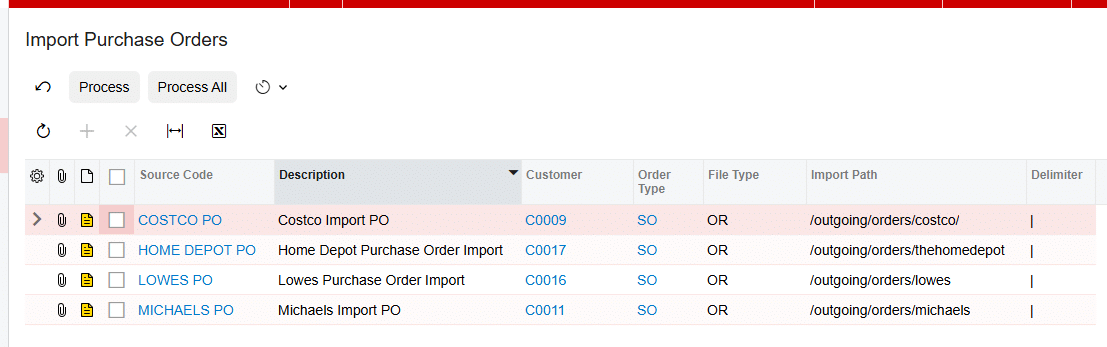
A controlled validation should use one order first. Compare each source file Item ID with the corresponding item on the created sales order line. The manual does not name a dedicated mapping status, resolved-item field, or line-level diagnostic, so the resulting sales order is the documented business record available for comparison.
Customer handling is independent of item matching. Customers are not imported from CommerceHub; the connector assigns the Default Customer and overrides the address on the Sales Order Addresses tab with the actual address received from the order. A correct customer or address does not prove that item IDs were mapped correctly.
The source gives no formal item-mapping validation rule and no exact message for an unknown Item ID. It does not state whether one unmapped item blocks the full order, creates a partial order, or sends the record directly to Import Failed Purchase Orders.
Separate Inbound Mapping from Inventory Template
Cross-reference supports inbound order item resolution. Inventory Template supports outbound inventory quantity selection. When Inventory IDs are selected and saved on Inventory Template, the associated items appear on Export CommerceHub Inventory.
Warehouse Details also belongs to quantity export rather than inbound item identity. It selects warehouses and sets the Quantity basis to On Hand Quantity, Available Quantity, or Available for Shipment Quantity. These settings decide which quantity is exported; they do not map a file Item ID to an order-line item.
The source does not explain whether the Inventory IDs saved in Inventory Template must already have Cross-reference rows, whether an outbound inventory file uses the same CommerceHub Item ID, or how that external identifier is written to the export file. Do not assume that selecting an item for quantity export creates its inbound cross-reference.
Use Error Screens Without Inventing Failure Behavior
The Mappings screen includes Error Log. The documentation says errors encountered during order import and export are displayed there for review and resolution. Purge Logs deletes all error messages from the tab.
CommerceHub Errors is another screen that displays errors received from CommerceHub for various processes. Import Failed Purchase Orders allows orders that failed on Import Purchase Orders to be imported again after selecting a Store Code.

The manual does not connect a specific item-mapping error to one of those locations. It provides no error codes, message examples, failed-line fields, or correction workflow. Review all three places when a mapped item does not produce the expected sales order line, but do not claim that a particular screen always owns the error.
Purge Logs removes messages, so preserve the information needed for diagnosis before using it. The source does not state whether purging errors changes the failed order itself, its source file, or eligibility for Import Failed Purchase Orders.
Document Alias Item Class and Matching Gaps
No item alias mechanism is documented. The manual does not mention alternate IDs, customer part numbers, vendor part numbers, SKUs, barcodes, global trade item numbers, case normalization, wildcard values, or identifier precedence. It names only the Item ID contained within the file.
Item classes are also absent. There is no item-class default, class-based filter, inheritance rule, or instruction to restrict a CommerceHub Item ID to a class of inventory items.
Unmapped-record behavior is not defined. The source does not identify an automatic item-creation option, replacement item, queue, partial-import rule, or mapping suggestion. It also does not explain how a corrected cross-reference is applied to an order that already failed.
No CommerceHub screen ID is provided anywhere in the manual. The Mappings, Import Purchase Orders, Import Failed Purchase Orders, CommerceHub Errors, Export CommerceHub Inventory, and Sales Orders screens are named, but their IDs must not be inferred.
Where to Check Your Work
The Biz-Tech Services CommerceHub Acumatica Integrator exposes the documented mapping and result across these screens and tabs.
1 Mappings: confirm the Store Code and process parameters before reviewing item cross-references.
2 Cross-reference: compare the inbound file Item ID with the selected Acumatica item.
3 Import Purchase Orders: retrieve the order for the same Store Code and process one selected record.
4 Sales Orders: compare each imported line with the source Item ID and the intended Acumatica inventory item.
5 Error Log: review import or export messages before using Purge Logs.
6 Import Failed Purchase Orders: find and retry an order that failed during the initial import.
7 CommerceHub Errors: review errors received from CommerceHub for the affected process.
8 Inventory Template: confirm only the Inventory IDs intended for quantity export are selected and saved.
9 Export CommerceHub Inventory: verify that saved Inventory IDs appear, without treating that appearance as proof of the inbound Item ID cross-reference.
CommerceHub Item and Inventory ID Mapping Frequently Asked Questions
Where are CommerceHub Item IDs mapped to Acumatica items?
Use the Cross-reference tab on the CommerceHub Mappings screen. The manual says this tab maps Acumatica items to the respective Item IDs contained in the inbound file during order import.
Does the manual say that CommerceHub Item ID is an SKU?
No. It uses the term Item ID and does not define that value as an SKU, barcode, universal product code, vendor part number, or another identifier.
Can CommerceHub create a missing Acumatica inventory item?
The documentation does not describe automatic item creation or a replacement item. Create and approve the required inventory item and cross-reference before relying on order import.
Can item class control CommerceHub mapping?
No item-class behavior is documented. The source does not name item class as a filter, default, validation rule, or matching key.
Where should I look when an item does not map?
The Biz-Tech Services Acumatica CommerceHub Integration provides Error Log, CommerceHub Errors, and Import Failed Purchase Orders. The source does not state which one always contains an item-mapping failure, so review all relevant records for the selected Store Code.
Does Inventory Template create an inbound item cross-reference?
The manual does not say that it does. Inventory Template selects and saves Inventory IDs for Export CommerceHub Inventory, while Cross-reference handles Item IDs in inbound order files.
Can the same Item ID use aliases or several inventory records?
Aliases, duplicate handling, one-to-many mapping, and identifier precedence are not documented. Confirm any such requirement with Biz-Tech Services before configuring a production process.
How should I test a new CommerceHub item mapping?
Use the intended Store Code, create the Cross-reference row, retrieve one purchase order, process only that order, and compare its Sales Order lines with the source file before using Process All.
Work With the Biz-Tech Services CommerceHub Connector
A dependable CommerceHub item mapping starts with the exact Item ID in the inbound file, the correct Store Code, and a verified Cross-reference row. Keep inbound item resolution separate from Inventory Template and Warehouse Details, which control outbound quantity export.
If you need help validating CommerceHub file Item IDs, correcting failed order mappings, or documenting a controlled cross-reference process, visit https://biz-techservices.com to work with the Biz-Tech Services Acumatica CommerceHub Integrator.

