
Mapping Magento products to Acumatica inventory items starts with the Magento Product SKU and the Acumatica Inventory CD. During item or order import, the connector searches Inventory CD using the Magento Product SKU, retrieves the matching item when it exists, and follows the configured Import Item or Replace Missing Products rule when it does not.
The Biz-Tech Services Magento Acumatica Connector also stores Magento Product SKU, Acumatica Inventory ID, and Magento Product ID values for later synchronization. This guide focuses on that product relationship, item defaults, attribute mapping, missing-product handling, and validation. Earlier connector articles cover connection, general configuration, data flow, order import, and inventory synchronization in their own workflows.
Magento Product Mapping Prerequisites
The Biz-Tech Services Acumatica Magento Connector is installed through Customization Projects (SM204505). After publication, Magento Credentials establishes the Store Code and connection settings, while Magento Store controls item import and creation, cross-references, warehouse settings, and other connector behavior.
The product-mapping controls are distributed across Item Information, Inventory Details, Inventory Mappings, Attribute Details, and Category Details. Item Information defines the SKU lookup and defaults for new items. Inventory Details loads products from both systems and stores product identifiers. Inventory Mappings connects Acumatica Attributes and User Defined Fields to Magento attributes.
Before mapping products, confirm which process will run. Sync from Magento and Import Magento Items bring store data into the ERP. Sync to Magento and Export Magento Items send ERP item data to the store. Each direction uses the stored product identity, but the source gives its most explicit matching rule for import.
Magento Product Mapping Step by Step
Use this sequence to establish and verify the product relationship.
1 Open Magento Store for the intended Store Code and review Item Information.
2 Decide whether Import Item should be selected. When selected, the connector can create a new Acumatica item when the Magento Product SKU does not match an existing Inventory CD.
3 If new items may be created, set Import Item Type, Item Class, UOM, and the other documented item defaults required by the business.
4 If Import Item is disabled, decide whether Replace Missing Products should substitute the selected item for an unmatched product during order import.
5 On Inventory Details, use Load Acumatica items and Load Magento Items to retrieve the product records available in each system.
6 Confirm that Magento Product SKU and Acumatica Inventory ID identify the intended pair before selecting the record for synchronization.
7 For attribute mapping, configure Inventory Mappings with the relevant Acumatica Attribute or User Defined Field and the corresponding Magento attribute.
8 On Attribute Details, use Load Active Attribute Options only after the required attribute properties are present in Inventory Mappings.
9 Run Sync from Magento or use Import Magento Items, then confirm that the existing item was retrieved or that a new item was created according to Item Information.
10 After export to Magento, confirm Magento Item and Magento Product ID on the item record and verify the identifier on the Magento Inventory tab.
SKU and Inventory CD Matching
The source defines one direct identity rule for import. The connector searches Inventory CD using Magento Product SKU. If it finds a match, it retrieves that item. This is the documented product-level match used when store data enters the ERP.
If no Inventory CD matches and Import Item is selected, a new item is created using the configured Import Item Type, Item Class, and UOM. Import Items on Inventory Details Tab can place items on Inventory Details while orders are imported. Date Last Received Item records the last date used to retrieve products.
Inventory Details also provides Get Item, which retrieves a specified item by SKU or Name. The source does not explain whether Name is a secondary identity rule during normal import, so the documented SKU-to-Inventory-CD search should remain the primary mapping assumption.
For quantity export, the source says Magento Product SKU and Acumatica Inventory ID must be set on Inventory Details before an item appears on Export Magento Inventory Quantities. These two stored values provide a direct review point for the mapped pair.
Unmatched Products and Replace Missing Products
When Import Item is not selected, the connector prohibits import and creation unless the corresponding item already exists in Acumatica. If the Magento Product SKU does not resolve to an Inventory CD, the documented error is “The item {0} does not exist in the system”. The placeholder represents the item value used by the process.
Replace Missing Products provides a separate order-import fallback. When Import Item is disabled, it replaces source items that do not exist in the ERP with the selected item. The documentation does not name an unmapped-record queue or describe how the original product is retained on the resulting line, so users should validate the order line before processing it further.
The source does not explain what happens when two records share a candidate SKU, when the source system contains duplicate SKU values, or when Magento Product SKU conflicts with a stored Magento Product ID. It also does not document retry counts, an Unmapped status, or a dedicated product-mapping error inquiry.
Item Class and Default Item Values
The Biz-Tech Services Magento Acumatica Integration uses Item Class as a default for items created during import. The documentation says Item Class groups stock or non-stock items with similar properties and provides default settings for new items.
Import Item Type determines the type of item created, while UOM defines its unit of measure. Warehouse ID is the default warehouse on imported orders. These settings support item creation and order processing, but they do not change the documented SKU-to-Inventory-CD identity rule.
The source does not describe a mapping between product categories and Acumatica Item Class. Category Details can import or export product categories, but Item Class is configured separately under Item Information. Do not treat a store category as an automatic Item Class selector without additional approved documentation or testing.
Inventory Mappings for Attributes and User Defined Fields
Inventory Mappings allows Acumatica Attributes and User Defined Fields to synchronize with store attributes. The user adds the properties of a particular attribute selected on the Attributes tab of the Item Class screen. The documentation does not list the exact grid columns for this mapping, so only the named screens and actions should be treated as confirmed.
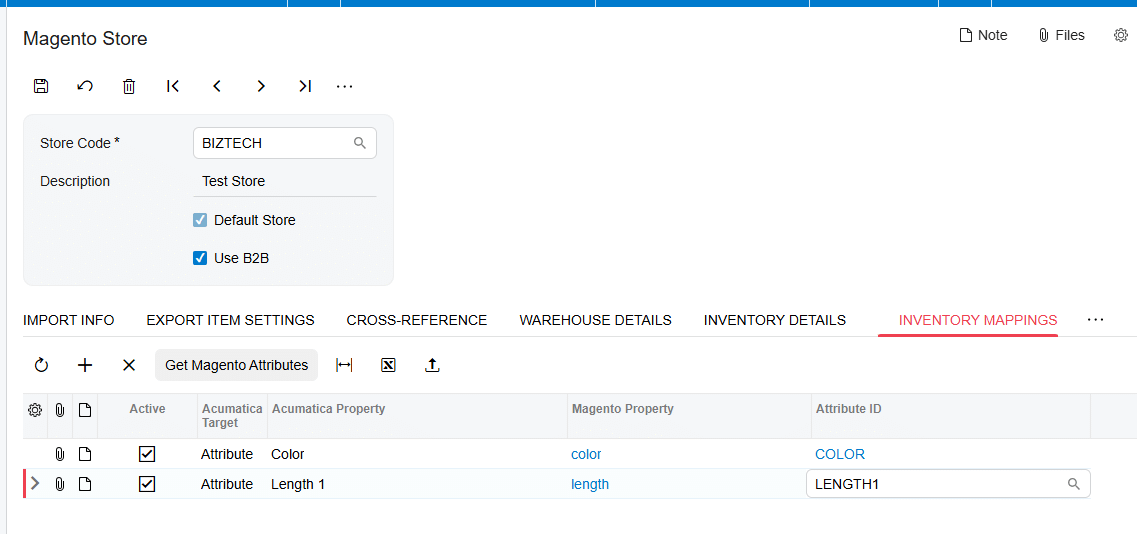
Attribute Details loads the active options for a particular attribute after its properties have been added to Inventory Mappings. Use Load Active Attribute Options to retrieve them. The Magento Property attribute must already exist in the store, or synchronization cannot proceed.
The source also requires the Acumatica attribute Control Type to match the Magento Attribute Control Type before active options can be retrieved. This is an explicit attribute validation rule. It validates field compatibility, not the SKU or product identifier.
Cross References Categories and Product Aliases
Cross-Reference Options selects the entities that should be matched between the two systems. The Cross-reference section then shows enabled entities in the Field list. Magento Value and Ship Via are described as the matching source and ERP values.

The documentation does not identify product SKU, Inventory CD, Inventory ID, or product alias as a cross-reference entity. It does not describe alternate IDs, manufacturer numbers, customer part numbers, alias priorities, or an alias lookup sequence. Therefore, the Cross-reference process should not be presented as documented product-alias support.
Category Details has a different purpose. Get Magento Categories retrieves product categories, and Sync Magento categories creates or updates categories in the store. Product categories can also be exported and imported as an Excel document. Category synchronization does not replace the SKU mapping or the separate Item Class default.
Inventory Details and Magento Product IDs
Inventory Details is the central review screen for the relationship after products are loaded. Load Acumatica items retrieves stock and non-stock items. Load Magento Items retrieves store products. Sync to Magento exports selected ERP items, while Sync from Magento imports selected store items.
After an ERP item is created in the store, the platform generates a unique ID. The source says that ID appears in Magento Store and on the Stock Items Magento Inventory tab. The Magento Item checkbox is selected and Magento Product ID is added after item synchronization.
Export Magento Items requires Magento Product SKU on the Magento Inventory tab before an item appears on the processing screen. After synchronization, Price, Description, Weight, Length, Height, Width, and Category are updated in the store. If the connector does not find the item there during synchronization, the source says it creates the item automatically.
The source does not define a precedence rule among Magento Product SKU, Magento Product ID, and Name after these values have been stored. For audits, confirm that all available identifiers point to the same product rather than relying on one field in isolation.
Where to Check Your Work
The Biz-Tech Services Magento Acumatica Integrator provides these documented review points for product mapping.
1 On Item Information, verify Import Item, Import Item Type, Item Class, UOM, Replace Missing Products, and Import Items on Inventory Details Tab.
2 Confirm that Magento Product SKU matches the intended Inventory CD.
3 On Inventory Details, compare Magento Product SKU and Acumatica Inventory ID before saving or synchronizing a record.
4 Use Load Acumatica items and Load Magento Items to confirm that both sides of the intended relationship are available.
5 After Sync from Magento or Import Magento Items, confirm that the correct item was retrieved or created.
6 After Sync to Magento or Export Magento Items, verify Magento Item and Magento Product ID on the Magento Inventory tab.
7 On Inventory Mappings, confirm that each Acumatica Attribute or User Defined Field points to the intended Magento attribute.
8 On Attribute Details, confirm that active options load and that the Acumatica and Magento Control Type values match.
9 When a product cannot map, review the missing-item error and determine whether Import Item or Replace Missing Products should apply.
10 For quantity export, confirm that the item was selected and saved on Inventory Details and that Magento Product SKU and Acumatica Inventory ID are both set.
Magento Product Mapping Frequently Asked Questions
What field matches a Magento product to an Acumatica item?
The documented rule uses Magento Product SKU to search Acumatica Inventory CD. A matching Inventory CD retrieves the existing item.
What happens when Magento Product SKU does not match an item?
If Import Item is selected, a new item can be created using the configured item defaults. If it is disabled, the process displays The item {0} does not exist in the system unless Replace Missing Products supplies the selected fallback item during order import.
Can Magento products use an Acumatica Item Class?
Yes. Item Class is a documented default for imported items created in Acumatica. The source does not document automatic mapping from a Magento category to Item Class.
Does Cross Reference support product aliases?
The Biz-Tech Services Acumatica Magento Integration documents cross-references for enabled entities and describes Magento Value matched to Acumatica Ship Via. It does not identify product aliases, alternate IDs, SKU, or Inventory CD as cross-reference entities.
How are Magento attributes mapped to Acumatica?
Use Inventory Mappings to connect Acumatica Attributes or User Defined Fields with Magento attributes. Add the attribute properties from the Item Class Attributes tab, then load active options through Attribute Details.
Why will active attribute options not load?
Confirm that the Magento Property attribute exists in Magento and that its Attribute Control Type matches the Acumatica attribute Control Type. The source says active options cannot be retrieved when the control types do not match.
Where is Magento Product ID stored after synchronization?
The generated ID appears in Magento Store and on the Stock Items Magento Inventory tab. The Magento Item checkbox is also selected after synchronization.
Where can I review unmapped Magento products?
The source does not identify an unmapped-product queue or product-specific mapping inquiry. Review Item Information, Inventory Details, Magento Product SKU, Acumatica Inventory ID, and the documented missing-item error.
Work With Biz Tech Services Magento Mapping
A reliable Magento product mapping starts with a consistent Magento Product SKU and Inventory CD, then uses Item Information for item-creation defaults and Inventory Mappings for attributes. Inventory Details and the stored Magento Product ID provide the practical checkpoints after synchronization.
For help configuring and validating the Biz-Tech Services Acumatica Magento Integrator, visit https://biz-techservices.com to learn more about Biz-Tech Services and schedule a personalized consultation.

