
How ServiceTitan Operational Data Flows into Acumatica ERP
The ServiceTitan data flow into Acumatica moves field service records in one direction: ServiceTitan creates the operational documents – purchase orders, receipts, bills, invoices, payments, inventory transactions and journal entries – and the Biz-Tech Services ServiceTitan Acumatica Connector retrieves them and creates them as native documents on standard Acumatica ERP screens. Each document type has its own processing screen, its own retrieval rule, and its own place in Acumatica where the result becomes visible.
This article follows that path record by record. It is not a setup checklist. It assumes the store is already configured and answers the question that comes next: what actually happens to a ServiceTitan purchase order, receipt, bill, invoice, payment or journal entry as it lands in Acumatica? It names the screens, tabs, checkboxes and fields that carry the values, because those are the places your users will look to confirm a record arrived or work out why it did not.
What the ServiceTitan Connector for Acumatica Does
The Biz-Tech Services Acumatica ServiceTitan Connector is an ERP integration that imports records from ServiceTitan, a field service management platform, into Acumatica. It connects to a ServiceTitan store through an API, using the credentials entered on the Connection Settings tab, and then brings ServiceTitan documents into Acumatica as purchase orders, purchase receipts, bills, invoices, payments, inventory transactions and journal entries. Imports run from dedicated processing screens, either manually or automatically on a scheduler.
Everything the Biz-Tech Services Acumatica ServiceTitan integrator does is governed by the ServiceTitan Stores screen. It controls invoice import rules, import behavior, customer creation rules, inventory and item handling, warehouse and branch mapping, vendor and business unit mapping, transaction processing logic, purchase orders and receipts, and bills. The store record is the rulebook the data flow reads at every step: it decides which documents are eligible, which master records they attach to, and whether they arrive released or open. If the store is not set up correctly, no data can be imported.
The ServiceTitan Data Flow at a Glance
Before looking at each document type in detail, here is the whole path a record travels on its way into Acumatica ERP:
1. Connection: the Biz-Tech Services ServiceTitan Acumatica connector authenticates against the ServiceTitan store using the credentials on the Connection Settings tab; the Test Credentials action confirms it works before any import runs.
2. Eligibility: the ServiceTitan Store record decides what is in scope – the Import with the following statuses setting, the Begin Invoice Date and Last Invoice Date fields, and the equivalent Begin Journal Entry Date and Last Journal Entry Date fields.
3. Retrieval: every processing screen pulls ServiceTitan records based on their updated date, so a record that changes in ServiceTitan becomes eligible again.
4. ServiceTitan purchase orders first: they are imported on the Import ServiceTitan Purchase Orders screen and created in Acumatica as purchase orders. Any receipt or bill that already exists at that moment comes across in the same run.
5. Receipts and bills next: anything created after the purchase order was imported comes in separately through the Import ServiceTitan Receipts and Import ServiceTitan Bills screens, and attaches to the PO History tab of the Purchase Orders screen.
6. Invoices and payments: the Import SO Invoices screen creates sales invoices in the Invoices and Memos screen, and the Import Invoice Payments screen creates payments that are applied on the Applications tab of the invoice.
7. Inventory and items: ServiceTitan materials, equipment and services become Acumatica stock and non-stock items, and receipts, transfers, adjustments and returns become inventory transactions, released on import when the matching release checkbox is selected.
8. General Ledger: when the Journal Entry option is active, ServiceTitan journal entries are imported against the mapped General Ledger, or GL, accounts and the mapped branches.
Where the ServiceTitan Data Flow Starts: The Store Record
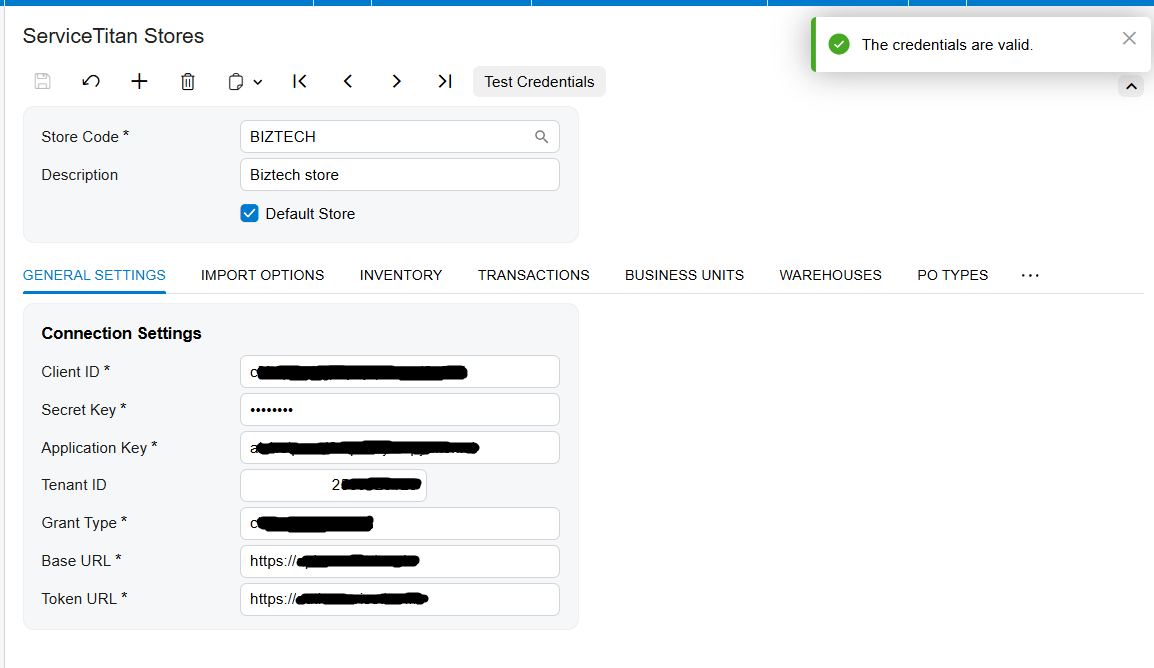
Every import begins at the ServiceTitan Stores screen. The Store Code field is a lookup that identifies the corresponding ServiceTitan store, and the Description field labels it for users. The Default Store checkbox matters to the data flow more than it looks: when it is selected, the system automatically sets and displays that store code on the processing screens, so users do not have to pick a store before they can retrieve anything. The Test Credentials action tests the connection through the API using the information on the Connection Settings tab, and is worth running before a scheduled import window, because a failed connection makes the processing screens return nothing rather than naming the credentials as the cause.
The Purchase Order Path: Why ServiceTitan Purchase Orders Must Come First
The purchase order sequence is the single most important rule in the ServiceTitan data flow, and it is where most import errors originate. The purchase order module workflow was updated so that ServiceTitan purchase receipts and bills cannot be imported into Acumatica unless the related ServiceTitan purchase order has already been imported. The purchase order is the anchor document; receipts and bills are attachments to it, not standalone records.
Step 1: Import ServiceTitan Purchase Orders
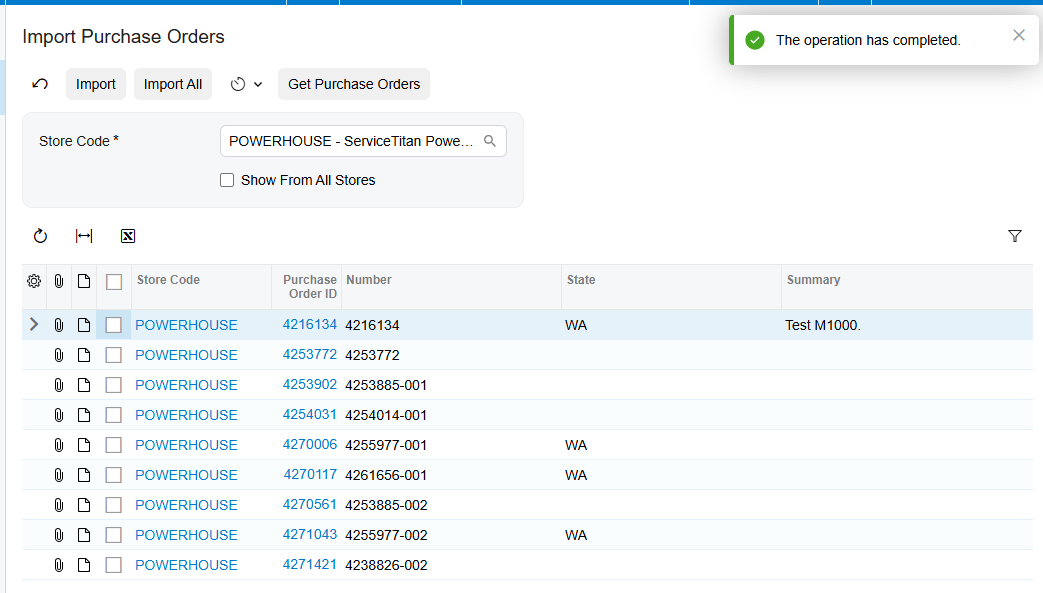
Purchase orders are imported from the Import ServiceTitan Purchase Orders screen and created in Acumatica as purchase orders, retrieved based on their updated date. Before this screen returns anything, the required preferences must be configured on the ServiceTitan Stores screen – in particular the PO Types mapping, which maps ServiceTitan purchase receipt PO order type names to Acumatica PO types, and the Return Types mapping, which maps ServiceTitan return types to Acumatica PO types. Without those mappings the Biz-Tech Services ServiceTitan Acumatica integrator cannot decide what kind of purchase order to create.
The purchase order import is also opportunistic. If a ServiceTitan purchase receipt or bill already exists at the moment the purchase order is imported, it is imported as part of the same process; if it does not exist yet, it is simply not imported. That is why one purchase order import can produce three linked documents in Acumatica and another produces only one.
Step 2: Import ServiceTitan Receipts
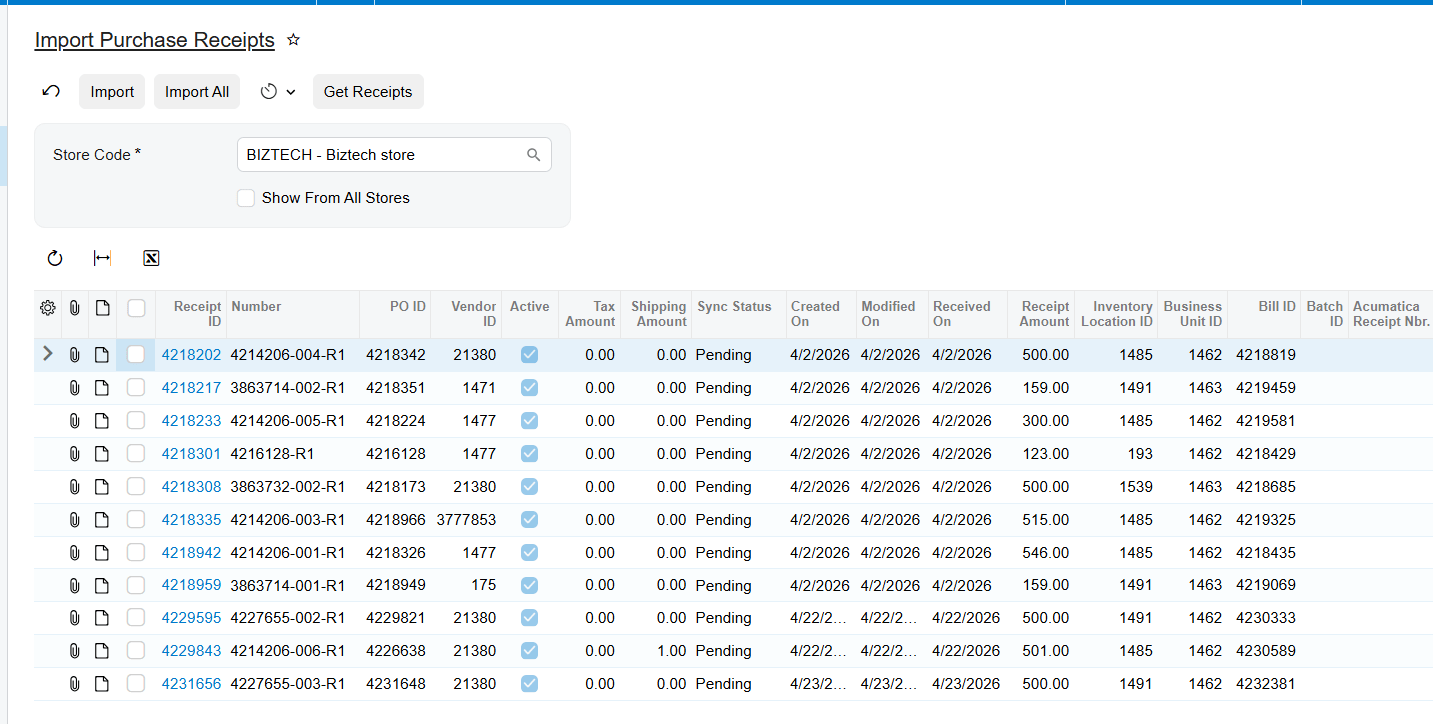
The Import Purchase Receipts screen retrieves purchase order receipts based on the selected date and status defined in the Receipt Options settings of the ServiceTitan Store. Receipts are retrieved based on their updated date, and the synchronization can be run manually or automatically using the scheduler.
When the related purchase order has already been imported, the Biz-Tech Services Acumatica ServiceTitan integrator system locates it during the receipt import and attaches the receipt document to the PO History tab of the Purchase Orders screen. That tab is where your users should look to confirm a receipt landed against the right purchase order.
The status the receipt arrives in is decided by the ServiceTitan Store setup, not by the processing screen. If the Release checkbox is selected there, the receipt is imported with a Released status; if it is not selected, the receipt arrives with a balanced status and waits for someone to release it. Select it when your business wants ServiceTitan to be the point of control, and leave it clear when you want an Acumatica reviewer in the loop. Receipts can also pull a bill along with them: if the receipt includes a bill, the system imports the bill during the same process and attaches it to the same PO History tab. That behavior is enabled by the Activate Bill checkbox.
Step 3: Import ServiceTitan Bills
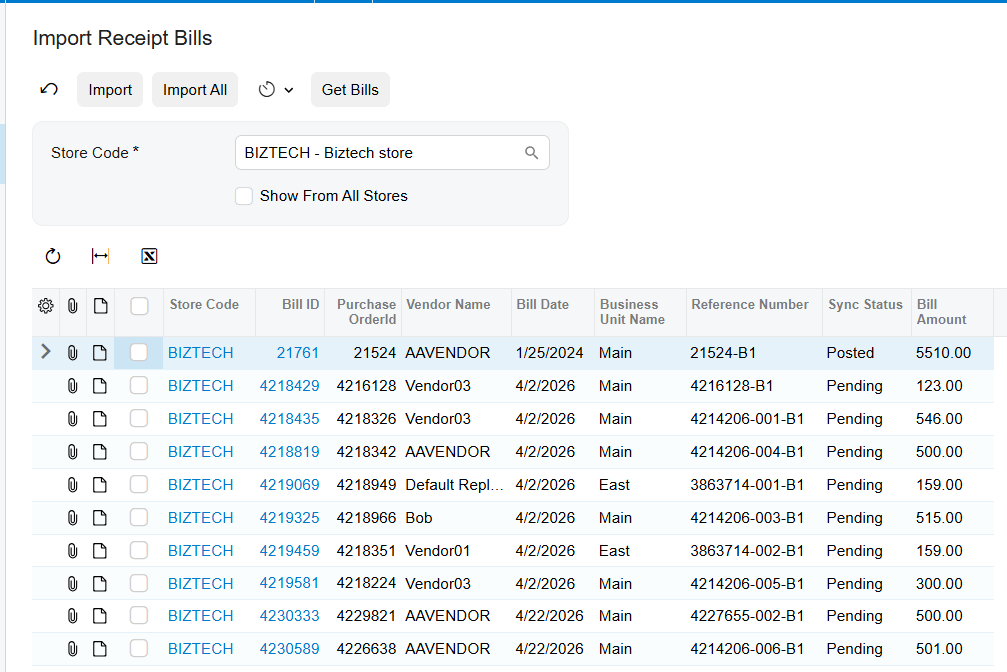
The Import Receipt Bills screen imports ServiceTitan bills into Acumatica, retrieved by their updated date. A bill cannot be imported separately without its corresponding purchase order; attempting it produces an error message. When the purchase order has already been imported, importing the bill later automatically locates that purchase order and attaches the bill to it. The net effect is that bills are always correctly linked to their related purchase orders, whether the bill arrived with the purchase order, with the receipt, or on its own afterwards.
One field is specific to this path: the Branch field used in the bills import process. It applies only when bills are imported and Bills and Adjustments documents are created, so it determines which branch those documents post to. That is why the ServiceTitan Business Units mapping has to be right before bills start flowing.
What Happens When the Purchase Order Has Not Been Imported Yet
If a purchase order receipt is imported before its purchase order, the system displays an error naming the receipt, in the form “POOrder document for Receipt 433272225 has not been created yet”. The number is the ServiceTitan receipt identifier, which makes the error straightforward to resolve: take that number, find the corresponding purchase order, import it on the Import ServiceTitan Purchase Orders screen, then re-run the receipt import. The same rule and the same class of error apply to bills.
The Invoice and Payment Path: Three Matching Scenarios
Invoices are imported on the Import SO Invoices screen of Biz-Tech Services ServiceTitan Acumatica integration, which brings ServiceTitan sales invoices into Acumatica. They are retrieved based on their updated date and selected status, with the eligible statuses set by the Import with the following statuses option and the window bounded by the Begin Invoice Date and Last Invoice Date fields. ServiceTitan payments are imported on the Import Invoice Payments screen. Because an invoice and its payment can become available at different times, the Biz-Tech Services Acumatica ServiceTitan connector handles three scenarios, and in all of them the payment ends up matched to the correct invoice.
Scenario 1: The Invoice Arrives With Its Payment
If the invoice includes a payment at the time it is retrieved, both are imported together. The invoice is created in the Invoices and Memos screen, and the payment is created and applied on the Applications tab of that invoice. At the same time the corresponding payment identifier is removed from the Import Invoice Payments screen, because it was already processed as part of the invoice import. If a ServiceTitan payment vanishes from that processing screen without anyone running a payment import, this is why.
Scenario 2: The Invoice Is Already in Acumatica and the Payment Follows
If the invoice has already been imported but the payment is still sitting on the processing screen, the system locates the corresponding invoice during the payment import and applies the payment to it automatically. Users do not have to identify or apply the invoice manually.
Scenario 3: The Payment Lands First and the Invoice Follows
If the payment has already been made and the invoice is imported afterwards, the system automatically matches the payment with the corresponding invoice. This is the case that matters for businesses collecting in the field, where money is captured on the job before the invoice is finalized in ServiceTitan.
How the Import Invoice Payments Screen Behaves on Its Own
The Import Invoice Payments screen retrieves all payments from ServiceTitan and displays the associated Invoice ID next to each one, which is the field users should read when checking what a pending payment will attach to. If an invoice and its payment are both available, they are imported together. Payments can also be imported separately, either as a deposit or after the invoice has already been imported.
Two ServiceTitan Store settings govern how those payments are created. Payment Type determines whether payments imported from ServiceTitan are created with the payment or prepayment type in Acumatica. The Release Payment After Import checkbox determines whether they are released on arrival, which removes a manual step but also removes the review point.
What Rides Along With an Imported ServiceTitan Invoice
An invoice does not arrive alone. The Activate Invoice checkbox is the master switch: the interface changes based on the selected checkboxes, enabling import of invoices, taxes, payment methods, customer data and GL accounts. The Invoice Type field displays the type of invoice created in Acumatica for ServiceTitan invoices. Customer handling has two modes – if the Import Customer checkbox is not selected, invoices are imported with the default customer; if it is selected, the customer is created when missing, using the default customer class field. The Override Bill Address Information from Invoice and Override Ship Address Information from Invoice checkboxes decide whether the billing and shipping addresses travel with the invoice.
Tax Options enables Biz-Tech Services ServiceTitan Acumatica integrator to import invoices with taxes. Term Options maps ServiceTitan term values to their Acumatica equivalents, and Account Options maps the GL accounts, so imported documents post where your accounting team expects. Country names are imported in ISO country code format, defined by the International Organization for Standardization; note that the Country options become invisible when the Activate Payment checkbox is selected.
How ServiceTitan Inventory Transactions Reach Acumatica
Inventory has two halves in the ServiceTitan data flow: the items themselves, and the transactions that move them. Items come first, because a transaction has nowhere to land without them.
When the Import Item checkbox is selected, the Generate Item from ServiceTitan action method becomes available. It generates non-stock and stock items based on the Stock Item Class, Non-Stock Item Class and Unit of Measure, or UOM, values on the store record. The Load Materials, Equipment, Services action loads and displays the corresponding ServiceTitan items on the Inventory tab in Acumatica. The split is defined by the ServiceTitan category: stock items are created from Materials and Equipment, and non-stock items are created from Service. ServiceTitan items can also be mapped to existing Acumatica items manually instead of being created, which is the right choice when your item master is already the system of record. But make sure the Activate Invoice checkbox on Import Options tab is added to have Inventory tab available.
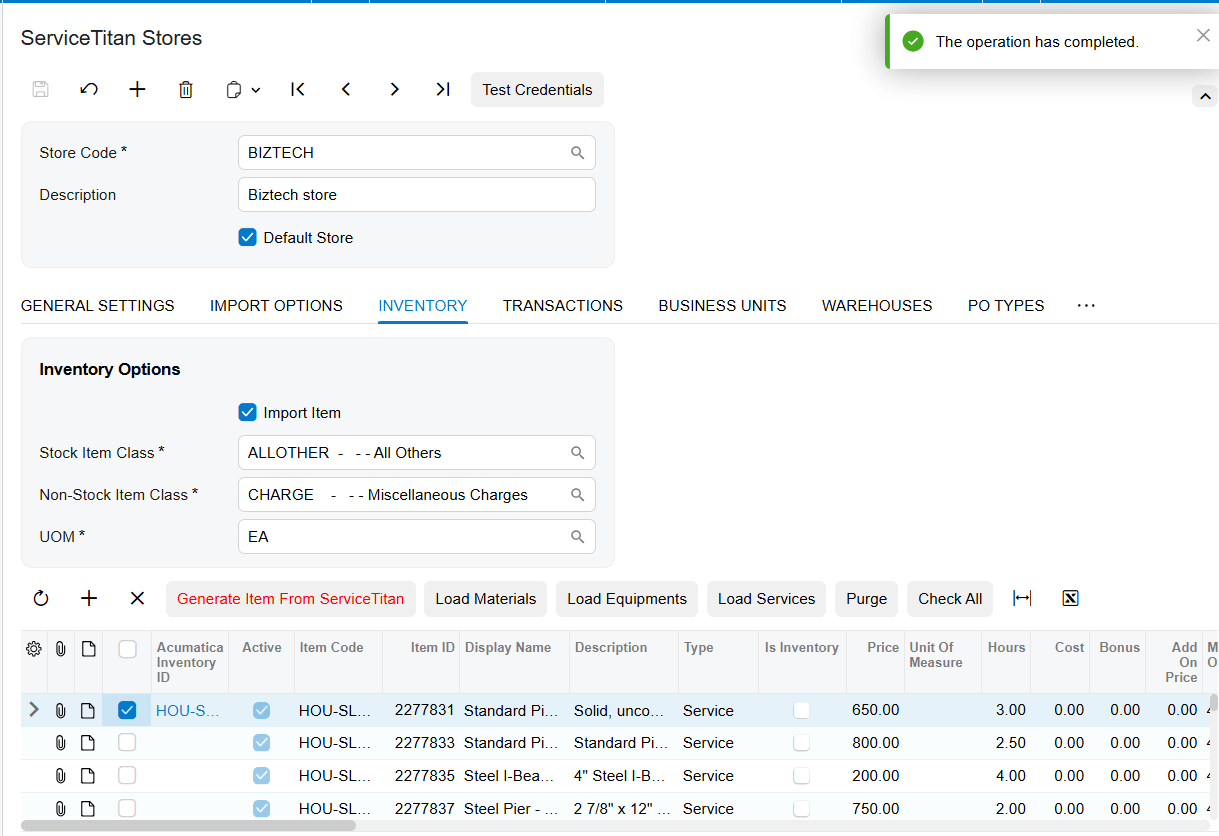
Transactions are configured on the Inventory Transactions tab, which holds setup options for Receipts, Transfers, Adjustments and Returns. Each type has its own release checkbox – Releasing Receipt After Import, Releasing Transfer After Import, Releasing Adjustment After Import and Releasing Return After Import. When those are selected, the Biz-Tech Services ServiceTitan Acumatica connector imports the documents into Acumatica and releases them. Selecting a release checkbox is the difference between a transaction that immediately affects your inventory balances and one that sits unreleased until a user acts on it.
Where those transactions land is decided by the Warehouses mapping, which maps Acumatica warehouses to ServiceTitan Warehouse and Truck IDs, and the Load Warehouses action retrieves those values for manual mapping. Truck IDs are the reason this mapping deserves attention: stock sitting on a truck in ServiceTitan has to correspond to a real Acumatica warehouse for the transaction to post correctly.
How ServiceTitan Journal Entries Flow into Acumatica
Journal entries are the alternative to the invoice path rather than an addition to it. The Journal Entry checkbox on the Import Options tab becomes available when the Activate Invoice checkbox is disabled, so a store is set up to import either detailed ServiceTitan invoices or summarized ServiceTitan journal entries.
The journal entry flow is bounded by its own date fields. Begin Journal Entry Date displays the date from which the first entry should be imported, and it is not set automatically the first time – a user has to set it manually. If your first journal entry import returns nothing, this is the field to check. Last Journal Entry Date displays the date of the last imported entry. Eligible statuses are set by the Import with the following statuses option for journal entries.
The Mapping Tables Every ServiceTitan Document Passes Through
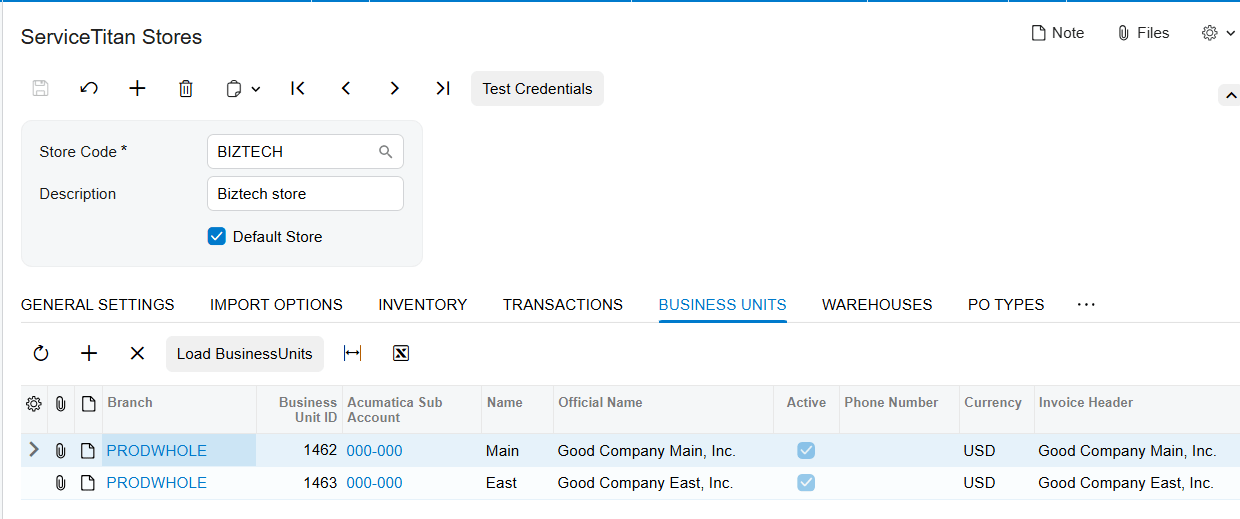
Several mapping tables on the ServiceTitan Stores screen is not import steps in itself, but every imported document passes through them. Business Units maps ServiceTitan Business Unit IDs to Acumatica branches, and Load Business Units retrieves those values for manual mapping – this determines the branch on imported documents, including the Bills and Adjustments documents created by the bills import. Vendors work the same way on the purchasing side: when the Import Vendor checkbox is selected, ServiceTitan vendors are created in Acumatica, and Load Vendors retrieves all of them so they can also be mapped manually to existing Acumatica vendors. Because purchase orders, receipts and bills all carry a vendor, an unmapped vendor is a common reason a purchase document does not arrive as expected.
Where to Monitor ServiceTitan Results in Acumatica
Once imports are running, results show up in predictable places. These are the screens, tabs and fields your users should check as these are custom entites provided by Biz-Tech Services Acumatica ServiceTitan integration:
1. Purchase Orders screen, PO History tab – the most important place to look for purchase documents. Imported ServiceTitan receipts and bills are attached here against the purchase order they belong to.
2. Import ServiceTitan Purchase Orders screen – the purchase orders currently eligible for import based on their updated date.
3. Import ServiceTitan Receipts screen – receipts retrieved according to the date and status in the Receipt Options settings, and the place the “POOrder document for Receipt … has not been created yet” error appears.
4. Import ServiceTitan Bills screen – bills waiting to be imported. A bill leaving this list without a separate bill import means it came across with its purchase order.
5. Invoices and Memos screen – where every imported ServiceTitan invoice is created in Acumatica.
6. Applications tab of the Invoice – where the imported ServiceTitan payment is applied, and the place to confirm a payment matched the right invoice.
7. Import Invoice Payments screen, Invoice ID field – all payments retrieved from ServiceTitan and the invoice each one is associated with.
8. Import SO Invoices screen – the invoices eligible under the current status filter and date window.
9. Last Invoice Date field on the ServiceTitan Stores screen – the date the last order was imported, and the reference point other invoice import processes count from.
10. Last Journal Entry Date field – the date of the last imported entry, and the quickest confirmation the journal entry flow is still running.
11. Inventory tab on the ServiceTitan Stores screen – the ServiceTitan materials, equipment and services loaded into Acumatica and how they map to stock and non-stock items.
12. Business Units, Warehouses, PO Types, Return Types and Vendors tabs – check these first when a document imports but posts to the wrong branch, warehouse, PO type or vendor.
ServiceTitan Acumatica Integration: Frequently Asked Questions
Why do I get “POOrder document for Receipt has not been created yet” when importing ServiceTitan receipts?
This error means the purchase order related to that receipt has not been imported into Acumatica yet. A purchase order receipt cannot be imported before its purchase order exists in Acumatica. Use the receipt number shown in the message to identify the purchase order, import it on the Import ServiceTitan Purchase Orders screen, then re-run the receipt import.
Why did my ServiceTitan bill disappear from the Import ServiceTitan Bills screen?
That is expected when the related purchase order was imported while the bill was sitting on the processing screen. In that case the bill is imported together with the purchase order and removed from the list. Check the PO History tab of the corresponding purchase order – the bill will be attached there.
In what order should ServiceTitan purchase documents be imported into Acumatica?
Purchase orders first, then receipts, then bills. ServiceTitan purchase receipts and bills cannot be imported unless the related ServiceTitan purchase order has already been imported. If the receipt or bill already exists when the purchase order is imported, the Biz-Tech Services Acumatica ServiceTitan integrator brings all of them across in a single run.
How does the ServiceTitan connector decide which records to import?
Every processing screen provided by Biz-Tech Services ServiceTitan Acumatica integration, retrieves ServiceTitan records based on their updated date. Invoices are additionally filtered by their selected status and by the Begin Invoice Date and Last Invoice Date fields, receipts by the date and status in the Receipt Options settings, and journal entries by the Begin Journal Entry Date, Last Journal Entry Date and their own status filter.
What happens if a ServiceTitan payment is imported before the invoice?
The Biz-Tech Services ServiceTitan Acumatica integrator handles it automatically. If the payment has already been made and the invoice is imported afterwards, the system matches the payment to the corresponding invoice on import. The same applies in reverse: if the invoice is already in Acumatica and the payment arrives later, the payment import locates the invoice and applies the payment on its Applications tab.
Why are ServiceTitan receipts arriving unreleased in Acumatica?
Release status is controlled by the Release checkbox in the ServiceTitan Store setup, not by the processing screen. When it is selected, receipts are imported with a Released status; when it is not, they arrive with a balanced status and must be released in Acumatica. The same pattern applies to inventory transfers, adjustments and returns through their own release checkboxes, and to payments through Release Payment After Import.
Which ServiceTitan items become stock items in Acumatica?
Stock items are created from ServiceTitan Materials and Equipment, and non-stock items are created from Service. They are generated using the Stock Item Class, Non-Stock Item Class and Unit of Measure values when the Import Item checkbox and the Generate Item option are used. You can also map ServiceTitan items to existing Acumatica items manually instead of generating new ones.
Can ServiceTitan imports run automatically in Acumatica?
Yes. The synchronization process can be performed manually from the processing screens or automatically using the scheduler. Because records are retrieved by updated date, a scheduled run picks up both new ServiceTitan records and existing ones that changed since the last import.
Work With the Biz-Tech Services ServiceTitan Connector
The ServiceTitan data flow into Acumatica is orderly once you know its rules: the store record defines what is eligible and how it arrives, every screen retrieves by updated date, purchase orders anchor their receipts and bills on the PO History tab, invoices and payments find each other in any order, and inventory transactions and journal entries land against the mapped warehouses, branches and GL accounts. Knowing which screen creates each document and which field shows the result turns most support questions into a two-minute check.
If your business runs field service operations in ServiceTitan and accounting in Acumatica, the Biz-Tech Services Acumatica ServiceTitan Connector is built to move those records between them reliably. Visit https://biz-techservices.com to learn more about our Acumatica expertise or to schedule a personalized demonstration.

