
How Consignment Processing Works in Acumatica from Shipment to Invoice
Consignment Processing in Acumatica moves inventory to a customer’s location without transferring ownership, then bills only for what the customer actually sells. That single idea drives an entire data flow: a consignment order ships stock into a consignment warehouse, an inventory update records the movement, a sell action turns sold quantities into a consignment invoice, and a return action brings unsold stock back. Understanding how records move between those steps, which fields carry the numbers, and where the results become visible is what makes consignment inventory management predictable rather than mysterious.
The Biz-Tech Services Consignment Processing product lets companies manage the location and sales of inventory held by customers, track quantities and valuation across multiple consignee locations, and see clearly how much consigned stock has sold and how much remains unsold. Invoices for sold items and returns for unsold items are both created directly from the consignment order, so the whole lifecycle stays in one place. This article follows a consignment order through Acumatica from the moment it ships to the moment its invoice is released.
What Consignment Processing in Acumatica Does
Consignment Processing is an Acumatica ERP customization that manages inventory placed at customer or consignee locations. Stock physically leaves your main warehouse and sits at the customer’s site, but it remains yours until the customer sells or consumes it. Acumatica tracks that stock in a dedicated consignment warehouse, keeps a running count of sold and unsold quantities, and generates the invoice only when a sale is recorded. The result is accurate inventory valuation across every consignee location and a billing process tied to real consumption rather than to the original shipment.
The Consignment Data Flow at a Glance
Before looking at each screen, it helps to see the whole path a record travels. A consignment order in Acumatica moves through these stages:
- A consignment order is created on the Sales Orders (SO301000) form using the consignment order type, and the items are shipped and confirmed.
- The Update IN action issues the items from the main warehouse and receives them into the consignment warehouse, automatically generating and releasing a Transfer-type purchase receipt.
- The order status changes to Consignment or Partial Consignment, which enables the sell and return actions.
- Consignment Sell Items creates a consignment invoice order for the quantities the customer sold; releasing that invoice updates the Cons. Sold Qty. field on the consignment order.
- Consignment Return Items creates a consignment return order for unsold stock, which follows the same Update IN and purchase receipt path in reverse.
- Once everything shipped has been sold or returned, the consignment order status changes to Closed and both action buttons are disabled.
Every field discussed below sits somewhere on that path. Knowing the stage tells you which screen holds the answer.
Setting the Foundation: Consignment Settings in Sales Order Preferences
The Consignment Processing data flow is shaped before any order exists, in the Consignment Settings workspace added to the Sales Order Preferences (SO101000) form. Four fields there determine which documents the process will create, and each one depends on an order type built from the correct Acumatica template.
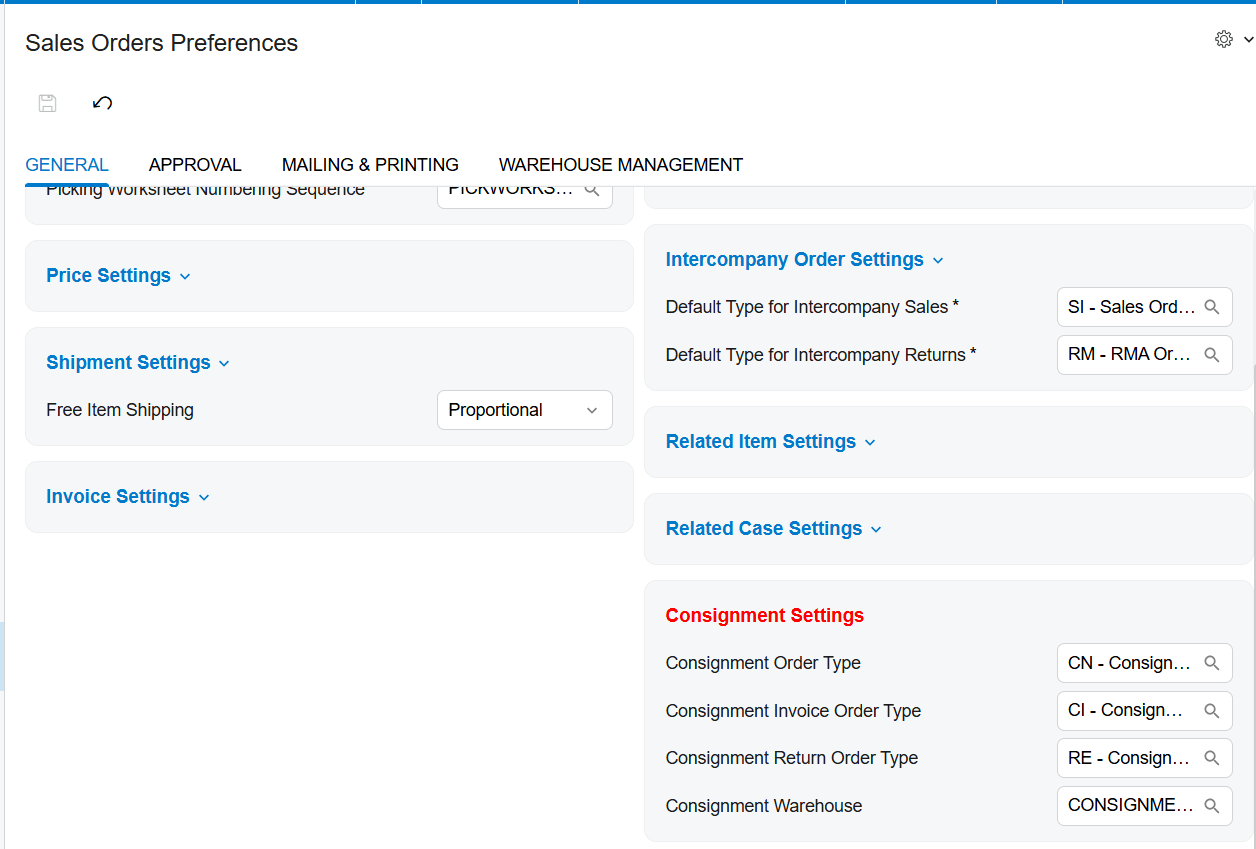
Consignment Order Type is the sales order type used for consignment orders on the Sales Orders (SO301000) form, and the corresponding order type must be created from the Transfer Order template. Consignment Invoice Order Type is the order type used for consignment invoices, and it must be created from the Invoice Order template. Consignment Return Order Type is used for consignment returns and, like the consignment order type, must be based on the Transfer Order template. Consignment Warehouse is the default warehouse selected automatically when a consignment order is chosen on the Sales Orders screen.
These template requirements are not cosmetic. Because consignment movement is physically a transfer between your warehouse and the consignee location, the order types that drive it have to behave like transfers, while the billing document has to behave like an invoice. Getting a template wrong here produces confusing behavior much later in the flow, when the transfer or the invoice fails to generate as expected.
Warehouse and Customer Rules That Control Where Consigned Stock Lands
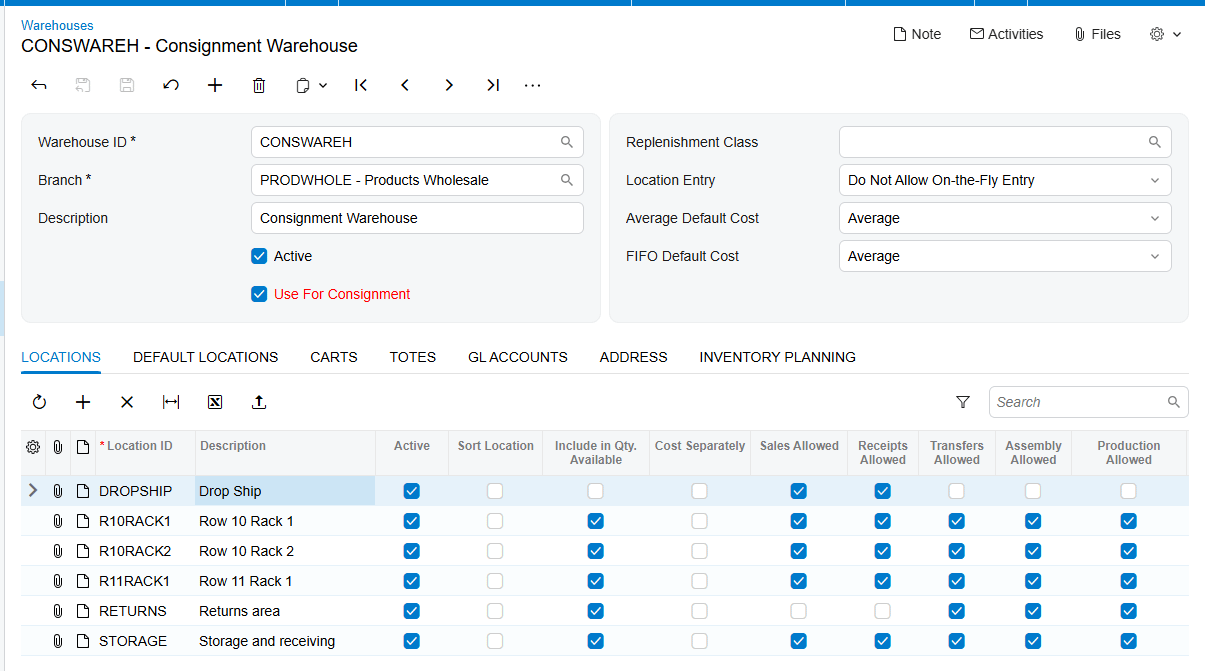
The destination of consigned inventory is governed by two settings that interact, and users should understand which one wins. On the Warehouses (IN204000) form, the Use for Consignment checkbox designates a warehouse as a consignment warehouse. Only a warehouse with this checkbox selected can be chosen in the Consignment Settings section of Sales Order Preferences.
One rule about warehouse placement causes most of the early error messages. A consignment warehouse can be selected only as the destination warehouse, while a standard, non-consignment warehouse can be selected only in the order lines. Reversing them produces an error with a corresponding notification. If a user reports that Acumatica refuses to accept a warehouse on a consignment order, this rule is almost always the reason.
Customer-level configuration then takes precedence over the global default. The specific consignment warehouse associated with the selected customer is used for the sales order, overriding any default warehouse set in Sales Order Preferences. This is what allows a business to consign stock to many different customer locations from a single set of preferences: the preference supplies a fallback, and the customer record supplies the real destination.
Stage One: Creating and Shipping the Consignment Order in Acumatica
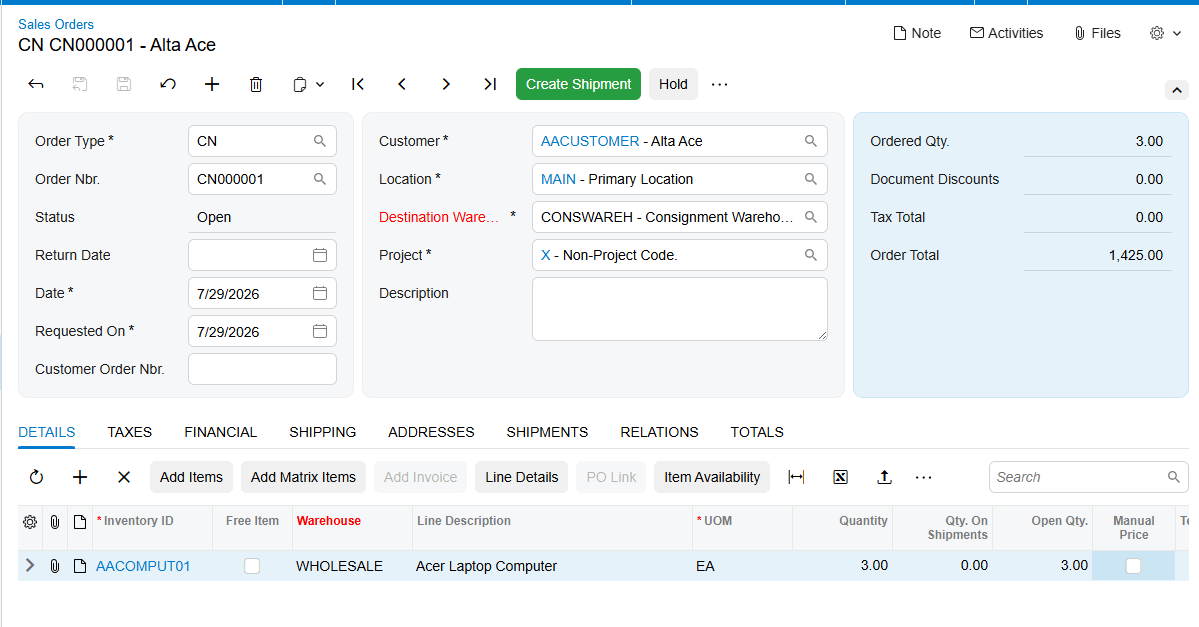
With configuration in place, the flow begins on the Sales Orders screen. The user selects the consignment order type, identified as CN, and chooses the customer the consignment order will be associated with. The items to be shipped as part of the consignment are added to the order lines, remembering that the lines take the standard warehouse while the consignment warehouse is the destination.
From there, the order proceeds through normal shipment confirmation. This is the point where the goods physically leave your facility for the consignee location. Nothing has been invoiced and nothing has been sold; the shipment simply moves ownership-retained stock closer to the customer. The consignment-specific accounting has not happened yet, which is why the next stage matters so much.
Stage Two: Update IN and the Transfer-Type Purchase Receipt
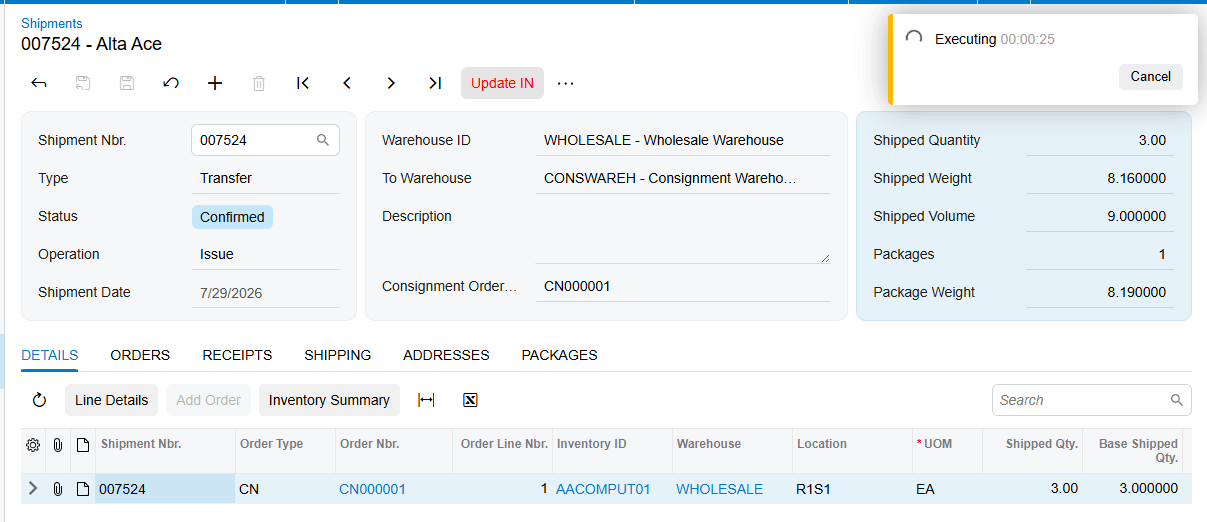
Update IN is the action that converts a confirmed shipment into a recorded inventory movement, and it is the single most important step in the entire consignment data flow. After the shipment is confirmed, the user locates the Update IN button under the Actions menu of the consignment order and clicks it.
Behind that click, Acumatica issues the corresponding items and quantities from the main warehouse and receives them into the selected consignment warehouse, automatically generating and releasing a Transfer-type purchase receipt. That purchase receipt is the audit record proving the stock moved between locations, and it is generated and released without further user intervention. Until Update IN has run, the consigned stock is not reflected in the consignment warehouse and none of the downstream consignment actions become available.
Consignment Order Statuses: Open, Consignment, Partial Consignment, and Closed
Consignment order status is the field users should watch most closely, because it tells you exactly which stage of the flow an order has reached and which actions are legal. There are four statuses:
- Open is the initial status when a consignment order is created. The order exists but none of the ordered quantities have shipped yet.
- Consignment means all ordered quantities have been shipped for consignment, so every item on the order is now part of the consignment inventory.
- Partial Consignment means only part of the ordered quantities has shipped, with the remainder still pending shipment.
- Closed means all actions related to the consignment order have been completed.
One distinction is essential and often missed during training. The statuses of consignment orders and regular sales orders are entirely separate and unrelated. They serve different purposes and operate independently within their own processes, so a consignment status should never be interpreted using the rules that apply to a standard sales order.
Status also acts as a gate on functionality. After the Update IN process, once the consignment order carries a status of Consignment or Partial Consignment, the Consignment Sell Items and Consignment Return Items buttons become enabled under the Actions menu. If those buttons are greyed out, the order has not reached the required status, which almost always means Update IN has not been run.
Stage Three: Selling Consigned Items and Generating the Consignment Invoice
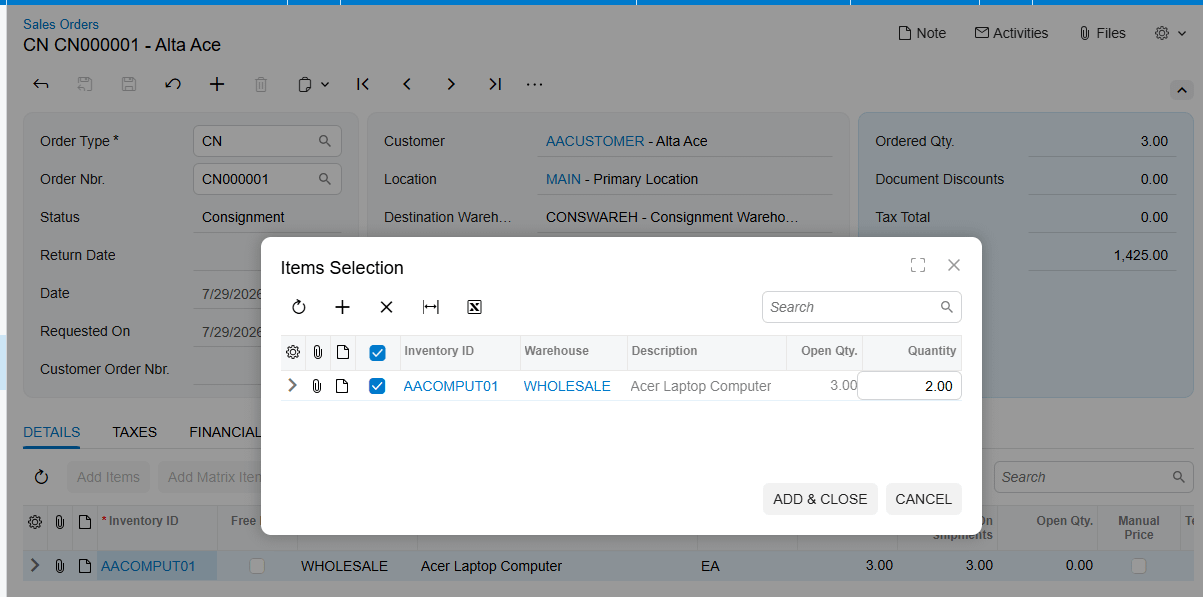
Selling is where consignment inventory finally turns into revenue, and the flow is deliberately short. The Consignment Sell Items action opens the Item Selection popup, where the user selects the items and quantities the customer has sold. Clicking Add & Close generates a consignment invoice order carrying the specified warehouse, items, and quantities.
The invoice is then prepared and released from that consignment invoice order in the normal way. On release, the Cons. Sold Qty. field on the original consignment order is updated to reflect what has now been billed. This field is the running total of consigned stock that has converted to a sale, and together with the status field it gives a complete picture of where an order stands. Because the invoice is generated from the consignment order rather than created independently, the link between what shipped, what sold, and what was billed stays intact throughout.
Stage Four: Returning Unsold Consignment Items
Stock that the customer never sells has to come back, and the return path mirrors the outbound path closely. The Consignment Return Items action opens the same style of Item Selection popup, where the user specifies the items and quantities to be returned. Clicking Add & Close generates a consignment return order.
From that point the consignment return process works like the consignment order process in reverse. The return order is processed, and a purchase receipt is created once the Update IN action is executed against it. The symmetry is intentional and worth teaching explicitly: whether stock is moving out to a consignee or coming back from one, Update IN is the action that makes the inventory movement real and produces the receipt that documents it.
Stage Five: Closing the Consignment Order
A consignment order closes when the whole cycle is accounted for. Once all ordered items have been shipped and all shipped items have been either sold or returned, the consignment order status changes to Closed. Item quantities and statuses are updated on the consignment order screen, and both the Consignment Sell and Consignment Return buttons are disabled, since there is nothing left to act on.
Closure changes what is visible in reporting, which is important to know before someone reports missing data. The Consignment Item Details generic inquiry no longer displays item-level information for consignment orders with a Closed status. Order-level information remains available in the Consignment Orders generic inquiry. This is expected behavior, not data loss.
Physical Inventory Counts for Consignment Stock in Acumatica
Consigned stock sitting at a customer location still needs to be counted, and Acumatica supports physical inventory counts specifically for consignment stock. The process reconciles what the system believes is at the customer’s site with what is actually there, and it can bill the customer automatically for the difference. For a warehouse manager reconciling consignment inventory, this is the practical alternative to waiting for the customer to report each sale.
Configuration required before the first count
Three prerequisites must be in place. On the Physical Inventory Types (IN208900) form, a PI Type must be created with the Consignment Inventory Count checkbox selected. Enabling that checkbox reveals Customer and Location fields, which must be specified for the PI Type. Finally, consignment orders must already exist in the system for the relevant customer and warehouse, since the count reads its expected quantities from them.
Step one: preparing the consignment physical count
Open the Prepare Physical Count (IN504000) form and select the PI Type ID configured for consignment inventory in the Type ID box. The system displays the related inventory IDs along with their respective Book Qty. values. This is the field that ties the count back to the consignment flow: Book Qty. displays the sum of the Open Qty. field from the Item Selection popup of the related consignment orders for the specified customer and warehouse. In other words, the count’s expectation comes directly from what those consignment orders say is still unsold. Clicking Generate PI on the form toolbar creates the count document.
Step two: reviewing and counting the inventory
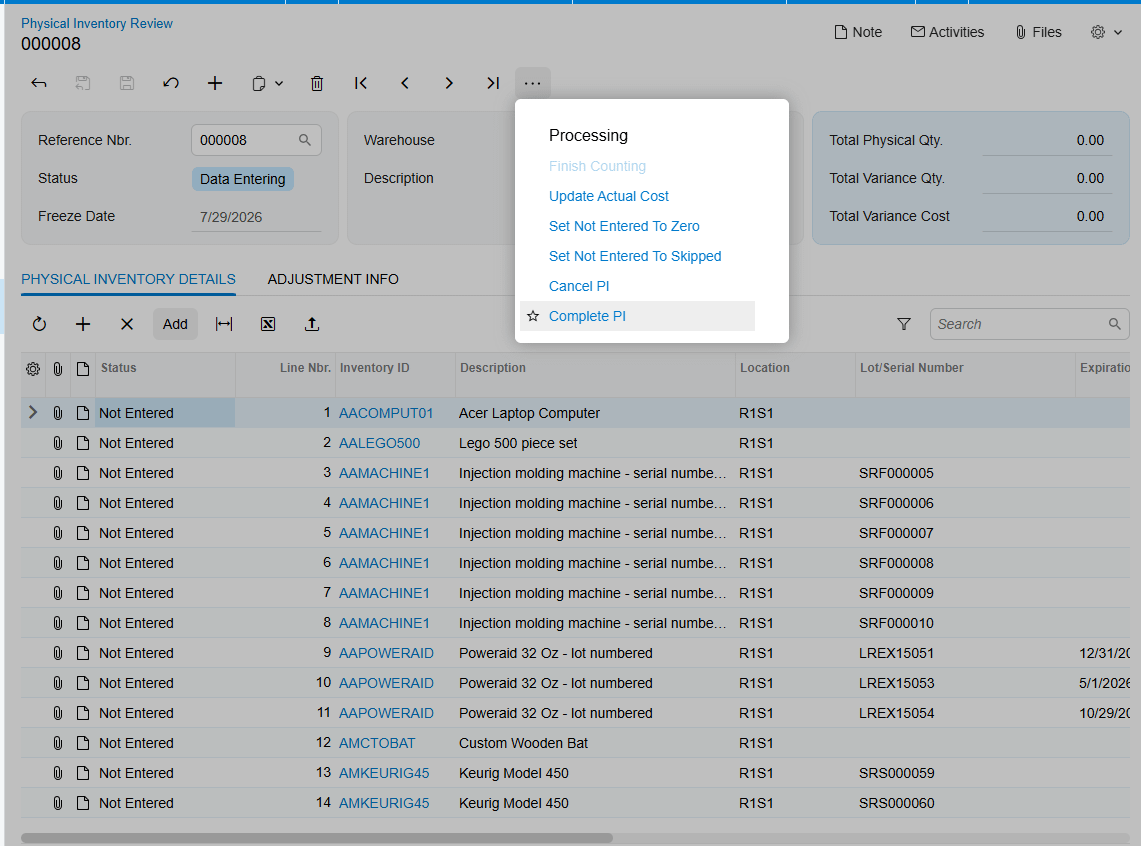
The system opens the Physical Inventory Review (IN305000) form. For each line, the counter enters the actual quantity found at the customer location in the Physical Qty. column. Once every quantity has been entered, the user goes to the Actions menu on the form toolbar and clicks Finish Counting.
Step three: completing the count and generating the invoice
On the same Physical Inventory Review form, clicking Complete PI finalizes the count. Acumatica then automatically generates a consignment invoice order based on the physical quantities recorded, following the standard Consignment Sell Item process described earlier. The user releases the generated invoice, and the final verification step is to confirm that the Open Qty. in the Item Selection popup of the original consignment order has been updated to reflect the new balance. That updated Open Qty. is the proof that the count, the invoice, and the consignment order are back in agreement.
Where to Monitor Consignment Processing Results in Acumatica
When training users or investigating a consignment order that does not look right, these are the fields, screens, and inquiries that reveal what the system actually did:
- Consignment order status on the Sales Orders screen, which shows whether an order is Open, Consignment, Partial Consignment, or Closed and determines which actions are available.
- Cons. Sold Qty. on the consignment order, which updates when a consignment invoice is released and represents cumulative billed quantity.
- Open Qty. in the Item Selection popup, which represents the unsold balance still held at the consignee location and feeds the physical count.
- The Transfer-type purchase receipt generated and released by Update IN, which is the audit record for stock movement between the main and consignment warehouses.
- The Consignment Orders generic inquiry for order-level information, which remains available even after an order closes.
- The Consignment Item Details generic inquiry for item-level information, remembering that it excludes orders in Closed status by design.
- Use for Consignment on the Warehouses (IN204000) form, which controls whether a warehouse can be used as a consignment destination at all.
- The customer’s assigned consignment warehouse, which overrides the default warehouse configured in Sales Order Preferences.
- Book Qty. and Physical Qty. on the physical inventory forms, which together produce the automatically generated consignment invoice.
Consignment Processing in Acumatica: Frequently Asked Questions
What is consignment inventory in Acumatica?
Consignment inventory is stock that has been shipped to a customer or consignee location but still belongs to you until the customer sells or consumes it. Acumatica Consignment Processing tracks that stock in a dedicated consignment warehouse, maintains quantities and valuation across multiple consignee locations, and shows how much has sold and how much remains unsold, so invoices are raised only for what was actually sold.
What is the difference between a consignment order and a regular sales order?
A consignment order uses a dedicated order type built from the Transfer Order template and moves stock to a consignee location without billing for it, whereas a regular sales order sells and invoices in one flow. Their statuses are also entirely distinct and unrelated: Open, Consignment, Partial Consignment, and Closed apply only to consignment orders and should not be interpreted using standard sales order logic.
What does the Update IN action do in a consignment order?
Update IN, found under the Actions menu, records the inventory movement after the shipment is confirmed. It issues the items and quantities from the main warehouse, receives them into the selected consignment warehouse, and automatically generates and releases a Transfer-type purchase receipt. Until Update IN has run, consigned stock is not reflected in the consignment warehouse and the sell and return actions stay disabled.
How is a consignment invoice created in Acumatica?
Use the Consignment Sell Items action on the consignment order to open the Item Selection popup, select the items and quantities the customer sold, and click Add & Close. Acumatica generates a consignment invoice order with the specified warehouse, items, and quantities. Once that invoice is prepared and released, the Cons. Sold Qty. field on the consignment order is updated.
How do you return unsold consignment inventory?
Use the Consignment Return Items action to open the Item Selection popup, specify the items and quantities to return, and click Add & Close. Acumatica generates a consignment return order. The return then follows the same path as the original consignment order, with a purchase receipt created once the Update IN action is executed.
Why are the Consignment Sell Items and Consignment Return Items buttons disabled?
Those buttons are enabled only when the consignment order carries a status of Consignment or Partial Consignment, which the order reaches after the Update IN process has run. If they are greyed out, either the shipment has not been confirmed and updated yet, or the order has already reached Closed status because everything shipped has been sold or returned.
Can you run a physical inventory count on consignment stock?
Yes. Create a PI Type on the Physical Inventory Types (IN208900) form with the Consignment Inventory Count checkbox selected and the Customer and Location fields specified. Prepare the count on the Prepare Physical Count (IN504000) form, where Book Qty. is drawn from the Open Qty. of related consignment orders, enter the counted amounts in Physical Qty. on the Physical Inventory Review (IN305000) form, then use Finish Counting and Complete PI. Acumatica generates a consignment invoice from the physical quantities automatically.
Work With the Biz-Tech Services Consignment Processing Product
Consignment Processing in Acumatica becomes straightforward once the data flow is clear. Preferences and warehouse settings decide where consigned stock can go, the consignment order and its shipment move it there, Update IN records the movement and produces the transfer receipt, the sell and return actions convert consigned stock into invoices or bring it home, and status plus Cons. Sold Qty. tell you where every order stands. Teams that know which field governs each handoff spend their time managing consignment inventory rather than reconstructing what happened to it.
If your business places inventory at customer locations and needs accurate visibility into what has sold, what remains, and what should be billed, we are glad to help you scope, configure, and roll out Consignment Processing in Acumatica. Visit https://biz-techservices.com to learn more about our Acumatica expertise or to schedule a personalized demonstration of the Biz-Tech Services Consignment Processing product.

