
Mapping kit components to finished kit items in Acumatica starts with a kit specification, its current revision, and the component rows assigned to that revision. The Biz-Tech Services Kit Processing product for Acumatica lets a user expose those component rows during sales order processing, while the kit item remains the item being sold or assembled.
For a mapping project, the important distinction is between what the Kit Processing documentation names and what it does not name. It documents Inventory ID, Kit Inventory ID, stock and non-stock components, option categories, option codes, substitute items, kit revisions, and a placeholder item. It does not document a separate SKU-alias table, cross-reference maintenance process, item-class mapping rule, or automated unmatched-record queue. Those requirements should be defined outside this product documentation before an import or integration is approved.
What Kit Component Mapping Means in Acumatica
A finished kit is identified by the Kit Inventory ID on the Kit Specifications screen. The kit must already be marked as a kit on Stock Items IN202500 or Non-Stock Items IN202000. The Kit Assembly feature must be enabled on Enable Disable Features CS100000 for the Kit Specifications form to be available. Within a kit specification, the selected revision supplies the component definition used by the product.
This is a component-to-kit relationship, not a general product-master translation service. A stock component and a non-stock component can be added to a kit specification. A nested kit can also be used as a component or option, with the main kit treated as the Parent Kit and the included kit treated as the Child Kit. That documented structure is the reliable basis for deciding which component belongs to which finished kit.
Kit Component Mapping in Acumatica at a Glance
Use this sequence to establish and validate the documented mapping before a kit is used on a sales order, purchase order, or kit assembly.
1 Confirm that the intended finished item is a stock or non-stock item marked as a kit.
2 Open Kit Specifications and select the Kit Inventory ID and the correct revision.
3 Make the intended revision current and active before expecting the kit to explode on a sales order.
4 Add stock and non-stock component items to the kit specification, or define option components where the kit has options.
5 If a component can be replaced, enable component substitution and assign the allowed substitute item or items.
6 If the kit uses a placeholder after explosion, confirm that the placeholder is a non-stock item and that its unit of measure matches the kit item.
7 Test the kit in Component Details before explosion, then use Load Components or enter a quantity to verify the resulting lines.
8 Treat any external SKU alias, cross-reference, item-class rule, or unmatched-record handling as a separate control because the documentation does not describe it.
Start With the Finished Kit Item and Revision in Acumatica
The Kit Inventory ID anchors the mapping. The documentation says that this ID is the inventory ID assigned to the kit on Stock Items IN202500 or Non-Stock Items IN202000. The Non-Stock indicator is read only on the Kit Specifications form, and Revision ID uniquely identifies the kit specification revision.
A revision must be current for the kit item to explode on the sales order. Changing the Current Revision setting can uncheck the prior current revision after the user saves the change. This makes revision selection a validation step, not merely a description field. A component relationship can be correctly entered on an older revision yet still not be the relationship used by an order.
The source documents Active separately from Current Revision. Keep both states in the review process: use the relevant active specification and confirm that the revision intended for order processing is current. The documentation does not define an item-class rule that selects a kit or revision, so do not assume an item class will perform that mapping.
Map Stock and Non Stock Components to the Kit in Acumatica
The kit specification holds the documented component mapping. Stock and non-stock items can be associated with a kit, and option codes can also contain stock items, non-stock items, and kit items. In the Kit Pricing Summary, the component display loads stock components first and then non-stock components, which is useful when checking the composition of a selected kit.
When a kit is added to a sales order, Component Details provides the operational view of its mapped components. Before explosion, a user can add or delete components, exchange a component for a substitute item, and change options. The source also states that when component addition is not enabled, users cannot add new components but can delete existing ones before explosion. After explosion, Component Details is limited to changing Quantity and Warehouse; further component additions or deletions are handled from the Document Details tab with the available controls.
This behavior helps distinguish the finished-kit mapping from the order-level result. The kit definition supplies the initial components; the sales order can show or adjust permitted component details before and after explosion. The documentation does not describe a line-level field that maps an external SKU to an Acumatica component. If an outside record must identify a component, that field mapping needs its own design and test evidence.
Use Acumatica Options and Substitutions as Controlled Mapping Variations
Options are the documented way to vary a kit configuration. With Kit has options enabled, Option Category and Option Codes tabs appear. An option code is assigned to an option category, given an option price, and associated with stock, non-stock, or kit items. A Required option code must be selected in the Options popup before the kit order can proceed.
Default Code provides a documented fallback for cases in which a user cannot select options, including API, import scenarios, processing screens, Opportunities, and Sales Quotes. It is a default option selection, not a documented alias or SKU cross-reference mechanism. Option Rules can exclude a target option code when a specified source category and source code are selected. Review these rules as part of mapping validation because they can make a component option unavailable to the user.
Component substitution is another controlled variation. Enable Allow Component Substitution, mark the component on the Stock Components tab, and assign replacement items on the Substitution tab. The Biz-Tech Services Kit Processing product for Acumatica therefore documents substitutions as explicit item choices linked to a component. It does not state that substitutions are selected through item classes, aliases, or an automatic cross-reference lookup.
Handle Acumatica Placeholder and Explosion Settings Before Testing Lines
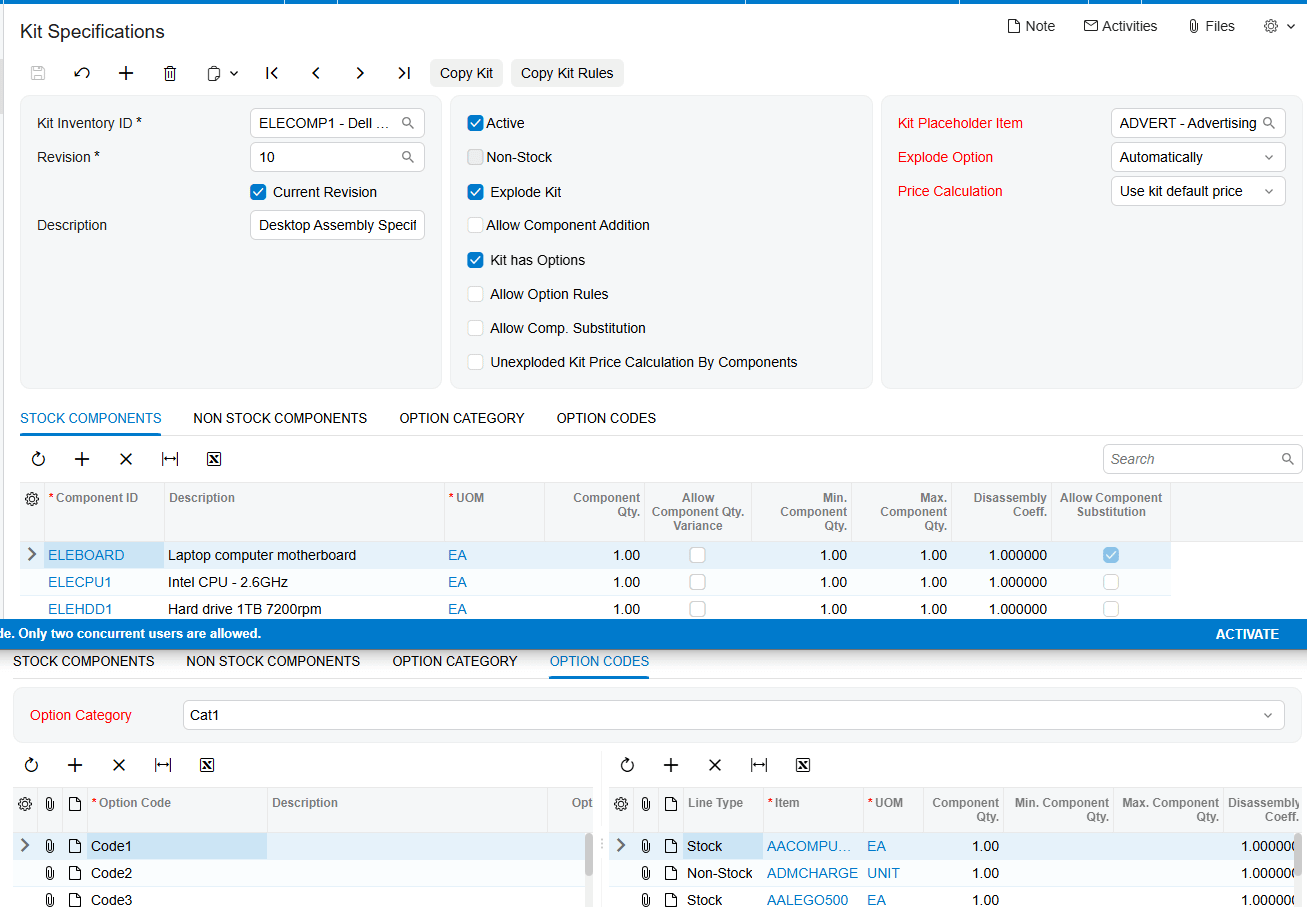
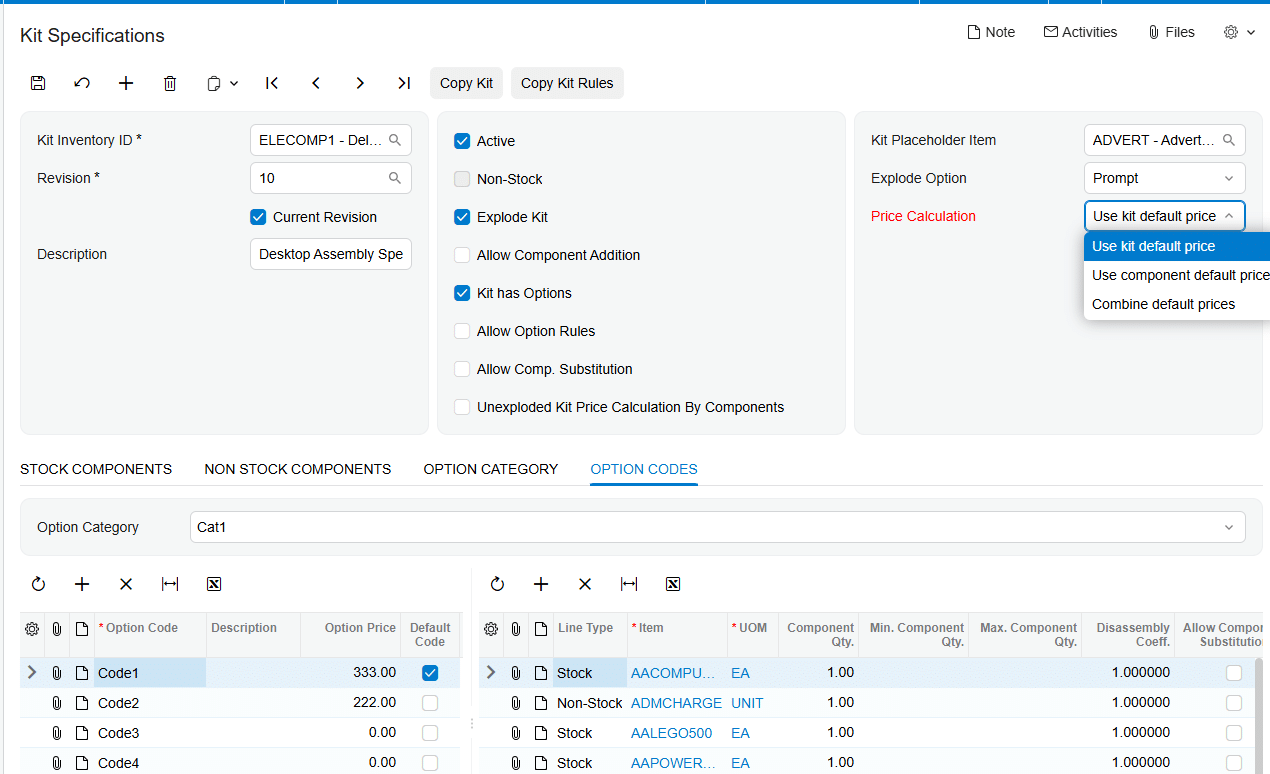
When Explode Kit is selected, the product enables Kit Placeholder Item, Explode Option, and Price Calculation. The placeholder is a non-stock item that replaces the kit item on the sales order after explosion while the component items are added to the order. Its purpose is to prevent double counting of item costs while functioning like the kit item in the order.
The placeholder unit of measure must match the kit item unit of measure. A mismatch produces a warning error message. Explosion may be Prompt, Automatically, or Do Not Explode. A customer or vendor setting named Block Kit Items Explosion, as well as the Biz-Tech Kit Processing Settings section on Order Types, can prevent explosion regardless of the selected explode option.
For a non-stock kit with a stock option item, the documentation requires Automatically as the explode option so the stock option is allocated during shipment. For a nested non-stock kit used as a component or option, both the Parent Kit and Child Kit must use Automatically. These are configuration validation rules that affect whether the mapped items reach the expected order lines.
Validate Acumatica Mapping Through Sales Orders Assemblies and Imports
A practical test begins by entering the kit item on a sales order and reviewing Component Details. Use Load Components to explode the kit, or assign a quantity to the new kit item. After explosion, the placeholder and components appear on the order with their prices, quantities, and costs. The documented Total Cost of Components uses the component unit cost when the sales order is created multiplied by quantity, remains unchanged, and is displayed on the placeholder row and carried to the invoice.
For kit assembly, select the kit Inventory ID, revision, warehouse, and quantity on the Kit Assembly screen. The generated document includes required stock components with quantities and costs based on the selected revision. A kit assembly can also be generated from a sales order without exploding the kit; sales-order-generated assemblies use the current Kit Specifications revision. Mark for assembly is disabled for non-stock kit items.
The documentation also supports Import by Scenario for kit items and says to perform proper data mapping between an external data source and corresponding Acumatica fields. Its listed scenarios enable Is a Kit for stock or non-stock items, configure the kit header, add stock components, add non-stock components, add option categories and option codes with associated components, and add substitute items. This supports structured import of the documented kit relationships. It does not specify how to resolve duplicate SKU aliases, cross references, item classes, or unmatched external records.
Where to Check Your Acumatica Mapping Work
1 Enable Disable Features CS100000 to confirm that Kit Assembly is enabled when Kit Specifications or Kit Assembly work is required.
2 Stock Items or Non-Stock Items to confirm the finished item is marked as a kit.
3 Kit Specifications to verify Kit Inventory ID, Revision ID, Current Revision, Active, and Explode Kit settings.
4 Stock Components and non-stock component entries to confirm the intended kit composition.
5 Option Category and Option Codes tabs to check required selections, default codes, prices, and option components.
6 Option Rules to verify that a chosen source option is not excluding an expected target option.
7 Substitution tab to confirm each allowed replacement item for an eligible component.
8 Sales Orders Component Details to inspect components, options, substitutions, and the result of Load Components.
9 The placeholder row after explosion to check the unit of measure, cost total, and component lines.
10 Kit Assembly to verify inventory ID, selected revision, warehouse, quantity, and any linked sales order.
11 Import by Scenario to confirm the selected kit import scenario and the source-to-field mapping used by the import.
Kit Component Mapping in Acumatica Frequently Asked Questions
Can an Acumatica kit map both stock and non-stock components?
Yes. The documentation describes stock and non-stock components in the kit specification and in the kit import scenarios. It also states that option codes can include stock items, non-stock items, and kit items.
What makes a kit revision available for sales order explosion?
The current revision must be enabled for the kit to explode on a sales order. The source also describes the Active setting for the kit specification, so a review should confirm the intended active specification and current revision.
Can Acumatica use a SKU alias or cross-reference to find a kit component?
The Kit Processing documentation does not describe a SKU alias or cross-reference feature for component lookup. It documents kit inventory IDs, components, options, substitutions, and import scenarios, but not an alias-resolution rule.
How are unmapped external item records handled?
The source instructs users to perform proper mapping between the external source and Acumatica fields before import. It does not define an unmatched-record queue, error disposition, or fallback behavior. Establish those controls separately and test them before production import.
Do item classes decide which component is mapped to a kit?
No item-class mapping behavior is described in the supplied Kit Processing documentation. Do not rely on item classes to choose a kit component unless another approved source documents that design.
Why does the kit not explode after the component mapping is complete?
Check the current revision, Explode Kit setting, selected explode option, and the customer or order-type controls that can block kit explosion. Also check the specific non-stock kit rules when stock option items or nested kits are involved.
Why does the kit show a placeholder line after explosion?
The placeholder is a non-stock item that replaces the kit item while the mapped component items are added to the order. The documentation says this prevents double counting of item costs.
Can a substitute item be selected for any component?
Only components configured for substitution are documented as eligible. Enable Allow Component Substitution, mark the component, and add the substitute item or items on the Substitution tab.
Work With the Biz-Tech Services Kit Processing Product for Acumatica
The Biz-Tech Services Kit Processing product for Acumatica gives teams a documented path from a finished kit Inventory ID and revision to component rows, options, substitutions, order explosion, assemblies, and import scenarios. Keep the kit specification and its current revision as the source of truth for component composition. For SKU aliases, item classes, cross references, or unmatched-record policies, create a separate documented mapping design because these behaviors are not defined by the supplied product documentation.
If your team needs help planning a reliable Kit Processing setup in Acumatica, visit https://biz-techservices.com to learn more about Biz-Tech Services or schedule a personalized demonstration.
Check the video for more details: https://www.youtube.com/watch?v=sP89DBTxCJU

