
How ShipStation Data Flows Between Shipping and Acumatica ERP
ShipStation data moves through Acumatica ERP as a round trip: a sales order is exported to a connected store on the shipping platform, the label and shipment are produced there, and the shipment number and tracking number come back to update the order and move it to Prepare Invoice. The Biz-Tech Services ShipStation Acumatica Connector is what carries records across that loop. It adds a store record to Acumatica, a set of processing screens for pushing orders out and pulling shipments back, and dedicated fields on the Sales Orders and Shipments screens so users can see exactly what happened to each document.
The Biz-Tech Services Acumatica ShipStation connector is not a one-directional feed. It supports two integration directions, and the direction you choose changes which tabs appear on the store record, which processing screens become usable, and which way orders, shipments, customers, and items travel. This article follows the records themselves rather than the chapter order of the documentation: first the credentials and store setup that make any transfer possible, then orders moving out for fulfillment, then shipment and tracking data coming back, then the alternative flow driven by the Confirm Shipment process, then the reverse direction where the shipping platform is the system of record for the order, then item synchronization, and finally where to look when something does not arrive.
What the ShipStation Connector for Acumatica Does
ShipStation is a web-based shipping solution built to optimize order fulfillment for online businesses. It consolidates orders from more than 70 ecommerce channels, generates shipping labels, packing slips, and pick lists in batch mode, communicates tracking information to customers, and provides automation, filtering and viewing options, wireless printing, and a dedicated mobile app. The Biz-Tech Services Shipstation Acumatica connector links that platform to Acumatica ERP so that fulfillment and shipping run as one connected process instead of two separate systems that someone has to reconcile by hand.
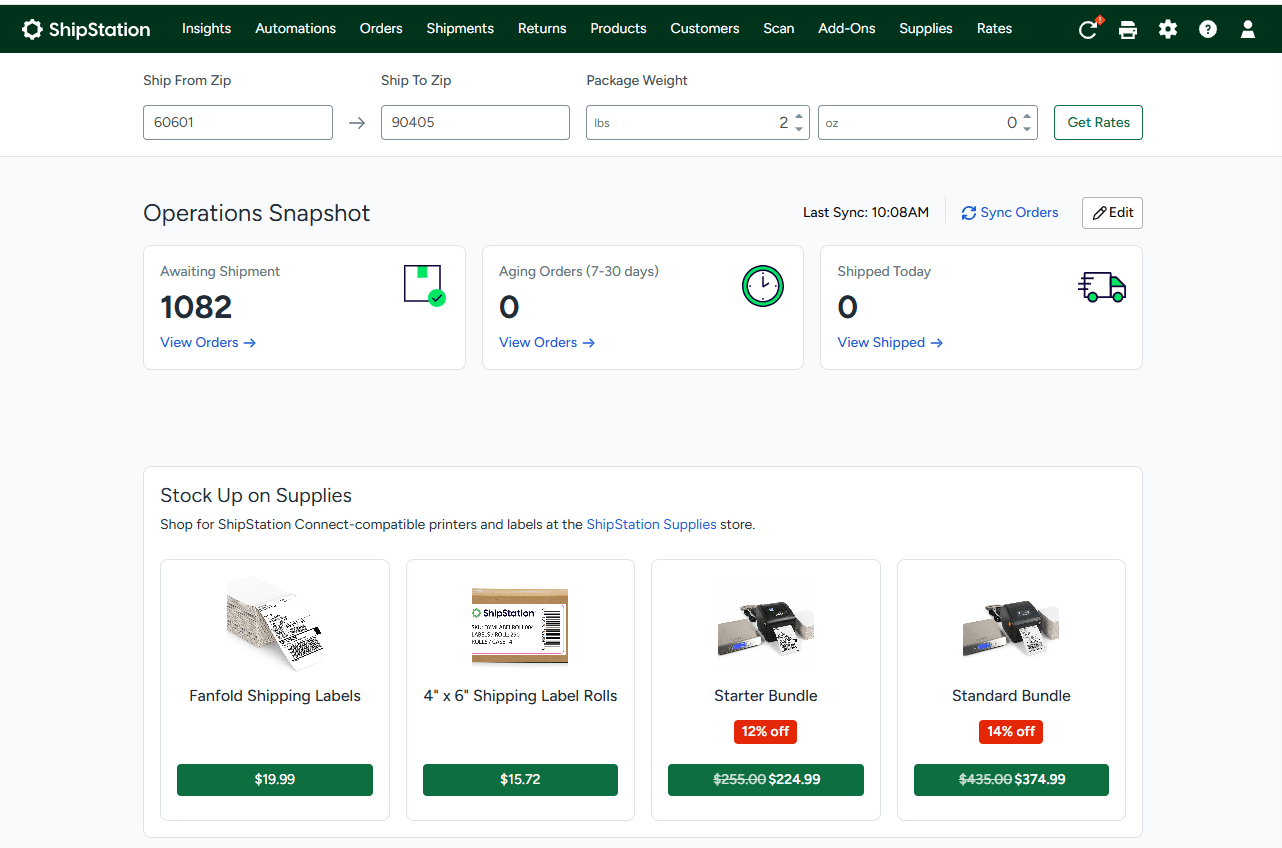
In practical terms it does two things. First, order syncing: orders move between the two systems so that documents originating in diverse sales channels can be viewed and managed centrally in the shipping interface. Second, shipping and fulfillment: users generate labels, produce packing slips, and manage shipments directly in that interface, using the carrier options and shipping methods available there, and the result is written back against the correct order in the ERP. The Biz-Tech ShipStation product must be installed on a system carrying one of the specified licenses: PCSR, PERP, or SAAS.
The ShipStation Data Flow at a Glance
Before looking at individual screens, it helps to see the whole round trip in order. The sequence below describes the primary Acumatica to ShipStation direction, where the sales order starts in the ERP and the shipment is created on the shipping side:
- Setup: the package is published on the Customization Projects (SM204505) form, and a ShipStation Store record is created with Connection Settings holding the Consumer Key, Consumer Secret, and Base URL that authenticate every call.
- Direction: the Integration Option on the store record is set to Acumatica to ShipStation, and the Process Flow is set to Shipment in ShipStation, which enables the export and import processing screens for this path.
- Reference data: the Get Stores, Get Carriers, and Get Packages buttons, plus the ShipStation Warehouses tab, pull connected stores, carrier codes, package types, and warehouses into Acumatica so exported orders carry values the shipping platform recognizes.
- Orders out: a sales order is exported from the Create Orders in ShipStation screen, or from the Actions menu of the Sales Orders screen, and the order is created under the configured Store Code and ShipStation Store ID.
- Acknowledgement: the platform returns an identifier that is written into the ShipStation Order ID field on the Sales Orders screen. That field is the proof the order left Acumatica.
- Fulfillment: warehouse staff work the order on the shipping side, choose the carrier and service, and generate the label. Acumatica takes no part in this stage.
- Shipment and tracking back in: the Import Shipment from ShipStation screen, or the Get Shipstation Shipments action on the Sales Orders screen, pulls the shipment across and adds the shipment number and tracking number to the corresponding order.
- Handover to billing: once that information lands, the order status is updated to Prepare Invoice, so the record continues through the standard order-to-invoice process.
Setup and Credentials: What Has to Exist Before Any Data Moves
Nothing crosses between the two systems until the package is published and a store record exists. This stage is worth doing carefully, because almost every failure users report later traces back to a setting chosen here.
Installing the package
The package is installed through the Customization Projects (SM204505) form. This is the standard form used to add a new customization project, open a project for editing in the Customization Project Editor, validate one or more projects, publish a project for one or multiple tenants, cancel a publication, view the XML of a published project, export a project as a deployment package, import a project from an existing deployment package, and delete a project. On import, the platform uploads the selected package, creates the corresponding customization project, and saves that project in the database. Publishing it is what makes the new Acumatica screens and fields appear.
Connection Settings: the credentials behind every transfer
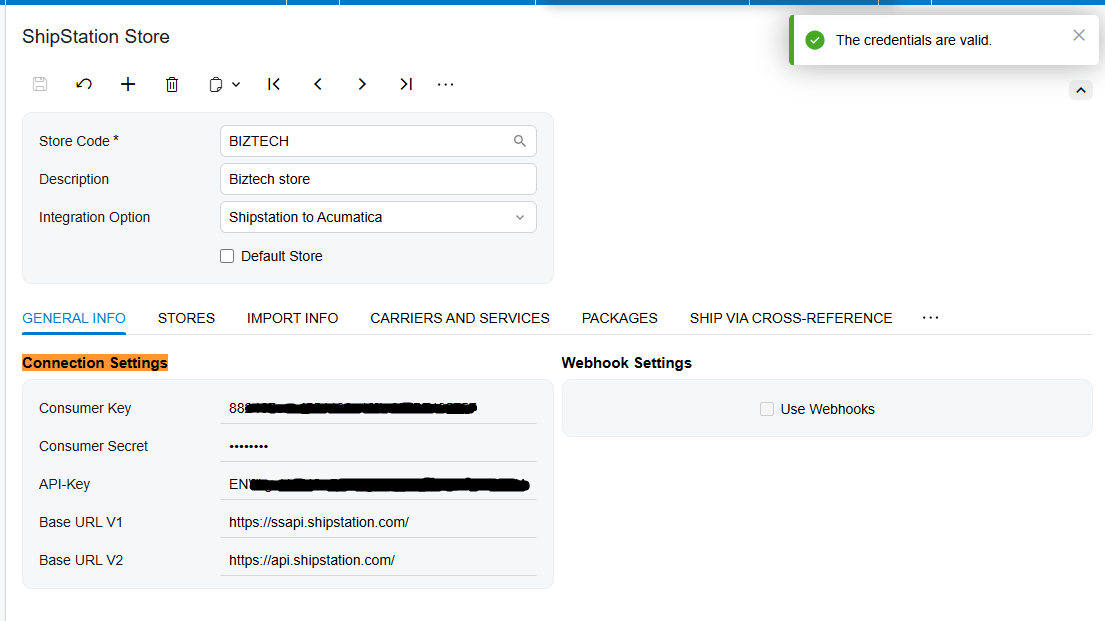
The ShipStation Store screen is where all configuration lives, including Connection Settings, the Integration Option, and the setup relevant to the selected integration. The Store Code field is a lookup field that corresponds to the specific store, which ensures the right one is selected for the integration, and the Description field holds a short description of it.
Connection Settings is where users enter the Consumer Key, Consumer Secret, and Base URL credentials. These three values establish the link between the two platforms and are used to authenticate and enable communication between them. Because every subsequent button on every screen depends on them, they are the single highest-value thing to verify. That is what the Test Credentials button is for: it verifies the ability to connect through the Application Programming Interface, or API, using the information supplied on the Connection Settings tab. If a value has to change later, the Edit Credentials option lets users modify what is stored.
Integration Option: the setting that decides which way records travel
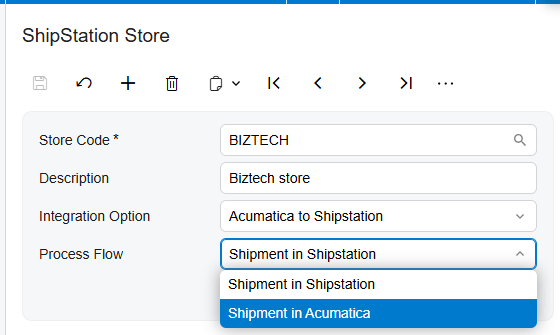
The Integration Option defines the direction of the data flow. Users choose whether the integration runs from ShipStation to Acumatica or from Acumatica to ShipStation. This is not a cosmetic preference. It determines which tabs the store record displays and which processing screens will accept the store code at all, so setting it incorrectly makes entire screens refuse to work.
Configured as ShipStation to Acumatica, the system allows orders to be imported with or without their shipments, and the store record shows the General Info, Import Info, Ship Via Cross Reference, Warehouse Cross Reference, and Inventory Details tabs. Configured as Acumatica to ShipStation, the visible tabs are General Info, Carriers and Services, Packages, and ShipStation Warehouses. The General Info tab stays consistent and unchanged regardless of direction, which keeps the core connection and store management settings the same on both sides.
Selecting the Acumatica to ShipStation option also reveals an additional field called Process Flow, with two drop-down values. Shipment in ShipStation retrieves all shipments from the shipping platform. Shipment in Acumatica generates those shipments from within the ERP. These are two genuinely different data flows, and both are described below.
General Info: selecting the store that records belong to
On the General Info tab, the Get Stores button retrieves and displays all the stores currently connected on the shipping side. They are then shown in the ERP, which makes it easier for users to manage and interact with connected stores without leaving the system. The Selected checkbox next to each one determines which store is used for importing orders and shipments. If nothing is selected, there is no source or destination for the records to attach to.
Outbound: How Acumatica Orders Are Exported to ShipStation
With the Integration Option set to Acumatica to ShipStation and Process Flow set to Shipment in ShipStation, the sales order begins its life in Acumatica and is pushed out for fulfillment.
Populating the carrier, package, and warehouse tabs first
This direction exposes three reference tabs that must be filled before exports make sense. To set up each one, users open the corresponding tab and press the relevant button. Clicking Get Carriers retrieves and displays all carrier codes. Pressing Get Packages retrieves all available package types, and selecting the corresponding checkbox chooses the package to be used for the order. The ShipStation Warehouses tab operates on the same logic: press the button, review what comes back, and select what applies.
This matters because those values originate on the shipping side, not in Acumatica. Pulling them across means the exported order already carries a carrier code, a package, and a warehouse that the receiving system recognizes, rather than internal values it has never seen.
Exporting orders from the Create Orders in ShipStation screen
The Export Acu Orders screen is the bulk export point. To use it, the Integration Option of the store setup must be Acumatica to ShipStation and the Process Flow must be Shipment in ShipStation. The screen displays all orders created in Acumatica that can be exported, and the export runs against the configured Store Code and ShipStation Store ID.
Exporting a single order from the Sales Orders screen
Order export and creation can also be performed directly from the Sales Orders screen by clicking the Create ShipStation Order button under the ShipStation option in the Actions menu. This is the same operation applied to one document. It is the natural choice when a single order has to reach the warehouse immediately rather than waiting for the next bulk run.
What the ERP records when the export succeeds
When the order is exported, it is generated on the shipping side and the resulting identifier is displayed in the ShipStation Order ID field of the Sales Orders screen. That single field is the confirmation that the outbound half of the round trip completed. An order with no value there has not been created downstream, whatever else the screen shows.
Inbound: How Shipment, Tracking, and Carrier Data Return to Acumatica
Once the order is out, fulfillment happens on the shipping side. Staff pick, pack, choose a carrier and service, and generate the label using the carrier options and methods available there. The ERP is not involved in that stage, which is the point of the Biz-Tech Services ShipStation Acumatica integration: the shipping platform does shipping work, and the ERP receives the result.
Shipment confirmation and the handover to invoicing
The import does more than copy numbers. Once the shipment information is applied, the order status is updated to Prepare Invoice. That status change is the hinge between fulfillment and billing: the order leaves the shipping stage and re-enters the normal document flow, where it is invoiced through standard order processing. If an order is still sitting in its pre-shipment status, the data has not been imported yet, no matter what the shipping platform shows.
The documented workflow can be performed from the Sales Orders screen as well as from the Create Orders in ShipStation and Import Shipment from ShipStation processing screens. Both routes produce the same result, so your business can standardize on whichever fits the volume being shipped.
The Alternative Flow: Creating the Order and Shipment During Confirm Shipment
The second Process Flow option, Shipment in Acumatica, describes a different and shorter round trip. Here both the order and its shipment are created downstream from the ERP during the Confirm Shipment process, rather than the shipment being built by hand on the shipping side and then retrieved.
To create an order together with its shipment this way, users first create a Sales Order and then create a Shipment. After the shipment creation process, they manually fill in the ShipStation Information option on the Shipping tab of the Shipments screen and proceed with the Confirm Shipment process. That manual step matters, because Confirm Shipment is what triggers the transfer and it can only send what has been filled in beforehand.
After confirmation, the order and its corresponding shipment are created downstream. The returned information, including Store Code, ShipStation Store ID, ShipStation Order ID, and ShipStation Order Number, is populated in the ShipStation Information option on the Shipping tab of the Shipments screen, along with the tracking information on the Packages tab. This is the flow to choose when your business wants shipments packed and confirmed in Acumatica and only wants the shipping platform to handle carrier labels and tracking.
The Reverse Direction: Importing ShipStation Orders into Acumatica
When the store record is configured as ShipStation to Acumatica, the flow runs the other way. Orders originate downstream, typically because they came from one of the ecommerce channels the platform consolidates, and Acumatica receives them as sales orders. Based on this setup, two processing screens are enabled for retrieving and importing orders and shipments created externally: Import ShipStation Orders and Import ShipStation Shipment Orders.
Import Info: which orders are eligible to come across
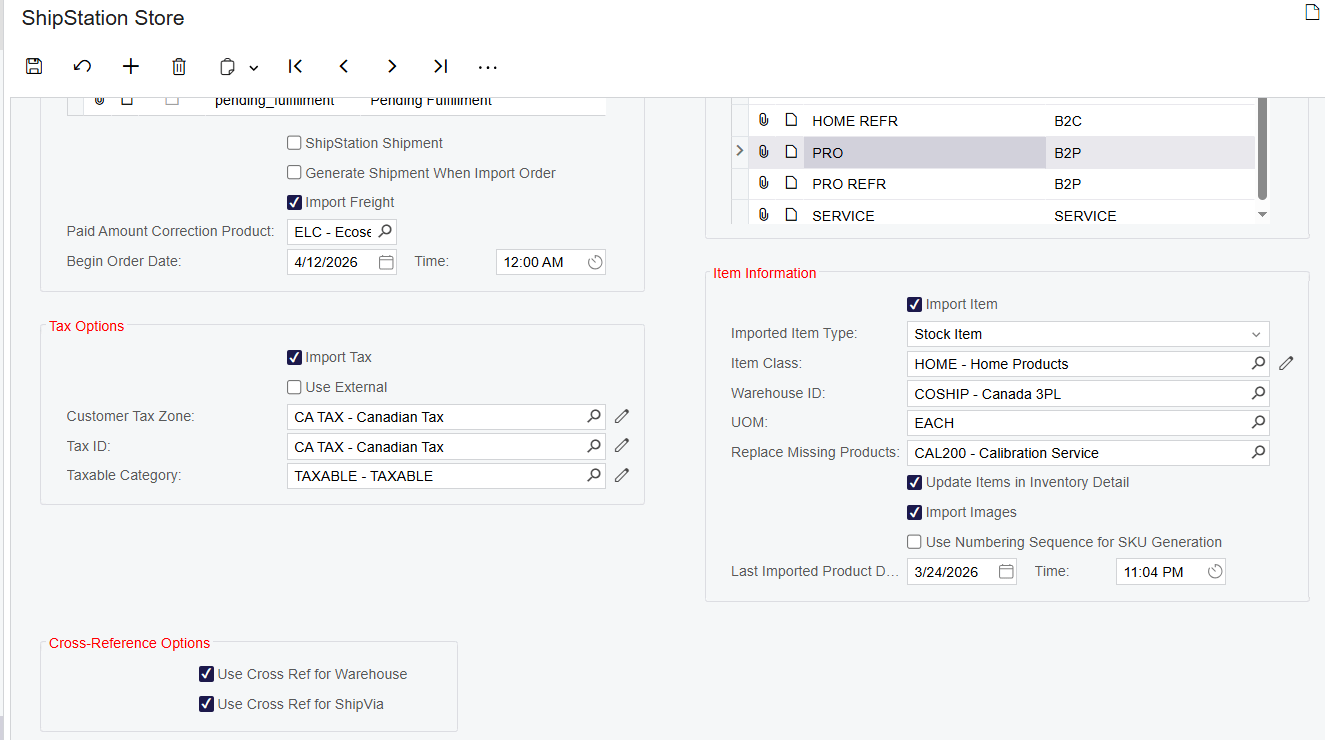
The Import Info tab holds the Default Import Options, which include two key fields, Status Key and Status. These map external order statuses to corresponding statuses in Acumatica, and the mapping defines which statuses are eligible for import. If no specific status is selected, the default is to retrieve orders that have the Shipped status. The statuses eligible for mapping and import are Awaiting Shipment, Awaiting Payment, Pending Fulfillment, Shipped, On Hold, and Cancelled.
Three further fields control what the imported document becomes. Import ShipStation Orders To specifies the document type the orders will be imported into, which is how they get classified once inside. Order Type specifies the corresponding order type used for the import. Begin Order Date displays the starting date for importing orders, and only orders placed on or after that date are imported, which is what keeps a first run from reaching back through the entire history.
Bringing shipments across with the order
Two checkboxes govern shipment data on this side. When the ShipStation Shipment checkbox is selected, then during the get process on the Import ShipStation Orders screen, any shipment associated with the order is also imported and displayed under the Shipment tab on the ShipStation Orders screen. The Generate Shipment When Importing Orders checkbox enables the import of existing shipment data along with the order details, so the related shipment information arrives with the order rather than being fetched separately.
Customer and address handling on import
When the Import Customer checkbox is selected, the Biz-Tech Services ShipStation Acumatica integration imports the customer information and creates a new customer record, so details such as name, address, and contact information are accurately reflected in Acumatica. If it is not selected, orders are imported with the default customer settings from the source system instead. This choice decides whether your customer list grows with every new ecommerce buyer or stays curated.
Two override checkboxes handle addresses. Override Ship Address Information allows the incoming shipping address to override the address held in Acumatica, which ensures the order is shipped to the correct location. Override Bill Address Information imports the billing address, which may differ from the default billing information already on file. These are the settings to check first when an imported order ships or bills to an unexpected address.
Item information and SKU creation
When the Import Item checkbox is selected, the system checks whether the item exists and, if it does not, creates a new item record during the order import process. Selecting Import Item also reveals additional options: Imported Item Type, Item Class, UOM (Unit of Measure), and Warehouse ID. These define the default values used when new items are created, so they are effectively the template for every item the Biz-Tech Services Acumatica ShipStation integrator invents.
If Import Item is not selected and a new item is found during the import, the system automatically assigns default values, using Replace Missing Products for the item name and the Warehouse ID from the setup for the warehouse. Two supporting options round this out. Use Numbering Sequence for SKU Generation means that if no existing SKU (Stock Keeping Unit) number is found during item creation, a new one is generated using the numbering sequence already set up, which keeps SKUs consistent and unique. Import Images, when selected, imports and creates images for the stock item; when it is not selected, image data is not retrieved.
Tax options on imported orders
The Tax Options group controls how tax arrives with an order. When the Import Tax checkbox is selected, the system imports and displays the associated taxes, which keeps tax information synchronized between the two systems. Customer Tax Zone refers to the combined taxes that apply based on the tax zone, which is defined according to the locations of customers or vendors and determines tax rates by geographical zone. Tax ID represents the customer tax identification number, which may be required for tax reporting or compliance. Taxable Category is used to create new tax categories or edit existing ones, and those categories are applied to the products being sold so the correct taxes are applied during order processing.
Cross-references for warehouses and shipping methods
The Cross-Reference options let users select specific entities that should be matched between the two systems during the integration process. Use Cross Ref for Warehouse enables cross-referencing between warehouses on each side, so inventory is correctly mapped and synchronized. Use Cross Ref for Ship Via allows cross-referencing between shipping methods, which ensures the appropriate method is used when processing orders. Selecting these fields reveals additional tabs, Warehouse Cross Reference and Ship Via Cross Reference, where the mappings are configured.
Cross-references are the quiet fix for a whole class of data problems. Two systems rarely name the same warehouse or the same carrier service identically, and without a mapping the imported order carries a value the receiving system cannot resolve.
The Import ShipStation Orders and Import ShipStation Shipment Orders screens
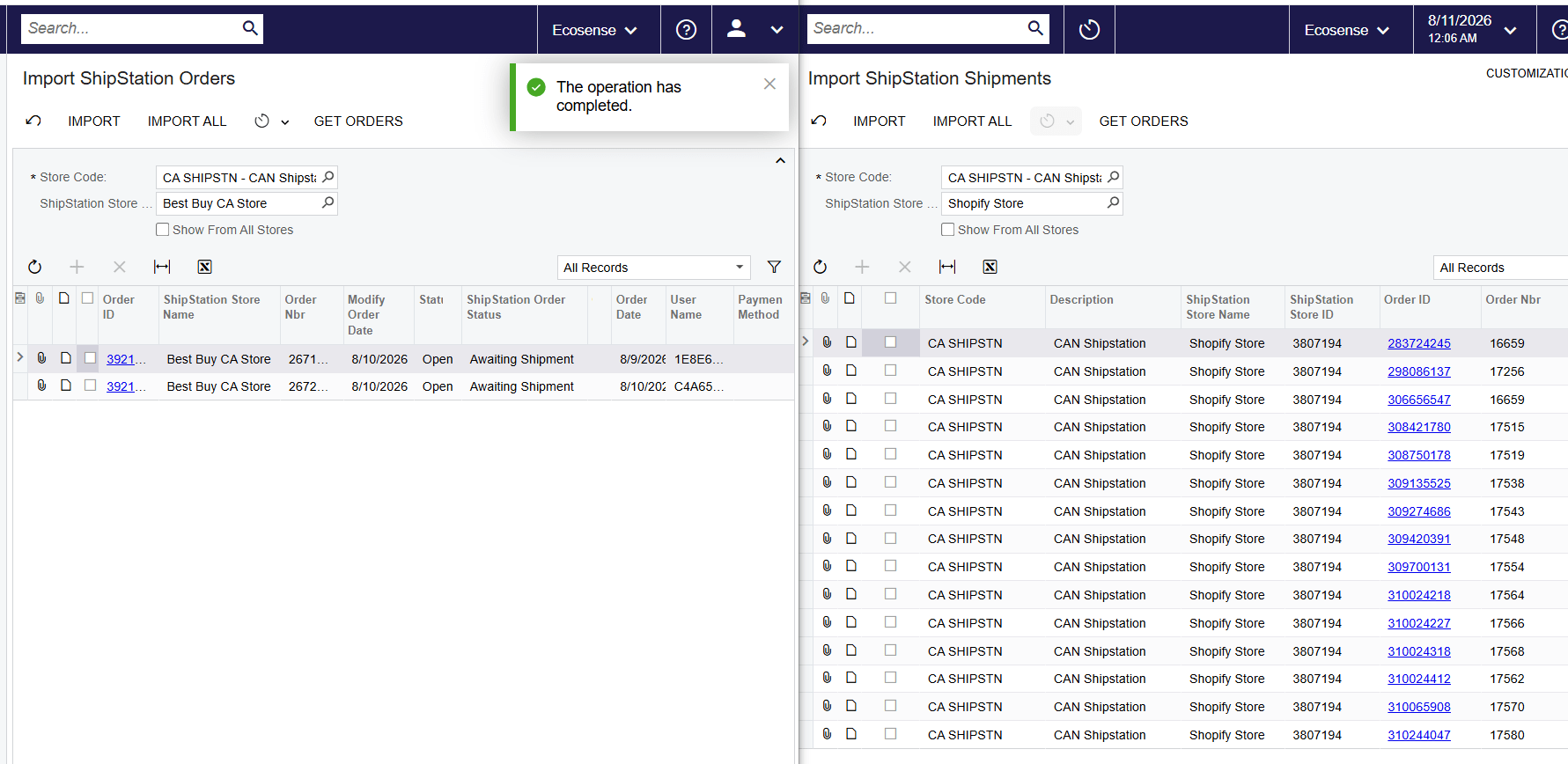
The Import ShipStation Orders screen retrieves and imports all orders from the selected store ID. Pressing Get Orders retrieves and displays them. Pressing Import brings the selected orders into the Sales Orders screen. Pressing Import All brings in every order currently displayed regardless of its selection status, which is the fast path when a full batch needs to come across.
The Import ShipStation Shipment Orders screen retrieves and processes all orders that have shipments, and it does so regardless of the ShipStation Shipment checkbox setting on the store record. That exception is worth remembering: this screen ignores the checkbox that governs the other import screen.
Both screens carry the same restriction. They are functional and allow a store code to be selected only if the Integration Option of that store is configured as ShipStation to Acumatica. If it is not, the system displays an error message indicating that the corresponding store is not used to import orders.
Item and Inventory Synchronization Between Acumatica and ShipStation
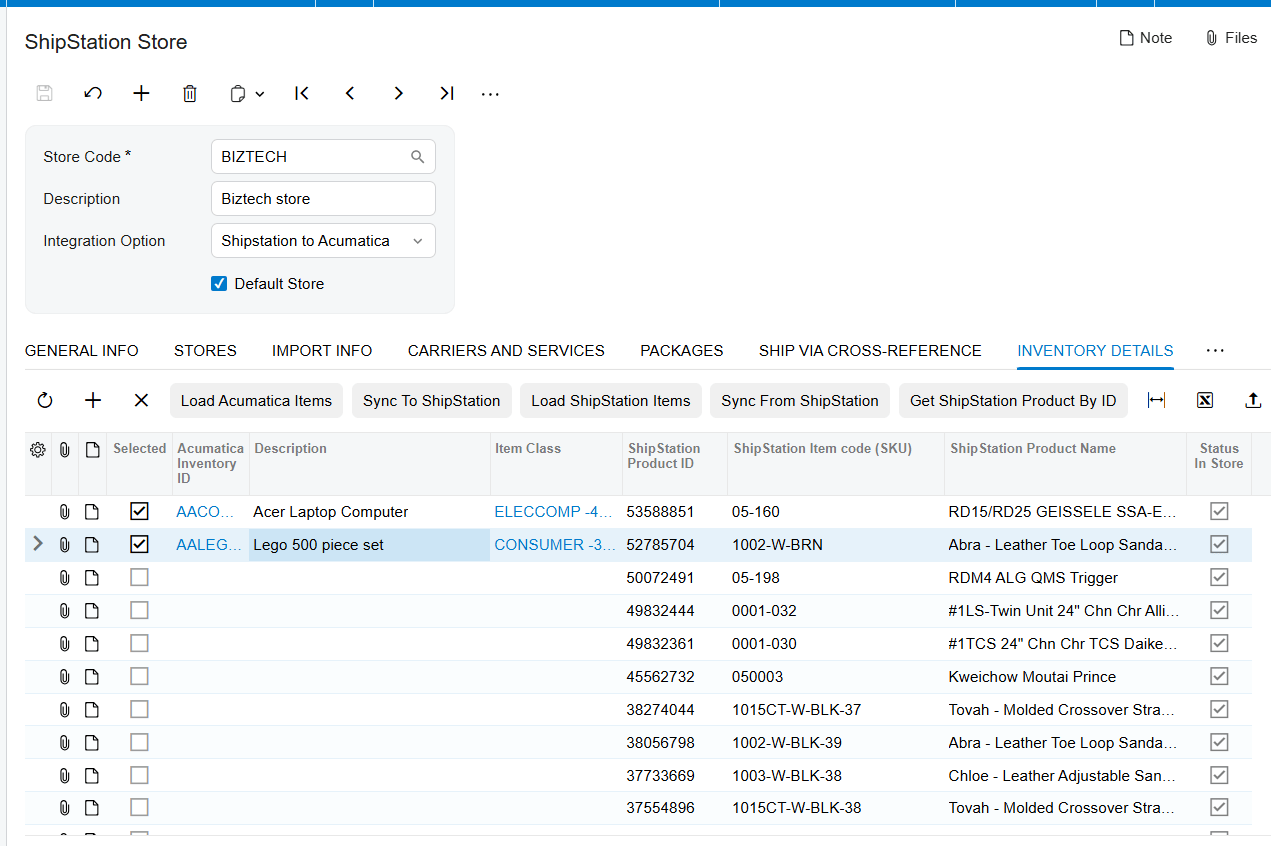
Orders and shipments are only half the traffic. The Inventory Details tab on the store record, available in the ShipStation to Acumatica configuration, handles product data moving in both directions so the two catalogs describe the same goods.
1. Load Acumatica Items retrieves all Stock and Non-Stock items and displays them in a table, making the relevant inventory accessible for viewing or further processing within the Biz-Tech Services Acumatica ShipStation integration.
2. Update ShipStation Items from Acumatica exports the listed items outward, so product data downstream is updated with the latest information from the ERP.
3. Load ShipStation Items retrieves items from the shipping platform and displays them, bringing the available products into view for any necessary updates or Biz-Tech Services ShipStation Acumatica integrator processes.
4. Generate Items in Acumatica from ShipStation imports items inward. If an item exists downstream but not in the ERP, this option creates it so Acumatica reflects the products available there.
5. Load ShipStation Item by SKU retrieves one specific item using its SKU. Entering the SKU pulls the exact item across, which is the targeted option when only one product is out of step.
Keeping this catalog aligned is what prevents item-level failures further down the flow. An order that references a SKU one system does not recognize is an order that cannot be created cleanly on the other side.
What Can Go Wrong in the ShipStation Data Flow
Most problems here are configuration problems rather than transfer problems, and the documentation points at a specific set of them.
The clearest documented error is the direction mismatch. If a user opens Import ShipStation Orders or Import ShipStation Shipment Orders and tries to select a store whose Integration Option is not ShipStation to Acumatica, the system displays an error message indicating that the corresponding store is not used to import orders. The mirror image applies to the export side: Create Orders in ShipStation and Import Shipment from ShipStation both require the Integration Option to be Acumatica to ShipStation with Process Flow set to Shipment in ShipStation, so a store configured any other way will not drive them.
The second common cause is scope rather than error. Begin Order Date excludes anything placed before the configured date. The Status Key and Status mapping excludes any order whose status was never mapped, and with nothing selected the default is to retrieve only Shipped orders. The Selected checkbox on General Info excludes any store that was not chosen. In each case the Biz-Tech Services Acumatica ShipStation integrator is working exactly as configured and simply has no reason to move the record.
The third is credentials. Because the Consumer Key, Consumer Secret, and Base URL authenticate every API call, an expired or mistyped value stops all traffic in both directions at once. The Test Credentials button on the Connection Settings tab is the fastest way to rule this in or out before investigating anything else.
Where to Monitor ShipStation Results in Acumatica
The Biz-Tech Services Acumatica ShipStation connector writes its results into specific, checkable places. When a user asks what happened to an order, these are the fields and screens that answer the question:
- ShipStation Order ID on the Sales Orders screen: populated once the order has been exported and created downstream. Empty means the export did not complete.
- The order status on the Sales Orders screen: updated to Prepare Invoice once shipment information has been imported.
- The Import Shipment from ShipStation screen: it displays all orders that have already been exported, so it doubles as a list of what made it across.
- The Create Orders in ShipStation screen: it displays all orders that can still be exported and created, which is effectively the outbound backlog.
- The shipment number and tracking number added to the corresponding order after the shipment is imported.
- The ShipStation Information option on the Shipping tab of the Shipments screen: after Confirm Shipment in the Shipment in Acumatica flow, it holds the Store Code, ShipStation Store ID, ShipStation Order ID, and ShipStation Order Number.
- The Packages tab of the Shipments screen: it carries the tracking information written back after the order and shipment are created from Acumatica.
- The Shipment tab on the ShipStation Orders screen: when the ShipStation Shipment checkbox is selected, any shipment associated with an imported order appears here.
- The ShipStation Orders generic inquiry: it displays the initial conditions of the imported orders.
- The ShipStation Shipments generic inquiry: it displays all initial information about the shipment orders.
- The General Info tab of the store record: the list returned by Get Stores and the Selected checkbox confirm which store the Biz-Tech Services Acumatica ShipStation integration is actually using.
- The Connection Settings tab: the Test Credentials button confirms whether Acumatica can still reach the shipping platform through the API at all.
ShipStation Acumatica Integration: Frequently Asked Questions
How do orders get from Acumatica to ShipStation?
Orders are exported either in bulk from the Create Orders in ShipStation screen or one at a time from the Sales Orders screen, using the Create ShipStation Order button under the ShipStation option in the Actions menu. The export uses the configured Store Code and ShipStation Store ID to decide which store receives the order. Both routes require the store record to have Integration Option set to Acumatica to ShipStation and Process Flow set to Shipment in ShipStation.
Why did an order not export to ShipStation?
Start with the ShipStation Order ID field on the Sales Orders screen: if it is empty, the order was never created downstream. The most common reason is that the store record is not configured for that direction, because Create Orders in ShipStation only works when the Integration Option is Acumatica to ShipStation and the Process Flow is Shipment in ShipStation. Also confirm the credentials still pass the Test Credentials check on the Connection Settings tab, since a failed connection stops every export.
Why is the tracking number missing on my Acumatica order?
The tracking number arrives only when the shipment is imported back, either from the Import Shipment from ShipStation screen or through the Get Shipstation Shipments button in the Actions menu of the Sales Orders screen. If that import has not run, or if no shipment exists yet for that order, there is nothing to write back. A reliable secondary check is the order status: if it has not moved to Prepare Invoice, the shipment information was not applied.
What is the difference between Shipment in ShipStation and Shipment in Acumatica?
These are the two Process Flow options available when the Integration Option is Acumatica to ShipStation. Shipment in ShipStation retrieves all shipments from the shipping platform, so the shipment is built there and imported afterwards. Shipment in Acumatica generates those shipments from within Acumatica, so the order and its shipment are both created during the Confirm Shipment process.
How do I import ShipStation orders into Acumatica?
Set the store record Integration Option to ShipStation to Acumatica, then use the Import ShipStation Orders screen. Press Get Orders to retrieve and display everything available, then Import to bring the selected orders into the Sales Orders screen, or Import All to bring in every order currently displayed regardless of selection. If you specifically need orders that already have shipments, use the Import ShipStation Shipment Orders screen instead.
Which order statuses can be imported into Acumatica?
The statuses eligible for mapping and import are Awaiting Shipment, Awaiting Payment, Pending Fulfillment, Shipped, On Hold, and Cancelled. The mapping is done with the Status Key and Status fields under Default Import Options on the Import Info tab. If no specific status is selected, the default is to retrieve orders with the Shipped status, which is why a store that was never mapped appears to import almost nothing.
Why does the store code field not accept my store on the import screens?
Import ShipStation Orders and Import ShipStation Shipment Orders are functional and allow a store code to be selected only if the Integration Option of that store is configured as ShipStation to Acumatica. If it is configured the other way, the system displays an error message indicating that the corresponding store is not used to import orders. Either switch to a store set up for imports, or reconsider which direction that store is meant to serve.
Does the connector keep item data in sync?
Yes, through the Inventory Details tab on the store record. Load Acumatica Items and Update ShipStation Items from Acumatica push product data outward, while Load ShipStation Items, Generate Items in Acumatica from ShipStation, and Load ShipStation Item by SKU bring product data back in. Generate Items in Acumatica from ShipStation is the option that creates an item in Acumatica when it exists downstream but not here.
Work With the Biz-Tech Services ShipStation Connector
This data flow is a loop with clear checkpoints. Credentials and the Integration Option decide what is possible, the export writes an order identifier onto the sales order, the shipping platform does the picking, carrier selection, and label generation, and the import writes the shipment number and tracking number back and moves the order to Prepare Invoice. In the reverse direction, orders, customers, addresses, taxes, and items flow inward through the Import ShipStation Orders and Import ShipStation Shipment Orders screens. Knowing which field to check at each checkpoint turns most support questions into a ten-second answer.
If your business runs fulfillment through ShipStation and accounting through Acumatica ERP, the Biz-Tech Services Acumatica ShipStation connector can carry orders, shipments, tracking data, and items across that gap without manual re-entry. Visit https://biz-techservices.com to learn more about our Acumatica expertise or to schedule a personalized demonstration.

