
How CommerceHub Files Flow Through Acumatica ERP
The CommerceHub Acumatica integration is unusual among connectors, and the difference shapes everything about how you troubleshoot it. CommerceHub exchanges data using SFTP, or Secure File Transfer Protocol, rather than direct API requests. Information is not transmitted straight to CommerceHub; it is written into text files that pass through an FTP client such as FileZilla before reaching the CommerceHub platform. Data coming back follows the same route in reverse, travelling from CommerceHub to the file server and only then into Acumatica. Knowing that every record is a file in transit is what makes this Biz-Tech Services Acumatica CommerceHub connector predictable.
The Biz-Tech Services CommerceHub Acumatica Connector adds a dedicated CommerceHub workspace to Acumatica once the customization is published, with a separate screen for each stage of the process. This article follows a record through the full data flow, from the mappings that define connector behavior, through purchase order import and acknowledgement, out to shipment, invoice, and inventory export, and finally to the screens where failures surface. Along the way it identifies the fields that matter and where to check results.
What the CommerceHub Connector for Acumatica Does
CommerceHub is a platform that facilitates e-commerce operations by connecting retailers, brands, and suppliers. The Biz-Tech Services Acumatica CommerceHub Connector for Acumatica ERP links that platform to your back office so that purchase orders placed through CommerceHub arrive as Acumatica sales orders, and so that acknowledgements, shipments, invoices, and inventory quantities flow back out to CommerceHub from Acumatica. Because the exchange is file-based rather than API-based, each of those movements is a file written to or read from an SFTP location rather than a live request and response.
Once the package is published in Acumatica, the CommerceHub workspace becomes available along with its related screens. Each screen is dedicated to one specific process, which is what makes the data flow easy to trace: if you know which stage a record is at, you know which screen to open.
Why CommerceHub Uses Files Instead of an API
Most connectors talk to their platform through direct API interactions. CommerceHub does not, and this is its standout characteristic. Information is written into files and then read for transmission, which introduces an intermediate hop that simply does not exist in API-driven integrations.
The practical consequence is that the file transfer layer is part of your Biz-Tech Services Acumatica CommerceHub integration. When a record does not appear where it should, the cause may be in Acumatica, in CommerceHub, or in the file transfer between them. That third possibility is unique to this Biz-Tech Services Acumatica CommerceHub connector and is worth building into your troubleshooting habits from the start. It also means timing is batch-like rather than instantaneous: records move when files move.
The CommerceHub Data Flow at a Glance
Before looking at individual screens, here is the path records travel through the Biz-Tech Services CommerceHub Acumatica integration:
1. The Mappings screen defines Biz-Tech Services CommerceHub Acumatica connector behavior, including store codes, item cross-references, warehouse and quantity settings, and the inventory template.
2. Import Purchase Orders pulls CommerceHub purchase orders in by store code, creating Acumatica sales orders with a default customer and the real customer address.
3. Two acknowledgement fields on the sales order start as Open, exposing the order on the two acknowledgement export screens until it is processed and both fields turn to Closed.
4. Export CommerceHub Shipment sends out orders that have reached Confirmed Shipment status.
5. Export CommerceHub Invoices sends out orders that have been invoiced, or invoiced and released.
6. Export CommerceHub Inventory synchronizes quantities for the items chosen in the inventory template.
7. Import Failed Purchase Orders and the CommerceHub Errors screen catch anything that did not complete, alongside the Error Log tab on the Mappings screen.
Every field discussed below sits at one of those handoffs.
The Mappings Screen: Where CommerceHub Connector Behavior Is Defined
The Mappings screen is the main configuration screen of the Biz-Tech Services Acumatica CommerceHub integrator. It is used to configure Biz-Tech Services CommerceHub Acumatica integrator settings and define the connector’s behavior, and it is where users set up and manage the various parameters required for the import, export, and synchronization processes. Nearly every question about why the Biz-Tech Services Acumatica CommerceHub connector behaved a certain way is answered somewhere on this screen.
Store codes and per-process configuration
Store codes play a pivotal role in managing distinct configurations and functionalities for specific import and export operations. Each store can be set up individually with its own parameters, including Transaction Type, Description, Default Customer, and Document Type. This is what allows tailored setups per process, so that inventory, item, and shipment operations can each carry their own configuration and accommodate different requirements.
Store code is also the selection field on nearly every processing screen in the Biz-Tech Services CommerceHub Acumatica integrator. Import and export screens filter by it, so choosing the wrong store code is a common reason for a screen to appear empty when records were expected.
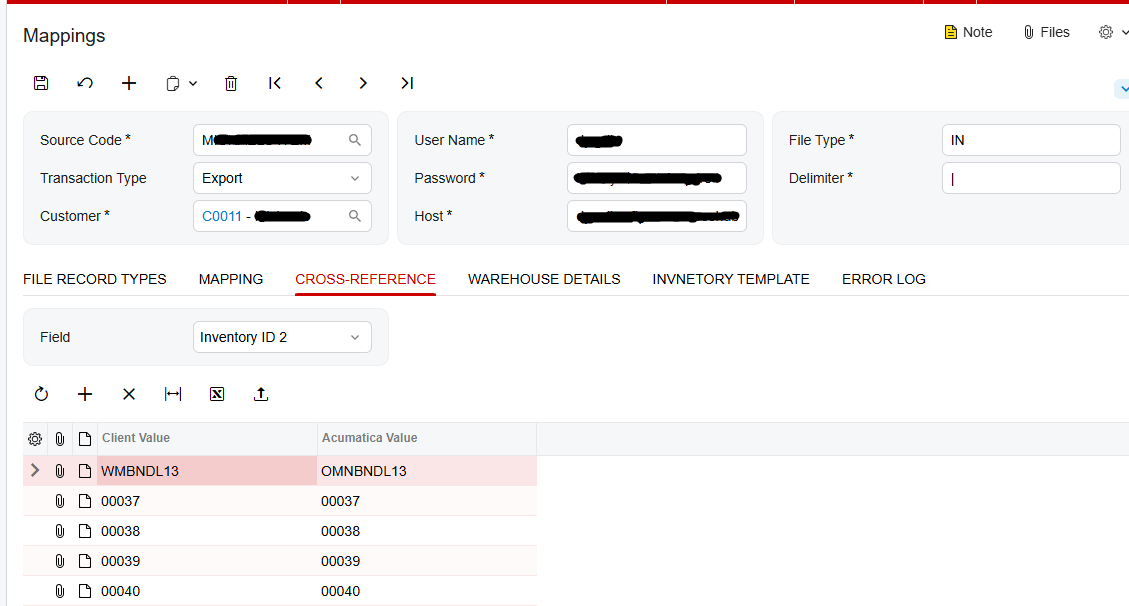
Cross-Reference tab: matching CommerceHub item IDs to Acumatica items
The Cross-Reference tab enables the mapping of Acumatica items to their respective item IDs contained within the file during the order import process. Because the incoming file identifies products by CommerceHub’s item ID rather than by your inventory ID, this mapping is what lets an imported order line resolve to the correct Acumatica item. An unmapped item ID is a predictable cause of import failure.
Warehouse Details and the quantity basis for export
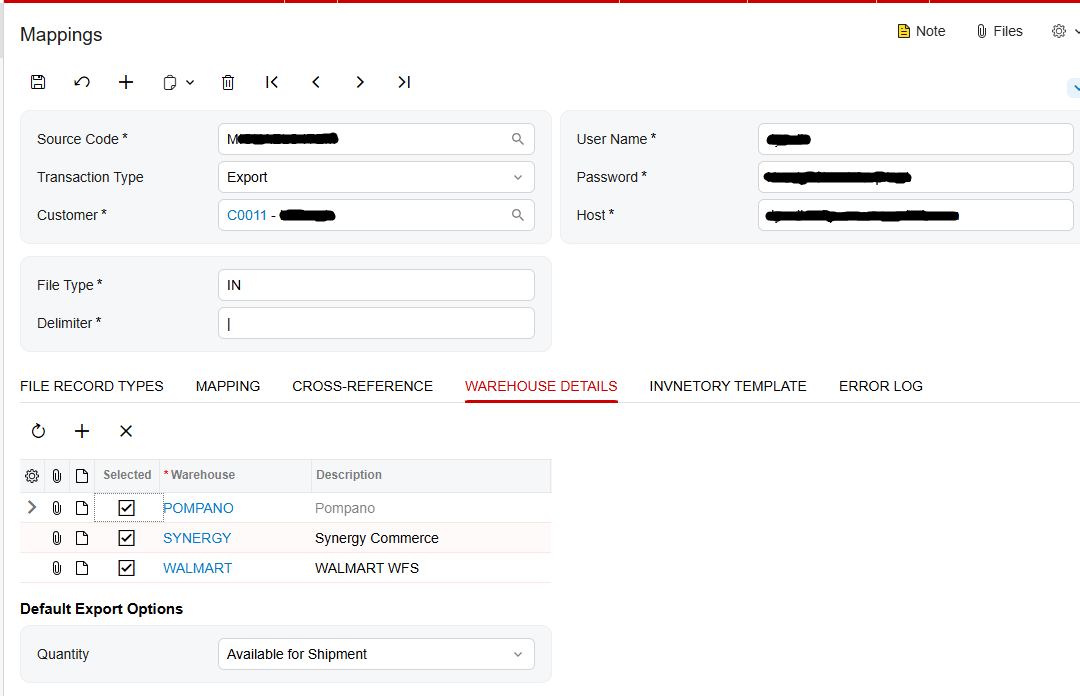
On the Warehouse Details tab, the warehouses that need to be exported are added. Alongside them, the Quantity field determines which inventory quantity should be exported to CommerceHub, and there are three available options: On Hand Quantity, Available Quantity, and Available for Shipment Quantity.
This is a decision worth making deliberately rather than accepting a default. On Hand Quantity reports everything physically in the warehouse, Available Quantity accounts for existing commitments, and Available for Shipment Quantity is the most conservative basis. The option you choose directly determines what CommerceHub believes you can sell, so it drives both oversell risk and lost sales.
Inventory Template: choosing which items synchronize
When inventory IDs are selected and saved within the Inventory Template tab, the associated items are displayed on the Export CommerceHub Inventory screen. This functionality is what enables the synchronization of item quantities. In effect the template is the subscription list: an item that is not in the template will not appear for export, no matter what its quantity does.
Error Log and Purge Logs
During the import and export processes for orders, any errors encountered relating to orders are shown and detailed within the Error Log tab, where the messages can be reviewed and resolved. A Purge Logs button enables the deletion of all error messages within the tab at once. Because purging is all-or-nothing, it is worth resolving or recording outstanding messages before using it.
Inbound: Importing CommerceHub Purchase Orders into Acumatica
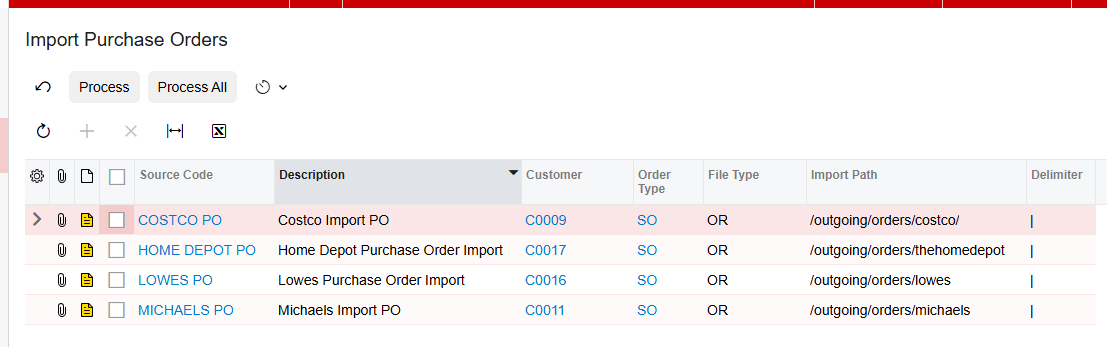
The Import Purchase Orders screen facilitates the importation of purchase orders from CommerceHub by selecting a preferred store code. After an order is imported, it appears on the Sales Orders screen as a standard Acumatica sales order. Users can either select specific orders and press the Process button to import just those, or use Process All to import every available order at once.
One behavior surprises people the first time they see it, so it is worth explaining before users encounter it. Customers are not imported from CommerceHub. Instead, a default customer is assigned to the sales order. The real customer information is not lost, however: on the Addresses tab of the sales order, the default address information is overridden with the actual customer address received from the imported order. So the order posts against a default customer record while shipping to the genuine end recipient, which is the normal pattern for drop-ship style marketplace fulfillment.
Acknowledgements: The Two Fields That Confirm Receipt
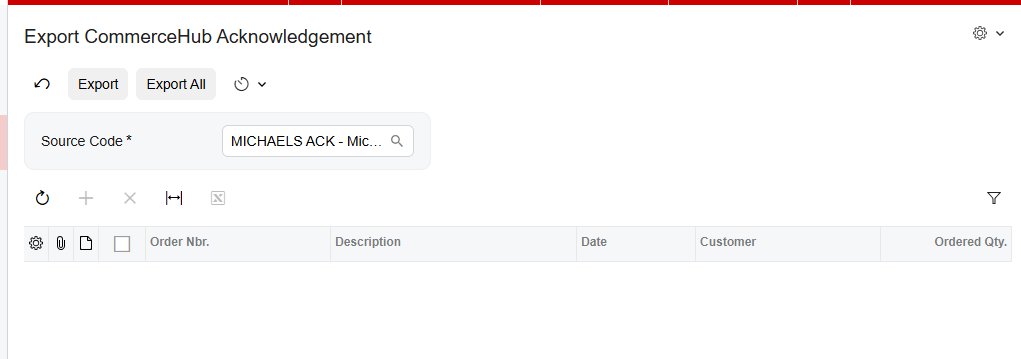
Acknowledgement is the stage that tells CommerceHub you have accepted the order, and Acumatica tracks it with two fields on the Sales Orders screen: Acknowledgement and PO Acknowledgement. The initial status for both fields is Open.
While orders have been generated and their acknowledgements remain at Open status, those orders are visible on both the Export CommerceHub PO Acknowledgment screen and the Export CommerceHub Acknowledgment screen. After the acknowledgements have been processed from both screens, the orders are no longer visible there, and the acknowledgement statuses on the Sales Orders screen transition to Closed.
Two points follow from this that are worth teaching. First, both screens must be processed, not just one, before the order is fully acknowledged. Second, the disappearance of an order from an acknowledgement screen is the expected sign of success rather than a sign that something went missing, and the acknowledgement fields on the sales order are where that success is confirmed.
Outbound: Exporting Shipments to CommerceHub
The Export CommerceHub Shipment screen displays all orders with a Confirmed Shipment status according to the selected store code, and provides the functionality to export those order shipments from Acumatica to CommerceHub. The gating condition is the important part: an order will not appear here until its shipment has actually been confirmed in Acumatica. If a shipment is missing from this screen, the first thing to verify is the shipment status on the order rather than anything in the Biz-Tech Services Acumatica CommerceHub connector.
Outbound: Exporting Invoices to CommerceHub
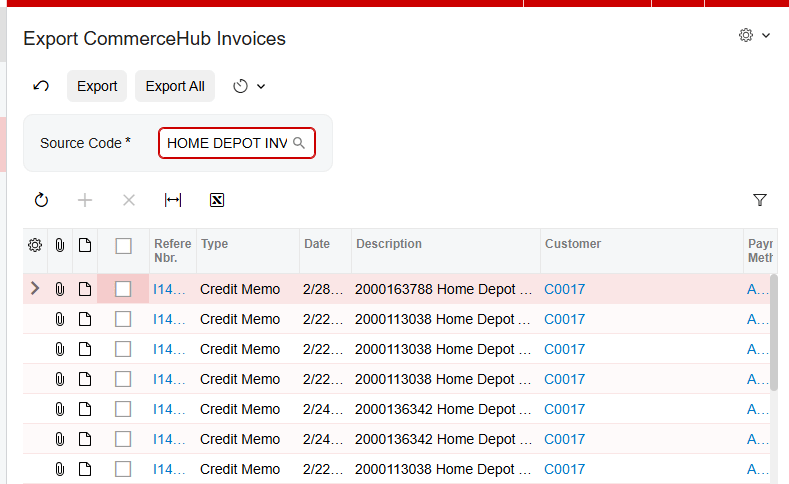
The Export CommerceHub Invoices screen displays orders that are either invoiced or released when a store code is selected. It offers the capability to export orders that have been invoiced, as well as those that both have an invoice and have already been released. As with shipments, the document state in Acumatica determines visibility on the screen, so the invoice must exist before the export can happen.
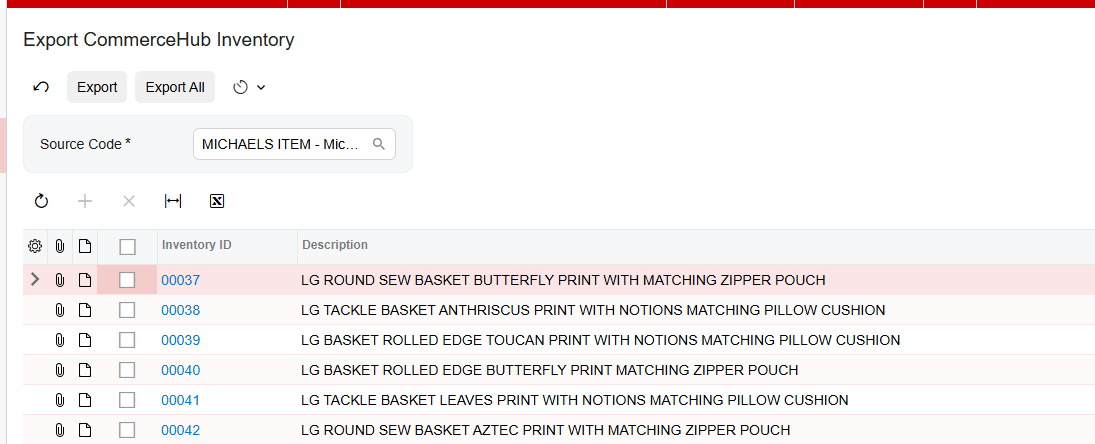
Outbound: Exporting Inventory Quantities to CommerceHub
The Export CommerceHub Inventory screen shows the items that were selected and saved in the Inventory Template tab of the Mappings screen, and it is the mechanism that synchronizes item quantities to CommerceHub. The quantity actually sent depends on the Quantity option configured in Warehouse Details, and the warehouses included depend on which ones were added there. Inventory export therefore draws on three separate pieces of configuration at once, which is worth remembering when the exported numbers do not look right.
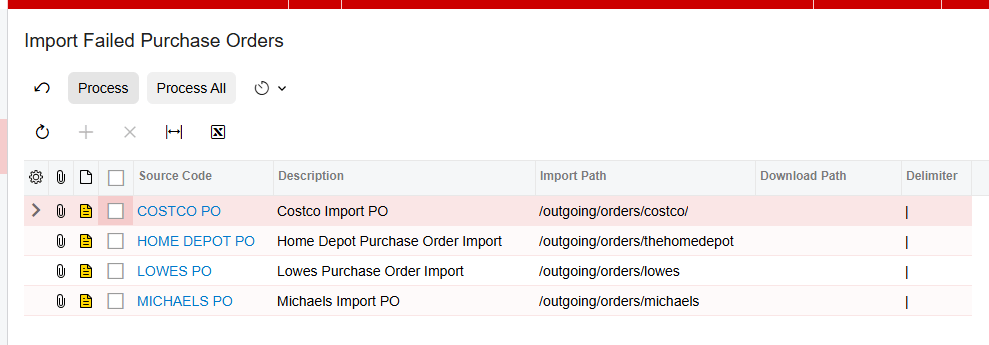
Handling Failures: Failed Purchase Orders and the CommerceHub Errors Screen
Two screens exist specifically for things that did not go to plan. The Import Failed Purchase Orders screen enables the import of orders that encountered failures during the import process on the Import Purchase Orders screen, and it works the same way, by selecting a store code for the failed orders. This means a failed order is not lost. Once the underlying cause is fixed, commonly a missing item cross-reference, the order can be retried from this screen.
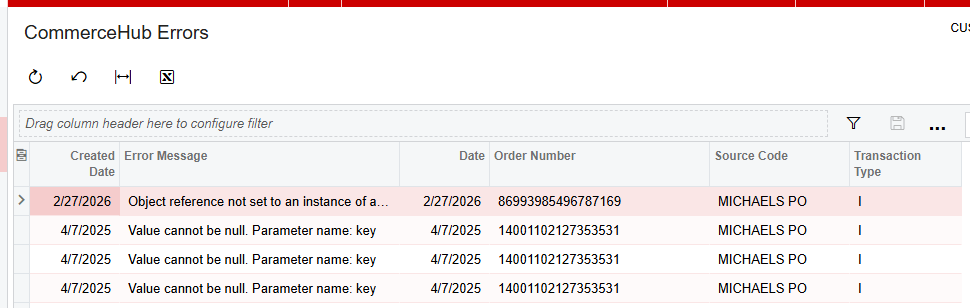
The CommerceHub Errors screen displays all errors received from CommerceHub relating to various processes. Read alongside the Error Log tab on the Mappings screen, which captures errors encountered during Acumatica’s own import and export processing, these two views cover both sides of the exchange. Errors reported by CommerceHub appear on the Errors screen; errors raised while Acumatica processed a file appear in the Error Log.
Where to Monitor CommerceHub Results in Acumatica
When configuring the Biz-Tech Services Acumatica CommerceHub integrator, training users, or investigating a record that has not arrived, these are the fields and screens that reveal what actually happened:
1. Store code on every import and export screen, since each screen filters by it and the wrong selection makes a screen look empty.
2. The Cross-Reference tab on the Mappings screen, which resolves CommerceHub item IDs to Acumatica items during order import.
3. The Quantity option in Warehouse Details, which decides whether On Hand, Available, or Available for Shipment quantity is what CommerceHub sees.
4. The Inventory Template tab, which controls which items appear on the Export CommerceHub Inventory screen at all.
5. The Acknowledgement and PO Acknowledgement fields on the Sales Orders screen, which move from Open to Closed once both acknowledgement screens have been processed.
6. The Addresses tab of an imported sales order, which should carry the real customer address even though the order itself is assigned to the default customer.
7. Shipment status on the order, which governs whether it appears on the Export CommerceHub Shipment screen.
8. Invoice and release status, which govern visibility on the Export CommerceHub Invoices screen.
9. The Error Log tab on the Mappings screen for errors raised during Acumatica processing, remembering that Purge Logs clears every message at once.
10. The CommerceHub Errors screen for errors reported back by CommerceHub itself.
11. The Import Failed Purchase Orders screen, which is where orders that failed to import wait to be retried.
CommerceHub Acumatica Integration: Frequently Asked Questions
What is the CommerceHub connector for Acumatica?
It is a Biz-Tech Services customization that connects the CommerceHub e-commerce platform to Acumatica ERP. Once published, it adds a CommerceHub workspace with dedicated screens for importing purchase orders, exporting acknowledgements, shipments, invoices, and inventory quantities, and reviewing errors. Each screen handles one stage of the process.
Does CommerceHub connect to Acumatica through an API or through files?
Through files. CommerceHub operates using SFTP, or Secure File Transfer Protocol, rather than API requests. Data is not transmitted directly: it is written into text files that pass through an FTP client such as FileZilla before reaching CommerceHub, and data coming back travels the same path in reverse. This file-based approach is the Biz-Tech Services Acumatica CommerceHub connector’s main distinguishing feature compared with the direct API interactions used by other platforms.
Why do imported CommerceHub orders show a default customer?
This is by design. Customers are not imported from CommerceHub, so a default customer is assigned to the sales order instead. The actual customer information still arrives: on the Addresses tab of the sales order, the default address is overridden with the real customer address received from the imported order.
What do the Acknowledgement and PO Acknowledgement fields mean?
They track whether an imported order has been acknowledged back to CommerceHub. Both start at Open, which makes the order visible on the Export CommerceHub PO Acknowledgment and Export CommerceHub Acknowledgment screens. Once the acknowledgements have been processed from both screens, the order disappears from them and both fields change to Closed.
Which inventory quantity is exported to CommerceHub?
Whichever one you select in the Quantity field of Warehouse Details. The three options are On Hand Quantity, Available Quantity, and Available for Shipment Quantity. Only the warehouses added on that screen are exported, and only the items saved in the Inventory Template tab appear on the Export CommerceHub Inventory screen.
What happens when a CommerceHub purchase order fails to import?
It is not lost. The Import Failed Purchase Orders screen allows orders that encountered failures during import to be brought in, by selecting the store code for those failed orders. Check the Error Log tab on the Mappings screen for the reason first, resolve it, then retry the import from the failed orders screen.
Why is an order missing from an export screen?
Each export screen filters on both a store code and a document state. Confirm the correct store code is selected, then check the order’s status: shipments appear on the Export CommerceHub Shipment screen only once the shipment is confirmed, and orders appear on the Export CommerceHub Invoices screen only once they are invoiced or invoiced and released. For acknowledgements, an order disappearing is the expected result of successful processing.
Work With the Biz-Tech Services CommerceHub Connector
The Biz-Tech Services CommerceHub Acumatica integration becomes straightforward once you think in files. The Mappings screen defines how the Biz-Tech Services CommerceHub Acumatica connector behaves, store codes separate one process from another, purchase orders arrive as sales orders under a default customer with the real shipping address, acknowledgements close the loop back to CommerceHub, and shipments, invoices, and inventory quantities flow outward as their supporting documents reach the right state. When something does not arrive, the Error Log, the CommerceHub Errors screen, and the Import Failed Purchase Orders screen tell you where it stopped.
If your business sells through CommerceHub and wants orders, acknowledgements, shipments, invoices, and inventory synchronized with Acumatica without manual re-keying, we are glad to help you scope, configure, and roll out the Biz-Tech Services Acumatica CommerceHub integration. Visit https://biz-techservices.com to learn more about our Acumatica integration expertise or to schedule a personalized demonstration of the Biz-Tech Services Acumatica CommerceHub Connector.

