
How PayPal Payment Data Flows into Acumatica ERP
The Biz-Tech Services Acumatica PayPal Integration for ERP moves payment data along one clear path: an Accounts Receivable (AR) Payment created in Acumatica sends a live invoice to your customer through PayPal, and every status check pulls that invoice state back onto the same payment record to release it, void it, or update the amount collected. Nothing is guessed and nothing is duplicated — the Acumatica payment is the anchor, and the provider is the source of truth for whether money actually arrived.
Understanding that round trip is what makes the product easy to run day to day. This article traces the flow in the order records actually travel: credentials go in first, a payment request goes out, the resulting status comes back into Acumatica, and the outcome lands on fields your accounting team can filter, report on, and reconcile. The product described here is the Biz-Tech Services PayPal Acumatica Integrator for Acumatica ERP, built by Biz-Tech Services, Inc.
What the PayPal Integration for Acumatica Does
The Biz-Tech Services Acumatica PayPal connector is an Acumatica ERP customization that lets your business send payment invoices directly to customers from inside Acumatica, monitor payment status, and update payment records automatically when money is received, refunded, or cancelled. Invoices are created and sent through the PayPal invoicing Application Programming Interface, or API. Status updates are pulled on demand or processed in bulk, and the resulting accounting entries — release, void, partial collection — are handled by the customization rather than by hand.
Because the Biz-Tech Services PayPal Acumatica connector lives inside Acumatica, your team never has to leave the system to manage this billing. The Accounts Receivable and Sales Orders modules are both required, and on the provider side you need a PayPal Business account, since Personal accounts do not support the invoicing API. The Acumatica server must also be able to reach api-m.paypal.com, or the sandbox endpoint, over HTTPS on port 443. The package itself is published like any other customization from the Customization Projects screen (SM204505).
The PayPal Data Flow at a Glance
Before looking at individual screens, it helps to see the whole path a record takes. Every transaction handled by the Biz-Tech Services Acumatica PayPall integrator follows the same sequence, no matter which screen starts it:
1. Credentials in: a Payment Method in Acumatica (CA205000) stores the Client ID, Client Secret, and Base URL, on a PayPal Settings tab.
2. Customer routing: a Customer Payment Method (AR303010) stores the email address the invoice notification is delivered to.
3. Request out: a user clicks Request PayPal Payment or Send PayPal Request from a Sales Order, an Invoice, or the Payments and Applications screen.
4. Invoice created: the Biz-Tech Services PayPal Acumatica integration calls the PayPal API, emails the invoice to the customer, and writes the PayPal Invoice ID, Invoice URL, and Invoice Number back onto the Acumatica payment.
5. Payment parked: the AR Payment sits on Hold with a PayPal Invoice Status of “Sent” until the provider reports otherwise.
6. Status pulled back: a status check — either the Remove Hold button on a single payment or the Check PayPal Payment Status processing screen in bulk — asks for the current invoice state.
7. Action applied: PAID releases the payment and stores the Transaction ID, PARTIALLY_PAID updates the Paid Amount and leaves the payment on Hold, REFUNDED voids the payment and stores the Refund Number, and CANCELLED deletes the AR Payment record.
8. Monitoring: the processing screen, filtered by PayPal Invoice Status, becomes the daily worklist for everything still awaiting collection.
Step 1: Where PayPal Credentials Enter Acumatica
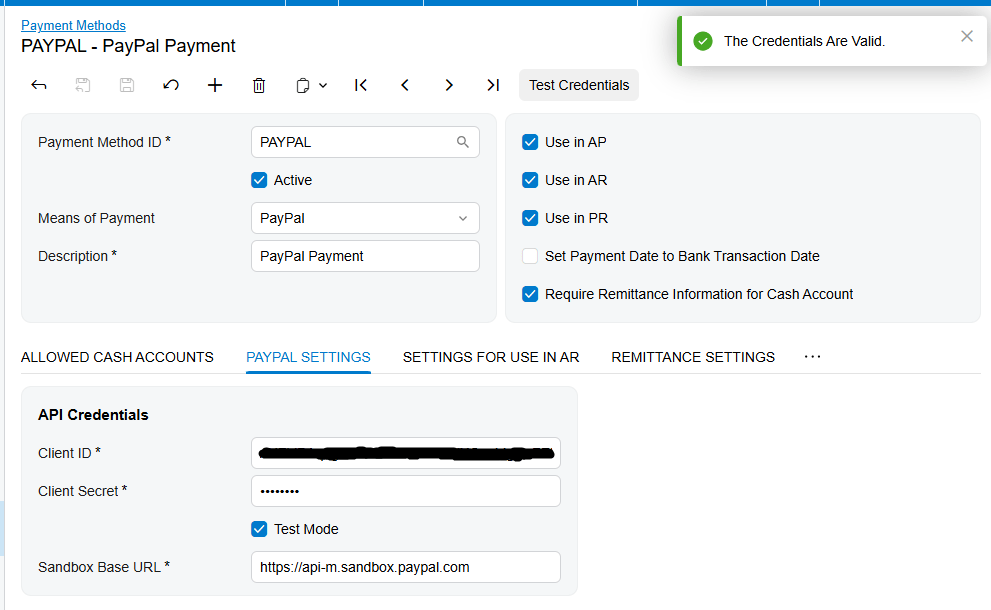
Configuring the PayPal Payment Method (CA205000)
Nothing can flow until a dedicated Payment Method exists. On the Payment Methods screen (CA205000), click the plus sign to create a record, set the Payment Method ID and Description (for example, ID PAYPAL), and select PayPal in the Means of Payment field. That selection is what makes the new PayPal Settings tab appear — if you do not see the tab, the Means of Payment value is the first thing to check.
On that tab, paste the Client ID and Client Secret from your developer application, enter https://api-m.sandbox.paypal.com/ in Sandbox Base URL for testing and https://api-m.paypal.com/ in Live Base URL for production, and select the Is PayPal Payment checkbox to enable the Biz-Tech Services PayPal Acumatica integration behaviour. One detail matters more than it looks: the system uses the Sandbox URL whenever it is populated and ignores the Live URL, so switching to production means clearing the Sandbox Base URL field. Both fields can stay populated for reference, but a leftover sandbox value will quietly keep you in test mode.
Click Test Connection to confirm the credentials are accepted before you save, then open the Allowed Cash Accounts tab and add the cash or bank account these payments should post to. That cash account is what ties the incoming money to your general ledger, so it is a required part of setup rather than an optional refinement.
Configuring the Customer Payment Method (AR303010)
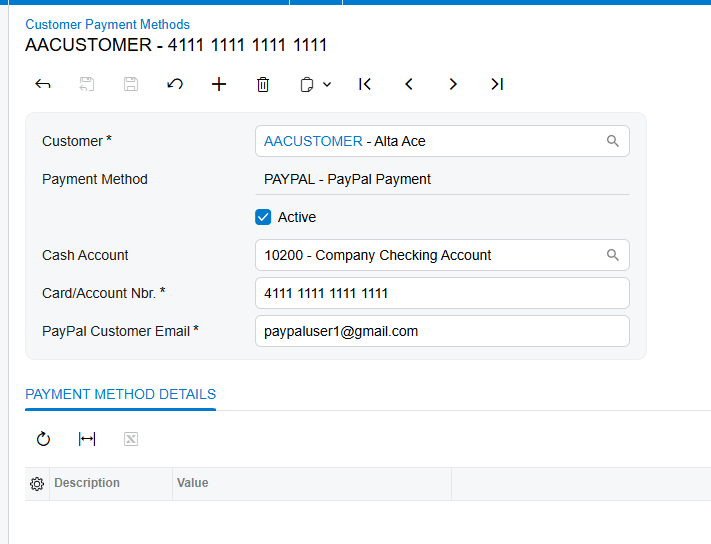
Each customer who will pay this way needs a Customer Payment Method configured with their PayPal email address, set up on the Customer Payment Methods screen (AR303010) or from the Payment Methods tab of the Customer record. This address is where the invoice notification is delivered, and it is pre-filled automatically on every new payment created for that customer — though it can be edited per payment when a one-off override is required. Customers do not need an account of their own to pay, because PayPal supports guest checkout directly from the emailed invoice.
Step 2: How a PayPal Payment Request Leaves Acumatica
There are three entry points for creating a payment request, and all three end in the same place: an AR Payment record in Acumatica on Hold, and a live PayPal invoice in the customer inbox.
From a Sales Order (SO301000)
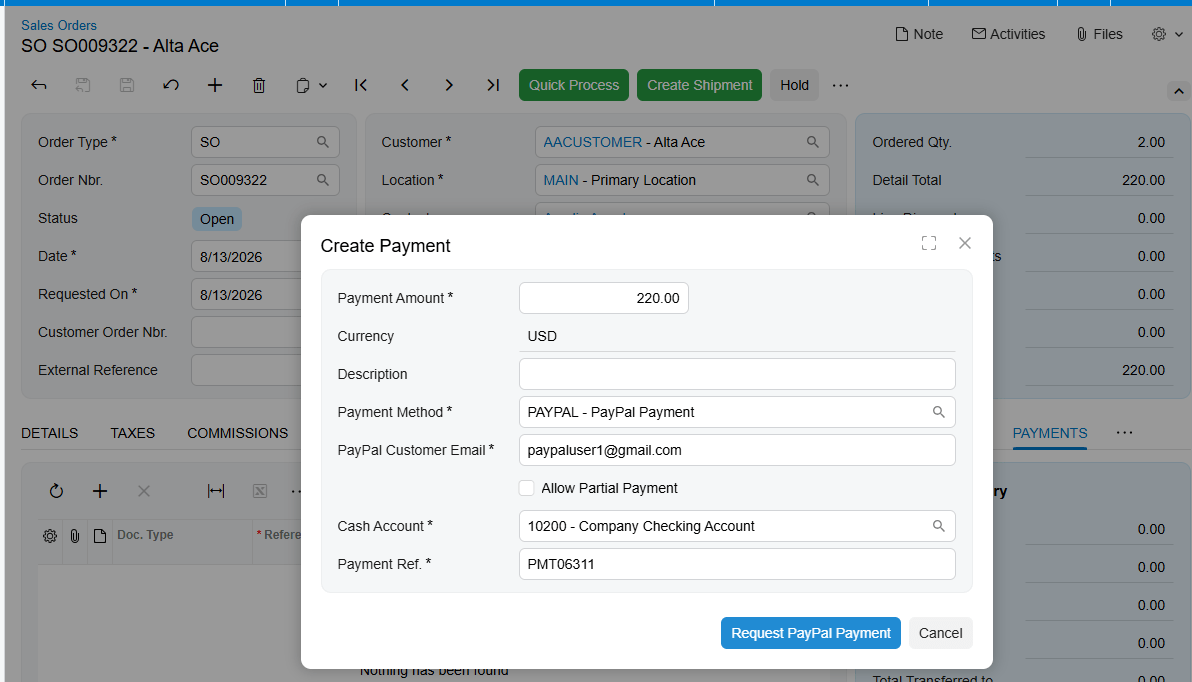
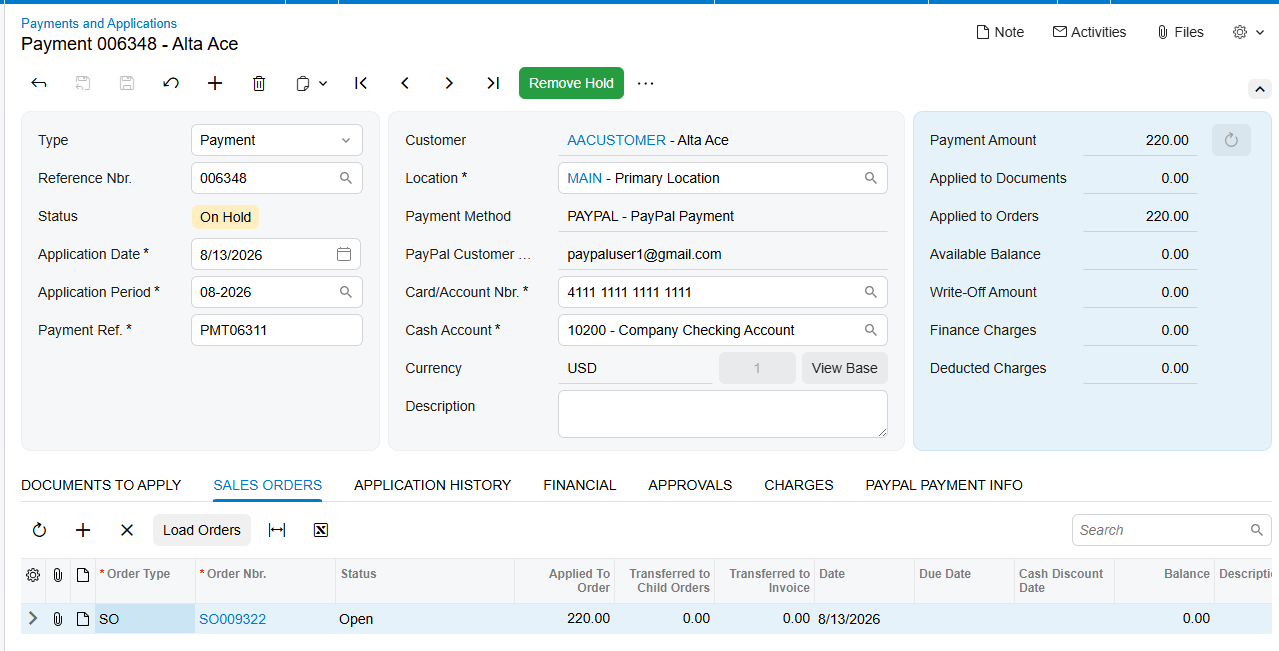
This is the most common workflow for businesses collecting payment before or upon shipment. Open the order on the Sales Orders screen (SO301000) and click Create Payment on the PAYMENTS tab; the system reads the order total, currency, and customer details automatically. Add the Cash Account and Payment Reference, and the Request PayPal Payment button appears. Clicking it creates an AR Payment linked to the order, emails the invoice to the customer, stores the PayPal Invoice ID, Invoice URL, and Invoice Number on the payment, and sets the payment on Hold with status “Sent”. The resulting payment stays accessible from the Payments tab of the Sales Order.
From an Invoice (SO303000)
When billing has already been posted — after shipment or service delivery, for example — open the document on the Invoices screen (SO303000) and click Request PayPal Payment. The system creates a payment pre-applied to the invoice, sends it to the customer, and puts the payment on Hold. The invoice amount matches the outstanding balance on the AR invoice, so the two documents cannot drift apart.
From Payments and Applications (AR302000)
Use this route for a standalone payment, such as a deposit not tied to a specific document. On the Payments and Applications screen (AR302000), click the plus sign, select the customer, and choose the PayPal payment method. The PayPal Customer Email field auto-fills from the Customer Payment Method and can be adjusted if needed. Enter the amount and an optional description, optionally apply the payment on the Orders to Apply or Documents to Apply tabs, then click Send PayPal Request in the toolbar. The payment goes on Hold with status “Sent”.
One guardrail applies across all three routes: a payment must not have been sent to PayPal previously before you click Send PayPal Request, and the Payment Method ID field is locked once an invoice has been sent, which prevents accidental changes to a request that is already live with the customer.
Step 3: How PayPal Status Data Returns to Acumatica
This is the direction most teams need to understand clearly. Acumatica polls PayPal on demand — status does not update automatically in the background. A payment will sit at “Sent” indefinitely, even after the customer has paid, until someone triggers a check. There are two ways to trigger one.
Manual Check: The Remove Hold Button
To check a single payment and act on it immediately, open the record on Payments and Applications (AR302000), confirm it is on Hold with status “Sent” or “Partially Paid”, and click Remove Hold in the header toolbar. The Biz-Tech Services Acumatica PayPal integration calls the PayPal API for the latest invoice status and applies the matching action. If the invoice is PAID, the payment is released automatically and a success message appears. If it is PARTIALLY_PAID, a message reports how much has been received and how much remains outstanding, and the payment stays on Hold. If it is CANCELLED, the AR Payment record is deleted. If the invoice is still SENT, the system explains that the payment cannot be released because it has not been paid, and makes no changes.
Bulk Check: The Check PayPal Payment Status Screen
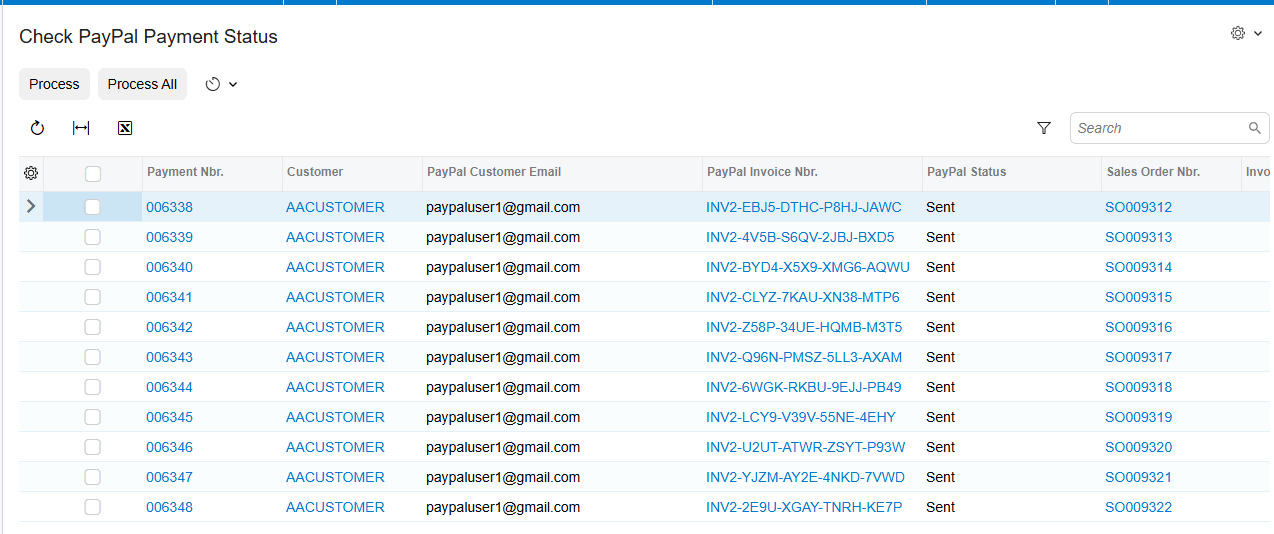
When several payments are outstanding, use the Check PayPal Payment Status processing screen, registered in the Acumatica menu under the Sales Orders Processes module. It gives a centralized view of every AR Payment that has been sent to the provider and is the primary tool for bulk status management. A filter panel at the top narrows the list by PayPal Invoice Status — pick Sent or Partially Paid to isolate one state, or leave it blank to show every linked payment. Select rows and click Process, or click Process All to run every row currently visible in the grid. Each payment is processed in sequence with the same logic as a manual check, and both successes and errors appear in the processing log.
What Each PayPal Status Does to the Acumatica Payment
The AR Payment moves through a lifecycle that mirrors the invoice held by the provider. SENT means the payment sits on Hold with no action taken and the customer has the invoice by email. PARTIALLY_PAID stores the collected amount in the PayPal Paid Amount field while the payment stays on Hold at the original amount. PAID and MARKED_AS_PAID confirm the amount, release the payment, set the status to Paid, and store the Transaction ID. REFUNDED and MARKED_AS_REFUNDED void the payment in Acumatica and store the Refund ID. PARTIALLY_REFUNDED updates the status only — there is no automatic void, and a Credit Memo must be created manually. CANCELLED deletes the AR Payment record from Acumatica.
How Partial Payments Are Tracked in Acumatica
PayPal lets a customer pay less than the full invoice amount in a single transaction, and the invoice stays open so they can return and pay the remainder against the same document — no new invoice is needed. Suppose a $100 invoice is sent from Acumatica and the customer pays $40. The invoice status becomes PARTIALLY_PAID. On the next status check, the PayPal Paid Amount field updates to $40, the PayPal Invoice Status is set to “Partially Paid”, the Acumatica payment amount stays at $100, the payment remains on Hold, and a message reports the amount received and the balance remaining.
The design point behind this matters: Acumatica does not release partial amounts. The payment record always reflects the original agreed amount, and only when the invoice is confirmed fully PAID does the Acumatica payment get released. That is what keeps your accounts receivable accurate rather than showing a half-collected document as settled. Multiple partial payments against the same invoice are supported, and each status check refreshes the Paid Amount. Nothing special is required while you wait — simply re-check the status at a later time.
Cancelling a PayPal Invoice from Acumatica
To pull back a payment request that has been sent but not yet paid, open the AR Payment on AR302000 — it must be in “Sent” status and on Hold, since paid or released payments cannot be cancelled — and click Cancel PayPal Invoice in the toolbar. The Biz-Tech Services Acumatica PayPal connector calls the API to cancel the invoice, the customer is emailed a cancellation notification, and the AR Payment record is deleted from Acumatica. Cancellation is irreversible: if you still want to collect from that customer, a new payment request has to be created from scratch.
How Refunds Flow Back Through Acumatica
For a full refund on a payment already collected and released, open the released AR Payment and click Void Check or Refund — the standard Acumatica actions, enhanced by the Biz-Tech Services Acumatica PayPal integration. The Biz-Tech Services Acumatica PayPal integrator then calls the PayPal API to issue the full refund, voids the payment using the standard Acumatica void workflow, stores the Refund ID on the payment record, and sets the PayPal Invoice Status to “Refunded”. The customer receives a refund notification.
Partial refunds work differently because they originate outside the system. If a partial refund is issued directly in the PayPal portal, the Biz-Tech Services Acumatica PayPal integration detects it on the next status check: the invoice reports PARTIALLY_REFUNDED, Acumatica updates the payment status to “Partially Refunded” and records the Refund ID, but the payment is not voided automatically, because Acumatica does not support partial voids on payment records. You must create a Credit Memo manually for the refunded amount to keep the AR balance accurate. The documented best practice is to issue all refunds from within Acumatica using the Void/Refund button so records stay in sync, and to use the provider portal only when absolutely necessary.
The PayPal Fields Added to Acumatica Records
The Biz-Tech Services PayPal Acumatica integrator adds a set of custom fields to the AR Payment screen, visible when the payment uses a PayPal payment method. Each one is populated at a specific point in the flow, which is useful to know when you are diagnosing a record that looks incomplete. PayPal Invoice ID holds the internal identifier used for API calls and is written after the invoice is created. PayPal Customer Email is populated when the payment method is set, auto-filled from the Customer Payment Method. PayPal Invoice Status appears after Send PayPal Request is clicked. PayPal Invoice Number, the human-readable number the customer sees, is written after the invoice is sent, as is the PayPal Invoice URL used by the Open in PayPal button. Transaction ID and Refund Number are filled once payment or refund is confirmed, and PayPal Paid Amount is maintained while the status is Partially Paid.
These fields are also available on ARAdjust, the applied-to lines, and SOAdjust, the sales order application lines. That is what keeps status information consistent across all related records rather than stranded on the payment header, and it is why you can read the current state from the documents a payment was applied to.
Where to Monitor PayPal Results in Acumatica
Monitoring comes down to a handful of screens and fields. These are the places where the results of the data flow actually surface:
1. Check PayPal Payment Status processing screen — the centralized view of every AR Payment sent to the provider, registered under the Sales Orders Processes module.
2. The PayPal Invoice Status filter on that screen — set it to “Partially Paid” for the recommended daily reconciliation list of invoices awaiting full collection.
3. The processing grid columns: Selected, Payment Ref, Customer, Customer Email, Currency / Amount, Sales Order, Invoice Nbr, PayPal Invoice Nbr, PayPal Status, and Transaction ID.
4. The Payment Ref, Sales Order, and Invoice Nbr columns are clickable, so you can jump straight from the worklist to the underlying Acumatica document.
5. The processing log after Process or Process All — it reports both successes and errors for every row that was checked.
6. PayPal Invoice Status on the AR Payment (AR302000) — Sent, Partially Paid, Paid, Cancelled, Refunded, or Partially Refunded.
7. PayPal Paid Amount on the AR Payment — the cumulative amount actually collected, visible when the status is Partially Paid.
8. Transaction ID on the AR Payment — the payment transaction identifier for paid invoices, or the refund transaction identifier for refunds.
9. Refund Number on the AR Payment — the refund transaction identifier, populated after a refund is processed.
10. PayPal Invoice URL and the Open in PayPal button — the direct link to inspect the invoice in the provider interface when the two systems appear to disagree.
11. The Payments tab of the Sales Order (SO301000) — where the payment created from an order remains accessible.
12. ARAdjust and SOAdjust application lines — status information carried onto applied-to and sales order application records.
PayPal Acumatica Integration: Frequently Asked Questions
Does Acumatica update PayPal payment status automatically?
No. Acumatica polls the provider on demand, so status does not refresh in the background. You must trigger a check either by clicking Remove Hold on an individual payment or by running the Check PayPal Payment Status processing screen. This is by design, and it is the single most important thing to know about how the data flow works.
Why is my PayPal payment status stuck at “Sent” even though the customer paid?
This is almost always the on-demand polling behaviour rather than a fault. Trigger a status check manually with Remove Hold, or run the payment through the processing screen in bulk. If the status still does not move, verify that the invoice is actually marked as PAID inside your PayPal account.
Why does the connection test fail when I save the PayPal Payment Method?
Three causes are documented. The Client ID or Client Secret may be incorrect, so copy them directly from the developer dashboard. The base URL may be wrong — use https://api-m.sandbox.paypal.com for sandbox and https://api-m.paypal.com for live, including the trailing slash. Or the Acumatica server simply cannot reach the endpoint, in which case check firewall and proxy settings for outbound HTTPS on port 443.
What causes the “Customer email not configured” error when sending a request?
The customer does not have a Customer Payment Method set up with a PayPal email address. Open the Customer record, go to the Payment Methods tab, add a row for the PayPal payment method, and enter the email. The request will then send normally, since that address is where the invoice notification is delivered.
Why does PayPal Paid Amount show a value while the payment is still not released?
That is correct behaviour for a PARTIALLY_PAID invoice. Acumatica does not release partial amounts, so the payment stays on Hold at the original amount until the invoice is confirmed fully PAID. The Paid Amount field simply tracks the running total collected so far.
Why does the Refund button return a PayPal error?
Refunds can only be issued for payments that are in a PAID state with the provider, and the invoice must be fully released in Acumatica before a refund can be processed. If the refund was already issued in the PayPal portal, run a status check first to synchronize the record, then work from the updated status.
How do I switch the PayPal Integration from sandbox to production?
Clear the Sandbox Base URL field on the PayPal Settings tab of the Payment Method, or leave it blank. The system uses the Sandbox URL whenever it is populated and ignores the Live URL, so production traffic only begins once the sandbox value is gone. Both fields can be populated at the same time for reference, but live calls are made only with the sandbox field cleared.
Can I cancel a PayPal invoice after the customer has paid it?
No. The payment must be in “Sent” status and on Hold for the Cancel PayPal Invoice button to work, and paid or released payments cannot be cancelled. If money has already been collected, the refund path — Void Check or Refund — is the correct route instead.
Work With the Biz-Tech Services PayPal Integration
Traced end to end, the flow is straightforward: credentials configured once on the Payment Method, a payment request sent from a Sales Order, an Invoice, or Payments and Applications, an AR Payment held at status “Sent”, and a deliberate status check that brings the result back to release, void, or update the record. Knowing where each field is written and which screen to monitor turns PayPal collections into a routine your team runs from one worklist inside Acumatica.
The Biz-Tech Services PayPal Acumatica Connector is built and supported by Biz-Tech Services, Inc. for Acumatica ERP. Visit https://biz-techservices.com to learn more about the Biz-Tech Services PayPal Acumatica integration, licensing requirements, and how to get it configured for your business.

