
Accurate inventory publishing helps prevent DSCO from offering stock that Acumatica cannot fulfill. The Biz-Tech Sevices DSCO Connector provides a controlled workflow: define the store connection, map the items, choose the warehouses and quantity basis, then send selected quantities from the Export DSCO Inventory Quantities screen. The same screen also supports an intentional override when DSCO needs a quantity different from the current Acumatica value.
The key is to configure the calculation before pressing SYNC. The exported value can represent On Hand, Available, or Available for Shipment inventory, and it can be totaled across selected warehouses. A correct result therefore depends on three things working together: the item mapping, the warehouse selection, and the chosen quantity type.
What the DSCO inventory sync does
The Export DSCO Inventory Quantities screen sends inventory values from Acumatica to DSCO. It does not define which items or warehouses participate; those choices are made first on the DSCO Store screen. Once setup is saved, the export screen presents the eligible items and shows the Acumatica inventory quantity in a read-only Quantity field.
From that screen, an operator can use either of two supported methods. The standard method sends the displayed Acumatica quantity. The override method sends a manually entered DSCO Quantity instead. Because both methods use the same SYNC action, the operator should confirm which value is intended before selecting a row for processing.
Prerequisites and store connection settings
Before configuring inventory, confirm that the DSCO Connector customization package is installed and published in Acumatica. The connector guide identifies the Customization Projects form, SM204505, as the place to import, validate, and publish the deployment package.
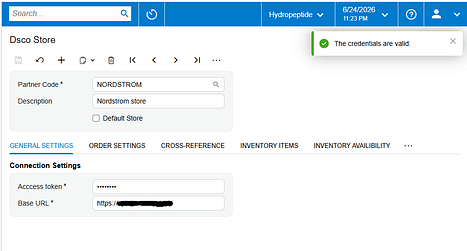
On the DSCO Store screen, complete the General Settings used for the API connection:
- Partner Code identifies the corresponding DSCO store.
- Description provides a recognizable label for the store configuration.
- Access Token supplies the credential used to authorize API access.
- Base URL supplies the root web address used by the connector.
Use Test Credentials after entering the connection information. A successful test confirms that the connector can reach DSCO with the saved General Settings. It does not, by itself, prove that inventory mappings or quantity rules are correct, so complete the item and availability setup before the first production sync.
Configure item mapping
Open the Inventory Items tab on the DSCO Store screen and select the items that should participate in synchronization. Save the store after making the selection; the connector guide specifically requires the items to be chosen and saved before they are processed on Export DSCO Inventory Quantities.
The Inventory Items cross-reference settings control how the connector finds a DSCO item and associates it with an Acumatica Inventory ID. The guide uses SKU as an example: when SKU is selected as the lookup value, the connector searches for the corresponding SKU and maps it to the Acumatica item. Review this mapping carefully. An omitted or incorrect item relationship can prevent the expected item from being processed and can also create errors in related DSCO order workflows.
Choose warehouses and the quantity basis
Use Inventory Availability to specify the warehouses that should be synchronized with DSCO. When warehouses are selected, the connector exports the sum of the item quantities across those selected warehouses. This is a critical control: adding or removing a warehouse changes the quantity offered through DSCO even when no item record has changed.
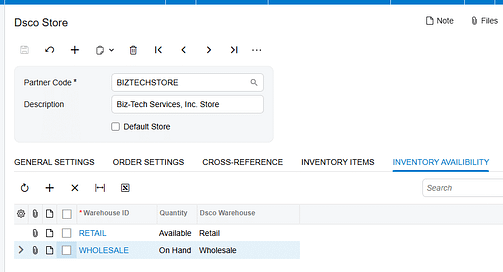
Next, choose the quantity type that the connector will publish:
- On Hand represents the recorded book quantity in inventory.
- Available represents the Acumatica available quantity under the applicable availability calculation.
- Available for Shipment represents the quantity available to support shipping and can be lower than on-hand inventory because demand and allocations affect it.
Choose the measure that matches the company’s fulfillment policy. On Hand may expose units that are already committed. Available or Available for Shipment may better reflect sellable supply, but the right choice depends on how the Acumatica tenant calculates availability and reserves inventory. The DSCO connector guide confirms the three choices; Acumatica’s availability rules determine the underlying values.
Run the inventory quantity sync
After the store, item, warehouse, and quantity settings are saved, open Export DSCO Inventory Quantities. Use one of the following workflows.
Send the current Acumatica quantity
- Locate the inventory item and review the read-only Quantity field. This field shows the item quantity calculated in Acumatica for the configured warehouses and quantity type.
- Select the checkbox for the item or items to process.
- Click SYNC. The connector updates the DSCO inventory quantity with the Acumatica Quantity value.
Send an intentional DSCO quantity override
- Enter the required value in the DSCO Quantity field for the item.
- Select the checkbox for that row.
- Click SYNC. The connector updates DSCO using the DSCO Quantity value rather than the read-only Acumatica Quantity value.
Treat an override as a deliberate operational exception. Document why it was used and remember that a later standard sync can replace it with the quantity calculated from Acumatica. The source guide confirms the override workflow but does not describe a permanent override rule.
Monitor and validate the result
Validate the first sync with a small, representative set of items before processing a larger group. Include an item stocked in one selected warehouse and, if applicable, an item stocked across multiple selected warehouses. Confirm the following:
- The expected item appears on Export DSCO Inventory Quantities after the Inventory Items selection is saved.
- The read-only Quantity value agrees with Acumatica for the selected quantity type.
- For multiple warehouses, the displayed quantity equals the sum across only the warehouses selected in Inventory Availability.
- After SYNC, the quantity shown in DSCO matches the intended Acumatica Quantity or the intentional DSCO Quantity override.
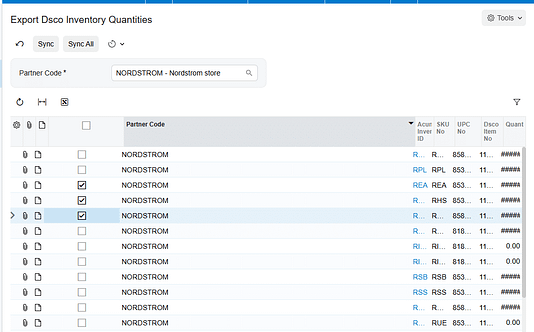
If processing reports an error, read the row-level message first. The connector guide’s processing screens use line-level errors and direct users to Tools > Trace for additional detail. Use the trace when the visible message is insufficient, then retest the specific row after correcting the connection, mapping, or setup issue.
Common pitfalls
Items do not appear for export. Confirm that the required items were selected on the DSCO Store screen and that the store was saved. Then verify the DSCO-to-Acumatica item cross-reference, including the selected lookup method such as SKU.
The exported quantity is too high or too low. Review Inventory Availability. The connector sums quantities across selected warehouses, so an unintended warehouse can inflate the result and a missing warehouse can suppress it. Also confirm whether On Hand, Available, or Available for Shipment is selected.
The connection test fails. Recheck Partner Code, Access Token, and Base URL, then run Test Credentials again. Inventory troubleshooting should wait until the API connection succeeds.
A manual value is overwritten later. The DSCO Quantity field provides an alternate value for a specific sync. A later run using the Acumatica Quantity can replace that value. Keep overrides controlled and visible to the team.
A successful sync is assumed without external validation. Verify the receiving quantity in DSCO, especially after configuration changes. The Acumatica screen shows the value being prepared; the DSCO result confirms what the channel received.
Frequently asked questions
Which Acumatica quantity can be sent to DSCO
The connector supports On Hand, Available, and Available for Shipment. Select the basis in the DSCO Store inventory availability settings before running the export.
How are quantities handled when more than one warehouse is selected
The exported item quantity is the sum of the quantities from the selected warehouses.
Can I send a quantity different from the Acumatica value
Yes. Enter the desired value in DSCO Quantity, select the row, and click SYNC. The connector then updates DSCO from the DSCO Quantity field.
Is the Quantity field editable
No. The guide defines Quantity as a read-only field that displays the inventory quantity from Acumatica.
Why should I test only a few items first
A small test makes it easier to identify whether a mismatch comes from item mapping, warehouse scope, the quantity basis, or an override. Once those controls are verified, expand the run to the remaining selected items.
Keep DSCO inventory aligned with Acumatica
A reliable inventory sync starts with precise configuration and ends with validation in DSCO. Select and save the right items, map them to Acumatica inventory IDs, include only the warehouses that should feed the channel, and choose the quantity measure that reflects fulfillment policy. Then use the standard Quantity workflow for routine updates and reserve DSCO Quantity overrides for controlled exceptions.
Need help configuring, validating, or troubleshooting the DSCO Connector for Acumatica? Visit Biz-Tech Services to discuss your integration requirements.
Check this video for details https://www.youtube.com/watch?v=Hk296jscNtA

