
How to Sync EZCom Inventory Availability from Acumatica
The Biz-Tech Services Acumatica EZCom Connector lets Acumatica users send inventory availability to EZCom for items configured for a trading partner. The process depends on two partner-level setups: the item must be loaded and selected on the Inventory Items tab, and its warehouse and quantity mapping must be defined on the Inventory Availability tab. Once those prerequisites are in place, users can review the eligible items on the Send Inventory Availability screen and send selected records or the full list.
Accurate setup matters because the connector does not treat inventory as a single company-wide value. It uses the mapping for the selected trading partner to determine which Acumatica warehouse and quantity option correspond to the EZCom warehouse code and item identifier. This guide explains the workflow, the fields that control it, and the checks that help confirm that quantities were sent as intended.
How the EZCom inventory availability workflow works
The connector links Acumatica ERP with the EZCom EDI platform through an intermediate server controlled by Biz-Tech Services. Connection information is entered in the connector’s General Settings. When inventory availability is sent, the connector uses the relevant trading partner configuration and passes the mapped item quantity to EZCom.
The user-facing workflow begins in Trading Partners and finishes on Send Inventory Availability. First, retrieve or select the partner and confirm its item mappings. Next, define how inventory availability should be calculated and where it should be reported. Finally, open Send Inventory Availability, select the records to process, and use Send or Send All.
- Retrieve the trading partner – On the Trading Partners screen, use Get Trading Partners from Actions when the partner list has not yet been loaded. Configuration is maintained for the corresponding Partner Code.
- Map eligible inventory items – On the Inventory Items tab, map the EZCom item to the correct Acumatica Inventory ID. The connector documentation notes that the corresponding EZCom order item must be mapped for order import, and the Send Inventory Availability screen displays items already loaded and checked on this tab.
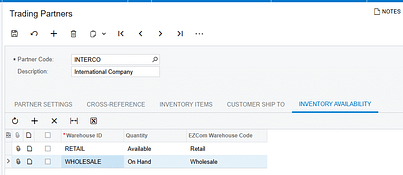
- Configure inventory availability – On the Inventory Availability tab, map the Acumatica warehouse, the quantity option, and the corresponding EZCom warehouse code or item UPC reference described in the product documentation. This mapping controls which quantity is synchronized to EZCom.

- Review items ready to send – Open Send Inventory Availability for the appropriate partner. The grid should show the items that were loaded and selected on the partner’s Inventory Items tab.
- Send inventory quantities – Select one or more items and click Send, or click Send All to process every displayed item. The connector sends each quantity according to the partner’s Inventory Availability mapping.
Required fields and settings
Partner Code identifies the EZCom trading partner whose rules apply. Because inventory and cross-reference settings are maintained by partner, verify the code before reviewing items or sending quantities. The Description field can provide additional partner details, but Partner Code is the lookup that selects the partner configuration.
Inventory ID is the Acumatica item associated with the partner’s EZCom item. The Inventory Items tab provides the item-level cross-reference. The available lookup method depends on the enabled Cross-Reference Options. For example, the connector can search by UPC Code and associate the matching value with an Acumatica Inventory ID. Only cross-reference entities selected in the partner settings appear in the dropdown.
Acumatica Warehouse identifies the inventory location used for the availability calculation. Quantity Option determines which quantity value the connector sends. EZCom Warehouse Code establishes the destination warehouse reference on the EZCom side. The source documentation groups these values together on the Inventory Availability tab because all three are needed to determine what quantity should be synchronized and where it belongs.
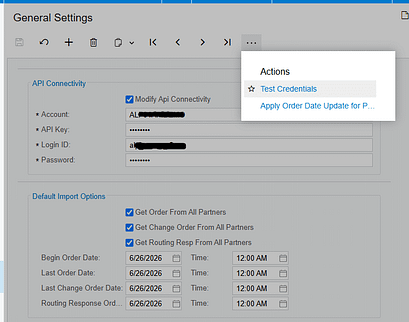
API connectivity is configured in General Settings. When Modify API Connectivity is selected, the screen displays Account, API Key, Login, and Password. The account and API key are provided for each EZCom website, while the login and password are the EZCom admin-panel credentials. Use Test Credentials under Actions to verify the connection to the Acumatica-Biz-Tech server before troubleshooting item-level synchronization.
Monitoring and validating the sync
Start validation before sending. Confirm that the expected partner is selected, the item appears on the Inventory Items tab, and the item is checked. Then review the Inventory Availability mapping for the same partner. A visible item without the required warehouse and quantity mapping is not sufficient to establish the quantity that should be sent.
On the Send Inventory Availability screen, compare the displayed item list with the items you intended to publish. Send a limited selection first when validating a new setup. After clicking Send, verify the quantity in EZCom against the quantity option and Acumatica warehouse configured in the mapping. This comparison tests the full path rather than confirming only that the item appeared in the Acumatica grid.
If no items appear, return to the partner’s Inventory Items tab and verify that the records were loaded and checked. If items appear but the values are unexpected, review the Inventory Availability mapping, especially the Acumatica warehouse and quantity option. If processing cannot reach EZCom, test the General Settings credentials and confirm that the Account, API Key, Login, and Password belong to the intended EZCom website.
Common pitfalls
– Configuring an item for one partner and sending from another partner. The connector applies settings for the selected Partner Code.
– Loading an item without checking it on the Inventory Items tab. The Send Inventory Availability screen is documented to show items that are already loaded and checked.
– Mapping the Inventory ID but omitting the Inventory Availability setup. The warehouse, quantity option, and EZCom warehouse reference determine the quantity synchronization.
– Assuming every cross-reference field will be available. Only entities enabled under Cross-Reference Options appear in the item mapping dropdown.
– Testing with Send All before validating a small set. Send All processes every displayed item, so a narrow first test makes mapping errors easier to isolate.
– Troubleshooting quantities before testing connectivity. Invalid or mismatched credentials can prevent the connector from reaching the intermediate server regardless of item configuration.
Frequently asked questions
Which items appear on Send Inventory Availability
The screen displays items already loaded and checked on the Inventory Items tab of Trading Partners for the corresponding partner.
What setup controls the quantity sent to EZCom
The Inventory Availability mapping controls the sync. It associates the Acumatica warehouse and quantity option with the corresponding EZCom warehouse reference for the partner.
Should I use Send or Send All
Use Send for selected items. Use Send All when every displayed item should be synchronized. For a new or revised mapping, validating selected items first reduces the scope of troubleshooting.
Why is an expected item missing from the send screen
Verify that the item has been loaded and checked on the partner’s Inventory Items tab. Also confirm that you are working with the correct Partner Code.
How do I verify EZCom connectivity
Open General Settings and use Test Credentials under Actions. When API connectivity can be modified, review the Account, API Key, Login, and Password fields.
Can item matching use a UPC code
Yes. The source documentation gives UPC Code as an example of an Inventory Items cross-reference method. The option must be enabled under Cross-Reference Options before it appears in the dropdown.
Get help with EZCom and Acumatica integration
Biz-Tech Services supports Acumatica integrations, including the EZCom Connector. For help reviewing partner mappings, validating inventory availability, or resolving connector issues, visit https://biztechservices.com/.

