
Streamlining Environmental Fee Compliance: California Redemption Value (CRV) in Acumatica
Managing environmental compliance, such as California’s recycling program, can add complexity to your sales and inventory processes. To simplify this, Acumatica offers a robust CRV (California Redemption Value) feature designed to automate the inclusion of environmental fees on relevant transactions.
This guide outlines how to configure and utilize this feature to ensure accurate compliance within your ERP system.
Understanding the CRV Feature
The CRV functionality in Acumatica allows you to identify products subject to environmental fees and automatically append the appropriate fee to sales transactions.
- Non-Stock Item Requirement: CRV fees are configured as non-stock items.
- Automation: When a beverage or product subject to the recycling program is sold, the system automatically adds the associated CRV item as a separate line on the transaction.
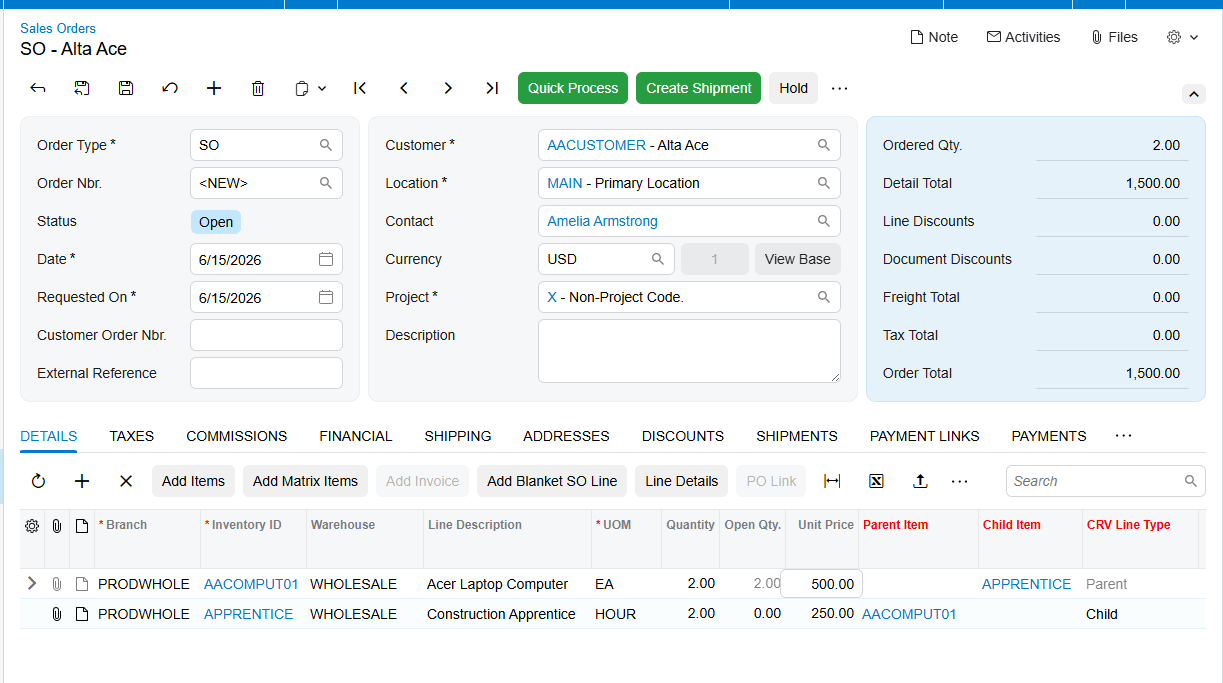
- Visibility: New fields, such as “Parent Item” and “Child Item,” have been added to Sales Orders, Shipments, and Invoices to clearly distinguish between the main product and its associated environmental fee.
How to Configure CRV in Acumatica
To enable and manage CRV fees for your products, follow these configuration steps:
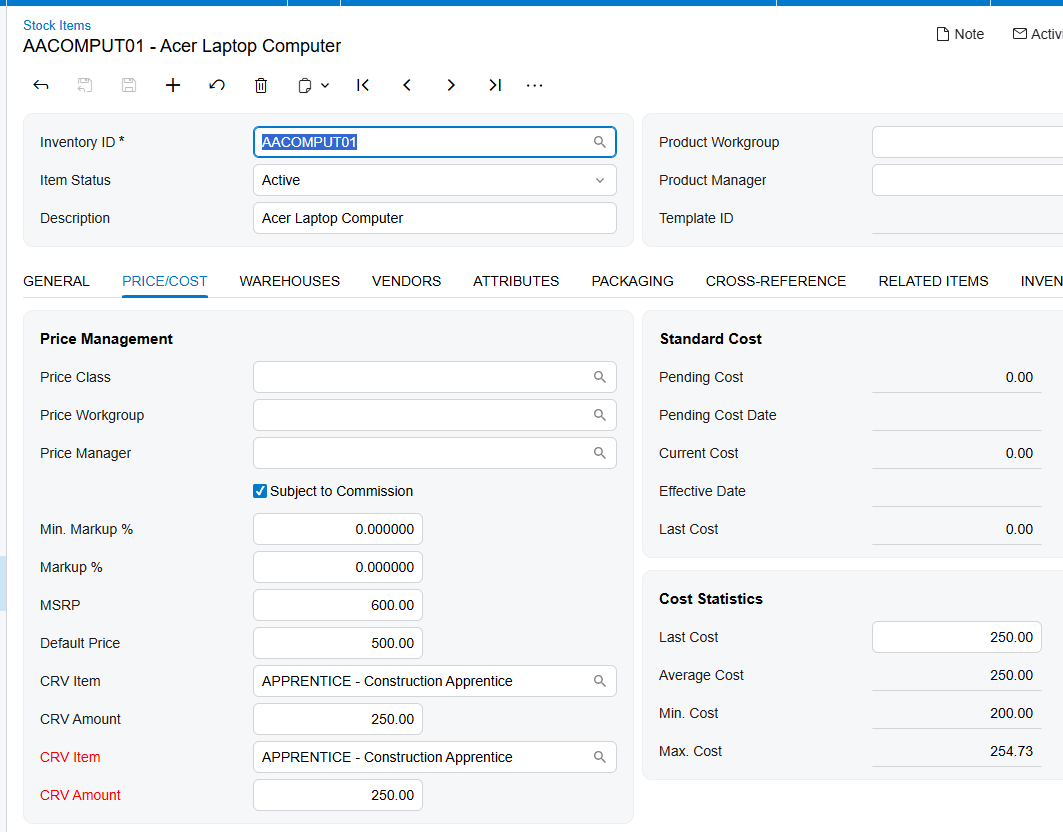
1. Setup the Stock Item
- Navigate to the Stock Item screen.
- Select the relevant item.
- Go to the Price/Cost tab.
- In the CRV Item field, select the appropriate non-stock item configured for the fee.
- On the General tab, utilize the CRV Amount field to define the specific fee amount based on the selected Unit of Measure (UOM).
2. Configure Customer Locations
For the system to apply these fees, you must also define which customers are subject to CRV:
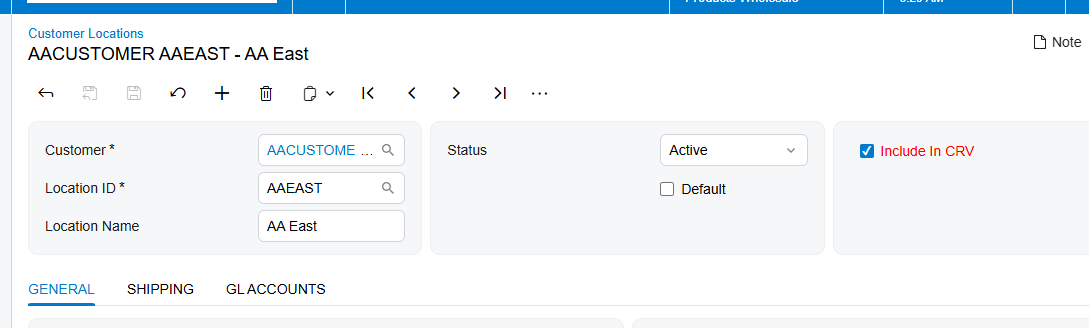
- Navigate to the Customer Locations screen.
- Open the default location for the desired customer.
-
Ensure the Include in CRV checkbox is selected.
- Note: If this box is unchecked, the CRV item will not be displayed or applied to Sales Orders for this location.
How It Works in Sales Orders
Once configured, the process is seamless:
- When you create a Sales Order for a customer with “Include in CRV” enabled, adding a parent item that has a CRV item configured will trigger the system to automatically insert the CRV fee as a new line.
- The system intelligently applies the same quantity and warehouse settings to the child (CRV) item as the parent item.
By leveraging these features, your team can maintain compliance with California’s recycling requirements without manual intervention, reducing the risk of errors during the sales process.
Are you interested in learning how to configure other automated tax or fee structures within your Acumatica environment?