
How to Create Acumatica Sales Orders from PDF Purchase Orders
This guide shows you how to turn a customer PDF purchase order into an Acumatica sales order without retyping a line, using Biz-Tech Services DocVision and a template that already exists for that customer. PDF stands for Portable Document Format, and a purchase order (PO) is the document your customer sends when they want to buy. By the end you will know how to read the color coding that says whether a document is ready, what Generate Sales Order creates, and what to do when a line refuses to map.
DocVision, from Biz-Tech Services, Inc., automates the creation of sales orders in Acumatica from uploaded PDF files such as purchase orders or shipping requests. It is built natively for Acumatica, so it runs inside the same secure environment and respects the same user permissions and audit trails as the rest of your ERP (Enterprise Resource Planning) system. This article skips the one-time configuration work and concentrates on the recurring task your order desk performs daily: a customer PDF arrives, and somebody has to make an Acumatica sales order out of it.
Before You Start: What Must Already Exist
Creating a sales order from a PDF is fast only when the setup behind it is done. DocVision does not guess at document layouts. It reads each PDF through a template built for that specific customer format, so the first question is whether that template exists. Three things must be in place:
1. A template for that customer PDF layout. Templates are created on the PDF Import Settings screen, where a PDF is imported and the mapping between PDF values and Acumatica values is defined. DocVision supports per-customer PDF mapping, so each format gets its own template, which lets your business handle several layouts at once.
2. Inventory and customer cross-references. When CrossRef is enabled for the Inventory ID field, an Inventory Cross-Reference tab appears where PDF items are mapped to Acumatica Inventory IDs, manually or by importing all items via Excel. When Cross Reference is selected, a Customer Cross-Reference tab appears for mapping PDF customer values and locations to Acumatica customers and locations. These tables turn a part number printed on paper into an Acumatica record.
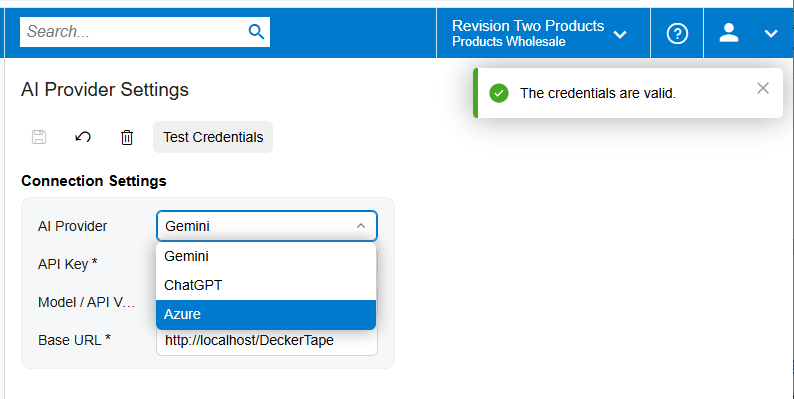
3. Tested Azure credentials. The Azure setup lets the ERP run on the Microsoft cloud platform and, for DocVision, supports importing customer purchase order PDF files so they can be processed and converted into sales orders in Acumatica. The setup screen has a Test Credentials button that confirms they are configured correctly. Press it before troubleshooting anything else, because an import that never starts is usually a credentials problem, not a mapping problem.
Treat all three as background. Once they exist for a customer, the daily work happens entirely on the Import Documents screen and the batch screen.
Turning a PDF Purchase Order into a Sales Order, Step by Step
The recurring task has four moves: get the document in, confirm which template read it, review what the template produced, and generate. Skipping the review step is the most common reason a generated order comes out wrong.
Step 1: Import the Document
There are two ways in. The first is the PDF Import Settings screen, where the Plus button opens a new workspace, a PDF is imported, and a template is created. The second, and the one your order desk will use most, is the Import Documents screen itself, which enables documents to be imported directly from that screen. Importing there keeps users in the operational screen rather than the configuration screen, and it is also the case in which the Validate Items button gets the most use.
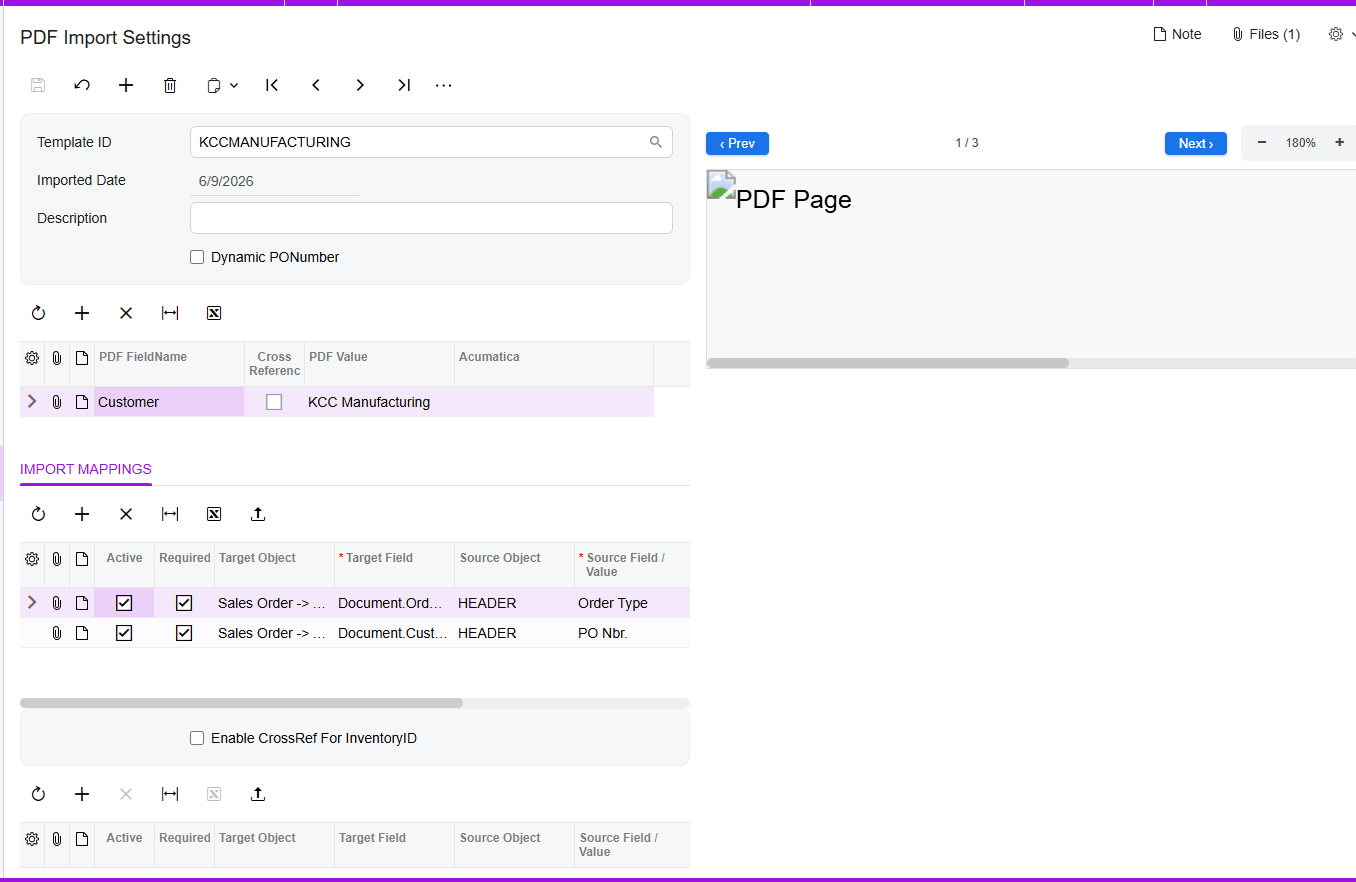
Once the file is in, the system automatically sets PDF FieldName and PDF Value, and on the Import Mappings tab it automatically sets the mappings between Target Object and Source Field. The right side of the screen displays the file, and you can move to the next or previous page and zoom in or out. That side-by-side view matters: when a value looks wrong in the grid, you can read the original page beside it.
Step 2: Read the Retained Template ID
Selecting a document number on the Import Documents screen displays the already imported PDF from PDF Import Settings along with all mappings for that document, and it retains the Template ID. Read that Template ID first. It tells you which rules interpreted this PDF, which means it tells you whose mapping table to open when a value is missing or misread.
The Template ID also appears on the Documents tab beside the document number, the Order Type, and the Customer. If it is not the template you expected for that customer, stop. A document read through the wrong template still produces mapped values, and they look plausible until they land on an Acumatica sales order with the wrong quantities or ship-to location.
Step 3: Review the Mapped Values
This is why the Import Documents screen exists: it allows you to make changes to existing or previously imported documents, so anything the template got wrong is corrected here rather than on the sales order afterward. Work down the lines against the PDF preview on the right. Check the header values first, because a wrong customer or purchase order number affects every line beneath it, then check the item lines.
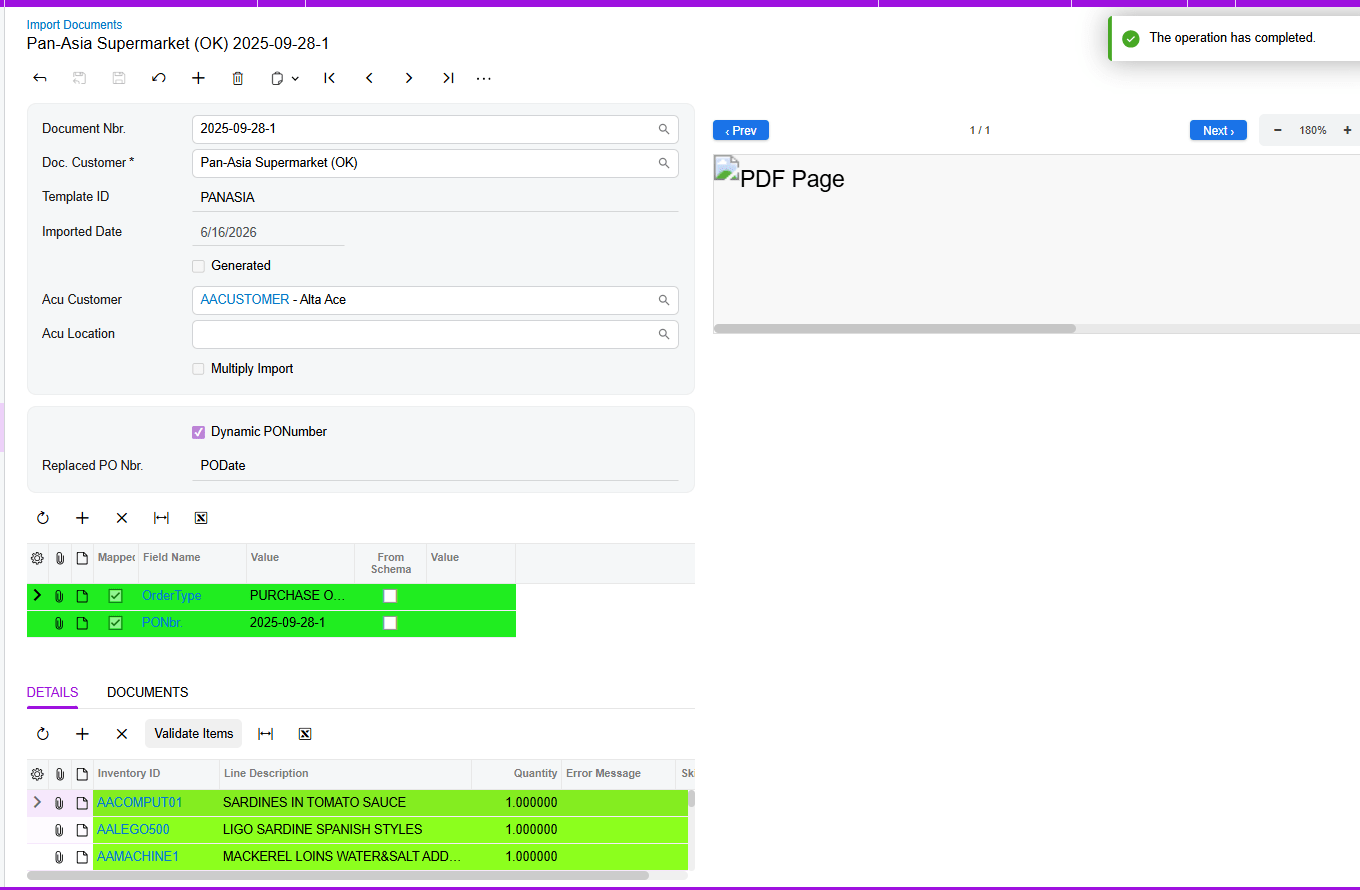
Use the color coding as your triage tool while you review. Green lines need nothing. Yellow and red need different kinds of attention, and knowing which you are looking at determines whether you press a button or open a cross-reference table.
Step 4: Generate the Order from the Three Dots Menu
Once the setup is complete and the document reviews clean, open the three dots and select Generate Sales Order. That command creates a sales order for all the mapped data on the document. There is no separate confirmation stage afterward, which is why the review that precedes it carries so much weight.
Generation is also the point at which the Active checkbox becomes final. Only fields whose Active checkbox is selected are uploaded during sales order generation, so a field sitting in the mapping grid is not necessarily a field that will reach the order.
Reading the Color Codes on the Import Documents Screen
DocVision uses three colors in the user interface, and each carries a different instruction.
1. Green indicates that everything is mapped correctly and the file is ready for generating a sales order. Green is a go signal, not merely an absence of errors.
2. Red means that during the import process there was an issue with an item line. The line turns red and an error message is displayed in the Error Message field on that line.
3. Yellow indicates a mapping problem, for example items that are not mapped correctly.
The practical difference between red and yellow is where the fix lives. Red is line specific and self describing: the system already knows what went wrong and has written the reason into the Error Message field, so your first move is to read that field rather than guess. Red usually means the line as imported must be corrected on the document.
Yellow is a mapping gap, not a broken line. The value came off the PDF fine, but DocVision could not connect it to an Acumatica record, most often because a PDF item has no counterpart in the Inventory Cross-Reference. Yellow is therefore often fixable in bulk, because the missing piece is usually a cross-reference entry that resolves many documents at once. In short: red sends you to the Error Message field on the line, yellow sends you to the cross-reference tables on the PDF Import Settings screen.
Document Triggers: What Generate Sales Order
Choosing Generate Sales Order sets off a short chain of results. Knowing all four tells you whether generation actually succeeded rather than merely appeared to.
1. The sales order itself is created in Acumatica from all the mapped data on the document. Everything with Active selected is carried across; everything without it is not.
2. The order number and the Order Type are displayed against the document. That is your immediate confirmation and the value you use to find the order in Acumatica.
3. The Generated checkbox is set automatically on the Documents tab. You do not tick it yourself, which is what makes it a reliable way to separate documents that have already produced an order from documents still awaiting review.
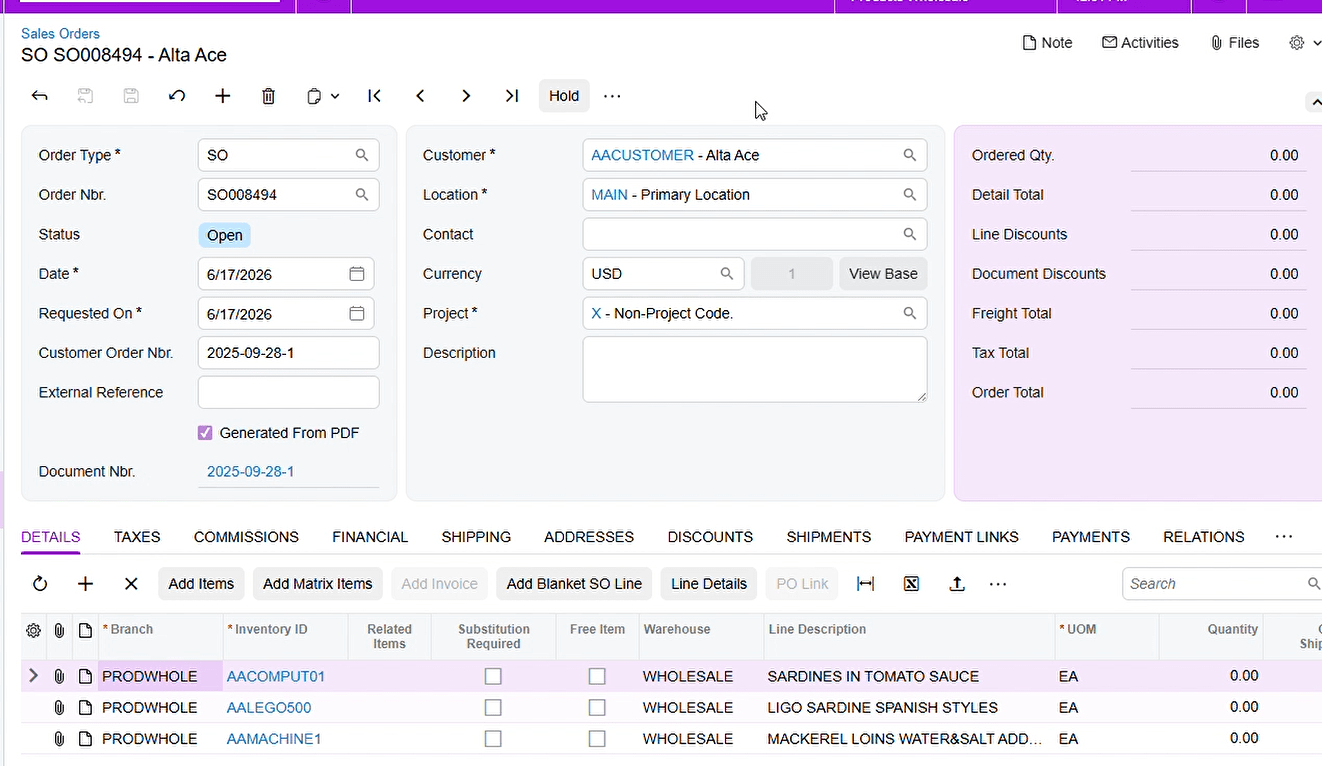
4. The document number becomes visible on the Sales Order screen. That is the traceability link in the other direction, from an Acumatica order back to the PDF it came from, which makes an audit or a customer dispute answerable.
Read those four together as one completion test. If the order number appears but the Generated checkbox is not set, or the document number is missing from the Acumatica sales order, something did not finish.
Mapping Rules That Decide What Lands on the Order
Even when you are not building templates, four rules determine what a template puts on an order. These are the rules you reason with when a generated Acumatica sales order does not match the PDF.
The Active Checkbox Controls Whether a Field Is Uploaded at All
During sales order generation, only the fields whose Active checkbox is selected will be uploaded. This is the most consequential setting in the mapping grid and the easiest to overlook, because an inactive mapping still shows a PDF FieldName, a PDF Value, and a target. It simply does nothing at generation time. If a value is correct on the document but absent from the finished order, check Active before anything else.
The Target Object Path Decides Header Versus Line
The Target Object is where a mapped PDF value is told to land in Acumatica, and the path decides whether it becomes a header field or a line field. To map header fields of a sales order, select Sales Order then Advanced in the Target Object. To map details on the Sales Order screen, select Sales Order then Details then Advanced. Getting this backwards is a quiet failure: a value routed to the header when it belongs on a line will not repeat per item.
Cross-References Translate Customer Language into Acumatica Records
Customers write their own part numbers and address formats on their purchase orders, and neither matches your Acumatica master data by default. Enabling CrossRef for the Inventory ID field makes the Inventory Cross-Reference tab appear, where PDF items are mapped to Acumatica Inventory IDs manually or imported in bulk via Excel. Selecting Cross Reference makes the Customer Cross-Reference tab appear, for mapping PDF customer values and locations to Acumatica customers and locations. This supports smart customer recognition, where Customer and Ship-To information is identified from each PDF through the pre-configured template.
Dynamic PO Number Handles PDFs With No Purchase Order Number
Not every incoming document carries a purchase order number. Under the Description section of the template there is a Dynamic PO Number field. If there is no PO number in the PDF, that checkbox is automatically selected during the file import process and a warning is displayed: “The document for the mapping does not have any number. Please select an alternative PO Number.” After that warning, a Release PO Number field appears, which allows you to map the values of the header with existing values of the field. The document is not rejected for lacking a number; you nominate an alternative header value to stand in, so the order still has a meaningful reference.
Validation and Common Exceptions
Most days this is uneventful. The exceptions below are the ones that consume time, and each has a specific place to look.
Yellow Warnings and the Real Limitation of Validate Items
To resolve yellow warnings, use the Validate Items button. It maps all PDF items to Acumatica values and displays them in the Details tab, provided the items are already mapped in the Inventory Cross Reference on the PDF Import Settings screen. That proviso is the limitation, and it is worth stating plainly: Validate Items applies cross-references that already exist. It does not create them. Pressing the button repeatedly on an item that was never cross-referenced will not eventually produce a match.
When yellow persists, add the missing entry to the Inventory Cross-Reference on the PDF Import Settings screen, return, and press Validate Items again. The button is meant to be used frequently, particularly when the PDF was imported from the Import Documents screen itself.
Red Lines and the Error Message Field
A red item line means the import process hit an issue with that specific line, and the reason is written into the Error Message field on the line. Read it first. Because the message is per line, two red lines on one document can have entirely different causes. Correct the line on the Import Documents screen, then generate.
A Mapped Field Is Missing from the Generated Order
This is the classic Active checkbox symptom. The field is visible in the mapping and the PDF Value looks right, yet the generated Acumatica sales order does not show it. Because only fields with Active selected are uploaded, an unselected Active checkbox produces exactly this result with no error and no color warning to hint at it. Select Active on the mapping and generate again.
A Document With No Purchase Order Number
When the incoming PDF has no PO number, expect the Dynamic PO Number checkbox to be selected automatically and the warning about the missing number to appear. This is not a failure; it is a prompt to choose an alternative through the Release PO Number field by mapping header values to existing values of the field. Decide as a business which header value stands in, and apply it consistently, so everyone searching for the order later knows what to search on.
Generating Sales Orders in Batches
One document at a time is fine for exceptions, but it is not how a high-volume order desk works. The Generating Sales Orders screen has been modified to allow importing orders in batches and generating sales orders, which is the mode to use when a stack of customer PDFs arrives together.
On that screen, the Document Number field lets you filter by document number and generate the corresponding sales order. In a batch context this narrows a large working set to the documents you intend to process, so a run does not sweep in a document nobody has reviewed. Triage on the Import Documents screen first, then filter and generate.
To find the documents in the first place, DocVision includes a generic inquiry listing all document numbers, Template IDs, customer information, and document generation dates. A generic inquiry (GI) is standard Acumatica functionality for building a queryable list. Hyperlinks have been added to these fields and they direct back to the Import Document screen. That answers two questions at once: which documents were generated and when, and how to jump from a listed document number into the screen where you can correct it.
Where to Check Your Work
After generating one order or a batch, walk this list. Each item names something DocVision populates or displays, so every check is a comparison rather than a judgment call.
1. Template ID on the document, confirming the right template interpreted this customer PDF.
2. Document number, which is your handle for the imported PDF everywhere else in the system.
3. Customer on the Documents tab, checked against the Customer Cross-Reference expectation for that PDF.
4. Order Type displayed against the document after generation.
5. Order number displayed against the document, confirming an Acumatica sales order actually exists.
6. Generated checkbox, which the system sets automatically once generation succeeds.
7. Error Message field on any red line, read in full rather than skimmed.
8. Line colors across the document, with green on every line you intended to include.
9. Details tab contents after pressing Validate Items, confirming the PDF items resolved to Acumatica values.
10. Active checkbox on every mapping whose value you expect to see on the finished order.
11. Dynamic PO Number and, where it applies, the Release PO Number mapping you selected.
12. Document number on the Sales Order screen in Acumatica, closing the loop from order back to source PDF.
Creating Sales Orders from PDFs: Frequently Asked Questions
Can I import a PDF without leaving the Import Documents screen?
Yes. The Import Documents screen enables documents to be imported directly from it, as well as letting you change existing or previously imported documents. For daily order processing this is the better route, because it keeps users in the operational screen, and it is the case in which Validate Items is expected to be used frequently.
Why is my item line yellow after I pressed Validate Items?
Validate Items maps PDF items to Acumatica values only if those items are already mapped in the Inventory Cross Reference on the PDF Import Settings screen. If the entry does not exist, the button has nothing to apply and the line stays yellow. Add it, then press Validate Items again.
A field is mapped, so why is it missing from the sales order?
During sales order generation only fields whose Active checkbox is selected are uploaded. A mapping present but not marked Active is skipped, and nothing flags it as a problem. Select Active on that mapping and generate the Acumatica order again.
What does it mean when a line turns red?
Red means the import process found an issue with that item line, and the system writes the reason into the Error Message field on the line. Read that field first. Because each red line carries its own message, treat every red line as a separate problem.
What happens if the customer PDF has no purchase order number?
During import, DocVision automatically selects the Dynamic PO Number checkbox and displays a warning that the document has no number, asking you to select an alternative PO Number. A Release PO Number field then appears, letting you map header values to existing values of the field. The document is not rejected; it needs a substitute reference.
How do I tell whether a document has already produced a sales order?
Check the Generated checkbox on the Documents tab, which the system sets automatically after a sales order is generated. The order number and Order Type displayed against the document confirm the same. For a broader view, use the generic inquiry, which lists document numbers, Template IDs, customer information, and generation dates.
How do I trace an Acumatica sales order back to the PDF it came from?
After generation the document number is visible on the Sales Order screen, linking the order back to the imported document. From the other direction, the generic inquiry carries hyperlinks that navigate to the Import Document screen. Between the two, every generated Acumatica sales order ties back to its source PDF.
Can I process a stack of PDFs at once instead of one at a time?
Yes. The Generating Sales Orders screen has been modified to allow importing orders in batches and generating sales orders, and the Document Number field filters the set to the documents you want. Triage on the Import Documents screen first, so every document in the batch is already green, then run it.
Work With the Biz-Tech Services DocVision Product
The recurring task is short once the groundwork exists: import the customer PDF, confirm the retained Template ID, review the mapped values and clear anything red or yellow, then choose Generate Sales Order from the three dots and verify the order number, the Order Type, the Generated checkbox, and the document number on the Acumatica sales order. The color coding tells you where to look, the Error Message field tells you why, the Active checkbox governs what reaches the order, and the batch screen and generic inquiry scale the same routine to a full day of documents. That is Acumatica PDF automation with DocVision.
If your business receives customer purchase orders as PDF files and wants to create sales orders from them without manual data entry, Biz-Tech Services, Inc. can help you configure DocVision for your document formats and your Acumatica environment. Visit https://biz-techservices.com to learn more about our Acumatica expertise or to schedule a personalized demonstration.

