
How PayPal Payments Affect Inventory and Order Status in Acumatica
PayPal payments affect order status in Acumatica by creating an Accounts Receivable payment that remains on Hold until PayPal confirms the invoice has been fully paid. The payment request can start from a sales order, an invoice, or a standalone payment, but the documented integration does not change inventory quantities, warehouse balances, allocations, or replenishment settings.
For teams using the Biz-Tech Services PayPal Acumatica Connector, the practical control point is the payment lifecycle: Sent, Partially Paid, Paid, Cancelled, Refunded, or Partially Refunded. This article focuses on that lifecycle and its relationship to sales-order and invoice payment records; for the request-creation workflow, see How to Create PayPal Invoices from Acumatica Orders.
How PayPal Payments Affect Order Status in Acumatica
The integration is a customization for sending payment invoices to customers, checking their payment status, and applying the resulting action to the AR Payment record. A request sent from Sales Orders creates an AR Payment linked to the order. A request sent from an AR invoice creates a payment pre-applied to that invoice. In either case, the initial payment is placed on Hold with a Sent status while the customer receives the invoice by email.
The integration checks the provider only when a user triggers a check. A fully paid invoice releases the payment. A cancelled invoice deletes the AR Payment. A partial payment records the amount received but keeps the original payment on Hold until the entire invoice is paid.
PayPal Payment Status at a Glance
Use this sequence to understand what the documented status check changes.
1 Sent: the invoice was sent, the AR Payment remains on Hold, and no release action occurs.
2 Partially Paid: the provider reports PARTIALLY_PAID; the PayPal Paid Amount is updated, but the AR Payment stays on Hold at its original amount.
3 Paid: the provider reports PAID or MARKED_AS_PAID; the system confirms the payment amount, releases the payment, and stores the transaction ID.
4 Cancelled: the provider reports CANCELLED; the AR Payment record is deleted.
5 Refunded: a full refund voids the payment and stores the refund ID.
6 Partially Refunded: the integration updates the status and refund ID, but a user must create a Credit Memo for the refunded amount because the payment record is not automatically partially voided.
Before You Send a PayPal Payment Request
The Biz-Tech Services Acumatica PayPal Integrator requires Accounts Receivable and Sales Orders, a Business account, and API credentials. For testing, the manual specifies a Sandbox account with its own credentials. The server must be able to reach the appropriate endpoint over HTTPS on port 443.
Set up the payment method in Payment Methods (CA205000). Enter the Client ID and Client Secret, supply the Sandbox and Live base URLs as appropriate, select Is PayPal Payment, test the connection, and add the cash or bank account on the Allowed Cash Accounts tab. When a Sandbox URL is populated, the integration uses it and ignores the Live URL.
Each payer also needs a Customer Payment Method in Customer Payment Methods (AR303010) screen with a PayPal email address. That email is carried into new payments, although it can be overridden for a one-off payment.
From Sales Order or Invoice to a PayPal Payment
The Biz-Tech Services PayPal Acumatica Integration provides three documented entry points. In Sales Orders (SO301000), use Create Payment on the Payments tab, supply the cash account and payment reference, then use New Request PayPal Payment. The integration reads the order total, currency, and customer details, creates the linked AR Payment, sends the PayPal invoice, and stores the PayPal invoice identifiers and URL on the payment.
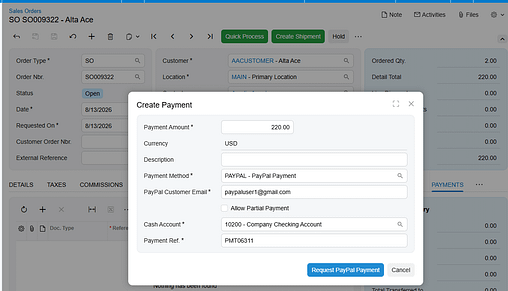
If billing has already been posted, open the invoice through Invoices (SO303000) and use Request PayPal Payment. The payment is pre-applied to the invoice, and the PayPal invoice amount matches the outstanding AR invoice balance. For a deposit or another standalone request, create a payment in Payments and Applications (AR302000), select the PayPal method, enter the amount, optionally apply it to an order or invoice, and use Send PayPal Request.
After a request is sent, the Payment Method ID is locked to prevent an accidental change. The result is a payment-status workflow, not an inventory transaction. The manual does not describe a PayPal request as changing stock availability or shipping quantities.
How Status Checks Change the AR Payment
The Biz-Tech Services Acumatica PayPal Integration checks status on demand rather than in the background. For one payment, open Payments and Applications (AR302000), confirm that it is Sent or Partially Paid and on Hold, then select Remove Hold. The integration calls PayPal and applies the action associated with the returned status.
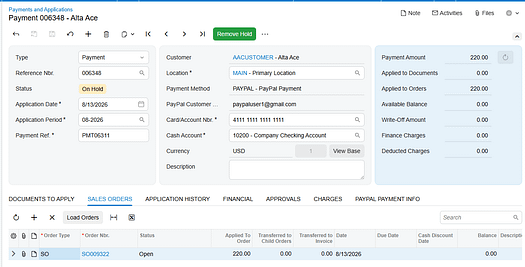
If the invoice is still SENT, the system reports that it cannot release the payment because it has not been paid, and no record changes are made. If it is PAID, the payment is released. If it is CANCELLED, the payment record is deleted. For several outstanding requests, use the Check PayPal Payment Status processing screen under the Sales Order Processes module, select rows, and use Process or Process All. The processing log shows results for the checked records.
Partial Payments and Refunds
The Biz-Tech Services PayPal Acumatica Integration recognizes multiple payments against the same invoice. When the provider reports PARTIALLY_PAID, the PayPal Paid Amount field receives the cumulative amount collected. The payment amount does not change, and the payment remains on Hold until the provider reports a full payment. This lets the accounts-receivable record retain the agreed amount while the customer returns to the same invoice for the remainder.
For a full refund, use Void Check or Refund on the released AR Payment. The integration calls the provider, voids the payment through the standard workflow, stores the refund ID, and sets the PayPal Invoice Status to Refunded. If a partial refund is issued directly in the portal, the next status check identifies PARTIALLY_REFUNDED, but the user must create the Credit Memo manually.
Inventory and Warehouse Scope
The article-plan topic includes inventory, warehouse, quantity, allocation, and reconciliation handling. The Biz-Tech Services PayPal Acumatica Integration user guide does not document any inventory quantity basis, warehouse mapping, inventory allocation rule, stock-visibility update, or inventory reconciliation process. Its documented scope is PayPal invoice creation and AR Payment status handling.
Accordingly, do not treat a payment status change as evidence of an inventory adjustment. The source supports monitoring payment and order-linked records, not changing inventory records. If a business needs inventory allocation or warehouse actions to follow payment collection, those rules must be confirmed in its own configuration rather than inferred from this integration guide.
Where to Check PayPal Payment Results in Acumatica
The Biz-Tech Services PayPal Acumatica Integrator exposes the following documented places and fields for payment-status review.
1 Sales Orders (SO301000): review the order Payments tab and open the linked payment record.
2 Invoices (SO303000): review the pre-applied payment created when an invoice request was sent.
3 Payments and Applications (AR302000): review payment status, Hold status, and the Remove Hold action.
4 Check PayPal Payment Status: filter by PayPal Invoice Status and use Process or Process All for outstanding rows.
5 PayPal Customer Email: confirm the address to which the PayPal invoice notification was sent.
6 PayPal Invoice Status: distinguish Sent, Partially Paid, Paid, Cancelled, Refunded, and Partially Refunded.
7 PayPal Invoice ID and PayPal Invoice Number: identify the invoice created in PayPal.
8 PayPal Invoice URL: use the documented Open in PayPal link to access the PayPal invoice.
9 Transaction ID and Refund Number: identify the confirmed payment or refund transaction.
10 PayPal Paid Amount: monitor the cumulative amount received while an invoice is Partially Paid.
PayPal Payments and Order Status in Acumatica Frequently Asked Questions
Does a PayPal payment automatically release in Acumatica?
No. The integration does not poll PayPal automatically. Use Remove Hold for an individual payment or process records in the Check PayPal Payment Status screen. The payment releases when the check confirms that PayPal reports the invoice as fully paid.
What happens when a customer makes only a partial PayPal payment?
The payment stays on Hold at its original amount. The PayPal Paid Amount field is updated, and the customer can return to the same PayPal invoice to pay the balance. Acumatica releases the payment only after the invoice is fully paid.
Can a PayPal payment status change inventory quantities or warehouse allocation?
The supplied PayPal Integration guide does not document inventory quantity changes, warehouse mapping, allocation, or reconciliation. It documents AR Payment and PayPal-invoice status actions only.
Why is a payment still Sent after the customer says they paid?
Trigger a status check manually or through the processing screen, because Acumatica does not poll PayPal in the background. Also verify that the PayPal invoice is marked PAID in the PayPal account.
Why does Remove Hold say that the payment is not paid in PayPal?
The PayPal invoice is still unpaid. The guide describes this as expected behavior; wait for payment and check again later, or use the processing screen for a bulk check.
What happens when I cancel a PayPal invoice?
A payment in Sent status and on Hold can be cancelled from AR302000. The integration calls PayPal, sends the cancellation notification, and deletes the AR Payment. The guide states that cancellation is irreversible.
How should a partial PayPal refund be handled?
The Biz-Tech Services PayPal Acumatica Integrator records the Partially Refunded status and the refund ID after a check, but it does not partially void the payment. Create a Credit Memo manually for the refunded amount.
Work With the Biz-Tech Services PayPal Integration
Payment requests give users a controlled way to send invoices, monitor collection, release a fully paid AR Payment, and handle cancellation or refund outcomes. They do not, based on the supplied documentation, define inventory or warehouse behavior. To discuss the Biz-Tech Services Acumatica PayPal Integrator and the payment workflow for your environment, visit https://biz-techservices.com to learn more or schedule a personalized demonstration.
Check the video for more details: https://www.youtube.com/watch?v=wkjPKdLzv2M
How to Create Consignment Sales Orders in Acumatica
This guide shows you how to create a consignment sales order in Acumatica ERP, move stock into a customer-held consignment warehouse, and turn the units your customer sells into invoices without re-keying anything. Consignment selling breaks the usual rule that shipping equals revenue: the goods leave your building but stay yours until the consignee sells them. The Consignment Processing product from Biz-Tech Services, Inc. adds that distinction to Acumatica, so one order document can carry stock out, hold it at the customer site, and then bill or reclaim it piece by piece.
What follows is a hands-on walkthrough of the order itself: the setup you need before you can pick the order type, the sequence of entries and actions, the documents each action generates in Acumatica, the mapping rules that decide where consigned stock lands, and the errors and disabled buttons that stop users mid-task. Configuration is background here, mentioned only where it changes what happens during order entry.
Before You Start: What Must Be Configured
A consignment order in Acumatica will not behave correctly unless four pieces of setup are in place. The Consignment Processing customization project is published from the Customization Projects (SM204505) form, so if the Consignment Settings below are missing entirely, the package has not been published to your tenant yet.
1. Three consignment order types, defined in the Consignment Settings section of the Sales Orders Preferences (SO101000) form: the Consignment Order Type you select on the order, the Consignment Invoice Order Type used for invoices generated from consigned stock, and the Consignment Return Order Type used when unsold goods come back.
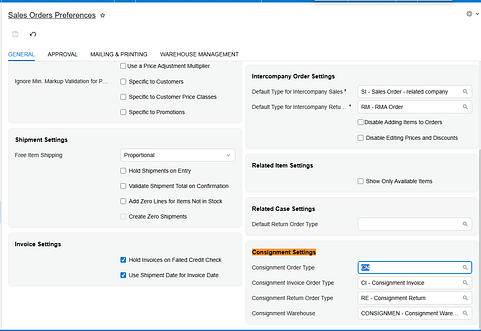
2. The right templates behind those types. The Consignment Order Type and the Consignment Return Order Type must both be created from the Transfer Order template, because both move stock between warehouses rather than recognizing a sale. The Consignment Invoice Order Type must come from the Invoice Order template, because that is the document that bills the customer.
3. A consignment warehouse, defined on the Warehouses (IN204000) form with the Use for Consignment check box selected. That check box designates the warehouse as a consignment location, and until it is selected the warehouse cannot be chosen in the Consignment Settings section at all.
4. A consignment warehouse on the customer record. The Consignment Warehouse associated with the selected customer is used for the sales order and overrides the default set in Sales Order Preferences. This is how a business with many consignees keeps each customer pointed at its own location.
The Consignment Warehouse field in Sales Order Preferences is a fallback, not a rule. It supplies the warehouse selected automatically when you choose a consignment order type on the Sales Orders form, and the customer-level value takes precedence. That hierarchy explains most of the "why did Acumatica pick that warehouse" questions users raise early on.
Creating a Consignment Sales Order, Step by Step
The whole process happens on the Sales Orders (SO301000) form your team already knows. What changes is the order type you pick, where each warehouse is allowed to go, and one extra action after the shipment. Work the steps in order; skipping the last one leaves consigned stock in an incomplete state.
Step 1: Select the Consignment Order Type
Open the Sales Orders form and set the Order Type to your consignment order type. The Biz-Tech Services documentation shows this type as CN, but what matters is the type your administrator entered in the Consignment Order Type field on Sales Orders Preferences. Selecting it switches the document into consignment behavior and triggers automatic selection of the consignment warehouse. Because the type is built from the Transfer Order template, Acumatica treats the document as a stock movement, which is why shipping it will not post revenue.
Step 2: Choose the Customer
Select the customer from the list. The consignment order is associated with that customer for the rest of its life, and the association is not cosmetic: the customer record is where Acumatica reads the consignment warehouse for the order. Changing the customer changes where the goods are destined to sit, so confirm it before adding lines.
Step 3: Add the Items to Be Consigned
Add the items to be shipped as part of the consignment order, with the quantities you intend to place at the customer site. Enter the full quantity you are willing to leave on consignment, not just what you expect the customer to sell, because that quantity is the pool the later sell and return actions draw from. There is no need to split the order by expected outcome; Acumatica tracks sold and unsold quantities against the same document.
Step 4: Apply the Destination Warehouse Versus Line Warehouse Rule
This is where new users get stuck. The consignment warehouse can only be selected as the destination warehouse; a standard, non-consignment warehouse can only be selected in the lines. Reverse them and Acumatica stops you with an error message. The lines say where stock is coming from and the destination says where it is going, so the customer-held location belongs in the destination and your own stocking warehouse belongs on each line.
Step 5: Confirm the Shipment
Proceed with the standard shipment confirmation process. Nothing here is special to consignment: warehouse staff pick, pack, and confirm exactly as they do for any Acumatica sales order. Confirming the shipment drives the consignment order status forward, so the order is not ready for the sell and return actions until at least part of it has been confirmed.
Step 6: Run Update IN
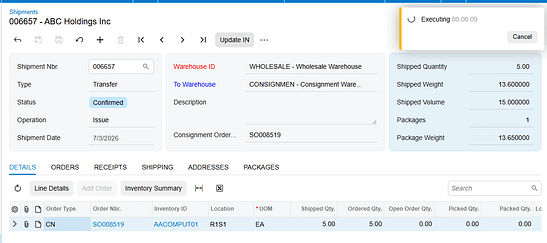
After the shipment is confirmed, open the Actions menu on the consignment order and click Update IN. This action reflects the consigned items in inventory. Until you run it, the goods have physically left but the Acumatica inventory records have not caught up, and the consignment-specific actions stay unavailable. Treat Update IN as a required step, not an optional refresh.
Once Update IN completes, the order carries a status of Consignment when all ordered quantities have shipped, or Partial Consignment when only part have gone out. Either status means Acumatica now recognizes the stock as sitting at the customer location and the order is ready to work.
Document Triggers: What Each Action Creates
Three actions on a consignment order generate documents elsewhere in Acumatica. Knowing which action produces which document tells you where to look when something did not appear.
Update IN Creates a Transfer-Type Purchase Receipt
When you run Update IN on a confirmed consignment order, the corresponding items and quantities are issued from the main warehouse and received into the selected consignment warehouse. Acumatica automatically generates and releases a Transfer-type purchase receipt to record the movement. Because the receipt is created and released for you, no separate step is needed; a missing receipt usually means Update IN was never run.
Consignment Sell Items Creates a Consignment Invoice Order
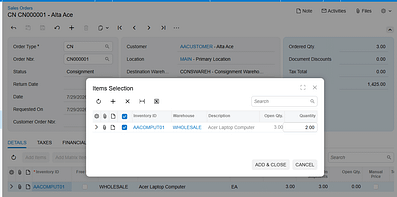
The Consignment Sell Items action opens the Item Selection pop-up, where you select the items and quantities the customer has sold. After clicking Add and Close, Acumatica generates a consignment invoice order with the specified warehouse, items, and quantities, using the Consignment Invoice Order Type from Sales Orders Preferences. Once that invoice is prepared and released, the Cons. Sold Qty. field on the original consignment order is updated. Note the timing: sold quantity moves on release, not when you click Add and Close.
Consignment Return Items Creates a Consignment Return Order
The Consignment Return Items action opens the same Item Selection pop-up, where you specify the items and quantities coming back from the customer. Clicking Add and Close generates a consignment return order. The return then follows a process similar to the original consignment order, including its own Update IN, which creates a purchase receipt. Returning consigned stock is not a one-click reversal in Acumatica; it is a second short document you work to completion.
Mapping Rules That Decide Where Consigned Stock Lands
Two rules govern the destination of consigned inventory in Acumatica, and understanding them prevents most rework on consignment sales orders.
The first rule is positional. A warehouse flagged with Use for Consignment can only be selected as the destination warehouse; a standard warehouse can only be selected in the lines. Acumatica enforces this rather than silently correcting it, so an order that will not save is usually an order with the warehouses transposed. The plain-language version: the consignment warehouse is never a source. Stock always originates from a normal warehouse you control and terminates in the consignment warehouse that represents the customer site.
The second rule is precedence. The Consignment Warehouse field on Sales Orders Preferences is selected automatically when a consignment order type is chosen, but the consignment warehouse associated with the selected customer overrides it. Because the customer value wins, changing the customer on a draft order can change the destination under you. With a single consignee the Preferences default may be all you need; add a second and the customer-level warehouse becomes the field that matters.
Validation and Common Exceptions
Most of what interrupts a user on a consignment order in Acumatica is not an outright failure but a control that refuses to do anything. Here is what the product enforces and what each block means.
The Warehouse Placement Error
If you select a consignment warehouse anywhere other than the destination, or a standard warehouse anywhere other than the lines, Acumatica displays an error message with the corresponding notification and the entry does not stand. The fix is always the same: consignment warehouse in the destination, standard warehouse in the lines.
The Sell and Return Buttons Are Greyed Out
The Consignment Sell Items and Consignment Return Items buttons are enabled under the Actions menu only after Update IN has run and the consignment order has a status of Consignment or Partial Consignment. An order still at Open, or one shipped but not updated, shows both buttons unavailable. When a user reports that they cannot sell consigned items, check the status first and Update IN second.
The Buttons Disable Again on a Closed Order
When all ordered items have been shipped and all shipped items sold or returned, the consignment order status changes to Closed. Item quantities and statuses are updated and the Consignment Sell and Consignment Return buttons are disabled again. This is expected Acumatica behavior, not a permission problem: nothing is left at the customer site to sell or reclaim. If the customer needs more stock, the answer is a new consignment order.
Item-Level Detail Disappears for Closed Orders
Consignment information is available through two Acumatica generic inquiries: Consignment Orders for order-level data and Consignment Item Details for item-level data. The Consignment Item Details inquiry no longer displays item-level information for consignment orders once they reach Closed status, while order-level information for those same orders remains available in Consignment Orders. Users who audit line detail will hit this, so it is worth stating plainly rather than letting it look like missing data.
Consignment Statuses Do Not Match Sales Order Statuses
The statuses of consignment orders and of regular sales orders are entirely distinct and unrelated. Open means the order exists but none of the ordered quantities have shipped. Consignment means all ordered quantities have shipped for consignment. Partial Consignment means some have shipped and others remain pending. Closed means all actions on the order are complete. Do not fold these into standard Acumatica sales order reporting; they function independently.
Where to Check Your Work
Before you hand a consignment order off as finished, walk this list in Acumatica. Each item names a specific field, check box, or document, so a colleague can repeat the check without your context.
1. Order Type on the Sales Orders (SO301000) form matches the Consignment Order Type set in Sales Orders Preferences.
2. Consignment Order Type and Consignment Return Order Type on Sales Orders Preferences (SO101000) were both created from the Transfer Order template, and Consignment Invoice Order Type from the Invoice Order template.
3. The Use for Consignment check box is selected on the Warehouses (IN204000) form for the warehouse you are consigning into.
4. The destination warehouse on the order is the consignment warehouse, and every line warehouse is a standard, non-consignment warehouse.
5. The consignment warehouse on the order matches the Consignment Warehouse on the customer record, not just the Sales Order Preferences default.
6. The shipment has been confirmed for the quantities you expect to be at the customer site.
7. Update IN has been run from the Actions menu after shipment confirmation.
8․ A Transfer-type purchase receipt exists showing the issue from the main warehouse and the receipt into the consignment warehouse.
9․ The consignment order status reads Consignment or Partial Consignment and matches how much of the order actually shipped.
10․ Cons. Sold Qty. on the consignment order has updated after the consignment invoice was released.
11․ For a return, Update IN has been run on the consignment return order and its purchase receipt exists.
12․ The order appears in the Consignment Orders generic inquiry, and its lines appear in Consignment Item Details while the order is still open.
Creating Consignment Sales Orders: Frequently Asked Questions
Why can I not select my consignment warehouse on the order lines?
Because the product does not allow it. A warehouse flagged with Use for Consignment can be selected only as the destination warehouse, while a standard warehouse can be selected only in the lines. Either one placed the other way around produces an error message in Acumatica. Move the consignment warehouse to the destination and put your own stocking warehouse on the lines.
Why are the Consignment Sell Items and Consignment Return Items buttons disabled?
Those actions become available only after Update IN has run and the consignment order carries a status of Consignment or Partial Consignment. If the order is still Open, or the shipment was confirmed but Update IN was never clicked, both buttons stay unavailable. They also disable permanently once the order reaches Closed status.
Why did no purchase receipt appear after I shipped a consignment order in Acumatica?
Confirming the shipment does not create the receipt on its own. The Transfer-type purchase receipt is generated and released automatically by the Update IN action on the Actions menu of the consignment order. If the receipt is missing, open the order and check whether Update IN has been run.
Why has Cons. Sold Qty. not increased after I used Consignment Sell Items?
Selecting items in the Item Selection pop-up and clicking Add and Close only generates the consignment invoice order. Cons. Sold Qty. on the consignment order updates once that invoice has been prepared and released. If the number has not moved, the invoice is most likely still unreleased.
Which warehouse wins, the one on the customer or the one in Sales Order Preferences?
The customer wins. The Consignment Warehouse on Sales Orders Preferences is the default selected automatically when you pick a consignment order type, but the consignment warehouse associated with the selected customer overrides it for that order. This is what lets one Acumatica tenant consign to many customer locations from a single configuration.
How do I return unsold consigned stock?
Use the Consignment Return Items action on the consignment order, select the items and quantities in the Item Selection pop-up, and click Add and Close. That generates a consignment return order, which you process much like the original consignment order. Running Update IN on the return creates its purchase receipt.
Why can I no longer see line detail for an old consignment order?
The Consignment Item Details generic inquiry stops displaying item-level information for consignment orders once they reach Closed status. This is by design rather than a data problem. Order-level information for those orders is still available through the Consignment Orders generic inquiry.
Do consignment order statuses mean the same thing as regular sales order statuses?
No. The statuses of consignment orders and regular sales orders are entirely distinct and unrelated, and they function independently within their own processes. Open, Consignment, Partial Consignment, and Closed describe only the consignment lifecycle, so do not interpret them against standard Acumatica sales order reporting.
Work With the Biz-Tech Services Consignment Processing Product
Creating a consignment sales order in Acumatica comes down to a short, repeatable sequence: pick the consignment order type, pick the customer, add the items, keep the consignment warehouse in the destination and the standard warehouse on the lines, confirm the shipment, and run Update IN. From there the order is a working record of what sits at the customer site. The Consignment Processing product from Biz-Tech Services, Inc. adds all of this to Acumatica ERP so your business can manage quantities and valuation of inventory across multiple consignee locations, see sold versus unsold quantities at a glance, and invoice or reclaim stock straight from the consignment order.
To see how Consignment Processing fits your inventory and order processes, or to talk through configuring consignment order types and warehouses for your Acumatica environment, visit https://biz-techservices.com to learn more and to contact the Biz-Tech Services team.
Watch the video tutorial https://www.youtube.com/watch?v=afFwt8-gZCM
How to Sync CommerceHub Inventory Quantities from Acumatica
To sync CommerceHub inventory quantities from Acumatica, configure the connector for the correct store, add the warehouses that should contribute inventory, choose the quantity basis, and save the applicable Inventory IDs in the Inventory Template. Those items then appear on the Export CommerceHub Inventory screen, where they can be processed through the connector's SFTP file workflow.
The connector documentation identifies three quantity choices: On Hand Quantity, Available Quantity, and Available for Shipment Quantity. That selection matters because it determines which Acumatica quantity the connector exports. A reliable CommerceHub inventory sync therefore begins with configuration, not with the export button.
How the CommerceHub Acumatica inventory integration works
The CommerceHub connector exchanges data through SFTP and text files rather than direct API requests. The documented flow sends information from Acumatica into the file-transfer layer and onward to CommerceHub. Information returning to Acumatica follows the reverse path.
Store codes separate connector configurations for different import and export processes. A store can have its own parameters, including Transaction Type, Description, Default Customer, and Document Type. The inventory process also depends on the warehouses, quantity basis, and Inventory IDs selected in the Mappings area. For inventory synchronization, use the store configuration associated with the intended CommerceHub operation.
This design creates several checkpoints. Acumatica determines which records and quantities are eligible. The Export CommerceHub Inventory screen presents the selected items. A text file carries the data through SFTP. CommerceHub must then receive and use that file. When a quantity looks wrong, check each checkpoint in sequence instead of assuming the issue is inside Acumatica.
CommerceHub inventory sync workflow
1. Confirm the connector and store configuration. After the connector is published, the CommerceHub workspace and its screens become available in Acumatica. Open the Mappings screen and select the store code that belongs to the inventory export process. Store codes can carry distinct settings, so verify that you are working in the intended configuration before changing warehouses or items.
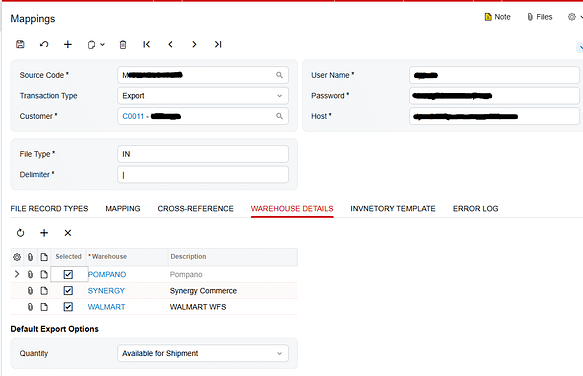
2. Add the warehouses to Warehouse Details. Warehouse Details controls which Acumatica warehouses are included in the inventory export. Add every warehouse that should contribute a quantity and leave out warehouses that should not be represented in the CommerceHub feed. If an expected location is missing here, its inventory will not be part of the configured export scope.
3. Choose the quantity basis. Use the Quantity field in Warehouse Details to select On Hand Quantity, Available Quantity, or Available for Shipment Quantity. Choose the measure that matches the inventory value the CommerceHub operation is expected to receive. The connector documentation lists these options but does not define a universal best choice, so the correct setting depends on the business rule for that store and process.
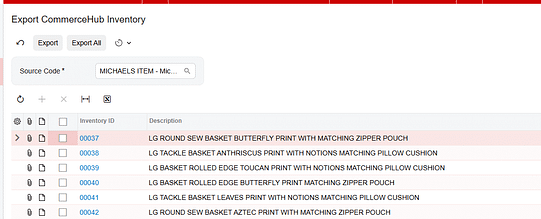
4. Select Inventory IDs in Inventory Template. Open the Inventory Template tab, select the Inventory IDs that should be synchronized, and save the changes. Saving is essential: the documented behavior is that selected and saved Inventory IDs appear on the Export CommerceHub Inventory screen.
5. Review the export population. Open Export CommerceHub Inventory for the applicable store code. Confirm that the expected items are present before processing. If an item is absent, return first to Inventory Template and confirm that its Inventory ID was selected and saved. Then check that the correct store configuration is in use.
6. Process the inventory export. Use the export screen to process the selected inventory records. The connector writes the inventory information into the file-based SFTP flow for delivery to CommerceHub. Because this is not a direct API transaction, a successful selection in Acumatica is only one part of the end-to-end sync.
7. Validate the result. Compare the quantity expected from Acumatica with the inventory output and the quantity received in CommerceHub. Validate the same Inventory ID, store code, warehouses, and quantity basis at each point. This isolates configuration errors from file-transfer or downstream processing problems.
Fields and settings that control the export
Store Code
The store code identifies the connector configuration used for a process. Since each store can have unique parameters, selecting the wrong store code can lead you to review or process a different configuration than intended.
Warehouse Details
This area defines the warehouses to export. Treat the warehouse list as the boundary of the inventory calculation used by the connector. When troubleshooting a missing or unexpected quantity, confirm the warehouse list before investigating the transfer file.
Quantity
The Quantity field offers three documented values:
1. On Hand Quantity, which selects the on-hand measure.
2. Available Quantity, which selects the available measure.
3. Available for Shipment Quantity, which selects the amount available for shipment.
Do not treat these labels as interchangeable. Record the selected option for the store configuration and compare the export against that same Acumatica measure.
Inventory Template
Inventory Template identifies which Inventory IDs participate in synchronization. An Inventory ID must be selected and saved before the associated item appears on Export CommerceHub Inventory. This makes the template the first place to check when an item is missing from the processing screen.
Monitoring and validating the inventory sync
Monitor the process at the points the connector documentation exposes. Begin with Mappings, where the store, Warehouse Details, Quantity selection, Inventory Template, and Error Log are available. Then inspect Export CommerceHub Inventory, the SFTP transfer, and the received value in CommerceHub.
For each validation sample, capture the following values:
1. The store code used for the export.
2. The Acumatica Inventory ID selected in Inventory Template.
3. The warehouses included in Warehouse Details.
4. The selected quantity option and the corresponding Acumatica quantity.
5. The item's presence on Export CommerceHub Inventory.
6. The outbound file result and the quantity received in CommerceHub.
The Mappings screen includes an Error Log tab for messages encountered during connector import and export activity, and Purge Logs can remove all messages from that tab. Review available messages before purging them. The source specifically describes order-related errors in this area and does not define dedicated inventory error fields, so do not rely on the Error Log alone for inventory validation. Check the outbound file and CommerceHub result as well.
Common pitfalls
The item was not saved in Inventory Template
Selecting an Inventory ID without saving it will not establish the documented link to Export CommerceHub Inventory. Reopen the template and confirm that the item remains selected.
The wrong store code is selected
Store codes can have different connector parameters. Confirm the store before reviewing the item population or running the export.
A warehouse is missing or should not be included
Warehouse Details determines which warehouses belong in the export. An incomplete list can omit inventory, while an unintended warehouse can change the quantity being sent.
The quantity basis does not match the expected value
A comparison against On Hand will fail if the connector is configured to export Available or Available for Shipment. Always reconcile against the configured Quantity option.
The Acumatica step succeeded but the file flow did not
The connector uses text files and SFTP. An item can appear correctly in Acumatica while CommerceHub remains unchanged if the file is not transferred or processed. Validate the handoff after running the export.
Logs were purged before the issue was reviewed
Purge Logs removes all messages in the Error Log tab. Review and retain the information needed for troubleshooting before using it.
Frequently asked questions
Which Acumatica quantities can the connector export
The documented options are On Hand Quantity, Available Quantity, and Available for Shipment Quantity. The Quantity field in Warehouse Details controls the selection.
Why is an item missing from Export CommerceHub Inventory
Confirm that the Inventory ID is selected and saved in Inventory Template. Also verify that you opened the export screen for the intended store code.
Does the CommerceHub connector send inventory through an API
No. The connector documentation describes an SFTP process that exchanges text files. The inventory export therefore requires validation of both the Acumatica processing step and the file-transfer path.
Where are warehouses configured for the inventory export
Add them in Warehouse Details on the Mappings screen. This list identifies the warehouses that need to be exported.
Where can connector errors be reviewed
The Mappings screen includes an Error Log and a Purge Logs action. Because the documentation describes the log mainly in relation to order processing, also review the inventory export result, outbound file, and CommerceHub value when troubleshooting inventory.
How should a CommerceHub inventory quantity be validated
Use a specific item and compare the same Inventory ID, store code, warehouse scope, and configured quantity basis across Acumatica, the export output, and CommerceHub. This sequence shows whether the mismatch begins in setup, export processing, file transfer, or receipt.
Get help with CommerceHub and Acumatica integration
If you need help configuring, validating, or troubleshooting a CommerceHub inventory sync in Acumatica, contact Biz-Tech Services to discuss the connector workflow and your inventory requirements.
How to Sync EZCom Inventory Availability from Acumatica
How to Sync EZCom Inventory Availability from Acumatica
The Biz-Tech Services Acumatica EZCom Connector lets Acumatica users send inventory availability to EZCom for items configured for a trading partner. The process depends on two partner-level setups: the item must be loaded and selected on the Inventory Items tab, and its warehouse and quantity mapping must be defined on the Inventory Availability tab. Once those prerequisites are in place, users can review the eligible items on the Send Inventory Availability screen and send selected records or the full list.
Accurate setup matters because the connector does not treat inventory as a single company-wide value. It uses the mapping for the selected trading partner to determine which Acumatica warehouse and quantity option correspond to the EZCom warehouse code and item identifier. This guide explains the workflow, the fields that control it, and the checks that help confirm that quantities were sent as intended.
How the EZCom inventory availability workflow works
The connector links Acumatica ERP with the EZCom EDI platform through an intermediate server controlled by Biz-Tech Services. Connection information is entered in the connector's General Settings. When inventory availability is sent, the connector uses the relevant trading partner configuration and passes the mapped item quantity to EZCom.
The user-facing workflow begins in Trading Partners and finishes on Send Inventory Availability. First, retrieve or select the partner and confirm its item mappings. Next, define how inventory availability should be calculated and where it should be reported. Finally, open Send Inventory Availability, select the records to process, and use Send or Send All.
- Retrieve the trading partner - On the Trading Partners screen, use Get Trading Partners from Actions when the partner list has not yet been loaded. Configuration is maintained for the corresponding Partner Code.
- Map eligible inventory items - On the Inventory Items tab, map the EZCom item to the correct Acumatica Inventory ID. The connector documentation notes that the corresponding EZCom order item must be mapped for order import, and the Send Inventory Availability screen displays items already loaded and checked on this tab.
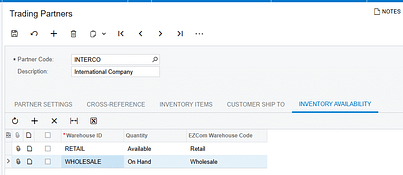
- Configure inventory availability - On the Inventory Availability tab, map the Acumatica warehouse, the quantity option, and the corresponding EZCom warehouse code or item UPC reference described in the product documentation. This mapping controls which quantity is synchronized to EZCom.

- Review items ready to send - Open Send Inventory Availability for the appropriate partner. The grid should show the items that were loaded and selected on the partner's Inventory Items tab.
- Send inventory quantities - Select one or more items and click Send, or click Send All to process every displayed item. The connector sends each quantity according to the partner's Inventory Availability mapping.
Required fields and settings
Partner Code identifies the EZCom trading partner whose rules apply. Because inventory and cross-reference settings are maintained by partner, verify the code before reviewing items or sending quantities. The Description field can provide additional partner details, but Partner Code is the lookup that selects the partner configuration.
Inventory ID is the Acumatica item associated with the partner's EZCom item. The Inventory Items tab provides the item-level cross-reference. The available lookup method depends on the enabled Cross-Reference Options. For example, the connector can search by UPC Code and associate the matching value with an Acumatica Inventory ID. Only cross-reference entities selected in the partner settings appear in the dropdown.
Acumatica Warehouse identifies the inventory location used for the availability calculation. Quantity Option determines which quantity value the connector sends. EZCom Warehouse Code establishes the destination warehouse reference on the EZCom side. The source documentation groups these values together on the Inventory Availability tab because all three are needed to determine what quantity should be synchronized and where it belongs.
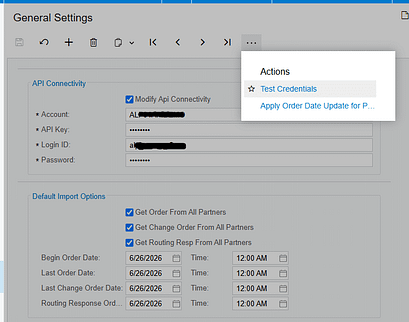
API connectivity is configured in General Settings. When Modify API Connectivity is selected, the screen displays Account, API Key, Login, and Password. The account and API key are provided for each EZCom website, while the login and password are the EZCom admin-panel credentials. Use Test Credentials under Actions to verify the connection to the Acumatica-Biz-Tech server before troubleshooting item-level synchronization.
Monitoring and validating the sync
Start validation before sending. Confirm that the expected partner is selected, the item appears on the Inventory Items tab, and the item is checked. Then review the Inventory Availability mapping for the same partner. A visible item without the required warehouse and quantity mapping is not sufficient to establish the quantity that should be sent.
On the Send Inventory Availability screen, compare the displayed item list with the items you intended to publish. Send a limited selection first when validating a new setup. After clicking Send, verify the quantity in EZCom against the quantity option and Acumatica warehouse configured in the mapping. This comparison tests the full path rather than confirming only that the item appeared in the Acumatica grid.
If no items appear, return to the partner's Inventory Items tab and verify that the records were loaded and checked. If items appear but the values are unexpected, review the Inventory Availability mapping, especially the Acumatica warehouse and quantity option. If processing cannot reach EZCom, test the General Settings credentials and confirm that the Account, API Key, Login, and Password belong to the intended EZCom website.
Common pitfalls
- Configuring an item for one partner and sending from another partner. The connector applies settings for the selected Partner Code.
- Loading an item without checking it on the Inventory Items tab. The Send Inventory Availability screen is documented to show items that are already loaded and checked.
- Mapping the Inventory ID but omitting the Inventory Availability setup. The warehouse, quantity option, and EZCom warehouse reference determine the quantity synchronization.
- Assuming every cross-reference field will be available. Only entities enabled under Cross-Reference Options appear in the item mapping dropdown.
- Testing with Send All before validating a small set. Send All processes every displayed item, so a narrow first test makes mapping errors easier to isolate.
- Troubleshooting quantities before testing connectivity. Invalid or mismatched credentials can prevent the connector from reaching the intermediate server regardless of item configuration.
Frequently asked questions
Which items appear on Send Inventory Availability
The screen displays items already loaded and checked on the Inventory Items tab of Trading Partners for the corresponding partner.
What setup controls the quantity sent to EZCom
The Inventory Availability mapping controls the sync. It associates the Acumatica warehouse and quantity option with the corresponding EZCom warehouse reference for the partner.
Should I use Send or Send All
Use Send for selected items. Use Send All when every displayed item should be synchronized. For a new or revised mapping, validating selected items first reduces the scope of troubleshooting.
Why is an expected item missing from the send screen
Verify that the item has been loaded and checked on the partner's Inventory Items tab. Also confirm that you are working with the correct Partner Code.
How do I verify EZCom connectivity
Open General Settings and use Test Credentials under Actions. When API connectivity can be modified, review the Account, API Key, Login, and Password fields.
Can item matching use a UPC code
Yes. The source documentation gives UPC Code as an example of an Inventory Items cross-reference method. The option must be enabled under Cross-Reference Options before it appears in the dropdown.
Get help with EZCom and Acumatica integration
Biz-Tech Services supports Acumatica integrations, including the EZCom Connector. For help reviewing partner mappings, validating inventory availability, or resolving connector issues, visit https://biztechservices.com/.

