

Modern UI Migration Readiness
Modern UI Migration Readiness
Prepared for Biz-Tech Services | Last verified 13 October 2026
Acumatica Modern UI migration readiness is the discipline of proving that your people, processes, customizations, and dependencies can operate safely in the modern interface before a production upgrade makes it the default. This guide explains what to inventory, test, train, remediate, and measure so the migration supports the work that matters most.
Table of Contents
- Why Modern UI readiness is now a business priority
- What changes with Acumatica 2026 R2
- Build a Modern UI inventory before changing settings
- Assess customizations and custom screens
- Audit integrations, ISV products, and embedded experiences
- Decide the future of dashboards, pivot tables, and inquiries
- Map end-to-end workflows by role
- Set up a safe, representative test environment
- Create a role-based testing strategy
- Plan user adoption around recurring work
- Protect security, personalization, and controls
- Measure performance and accessibility in real conditions
- Sequence remediation and make tradeoffs explicit
- Run a rehearsal and production cutover
- Define readiness metrics and the next practical step
- A practical four phase migration plan
- How finance operations should validate the new experience
- How operations teams should validate warehouses and production
- Common readiness mistakes and how to avoid them
- Modern UI migration readiness checklist
- Frequently Asked Questions
- Sources Used
Why Modern UI readiness is now a business priority
Modern UI migration readiness is no longer a cosmetic ERP initiative. It determines whether people can complete the work that creates invoices, receives goods, closes jobs, posts time, releases payments, and answers customers. Acumatica 2026 R2 makes Modern UI the default experience and removes the normal ability to switch an otherwise available form back to Classic UI. Acumatica also states that Classic-only forms are planned to become unavailable in 2027 R1. The practical implication is simple: an organization that still depends on Classic-only assets must treat them as a visible operating risk, not as a future enhancement backlog.
The leadership question is not whether users prefer a familiar layout. It is whether every business-critical path has a supported, tested Modern UI route. The migration affects finance, operations, IT, reporting, internal controls, external integrations, and adoption. A good program gives each of those groups a role: business owners define the essential outcomes, IT validates technical compatibility, developers remediate UI-specific work, and executive sponsors decide which risks are acceptable.
This guide is a readiness framework, not a claim that every Acumatica tenant has the same gaps. Feature coverage, custom packages, ISV products, deployment model, version, and business process all matter. Use it to create an evidence-based inventory and a go/no-go decision before a release window is fixed.
What changes with Acumatica 2026 R2
In 2026 R2, Modern UI is the standard user experience. When a form has a Modern UI version, Acumatica opens it in Modern UI. The ordinary UI-selection options are no longer presented in the installer, system menu, Site Map, or Site Preferences. Administrators can temporarily enable legacy behavior through a web.config setting, but that is a troubleshooting measure, not a migration strategy.
The release still allows access to some Classic-only functionality, but it warns that the capability is being retired. Acumatica specifically identifies unmigrated dashboards and pivot tables, wizard forms, the Customization Editor Layout Editor, custom forms that have not been converted, and other Classic-only forms. Teams should record each of these items, identify its business owner, and decide whether to migrate, replace, retire, or defer it with documented risk acceptance.
Do not confuse an interface transition with a data conversion. Acumatica describes the switch as an interface change: records, transaction history, and configurations remain in the same application. However, an unsupported UI customization can make data difficult to view, enter, or act on. Readiness therefore focuses on business behavior and usability, not on moving master data between systems.
Build a Modern UI inventory before changing settings
Start with discovery, not conversion. Build one inventory covering standard forms, custom and customized forms, dashboards, pivot tables, generic inquiries, reports, mobile projects, embedded links, personalization, browser scripts, code-behind files, third-party extensions, and documented workarounds. Include the screen ID, purpose, business process, frequency, criticality, owner, current UI behavior, dependencies, and proposed disposition.
Use a tiering model that reflects operational consequence. Tier one includes steps that affect cash, shipment, production, safety, statutory reporting, customer commitments, or an active project billing cycle. Tier two covers important management, analysis, and supervisory work. Tier three includes occasional or replaceable conveniences. Tiering prevents a long list of minor layout issues from obscuring a single payment, warehouse, or compliance blocker.
Inventory evidence must be observable. A screenshot, a saved test case, a package name, an ISV confirmation, a user interview, or a record of usage provides better evidence than a spreadsheet cell that says ready. Ask super users where they leave Acumatica, reopen old bookmarks, use a browser favorite, or ask another user to complete a task. Those informal detours often reveal the Classic UI dependencies that configuration lists miss.
Assess customizations and custom screens
Most backend business logic does not automatically become a Modern UI problem. The higher-risk items are the portions of a customization that assume Classic UI page markup, control IDs, JavaScript behavior, fixed dimensions, code-behind files, or browser-side manipulation. Acumatica notes that forms with inline JavaScript or ASPX.CS code may require additional migration work; Modern UI recalculates controls according to its design guidelines and screen size rather than preserving Classic UI size calculations.
Run compatibility validation on a copy of each package in a sandbox that matches the intended target version. Treat a successful validation as the beginning of testing, not sign-off. For every package, record the validator result, conversion work performed, published version, affected screens, source repository reference, regression cases, test owner, and remaining limitations. Do not rely on an old package file or a verbal statement that it worked on another tenant.
The Customization Project Editor includes a Convert to Modern UI command for selected screens. It can generate source files for custom screens or extension files for customized screens. Use tooling to accelerate analysis, then review the generated result against the actual workflow. Conversion cannot decide whether a legacy dialog, layout, or client-side behavior remains the right interaction for a modern responsive application.
Audit integrations, ISV products, and embedded experiences
A Modern UI project can fail through a dependency that is not visually obvious. ISV solutions can open a custom form, inject a toolbar action, rely on legacy behavior, or publish a customization package at upgrade time. External systems may target a screen, launch an embedded page, parse an exported view, or depend on an operator following an old navigation route. Give every vendor and internal product owner a concrete compatibility questionnaire and a due date.
Request the exact supported version, prerequisite patches, installation order, Modern UI limitations, known issues, test guidance, support contact, and cutover coverage. Ask whether the vendor has tested your target Acumatica build rather than asking whether the product supports Modern UI in general. Record the answer and test the most consequential transaction in the sandbox. A statement of compatibility without a repeatable test is incomplete evidence.
Review bookmarks, deep links, browser extensions, iframe content, scanning and printing workflows, and automated browser steps. Replace brittle screen-driven automation with supported integration patterns where possible. When a dependency cannot be modernized before the release, document the business impact, temporary procedure, monitoring, owner, and date for removal. This makes technical debt a managed decision rather than an invisible production dependency.
Decide the future of dashboards, pivot tables, and inquiries
Dashboards and pivot tables often contain operational knowledge that is not captured in a formal customization project. In 2026 R2, existing Classic dashboards and pivot tables can still be accessed while teams migrate what they need, but new Classic dashboards and pivot tables cannot be created when Classic UI is disabled. The useful question is not whether every artifact should be copied; it is which decision or daily action each one supports.
Classify each asset as keep and migrate, redesign, replace with a generic inquiry or report, consolidate, or retire. Then test it with the audience who uses it. Check security, filters, saved views, export, drill-down behavior, shared versus personal settings, and performance at realistic volume. A modernized dashboard that loads but provides the wrong role with the wrong slice of information has not met its purpose.
Use this work to reduce duplication. When five teams maintain similar inquiries with slightly different calculations, establish a governed owner and a clear definition. Modern UI migration is an opportunity to improve information architecture, but it should not become an unbounded analytics redesign. Keep required operational assets in the critical path and schedule broader reporting rationalization as a separate, owned initiative.
Map end-to-end workflows by role
Screen-level testing is necessary but insufficient. A user experiences an order, purchase, work order, project, or close as a chain of steps across screens, approvals, attachments, reports, devices, and integrations. For each tier-one workflow, map the trigger, inputs, roles, decision points, exception paths, outputs, control evidence, and downstream system effects. This establishes what “ready” means in business terms.
Finance should trace payables, receivables, cash, tax, period close, approvals, and financial reporting. Distribution should trace promise dates, allocation, warehouse execution, shipment, invoice, return, and inventory adjustment. Manufacturers should trace planning, release, material, labor, completion, quality, and cost. Project and construction teams should trace commitments, changes, time, billing, retainage, and compliance. Use your actual configuration rather than a vendor demonstration path.
Include exceptions deliberately: an approval rejection, a partial shipment, an expired lot, a failed payment, a missing attachment, a late timecard, a reopened project, or a duplicate integration message. Exception handling exposes navigation, permissions, messages, and recovery work that happy-path demos leave untouched. It also gives the business a way to decide whether a changed interaction is acceptable before it happens under pressure.
Set up a safe, representative test environment
A productive migration sandbox resembles production in version, configuration, packages, security, tenant structure, report definitions, data volume, and devices without creating real-world transactions. Refresh responsibly, protect sensitive data, and isolate email, payment, carrier, tax, commerce, and file-transfer endpoints. Test credentials and certificates with nonproduction endpoints wherever the provider offers them.
Establish a baseline before changing anything. Capture key financial totals, inventory quantities and valuation, open orders and commitments, scheduled jobs, integration queues, user counts, response times, and critical report output. Record filters and time stamps. The same evidence becomes the comparison pack after an upgrade or customization publication. A total without the date, branch, company, ledger, or report parameters is difficult to audit.
Promote packages in a controlled sequence and preserve source control references. Use a clean test run after each major remediation wave. If an error is discovered, log the exact build, package version, role, browser, inputs, expected result, actual result, evidence, and owner. Reproducing a defect is far less expensive than rediscovering it at cutover.
Create a role-based testing strategy
Write test cases in the language of work. “Open the screen” is a smoke test; “receive a serialized item, resolve a quantity exception, print the label, release the receipt, and confirm inventory and AP consequences” is a meaningful business test. Each test should name the role, preconditions, data, steps, expected result, evidence, and pass/fail owner.
Separate technical checks from business acceptance. Technical checks cover publication, login, permissions, performance, errors, supported browsers, and dependent services. Business acceptance confirms that a role can complete its recurring work and that results are accurate. Both are needed. A developer should not be the only person to certify a controller’s close workflow, and an end user should not be asked to diagnose a package publication error.
Set entry and exit criteria. A tier-one test must pass in the target version; severity-one defects must be resolved or formally rejected; reconciliations must meet agreed tolerances; vendors must confirm essential components; and training must be complete for affected roles. Use defect severity based on business impact, not on how quickly an issue seems fixable. This prevents false readiness caused by optimistic labels.
Plan user adoption around recurring work
People do not need a catalogue of every design change. They need to know how to complete their own work, recognize a changed behavior, and get help without inventing an uncontrolled workaround. Build short role-based learning paths around daily tasks: navigation, search, inquiries, entering and releasing documents, working with attachments, approvals, personal settings, and exception recovery.
Use current screenshots from the approved target environment. A job aid copied from Classic UI is itself a migration defect. Give super users hands-on practice before their teams and assign them a clear escalation route. Their feedback should distinguish a genuine defect from a preference, a training gap, a configuration decision, and a process problem. Each category needs a different response.
Stage communication by business rhythm. Finance may need dedicated practice ahead of close, warehouse users ahead of a peak shipping window, and project teams ahead of billing. Publish the planned switch, what users will see, the support channel, any temporary limitations, and the decision owner. Adoption becomes manageable when people see a direct connection between the training and the work waiting on their desk.
Protect security, personalization, and controls
Modern UI readiness must preserve least privilege. Re-test role access, branch restrictions, approval maps, workflow states, sensitive fields, attachments, report access, inquiry visibility, and exported information. Do not assume a screen that renders correctly respects the same operational boundary. Use separate roles to prove both allowed and denied behavior.
Personalization deserves deliberate governance. Users may tailor screens, fields, tabs, and layouts, but critical controls must remain discoverable and consistent. Define what is centrally managed, what is role-specific, what can be personalized, and how a user requests a correction. Preserve the evidence needed for audit and make sure job aids point to the approved workflow rather than a particular individual’s personalized view.
Review browser policies, multifactor authentication, session timeouts, shared-device behavior, and attachment handling. Work with compliance and security leads when data is exposed through embedded services, analytics, automation, or customer-facing experiences. A migration that simplifies navigation while weakening a segregation-of-duties control is not ready for production.
Measure performance and accessibility in real conditions
Modern UI is responsive by design, so test the real mix of workstations, display sizes, browsers, warehouse devices, and network conditions. Observe load time, search behavior, scrolling, filters, grids, popups, file upload, printing, and keyboard use during normal volume. Fixed-size Classic UI assumptions frequently surface when a screen is used on a smaller display or with a different zoom level.
Measure a small set of representative tasks instead of relying only on an overall page-load impression. For example, time how long it takes to find an order, enter a receipt, open an inquiry, approve a bill, attach a document, and release a transaction. Compare the user experience with baseline expectations, and investigate whether a gap is caused by data, configuration, customization, network, browser policy, or a third party.
Accessibility and usability are operational quality concerns. Check readable labels, focus order, error messages, keyboard navigation, contrast, responsive reflow, and the clarity of actions. Invite users who work at different experience levels to perform realistic tasks. The best migration is one in which a new user can understand the next correct action without depending on a legacy layout.
Sequence remediation and make tradeoffs explicit
Use the inventory and test evidence to create a risk-ranked backlog. Fix tier-one blockers first, then high-frequency pain points, then strategic enhancements. For every item, state the decision: migrate, redesign, replace, retire, defer, or accept risk. Include an owner, target date, test case, dependency, estimate, and a measurable completion condition.
Avoid a big-bang scope that combines interface conversion, an ERP version upgrade, new AI functionality, report redesign, data cleanup, process reengineering, and a new commerce connector unless there is a compelling business reason. A stable base release makes later improvement safer. Where a combined release is unavoidable, give each component its own disable path, owner, and acceptance evidence.
Escalate uncertainty early. Missing vendor confirmation, a legacy script without source, a failing high-volume inquiry, or an untested device integration is not a minor observation. It is a decision point. Executive sponsors should resolve scope, funding, timing, or risk acceptance while alternatives remain available rather than after a production window has begun.
Run a rehearsal and production cutover
A timed rehearsal turns a plan into evidence. Use the intended upgrade route, target packages, configuration steps, integration holds, communications, smoke tests, reconciliations, and support model. Record actual duration, deviations, dependencies, and decisions. Improve the runbook until each task has an owner, start condition, expected duration, evidence, and fallback.
The production runbook should include user communication, backup and restore verification, interface pause or queue management, the upgrade, package publication, authentication checks, smoke tests, business-process validation, reconciliation, release of integrations, and monitoring. Define exactly who can declare a hold, who can authorize rollback, and what triggers that decision. A successful installer message is not a go-live decision.
During stabilization, monitor business outcomes as well as technical telemetry. Review errors, job failures, queue backlog, failed sign-ins, support tickets, print and email activity, payment and banking flows, performance, and critical document counts. Hold short cross-functional triage sessions. Make every emergency fix traceable, tested where possible, and visible to the people responsible for the affected workflow.
Define readiness metrics and the next practical step
A useful dashboard reports evidence, not optimism. Track the percentage of tier-one workflows passed, number of unresolved blockers, customization and ISV confirmation status, training completion, reconciliation differences, rehearsal duration, support coverage, and known exceptions. Pair each metric with an owner and a threshold. “Green” should mean that a documented condition has been met, not that a meeting felt positive.
After release, measure adoption and value separately from readiness. Look at task completion, support demand by role, workaround use, close duration, inquiry response time, transaction exceptions, and the business measures the migration was intended to protect. Review at 30, 60, and 90 days. This prevents the organization from declaring success at cutover while recurring users struggle with a slow or inconsistent process.
The next practical step is a facilitated readiness assessment that produces a screen and workflow inventory, risk-ranked backlog, test plan, training plan, and cutover decision criteria. Biz-Tech Services can help teams assess Modern UI coverage, customizations, integrations, ISV dependencies, business processes, and adoption risks—then turn the findings into an executable migration plan.
A practical four phase migration plan
Phase one is discovery and alignment. Confirm the target Acumatica version and the reason for the migration; nominate process owners; inventory screens, packages, dashboard assets, ISVs, integrations, and user groups; and tier the workflows. The output is a shared fact base, not a promise that all issues are easy. Leadership should approve the critical workflow list and the decision rules before conversion work begins.
Phase two is remediation and sandbox validation. Convert or redesign screen-specific work, obtain partner and vendor confirmations, replace unsupported behavior, and run technical regression tests. Keep a daily list of new defects and decisions. Where a remediation affects a workflow, give the business owner an early opportunity to see it; waiting until the final user-acceptance session makes even a small design decision feel like a surprise.
Phase three is role-based acceptance and rehearsal. Train super users, execute the tier-one test pack, reconcile data and documents, run the cutover script end to end, and verify the support model. Phase four is production and stabilization: communicate clearly, execute the approved runbook, monitor the agreed indicators, triage issues visibly, and turn deferred improvements into an owned release plan. The phases may overlap, but each needs explicit exit evidence.
How finance operations should validate the new experience
Finance should establish a baseline that makes discrepancies observable. Capture trial balances by company, branch, ledger, and period; AP and AR aging; cash positions; tax reports; inventory valuation where relevant; unreleased batches; and selected financial statements. Preserve the report parameters and as-of time. This provides a stable comparison after sandbox migrations and again after production cutover.
Test complete control chains. For procure-to-pay, enter and approve a bill, process payment, handle a void or adjustment, and reconcile the result. For order-to-cash, include credit review, shipment, invoice, payment, adjustment, refund, and aging. Exercise approval paths, multiple branches, currencies, tax settings, and restricted roles that reflect production. Confirm not only that a document saves, but also that it posts and appears correctly in the reports that people rely on.
The controller or a named delegate should sign a concise acceptance pack. It should show control totals, exceptions, selected transaction evidence, payment and bank-interface outcomes, and a list of any accepted differences with an owner and due date. This is a better go-live control than a generic confirmation that finance users could sign in.
How operations teams should validate warehouses and production
Distribution and warehouse teams should follow inventory from demand to fulfillment and return. Test availability, allocations, purchasing, receiving, replenishment, picks, packing, shipment, invoicing, returns, transfers, cycle counts, and valuation with real item classes, warehouses, units, kits, serial or lot controls, and partial shipments. Validate labels, printers, scanners, carrier connections, and actual workstations rather than only a developer laptop.
Manufacturing teams should connect planning, scheduling, execution, material movement, labor, completion, quality, and costing. Use representative calendars, work centers, alternate resources, bills of material, routings, scrap rules, subcontract steps, and backflush behavior. A work order that looks correct on one screen may fail in the shift-level sequence that operators use, so involve the people who record labor, issue material, and resolve exceptions.
For both teams, write a manual fallback for the few processes where an external device or service could fail during cutover. Define who records the temporary transaction, how it is reconciled, and when the fallback ends. A contingency that cannot be reconciled is simply deferred risk.
Common readiness mistakes and how to avoid them
One common mistake is treating a compatibility check as full acceptance. Validators and converters are valuable, but they cannot prove that a role can complete an exception-heavy process or that a custom report still supports a decision. Avoid the mistake by linking each technical artifact to one or more business tests and naming a business owner who can accept the result.
Another mistake is trying to preserve every legacy interaction exactly as it was. Some behavior was designed around fixed Classic UI layouts and no longer makes sense in a responsive interface. Instead, identify the underlying business need, then choose a design that meets it in Modern UI. This reduces rework and produces a process that is easier to maintain than a screen full of special cases.
A third mistake is scheduling training after the production change. Users discover real process gaps when they practice their own work, and those discoveries need time for remediation. Begin targeted super-user practice early, use final target-version screens in materials, and reserve time between user acceptance and production for corrections.
Modern UI migration readiness checklist
Before approving a production move, confirm that the target version and build are recorded; Classic-only assets are identified; tier-one workflows have named owners; customizations and ISV packages have target-build evidence; integrations have been tested for normal and exception behavior; dashboards, pivots, inquiries, reports, and mobile experiences have a documented disposition; and security roles have been revalidated.
Confirm that representative sandbox data and safe endpoints are available; pre- and post-change reconciliations are defined; role-based test cases have passed; defects are categorized and either resolved or accepted; user aids and training are current; production support coverage is scheduled; a cutover rehearsal has been timed; rollback criteria and authority are known; and communications say what changes and where users get help.
Finally, make the decision explicit. The executive sponsor, IT lead, and affected business owners should review the evidence and record go, no-go, or conditional go. A conditional decision must name the condition, owner, verification method, and deadline. This last step keeps readiness from becoming an ambiguous feeling and makes the migration accountable.
Frequently Asked Questions
Is Modern UI mandatory in Acumatica 2026 R2?
Modern UI is the default experience in 2026 R2 and ordinary switching options are removed. Classic-only assets can still be accessed temporarily with warnings, but Acumatica says they will no longer be available beginning with 2027 R1.
Will switching to Modern UI change our Acumatica data?
The UI transition does not convert or remove business records. The risk is operational: a customization, screen, report, or workflow may need work before users can interact with data correctly in the new experience.
Do all customizations need to be rewritten?
No. Backend logic can often remain intact. Review and test UI-specific customizations, especially JavaScript, ASPX.CS code-behind, fixed layout behavior, custom screens, and client-side manipulation.
How should we test Modern UI?
Test complete role-based workflows in a representative sandbox. Include normal and exception paths, permissions, integrations, reports, devices, reconciliations, and business-owner acceptance.
What should we do with Classic dashboards and pivot tables?
Inventory them, identify the decision they support, and choose to migrate, redesign, replace, consolidate, or retire each one. Existing Classic assets remain temporarily available in 2026 R2, but new Classic dashboards and pivot tables cannot be created when Classic UI is disabled.
Can we rely on EnableLegacyUI as our long-term solution?
No. Treat it as a short-term diagnostic or transition option. A sustainable plan removes reliance on Classic-only functionality before it becomes unavailable.
Who should own the migration?
IT owns environment and technical compatibility; business owners own workflow acceptance; developers own remediation; change leads own adoption; and an executive sponsor owns priorities, risk acceptance, and the final go/no-go decision.
What should block a production cutover?
A failed tier-one workflow, unsupported dependency, unresolved security issue, material reconciliation difference, unproven recovery procedure, missing vendor support, or incomplete business acceptance should block release.
How long does Modern UI migration take?
The answer depends on the number and complexity of customizations, third-party products, workflows, users, environments, and unresolved legacy dependencies. A discovery inventory and timed rehearsal provide a more reliable estimate than a generic timeline.
What is the most important first step?
Build a risk-ranked inventory of business-critical screens, customizations, dashboards, integrations, ISV products, and workflows. Then verify every tier-one item in a target-version sandbox.
Sources Used
- Acumatica 2026 R2 Classic UI retirement guidance
- Acumatica announcement: Classic UI deprecation in 2026 R2
- Acumatica 2026 R2 release announcement
- Migrating custom frontend code to the Modern UI
- Acumatica Customization Project Editor: Screens
- Acumatica 2025 R2 release announcement
- Modern UI features overview 2025 R2 announcement
- Acumatica support and documentation portal
How to Configure Serialized and Non-Stock Gift Cards in Acumatica
Configuring serialized and non-stock gift cards in Acumatica starts with choosing the item model that matches how each card will be created, numbered, received, and selected on an order. A non-stock gift card can use numbers generated from Gift Card Preferences, while a stock gift card must be a serialized stock item whose serial number is received and allocated before sale.
The Biz-Tech Services Gift Card Processing product supports both models and also provides a documented mapping path for gift cards imported from an external system. This guide concentrates on item-level setup, external SKU mapping, and the checks that distinguish a valid configuration from an incomplete one.
What Serialized and Non-Stock Gift Card Items Are
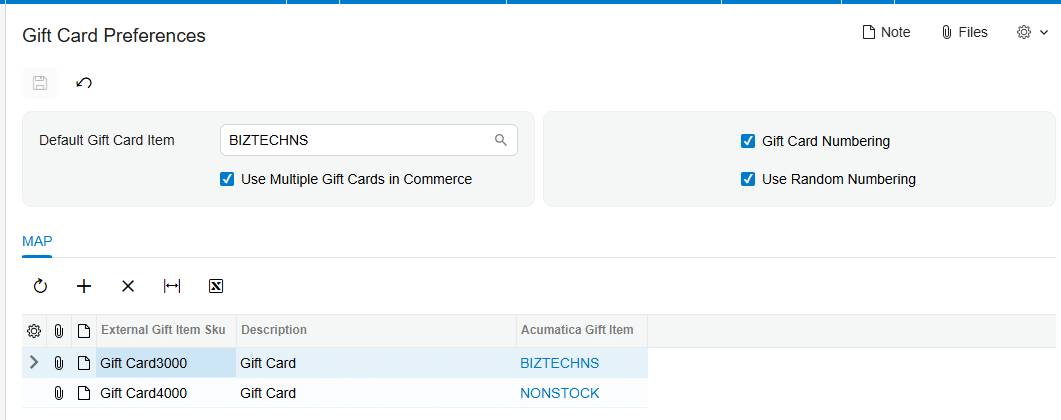
A non-stock gift card item is an Acumatica Non-Stock Item associated with the Gift Card Payment Method. It can be sold in Acumatica or mapped to an external gift card for external order import. Its gift card number may be entered manually or generated from the setup on the Gift Card Preferences screen (BZ102000).
A serialized gift card is created as a stock item on the Stock Items screen (IN202500). The documentation states that the Payment Method field is enabled only for serialized items, so a serial class specifically for the gift card item must be created. This model also brings the stock receipt and allocation controls documented for stock gift cards.
The two models therefore use different sources for the number attached to the gift card. The non-stock model can generate a number when an item and quantity are entered on a sales order. The stock model uses a serial number created during receipt and selected from available values during allocation on the sales order.
Gift Card Item Configuration at a Glance
Use this sequence to keep the item, payment method, numbering, and external mapping decisions aligned.
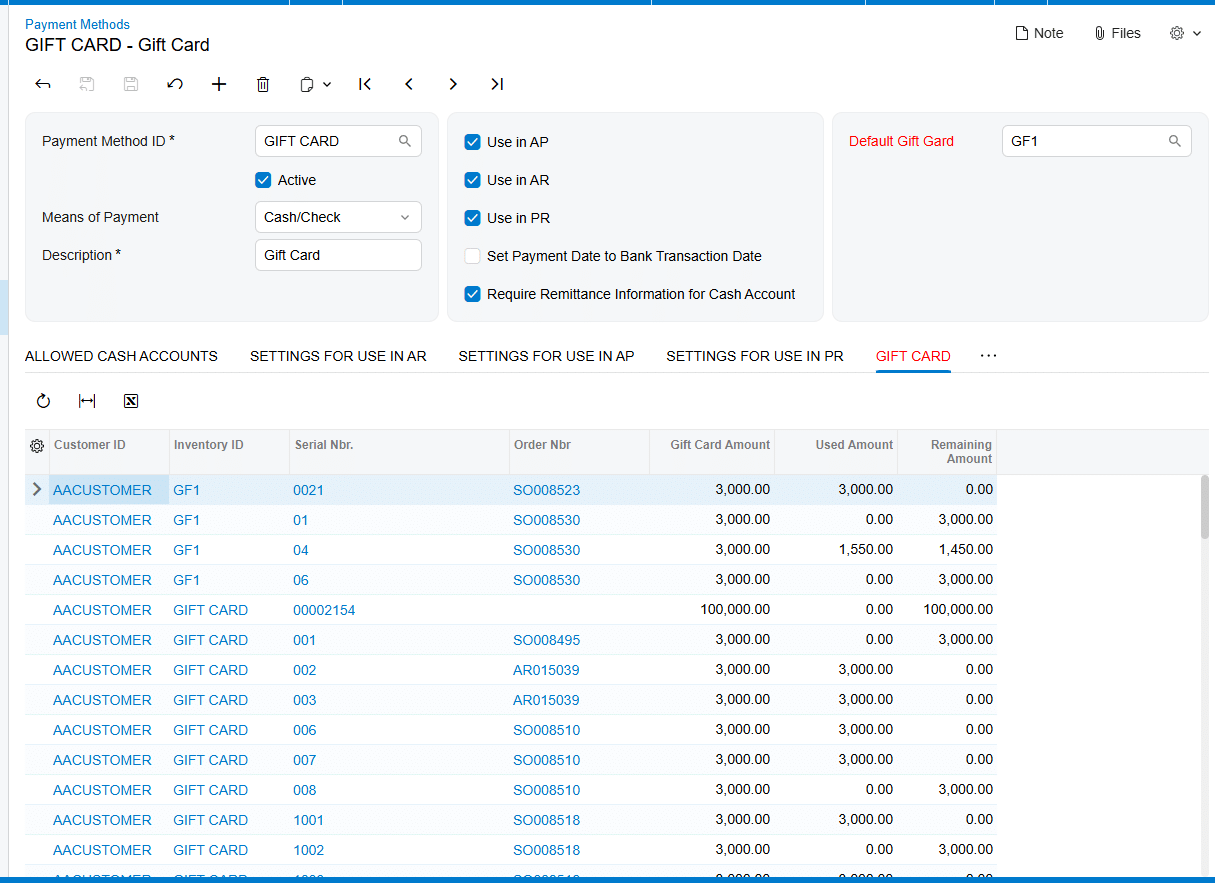
1 Create the Gift Card Payment Method on the Payment Methods screen (CA204000), connect the appropriate cash account, and set a Default Gift Card if one should appear automatically during payment creation.
2 For a non-stock model, prepare the Acumatica Non-Stock Item that uses the Gift Card Payment Method.
3 On Gift Card Preferences (BZ102000), select a Default Gift Card Item for external order import when one default item should represent external gift cards.
4 If external orders can contain multiple gift card SKUs, select Use Multiple Gift Cards in Commerce and map each documented External Gift Card SKU to the corresponding Acumatica Gift Card Item.
5 Choose Gift Card Numbering with Numbering Segments, including the required Auto-Incremental Value, or select Use Random Numbering for automatically generated random numbers.
6 For a stock model, create the item on Stock Items (IN202500), assign a gift-card-specific serial class, associate the Payment Method, and configure expiration tracking when required.
7 Receive stock gift card quantities and generate their serial numbers before trying to allocate them on a sales order.
8 Validate the resulting gift card item, number, and stock status on the documented setup, order, payment, and gift card inquiry screens.
Configure the Gift Card Payment Method Foundation
Both item models depend on the payment method setup. The documentation directs administrators to the Payment Methods screen (CA204000) to create a new Payment Method. Because payment methods are linked to cash accounts, it strongly recommends creating a new general ledger account for the newly created gift card item and adding the Gift Card Payment cash account on the Allowed Cash Accounts tab.
The Default Gift Card field on Payment Methods controls which gift card appears by default in the Gift Card field of the Create Payment popup. This is a payment-entry default, not the same setting as Default Gift Card Item on Gift Card Preferences. The latter determines which non-stock item represents an external gift card during order import when multiple external gift card mapping is not enabled.
Keep those two defaults separate during review. One points to the gift card used as a payment selection; the other points to the non-stock inventory item used when an external order is imported. The source documents both fields but does not describe a validation message that warns if administrators confuse them.
Configure a Non-Stock Gift Card Item and Its Numbering
The non-stock setup is the direct choice when the business wants Acumatica to treat the gift card as a Non-Stock Item and generate or accept a gift card number during order entry. The documentation says that the corresponding Acumatica Non-Stock Item for which the Gift Card Payment Method is selected can be used as a Gift Card Item and can also be mapped to external gift cards for external order import.
Open Gift Card Preferences (BZ102000) screen to control automatic numbering. When Gift Card Numbering is selected, the Numbering Segments tab becomes available. Define the numbering structure there and configure the Auto-Incremental Value, which the source identifies as essential for automatic gift card number generation.
Use Random Numbering is the alternative. When it is selected, the Numbering Segments tab is hidden. The system then generates random numbers when a gift card item and quantity are entered on a sales order. The generated values appear in the Gift Card Numbers popup. The manual says this mode prevents users from relying on a predefined numbering sequence.
For an order created in Acumatica, the gift card number can be entered manually or produced according to Gift Card Preferences. The Gift Card Numbers popup is tied to the selected item line. When quantity is greater than one, the numbers are shown in the popup. The source also states that the shipping rule for the corresponding non-stock gift card becomes Ship Complete on the sales order line.
Map External Gift Card SKUs in Gift Card Preferences
Gift Card Preferences (BZ102000) is the documented mapping point between external gift card items and Acumatica gift card items. The Default Gift Card Item field accepts the non-stock item that should represent an external gift card during order import. If Use Multiple Gift Cards in Commerce is not selected, external order import uses that default non-stock item.
Select Use Multiple Gift Cards in Commerce when the external system sends more than one gift card SKU and those SKUs must resolve to different Acumatica gift card items. The documentation states that this option allows an External Gift Card SKU to be mapped to the corresponding Acumatica Gift Card Item, and that the mapping is used when processing orders involving multiple gift cards.
A practical review should therefore compare the external SKU and the Acumatica item selected in each documented mapping. The manual does not name the individual grid columns beyond External Gift Card SKU and Acumatica Gift Card Item, and it does not describe a separate alias, cross-reference, or alternate-ID table. Use only the fields shown in Gift Card Preferences rather than assuming that another Acumatica cross-reference screen participates in this product workflow.
The documentation also does not state what happens when an incoming external gift card SKU has no matching row while Use Multiple Gift Cards in Commerce is selected. It provides no rejection message, fallback rule, error inquiry, or automatic record-creation behavior for an unmapped SKU. Test that case in a non-production environment and document the observed result before relying on it in live imports.
Configure a Serialized Stock Gift Card Item
Create a stock gift card on the Stock Items screen (IN202500). Associate the chosen item with the Payment Method used for gift card payments. The source states that the Payment Method field is enabled only for serialized items, so create and assign a Serial Class specifically for the gift card item before expecting that field to be available.
If the gift card requires an expiration date, select Track Expiration Date for its serial class. The documentation says the expiration date is established during the gift card receipt process. It does not describe setting or replacing the expiration date as part of the sales order mapping step.
Receive the item before sale. On the Receipts screen, add the Gift Card Item, enter the quantity, and generate the serial numbers with their respective expiration dates in the Line Details popup when expiration tracking is selected. The manual does not provide a screen ID for the Receipts screen or the Lot/Serial Classes screen, so none should be inferred from standard product knowledge.
On the Sales Orders screen (SO301000), allocation is required for stock gift card items. Select the serial number from the Lot/Serial Nbr field on the Line Details tab. The available gift card-related serial numbers and their expiration dates are displayed there. This is the documented stock-item selection rule; it is different from generating a new non-stock number through Gift Card Preferences.
Apply Stock Receipt and Sales Order Validation
The source documents several configuration conditions that can be checked without inventing application behavior.
1 Confirm that the Payment Method is associated with the gift card item. For a stock item, confirm that the item is serialized because the Payment Method field is enabled only for serialized items.
2 If Gift Card Numbering is used for non-stock cards, confirm that Numbering Segments are visible and that Auto-Incremental Value is configured.
3 If Use Random Numbering is selected, expect Numbering Segments to be hidden and check the Gift Card Numbers popup after entering the sales order quantity.
4 If multiple external gift card products are expected, confirm that Use Multiple Gift Cards in Commerce is selected and review each External Gift Card SKU to Acumatica Gift Card Item mapping.
5 If the stock card tracks expiration, enter the expiration date while generating serial numbers during receipt.
6 Before selling a stock gift card, confirm that a received serial number is available for allocation in Lot/Serial Nbr on the sales order Line Details tab.
7 After sale, confirm that the Gift Card tab on Payment Methods contains Customer ID, Inventory ID, Gift Card Serial Number, Order Number, Gift Card Amount, Used Amount, and Remaining Amount.
The manual does not provide the exact text of any validation error raised when these conditions are missing. It documents the required setup and expected field availability, but it does not identify a formal validation-rule list, severity level, or error code.
Handle Mapping Topics the Documentation Does Not Define
The source provides one explicit item-mapping mechanism: External Gift Card SKU to Acumatica Gift Card Item on Gift Card Preferences (BZ102000), enabled through Use Multiple Gift Cards in Commerce. It also provides one defaulting mechanism: Default Gift Card Item for external order import when multiple gift card mapping is not selected.
It does not document Acumatica item cross-references, vendor or customer part numbers, aliases, wildcard mappings, case sensitivity, duplicate external SKUs, or precedence between a mapping row and another inventory identifier. It also does not describe how unmapped records are queued, rejected, logged, or corrected. Administrators should not design those behaviors from assumptions about another connector or standard Acumatica feature.
Item classes are also absent from the Gift Card Processing manual. No item class is required by name, no class-level default is described, and no inheritance rule is given for the Payment Method, Serial Class, or gift card flags. If an implementation uses item classes for internal governance, validate that local design separately; it is not part of the documented product mapping.
Finally, the manual does not state that a serialized stock gift card can be selected as Default Gift Card Item for external imports. Its definition identifies that field as a Non-stock Item. Follow that documented restriction unless Biz-Tech Services supplies product-specific guidance for a different configuration.
Where to Check Your Work
Use these documented screens and fields to confirm the configuration from setup through the resulting gift card record.
1. Payment Methods (CA204000): confirm the Gift Card Payment Method, Allowed Cash Accounts, the payment-level Default Gift Card selection, and the Gift Card tab after sale.
2. Gift Card Preferences (BZ102000): confirm Default Gift Card Item, Use Multiple Gift Cards in Commerce, each External Gift Card SKU mapping, Gift Card Numbering, Use Random Numbering, and Numbering Segments when visible.
3. Stock Items (IN202500): confirm that the stock gift card is serialized and that the Payment Method is associated with the item.
4. The item serial class: confirm Track Expiration Date when expiration control is required. The source does not provide the Lot/Serial Classes screen ID.
5. The Receipts screen and Line Details popup: confirm the received quantity, generated serial numbers, and expiration dates when tracked. The source does not provide the Receipts screen ID.
6. Sales Orders (SO301000): for non-stock cards, check Gift Card Numbers on the selected line and in the popup; for stock cards, check Lot/Serial Nbr on Line Details and confirm allocation.
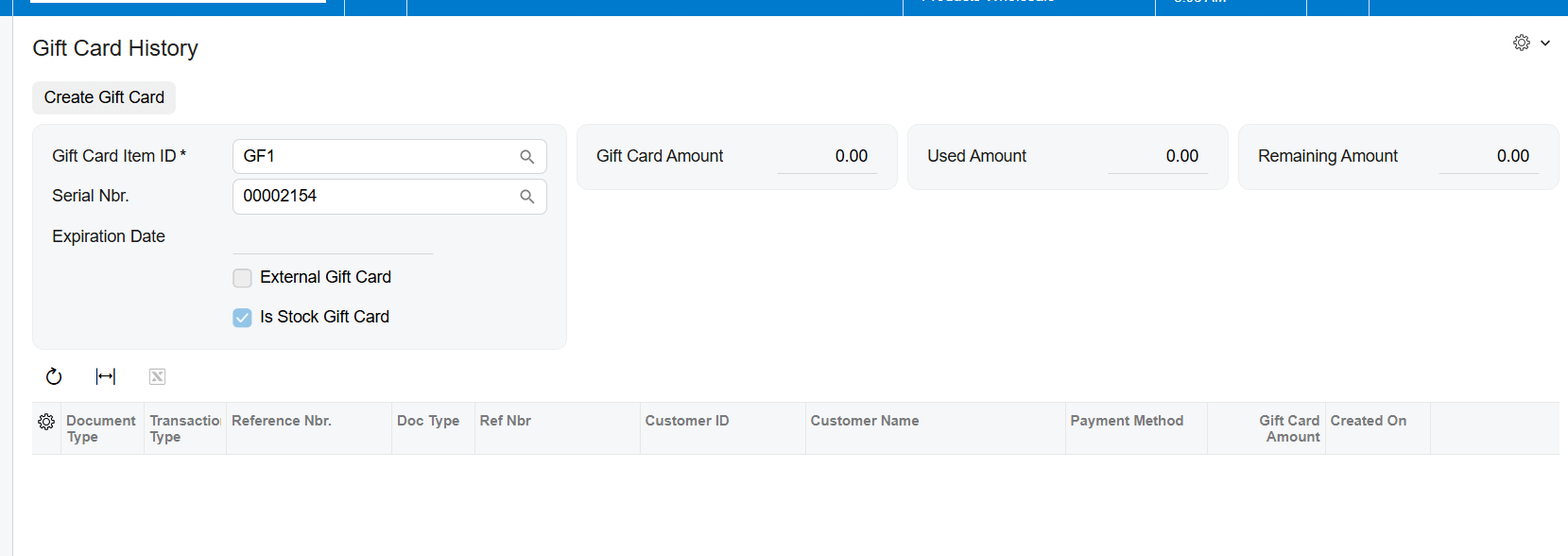
7. Gift Card History (BZ407099): confirm External Gift Card and Is Stock Gift Card indicators and review the card record reached through its serial number.
8. Gift Card Summary: review the corresponding gift card information. The source names this screen but does not provide its screen ID.
Serialized and Non-Stock Gift Card Configuration Frequently Asked Questions
What is the main difference between serialized and non-stock gift cards in Acumatica?
A non-stock gift card can receive a manually entered number or a number generated from Gift Card Preferences. A stock gift card must be serialized, received into stock, and allocated by its available Lot/Serial Nbr on the sales order.
Where do I map an external gift card SKU to an Acumatica item?
Use Gift Card Preferences (BZ102000). Select Use Multiple Gift Cards in Commerce, then map the External Gift Card SKU to the corresponding Acumatica Gift Card Item.
What happens when Use Multiple Gift Cards in Commerce is not selected?
External order import uses the Non-Stock Item selected in Default Gift Card Item. The documented default applies instead of individual external SKU mappings.
Why is the Payment Method field unavailable for my stock gift card item?
The documentation states that the field is enabled only for serialized items. Create and assign a Serial Class specifically for the gift card item, then review the stock item setup again.
Why did the Numbering Segments tab disappear?
The tab is hidden when Use Random Numbering is selected. Clear that option and use Gift Card Numbering when the implementation requires a predefined numbering structure.
Where is the expiration date entered for a serialized gift card?
Select Track Expiration Date for the serial class, then enter the expiration date when serial numbers are generated during the gift card receipt process. The source does not describe adding it during sales order mapping.
Does the product use item cross-references or aliases for gift card mapping?
The documentation does not say that it does. It documents External Gift Card SKU to Acumatica Gift Card Item mapping on Gift Card Preferences and does not define a separate cross-reference or alias process.
How does Acumatica handle an unmapped external gift card SKU?
The manual does not define the result, error message, fallback, or correction queue for an unmapped SKU when multiple mapping is enabled. Test the condition outside production and obtain product-specific guidance before establishing an operating procedure.
Work With Biz-Tech Services Gift Card Processing
A reliable gift card item configuration keeps three decisions distinct: whether the item is non-stock or serialized stock, how its number is created, and how an external SKU resolves to an Acumatica item. Gift Card Preferences handles documented defaulting and external SKU mapping, while serialized stock cards add receipt, expiration, and allocation controls.
If you need help validating serialized and non-stock gift card setup, external SKU mappings, or numbering behavior in your Acumatica environment, visit https://biz-techservices.com to speak with Biz-Tech Services about Gift Card Processing.
Chech also Youtube video for detailed explanation: https://www.youtube.com/watch?v=FyVcs9bR5NY

Acumatica 2026 R2 Upgrade Guide
An Acumatica 2026 R2 upgrade should move through six decisions: choose a supported release path, identify dependencies, prove the upgrade in an isolated copy, validate business results, rehearse recovery, and authorize production. Modern UI readiness deserves early attention, followed by custom code, connected applications, and financial controls. Approve the move when evidence shows that people can complete essential work and that the team can recover within the agreed outage window.
The difficult part is often the space between systems. A sales order can look correct while its shipment is missing from a carrier platform. An invoice can post while a customized report classifies it incorrectly. This guide explains how to expose those problems before they affect customers, employees, or cash flow.
Acumatica announced the general availability of 2026 R2 on October 1, 2026. The practical guidance below is written for business sponsors, finance and operations managers, system administrators, and implementation teams planning that release. Product facts are linked to official documentation; the readiness framework and examples are planning recommendations, not reported customer results. Sources checked: November 2, 2026. Official release announcement
What should an Acumatica 2026 R2 upgrade achieve?
The first outcome is dependable operation on an approved platform. The second is the ability to introduce improvements without carrying forward avoidable technical debt. Treat these as separate acceptance decisions so that an attractive feature does not conceal an unresolved operational dependency.
Begin with a short statement of business intent. A wholesale distributor might need to preserve its daily shipping capacity while preparing for better delivery commitments. A manufacturer might need to keep production reporting accurate while planning a later scheduling initiative. A project business might prioritize uninterrupted billing and predictable access for field staff. These are example objectives, not assumed benefits of installing the release.
Define what must be true on the first working day. Specify the processes that must run, the roles that must perform them, the reconciliations that must pass, and the available support. Make the statement concrete enough that an operations manager could determine whether the project met it without reading a deployment log.
Then identify improvements that can wait. A redesigned dashboard, an additional automation, or a new external collaboration process may deserve investment, but each introduces its own decisions and tests. A controlled upgrade can establish the platform for those changes while keeping their acceptance separate.
For the steering team, the useful question is: what evidence would persuade us to postpone? Agree on that answer before booking the production window. A missing essential integration, unexplained accounting difference, or unproven recovery method should remain a blocker even when most of the project is complete. This makes the decision consistent when schedule pressure rises.
Which release facts must be confirmed before planning?
Record the source build, proposed target build, installation model, and approved upgrade sequence before estimating effort. A release name such as 2026 R2 is not sufficiently precise for a deployment decision. Packages, fixes, dependencies, and known issues need to refer to the actual combination the team will test.
Ask the implementation owner to produce a short release record containing the current application and database versions, the selected installation package, the applicable release notes, and any intermediate upgrade required for that starting point. This guide does not assert a universal direct upgrade path. Confirm the path against the current release documentation and your support provider.
Separate availability from entitlement. Acumatica's release overview describes AI, analytics, industry workflows, portals, payments, and Modern UI developments. It is useful for selecting evaluation topics, but it does not establish that every capability is licensed, configured, or ready in a particular environment. Acumatica release overview
Give each proposed addition a named owner and a verified prerequisite list. Include the edition or subscription where relevant, required configuration, compatible third-party versions, permissions, training, and operating costs. A feature with unresolved prerequisites belongs in a conditional scope list rather than the first-day commitment.
Finally, control changes to the target. If a different build becomes the preferred candidate during testing, record why it changed and which evidence must be repeated. Do not silently apply a newer package because its version number is higher. The production release record should identify exactly what passed acceptance and who approved any difference from the rehearsal.
How should you decide when to upgrade?
Choose the production date by combining support requirements, technical readiness, and the operating calendar. A date is workable only when the necessary people, vendors, and recovery resources will be available throughout the interruption and the first critical business cycle afterward.
Map the events surrounding a candidate window. Finance may be closing a period or preparing a payment run. Distribution may face a carrier cutoff or seasonal sales event. Manufacturing may be changing shifts or launching a long planning run. Project teams may be preparing contractual billing. A quiet weekend on the office calendar may still be a demanding period for connected systems.
Confirm the provider's responsibilities early. For a hosted environment, distinguish the work performed by the hosting provider from application testing, customization remediation, and user preparation. For customer-managed infrastructure, assign responsibility for the operating system, database, application, network dependencies, and backups. Do not assume that one vendor owns every layer.
Discuss scheduling constraints with the partner or provider using the customer's actual subscription and support arrangement. Public release announcements cannot establish a particular customer's contractual upgrade deadline. Record the confirmed schedule, notice requirements, and options if acceptance is incomplete.
Build contingency into the plan. A late vendor assembly, inaccessible test endpoint, or incomplete inventory can consume the time intended for business testing. Protect that testing time by moving the date or reducing optional scope. Compressing acceptance to preserve an early estimate converts a planning issue into an operating risk.
Build an inventory around business processes
An effective inventory follows work from its starting event to its final business result. Listing servers and customization packages is necessary, but it does not show which missing component will prevent an employee from completing a task.
Start with a small number of complete processes: order to cash, purchase to payment, inventory movement, production execution, project billing, and financial close. Add service, payroll, or other processes where they apply. For each one, trace the records, approvals, reports, external systems, devices, and scheduled jobs involved.
Record the business owner and technical owner separately. The business owner defines the acceptable outcome and fallback. The technical owner explains the dependency and fixes it. Where no one can identify an owner, schedule discovery before assuming that the component is safe to retire or ignore.
Include infrequent work. A daily test cycle will not naturally reveal a monthly bank export, quarterly report, annual adjustment, or overnight batch that only runs under particular conditions. Use schedules and interviews with process owners to locate these activities. Give them explicit rehearsal dates rather than hoping they appear during general testing.
Classify each dependency by consequence. An item that stops shipping or breaks a financial control should receive attention before a cosmetic convenience. Record whether a manual alternative exists, how much volume it can handle, who approves it, and how long it can remain in use. A workaround without capacity or reconciliation is only an idea.
The resulting inventory should answer a practical question: if this component fails during the upgrade, which process is affected, who decides what happens next, and where is the evidence needed to restore service?
What does Modern UI change for the upgrade?
Modern UI readiness is a workstream that needs its own inventory, conversion decisions, and user acceptance. Test the tasks that employees perform through the interface, including exception handling and secondary actions, rather than treating a screen that opens as proof of readiness.
The 2026 R2 technical guidance identifies Modern UI as the default and describes a transition for forms available only in Classic UI. Those forms can remain accessible with warnings in 2026 R2, while their availability ends in 2027 R1. The Community announcement states that customers cannot turn off Modern UI; the technical page also documents a temporary legacy configuration. Because those statements have different scope, do not assume that a legacy setting provides an approved production fallback. Resolve any exception for the exact build and support arrangement. Classic UI retirement documentation Community deprecation FAQ
Create a task list for each important role. Include navigation, record search, data entry, selectors, attachments, approvals, mass processing, exports, printing, and corrections. Review custom screens, dashboards, pivot tables, browser scripts, and procedures that depend on the earlier interface.
For each dependency, decide whether to convert it, replace it with standard behavior, or retire it after confirming that it is unused. If a temporary dependency is accepted, attach an owner, a migration deadline, and a tested operating path. Avoid leaving the issue as an unassigned note for the next release.
Involve users while there is time to change the design. Ask a customer-service representative to correct a partially fulfilled order, or a controller to investigate a disputed balance. Such tasks reveal missing context and navigation problems that a simple create-and-save test may overlook.
Confirm infrastructure without confusing support and capacity
For customer-managed installations, validate platform compatibility before scheduling the application change. Then assess capacity using representative workloads. Meeting a minimum requirement does not demonstrate that the environment can handle the customer's busiest reporting, integration, or transaction periods.
The current 2026 R2 installation page lists Windows Server 2019 or 2022, .NET Framework 4.8, IIS 10, and SQL Server 2022 or 2025 for that Microsoft stack. It requires an Integrated application pool with the Enable 32-bit Applications setting set to False; Classic application-pool mode is unsupported. Read the complete version-specific requirements for the selected database and deployment design. These installation details do not transfer server-management responsibility to SaaS customers. Official installation requirements
Document who controls certificates, DNS, identity, storage, database administration, and backups. Include the service accounts and approved access needed during recovery, without placing credentials in a general project tracker. Confirm that the responsible people can reach the required systems during the actual maintenance window.
If infrastructure also needs an upgrade, rehearse the combined sequence or separate the changes into supported stages. Record the support state at each stage and the point to which recovery will return. An application rollback may not undo a database-platform or operating-system change.
Use measurements that resemble normal work: a large inquiry, a scheduled import, a period report, and concurrent transaction entry. Record volume, filters, timing, and environment conditions. A small development database can help identify code defects, but it provides weak evidence for production processing time. Keep compatibility approval and performance acceptance as distinct items in the readiness record.
Create a sandbox that is representative and isolated
A useful sandbox reproduces the important characteristics of production while preventing test activity from reaching real customers, employees, or transaction services. Both qualities matter. An isolated but unrealistic environment misses defects; a realistic but connected copy can create unintended business activity.
Use an approved recent copy and document what differs from production. Differences may include data masking, service endpoints, license settings, hardware, user accounts, and scheduled jobs. Explain which tests are affected by each difference so that the team does not overstate the evidence.
Before normal testing starts, inspect outbound email, payment processors, commerce connections, shipping providers, bank files, webhooks, and automated exports. Redirect them to approved test destinations or suspend them as appropriate. Confirm the result with the interface owner. A label saying sandbox is useful for people, but it is not an isolation control.
Keep the environment identifiable in navigation and communications. Give testers a reliable entry point and a clear way to report the environment and build. This prevents a screenshot from an older sandbox being accepted as evidence for the current candidate.
Plan at least one clean rehearsal from the defined starting state after remediation. A development sandbox accumulates exploratory changes, manually corrected records, and partially applied fixes. Those changes can make the final upgrade appear easier than it really is. A repeatable rehearsal shows whether the documented package set and sequence are sufficient.
Preserve the starting data needed for comparisons. Capture baselines with their timestamps and report parameters before upgrading the copy. Without that reference, the team may be unable to distinguish a release defect from an old data problem that the project only recently exposed.
How should customizations and ISV products be validated?
Validate customizations against the chosen target and then test the business behavior they implement. Technical compatibility and business correctness answer different questions. A package can compile and publish while still calculating the wrong value or presenting an action to the wrong role.
Acumatica's compatibility guidance recommends importing the required projects into a development instance of the target release and starting publication to run compatibility checks. Investigate failures using the developer release notes and validation guidance. Keep compatibility validation enabled as a control instead of treating its suppression as a completed fix. Customization compatibility validation
Build a register of projects, assemblies, custom screens, workflows, reports, inquiries, import scenarios, and mobile definitions. For each item, capture its purpose, source location, package version, dependencies, owner, and acceptance test. Include changes that were once installed directly or copied between environments; undocumented deployment steps often become recovery problems.
For an independent software vendor, or ISV, request compatibility evidence for the product version you actually use. Ask about required changes, known limitations, configuration migration, and cutover support. Then test the installed combination. Two individually supported extensions may still interact through the same business event or processing flow.
Use the upgrade to review retirement candidates carefully. A customization whose purpose is now covered by standard behavior may be removable, but that decision needs a business comparison and migration plan. Do not remove it solely because it has not generated a recent support ticket.
At the end of validation, keep one approved package set with its deployment order and evidence. The same set should be available for the rehearsal and production. If a package changes, identify the affected tests and repeat them before approval.
Review mobile definitions and actual device workflows
Mobile acceptance should follow the user's physical task and the resulting ERP record. A successful desktop test does not establish that a mobile form, scanner, attachment, or shared-device workflow is ready for production.
For 2026 R2, the MSDL guidance changes customized mobile mappings toward Modern UI view names and data access class field names. The adaptation tool produces a draft that requires review, and relevant features must be enabled for accurate detection. The documentation also states that projects with unadapted MSDL scripts cannot be published. MSDL adaptation guidance
Inventory the mobile tasks the company actually uses. Depending on the environment, these may include service activity, expenses, receiving, counts, labor reporting, or approvals. Record the device type, role, network conditions, attachment requirements, and downstream transaction that proves completion.
Test a normal task and at least one interruption. For example, start an approved test transaction, interrupt connectivity at a controlled point, and observe how the configured process reports or recovers its state. Do not assume offline support exists for every action. Define the expected behavior from the specific product and workflow documentation.
For shared devices, check the transition between users and the permissions each person receives. Confirm that the transaction identifies the correct employee or operator where that attribution matters. Include a supervisor correction path and a clear procedure for reporting a failed submission.
Finish with the physical output. If the process prints a label, captures a photo, or changes inventory, inspect that output and reconcile it to the ERP record. An attractive screen is a small part of operational readiness.
Test integrations as complete business exchanges
Integration testing should establish that the source event, ERP record, and downstream result agree. A successful HTTP response is useful technical evidence, but it does not prove that the correct order, amount, quantity, or status reached the intended destination.
For each connection, record the producer, consumer, schedule, authentication method, business identifier, retry policy, and reconciliation owner. Identify dependencies on endpoint definitions, custom fields, exports, webhooks, or client libraries. Include low-frequency exchanges and applications outside the ERP team's direct control.
Design tests for create, change, cancellation, rejection, timeout, and replay where those operations apply. Check whether the consumer can distinguish a repeated message from a new business request. This property is often called idempotency: processing the same intended request again should not create an unintended second business result.
Use identifiers that both teams can follow. An order number, external reference, and processing timestamp usually make investigation more useful than a log line that only says success. Protect sensitive data in logs, but retain enough context to connect the technical event to the affected business document.
Define the restart sequence before the maintenance window. Decide which connections are paused, which upstream systems continue collecting work, and where pending items will wait. Release a controlled sample after the upgrade and reconcile it before opening the full queue.
The interface owner should approve both normal operation and recovery. A connection that works only when every service is available has not been adequately rehearsed. The team needs to recognize incomplete work, avoid unsafe replay, and explain how exceptions reach a person who can resolve them.
What needs special attention in commerce and payments?
Commerce and payment changes deserve focused review because a small technical mismatch can produce duplicate orders, incorrect refunds, or uncertainty about money already processed. Validate the entire transaction history, including corrections and reversals, rather than only the first successful order.
Acumatica documents removal of obsolete commerce APIs in 2026 R2. This does not remove the underlying commerce functionality, but custom code that references or overrides the retired APIs may require changes. Review affected Amazon, BigCommerce, and Shopify extensions against the documented replacements. Removed commerce APIs
Payment interfaces introduce asynchronous equivalents and migration guidance. Compatibility adapters support incremental migration, but they do not preserve binary compatibility where return types changed; affected assemblies must be rebuilt. Obtain the payment provider's guidance for the installed version and test the resulting package. Payment interface changes
Build a test basket from your real business rules. Include discounts, taxes, split fulfillment, partial cancellations, returns, and refunds where used. Compare the commerce record, ERP document, payment reference, and accounting result. A refund should be traceable to the original transaction and should appear consistently in the systems that own it.
Pay attention to ambiguous outcomes. If a request times out after the receiving service has accepted it, a blind retry may be unsafe. The recovery process should first establish whether the original request succeeded, then choose an approved next action. Write that decision into the operating instructions.
Where your landscape includes these connections, involve the owner of the Shopify integration and the ShipStation integration in the rehearsal. Their purpose in the plan is to represent the actual exchange and its reconciliation, not simply to confirm that the connector can authenticate.
Define finance acceptance with reproducible comparisons
Finance acceptance should demonstrate that balances, document states, and representative postings remain explainable after the upgrade. A signed checklist is strongest when another reviewer can reproduce its results using the same filters and the same point in time.
Create a comparison pack for the ledgers, branches, companies, currencies, and periods that matter to the organization. Include trial balance, receivables and payables, cash, inventory value, and other relevant subledgers. Capture open and unreleased documents as well as posted balances, because pending work may fail only when somebody later attempts to release it.
Specify the report or inquiry version, parameter values, as-of time, and reviewer. If the pre-upgrade and post-upgrade reports use different filters, an apparent discrepancy may be a comparison error. Conversely, equal grand totals can conceal offsetting differences between branches or accounts. Review at the level where the business needs control.
Select transaction examples that exercise real policy: approval limits, tax handling, currency conversion, credit adjustments, payment application, voids, and period boundaries. These are suggested regression scenarios, not claims of newly introduced 2026 R2 functionality. Inspect the resulting entries and reports instead of stopping when the document is saved.
Treat tolerance as a documented decision. Do not invent a blanket percentage that permits unexplained differences in financial data. Establish which rounding or timing differences can occur, how they will be explained, and who can accept them.
Keep historical defects separate from upgrade defects, but do not use that distinction to dismiss them. If a discovered data problem prevents reconciliation or safe operation, it still needs an owner and a disposition before the production decision.
Prove inventory and fulfillment through exceptions
Inventory acceptance should show that the business can receive, locate, reserve, move, ship, and return stock with consistent quantities and values. Choose scenarios that expose the rules of the actual warehouse rather than relying on a demonstration with one item and one location.
Include the combinations that change behavior: multiple warehouses, alternate units, lot or serial tracking, partial receipts, backorders, kits, transfers, and returns. Follow each scenario through the operational document, inventory balance, and financial result where relevant. Record the expected result before running the test so that an unexpected outcome is not casually reclassified as acceptable.
Test the handoff between office staff and the warehouse. Can customer service identify a partial shipment? Does the picking team receive the correct quantity and location? Can a supervisor correct an exception without creating an unexplained adjustment? These questions reveal whether the whole process remains workable.
Include physical equipment and external services. A shipping process may depend on a printer, scale, carrier connection, label format, and local workstation. Rehearse those dependencies using approved test arrangements and avoid creating real shipments unintentionally.
Measure the operating deadline. If the warehouse must complete picking before a fixed collection time, test whether the upgraded flow can handle representative volume within that window. Define the acceptable queue and the person who can escalate a delay.
For cutover, establish a stock checkpoint and document work in progress. Goods may be physically moving while system processing is paused. Decide how receipts, picks, and returns will be recorded during the interruption and entered afterward. Reconciliation should explain those movements, not force the inventory total to match by posting an undocumented adjustment.
Validate manufacturing and project work at their control points
Manufacturing and project environments need tests that connect operational progress to cost and revenue. The most useful scenarios cross several steps, because an error may become visible only when work is completed, billed, or reviewed for profitability.
For manufacturing, select representative production orders and follow demand, material allocation, issue, labor, completion, and costing. Include the exceptions used in the plant: scrap, rework, partial completion, alternate resources, subcontract activity, or backflush where configured. Confirm that operators and supervisors can perform the work using their normal roles.
If planning or scheduling changes are included, compare recommendations using the same starting demand, calendars, and capacity assumptions. Ask the planner to explain important differences. A faster planning run does not by itself prove that the proposed sequence is feasible or aligned with production policy.
For projects, trace budget, commitment, time or expense, change, billing, and reported margin. Include the billing methods and corrections that the company uses. Validate the link between project reports and the financial records, especially where report layouts, calculations, or approval flows were customized.
Test a time boundary. A shift change, period transition, or billing cutoff often exposes assumptions hidden in ordinary daytime processing. Verify which date controls the posting and how authorized users correct a late entry.
These are proposed acceptance areas, not assertions that every process changed in the new release. The reason to include them is the business consequence of an unnoticed difference. The process owner should select the cases that represent the company's operating model and sign the evidence showing that the results remain usable.
Check reports, permissions, and performance together
A report is ready when it produces the correct result, exposes it to the intended users, and completes in a useful time. These three properties should be tested together because an administrator's fast, unrestricted query can conceal problems experienced by ordinary roles.
Create a small catalog of decision-critical outputs. For each report, dashboard, or Generic Inquiry, record the business question, owner, calculation basis, filters, access rules, and expected refresh behavior. A Generic Inquiry is a configurable Acumatica query used to present selected business data; its definition is part of the application behavior that deserves regression testing.
Test access with representative accounts. Confirm that users see their permitted organizations, branches, or records, and that a restricted user cannot reach data through an alternate report or export. Include a negative test that deliberately attempts an unauthorized action in the sandbox.
For performance, use repeated runs under recorded conditions. Separate the first run from later runs where caching may influence time. Keep data volume, filters, role, and concurrent load comparable. Report a range of observed durations instead of presenting the fastest attempt as typical behavior.
When a result changes, determine whether the cause is calculation, security, filters, timing, or underlying data. This classification helps the right owner investigate and prevents a permission defect from being treated as a training question.
Finally, check scheduled delivery and presentation. A report that displays correctly in the browser may still fail when exported, emailed through an approved test route, or printed. Acceptance should cover the format and destination the business actually consumes, including any process that runs outside office hours.
Introduce AI capabilities with a separate acceptance decision
Treat AI adoption as a governed business change with a defined purpose, permitted data, accountable owner, and review process. Installing 2026 R2 does not establish that a company's data definitions or user permissions are suitable for every AI use case.
The official AI Assistant FAQ states that the service is generally available for 2026 R1 and later, requires subscription enablement, and consumes AI Units. It describes access through administrator-configured Generic Inquiries and user permissions. The documented Assistant queries those exposed data sources; it does not update records or perform business actions. Keep that scope distinct from other automation products. Acumatica AI Assistant FAQ
Choose a small initial question set grounded in approved data. For example, a manager could investigate overdue items in a governed inquiry. Define what overdue means, which date applies, which records are excluded, and who owns the underlying definition. The answer is only as useful as that business context.
Test questions with known answers and questions whose answers should be withheld or qualified. Include ambiguity, incomplete data, role restrictions, and requests outside the permitted scope. Ask reviewers to verify conclusions against the underlying inquiry, especially before making consequential operational decisions.
Set a usage owner and review consumption alongside usefulness. A high number of interactions is not evidence of better decisions. Track whether the approved use case saves review effort or improves exception handling using a comparable baseline, and label any estimated benefit as an estimate until measured.
For many projects, a sensible sequence is to establish a stable upgraded baseline, then enable the selected AI use case through its own controlled release. If both changes launch together, define how to withdraw the optional capability while keeping core operations available.
A practical 30-day readiness plan
Use the following 30-day outline as a planning example, not an Acumatica requirement or a promised project duration. It assumes access to a suitable sandbox, available process owners, and a manageable remediation backlog. A complex environment may need a longer schedule while retaining the same decision points.
Days 1–7: establish the starting position
Confirm the release record, responsibilities, business calendar, and dependency inventory. Prepare the isolated sandbox and capture comparison data. Perform the first technical upgrade to discover obstacles, preserving logs and package versions. By the end of this phase, the team should know what must change and which missing answers threaten the schedule.
Days 8–18: fix and test the critical paths
Prioritize the processes whose failure would stop operations or compromise a control. Resolve customization and vendor issues, then run complete business scenarios with representative roles. Keep defects connected to a specific test, build, and business consequence. Review whether late discoveries require more time before expanding testing to lower-risk functions.
Days 19–25: rehearse the production sequence
Rebuild from the agreed starting state where practical and execute the intended deployment sequence. Time each step, run reconciliations, release controlled integration samples, and prove recovery. Have business users complete their tasks without a trainer directing every click. Finalize operating instructions using the configuration that actually passed.
Days 26–30: decide and prepare the handover
Review remaining defects, vendor support, recovery timing, and business approvals. Freeze the approved package set and communicate the outage and restart plan. Authorize production only after the readiness conditions are met. If a critical issue remains, use the final days to prepare the next decision rather than forcing the original date.
Keep phase completion tied to evidence. Seven elapsed days do not make discovery complete, and a scheduled rehearsal does not prove that recovery works. The calendar organizes effort; the acceptance criteria determine whether the project advances.
Write test cases that can support a go-live decision
A useful test case describes a business outcome clearly enough that a second person can reproduce the result. It should identify the starting state, role, action, expected records, and evidence required for approval.
For example, replace a vague item such as test sales orders with a specific scenario: a permitted user enters an order for a controlled item, changes the quantity, completes a partial shipment, invoices it, and processes an approved return. Define the expected quantity, document status, inventory movement, and accounting result at each relevant step. Use values chosen for the customer's configuration rather than treating the example as a universal script.
Record the environment, build, package set, tester, date, and supporting exports or screenshots. When a test fails, preserve enough detail to reproduce it. A defect description should explain the actual and expected results, business impact, and whether other scenarios might be affected.
Retest the original failure after remediation and run the relevant neighboring cases. A change to a shared field, event, or calculation may affect more than the screen where the defect was first reported. The developer and process owner should agree on that regression scope.
Use evidence categories that resist false precision. Passed, failed, blocked, and not tested communicate more than an overall completion percentage. A project with hundreds of passed minor checks can still be unready because one essential payment or inventory flow is blocked.
Keep accepted exceptions visible. Each exception needs an owner, business impact, approved workaround, expiration condition, and follow-up date. If the workaround cannot handle normal volume or cannot be reconciled, it should not be treated as a safe production alternative.
Prepare a cutover runbook people can execute
The cutover runbook should let the assigned team execute the approved sequence without reconstructing decisions during an outage. Give every step an owner, prerequisite, expected duration, verification, and response when the result differs from expectation.
For the usual upgrade, Acumatica recommends the common Configuration Wizard procedure, which validates published customization compatibility before updating the instance. The documented website-only and database-only commands do not perform that compatibility validation. A divided upgrade therefore requires deliberate planning and separate controls, rather than being used as an unexplained shortcut. Official upgrade procedure
Build the operational sequence around the chosen deployment method. Include user communication, processing suspension, interface checkpoints, backups, application work, package publication, service checks, reconciliations, controlled restart, and business approval. Coordinate the detailed steps with the responsible provider or administrator.
Record observable completion conditions. Instead of restart integrations, specify the first sample to release, the source and destination records to compare, and the owner who authorizes the backlog. Instead of finance checked, identify the reports and approval that permit normal transaction volume.
Make the runbook accessible during a system outage. The team should be able to reach the instructions, package inventory, contacts, and approved recovery materials without depending on the instance being upgraded. Check this access during rehearsal, including the people covering later shifts.
Use one person to coordinate the sequence and one clear channel for decisions. Several technically correct actions can still produce an unsafe result if teams execute them in the wrong order. Timestamp actual starts, completions, pauses, and approvals so the final record shows what happened rather than only what was planned.
Calculate the recovery deadline before the window starts
A rollback plan needs a measured recovery duration and a last safe decision time. Waiting until the business reopening deadline to decide whether to restore is too late when restoration and validation themselves require substantial time.
Use this planning calculation: latest rollback decision time equals required service restoration time minus recovery duration minus validation and communication time minus contingency. Use durations from rehearsal and account for the systems that must be reconciled before users return.
For illustration, suppose service must be available at 07:00. A rehearsed restore takes 80 minutes, validation and communications take 25 minutes, and the team reserves 20 minutes of contingency. The rollback decision is due by 04:55: a total recovery allowance of 125 minutes before reopening. These figures are invented planning inputs, not an Acumatica benchmark or a customer result.
Define who can initiate recovery and which conditions trigger it. Examples include a failed essential process, an unexplained financial difference, an unavailable required identity service, or a deployment delay that consumes the recovery allowance. The decision owner needs authority to act when the trigger is met.
Also define the recovery boundary. Restoring an ERP database does not reverse a transaction already accepted by a bank, commerce platform, or carrier. The plan must identify external activity completed since the checkpoint and explain how it will be reconciled against the restored system.
Practice access to backups and configuration as well as database restoration. Missing permissions, unavailable installation media, or an unrecorded connection setting can delay recovery even when the backup is valid. Measure the complete return to usable service, including the business checks that make reopening safe.
Worked example: a shipment that exists in only one system
Consider a fictional distributor rehearsing its upgrade before a busy shipping day. The ERP upgrade completes, inventory totals match, and users can enter orders. During a controlled shipping test, the carrier sandbox accepts a shipment, but the connector times out before the ERP receives confirmation.
The team now has an ambiguous business state. Creating the shipment again might produce a second label or charge. Marking the ERP shipment complete manually might hide the missing reference needed for tracking and reconciliation. Neither action should be the default response to a timeout.
Establish what happened
The shipping lead and integration owner trace the same test shipment using its ERP number, external reference, and timestamps. They confirm whether the carrier accepted the request, whether a response was recorded, and whether any retry has already occurred. They preserve the evidence before changing the record.
The acceptance rule for this example is one intended shipment, one accepted carrier transaction, and one correctly linked ERP result. A delayed acknowledgement must be recoverable without creating an unintended duplicate. This is an illustrative business control; the exact recovery mechanism depends on the installed connector and provider.
Prove the correction
The developer reproduces the timeout in the sandbox and applies the approved change. The team repeats the original case, a rejected request, and a late response. Shipping verifies the label and tracking information, while finance checks any associated charge evidence available in the test service.
The test record identifies the connector build and configuration used. If another package arrives before production, the team does not automatically transfer the passing result to it. They evaluate the difference and repeat the affected cases.
Make the production decision
If the recovery path remains uncertain, the shipping integration is a blocker unless the business has a proven alternative with adequate capacity and reconciliation. A manual workaround must identify who performs the work, how duplicates are prevented, and how records will later be matched.
The example illustrates why a successful installation is insufficient evidence for reopening all workflows. The decisive test is whether the organization can establish the state of the business event, resolve an interruption, and resume processing without losing traceability.
Train by role and stabilize through real business cycles
Training should demonstrate that a person can complete the required work in the final configuration. Attendance at a presentation is useful preparation, but independent task completion provides stronger evidence of readiness.
Choose a few representative tasks for each critical role and include a correction or exception. Ask users to explain where they would seek help when a result is unclear. Record navigation problems and update instructions before the production date. Replace outdated screenshots and references to interface options that the final configuration no longer offers.
Arrange support around the business calendar. Warehouse teams may need coverage before a carrier cutoff, finance during payment processing, and production teams at shift changes. State the contact route, severity definitions, decision owner, and update cadence so people do not invent informal workarounds when support is busy.
After go-live, monitor complete cycles rather than declaring success after the first login. Confirm that scheduled integrations, reports, approvals, payments, and operational batches have run when expected. Review queue age and unresolved exceptions, not just error counts. A process that stopped silently may not produce a visible error.
Separate training issues, access problems, configuration defects, code defects, and external-service failures in triage. This helps assign the correct owner and reveals repeated problems. Keep emergency changes documented and retest the affected behavior before treating the incident as resolved.
End intensive support when the agreed stability conditions have been demonstrated. Transfer unresolved lower-risk items with owners and dates, confirm that manual work has been reconciled, and schedule the next important business-cycle review. A quiet first day does not prove that a weekly or month-end process is ready.
Use an evidence checklist for the final decision
Approve the Acumatica 2026 R2 upgrade when the release record, critical tests, reconciliation, people, and recovery evidence support reopening the business. The following checklist is a decision aid; adapt it to the customer's actual operating and contractual requirements.
- Release and responsibility: The source, target, path, packages, and provider responsibilities are documented and approved.
- Environment: The required platform is supported, the test environment is representative, and important differences are understood.
- Application dependencies: Essential customizations and third-party products have passed the required technical and business checks.
- User work: Critical roles can perform normal tasks and the selected exception paths in the final interface.
- Connected systems: Transactions and recovery cases reconcile across the ERP and external systems.
- Business records: Finance, inventory, and other relevant control comparisons have been reviewed with no unexplained blocking difference.
- Cutover and recovery: The sequence has been rehearsed, durations measured, and rollback authority and deadline agreed.
- Operating readiness: Users know the interruption plan, support is available, and post-upgrade monitoring has owners.
For each item, attach evidence and a decision owner. Avoid a sign-off that says only no concerns reported. Silence may mean a team has not completed its checks or does not understand the question.
Document a postponed decision with the same care as approval. State the blocker, required evidence, responsible owner, and next review point. That record turns a delay into a controlled action and makes the revised plan easier to defend.
The next practical step is an inventory and readiness review before committing to a production date. The scope of Biz-Tech Services' Acumatica work provides a starting point for discussing implementation, customization, and integration needs. Bring the dependency register and current release record to that discussion so the plan begins with your environment.
Frequently asked questions
Is Acumatica 2026 R2 already released?
Yes. Acumatica announced general availability on October 1, 2026. That establishes release availability, not the appropriate build or upgrade date for every customer. Confirm the current package, known issues, supported path, and provider schedule before committing to production. Release announcement
Can we keep using Classic UI after the upgrade?
Plan around Modern UI and review any remaining Classic-only dependency explicitly. The technical guidance describes transitional access in 2026 R2 and removal of Classic-only forms in 2027 R1. Resolve any exceptional legacy configuration with your support provider rather than assuming a universal fallback. Classic UI retirement guidance
Must every customization be rewritten?
No single answer applies to all packages. Determine the work through target-version compatibility validation and functional testing. Some changes may be small; others may involve interface conversion, replacement APIs, or rebuilt assemblies. The business process that depends on the customization must pass even when publication succeeds. Validation procedure
Can a hosted customer skip testing?
The recommended approach is to test business behavior even when a provider performs the platform work. Hosting responsibility does not establish whether the customer's reports, permissions, integrations, or operating procedures produce the intended results. Agree with the provider on the test environment, schedule, and division of responsibility.
Is a 30-day plan enough?
It may be a useful planning outline for a prepared environment, but it is not a reliable duration for every project. Infrastructure changes, customizations, vendor availability, data volume, and business testing determine the schedule. Use the initial sandbox results and timed rehearsal to refine the estimate.
How should we estimate production downtime?
Time the full rehearsal, including backups, deployment, package work, validation, and controlled restart. Include the recovery allowance and decision time. Database size alone cannot establish the window, and the time taken by the installer is only one part of the outage.
Do we have to enable AI Assistant during the upgrade?
Treat AI Assistant as a separate scope and entitlement decision. The FAQ requires subscription enablement and defines its access and consumption model. Confirm those requirements, then choose a governed use case and acceptance process. The core upgrade and optional AI adoption can have separate launch decisions. AI Assistant FAQ
What is the clearest reason to postpone go-live?
An essential process lacks reliable acceptance or recovery evidence. Examples include an unexplained reconciliation difference, a required integration with unsafe replay behavior, or a restore that cannot meet the business window. A high overall test completion rate does not remove that blocker.
Will restoring the database reverse every transaction?
Do not assume so. A connected service may already have accepted an order, shipment, or payment after the backup checkpoint. The recovery plan must identify and reconcile that external activity before normal processing resumes. Test the cross-system recovery procedure as well as the database restore.
What should we prepare for an upgrade assessment?
Bring the current build, deployment model, customization and vendor inventory, integration list, business calendar, essential process list, and available recovery evidence. Identify process owners and known issues. These inputs make the assessment specific enough to produce a useful remediation and testing plan.
Sources and scope of this guide
The following official sources support the release-specific statements. The project sequence, acceptance criteria, checklist, and fictional shipping example are editorial planning guidance. They should be adapted to the customer's configuration and confirmed against the documentation for the exact production build.
- Acumatica 2026 R2 announcement — general availability and release context.
- Acumatica release overview — areas of product development to evaluate.
- Classic UI retirement documentation — interface transition and Classic-only form boundary.
- Community Classic UI FAQ — product guidance and preparation context.
- Installation requirements — supported platform prerequisites.
- Customization compatibility validation — development validation procedure.
- MSDL adaptation guidance — customized mobile mapping changes and review requirements.
- Obsolete commerce API removal — affected extension code and replacements.
- Asynchronous payment interface guidance — migration, adapters, and rebuild considerations.
- Acumatica AI Assistant FAQ — availability, access, usage, and capability boundaries.
- General upgrade procedure — standard upgrade flow and divided-upgrade limitations.
To turn this guide into a plan for your environment, contact Biz-Tech Services with the release record and dependency inventory. The starting deliverable should be a clear list of required work, responsible owners, acceptance evidence, and the conditions for a production decision.
How to Map Consignment Items to Customer Locations in Acumatica
Mapping consignment items to customer locations in Acumatica means associating a customer with a consignment warehouse and placing the correct inventory items on that customer's Consignment Order. The Biz-Tech Services Consignment Processing product then uses the selected customer, warehouse, order lines, and quantities to track stock held at the customer location.
This mapping is operational rather than a separate item-master cross-reference process in the supplied product documentation. The documented flow identifies the customer location through its Consignment Warehouse, identifies products through inventory items on the Consignment Order, and validates the result through quantities and order status. This guide focuses on that relationship and does not repeat the full configuration, shipment-to-invoice, sales order, or location-tracking workflows covered in earlier consignment articles.
Consignment Item Mapping Definition and Prerequisites
Consignment Processing is designed to manage the location, quantity, and valuation of inventory held by customers. It shows sold and unsold quantities and supports invoicing sold items or returning unsold items from a Consignment Order. For item mapping, the important relationship is customer to Consignment Warehouse to inventory item line. The documentation does not define a separate mapping screen where an external stock keeping unit, or SKU, is translated to an Acumatica Inventory ID.
Before building this relationship, the customization package must be published through the Customization Projects form (SM204505). The Sales Order Preferences form (SO101000) must contain the Consignment Order Type, Consignment Invoice Order Type, Consignment Return Order Type, and Consignment Warehouse settings. The warehouse used for consignment must have the Use for Consignment checkbox selected on the Warehouses form (IN204000).

The Consignment Order Type is based on the Transfer Order template, the Consignment Invoice Order Type is based on the Invoice Order template, and the Consignment Return Order Type is based on the Transfer Order template. These order types establish how the documented transactions are created. They do not create item aliases or customer-specific SKU translations.
Consignment Item Mapping Step by Step
Use the following sequence to establish and verify the documented relationship in Acumatica.
1 Confirm that the destination warehouse is marked Use for Consignment on Warehouses (IN204000).
2 Associate the customer with the appropriate Consignment Warehouse. The customer-specific warehouse overrides the default Consignment Warehouse from Sales Order Preferences.
3 Open Sales Orders (SO301000) and select CN as the Order Type.
4 Select the corresponding Customer. This selection associates the Consignment Order with that customer and determines the customer-specific Consignment Warehouse when one is assigned.
5 Add each inventory item that will be shipped on consignment. The item and quantity on each order line are the documented product-level identifiers for the relationship.
6 Review the warehouse roles before processing. The consignment warehouse can be selected only as the destination warehouse, and a standard non-consignment warehouse can be selected only on the lines.
7 Complete Shipment Confirmation and run Update IN from the Actions menu. The system issues the item quantities from the main warehouse and receives them into the selected consignment warehouse.
8 Verify the customer, warehouse, inventory items, quantities, and resulting Consignment or Partial Consignment status before users sell, return, or count the stock.
How the Customer Location Controls the Mapping
The selected customer is the first control in the mapping. The documentation states that the specific Consignment Warehouse associated with the customer is used for the sales order. This customer-level choice overrides any default warehouse entered under Consignment Settings on Sales Order Preferences.
Inage_4_Customers_ShippingTab_ConsignmentWarehouse
That override matters when multiple customers hold consigned stock. A single default warehouse may help populate a new order, but the customer-specific Consignment Warehouse is the documented way to direct the order to the relevant customer location. Before adding item lines, confirm that the customer record points to the intended consignment warehouse.
The documentation does not name a customer form ID, a customer-location tab, or a field other than Consignment Warehouse for this association. It also does not describe separate behavior for multiple locations under the same customer. If the implementation needs one warehouse per customer location, confirm that design in the configured Acumatica environment before loading orders.
How Inventory Items and Quantities Represent the Product Mapping
The item-level side of the mapping is created when the user adds Item(s) to the Consignment Order. After shipment and Update IN, the same items and quantities become part of the stock at the selected consignment warehouse. The documentation later uses the Item Selection pop-up to identify the items and quantities that will be sold or returned.
For a sale, Consignment Sell Items opens Item Selection. The user selects the items and quantities, then clicks Add & Close. The system creates a Consignment Invoice Order with the specified warehouse, items, and quantities. After the invoice is prepared and released, Cons. Sold Qty. on the original Consignment Order is updated.
For a return, Consignment Return Items opens Item Selection. The user selects the items and return quantities and clicks Add & Close. The system creates a Consignment Return Order. Running Update IN for the return creates a Purchase Receipt according to the documented return process.
These actions preserve the connection among the customer, consignment warehouse, item line, and quantity. They do not document a second product identifier, external SKU, or customer-specific item number.
Cross References Aliases and Item Classes
The supplied Consignment Processing documentation does not describe cross-references, alternate IDs, aliases, customer part numbers, external SKUs, barcodes, or item-class mapping. It does not identify a screen, field, import, or rule that translates one product code into another. Therefore, an article based on this source cannot claim that the product automatically resolves an alias to an Acumatica Inventory ID.
The documentation also does not state that item classes control whether an item can be placed on a Consignment Order. It names inventory items and inventory IDs, but it does not define class-based inclusion, exclusion, defaults, or validation. Treat item-class behavior as an implementation question unless it is confirmed in the configured system or in separate approved documentation.
A practical review should use the Inventory ID already present in Acumatica and make sure the intended item appears on the Consignment Order for the correct customer and warehouse. If a business requires aliases or customer-specific SKUs, that requirement needs separate design and validation outside the behavior documented for Consignment Processing.
Warehouse Rules That Validate the Location Relationship
Warehouse designation is the only explicit mapping validation described in the documentation. A warehouse becomes eligible as a consignment warehouse when Use for Consignment is selected on Warehouses (IN204000). The selected consignment warehouse is allowed only as the destination warehouse. A standard non-consignment warehouse is allowed only on the lines.
If those roles are reversed, the documentation says that an error message with a corresponding notification appears. It does not provide the message text, error code, or a list of conditions that trigger it. Troubleshooting should therefore begin by comparing the destination warehouse and line warehouse against the documented designation rule rather than searching for an undocumented message string.
This rule validates the warehouse relationship, not the identity of an item. The source does not describe validation for inactive inventory items, duplicate aliases, missing cross-references, restricted item classes, or customer-specific product eligibility.
Unmapped Records and Documented Source Limits
The documentation does not define an unmapped-record queue, exception inquiry, mapping status, retry action, or rejection report. It also does not explain what happens when an external SKU cannot be matched, because no external item feed or alias mapping flow is documented for this product.
Within the documented workflow, a missing relationship is more likely to appear as an incorrect or absent customer warehouse selection, an item missing from the order, a quantity that does not agree with the physical stock, or a warehouse-role error. Those are review points, not named product error categories.
Do not interpret a blank alias or missing cross-reference as a Consignment Processing failure unless the implementation includes a separate customization or integration that uses those fields. Keep the documented consignment relationship separate from any external product-master mapping performed by another system.
Physical Inventory as an Item Location Reconciliation Check
Physical inventory provides a documented way to reconcile inventory held at customer locations. On Physical Inventory Types (IN208900), a PI Type can be created with Consignment Inventory Count selected. When that checkbox is enabled, Customer and Location fields are displayed and specified for the PI Type. Consignment orders must already exist for the relevant customer and warehouse.
On Prepare Physical Count (IN504000), select the consignment PI Type ID. The form displays the related Inventory IDs and Book Qty. The documentation defines Book Qty as the sum of Open Qty from the Item Selection pop-up of related Consignment Orders for the specified customer and warehouse.
Generate PI to open Physical Inventory Review (IN305000), enter the actual value in Physical Qty. for each line, and use Finish Counting. Complete PI then generates a Consignment Invoice order based on the recorded physical quantities. After the invoice is released, verify that Open Qty in Item Selection on the original Consignment Order reflects the new balance.
Where to Check Your Work
Use these checks to confirm that items are tied to the intended customer location.
1 On Warehouses (IN204000), confirm that the destination warehouse has Use for Consignment selected.
2 On the customer record, confirm that the intended Consignment Warehouse is associated with the selected customer.
3 On Sales Orders (SO301000), confirm CN as the Order Type and verify the Customer before reviewing the item lines.
4 Confirm that each item and quantity on the order matches the stock being sent to that customer location.
5 Confirm that the consignment warehouse is the destination and that the standard non-consignment warehouse appears on the lines.
6 After Update IN, confirm the Consignment or Partial Consignment status and review the item quantities on the Consignment Order.
7 Use the Consignment Orders Generic Inquiry for order-level information and Consignment Item Details for open item-level information.
8 For a physical count, verify Inventory ID, Book Qty, Physical Qty., and the revised Open Qty after Complete PI and invoice release.
9 Remember that Consignment Item Details no longer displays item-level information for a Closed order. Order-level information remains available in Consignment Orders.
Consignment Item Mapping Frequently Asked Questions
Does Consignment Processing include a separate item mapping screen?
The supplied documentation does not identify a separate mapping screen. It documents the customer's Consignment Warehouse and the inventory items entered on the Consignment Order as the working relationship.
Can I map a customer SKU or alias to an Acumatica Inventory ID?
The documentation does not describe aliases, customer part numbers, alternate IDs, or SKU cross-references. Do not assume that Consignment Processing performs that translation without separate approved documentation or testing.
Do item classes control which products can be consigned?
No item-class rule is documented. The source names items and Inventory IDs but does not state that an item class includes, excludes, or defaults products for consignment.
Why did the default consignment warehouse change after I selected the customer?
A customer-specific Consignment Warehouse overrides the default warehouse from Sales Order Preferences. Verify the warehouse associated with the selected customer.
Why does Acumatica reject the warehouse selection?
Confirm that Use for Consignment is selected for the destination warehouse on Warehouses (IN204000). The consignment warehouse can be used only as the destination, while a standard non-consignment warehouse can be used only on the lines. The source does not provide the exact error text.
Where can I see item level consignment records?
Use the Consignment Item Details Generic Inquiry for item-level information on orders that are not Closed. Closed orders disappear from that inquiry, while order-level records remain in Consignment Orders.
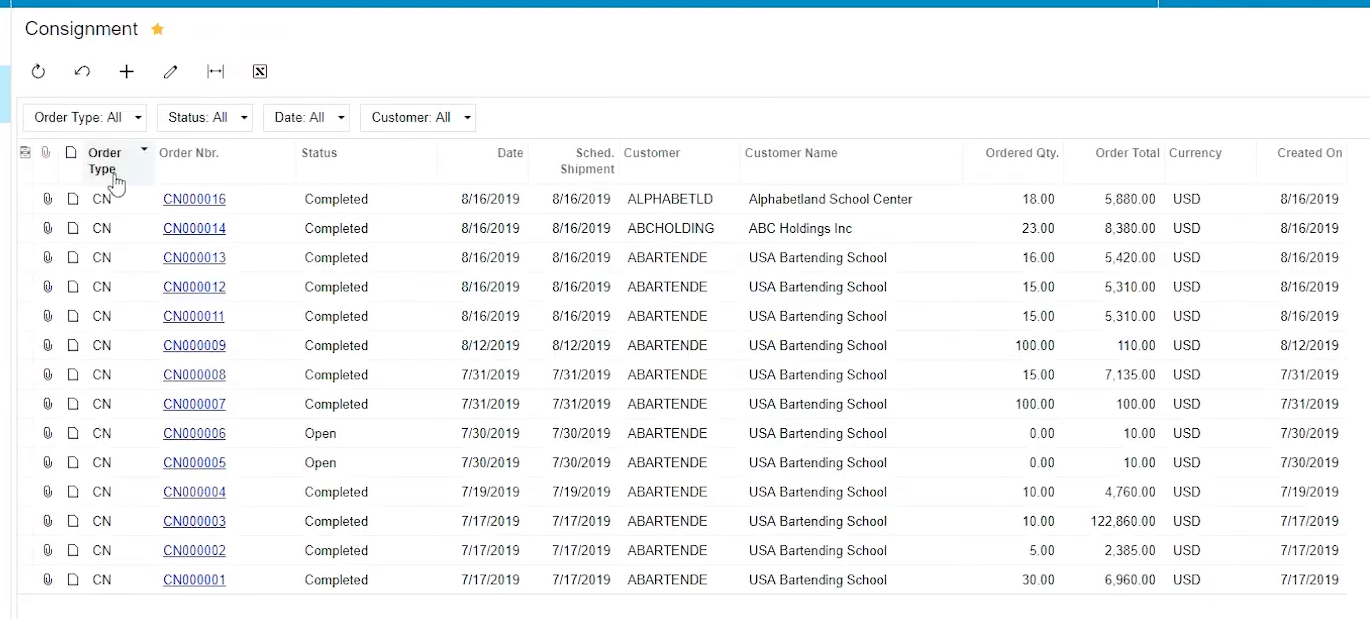
How can I find quantity differences at a customer location?
Use a PI Type with Consignment Inventory Count selected, prepare the count on IN504000, enter Physical Qty. on IN305000, and complete the count. Compare Book Qty, Physical Qty., and the revised Open Qty on the original order.
What happens to the item relationship when the consignment order closes?
When all ordered items have been shipped and all shipped items have been sold or returned, the order changes to Closed. Consignment Sell Items and Consignment Return Items are disabled, and Consignment Item Details no longer shows the item-level information for that order.
Work With Biz Tech Services Consignment Processing
A reliable consignment item relationship starts with the correct customer, the correct customer-specific Consignment Warehouse, and accurate Inventory IDs and quantities on the Consignment Order. The documented checks in Sales Orders, the consignment inquiries, and physical inventory help confirm that stock remains tied to the intended customer location.
If your team needs help configuring or validating Consignment Processing in Acumatica, visit https://biz-techservices.com to learn more about Biz-Tech Services and schedule a personalized consultation.
Check the YouTube video for visual explanation: https://www.youtube.com/watch?v=afFwt8-gZCM

Acumatica Agentic ERP 2026: AI Automation Guide
Acumatica Agentic ERP 2026 Guide to AI Automation and Data
Understanding
Agentic ERP in Acumatica
Acumatica Agentic ERP in 2026 gives growing businesses a
practical way to combine ERP data, AI automation, conversational analysis, and
intelligent workflows inside governed business processes. Acumatica 2026 R2,
generally available on October 1, 2026, adds capabilities that can interpret
business context, work with approved data, apply defined instructions, and take
a constrained action. In this guide, agentic ERP describes a direction rather
than a separate Acumatica product name. The released capabilities come from AI Assistant, AI Automation, AI Anomaly
Detection, AI Studio, and Model Context Protocol. Combined with
Generic Inquiries, endpoints, Business Events, import scenarios, and workflows,
these tools move AI beyond a detached chatbot and into governed ERP work.
Acumatica
Ascent and AI Readiness
We are pleased to have earned the 2026 Inaugural ASCENT
Badge, reflecting our commitment to staying current with Acumatica’s AI
direction and applying that knowledge to real-world ERP solutions. Acumatica Ascent 2026
included an AI readiness session covering Acumatica’s built-in AI tools, AI
Studio with external large language models, and the broader role of integrated
AI agents. That partner education is valuable because the important question is
whether AI can use the right operational context, stay within approved
boundaries, and produce an outcome that users can review and trust.
The Governed
Data Foundation
The data foundation begins with Acumatica’s existing
business structure. An agent does not need unrestricted database access to be
useful. On the Agents form in 2026 R2, Acumatica can provide tools that
retrieve the current record, update editable fields or detail lines, and
retrieve supporting information from published Generic Inquiries. The endpoint
selected for the target form determines which fields the current-record tools
can see and change. A Generic Inquiry can add the supporting context needed for
a decision, such as expected prices, open invoices, inventory availability,
project status, or exception data.
AI Assistant
for Conversational ERP
AI Assistant provides the conversational layer for questions
and analysis. Administrators decide which published Generic Inquiries are
exposed, then describe the inquiry, fields, and parameters in business language
so the assistant can connect a user’s wording to the correct data source. Users
can ask operational questions in everyday language, follow links to the
underlying records, and receive results as text, tables, charts, or pivot-style
views. The assistant can use the open form or record as context for
product-help questions, retain follow-up context in a chat, and turn useful
results into widgets that users can add to dashboards. Acumatica’s 2026 R2 documentation
positions AI Assistant as the place to explore and understand authorized data;
record updates belong to the separate AI Automation capability.
AI Automation
and Controlled Execution
AI Automation adds controlled execution. Acumatica agents
can retrieve the current record with the get_current tool, use one or more
published Generic Inquiries for supporting data, apply the instructions defined
for the agent, and write permitted results through the patch_current tool. The
result might be a summary, a classification, a fixed status value, a note, or
an update to an editable field or detail line. Acumatica documents examples
such as recognizing expense receipts, tagging files, summarizing service cases,
and comparing sales-order prices with expected values. A user can start an
activated agent from the target form, but the same agent action can also be
called by a configured process.
Agentic
Workflows and Business Events
That process control is what makes the workflow agentic. A
record change, schedule, user action, import, or other configured event can
start the sequence. The process invokes the agent, the agent writes its result,
and a later Business Event or workflow step can evaluate that result before
running another agent, sending a notification, creating a task, or invoking
another configured action. Beacon describes this sequence as an
agentic workflow. The boundaries are explicit: an agent works with
the current record on its target form, can update only fields and detail lines
exposed through the endpoint and editable on that form, and cannot create a new
record on the target form or invoke arbitrary form actions. The surrounding
workflow supplies those steps.
Anomaly
Detection and Exception Management
AI Anomaly Detection strengthens this pattern by identifying
unusual values before an agent or employee decides what to do. Acumatica can
analyze configured Generic Inquiry data, learn expected patterns for dimensions
such as vendors, items, or customers, and rank exceptions by severity. One
documented scenario combines anomaly results with an AI Automation agent that
compares sales-order unit prices with expected values and writes a summary back
to the order. The practical benefit is management by exception: employees spend
less time searching every transaction and more time investigating the records
that merit attention.
Native Data
Warehouse and Analytics
Acumatica 2026 R2 also expands the platform underneath
reporting and AI. The Native Data Warehouse
provides a dedicated, performance-optimized copy of ERP data for reporting and
analytics, reducing competition with order entry, invoicing, approvals, and
other transactional work. Acumatica describes this as a foundation that will
continue to expand. InsightXL connects live Acumatica data to Excel, while
dashboards, financial statements, AI Assistant, and external AI tools provide
other ways to work with governed information. These capabilities support a
consistent data strategy even though each surface serves a different task.
Model Context
Protocol and External AI
Model Context Protocol extends selected Acumatica data to
compatible external AI clients and custom applications. An administrator
configures an MCP server and exposes published Generic Inquiries as callable
tools. The tool definition, input parameters, output fields, filters, sorting,
field selection, and pagination come from the inquiry. External clients
authenticate through OAuth 2.0, each request runs on behalf of the signed-in
Acumatica user, and access rights are checked when tools are discovered and again
when they are called. MCP tool calls are logged in Acumatica.
In the current 2026 R2 design, MCP tools retrieve data from published Generic
Inquiries; they do not provide a general-purpose path for an external model to
write freely into ERP records.
Data
Governance Security and Monitoring
Governance depends on deliberate data design. Acumatica
recommends that each Generic Inquiry return exactly the information the model
needs and no more. Required columns should be active, descriptive captions
should explain unfamiliar fields, conditions and parameters should narrow the
records, and Select Top limits should control volume. Totals, averages, date
differences, and other calculations should be performed in the inquiry when
possible instead of asking a language model to calculate across a large result
set. For AI Automation, masking applied to values from the current-record tool
does not automatically mask sensitive columns returned by a Generic Inquiry
tool. Sensitive columns therefore need to be removed, filtered, or otherwise
protected in the inquiry itself.
Testing and monitoring complete the control model. Teams can
test an agent against an example record before activation and review the tools
called, call order, messages, timing, token consumption, results, and errors in
the processing log. Production executions appear in AI Automation History.
Reusable Agent System Instructions can centralize security, safety, and
governance guidance. These controls do not guarantee a correct result, so
implementation should define a human review point wherever an agent affects
pricing, credit, payments, regulatory information, customer commitments, or
other material business decisions.
Practical
Implementation Roadmap
A sound rollout starts with one narrow workflow whose input,
output, owner, and review criteria are already understood. A finance team might
begin with an exception summary for unusual vendor invoices. A distributor
might use an agent to explain sales-order price deviations. A service
organization might summarize a long case history before a representative
responds. The team can then measure accuracy, review time, exception volume,
user adoption, token use, and the frequency of manual corrections before adding
more records, more tools, or more autonomous steps. This staged approach keeps
the business process visible while the organization learns where AI judgment is
reliable and where deterministic rules remain the better choice.
By combining deep Acumatica experience with practical AI
capabilities, we help businesses improve automation, gain better insights,
streamline operations, and create greater value from their ERP environment.
Biz-Tech Services can help identify suitable use cases, design focused Generic
Inquiries, configure endpoints and agent instructions, align access rights,
establish review controls, and test the complete workflow before production
use. The goal is a useful agentic capability grounded in the company’s own
processes and governed Acumatica data.
The phrase agentic ERP is useful when it describes a
connected operating model rather than a marketing label. A general-purpose
assistant may produce a plausible answer from a prompt, but an ERP agent must
understand which company, branch, warehouse, customer, vendor, project, or
transaction is in scope. It must also know what the user is allowed to see and
what the process permits it to change. Acumatica’s approach keeps those
questions close to the configuration that already governs daily work. Forms,
endpoints, Generic Inquiries, access rights, workflows, and Business Events
become the practical guardrails around the model. The result is not
unrestricted autonomy. It is a bounded service that can reason over selected
business context and return a result to a process that people already
recognize.
Generic Inquiries are especially important because they turn
operational data into a reusable contract. The inquiry designer defines the
tables, joins, filters, parameters, calculated fields, sorting, and output
columns. That definition can be reviewed by a functional expert who understands
the business question. When the same inquiry is used for a dashboard, an AI
Assistant question, an MCP tool, or an AI Automation agent, the organization
has a clearer opportunity to compare the result with the report users already
trust. It also becomes easier to improve the data source without rewriting
every prompt. A focused inquiry with clear field captions is usually more
valuable than a broad extract that forces the model to infer relationships from
columns that were never intended for conversation.
The quality of an AI answer therefore begins before a
language model is selected. A team should first state the question in business
terms, identify the record or population that answers it, and decide how much
context is enough. For example, an inquiry that supports an invoice exception
review may need the vendor, document number, date, amount, currency, approval
status, due date, and exception reason. It may not need every address field,
internal key, or historical note. When the input is constrained, the model has
fewer opportunities to confuse unrelated values, and the user has a more direct
path from the response to the source record. This is a data design decision as
much as an AI decision.
AI Assistant administration reflects the same principle. An
inquiry should be published, exposed deliberately, and described in language
that reflects how employees ask questions. Descriptions can explain what the
inquiry returns, which filters matter, what a parameter means, and when a user
should choose another source. Field captions should be understandable without
requiring the user to know database terminology. Access rights remain the
foundation: exposing an inquiry to the assistant does not replace the
permissions that control the underlying Acumatica data. The assistant can help
users find and interpret authorized information, but it should not become a
shortcut around role design or row-level business rules.
AI Automation requires an additional distinction between
understanding and execution. The language model can interpret instructions and
select an action, but Acumatica still determines which form is targeted, which
endpoint is used, and which fields are editable. The agent’s system
instructions can define the task, expected output, escalation behavior, and
restrictions. The form supplies the current record, while Generic Inquiries
supply carefully selected context. If a result must be written, the target field
should be chosen because it is a meaningful part of the business process, not
because it happens to be technically available. This keeps the outcome visible
to employees and compatible with existing approvals, inquiries, and downstream
reporting.
The workflow around an agent deserves as much attention as
the agent itself. A Business Event can watch for a defined condition, a
schedule can run a review at a controlled interval, or a user can start an
action from a form. The agent may classify or summarize the current record,
then a deterministic workflow can route the result. For example, a fixed result
value can trigger a notification or create a review task, while a different
value can leave the record untouched. This separation makes the process easier
to explain and test. It also avoids asking a model to perform a series of
unrelated side effects when ordinary Acumatica configuration can perform them
predictably.
This is why the documented limits on agents are useful
design constraints. An agent cannot create a new record on the target form or
invoke arbitrary actions simply because a prompt requests it. It works within
the current record and the editable fields or detail lines exposed by the
configured endpoint. If a business process needs a new record, a release, an
approval, or another formal action, the implementation can place that step in a
workflow, import scenario, or Business Event with its own permissions and audit
trail. The model contributes interpretation where it is helpful; the ERP
process remains responsible for controlled state changes.
Anomaly Detection adds another practical signal. Many teams
do not need an AI system to decide every transaction; they need help finding
the small percentage that deserves attention. A configured Generic Inquiry can
provide the dimensions and values used to learn expected patterns. The
resulting anomalies can be ranked, displayed, and passed to an automation agent
for explanation or comparison. This can support reviews of prices, unusual
quantities, unexpected expense values, or other operational measures. The
important outcome is not a mysterious score. It is a traceable exception that
points an employee toward the record, the relevant values, and the next
decision.
Data sensitivity must be considered at every handoff.
Current-record masking and inquiry design solve different problems. A value
hidden in the current record may still be returned if the same information is
included as a column in a Generic Inquiry tool. For that reason, sensitive data
should be excluded from the inquiry, limited by conditions, or made available
only through a role and process that require it. The same review applies to
external MCP tools. A published inquiry becomes part of a tool definition that
another client can discover and call, so its name, description, parameters,
output columns, and access rights should be treated as an intentional public
interface within the organization’s trusted AI environment.
MCP is most useful when it connects an external assistant to
a small set of well-designed, read-oriented business questions. A tool that
returns open receivables by customer, orders awaiting approval, or inventory
below a planning threshold can be clear and testable. A tool that exposes
dozens of loosely related columns across many joins is harder to secure and
harder for a model to use correctly. Acumatica’s OAuth 2.0 flow and per-user
authorization help establish identity, while tool logging helps administrators
understand what was requested and returned. Teams should still control the
number of tools, use stable names and descriptions, and review whether each
tool has a real business owner.
The Native Data Warehouse can support a complementary
pattern for analytics at scale. Transactional screens are optimized for people
entering and approving work, while a performance-optimized copy can support
broader reporting and historical analysis. That separation helps protect the
responsiveness of daily ERP operations when a dashboard or analytical question
scans a larger population. It also creates a common place to align definitions
for measures and dimensions used in financial statements, InsightXL,
dashboards, and future AI experiences. The warehouse is not a replacement for a
transactional inquiry when an agent must work with the current record, but it
can be a strong foundation for trend analysis, planning, and management
insight.
A responsible implementation also distinguishes managed
capabilities from configurable ones. Acumatica provides built-in AI experiences
such as AI Assistant and AI Anomaly Detection, while AI Studio and AI
Automation support configuration that may involve an external large language
model provider. The available model, data path, retention terms, and
administrative controls should be reviewed with the organization’s security and
compliance stakeholders. The safest claim is not that every model will behave
identically. The safer approach is to configure the process so that the model
receives only the context it needs, produces an observable result, and cannot
bypass the controls that would apply to a human user.
Testing should include ordinary records, edge cases,
incomplete values, contradictory values, and records that the user cannot
access. An example record helps a team check whether the agent calls the right
tools and writes the expected field. The processing log can reveal unnecessary
calls, excessive context, unexpected token use, or a sequence that does not
match the intended process. AI Automation History provides a place to review
production executions. These records are valuable for improving instructions
and inquiries, but they are also part of operational accountability. A team
should agree in advance who reviews failures, how corrections are made, and
when an agent is paused.
The first production use case should be narrow enough to
measure. A finance team could begin with a daily list of unusual invoice values
and a short explanation for each exception. A distribution team could compare
order prices against an approved expectation and route only deviations. A
service team could create a concise case summary for a representative while
preserving the full history in Acumatica. A project team could review budget or
commitment anomalies before a manager’s meeting. Each example starts with a
data source, a clear output, and a human who can confirm whether the result is
useful. That makes it possible to improve the process without pretending that
every ERP decision can be automated at once.
Measures should reflect business value as well as model
behavior. Useful indicators include the time required to review an exception,
the percentage of results accepted without correction, the number of records
routed for human attention, the rate of false positives, the number of tool
calls, and the cost or token use associated with a run. Adoption matters too:
if users do not trust the explanation or cannot reach the source record, a
technically accurate answer may still fail in practice. Feedback should flow
back into the Generic Inquiry, the agent instructions, the workflow, or the
role design rather than being handled only as a prompt change.
Human oversight is not a weakness in an agentic ERP design.
It is a way to place judgment where it has the greatest business value.
Deterministic rules remain appropriate for calculations, approvals, required
fields, and repeatable routing. An AI agent is useful when language, context,
and comparison make the work difficult to express as a fixed rule. The
strongest solutions combine both: the model interprets a case, the ERP
validates permitted values, and a person reviews decisions that carry material financial,
customer, or regulatory consequences. This balance creates room for automation
while keeping responsibility visible.
For Biz-Tech Services, the practical opportunity is to help
customers move from an interesting demonstration to a durable ERP capability.
That means mapping a business question to the right Acumatica data, designing a
focused inquiry, configuring the agent and endpoint, checking roles and
sensitive fields, testing ordinary and exceptional records, and documenting the
review path. It also means explaining what the agent cannot do and where a
workflow or human approval remains necessary. The Ascent experience reinforces
the importance of current Acumatica knowledge, but the outcome customers need
is concrete: less manual searching, faster exception handling, clearer insight,
and more consistent execution across the process.
A useful discovery workshop asks a few direct questions.
Which decision takes too long today? Which records are reviewed repeatedly?
What evidence does a reviewer need before acting? Which values are
confidential? What should happen when the data is incomplete? The answers
define the first inquiry and the first agent more reliably than a generic
request to add AI. They also expose whether the current process is ready. If
users disagree about the definition of an exception, the organization may need
to clarify the business rule before introducing a model. If the needed fields
are not available through a stable form or inquiry, data preparation is part of
the project rather than a problem to hide in a prompt.
Prompts and instructions should be written as operational
guidance. They can tell an agent what to compare, how to describe a result,
which values are acceptable, and when to ask for human review. They should not
rely on hidden assumptions about abbreviations, local jargon, or a user’s
memory of an earlier conversation. A good instruction also explains what to do
when no matching record is found, when more than one record qualifies, or when
the supporting inquiry returns conflicting values. These details make testing
repeatable and reduce the risk that a fluent answer will conceal an unresolved
data question.
The target endpoint deserves a functional review because it
defines the boundary between a useful suggestion and a permitted update. Teams
should confirm which fields are editable, whether detail lines are exposed, how
values are validated, and how the updated record appears to a person opening
the form. A field that looks suitable for a note may not be suitable for a
workflow condition. A calculated value may be visible but not writable. An
agent should write to fields that have a clear meaning in the process and
should preserve the auditability that employees expect from ordinary Acumatica
changes.
External model connectivity should be evaluated with the
same care as any other integration. The implementation team should document
which data leaves the ERP boundary, which provider processes it, how
authentication is managed, and how failures are handled. Where a managed
Acumatica capability is sufficient, it may reduce configuration and operational
overhead. Where an external provider is needed, the project should define the
permitted data, retention expectations, regional requirements, and monitoring responsibilities
before activation. The best architecture is the one that meets the business
need with the smallest necessary exposure.
An agentic workflow can improve employee experience without
removing employee visibility. A user may see the original record, the relevant
inquiry results, the agent’s explanation, and the field or status that changed.
A notification can link directly to the item needing review. A dashboard can
show the volume and age of exceptions rather than only the number of successful
model calls. This makes the capability part of daily work instead of a separate
AI destination. When employees can understand the source and correct an output,
feedback becomes a practical source of continuous improvement.
The same design can support different roles while preserving
their responsibilities. A clerk may receive a concise exception explanation, a
supervisor may see the supporting values and approve a route, and an
administrator may review the processing log or adjust a Generic Inquiry.
Role-specific access should be designed intentionally rather than assuming that
a single broad agent is appropriate for everyone. Published data sources,
target forms, and workflow actions can be aligned with the responsibilities already
represented in Acumatica roles. This helps the organization scale use without
turning a helpful assistant into an uncontrolled shared credential.
Agentic ERP is therefore best understood as a disciplined
extension of Acumatica configuration. The data source is explicit, the model
task is bounded, the action is limited, and the result is placed back into a
process that can be reviewed. As the organization learns, it can add another
inquiry, another agent action, or another workflow branch while keeping each
change understandable. That incremental path is more durable than attempting to
automate an entire department in one step. It lets business owners, security
teams, and technical specialists evaluate the same evidence and decide where
the next investment will create value.
Documentation should travel with the configuration. For each
inquiry and agent, record the business purpose, owner, source fields,
parameters, permissions, expected result, review point, and fallback procedure.
Note whether the result is advisory or whether it writes to a field that drives
another process. A short runbook can explain how to pause an agent, inspect a
failed execution, correct a source inquiry, and communicate a change to users.
This information protects the investment when the original implementer is not
available and gives auditors or security reviewers a clear account of why the
capability exists.
Change management matters because agentic features alter how
people divide work with the ERP. Training should show the data source behind an
answer, the difference between a recommendation and a saved update, and the way
a user can challenge or correct a result. Teams should agree on language for
uncertainty and exceptions instead of encouraging employees to accept a
confident response automatically. A small pilot group can provide examples of
confusing field captions, missing parameters, or unnecessary notifications.
Those observations often improve the process faster than adding a more
elaborate prompt.
The long-term value comes from repetition and learning. Once
a narrow use case is stable, its inquiry may support a dashboard, an AI
Assistant question, an MCP tool, and an automation step without creating
separate definitions for every interface. Its measures can be compared over
time, and its exceptions can reveal where the underlying business process needs
attention. That compounding effect is the promise of a data-capable agentic
ERP: practical AI work remains connected to the same governed records, roles,
and operational decisions that run the business.
Use Cases
Across Business Operations
For finance leaders, agentic ERP can shorten the distance
between an exception and a defensible response. An assistant can retrieve an
authorized population of invoices, payments, journal entries, or customer
balances through a focused inquiry and explain what makes a record unusual. An
automation agent can write a concise conclusion or review status to the current
record, while established approval rules determine what happens next. This
approach can help teams prepare for period-end reviews, prioritize collections,
investigate price or cost deviations, and summarize supporting context. The
accounting control still belongs to Acumatica and the responsible employee; the
agent reduces research time and makes the evidence easier to consume.
Distribution companies can apply the same pattern to orders,
inventory, purchasing, and fulfillment. A Generic Inquiry can present the exact
combination of item, warehouse, availability, promised date, price, customer,
and shipment information needed for a decision. An agent can explain why an
order appears at risk, identify a mismatch between an entered price and an
expected value, or summarize the records associated with an allocation problem.
A workflow can then notify the correct role or place the order into a review
state. Because the inquiry and endpoint define the available data, the
implementation can be specific to the distributor’s policies instead of relying
on a broad model assumption about inventory management.
Manufacturers can focus agents on the moments where variance
information becomes actionable. Production inquiries can organize completed
operations, labor results, material usage, expected values, and actual costs.
Anomaly Detection can identify unusual observations within the configured
population, while an automation agent can translate the relevant values into a
concise explanation for a production manager. The goal is not to let a model
redesign a bill of material or schedule on its own. The goal is to surface a
credible exception earlier, connect it to the supporting production data, and
help the responsible person decide whether the variance reflects a one-time
event or a process issue.
Construction and project-centric businesses can use governed
inquiries to bring together budget, commitment, cost, billing, and change
information for review. A project manager might need to understand why a cost
category is moving away from plan, which commitments remain open, or whether
unapproved changes are affecting the current forecast. An agent can summarize
the relevant records when they are represented in an inquiry designed for that
purpose. Formal budget changes, approvals, billing decisions, and contractual
commitments should continue through the configured project controls. The agent
helps the manager reach those controls with better context and less manual
navigation.
Service organizations can use AI Automation to condense long
case histories, identify the latest customer request, classify the next type of
attention needed, or prepare a representative before contact. The source should
include only the case details that matter, and the output should be written to
a field or note that employees can review. If the result is intended to trigger
escalation, a fixed category is often more dependable than a long free-form
paragraph because a Business Event or workflow can evaluate it consistently.
The full activity history remains available for verification, so the summary
accelerates work without becoming the only record of the customer interaction.
Designing
Reliable AI Tools
The role of natural language should also be defined
carefully. AI Assistant is valuable when users know the business question but
do not know the exact inquiry, field caption, or filter sequence. It can make
authorized ERP information easier to explore and can preserve conversational
context for follow-up questions. However, the assistant should not be treated
as a substitute for well-designed reports, statutory statements, or
reconciliations. When an answer must be repeated exactly, a controlled inquiry,
report, or calculation remains the source of record. Natural language is
strongest as an access and explanation layer over governed data.
Good inquiry design improves performance as well as
accuracy. Returning thousands of unnecessary records increases processing time,
token consumption, and the chance that the model will focus on irrelevant
details. Parameters can require a date range, customer, vendor, project,
branch, warehouse, or status. Conditions can exclude records that are already
closed or otherwise outside the decision. Select Top can cap the result, and
calculated fields can provide totals or differences before the data reaches the
model. These are familiar Acumatica reporting techniques, but they become even
more important when an inquiry is used as an AI tool.
Field descriptions and tool descriptions should use the
vocabulary of the business. A column called RemainingAmount is easier to
interpret when the inquiry description explains whether it represents an open
document balance, an unbilled project amount, or a remaining commitment.
Parameters should say whether they are required and what date or status they
constrain. If two inquiries answer similar questions, their descriptions should
make the difference clear. This metadata helps a model choose the correct tool,
but it also helps administrators and functional consultants review the design
without reading every join and formula.
Reusable system instructions can provide a shared baseline
for multiple agents. They can define expectations for confidentiality, handling
missing data, refusing unsupported actions, writing concise results, and
escalating uncertainty. Agent-specific instructions can then concentrate on the
business task. Centralizing common guidance reduces inconsistent wording and
makes policy changes easier to apply. It does not remove the need to test each
agent, because a shared instruction can interact differently with different
tools and data. The processing log remains the place to confirm how the
instructions were applied in a real execution.
Token usage should be treated as an operational measure
rather than an abstract technical statistic. A high token count may indicate
that an inquiry returns too many columns, that the agent repeatedly calls the
same tool, or that instructions include material unrelated to the decision.
Reviewing token details alongside execution time and result quality can reveal
whether the process should be simplified. Cost control is therefore connected
to data design: a smaller, clearer context usually supports a faster and more
predictable agent. Teams should establish an acceptable range during testing
and investigate material changes after an inquiry or instruction update.
Deployment
Upgrade and Operations
Upgrade planning is important for organizations that used
earlier LLM prompt capabilities. The verified 2026 R2 release information
states that agents use tool calling to read and update record data and that
existing legacy prompts are not automatically converted. A team upgrading from
2025 R2 or 2026 R1 should review and test previously activated prompts before
users rely on them in 2026 R2. The target form, endpoint, tools, instructions,
and expected update should all be confirmed. This is a functional validation
exercise as well as a technical one because a process that completes without an
error may still produce no useful change if its earlier assumptions no longer
match the tool-based design.
Mobile use requires its own configuration review. When an
agent action is added to a form, Acumatica can expose the corresponding action
through the More menu. If the action must be available in the mobile
application, it needs to be exposed through the customization project. The
mobile experience should be tested with realistic record states and role
permissions, especially when employees initiate reviews from a warehouse, job
site, or service location. A concise result field and a clear confirmation path
are particularly valuable on a smaller screen.
Agent outputs should be designed for downstream use. A
narrative summary is helpful for a person, but a fixed value such as Review
Required, Within Policy, or Insufficient Data is easier for a workflow
condition to evaluate. Many implementations benefit from both: a short
controlled result in one field and an explanation in a note or description
field. The controlled value supports routing, while the explanation helps the
reviewer understand the reason. The permitted values should be documented,
tested against edge cases, and validated by Acumatica wherever possible.
Failure handling should be visible and proportionate to the
process. A model call can fail, a tool can return no records, an endpoint can
reject an update, or the available data can be ambiguous. The agent
instructions should specify a safe response, and the surrounding process should
avoid treating a missing result as approval. Administrators need a practical
method to review the processing log and AI Automation History, correct the
configuration, and rerun or manually complete the work. High-impact workflows
may also need a notification when an agent cannot complete its task within an
expected time.
Security review should cover identities, permissions, data
sources, and destinations. Internal Acumatica agents operate through configured
forms, endpoints, inquiries, and user access. External MCP clients authenticate
through OAuth 2.0 and operate on behalf of the signed-in user. The inquiry
still controls which data is offered as a tool, and Acumatica checks access as
tools are discovered and invoked. Security teams should review the external
client, the authorization scope, the published inquiry, logging, and the model
provider’s data practices as one end-to-end design rather than approving each
component in isolation.
Enterprise
Architecture and Long Term Governance
MCP can support valuable read-oriented scenarios outside the
Acumatica user interface. A compatible assistant may retrieve a customer’s open
documents, summarize orders awaiting attention, or answer a question from an
authorized inquiry without requiring a custom API for each conversation. This
does not mean that every inquiry should become an MCP tool. The strongest tool
sets are small, clearly named, stable, and owned. Pagination, filters, field
selection, and result limits should be tested with realistic questions. Tool
logs can then show which capabilities are actually used and where descriptions
need improvement.
The data warehouse, InsightXL, dashboards, Generic
Inquiries, AI Assistant, AI Automation, and MCP are complementary surfaces
rather than interchangeable features. The warehouse supports analytical
workloads and a growing foundation for historical reporting. InsightXL supports
live analysis in a familiar Excel environment. Dashboards present monitored
indicators. Generic Inquiries shape reusable operational datasets. AI Assistant
provides conversational exploration, AI Automation connects reasoning to a bounded
current-record action, and MCP gives approved external clients a
standards-based way to retrieve selected inquiry data. A coherent architecture
assigns each requirement to the surface that best fits its latency, volume,
control, and user-experience needs.
A mature governance cycle reviews agents after launch.
Business owners should examine accepted and corrected results, administrators
should review failures and usage, and the implementation team should monitor
changes to endpoints, inquiries, roles, workflows, and provider settings. A new
field or changed caption can affect the context seen by a model. A revised
inquiry condition can change the population used for anomaly detection or an
MCP tool. Versioning the configuration and recording test cases makes these
changes easier to assess. Governance is therefore an ongoing product-management
practice, not a one-time security checklist.
The strongest business case is usually built from avoided
effort and improved response time. A team can estimate how many records are
reviewed, how long a manual investigation takes, how often an exception is
found, and what delay costs the organization. After implementation, the same
measures can show whether the agent reduces search time, improves consistency,
or simply moves work to a different queue. This evidence helps leaders decide
whether to refine the use case, expand it, or keep the process primarily
deterministic. It also keeps the conversation focused on operational value
instead of the novelty of AI.
Acumatica’s agentic direction is significant because it
builds on the platform’s existing strengths: configurable business logic,
role-based access, open integration, and adaptable reporting. AI can add
interpretation and natural-language interaction, but the underlying ERP still
supplies the transactions, permissions, workflows, and audit context.
Organizations that invest in clean master data, meaningful statuses, focused
inquiries, and disciplined process ownership are better positioned to benefit.
The technology does not eliminate the fundamentals of ERP implementation; it
increases the return on getting those fundamentals right.
Frequently
Asked Questions
What is agentic ERP in Acumatica?
Agentic ERP describes a governed
way for AI to interpret selected business context, use approved tools, and
contribute a constrained result to an ERP process. In Acumatica 2026 R2, the
practical building blocks include AI Assistant, AI Automation agents, Generic
Inquiries, endpoints, workflows, Business Events, Anomaly Detection, AI Studio,
and MCP. It is a capability pattern rather than a separate product that
operates outside Acumatica controls.
Is Acumatica Agentic ERP fully
autonomous?
No. Acumatica agents operate
within configured boundaries. They work with a target form, the current record,
endpoint fields, and approved Generic Inquiry tools. They cannot create a new
record on the target form or invoke arbitrary actions merely because a model
requests them. Workflows, Business Events, import scenarios, permissions, and
human review provide the surrounding control.
What is the difference between AI
Assistant and AI Automation?
AI Assistant is designed for
conversational questions, analysis, product help, and exploration of authorized
information. AI Automation is designed to run a defined agent against a current
record and, when permitted, write a result through the configured endpoint. AI
Assistant helps a user understand data; AI Automation connects a bounded AI
task to an operational process.
Why are Generic Inquiries important
for Acumatica AI?
Generic Inquiries define the
records, columns, calculations, filters, parameters, sorting, and limits
available to the AI experience. They can serve as approved data tools for AI
Assistant, AI Automation, Anomaly Detection, and MCP. A focused inquiry improves
relevance, performance, security review, and repeatability because it gives the
model a deliberate business dataset instead of broad database access.
Can an Acumatica agent update
records?
An AI Automation agent can
update permitted fields or detail lines of the current record through the
patch_current tool when those elements are exposed by the selected endpoint and
editable on the target form. The implementation should choose meaningful output
fields, validate allowed values, test the update, and use a workflow or human
review for material decisions.
Can an Acumatica agent create
records or release documents?
Not directly through the
current-record agent tools described for 2026 R2. If a process requires record
creation, release, approval, notification, or another formal action, that step
should be implemented through the appropriate Acumatica workflow, Business
Event, import scenario, or other configured action with its own controls.
How does Acumatica protect sensitive
data used by agents?
Protection begins with user
access rights, endpoint design, published inquiry design, and the
model-provider configuration. Masked fields configured for current-record tools
do not automatically protect the same values if they are returned by a Generic
Inquiry. Sensitive inquiry columns should therefore be removed, filtered, or
restricted deliberately.
What does MCP add to Acumatica?
Model Context Protocol lets
compatible external AI clients discover and call selected published Generic
Inquiries as tools. Clients authenticate through OAuth 2.0, operate on behalf
of the signed-in user, and remain subject to Acumatica access checks. In the
current design, this is primarily a governed retrieval pattern, not
unrestricted external write access to ERP records.
How should a company choose its
first agentic ERP use case?
Choose a narrow, repeated
workflow with a clear data source, owner, expected result, and review point.
Good candidates involve time-consuming research or explanation, such as invoice
exceptions, price deviations, service-case summaries, file tagging, or operational
anomaly review. Avoid beginning with a decision that has unclear rules, missing
data, or irreversible consequences.
How should an Acumatica AI agent be
tested?
Test ordinary records, edge
cases, missing values, conflicting values, access restrictions, and failure
conditions. Review the processing log for tool calls, call order, inputs,
outputs, errors, timing, and token usage. Confirm the saved result in the target
form and verify every downstream workflow condition. Production executions
should continue to be monitored through AI Automation History.
What should be measured after
deployment?
Measure result accuracy,
correction rate, review time, exception volume, false positives, user adoption,
tool calls, execution time, token use, and business outcomes such as faster
response or reduced backlog. These measures show whether the process creates
value and whether the next improvement belongs in the inquiry, instructions,
workflow, permissions, or training.
How can Biz-Tech Services help?
Biz-Tech Services can help
identify viable use cases, design focused Generic Inquiries, configure agents
and endpoints, align access rights, connect agent results to workflows,
establish review controls, test the complete process, and prepare users for production.
The objective is a practical Acumatica capability that improves work while
remaining grounded in governed company data.
Sources
Acumatica 2026 R2 Release With Embedded
AI
Acumatica Artificial Intelligence
Acumatica Ascent 2026 Partner Readiness
Working With AI Assistant General
Information
Use of Agent Actions in Agentic
Workflows
Configuring MCP Servers General
Information
Acumatica
ERP 2026 R2 Release Notes, AI Studio and Agentic Workflow sections
Acumatica expertise. AI-driven solutions. Real business
value.


How to Map Kit Components to Finished Kit Items in Acumatica
Mapping kit components to finished kit items in Acumatica starts with a kit specification, its current revision, and the component rows assigned to that revision. The Biz-Tech Services Kit Processing product for Acumatica lets a user expose those component rows during sales order processing, while the kit item remains the item being sold or assembled.
For a mapping project, the important distinction is between what the Kit Processing documentation names and what it does not name. It documents Inventory ID, Kit Inventory ID, stock and non-stock components, option categories, option codes, substitute items, kit revisions, and a placeholder item. It does not document a separate SKU-alias table, cross-reference maintenance process, item-class mapping rule, or automated unmatched-record queue. Those requirements should be defined outside this product documentation before an import or integration is approved.
What Kit Component Mapping Means in Acumatica
A finished kit is identified by the Kit Inventory ID on the Kit Specifications screen. The kit must already be marked as a kit on Stock Items IN202500 or Non-Stock Items IN202000. The Kit Assembly feature must be enabled on Enable Disable Features CS100000 for the Kit Specifications form to be available. Within a kit specification, the selected revision supplies the component definition used by the product.
This is a component-to-kit relationship, not a general product-master translation service. A stock component and a non-stock component can be added to a kit specification. A nested kit can also be used as a component or option, with the main kit treated as the Parent Kit and the included kit treated as the Child Kit. That documented structure is the reliable basis for deciding which component belongs to which finished kit.
Kit Component Mapping in Acumatica at a Glance
Use this sequence to establish and validate the documented mapping before a kit is used on a sales order, purchase order, or kit assembly.
1 Confirm that the intended finished item is a stock or non-stock item marked as a kit.
2 Open Kit Specifications and select the Kit Inventory ID and the correct revision.
3 Make the intended revision current and active before expecting the kit to explode on a sales order.
4 Add stock and non-stock component items to the kit specification, or define option components where the kit has options.
5 If a component can be replaced, enable component substitution and assign the allowed substitute item or items.
6 If the kit uses a placeholder after explosion, confirm that the placeholder is a non-stock item and that its unit of measure matches the kit item.
7 Test the kit in Component Details before explosion, then use Load Components or enter a quantity to verify the resulting lines.
8 Treat any external SKU alias, cross-reference, item-class rule, or unmatched-record handling as a separate control because the documentation does not describe it.
Start With the Finished Kit Item and Revision in Acumatica
The Kit Inventory ID anchors the mapping. The documentation says that this ID is the inventory ID assigned to the kit on Stock Items IN202500 or Non-Stock Items IN202000. The Non-Stock indicator is read only on the Kit Specifications form, and Revision ID uniquely identifies the kit specification revision.
A revision must be current for the kit item to explode on the sales order. Changing the Current Revision setting can uncheck the prior current revision after the user saves the change. This makes revision selection a validation step, not merely a description field. A component relationship can be correctly entered on an older revision yet still not be the relationship used by an order.
The source documents Active separately from Current Revision. Keep both states in the review process: use the relevant active specification and confirm that the revision intended for order processing is current. The documentation does not define an item-class rule that selects a kit or revision, so do not assume an item class will perform that mapping.
Map Stock and Non Stock Components to the Kit in Acumatica
The kit specification holds the documented component mapping. Stock and non-stock items can be associated with a kit, and option codes can also contain stock items, non-stock items, and kit items. In the Kit Pricing Summary, the component display loads stock components first and then non-stock components, which is useful when checking the composition of a selected kit.
When a kit is added to a sales order, Component Details provides the operational view of its mapped components. Before explosion, a user can add or delete components, exchange a component for a substitute item, and change options. The source also states that when component addition is not enabled, users cannot add new components but can delete existing ones before explosion. After explosion, Component Details is limited to changing Quantity and Warehouse; further component additions or deletions are handled from the Document Details tab with the available controls.
This behavior helps distinguish the finished-kit mapping from the order-level result. The kit definition supplies the initial components; the sales order can show or adjust permitted component details before and after explosion. The documentation does not describe a line-level field that maps an external SKU to an Acumatica component. If an outside record must identify a component, that field mapping needs its own design and test evidence.
Use Acumatica Options and Substitutions as Controlled Mapping Variations
Options are the documented way to vary a kit configuration. With Kit has options enabled, Option Category and Option Codes tabs appear. An option code is assigned to an option category, given an option price, and associated with stock, non-stock, or kit items. A Required option code must be selected in the Options popup before the kit order can proceed.
Default Code provides a documented fallback for cases in which a user cannot select options, including API, import scenarios, processing screens, Opportunities, and Sales Quotes. It is a default option selection, not a documented alias or SKU cross-reference mechanism. Option Rules can exclude a target option code when a specified source category and source code are selected. Review these rules as part of mapping validation because they can make a component option unavailable to the user.
Component substitution is another controlled variation. Enable Allow Component Substitution, mark the component on the Stock Components tab, and assign replacement items on the Substitution tab. The Biz-Tech Services Kit Processing product for Acumatica therefore documents substitutions as explicit item choices linked to a component. It does not state that substitutions are selected through item classes, aliases, or an automatic cross-reference lookup.
Handle Acumatica Placeholder and Explosion Settings Before Testing Lines
When Explode Kit is selected, the product enables Kit Placeholder Item, Explode Option, and Price Calculation. The placeholder is a non-stock item that replaces the kit item on the sales order after explosion while the component items are added to the order. Its purpose is to prevent double counting of item costs while functioning like the kit item in the order.
The placeholder unit of measure must match the kit item unit of measure. A mismatch produces a warning error message. Explosion may be Prompt, Automatically, or Do Not Explode. A customer or vendor setting named Block Kit Items Explosion, as well as the Biz-Tech Kit Processing Settings section on Order Types, can prevent explosion regardless of the selected explode option.
For a non-stock kit with a stock option item, the documentation requires Automatically as the explode option so the stock option is allocated during shipment. For a nested non-stock kit used as a component or option, both the Parent Kit and Child Kit must use Automatically. These are configuration validation rules that affect whether the mapped items reach the expected order lines.
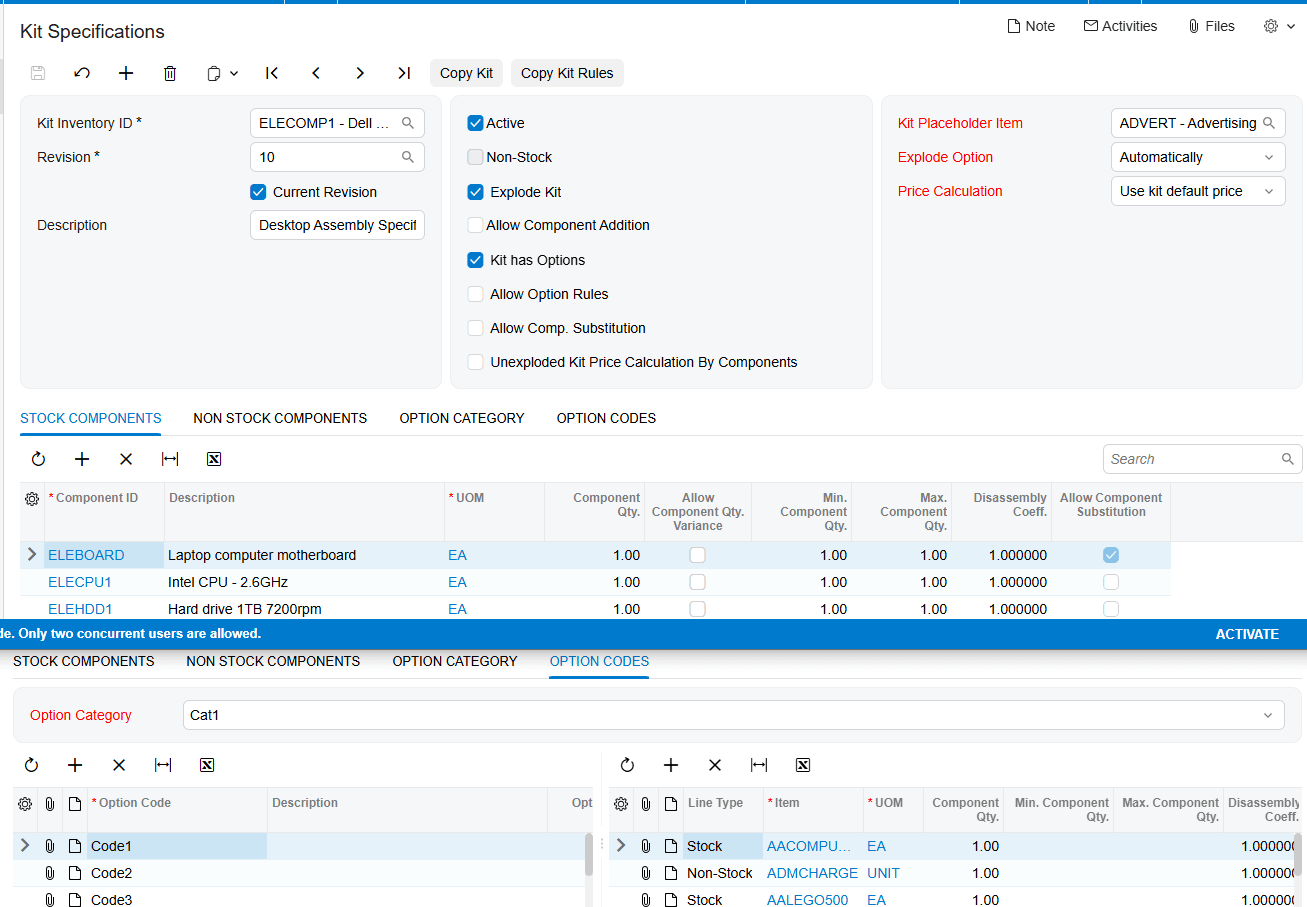
Validate Acumatica Mapping Through Sales Orders Assemblies and Imports
A practical test begins by entering the kit item on a sales order and reviewing Component Details. Use Load Components to explode the kit, or assign a quantity to the new kit item. After explosion, the placeholder and components appear on the order with their prices, quantities, and costs. The documented Total Cost of Components uses the component unit cost when the sales order is created multiplied by quantity, remains unchanged, and is displayed on the placeholder row and carried to the invoice.
For kit assembly, select the kit Inventory ID, revision, warehouse, and quantity on the Kit Assembly screen. The generated document includes required stock components with quantities and costs based on the selected revision. A kit assembly can also be generated from a sales order without exploding the kit; sales-order-generated assemblies use the current Kit Specifications revision. Mark for assembly is disabled for non-stock kit items.
The documentation also supports Import by Scenario for kit items and says to perform proper data mapping between an external data source and corresponding Acumatica fields. Its listed scenarios enable Is a Kit for stock or non-stock items, configure the kit header, add stock components, add non-stock components, add option categories and option codes with associated components, and add substitute items. This supports structured import of the documented kit relationships. It does not specify how to resolve duplicate SKU aliases, cross references, item classes, or unmatched external records.
Where to Check Your Acumatica Mapping Work
1 Enable Disable Features CS100000 to confirm that Kit Assembly is enabled when Kit Specifications or Kit Assembly work is required.
2 Stock Items or Non-Stock Items to confirm the finished item is marked as a kit.
3 Kit Specifications to verify Kit Inventory ID, Revision ID, Current Revision, Active, and Explode Kit settings.
4 Stock Components and non-stock component entries to confirm the intended kit composition.
5 Option Category and Option Codes tabs to check required selections, default codes, prices, and option components.
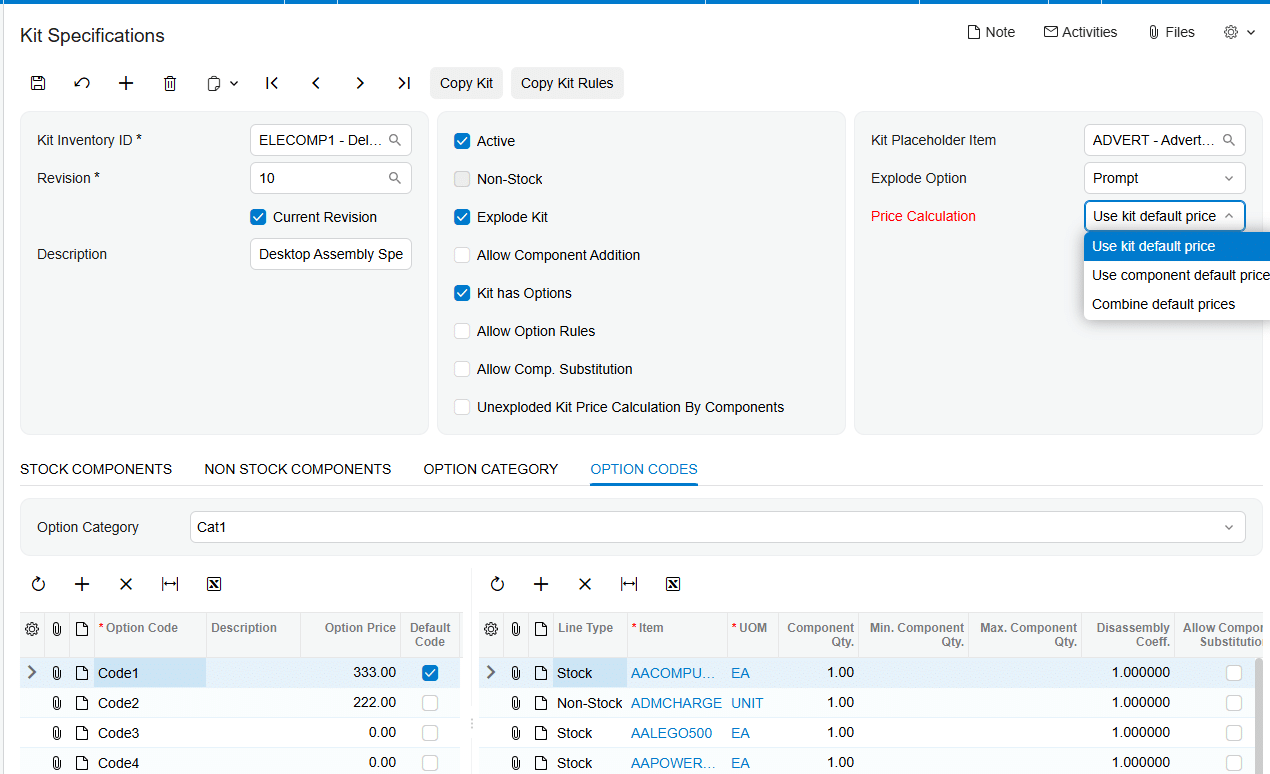
6 Option Rules to verify that a chosen source option is not excluding an expected target option.
7 Substitution tab to confirm each allowed replacement item for an eligible component.
8 Sales Orders Component Details to inspect components, options, substitutions, and the result of Load Components.
9 The placeholder row after explosion to check the unit of measure, cost total, and component lines.
10 Kit Assembly to verify inventory ID, selected revision, warehouse, quantity, and any linked sales order.
11 Import by Scenario to confirm the selected kit import scenario and the source-to-field mapping used by the import.
Kit Component Mapping in Acumatica Frequently Asked Questions
Can an Acumatica kit map both stock and non-stock components?
Yes. The documentation describes stock and non-stock components in the kit specification and in the kit import scenarios. It also states that option codes can include stock items, non-stock items, and kit items.
What makes a kit revision available for sales order explosion?
The current revision must be enabled for the kit to explode on a sales order. The source also describes the Active setting for the kit specification, so a review should confirm the intended active specification and current revision.
Can Acumatica use a SKU alias or cross-reference to find a kit component?
The Kit Processing documentation does not describe a SKU alias or cross-reference feature for component lookup. It documents kit inventory IDs, components, options, substitutions, and import scenarios, but not an alias-resolution rule.
How are unmapped external item records handled?
The source instructs users to perform proper mapping between the external source and Acumatica fields before import. It does not define an unmatched-record queue, error disposition, or fallback behavior. Establish those controls separately and test them before production import.
Do item classes decide which component is mapped to a kit?
No item-class mapping behavior is described in the supplied Kit Processing documentation. Do not rely on item classes to choose a kit component unless another approved source documents that design.
Why does the kit not explode after the component mapping is complete?
Check the current revision, Explode Kit setting, selected explode option, and the customer or order-type controls that can block kit explosion. Also check the specific non-stock kit rules when stock option items or nested kits are involved.
Why does the kit show a placeholder line after explosion?
The placeholder is a non-stock item that replaces the kit item while the mapped component items are added to the order. The documentation says this prevents double counting of item costs.
Can a substitute item be selected for any component?
Only components configured for substitution are documented as eligible. Enable Allow Component Substitution, mark the component, and add the substitute item or items on the Substitution tab.
Work With the Biz-Tech Services Kit Processing Product for Acumatica
The Biz-Tech Services Kit Processing product for Acumatica gives teams a documented path from a finished kit Inventory ID and revision to component rows, options, substitutions, order explosion, assemblies, and import scenarios. Keep the kit specification and its current revision as the source of truth for component composition. For SKU aliases, item classes, cross references, or unmatched-record policies, create a separate documented mapping design because these behaviors are not defined by the supplied product documentation.
If your team needs help planning a reliable Kit Processing setup in Acumatica, visit https://biz-techservices.com to learn more about Biz-Tech Services or schedule a personalized demonstration.
Check the video for more details: https://www.youtube.com/watch?v=sP89DBTxCJU
How to Sync ServiceTitan Inventory Movements with Acumatica
ServiceTitan inventory movements can be imported into Acumatica when the ServiceTitan Store is configured for inventory transactions and the related item and warehouse mappings are in place. The supplied ServiceTitan documentation identifies receipts, transfers, adjustments, and returns as supported transaction categories, but it does not define the source quantity calculation or a stock allocation process.
For an inventory workflow, the ServiceTitan Store is the control point for item handling, warehouse and branch mapping, transaction processing, purchase orders, receipts, and bills. The Biz-Tech Services ServiceTitan Acumatica Connector should therefore be configured around the mappings and import choices documented on that store record before transaction imports begin.
What ServiceTitan Inventory Sync Covers in Acumatica
The documentation describes an Inventory area on the ServiceTitan Store that can import items, generate items, load ServiceTitan materials, equipment, and services, and map warehouses. It also describes an Inventory Transactions tab with setup options for receipts, transfers, adjustments, and returns. This describes the available integration controls, rather than a complete inventory accounting design.
When Import Item is selected, Generate Item from ServiceTitan becomes available. The source says this option can generate stock and non-stock items from the selected Stock Item Class, Non-Stock Item Class, and Unit of Measure values. It also says manual mapping of ServiceTitan items to Acumatica items is possible. The Biz-Tech Services Acumatica ServiceTitan Connector can support either documented approach, subject to the store configuration.
ServiceTitan Inventory Sync at a Glance
Use this sequence as a concise checklist for the documented inventory workflow.
1 Configure the ServiceTitan Store because its settings control inventory and transaction handling
2 Select Import Item if items should be imported, then review the item generation option and its stock class, non-stock class, and UOM settings
3 Load Materials, Equipment, and Services to display ServiceTitan items on the Inventory tab in Acumatica
4 Confirm whether each ServiceTitan item is manually mapped to an Acumatica item or created through the documented generation option
5 Load ServiceTitan Warehouse and Truck IDs, then map them to Acumatica warehouses
6 Configure receipts, transfers, adjustments, and returns on the Inventory Transactions tab, including release-after-import choices
7 Import and review the resulting documents in Acumatica using the records and status behavior documented for the transaction type
Quantity Basis and Stock Visibility
The source confirms that materials and equipment create stock items, while services create non-stock items. It also identifies Unit of Measure as an input to item generation. These are the documented foundations for how imported items are classified and measured in Acumatica.
However, the documentation does not state how ServiceTitan calculates movement quantities, whether quantities are signed for each transaction type, how available quantity is displayed, or how quantity changes are reconciled to a physical count. The Biz-Tech Services ServiceTitan Acumatica Integration should be evaluated against those requirements during implementation rather than assuming an undocumented quantity basis.
Map ServiceTitan Warehouses and Trucks to Acumatica Warehouses
The Warehouses section maps Acumatica warehouses with ServiceTitan Warehouse and Truck IDs. Selecting Load Warehouses retrieves and displays ServiceTitan Warehouse and Truck ID values, which can then be manually mapped with Acumatica Warehouse values. This mapping is the documented location for connecting a ServiceTitan warehouse or truck identifier with an Acumatica warehouse.
Business units are handled separately: ServiceTitan Business Unit IDs are mapped to Acumatica branches after Load Business Units retrieves their values. Keep the warehouse map and branch map distinct, because the source presents them as separate mappings. The Biz-Tech Services Acumatica ServiceTitan Integration relies on these documented mapping records for warehouse and branch correspondence.
Configure Inventory Transaction Imports
The Inventory Transactions tab lists receipts, transfers, adjustments, and returns. The source says there are setup options for each transaction type. It also lists checkboxes for releasing a receipt, transfer, adjustment, or return after import.
When the applicable release checkbox is selected, the source says the document can be imported into Acumatica and released. The source does not describe the default status for every inventory transaction type when release is not selected, nor does it provide a transaction-by-transaction field map. The Biz-Tech Services Acumatica ServiceTitan Integrator should be configured only with the release behavior actually documented for the chosen transaction.
Item Creation and Manual Item Mapping
Load Materials, Equipment, Services retrieves and displays the corresponding ServiceTitan items on the Inventory tab in Acumatica. The source explicitly distinguishes their resulting item types: Materials and Equipment create stock items, and Service creates non-stock items.
An organization can instead manually map ServiceTitan items with Acumatica items. The source does not prescribe which method is best or explain duplicate-item handling, substitutions, lot or serial tracking, replenishment, or allocation rules. Choose the documented generation or manual-mapping option based on the item master design in Acumatica, and test it before live imports.
Purchase Receipts and Related Inventory Review
For purchase activity, ServiceTitan Purchase Orders are imported as Acumatica Purchase Orders. If a ServiceTitan Purchase Receipt or Bill already exists when the purchase order is imported, it is imported as part of the same process. A receipt or bill that does not yet exist is not imported at that time and can later be imported separately using the appropriate processing screen.
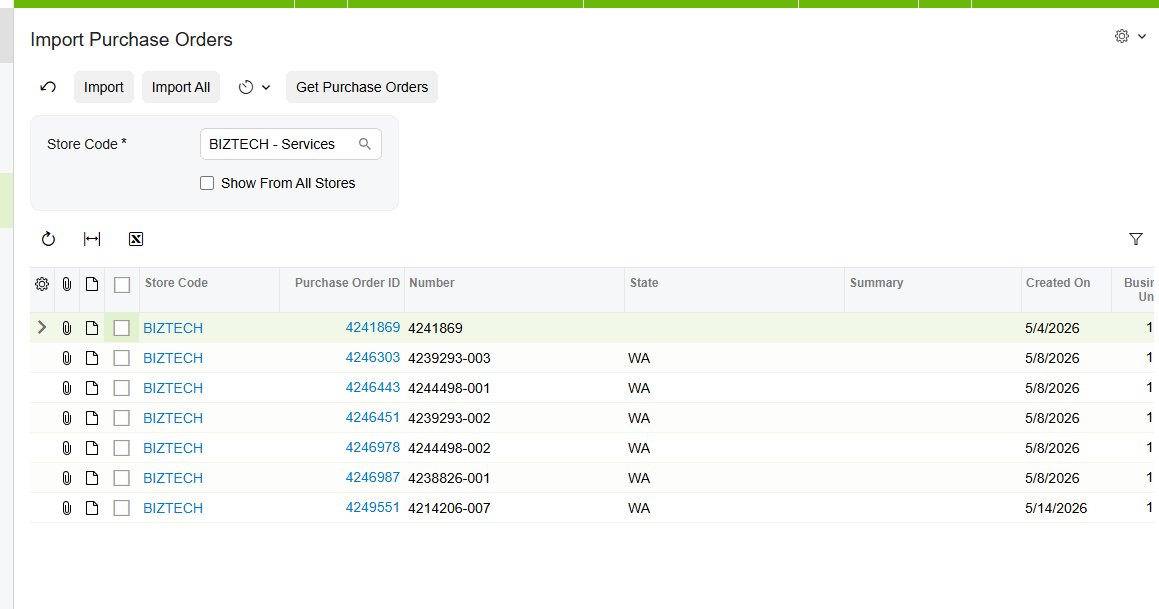
A PO receipt cannot be imported until its related purchase order has already been imported. When the purchase order exists, the receipt import locates it and attaches the receipt document in the PO History tab of the Purchase Orders screen. If Release is selected in store setup, the receipt imports with a Released status; otherwise, the source says it imports with a Balanced status. The Biz-Tech Services Acumatica ServiceTitan Integrator supports this documented order-of-operations dependency.
Allocation and Reconciliation Limits in the Documentation
The supplied source does not describe inventory allocation, reservation, availability calculations, pick or fulfillment logic, warehouse replenishment, cycle counts, or a formal inventory reconciliation report. It also does not identify stock inquiry screens, screen IDs, or fields for comparing ServiceTitan movement quantities to Acumatica quantities.
A practical review should therefore focus on what the source does document: the store configuration, item class and UOM inputs, item mappings, warehouse and truck mappings, transaction selection, release settings, and the PO History attachment behavior for imported receipts. Use implementation testing to establish any allocation or reconciliation procedure that the business needs.
Where to Check Your Work
1 ServiceTitan Stores screen for the store record and its Inventory area
2 Connection Settings tab for testing credentials used to connect to the ServiceTitan store through the API
3 Inventory tab for loaded Materials, Equipment, and Services
4 Import Item and Generate Item from ServiceTitan options for the selected item-import approach
5 Stock Item Class, Non-Stock Item Class, and Unit of Measure values used for generated items
6 Warehouses mapping area for ServiceTitan Warehouse and Truck IDs mapped to Acumatica warehouses
7 Business Units mapping area for ServiceTitan Business Unit IDs mapped to Acumatica branches
8 Inventory Transactions tab for receipts, transfers, adjustments, returns, and release-after-import choices
9 Import ServiceTitan Purchase Orders screen for the required related purchase order
10 Import ServiceTitan Receipts screen and the PO History tab of the Purchase Orders screen for an imported receipt
ServiceTitan Inventory Sync Frequently Asked Questions
Which ServiceTitan items become stock items in Acumatica?
The source states that Materials and Equipment create stock items, while Service creates non-stock items.
Can ServiceTitan items be manually mapped to Acumatica items?
Yes. The source says ServiceTitan items can be manually mapped with Acumatica items instead of being created through the generation option.
How are ServiceTitan warehouses mapped in Acumatica?
Load Warehouses retrieves ServiceTitan Warehouse and Truck ID values. Those values can be manually mapped with Acumatica Warehouse values.
Can receipts, transfers, adjustments, and returns be released after import?
The source lists a release-after-import checkbox for each of those transaction types. When selected, it allows the document to be imported and released in Acumatica.
Why cannot a ServiceTitan PO receipt be imported?
The related ServiceTitan purchase order must already be imported. The source gives the error text POOrder document for Receipt 433272225 has not been created yet for an attempted receipt import without that purchase order.
Does the connector define how inventory quantities are calculated?
No. The source identifies item classes and UOM as item-generation settings, but it does not define the movement quantity calculation or stock-availability calculation.
Does the source describe inventory allocation or reconciliation?
No. Allocation and a formal reconciliation process are not described in the supplied documentation.
Work With the Biz-Tech Services ServiceTitan Connector
The documented ServiceTitan inventory workflow centers on store setup, item generation or manual item mapping, warehouse and truck mapping, transaction configuration, and the purchase-order dependency for receipts. It does not document every inventory-control detail, especially allocation, quantity calculation, and reconciliation. For help configuring the Biz-Tech Services ServiceTitan Acumatica Connector around your Acumatica item and warehouse design, visit https://biz-techservices.com to discuss the integration with Biz-Tech Services.
How Salesforce Orders Affect Inventory Allocation in Acumatica
Salesforce orders affect inventory allocation in Acumatica only through the sales order they create during import. The Salesforce integration documentation identifies the default warehouse, order type, item matching, and order status inquiry, but it does not document Acumatica allocation rules, available quantity calculations, lot or serial handling, or warehouse transfer behavior.
That distinction matters when a sales team expects a Salesforce order to reserve stock. The import can place the order in an Acumatica document type and default warehouse, while the inventory consequences depend on the Acumatica sales order configuration outside the supplied Salesforce documentation. This article explains the documented handoff and the checks a team should make before treating imported demand as allocated inventory.
What the Salesforce Order Import Documents
The Biz-Tech Services Salesforce Acumatica Connector provides Salesforce Store settings for order import. In Order Settings, the documented Default Import Options include Order Type and Warehouse ID. The Order Type indicates the document type where the order is imported and placed in Acumatica. Warehouse ID defines the default warehouse for the order.
The documentation also says that Get Orders retrieves Salesforce orders related to the setup date in Order Settings. Import brings selected displayed orders into Acumatica, while Import All imports all displayed orders. The Salesforce Orders Inquiry then shows the initial Salesforce order details together with the Acumatica SO number and SO status.
Salesforce Inventory Handling at a Glance
Use the following sequence to understand what the integration documents and where Acumatica inventory processing begins.
1 Configure the Salesforce Store with an Order Type and default Warehouse ID
2 Set whether customers and items can be created during order import
3 Retrieve Salesforce orders with Get Orders based on the last imported order date
4 Import a selected order or all displayed orders into the configured Acumatica document type
5 Match an order item by Salesforce Product SKU to an Acumatica Inventory CD, or create the item if Import Item is enabled
6 Review the resulting SO number and SO status in Salesforce Orders Inquiry
7 Apply your Acumatica sales order and inventory policies to determine whether the imported demand is allocated, available, shipped, or otherwise processed
The Biz-Tech Services Acumatica Salesforce Connector supports the integration setup and import path above. The supplied manual does not say that Salesforce itself calculates, commits, or reserves Acumatica quantities.
Quantity Basis Starts With the Imported Sales Order
The source documentation explains how an item is found during an order import: the integration searches the Acumatica Inventory CD using the Salesforce Product SKU. If a matching inventory item is found, it retrieves that item. If no item is found and Import Item is not enabled, the documented error is “The item {0} does not exist in the system”.
This identifies the item matching basis, but not a quantity availability basis. The manual does not state which quantity fields are evaluated before import, whether Salesforce on-hand figures are sent to Acumatica, or whether a Salesforce quantity is checked against available inventory. A team should therefore avoid representing an imported order as inventory-confirmed until its Acumatica order and inventory settings have been reviewed.
If Import Item is selected, new items can be created in Acumatica based on configured settings. If it is not selected, the program prohibits import and creation of items unless the corresponding items already exist in Acumatica. Add Items in Inventory Sync enables synchronization with Salesforce items, but the source does not define inventory quantity synchronization or stock availability synchronization.
How the Default Warehouse Shapes the Imported Order
The Biz-Tech Services Salesforce Acumatica Integration documents Warehouse ID as the field used to define the default warehouse for an order. That is the clearest warehouse control described in the manual. It means the store setup supplies a warehouse value for imported orders, rather than the manual describing a warehouse selected from each Salesforce order.
The source does not describe multiple-warehouse selection, warehouse mapping tables, location-level assignment, branch-to-warehouse logic, or reallocation after import. It also provides no screen ID for the Salesforce Store, Import Salesforce Orders, or Salesforce Orders Inquiry screens. If a business has more than one fulfillment warehouse, it should validate the imported sales order in Acumatica and confirm that the configured default Warehouse ID is appropriate for the actual fulfillment process.
Allocation Is an Acumatica Policy Decision Not a Salesforce Import Setting
The Biz-Tech Services Acumatica Salesforce Integration does not document a setting called allocation, an allocation status, or a rule that reserves stock when an order is imported. It documents the order type and default warehouse that shape where the order is placed. Whether the resulting Acumatica sales order allocates inventory depends on Acumatica configuration and operational steps that are outside this Salesforce integration guide.
For that reason, use the imported SO number and SO status as the integration evidence, not as proof of allocated stock. The manual says these values are visible in Salesforce Orders Inquiry. It does not define which SO statuses indicate allocation, shipment, backorder, fulfillment, or release. Teams should establish their own Acumatica status and allocation checks with the inventory administrator.
Stock Visibility and Item Synchronization Limits
The Biz-Tech Services Salesforce Acumatica Integrator supports item-related operations through the Item Settings and Item Details areas. Load Acumatica Items retrieves Acumatica items and displays them in a table. Sync to Salesforce creates or updates Acumatica items in Salesforce. Sync All from Salesforce retrieves and creates Salesforce items in Acumatica.
Item Details includes the synced item Salesforce ID, product code, product name, price, and weight. Those fields support product record visibility. The documentation does not list on-hand quantity, available quantity, allocated quantity, safety stock, warehouse quantity, or a stock synchronization schedule. It therefore cannot support a claim that Salesforce inventory visibility is real-time, warehouse-specific, or based on allocated inventory.
Price books have separate behavior. The Price Book Details tab can load Salesforce price books based on Last Imported Price Book Date, and Export Salesforce Price Books sends only items that have been updated or changed. Price book activity should not be confused with stock synchronization because the source describes list prices and products, not inventory balances.
Reconciliation Checks After an Import
The Biz-Tech Services Acumatica Salesforce Integrator gives operations staff a documented path for reconciling the integration result. Start in Import Salesforce Orders, where Get Orders, Import, and Import All control the import process. Then select the Order ID hyperlink to open Salesforce Orders Inquiry and compare the Salesforce order details with the Acumatica SO number and SO status shown there.
1 Confirm the Salesforce Store Order Type and default Warehouse ID before retrieving orders
2 Confirm that the imported order received the intended Acumatica SO number and SO status
3 Review whether the Salesforce Product SKU matched an Acumatica Inventory CD or required item creation
4 Review customer behavior: Import Customer creates a new customer with email, contact information, and the selected customer class, while an unselected setting uses the default customer
5 Review shipping and billing addresses because the manual documents override checkboxes, but its opposite-case wording is contradictory
6 Use your Acumatica inventory process to verify availability and allocation because the Salesforce manual does not provide those checks
Order Updates Do Not Establish Inventory Reconciliation
Sync Orders To Salesforce can process updated imported order data from Acumatica back to Salesforce. At the line level, the guide says it can update line description, discount code, discounted amount, and added or deleted lines. At the document level, it can update addresses, country, order date, description, total, freight, discount, and tax amounts.
The Biz-Tech Services Salesforce Acumatica Integrator can therefore support order-detail updates back to Salesforce. However, the guide does not say that inventory allocations, warehouse changes, quantity availability, shipments, or fulfillment statuses are sent back. It also says only modified orders with On Hold or Open status are displayed on this screen. Use that documented filter when investigating a missing order, but do not infer a broader inventory synchronization rule.
How Salesforce Orders Affect Inventory Allocation in Acumatica Frequently Asked Questions
Does importing a Salesforce order allocate inventory in Acumatica?
The supplied Salesforce integration documentation does not state that import allocates inventory. It documents the order type, default Warehouse ID, item matching, and the resulting SO number and SO status. Confirm allocation through your Acumatica sales order and inventory configuration.
Which warehouse is used for an imported Salesforce order?
The Salesforce Store Order Settings documentation says Warehouse ID defines the default warehouse for the order. The manual does not describe warehouse mapping by Salesforce order, multiple warehouses, or location-level handling.
How does the integration identify the item on a Salesforce order?
It searches the Acumatica Inventory CD using the Salesforce Product SKU. If it cannot find the item and item import is not enabled, the source documents the error The item {0} does not exist in the system.
Can Salesforce show Acumatica available quantity or allocated quantity?
The source does not document an available quantity, on-hand quantity, allocated quantity, or inventory balance synchronization feature. It documents item IDs, product code, product name, price, and weight.
Where can I verify that an order was imported?
Use the Order ID hyperlink on Import Salesforce Orders to open Salesforce Orders Inquiry. The guide says that inquiry shows initial Salesforce order details along with the Acumatica SO number and SO status.
Why did an item fail to import from Salesforce?
When Import Item is not selected, the item must already exist in Acumatica. The documented matching uses Salesforce Product SKU against the Inventory CD, and the guide gives the missing-item error text.
Can a changed Acumatica order be sent back to Salesforce?
Yes, the guide documents Sync Orders To Salesforce for selected imported order changes. It limits the displayed modified orders to On Hold or Open status and does not document inventory allocation or shipment updates.
Work With the Biz-Tech Services Salesforce Acumatica Connector
A reliable process separates what the Salesforce import is documented to do from what Acumatica inventory policy must decide. Configure the default warehouse and order type carefully, validate the imported SO number and SO status, and use Acumatica controls to confirm availability and allocation before promising fulfillment.
For help aligning Salesforce order imports with your Acumatica warehouse and inventory process, work with the Biz-Tech Services Salesforce Acumatica Connector team. Visit https://biz-techservices.com to learn more about Biz-Tech Services integrations.
How PayPal Payments Affect Inventory and Order Status in Acumatica
PayPal payments affect order status in Acumatica by creating an Accounts Receivable payment that remains on Hold until PayPal confirms the invoice has been fully paid. The payment request can start from a sales order, an invoice, or a standalone payment, but the documented integration does not change inventory quantities, warehouse balances, allocations, or replenishment settings.
For teams using the Biz-Tech Services PayPal Acumatica Connector, the practical control point is the payment lifecycle: Sent, Partially Paid, Paid, Cancelled, Refunded, or Partially Refunded. This article focuses on that lifecycle and its relationship to sales-order and invoice payment records; for the request-creation workflow, see How to Create PayPal Invoices from Acumatica Orders.
How PayPal Payments Affect Order Status in Acumatica
The integration is a customization for sending payment invoices to customers, checking their payment status, and applying the resulting action to the AR Payment record. A request sent from Sales Orders creates an AR Payment linked to the order. A request sent from an AR invoice creates a payment pre-applied to that invoice. In either case, the initial payment is placed on Hold with a Sent status while the customer receives the invoice by email.
The integration checks the provider only when a user triggers a check. A fully paid invoice releases the payment. A cancelled invoice deletes the AR Payment. A partial payment records the amount received but keeps the original payment on Hold until the entire invoice is paid.
PayPal Payment Status at a Glance
Use this sequence to understand what the documented status check changes.
1 Sent: the invoice was sent, the AR Payment remains on Hold, and no release action occurs.
2 Partially Paid: the provider reports PARTIALLY_PAID; the PayPal Paid Amount is updated, but the AR Payment stays on Hold at its original amount.
3 Paid: the provider reports PAID or MARKED_AS_PAID; the system confirms the payment amount, releases the payment, and stores the transaction ID.
4 Cancelled: the provider reports CANCELLED; the AR Payment record is deleted.
5 Refunded: a full refund voids the payment and stores the refund ID.
6 Partially Refunded: the integration updates the status and refund ID, but a user must create a Credit Memo for the refunded amount because the payment record is not automatically partially voided.
Before You Send a PayPal Payment Request
The Biz-Tech Services Acumatica PayPal Integrator requires Accounts Receivable and Sales Orders, a Business account, and API credentials. For testing, the manual specifies a Sandbox account with its own credentials. The server must be able to reach the appropriate endpoint over HTTPS on port 443.
Set up the payment method in Payment Methods (CA205000). Enter the Client ID and Client Secret, supply the Sandbox and Live base URLs as appropriate, select Is PayPal Payment, test the connection, and add the cash or bank account on the Allowed Cash Accounts tab. When a Sandbox URL is populated, the integration uses it and ignores the Live URL.
Each payer also needs a Customer Payment Method in Customer Payment Methods (AR303010) screen with a PayPal email address. That email is carried into new payments, although it can be overridden for a one-off payment.
From Sales Order or Invoice to a PayPal Payment
The Biz-Tech Services PayPal Acumatica Integration provides three documented entry points. In Sales Orders (SO301000), use Create Payment on the Payments tab, supply the cash account and payment reference, then use New Request PayPal Payment. The integration reads the order total, currency, and customer details, creates the linked AR Payment, sends the PayPal invoice, and stores the PayPal invoice identifiers and URL on the payment.
If billing has already been posted, open the invoice through Invoices (SO303000) and use Request PayPal Payment. The payment is pre-applied to the invoice, and the PayPal invoice amount matches the outstanding AR invoice balance. For a deposit or another standalone request, create a payment in Payments and Applications (AR302000), select the PayPal method, enter the amount, optionally apply it to an order or invoice, and use Send PayPal Request.
After a request is sent, the Payment Method ID is locked to prevent an accidental change. The result is a payment-status workflow, not an inventory transaction. The manual does not describe a PayPal request as changing stock availability or shipping quantities.
How Status Checks Change the AR Payment
The Biz-Tech Services Acumatica PayPal Integration checks status on demand rather than in the background. For one payment, open Payments and Applications (AR302000), confirm that it is Sent or Partially Paid and on Hold, then select Remove Hold. The integration calls PayPal and applies the action associated with the returned status.
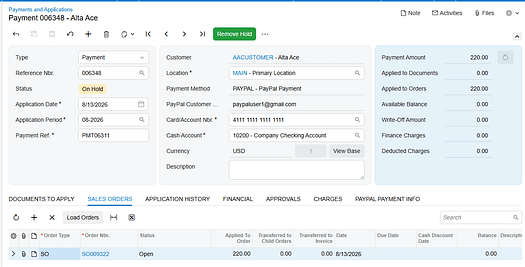
If the invoice is still SENT, the system reports that it cannot release the payment because it has not been paid, and no record changes are made. If it is PAID, the payment is released. If it is CANCELLED, the payment record is deleted. For several outstanding requests, use the Check PayPal Payment Status processing screen under the Sales Order Processes module, select rows, and use Process or Process All. The processing log shows results for the checked records.
Partial Payments and Refunds
The Biz-Tech Services PayPal Acumatica Integration recognizes multiple payments against the same invoice. When the provider reports PARTIALLY_PAID, the PayPal Paid Amount field receives the cumulative amount collected. The payment amount does not change, and the payment remains on Hold until the provider reports a full payment. This lets the accounts-receivable record retain the agreed amount while the customer returns to the same invoice for the remainder.
For a full refund, use Void Check or Refund on the released AR Payment. The integration calls the provider, voids the payment through the standard workflow, stores the refund ID, and sets the PayPal Invoice Status to Refunded. If a partial refund is issued directly in the portal, the next status check identifies PARTIALLY_REFUNDED, but the user must create the Credit Memo manually.
Inventory and Warehouse Scope
The article-plan topic includes inventory, warehouse, quantity, allocation, and reconciliation handling. The Biz-Tech Services PayPal Acumatica Integration user guide does not document any inventory quantity basis, warehouse mapping, inventory allocation rule, stock-visibility update, or inventory reconciliation process. Its documented scope is PayPal invoice creation and AR Payment status handling.
Accordingly, do not treat a payment status change as evidence of an inventory adjustment. The source supports monitoring payment and order-linked records, not changing inventory records. If a business needs inventory allocation or warehouse actions to follow payment collection, those rules must be confirmed in its own configuration rather than inferred from this integration guide.
Where to Check PayPal Payment Results in Acumatica
The Biz-Tech Services PayPal Acumatica Integrator exposes the following documented places and fields for payment-status review.
1 Sales Orders (SO301000): review the order Payments tab and open the linked payment record.
2 Invoices (SO303000): review the pre-applied payment created when an invoice request was sent.
3 Payments and Applications (AR302000): review payment status, Hold status, and the Remove Hold action.
4 Check PayPal Payment Status: filter by PayPal Invoice Status and use Process or Process All for outstanding rows.
5 PayPal Customer Email: confirm the address to which the PayPal invoice notification was sent.
6 PayPal Invoice Status: distinguish Sent, Partially Paid, Paid, Cancelled, Refunded, and Partially Refunded.
7 PayPal Invoice ID and PayPal Invoice Number: identify the invoice created in PayPal.
8 PayPal Invoice URL: use the documented Open in PayPal link to access the PayPal invoice.
9 Transaction ID and Refund Number: identify the confirmed payment or refund transaction.
10 PayPal Paid Amount: monitor the cumulative amount received while an invoice is Partially Paid.
PayPal Payments and Order Status in Acumatica Frequently Asked Questions
Does a PayPal payment automatically release in Acumatica?
No. The integration does not poll PayPal automatically. Use Remove Hold for an individual payment or process records in the Check PayPal Payment Status screen. The payment releases when the check confirms that PayPal reports the invoice as fully paid.
What happens when a customer makes only a partial PayPal payment?
The payment stays on Hold at its original amount. The PayPal Paid Amount field is updated, and the customer can return to the same PayPal invoice to pay the balance. Acumatica releases the payment only after the invoice is fully paid.
Can a PayPal payment status change inventory quantities or warehouse allocation?
The supplied PayPal Integration guide does not document inventory quantity changes, warehouse mapping, allocation, or reconciliation. It documents AR Payment and PayPal-invoice status actions only.
Why is a payment still Sent after the customer says they paid?
Trigger a status check manually or through the processing screen, because Acumatica does not poll PayPal in the background. Also verify that the PayPal invoice is marked PAID in the PayPal account.
Why does Remove Hold say that the payment is not paid in PayPal?
The PayPal invoice is still unpaid. The guide describes this as expected behavior; wait for payment and check again later, or use the processing screen for a bulk check.
What happens when I cancel a PayPal invoice?
A payment in Sent status and on Hold can be cancelled from AR302000. The integration calls PayPal, sends the cancellation notification, and deletes the AR Payment. The guide states that cancellation is irreversible.
How should a partial PayPal refund be handled?
The Biz-Tech Services PayPal Acumatica Integrator records the Partially Refunded status and the refund ID after a check, but it does not partially void the payment. Create a Credit Memo manually for the refunded amount.
Work With the Biz-Tech Services PayPal Integration
Payment requests give users a controlled way to send invoices, monitor collection, release a fully paid AR Payment, and handle cancellation or refund outcomes. They do not, based on the supplied documentation, define inventory or warehouse behavior. To discuss the Biz-Tech Services Acumatica PayPal Integrator and the payment workflow for your environment, visit https://biz-techservices.com to learn more or schedule a personalized demonstration.
Check the video for more details: https://www.youtube.com/watch?v=wkjPKdLzv2M
How to Create Consignment Sales Orders in Acumatica
This guide shows you how to create a consignment sales order in Acumatica ERP, move stock into a customer-held consignment warehouse, and turn the units your customer sells into invoices without re-keying anything. Consignment selling breaks the usual rule that shipping equals revenue: the goods leave your building but stay yours until the consignee sells them. The Consignment Processing product from Biz-Tech Services, Inc. adds that distinction to Acumatica, so one order document can carry stock out, hold it at the customer site, and then bill or reclaim it piece by piece.
What follows is a hands-on walkthrough of the order itself: the setup you need before you can pick the order type, the sequence of entries and actions, the documents each action generates in Acumatica, the mapping rules that decide where consigned stock lands, and the errors and disabled buttons that stop users mid-task. Configuration is background here, mentioned only where it changes what happens during order entry.
Before You Start: What Must Be Configured
A consignment order in Acumatica will not behave correctly unless four pieces of setup are in place. The Consignment Processing customization project is published from the Customization Projects (SM204505) form, so if the Consignment Settings below are missing entirely, the package has not been published to your tenant yet.
1. Three consignment order types, defined in the Consignment Settings section of the Sales Orders Preferences (SO101000) form: the Consignment Order Type you select on the order, the Consignment Invoice Order Type used for invoices generated from consigned stock, and the Consignment Return Order Type used when unsold goods come back.
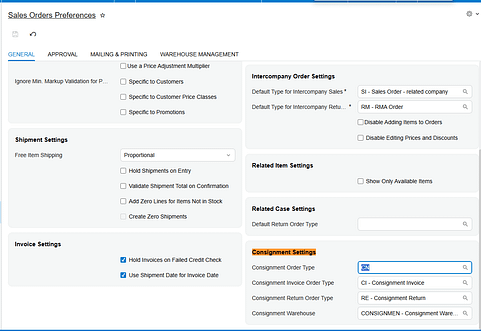
2. The right templates behind those types. The Consignment Order Type and the Consignment Return Order Type must both be created from the Transfer Order template, because both move stock between warehouses rather than recognizing a sale. The Consignment Invoice Order Type must come from the Invoice Order template, because that is the document that bills the customer.
3. A consignment warehouse, defined on the Warehouses (IN204000) form with the Use for Consignment check box selected. That check box designates the warehouse as a consignment location, and until it is selected the warehouse cannot be chosen in the Consignment Settings section at all.
4. A consignment warehouse on the customer record. The Consignment Warehouse associated with the selected customer is used for the sales order and overrides the default set in Sales Order Preferences. This is how a business with many consignees keeps each customer pointed at its own location.
The Consignment Warehouse field in Sales Order Preferences is a fallback, not a rule. It supplies the warehouse selected automatically when you choose a consignment order type on the Sales Orders form, and the customer-level value takes precedence. That hierarchy explains most of the "why did Acumatica pick that warehouse" questions users raise early on.
Creating a Consignment Sales Order, Step by Step
The whole process happens on the Sales Orders (SO301000) form your team already knows. What changes is the order type you pick, where each warehouse is allowed to go, and one extra action after the shipment. Work the steps in order; skipping the last one leaves consigned stock in an incomplete state.
Step 1: Select the Consignment Order Type
Open the Sales Orders form and set the Order Type to your consignment order type. The Biz-Tech Services documentation shows this type as CN, but what matters is the type your administrator entered in the Consignment Order Type field on Sales Orders Preferences. Selecting it switches the document into consignment behavior and triggers automatic selection of the consignment warehouse. Because the type is built from the Transfer Order template, Acumatica treats the document as a stock movement, which is why shipping it will not post revenue.
Step 2: Choose the Customer
Select the customer from the list. The consignment order is associated with that customer for the rest of its life, and the association is not cosmetic: the customer record is where Acumatica reads the consignment warehouse for the order. Changing the customer changes where the goods are destined to sit, so confirm it before adding lines.
Step 3: Add the Items to Be Consigned
Add the items to be shipped as part of the consignment order, with the quantities you intend to place at the customer site. Enter the full quantity you are willing to leave on consignment, not just what you expect the customer to sell, because that quantity is the pool the later sell and return actions draw from. There is no need to split the order by expected outcome; Acumatica tracks sold and unsold quantities against the same document.
Step 4: Apply the Destination Warehouse Versus Line Warehouse Rule
This is where new users get stuck. The consignment warehouse can only be selected as the destination warehouse; a standard, non-consignment warehouse can only be selected in the lines. Reverse them and Acumatica stops you with an error message. The lines say where stock is coming from and the destination says where it is going, so the customer-held location belongs in the destination and your own stocking warehouse belongs on each line.
Step 5: Confirm the Shipment
Proceed with the standard shipment confirmation process. Nothing here is special to consignment: warehouse staff pick, pack, and confirm exactly as they do for any Acumatica sales order. Confirming the shipment drives the consignment order status forward, so the order is not ready for the sell and return actions until at least part of it has been confirmed.
Step 6: Run Update IN
After the shipment is confirmed, open the Actions menu on the consignment order and click Update IN. This action reflects the consigned items in inventory. Until you run it, the goods have physically left but the Acumatica inventory records have not caught up, and the consignment-specific actions stay unavailable. Treat Update IN as a required step, not an optional refresh.
Once Update IN completes, the order carries a status of Consignment when all ordered quantities have shipped, or Partial Consignment when only part have gone out. Either status means Acumatica now recognizes the stock as sitting at the customer location and the order is ready to work.
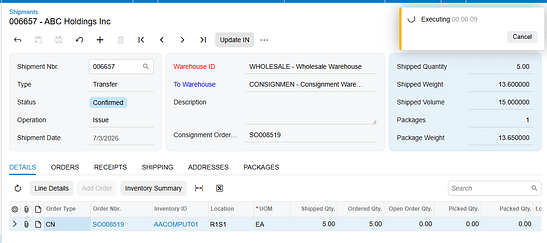
Document Triggers: What Each Action Creates
Three actions on a consignment order generate documents elsewhere in Acumatica. Knowing which action produces which document tells you where to look when something did not appear.
Update IN Creates a Transfer-Type Purchase Receipt
When you run Update IN on a confirmed consignment order, the corresponding items and quantities are issued from the main warehouse and received into the selected consignment warehouse. Acumatica automatically generates and releases a Transfer-type purchase receipt to record the movement. Because the receipt is created and released for you, no separate step is needed; a missing receipt usually means Update IN was never run.
Consignment Sell Items Creates a Consignment Invoice Order
The Consignment Sell Items action opens the Item Selection pop-up, where you select the items and quantities the customer has sold. After clicking Add and Close, Acumatica generates a consignment invoice order with the specified warehouse, items, and quantities, using the Consignment Invoice Order Type from Sales Orders Preferences. Once that invoice is prepared and released, the Cons. Sold Qty. field on the original consignment order is updated. Note the timing: sold quantity moves on release, not when you click Add and Close.
Consignment Return Items Creates a Consignment Return Order
The Consignment Return Items action opens the same Item Selection pop-up, where you specify the items and quantities coming back from the customer. Clicking Add and Close generates a consignment return order. The return then follows a process similar to the original consignment order, including its own Update IN, which creates a purchase receipt. Returning consigned stock is not a one-click reversal in Acumatica; it is a second short document you work to completion.
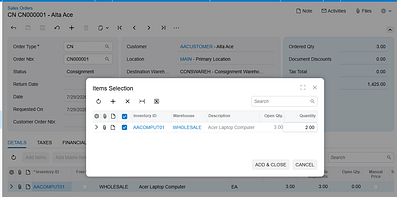
Mapping Rules That Decide Where Consigned Stock Lands
Two rules govern the destination of consigned inventory in Acumatica, and understanding them prevents most rework on consignment sales orders.
The first rule is positional. A warehouse flagged with Use for Consignment can only be selected as the destination warehouse; a standard warehouse can only be selected in the lines. Acumatica enforces this rather than silently correcting it, so an order that will not save is usually an order with the warehouses transposed. The plain-language version: the consignment warehouse is never a source. Stock always originates from a normal warehouse you control and terminates in the consignment warehouse that represents the customer site.
The second rule is precedence. The Consignment Warehouse field on Sales Orders Preferences is selected automatically when a consignment order type is chosen, but the consignment warehouse associated with the selected customer overrides it. Because the customer value wins, changing the customer on a draft order can change the destination under you. With a single consignee the Preferences default may be all you need; add a second and the customer-level warehouse becomes the field that matters.
Validation and Common Exceptions
Most of what interrupts a user on a consignment order in Acumatica is not an outright failure but a control that refuses to do anything. Here is what the product enforces and what each block means.
The Warehouse Placement Error
If you select a consignment warehouse anywhere other than the destination, or a standard warehouse anywhere other than the lines, Acumatica displays an error message with the corresponding notification and the entry does not stand. The fix is always the same: consignment warehouse in the destination, standard warehouse in the lines.
The Sell and Return Buttons Are Greyed Out
The Consignment Sell Items and Consignment Return Items buttons are enabled under the Actions menu only after Update IN has run and the consignment order has a status of Consignment or Partial Consignment. An order still at Open, or one shipped but not updated, shows both buttons unavailable. When a user reports that they cannot sell consigned items, check the status first and Update IN second.
The Buttons Disable Again on a Closed Order
When all ordered items have been shipped and all shipped items sold or returned, the consignment order status changes to Closed. Item quantities and statuses are updated and the Consignment Sell and Consignment Return buttons are disabled again. This is expected Acumatica behavior, not a permission problem: nothing is left at the customer site to sell or reclaim. If the customer needs more stock, the answer is a new consignment order.
Item-Level Detail Disappears for Closed Orders
Consignment information is available through two Acumatica generic inquiries: Consignment Orders for order-level data and Consignment Item Details for item-level data. The Consignment Item Details inquiry no longer displays item-level information for consignment orders once they reach Closed status, while order-level information for those same orders remains available in Consignment Orders. Users who audit line detail will hit this, so it is worth stating plainly rather than letting it look like missing data.
Consignment Statuses Do Not Match Sales Order Statuses
The statuses of consignment orders and of regular sales orders are entirely distinct and unrelated. Open means the order exists but none of the ordered quantities have shipped. Consignment means all ordered quantities have shipped for consignment. Partial Consignment means some have shipped and others remain pending. Closed means all actions on the order are complete. Do not fold these into standard Acumatica sales order reporting; they function independently.
Where to Check Your Work
Before you hand a consignment order off as finished, walk this list in Acumatica. Each item names a specific field, check box, or document, so a colleague can repeat the check without your context.
1. Order Type on the Sales Orders (SO301000) form matches the Consignment Order Type set in Sales Orders Preferences.
2. Consignment Order Type and Consignment Return Order Type on Sales Orders Preferences (SO101000) were both created from the Transfer Order template, and Consignment Invoice Order Type from the Invoice Order template.
3. The Use for Consignment check box is selected on the Warehouses (IN204000) form for the warehouse you are consigning into.
4. The destination warehouse on the order is the consignment warehouse, and every line warehouse is a standard, non-consignment warehouse.
5. The consignment warehouse on the order matches the Consignment Warehouse on the customer record, not just the Sales Order Preferences default.
6. The shipment has been confirmed for the quantities you expect to be at the customer site.
7. Update IN has been run from the Actions menu after shipment confirmation.
8․ A Transfer-type purchase receipt exists showing the issue from the main warehouse and the receipt into the consignment warehouse.
9․ The consignment order status reads Consignment or Partial Consignment and matches how much of the order actually shipped.
10․ Cons. Sold Qty. on the consignment order has updated after the consignment invoice was released.
11․ For a return, Update IN has been run on the consignment return order and its purchase receipt exists.
12․ The order appears in the Consignment Orders generic inquiry, and its lines appear in Consignment Item Details while the order is still open.
Creating Consignment Sales Orders: Frequently Asked Questions
Why can I not select my consignment warehouse on the order lines?
Because the product does not allow it. A warehouse flagged with Use for Consignment can be selected only as the destination warehouse, while a standard warehouse can be selected only in the lines. Either one placed the other way around produces an error message in Acumatica. Move the consignment warehouse to the destination and put your own stocking warehouse on the lines.
Why are the Consignment Sell Items and Consignment Return Items buttons disabled?
Those actions become available only after Update IN has run and the consignment order carries a status of Consignment or Partial Consignment. If the order is still Open, or the shipment was confirmed but Update IN was never clicked, both buttons stay unavailable. They also disable permanently once the order reaches Closed status.
Why did no purchase receipt appear after I shipped a consignment order in Acumatica?
Confirming the shipment does not create the receipt on its own. The Transfer-type purchase receipt is generated and released automatically by the Update IN action on the Actions menu of the consignment order. If the receipt is missing, open the order and check whether Update IN has been run.
Why has Cons. Sold Qty. not increased after I used Consignment Sell Items?
Selecting items in the Item Selection pop-up and clicking Add and Close only generates the consignment invoice order. Cons. Sold Qty. on the consignment order updates once that invoice has been prepared and released. If the number has not moved, the invoice is most likely still unreleased.
Which warehouse wins, the one on the customer or the one in Sales Order Preferences?
The customer wins. The Consignment Warehouse on Sales Orders Preferences is the default selected automatically when you pick a consignment order type, but the consignment warehouse associated with the selected customer overrides it for that order. This is what lets one Acumatica tenant consign to many customer locations from a single configuration.
How do I return unsold consigned stock?
Use the Consignment Return Items action on the consignment order, select the items and quantities in the Item Selection pop-up, and click Add and Close. That generates a consignment return order, which you process much like the original consignment order. Running Update IN on the return creates its purchase receipt.
Why can I no longer see line detail for an old consignment order?
The Consignment Item Details generic inquiry stops displaying item-level information for consignment orders once they reach Closed status. This is by design rather than a data problem. Order-level information for those orders is still available through the Consignment Orders generic inquiry.
Do consignment order statuses mean the same thing as regular sales order statuses?
No. The statuses of consignment orders and regular sales orders are entirely distinct and unrelated, and they function independently within their own processes. Open, Consignment, Partial Consignment, and Closed describe only the consignment lifecycle, so do not interpret them against standard Acumatica sales order reporting.
Work With the Biz-Tech Services Consignment Processing Product
Creating a consignment sales order in Acumatica comes down to a short, repeatable sequence: pick the consignment order type, pick the customer, add the items, keep the consignment warehouse in the destination and the standard warehouse on the lines, confirm the shipment, and run Update IN. From there the order is a working record of what sits at the customer site. The Consignment Processing product from Biz-Tech Services, Inc. adds all of this to Acumatica ERP so your business can manage quantities and valuation of inventory across multiple consignee locations, see sold versus unsold quantities at a glance, and invoice or reclaim stock straight from the consignment order.
To see how Consignment Processing fits your inventory and order processes, or to talk through configuring consignment order types and warehouses for your Acumatica environment, visit https://biz-techservices.com to learn more and to contact the Biz-Tech Services team.
Watch the video tutorial https://www.youtube.com/watch?v=afFwt8-gZCM